Use Bash to automate short sequences of terminal commands. Start with a script you run explicitly through bash, test it with good and bad input, then learn the next feature your task needs. Use a POSIX-compatible shell for strict portability and Python when the work is mostly application or data logic.
What you need before writing a Bash script
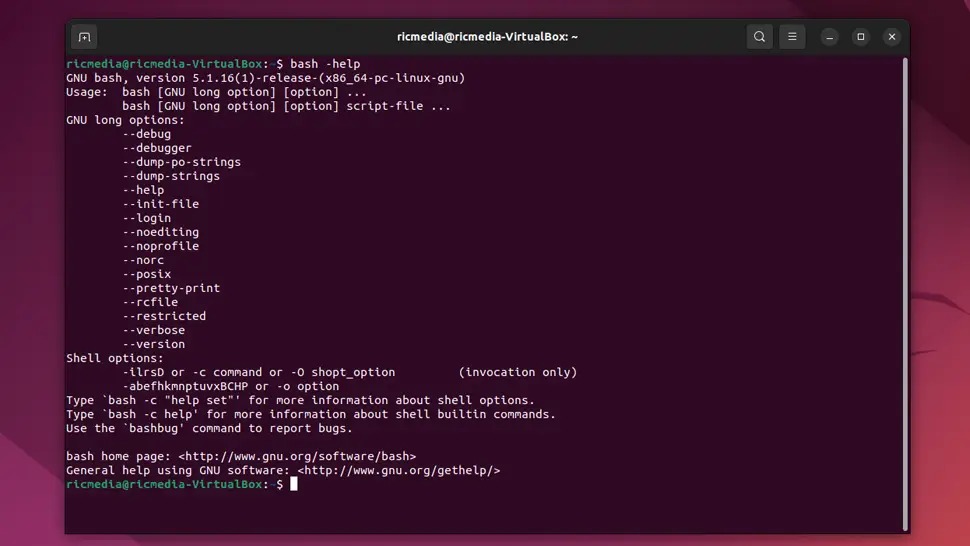
You need a terminal that can run GNU Bash and enough command-line familiarity to navigate directories with cd and inspect them with ls. Linux, WSL, and macOS can all run Bash, but opening a terminal doesn't tell you which shell is installed or active. Run command -v bash to locate Bash and bash --version to see its version. If either command fails, get Bash working before continuing.
Write and run your first Bash script
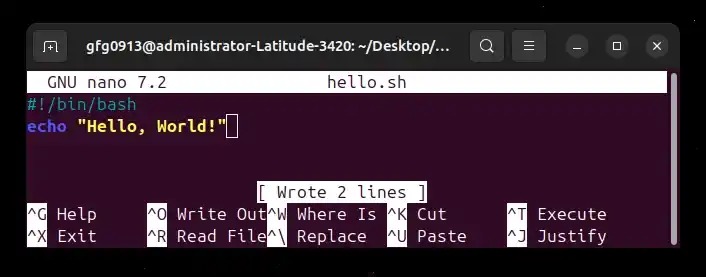
A Bash script is a text file of commands that the Bash interpreter runs. To try one, save two lines and run the file.
In a directory where you can create files, run this command to write hello.sh:
cat > hello.sh <<'BASH'
#!/usr/bin/env bash
printf 'Hello from Bash\n'
BASH
The quoted BASH marker ends the input block and keeps its contents literal. Run it with Bash:
bash hello.shThe output is:
Hello from Bashprintf writes the message followed by a newline. The first line, which starts with #!, names the interpreter to use when you run the file directly.
| Command | Which interpreter runs it | Needs execute permission? |
|---|---|---|
bash hello.sh | Bash, named explicitly | No |
./hello.sh | Whatever the shebang names | Yes |
sh hello.sh | The system's sh | No |
To use the second method, make the file executable for yourself, then run it directly:
chmod u+x hello.sh
./hello.sh
The shebang's /usr/bin/env bash form uses env to find Bash through your command search path, so Bash must be installed for direct execution to work. The .sh suffix is only a naming convention. bash runs any readable file whatever its extension.
Run the examples below with bash, not sh, because they use Bash syntax.
A useful first project: report files without changing them
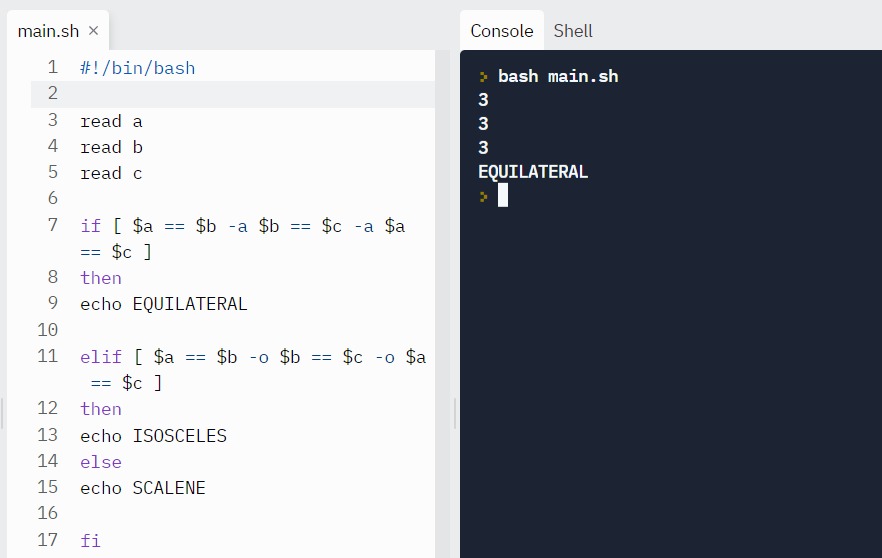
This script takes a directory path, prints the names of the matching files it finds, and reports the total. The exercise runs in a temporary workspace that includes a folder name and a filename with spaces. The script never changes the files it reports on. Run the report on a test directory you can inspect, then compare its normal output with its behavior when the directory is missing.
A programmer with C++ and Python experience wrote in r/bash: “I thought i shall learn Bash to automate terminal regular works.”
Prepare a disposable workspace
Create a temporary directory, then add two empty sample files inside a folder named report source:
workspace=$(mktemp -d)
mkdir "$workspace/report source"
: > "$workspace/report source/notes.txt"
: > "$workspace/report source/project plan.txt"
The colon is a no-op command. The redirection creates each empty file. Now the input directory holds notes.txt and project plan.txt.
Build the report
This command saves the whole script as file-report.sh in that workspace:
cat > "$workspace/file-report.sh" <<'BASH'
#!/usr/bin/env bash
if (( $# != 1 )); then
  printf 'Usage: %s DIRECTORY\n' "${0##*/}" >&2
  exit 2
fi

folder=$1
if [[ ! -d "$folder" || ! -r "$folder" || ! -x "$folder" ]]; then
  printf 'Cannot read directory: %s\n' "$folder" >&2
  exit 1
fi

count=0
for file in "$folder"/*; do
  [[ -f "$file" && ! -L "$file" ]] || continue
  printf 'File: %s\n' "${file##*/}"
  ((count += 1))
done
printf 'Total: %d\n' "$count"
BASH
Run it with the directory path as the only argument:
bash "$workspace/file-report.sh" "$workspace/report source"For the practice directory, the output is:
File: notes.txt
File: project plan.txt
Total: 2
Read the script step by step
- Accept one argument.
$#counts the arguments and$1holds the directory path. The first guard rejects any other count. - Check the directory.
-dtests that the path is a directory.-rand-xtest that it's readable and searchable. - Match file entries. The
forloop walks through"$folder"/*.-fand! -Lkeep regular files and skip symbolic links. - Print names.
${file##*/}strips the directory prefix and leaves just the final name. - Keep a total.
((count += 1))adds one to the count. Unlike((count++)), it doesn't return a failure status when the count starts at zero.
With Bash's default pathname-expansion settings, the script counts only non-hidden regular files directly inside the directory and doesn't descend into subdirectories. Shell options that change glob matching can change that scope.
Quoting variables and reading arguments
A path with a space in it still names one file, but an unquoted variable gets split into words and then expanded as a filename pattern. Compare the same value with and without double quotes:
name='project plan.txt'
printf '<%s>\n' "$name"
printf '<%s>\n' $name
The output is:
<project plan.txt>
<project>
<plan.txt>
In file-report.sh, "$folder"/* quotes the directory value and leaves * free to match entries inside it. Later, "$file" keeps each resulting path intact when it's passed to a test or command. Quoting the whole expression, star included, would change what it matches.
"$1" expands the first argument as one value. "$@" expands every argument as its own word. The script needs one directory, so it uses $1.
Exit statuses and error messages
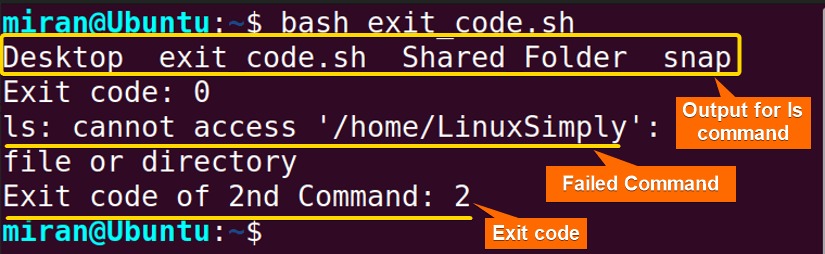
Every command reports an exit status when it finishes. By convention, zero means success. A nonzero value signals a failure or another condition the program defines. The script uses two different statuses so you can tell the rejected inputs apart.
When the argument count is wrong, the script writes Usage: file-report.sh DIRECTORY to standard error and exits with status 2. A directory that fails the checks prints Cannot read directory: ... to standard error and exits with status 1. Normal report lines go to standard output.
>&2 sends error messages to standard error. $? holds the status of the most recent command, so a later successful command overwrites the evidence of an earlier failure. In each guard, the explicit exit stops the script before it prints anything else.

Where set -e can mislead
Bash's set -e option, also called errexit, skips some failures inside conditional and compound commands, so a nested failure won't always stop the script. The GNU Bash set builtin documentation lists those conditions.
In an r/bash thread about a cleanup task that stopped halfway, the poster wrote: “One day it reported success while half the work hadn’t happened.”
In a GNU Bash 5.2.37 test, a function called as an if condition kept running after a failing false command, reached a successful printf, and returned success to the if.
Both input guards end in explicit nonzero exit statements.
Check syntax, lint warnings, and real behavior separately
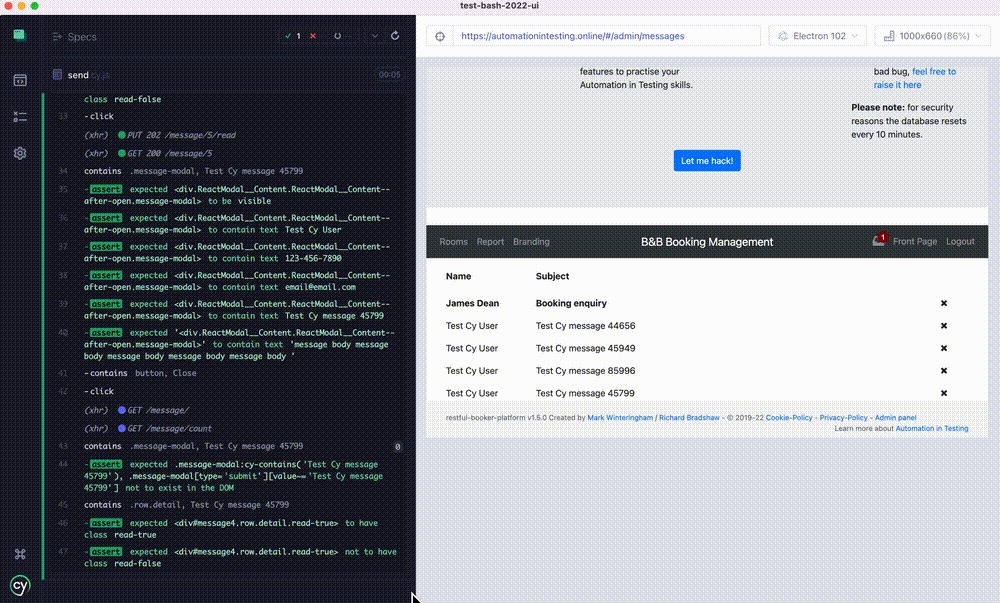
A script can parse cleanly and still give the wrong result for its input.
First, have Bash check the file for syntax errors without running it:
bash -n "$workspace/file-report.sh"If ShellCheck is installed, run it to catch mistakes in the source:
shellcheck "$workspace/file-report.sh"Exercise normal, empty, and invalid inputs
Create an empty directory inside the temporary workspace:
mkdir "$workspace/empty"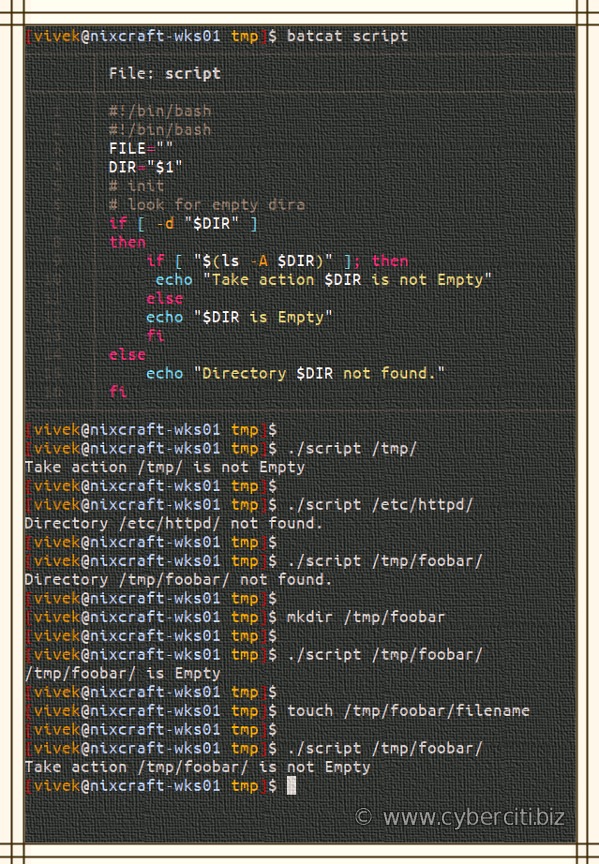
Run the cases below. For an error case, print $? right after the script runs so no other command replaces its status:
# Ordinary input
bash "$workspace/file-report.sh" "$workspace/report source"

# Empty directory
bash "$workspace/file-report.sh" "$workspace/empty"

# Missing argument
bash "$workspace/file-report.sh"
printf 'Exit status: %d\n' "$?"

# Nonexistent directory
bash "$workspace/file-report.sh" "$workspace/missing"
printf 'Exit status: %d\n' "$?"| Test case | Expected visible result | Exit status |
|---|---|---|
| Two regular files | Two File: lines, Total: 2 | Successful run |
| Empty directory | Total: 0 | Successful run |
| Missing argument | Usage message on stderr | 2 |
| Nonexistent directory | Directory error on stderr | 1 |
bash -n | No output for this valid file | 0 |
In the empty directory, the unmatched wildcard isn't counted as a file, so the total is 0.
A read-only script must leave its input files alone. Compare the sample files and their contents before and after the script runs.
When to use Bash and when to use something else
Bash suits tasks that mostly coordinate commands already in your terminal. Your shell environment and the kind of data the script handles also decide the right language.
| Main task | Use | Why |
|---|---|---|
| Repeat a short sequence of terminal commands | Bash | Uses shell commands and Bash control flow |
| Run shell logic with strict POSIX portability | POSIX-compatible sh | Avoid Bash-specific constructs |
| Work extensively with structured data, libraries, or application logic | Python | Python's libraries and language features suit this work better |
A script that uses Bash's [[ ... ]] conditional syntax needs a rewrite to run in a POSIX-only environment.

Decide on Python by maintenance needs, the shape of the task, and the tools you have, not by line count. If you already know Python, Bash is still worth learning for command-driven tasks.
What to learn after your first working script
Pick the row that matches the job in front of you:
| Your next task | Topic to study |
|---|---|
| Store inputs and environment values | Bash variables and expansion |
| Choose between two actions | If/else statements |
| Evaluate file tests and comparison operators | Bash conditions |
| Repeat work over several paths | For loops |
| Continue until a condition changes | While and until loops |
| Reuse logic in multiple places | Bash functions |
| Store groups of related values | Bash arrays |
| Connect output, errors, and pipelines | Redirection and pipelines |
| Choose among several named cases | Case statements |
Explore related guides
- Bash if, elif, and else Statements
- Bash for Loops: Syntax, Arrays, Ranges, and Files
- Bash Functions: Arguments, Return Values, and Scope
- Bash while and until Loops: Syntax, Examples, and Common Traps
- Bash Arrays: Indexed, Associative, and Safe Iteration
- Bash Tests and File Checks: Choose the Right Operator
- Linux Environment Variables and PATH: Where to Set Them
- Bash Redirection, Pipes, and Exit Codes: Where Output Goes and How Failures Surface
- Bash Case Statement: Syntax, Pattern Matching, and Examples
