When WordPress breaks, work out which operation failed and what access you still have, then follow the diagnosis that fits. An admin-only error, a broken feature and a staging failure each need a different investigation. If you lack the access or the evidence, send the details to the site owner or host.
A WordPress error can take down a whole site or break one small part of it. Start by separating the request that fails from the requests that still work.
Find out what is broken
Test the public homepage, the page or action that fails, and /wp-admin if you can log in. Write down the exact error text or HTTP status for each failure. If the whole site looks down, try it from another network or location. Your connection alone can be the problem.
A site owner on r/Wordpress described an admin-only failure: “My site is live, but trying to access admin is giving the "There has been a critical error on this website." message for all pages in admin.” A working homepage proves nothing about login, editing, commenting or other functions.
Capture three details while the failure is visible:
- Location or action: The URL, dashboard screen or task that fails.
- Observed result: The exact message, status code or blank response.
- Who is affected: Visitors, logged-in editors, administrators, or everyone who has tried.
Note what changed and where
Note when the problem first appeared and when the site last worked correctly. List any plugin, theme, WordPress, PHP, hosting, deployment, migration or DNS changes between those two points. Check the change closest to the failure first. Timing alone doesn't prove it caused the problem.
A maintainer on r/Wordpress with a broken staging installation wrote, “The main site is working just fine so I'm confused how this can even happen?”
Say whether the problem affects production, staging or another environment. A good one-line note reads: Staging editor failed after deployment. Production was reported working. Cause still unknown.
Protect your recovery options first
Reading a notice or a log leaves the installation unchanged. Disabling a plugin, editing configuration, modifying the database or restoring a backup changes what visitors and administrators can do.
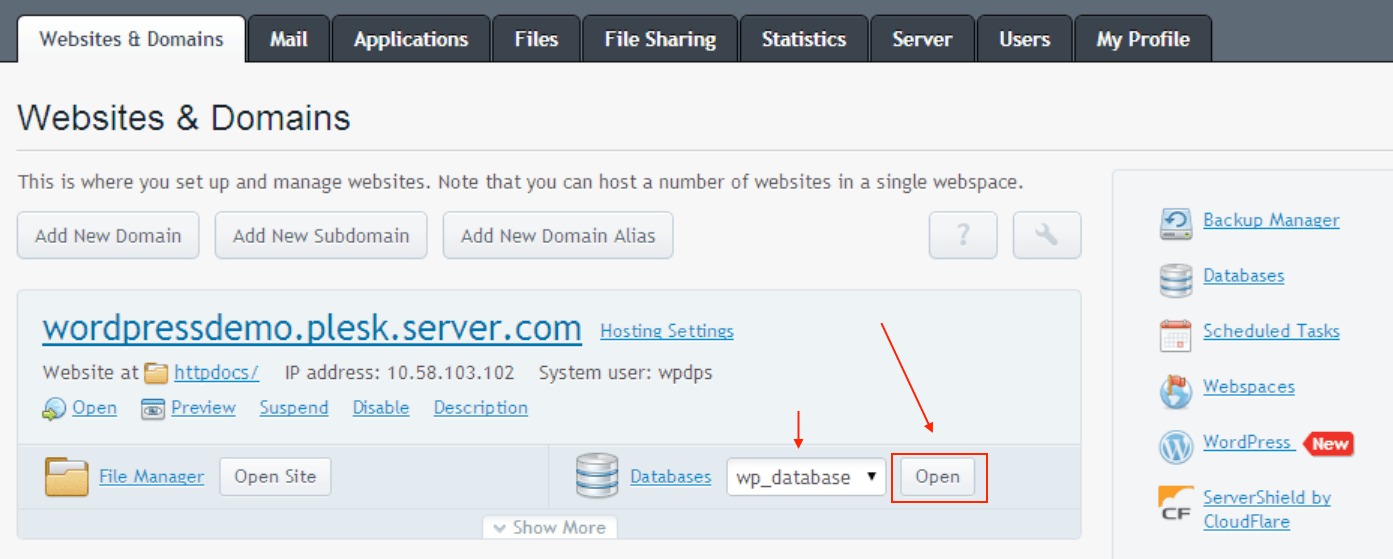
Before any disruptive fix, confirm you have a recoverable copy. The WordPress backup documentation says a typical site backup includes both files and the database.
A rollback wipes everything made after the snapshot: orders, comments, content edits. A backup that has never been test-restored gives you no guarantee it will work.
If you have a staging copy that mirrors production, run risky experiments there. With neither a known good backup nor a safe test environment, avoid broad speculative changes to the live site.
Match the error to a diagnosis
| What you see | What it means | Next step |
|---|---|---|
| “There has been a critical error on this website” | A fatal PHP error | Critical-error recovery. See your recovery access options |
| White or blank page | A PHP or database failure, among other causes | Review PHP and database evidence. Find the white-screen procedure |
| HTTP 500 | An unexpected server condition prevented the request | Review PHP and server logs. Follow the HTTP 500 procedure |
| HTTP 502 | A gateway or proxy received an invalid upstream response | Inspect gateway and upstream evidence with your host or server administrator |
| HTTP 503 | The server is temporarily unable to handle the request, for example because of overload or maintenance | Check hosting service status or maintenance and service logs |
| “Error establishing a database connection” | WordPress could not connect to the database | Use the database-error procedure |
| Public pages work. Admin fails | The problem affects administration requests | Run the admin-only comparison, then use the guide for the error you see |
| One feature fails while pages load | The problem is limited to that action | Run the feature-specific comparison |
| Email fails or HTTPS mixed-content warnings appear | A mail-delivery or insecure-resource problem | Run the feature-specific comparison first, then follow the mail or HTTPS procedure |
Don't roll back plugins or raise the PHP memory limit at random before you have read the evidence.
Choose a recovery method you can use
| Access available | What it permits | When help is needed |
|---|---|---|
| WordPress dashboard | Use the site-management and diagnostic screens | The fault lies outside the dashboard |
| Recovery Mode email | Enter a recovery session through its special link | The email is missing or you can't open the mailbox |
| Hosting file manager or SFTP | Run filesystem-based procedures that fit the fault | Permissions or hosting restrictions block the operation |
| Authorized SSH / WP-CLI | Run command-line tools, if you understand what they change | You lack the privileges or the expertise |
| No relevant administrative access | Find the site owner or host who controls recovery | You can't make the change yourself |
WordPress Recovery Mode gives an administrator a special link after certain fatal PHP errors during normal page loads. In that session you can pause the plugin or theme behind the error and investigate.
WordPress introduced Recovery Mode in version 5.2.
Without the recovery mailbox, you need hosting or filesystem access instead.
Read the logs and notices
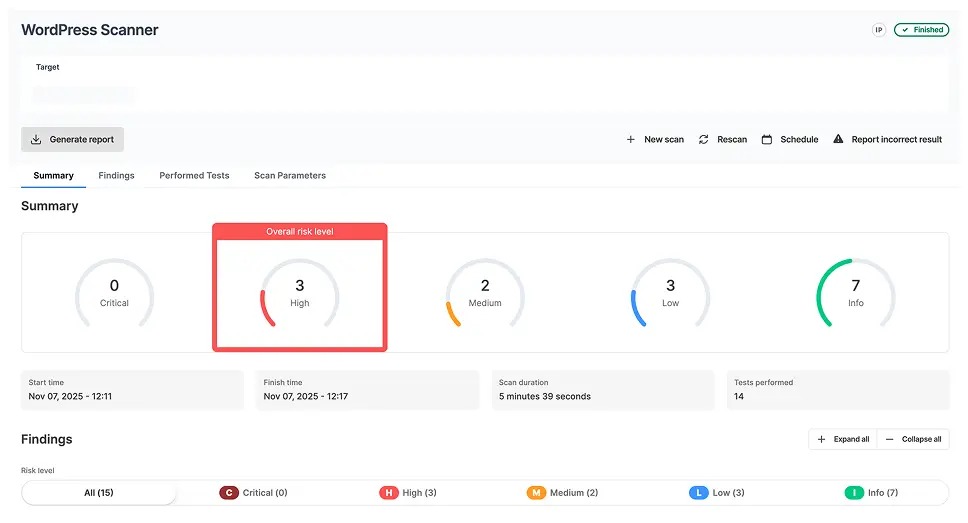
Look for an error notice or log entry tied to the failing operation. A useful entry gives you a time, a request, a component or a database operation to investigate.
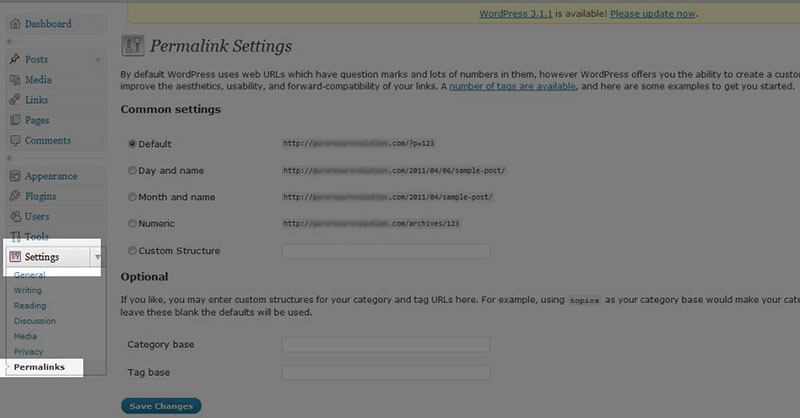
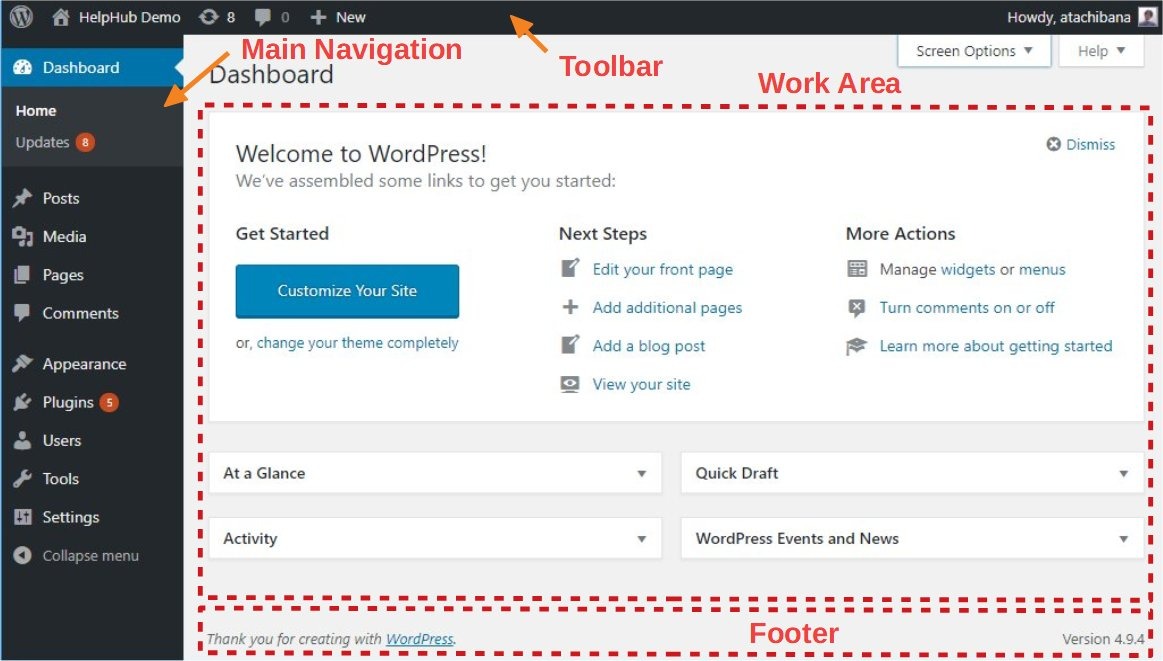
If the dashboard still loads, Tools > Site Health > Info shows WordPress, plugin, theme, server and database details. For deeper application diagnostics, three WordPress settings do separate jobs:
| Setting | Role | Condition |
|---|---|---|
WP_DEBUG | Enables WordPress debugging | Required for the described debug-log behavior |
WP_DEBUG_LOG | Directs eligible errors to a log | Works with WP_DEBUG enabled |
WP_DEBUG_DISPLAY | Controls display of diagnostic output | Takes effect when WP_DEBUG is true |
The usual log file is wp-content/debug.log, though configuration can point elsewhere. The WordPress debugging documentation explains the controls. On a live site, never show raw error messages to visitors.
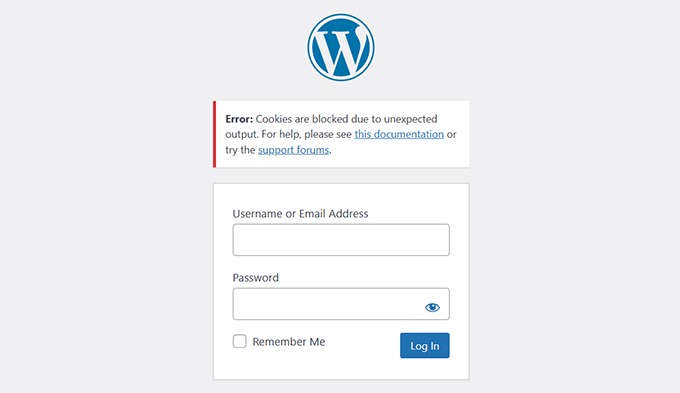
An empty or missing WordPress log doesn't rule out PHP, web-server or database trouble. The log can be disabled or redirected, and the detail you need can appear in a host or server log.
A WordPress.org poster with an admin-only HTTP 500 after a plugin update wrote, “The debug log does not report any related errors.” An early reply suggested raising PHP memory.
The poster later reported a failed transient write involving wp_options, a database max_allowed_packet limit and another plugin. Match log entries from the application, PHP or host to the time and operation that failed.
Follow the repair guide for your error

For critical errors, white screens, HTTP 500 responses and database messages, the WordPress Common Errors reference gives a starting point for each issue. Once you know the symptom and your access route, follow the procedure for that error.
Narrow down admin, feature and staging failures
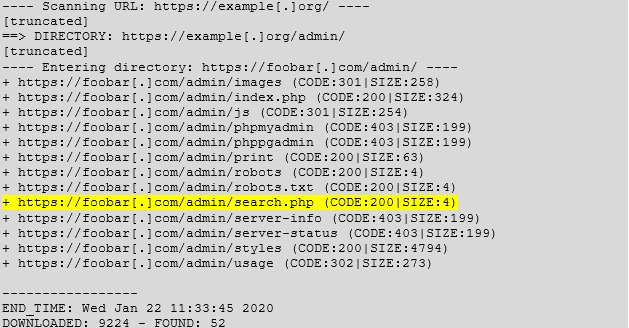
For a partial failure, compare the broken request with a closely related one that works. An admin-only error can appear while visitors still read pages, and a form failure can show up only on submission.
A blog owner on r/Wordpress described a comment-submission error: “The site still works, it just won't allow anyone else to leave further comments.” In a case like this, compare the comment action with ordinary viewing, including the user session involved.
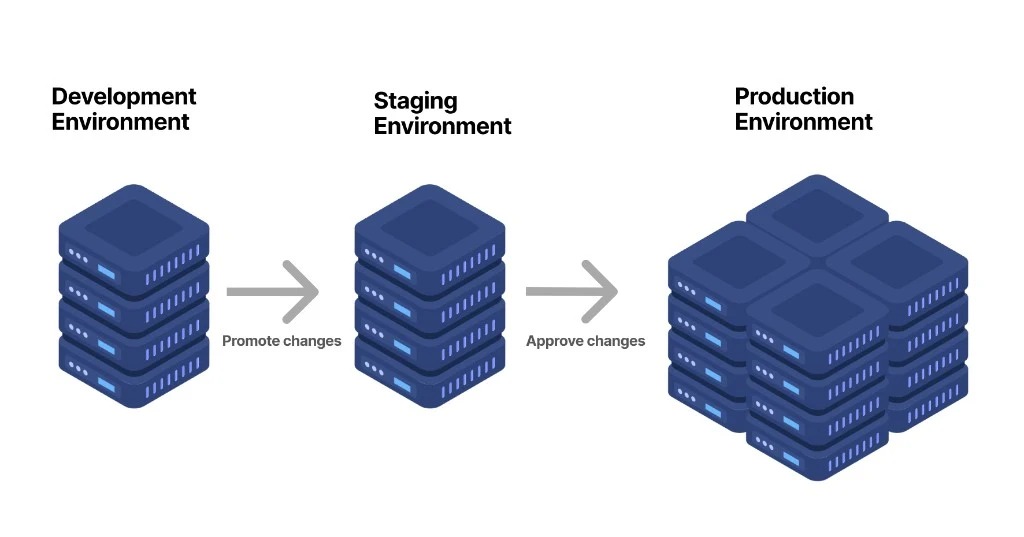
When staging fails while production works, compare the two environments directly: PHP version, WordPress and plugin settings, theme state, database connection and file permissions.
If the failure seems tied to one browser, try another browser or a private session to see whether client state changes the behavior.
On WordPress.com, your plan decides what you can do. Self-hosted steps that involve server files or configuration aren't available there.
Test the operation that failed
After a targeted repair, repeat the original failed action under the same login or session conditions. If comments failed, submit a comment. If editing failed, repeat the admin operation that broke.
A site can look normal while a disabled plugin's checkout, form or login function stays down, so test the functions that use the repaired part too. Confirm the result holds beyond a single refresh. If the error remains or the fix broke another operation, the repair failed. If you lack the permissions or conditions to test, mark the result unresolved.
Record the change and the test result. If you changed diagnostic display settings, set them back to your production configuration.
Hand the right person a clear report
When the server access, recovery files or logs you need are out of your hands, the hosting provider, site owner or developer has to investigate. A precise report lets them start from your observations instead of reconstructing the incident.
Send the failed request with its exact error, the scope and the timeline you recorded earlier, then add two more items:
- Available access: Dashboard, recovery email, hosting panel, filesystem or support contact.
- Recovery and evidence: Whether a backup is known, redacted diagnostic detail, and what you already tried.
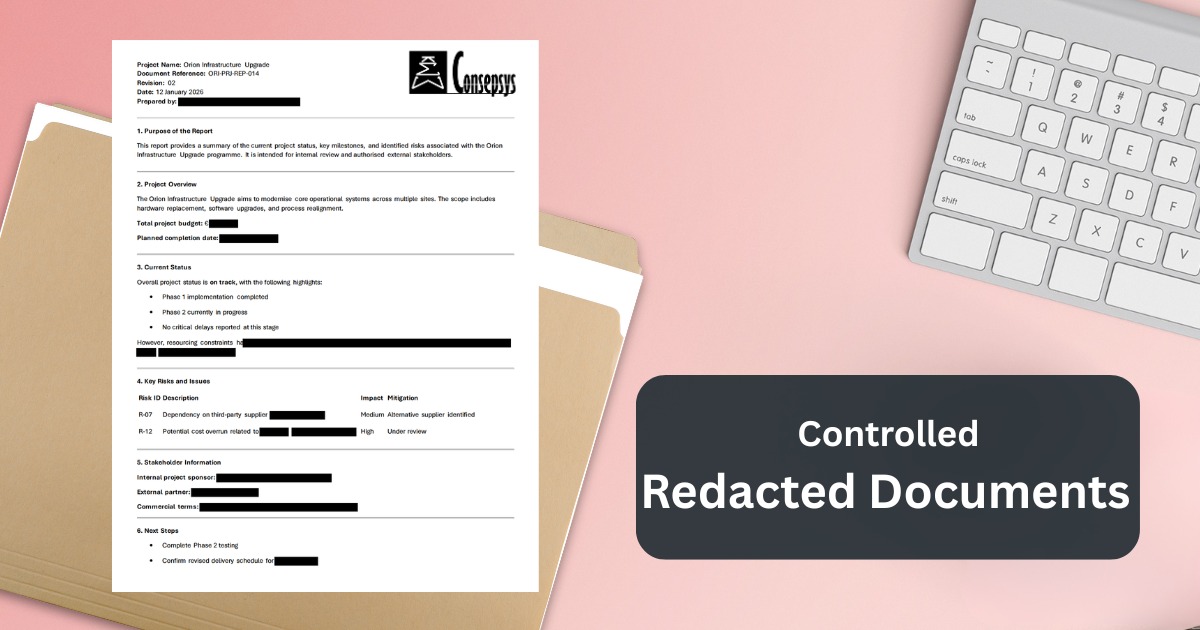
Keep passwords, tokens, API keys, raw wp-config.php contents and customer personal data out of public support requests. If you suspect a compromise or leaked information, follow the security-response process instead.
