To fix mixed content in WordPress, open the affected page in your browser's developer tools to find the HTTP resource your HTTPS page requests, before installing another plugin or editing the database. Then correct whatever produces it: a WordPress setting, a stored URL, a generated asset, a plugin or theme reference, or the proxy configuration. Reload the page to confirm the resource loads and the page works, and if DevTools shows no mixed-content request, investigate the failure it does report.
An HTTPS page can look normal until a font vanishes, a video fails, or the browser reports an insecure request. The clue you need is the URL the page tried to load and how the browser responded.
What a WordPress mixed-content warning means
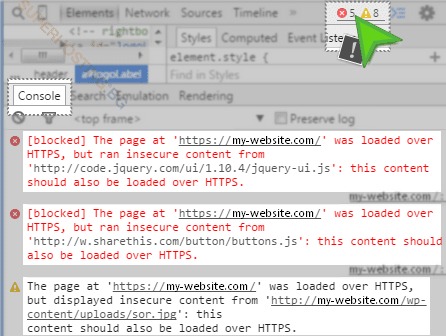
Mixed content happens when an HTTPS page requests a resource over HTTP. Say a post at https://example.test/page/ references http://example.test/wp-content/uploads/usefulmix-import/photo.jpg. The page arrives securely, but the image URL uses an insecure scheme.
Browsers handle these requests differently by resource type and host.
| HTTP resource on an HTTPS page | Browser treatment | Likely observation |
|---|---|---|
Ordinary domain-hosted <img src> |
Auto-upgraded to HTTPS | Image loads if its HTTPS URL works, or fails if it does not |
| JavaScript file | Blockable | Page interaction can fail |
| Stylesheet or web font | Blockable | Styling or typography can disappear |
<iframe> or fetch/XHR request |
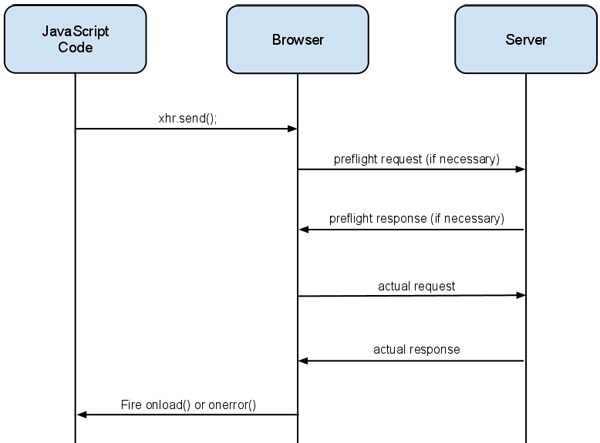
Blockable | Embedded content or fetched data can fail |
Responsive image in <img srcset> or <picture> |
Blockable | A responsive image can disappear |
| Otherwise-upgradable resource addressed by IP | Blocked | Browser refuses the insecure IP-hosted request |
MDN's mixed-content reference documents these distinctions. An upgraded image can still carry an outdated http:// reference in the page source.
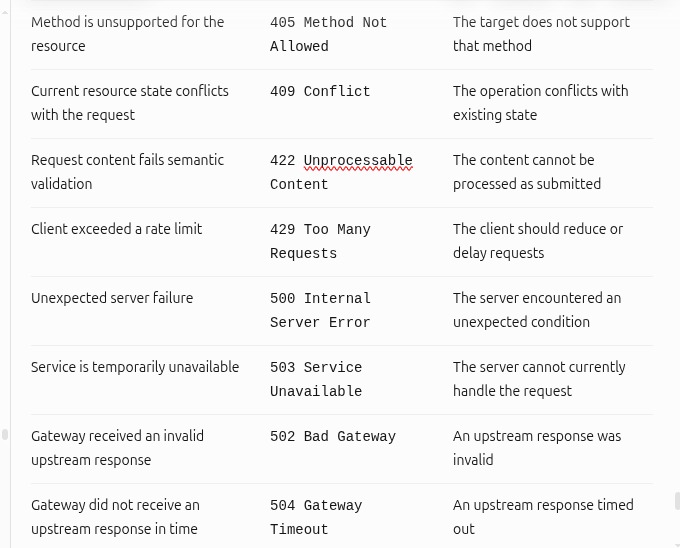
A missing image alone does not mean mixed content. Certificate errors, 403 or 404 responses, CORS restrictions and redirect loops each need their own investigation.
Find the insecure request in Chrome before changing WordPress

Inspect the affected WordPress page in Chrome DevTools. It shows the HTTP address, the resource type and what initiated the request.
- Open the affected HTTPS page. Open Chrome DevTools and select Console and Network.
- Reload the page. Look for mixed-content warnings and requests to
http://resources. - Inspect the request. Record the full URL, hostname, path, resource type, response status and initiator if shown.
- Check what the browser did. It blocked the request, upgraded it automatically, or the request failed with an ordinary HTTP error.
- Pick the repair. The URL tells you where to look. The initiator and surrounding page content show who generated it.
Chrome also offers a focused option under Privacy and security → Security → Non-secure origins → View requests in Network panel, as described in the Chrome DevTools Security panel documentation.
| Insecure request or context | Possible origin | Repair section |
|---|---|---|
| Own-domain CSS or JavaScript generated with HTTP | WordPress URL settings or HTTPS detection | WordPress addresses. Proxy configuration |
| Old media address inside a post or widget | Stored WordPress content | Database URL replacement |
| Generated font CSS under Elementor uploads | Page-builder data or generated assets | Elementor repair |
| Asset under a plugin directory | Plugin settings or URL generation | Plugin and theme references |
| Script or image from another hostname | External provider or CDN | Third-party resources |
| HTTP URLs appear after TLS termination upstream | Proxy scheme detection | Reverse proxy/CDN |
| Missing image with no mixed-content request | File access, incorrect path, or another resource error | Remaining-failure diagnosis |
Suppose Network shows:
http://example.test/wp-content/uploads/usefulmix-import/2024/header.jpg
That looks like a media URL, but the path does not prove it came from a post's database content. A page builder, template or plugin can have produced it.
Another request looks like this:
http://cdn.example.test/app.js
The external hostname means someone else controls the resource, and the .js extension marks a script, which the browser can block.
Check WordPress Address and Site Address without breaking navigation
WordPress has two address settings with different jobs. On a standard single-site installation, open Settings → General and compare both against your HTTPS setup.
WordPress Address (URL) is where the WordPress core files live. Site Address (URL) is the public address of the website. On an HTTPS site, both use https. Their paths can differ.
For example, a site served from https://example.test/ can keep its core files at https://example.test/wordpress/. WordPress documents this distinction in its migration guidance.
Some installations set these values through configuration or hosting tools, so you cannot edit them in the dashboard.
In a WordPress.org support thread about an insecure cookie-popup asset, the site owner wrote, “WP and Site addresses are both HTTPS”, so the next step is the resource that still uses HTTP.
If one address uses HTTP by mistake, correct that value and confirm the public page and admin navigation still work. If both fields are already correct, leave them alone and look at the component that emitted the insecure URL.
Replace old HTTP URLs stored in WordPress safely

Your address settings can be correct while old absolute HTTP links remain in posts, widgets, options or other stored content.
When the offending request comes from stored data, the replacement method matters. WordPress settings can contain PHP serialized values, and a raw string replacement can damage them.
Back up first
Before you change stored URLs, back up the WordPress database and site files. Then note the old address, the HTTPS address that replaces it, and the installation or tables the change covers.
The WP-CLI search-replace command reference documents serialized-data handling and dry-run support. The command takes the old value first, then the new one.
For a single-site installation at example.test, run this first:
wp search-replace 'http://example.test' 'https://example.test' \
  --skip-columns=guid --dry-run
--dry-run reports the changes without saving them. Check that the matches belong to the right hostname, paths and tables.
--skip-columns=guid protects the guid field. WordPress's migration documentation cautions against changing wp_posts.guid during a site move because those values serve as feed identifiers.

Apply the replacement
Once the dry run looks right and the affected resources work at their HTTPS URLs, run the same command without the dry-run flag:
wp search-replace 'http://example.test' 'https://example.test' \
  --skip-columns=guid
If the site also uses http://www.example.test, handle that variant separately.
WordPress Multisite needs extra care. The command covers the selected site and its registered tables. Options such as --url and --network control which installation it targets.
Without SSH: a database replacement plugin
If you only have dashboard access, use a database search-and-replace plugin such as Better Search Replace on WordPress.org. It lets you select database tables, handles serialized data and previews changes with a dry run.
Limit the replacement to your site and the addresses you are changing. In versions with a Replace GUIDs option, leave it unchecked on an established site.
Fix Elementor, plugin, theme and third-party HTTP URLs

When the main address settings are correct, the insecure URL can come from a page builder, plugin, theme, widget, custom stylesheet or external service.
Elementor-generated assets
Elementor keeps settings and generated assets that can retain or reproduce old addresses.
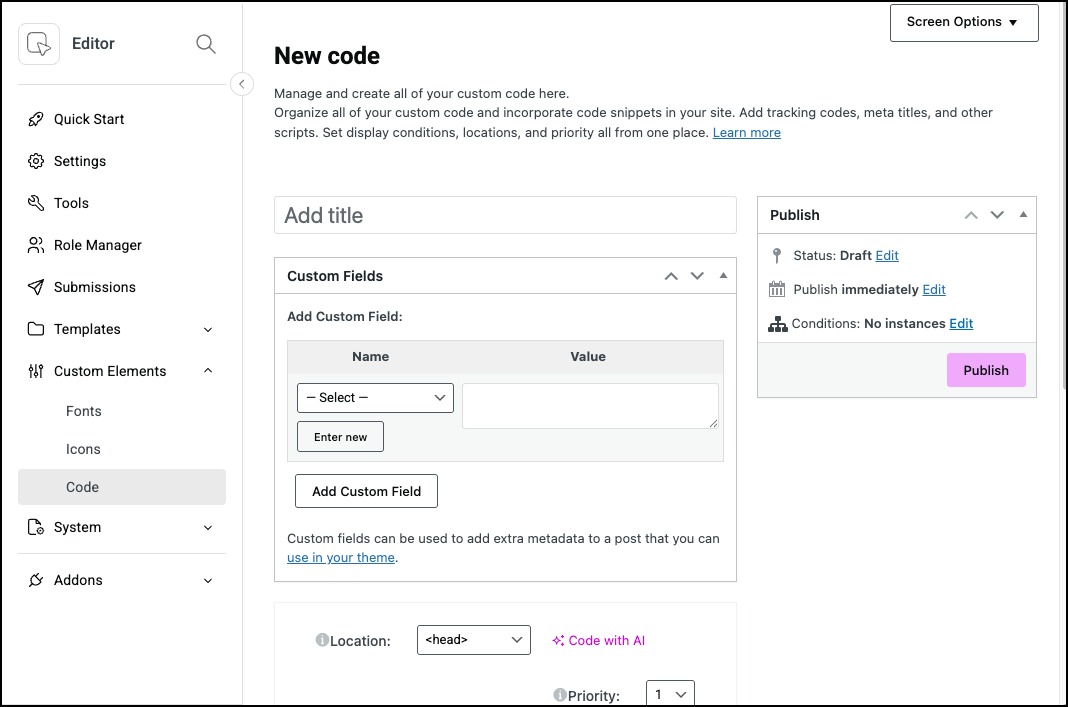
Its documented workflow is WordPress Dashboard → Elementor → Editor → Tools → Replace URL, which changes stored addresses. The same Tools area has Clear Files & Data, which regenerates Elementor's generated files.
These menu labels follow Elementor's documented interface from May 2026.
A WordPress.org forum user troubleshooting Elementor's generated Google Fonts CSS asked, “Any ideas why this is happening or how to force Elementor to generate secure font URLs?”
The reported asset directory was:
/wp-content/uploads/usefulmix-import/elementor/google-fonts/css/
If the browser's request points to that directory, start there. Replace URL handles stored content and Clear Files & Data handles generated files, so fixing one can leave the other broken. If the warning survives a file regeneration, a stored or hardcoded reference is still producing it.
Hardcoded plugin and theme resources
An HTTP address can also sit in a plugin setting, custom CSS, a template or a widget. Find the setting or code that produces it and correct that reference.
A cookie-banner asset is a clear example. An HTTPS WordPress page can reference a file under:
/wp-content/plugins/cookie-law-info/lite/frontend/images/close.svg
The plugin can output HTTP even when both address fields are correct.
With an external stylesheet, script or embed, the remote provider controls whether HTTPS is available. Your options are a secure URL from that provider, a replacement asset, or removing the obsolete integration.
Check HTTPS detection behind a reverse proxy or CDN
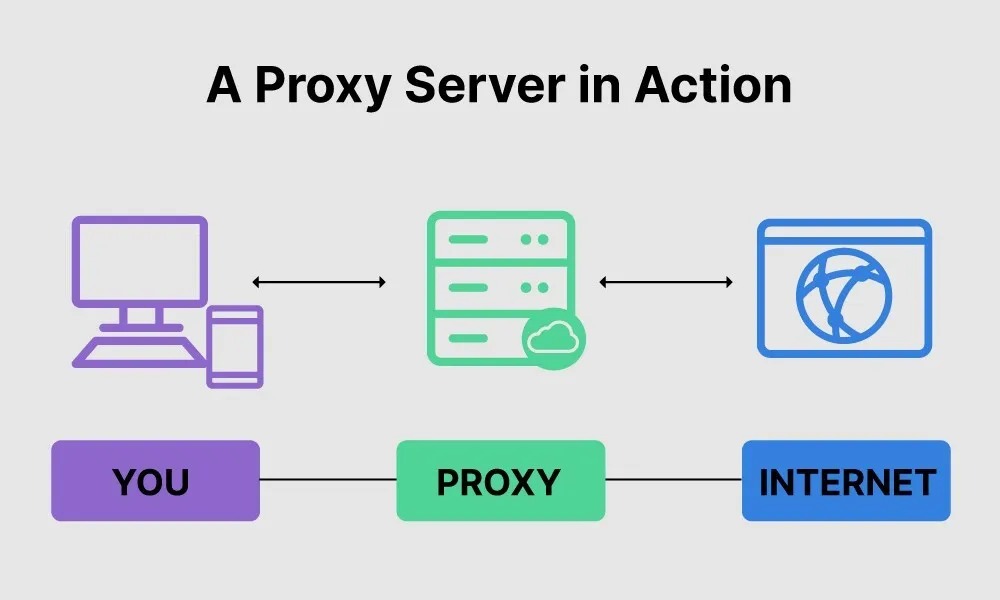
When a reverse proxy or CDN terminates HTTPS before the request reaches WordPress, the backend sees plain HTTP unless the original scheme is passed along. WordPress then generates insecure URLs. One WordPress operator using HAProxy, WireGuard and Nginx wrote on r/Wordpress, “I can get the page to load with Mixed content errors.”
If you run a similar chain, check where TLS terminates. Then check whether a trusted proxy sends X-Forwarded-Proto. With that header, WordPress detects HTTPS and avoids an admin redirect loop. Never trust forwarding headers supplied by the client, because they can be spoofed.
Choose a source repair, rewriting plugin or CSP
Correct a bad URL where it originates whenever you can. A source fix stays fixed without any rewrite on later responses. If the database is the source, use a serialized-aware replacement. Reach for output rewriting or a browser policy only when you cannot edit the origin yet.
| Method | Suitable situation | What changes | Limitation |
|---|---|---|---|
| Edit source URL or setting | Known incorrect reference | Stored value or component configuration | Requires access to the source |
| WP-CLI replacement | Confirmed legacy database addresses with command-line access | Targeted stored data | Covers only the selected site and registered tables unless you target more |
| Dashboard database replacement plugin | Confirmed stored HTTP values without SSH access | Targeted stored data | Depends on correct table scope |
| Elementor URL and file tools | Builder-owned addresses or generated assets | Elementor data or generated files | Other components can still emit HTTP |
| Mixed-content rewriting plugin | Source cannot readily be corrected | Generated output or requests during runtime | Adds an ongoing dependency |
CSP upgrade-insecure-requests |
Browser-level upgrading fits the deployment | Browser request behavior | Does not edit WordPress data |
| Cloudflare HTTPS rewriting | Supported CDN-managed deployment | Edge URL handling | Depends on edge configuration and available HTTPS resources |
SSL Insecure Content Fixer offers targeted settings and broader Capture modes. WPBeginner warns that extensive capture can slow the site.
The Content-Security-Policy: upgrade-insecure-requests directive changes how the browser makes insecure resource requests. It leaves your WordPress records unchanged.
Before changing an asset reference from http:// to https://, open the exact HTTPS URL and confirm it serves the file you need. If it fails, use a secure replacement or remove the obsolete reference. CSP, rewriting plugins and CDN rewrites do not create an HTTPS endpoint at the destination.
Verify the repair and investigate what remains broken
A source repair removes the insecure reference. A browser or CDN rewrite loads the resource securely but leaves the stored HTTP URL as it is. Cached output can keep older references, so test a fresh response after the change.
After the fix, check the page like this:
- Clear caches. Clear every layer your site uses, such as WordPress page caching, generated builder assets, hosting or CDN caching, and browser cache.
- Reload the affected page with DevTools. Compare the original insecure request with the new Network and Console entries.
- Inspect the result. Confirm the resource loads securely and no mixed-content violation remains.
- Test the original feature. Check the image, typography, stylesheet, embedded content or script behavior that first exposed the fault.
- Sample related pages. Check other templates and routes, and test logged in if the original issue depended on it.
When the warning is gone but something still fails
| Remaining observation | What to investigate |
|---|---|
| Image URL now uses HTTPS but returns 404 | File existence and requested path |
| Resource returns 403 | Permissions, server rules or access restrictions |
| External script remains unavailable | Provider's HTTPS resource and URL |
| Plugin asset still uses HTTP | Plugin-specific settings or URL generation |
| Old URL reappears after a stored-data edit | Generated assets, templates or cached output |
| Admin login enters a redirect loop | HTTPS forwarding and redirect configuration |
In one r/Wordpress report after a security-plugin change, a WordPress Multisite maintainer wrote, “Deactivating it again doesn't bring them back.”
The same discussion involved upload-directory .htaccess rules. A request that fails because of access controls needs a different repair from a browser refusing an HTTP subresource.
If a change causes new damage, restore from the backup or the configuration you recorded before the change. Do not make a second broad change while the first failure is unexplained.
