To fix WordPress emails that don't arrive, follow the original notification through its trigger, WordPress, the sending service, and the intended mailbox, fix the first stage that fails, then send that same notification again. If the receiving mail server already accepted the message, look at mailbox filtering or the recipient's mail administrator before changing your WordPress mailer. Begin by working out whether the problem hits every message, one notification type, or one recipient.
Start with the pattern: which WordPress emails fail?
A missing password-reset email and a missing contact-form notification look the same to the person waiting for them. They follow different paths. Before you touch your mail settings, pin down what stopped working. Trace one test message from the WordPress action through its mail transport, authentication and DNS records, then check the receiving mailbox.
Write down four things: the type of email, its recipient, when it last worked, and what changed around that time. A hosting move, a plugin update, or a new mail service narrows the search. Timing alone leaves the cause open.
| What you observe | What it points to | Where to investigate |
|---|---|---|
| Every WordPress email seems to fail | The shared sending path | WordPress mail attempt |
| A form submits, but no notice arrives | Form processing and email sending are separate steps | Form configuration |
| SMTP tests work, but form notifications fail | The test and the form use different application paths | Form notification settings |
| The mailer reports a connection or authentication error | Transport or provider submission failed | Exact mailer error |
| Sender authentication fails | Domain identity or authentication needs attention | From, SPF, DKIM, DMARC |
| Provider reports Delivered, but the inbox is empty | The receiving side handled the message | Recipient mailbox |
| Only one recipient misses messages | A problem specific to that destination | Recipient filtering |
| Email failed after a hosting migration | Website and mail responsibilities changed | Hosting and routing |
| Only order or password-reset messages fail | The notification trigger | Application notification |
If WooCommerce order notifications arrive while your contact-form messages disappear, the problem sits in the form-specific path. If every type of WordPress message fails, look at the shared mail path.
Find out whether WordPress tried to send the message
A thank-you screen can appear even when the form created no email.
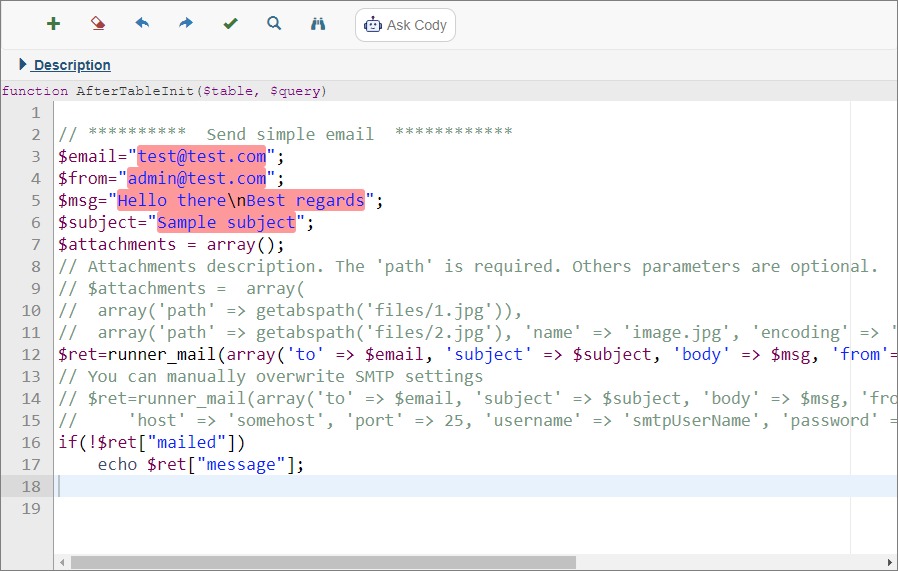
WordPress sends mail through wp_mail(), which uses PHPMailer underneath. The WordPress wp_mail() documentation states that a successful return from the function doesn't prove the recipient received the message.
WordPress also gives you two hooks:
wp_mail_failed: Reports failures in the PHPMailer mail path.wp_mail_succeeded: Reports success in that same path.
Track one original notification
Trigger one identifiable instance of the notification that originally failed. Submit the affected contact form with test details, or start a password reset.
Look for that event in your WordPress mail log, plugin diagnostics, or application error output.
You'll end up with one of three outcomes:
- WordPress tried to send: WordPress or its mailer recorded an attempt to process the message.
- WordPress logged an error: An error identifies a failure during mail processing.
- The logs don't say: Your diagnostic tools hold too little information about that event.
The third outcome needs care. A missing entry in a logging plugin means WordPress skipped the send only if you know what the plugin captures and how it's configured. If you have no record you can trust, turn on mail logging, trigger the notification again, and check the new entry.
When SMTP tests work but contact forms still fail
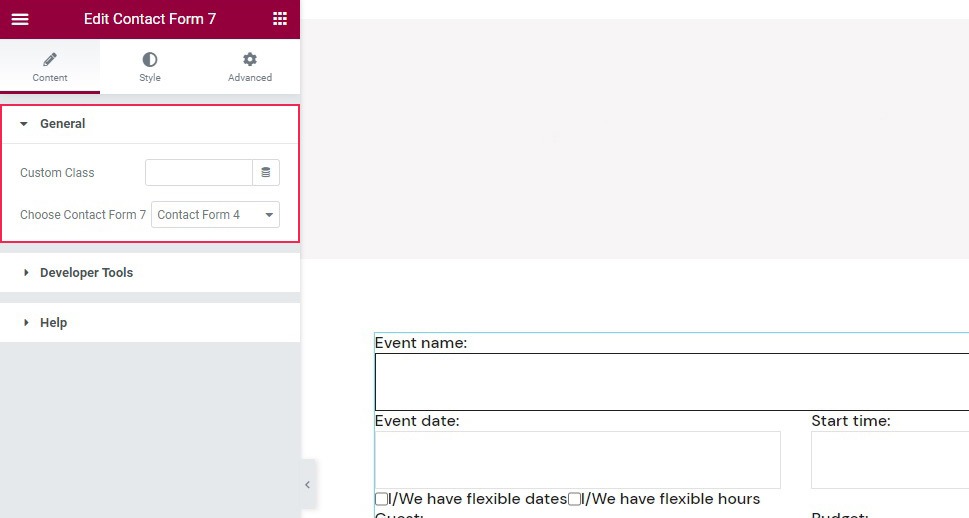
An SMTP test can succeed while the real contact form stays broken. The test uses one mail path and one destination. The form has its own notification settings and its own trigger.
An Elementor administrator on r/elementor wrote: “I tried Wp-smtp using office settings, the plugin sent a successful email but the forms continue to not send.”
Next, check the form's notification settings:
- Notification enabled: Is the form set up to produce the email?
- Recipient: Does the notification go to the right mailbox?
- Sender and reply addresses: Are From and Reply-To set for their separate purposes?
- Suppression: Does the form plugin have a setting that blocks actual mail transmission?
Contact Form 7 has two checks worth making in Additional Settings. With demo_mode: on, the form returns a successful response but skips the email. With skip_mail: on, sending is suppressed, but other form activity, including submission storage through Flamingo, can continue. Both are documented in the Contact Form 7 additional settings guide.
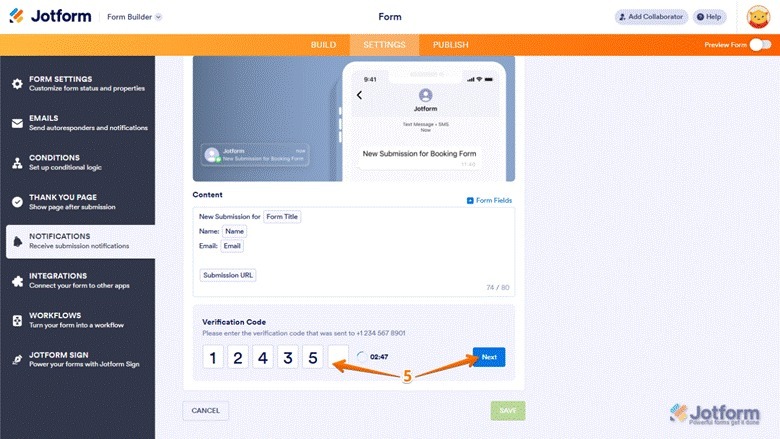
A form plugin can keep submitted entries even when its email notification fails.
Fix any mismatch you find in the form's settings. Note the old value first so you can undo the change if the diagnosis turns out wrong.
Read the SMTP or mail-provider error before changing settings
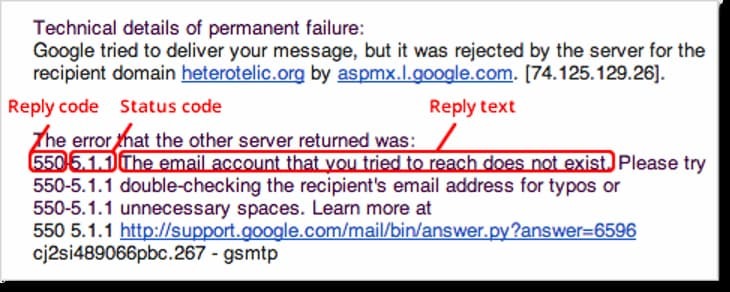
When WordPress tried to send, the transport or provider can tell you what stopped it. A connection problem, rejected credentials, and an unauthorized sender each need a different fix.
Find the matching entry in your mailer's error log or your sending provider's activity records, and read the exact message.
| Error or status | What it means | Fix |
|---|---|---|
SMTP Error: connect() failed |
The SMTP connection failed | Check the configured endpoint and your host's restrictions |
SMTP Error: Could not authenticate |
The server was reached, but authentication failed | Review the service's credentials or authentication setup |
SMTP Error: Data not accepted |
The SMTP server rejected the submitted message data | Read the provider's rejection details and check sender or message restrictions |
| Sender rejected or unauthorized | The sending identity wasn't authorized | Check the sender's verification or authorization requirements |
| Accepted for processing | The provider accepted the message at the reported stage | Continue with the provider's delivery events |
| Outcome unknown | The records don't show whether submission succeeded | Use the selected service's diagnostic documentation |
The first three error strings are examples from Gravity Forms troubleshooting. Their categories hold for other plugins too, but the wording differs by SMTP integration and provider.
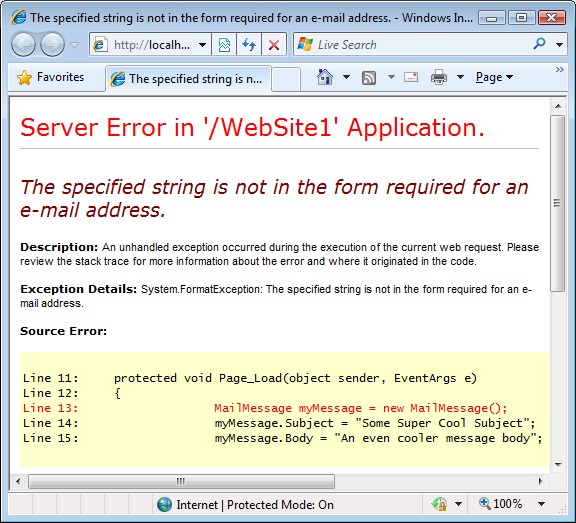
Hosting-specific example: WP Engine documents restrictions on outbound SMTP port 25.
Keep SMTP credentials, API keys, and sensitive logs out of public support posts.
Check the From address, SPF, DKIM and DMARC

A message can reach the sending service and still run into sender-identity problems. Read the From address, the authenticated sending domain, and the recipient's authentication checks together.
From shows the sender to the recipient. Reply-To tells the email client where replies go.
Say a visitor enters [email protected] in your contact form. If your site sends the notification with that address in From, your mail service is trying to send for a domain it isn't authorized to use. Put a site-domain address in From and the visitor's address in Reply-To. Replies still reach the visitor, and you aren't impersonating them.
What SPF, DKIM and DMARC do
- SPF: Lets a domain list its authorized sending systems in DNS.
- DKIM: Authenticates a message with a cryptographic signature from the signing domain.
- DMARC: Checks whether the domain in the visible From address aligns with a domain authenticated through SPF or DKIM, according to the domain's DMARC rules.
An SPF pass for one domain doesn't mean the message passes DMARC alignment.
Google's Email Sender Guidelines set different requirements by sender category. Every sender to Gmail needs SPF or DKIM. Senders that meet Google's published bulk-sender threshold need SPF, DKIM, and DMARC.
Compare your sending identity
Compare the From domain you've configured with the domain your sending service authorizes and authenticates. Check the provider's published DNS instructions against your SPF, DKIM, and DMARC records.
If a message arrives anywhere in a Gmail mailbox, Gmail's Show original feature shows its authentication results in the headers.
Change DNS records only when your configuration and the provider's requirements show a mismatch. Replacing unrelated entries adds new failure points and doesn't explain the original problem.
If the provider says “Delivered,” check the receiving side
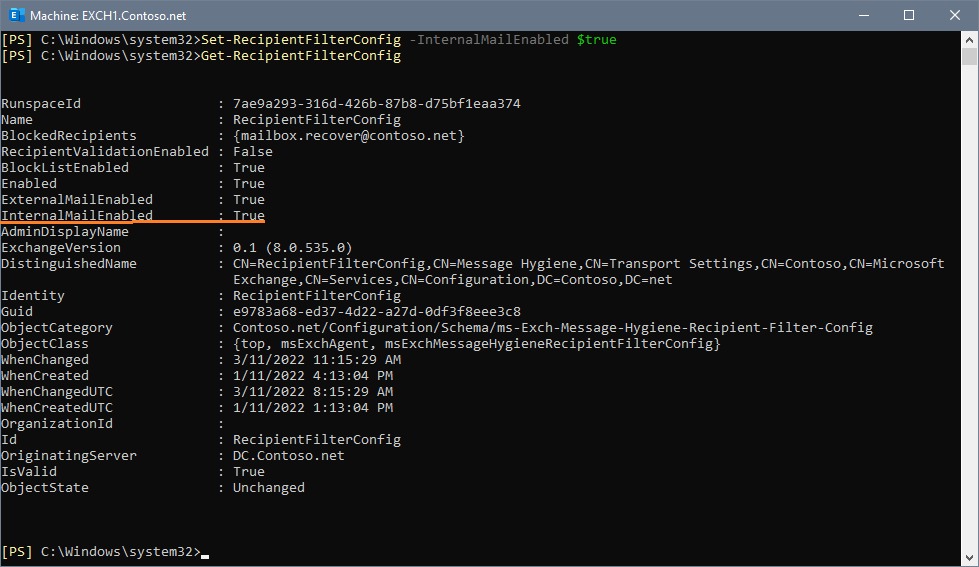
A sending provider's Delivered status can mean the recipient's mail server accepted the message. Final placement in the Inbox is a separate outcome. Postmark's delivery-status documentation describes this distinction.
A poster on r/Wordpress posted an update about a nonprofit site's missing notifications: “It seems that emails were coming through after all, but they had suddenly started going into spam.”
Check how the receiving side handled the message to that address:
- Spam or junk: Filtering can move a message out of Inbox.
- Quarantine: Some organizations hold messages outside the recipient's normal folders.
- Mailbox rules or forwarding: Automated rules can move or redirect incoming mail.
- Recipient-domain mail trace: A mailbox administrator can tell whether the organization's mail system received, rejected, or handled the message.
Compare what you find on the receiving side with the sending provider's event for the same message.
If email broke after moving hosts, separate web hosting from email routing
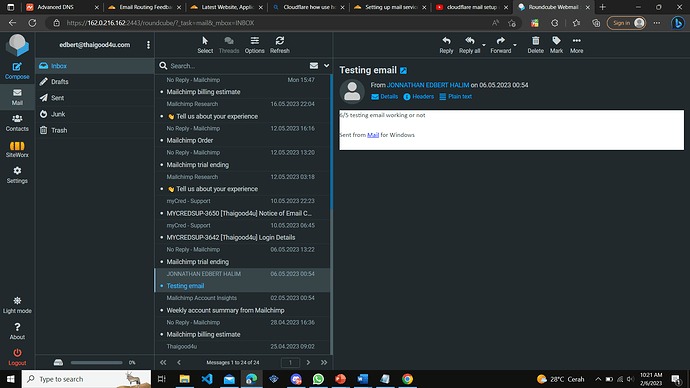
In an unresolved r/webhosting case involving GoDaddy domain and email services, a poster wrote: “After changing the website host from Cloudway(s) to SiteGround, our email is no longer working.”
The website, DNS zone, email mailboxes, and WordPress transactional sending service can each be managed by a different provider. Map out which service moved and which stayed. Then work out whether inbound mailbox delivery, outbound WordPress notifications, or both failed. Do that before changing MX records or local mail-routing settings.
Check the original notification: password resets and WooCommerce emails
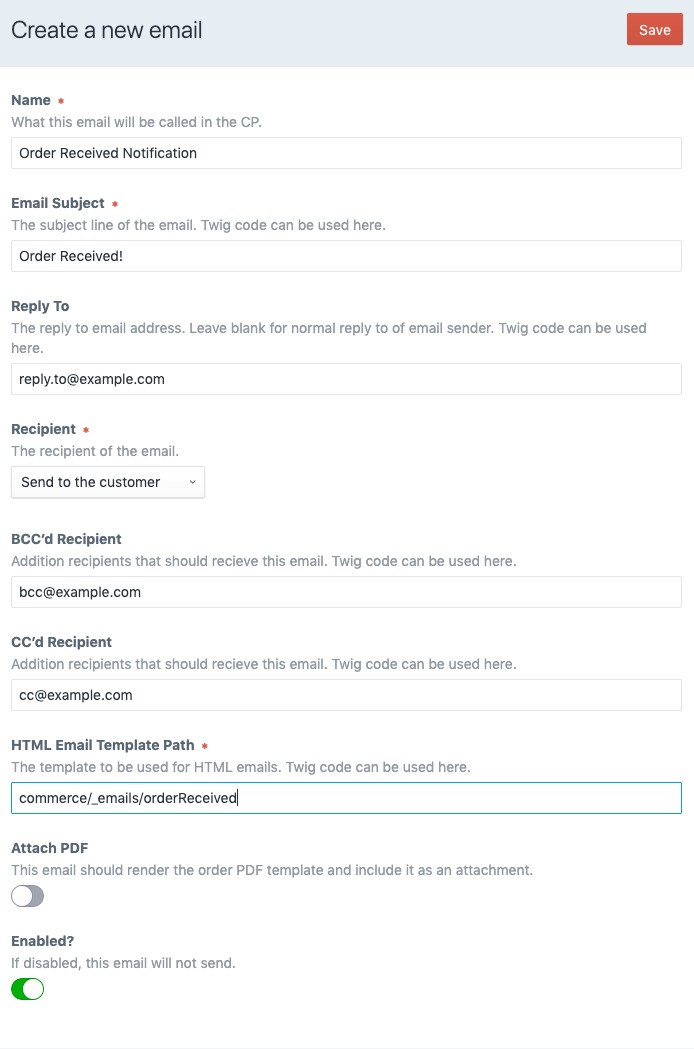
Some WordPress emails rely on a specific application event. A working mailbox or mailer says nothing about whether a given account or commerce notification was generated.
Password-reset requests and administrative email changes run through WordPress-specific workflows. When one of those messages is missing, ask whether the event actually happened and produced the expected notification.
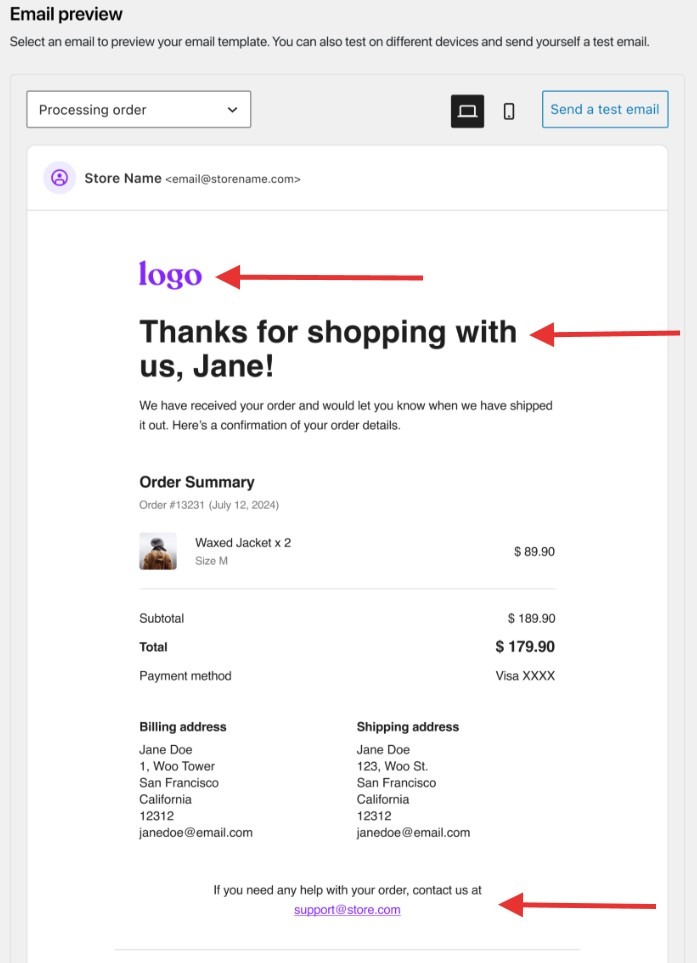
WooCommerce works differently. Its email notifications follow the configured email type and the order event or status. An order in the dashboard can exist without every possible order email having been generated.
Check the event and the notification
For the missing account or WooCommerce message, check whether the notification is enabled and which event or order status triggers it.
WooCommerce introduced built-in transactional email logging in version 10.9. If your installation has the feature and it's set to record the relevant events, open WooCommerce → Status → Logs and select the transactional-emails source. The records show one of four outcomes:
- Sent: WooCommerce reports handing the email to its sending path. This isn't an inbox-delivery confirmation.
- Failed: The email attempt hit a recorded error.
- Disabled: The notification was disabled.
- Skipped: WooCommerce skipped sending that notification.
Your logging configuration sets log visibility and detail. These are WooCommerce transactional-email records, not a full history of WordPress password-reset or other core messages.
For an account-related message, focus on the operation you requested and the WordPress notification it should produce. Ordinary messages arriving through Google Workspace or another mailbox provider prove only that those messages arrived.
Verify the fix with the same end-to-end notification
A repaired setting needs a test that reproduces the original problem. Use the same application event and the same intended recipient.
A developer on r/Wordpress wrote: “Everything works for me. I get the emails. She doesn't. What's the deal?”
What each successful result proves
| Evidence | What it proves | What it doesn't cover |
|---|---|---|
| Form reaches thank-you page | The form reached that UI state | Mail generation and delivery |
wp_mail() reports success |
The WordPress/PHPMailer path reported success | Downstream acceptance and mailbox arrival |
| SMTP test reaches a test inbox | That specific test succeeded for its destination | The original notification and other recipients |
| Provider accepts or processes the message | Provider-side submission succeeded at the reported stage | Recipient-server and mailbox outcomes |
| Provider reports Delivered | Recipient-server acceptance, as the provider defines it | Inbox placement and reading |
| Intended recipient sees the original notification | That event reached the mailbox in this test | Future delivery to every address |
After the fix, record the message type, test time, intended address, any event or log identifier, the provider's delivery record for that notification, and the setting you changed. If you can't check the final mailbox, report the highest stage you confirmed, such as provider acceptance or receiving-server acceptance.
