Pick the guide that matches your task, then check who manages your hosting. Site owners can begin with setup, maintenance, or troubleshooting guidance, and anyone who also administers the server needs the infrastructure instructions too. The task map below shows what to tackle next.
Building a first WordPress site, moving an established one, and fixing a broken one each need different instructions. A correct tutorial for the wrong situation wastes your time.
Find the right WordPress guide for your task
Begin with your site's current condition. A working site that needs a new host is a migration job. A site that stopped responding is a troubleshooting job. If you know the task, go straight to its setup, maintenance, or troubleshooting path.
| Your situation | First decision | Start here | Specialist subject |
|---|---|---|---|
| Starting a WordPress site | Choose a platform and get the access you need. | WordPress responsibilities | Get started with WordPress |
| Choosing hosting | Decide who maintains the server. | Hosting responsibilities | Managed hosting versus self-managed VPS |
| Maintaining an existing site | Confirm you can restore a backup. | Maintenance and recovery | WordPress.org Technical Guides (maintenance and recovery) |
| Moving a site | List what you're moving, where it's going, and how you'd undo the move. | Migration planning | Advanced Administration Handbook (migration) |
| Investigating a broken site | Note the visible symptom and any evidence. | Troubleshooting | WordPress FAQ Troubleshooting |
| Investigating slowness | Find out what is slow before changing settings. | Performance investigation | WordPress performance |
| Reviewing security | Decide who handles the application and who handles the infrastructure. | Security ownership | WordPress security and file permissions |
| Managing several sites | Separate recurring site work from server administration. | Multi-site operations | WordPress operations and WP-CLI |
The specialist links go to official WordPress documentation for setup, maintenance, advanced administration, and troubleshooting. For the other tasks, the section in the third column shows which instructions fit your hosting.

Know which parts of WordPress you manage
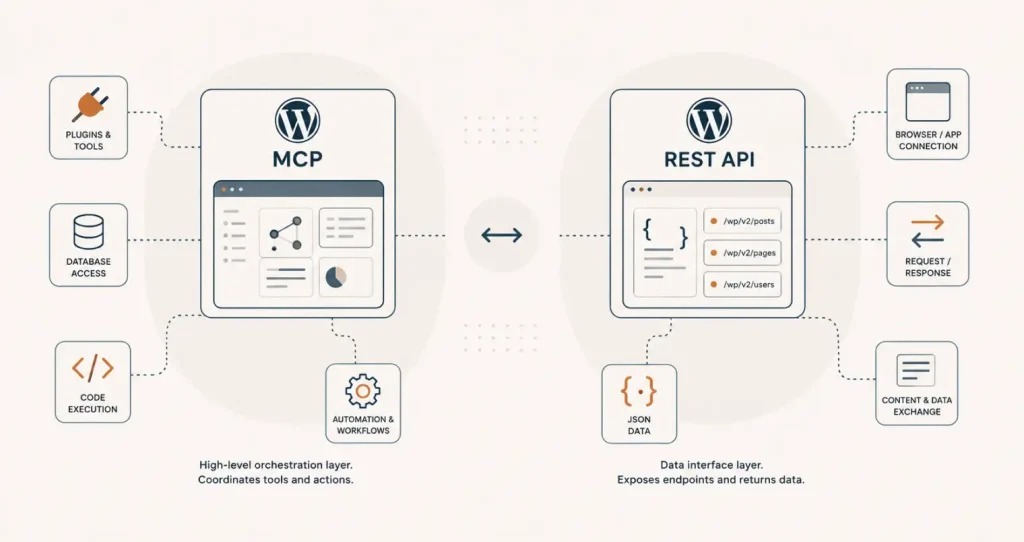
WordPress administration and server administration are different jobs. One covers the website application, the other the environment that runs it.
WordPress.org provides the open-source WordPress software and documentation. WordPress.com offers WordPress as a hosted service. If you host WordPress separately, your provider and plan decide how much infrastructure work you do.
The WordPress application includes the dashboard, content, user accounts, core software, themes, and plugins. The hosting environment runs it and stores its data. That environment includes PHP, MySQL or MariaDB, and a web server such as Apache or Nginx.
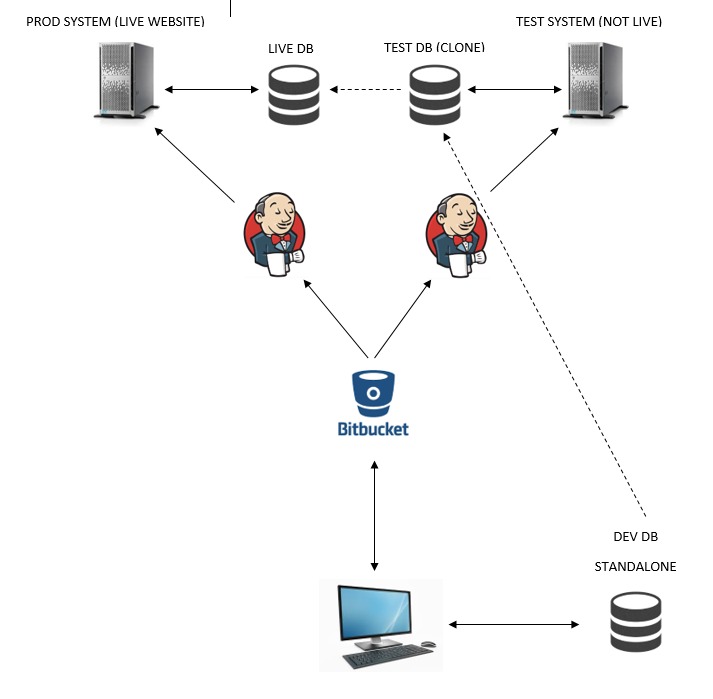
- The WordPress dashboard lets you manage the application within your WordPress role.
- The hosting control panel gives you domains, files, databases, backups, and service settings, depending on the provider.
- Server or shell access lets you administer the hosting environment directly. Your service arrangement decides which responsibilities are yours.
If you build sites for clients, you focus on WordPress configuration and content. If you maintain a self-managed server, you also need infrastructure knowledge, even when the dashboard works perfectly.
Choose hosting by responsibility
Hosting is an operational decision. More server control helps when you need it, and it comes with maintenance and incident-response work.
A shared-hosting customer weighing a VPS wrote in r/Hosting: "I'm worried my site will crash and I won't know why." The worry comes down to who investigates and restores the underlying environment when something fails.
| Hosting model | What you control | What to verify before choosing |
|---|---|---|
| Managed WordPress hosting | WordPress and the site features the service permits. | Which updates, backups, recovery tasks, and incidents the provider handles. |
| Shared hosting | WordPress and the features your hosting account offers. | The support available, account limits, backups, and access to diagnostics. |
| Self-managed VPS | Your WordPress installation and much of the server environment. | Who handles operating-system upkeep, web-server configuration, security, and failures. |
"Managed" names a service category. The provider's terms and support scope define what it actually covers.
Keep a WordPress site recoverable

- Updates: Someone has to maintain WordPress core, themes, and plugins. Know who, and how changes are handled.
- Backups: The database and the relevant files. Check that yours saves both.
- Recovery: The person who restores a backup needs the right access.
- Access and monitoring: Who can reach the site, who notices a failure, and who starts the response.
A backup file is only part of the answer. You also need a restoration process that works on your setup. Your hosting provider can offer backups, but you still have to confirm what that service covers.
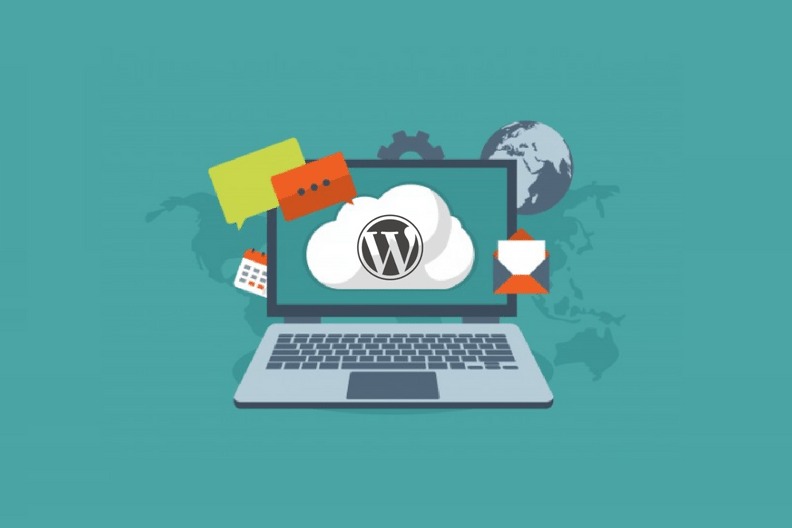
Plan a WordPress move before changing anything
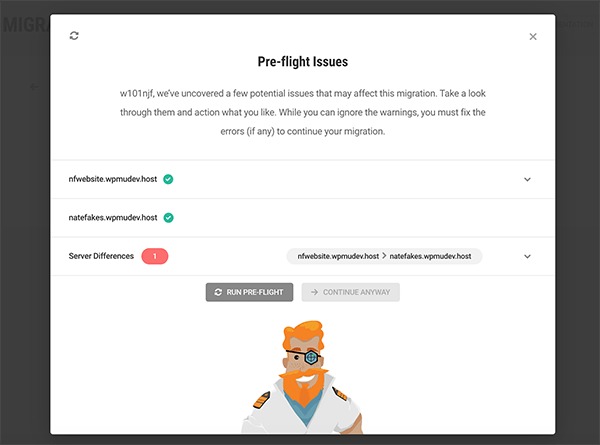
Before you move anything, check each of these:
- Source access: how you reach the existing site's files and database.
- Destination access: the hosting environment and permissions you get at the new location.
- Site data: the database, relevant files, and site-specific configuration.
- Domain routing: any domain or DNS changes needed to reach the destination.
- Recovery option: a preserved copy of the site as it is now, and a plan for a failed move.
The source, the destination, and the access you have at each end set the method. Moving between similar hosting accounts takes different steps than moving to a self-managed server.
If the site is already down, troubleshoot first. Don't use a migration to repair a failure you haven't diagnosed.
Route a broken site by its symptom
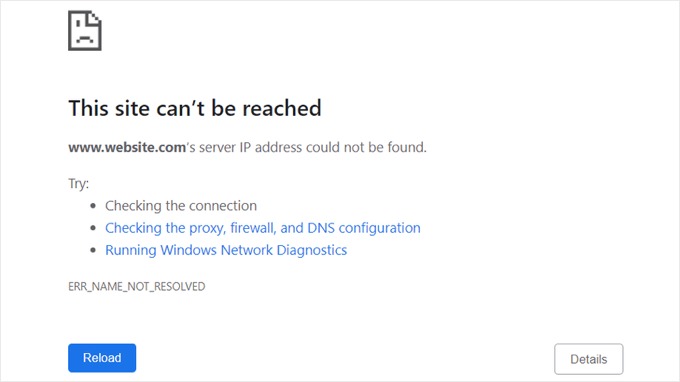
Start with what you can see, plus any application or server log entries available to you. A website error, a failed administrator login, and an unreachable hosting service each point to a different place to look.
| Observed problem | Evidence to collect | Where to look |
|---|---|---|
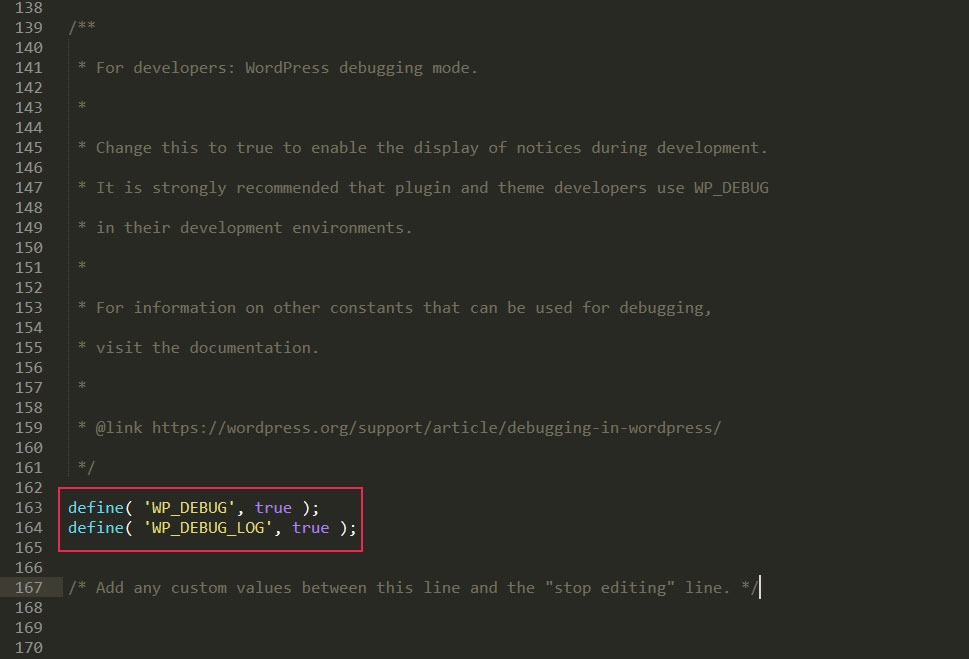
| WordPress error on the public site | Exact message, affected page, and recent changes. | Application debugging. Check themes and plugins as possible causes. |
| Administrator login fails | Login behavior, visible message, and whether the public site works. | WordPress account and login troubleshooting. |
| Database connection error | Exact error and available database or hosting diagnostics. | Database connectivity and configuration. |
| Site and hosting services appear unavailable | What remains reachable and any provider or server diagnostics. | Hosting availability and the server. |
What if the WordPress dashboard is unavailable?When you can't reach the dashboard, rely on hosting diagnostics or support.
Investigate slowness before adding optimizations
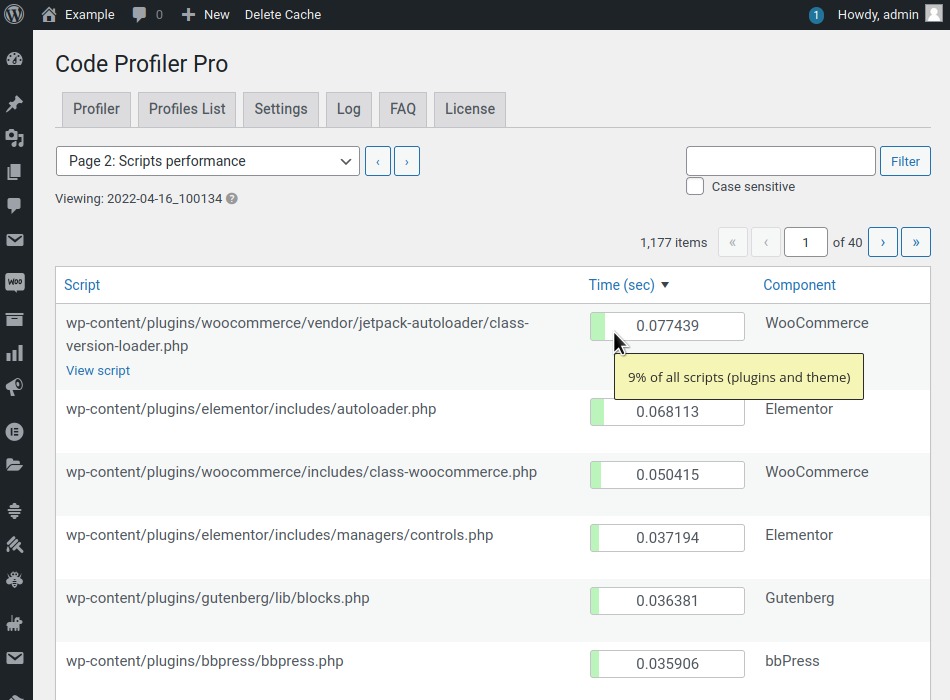
Find where the site feels slow before changing hosting, plugins, or caching. The bottleneck can be in the server environment, in how WordPress behaves, or in the caching configuration.
Separate WordPress security from server security
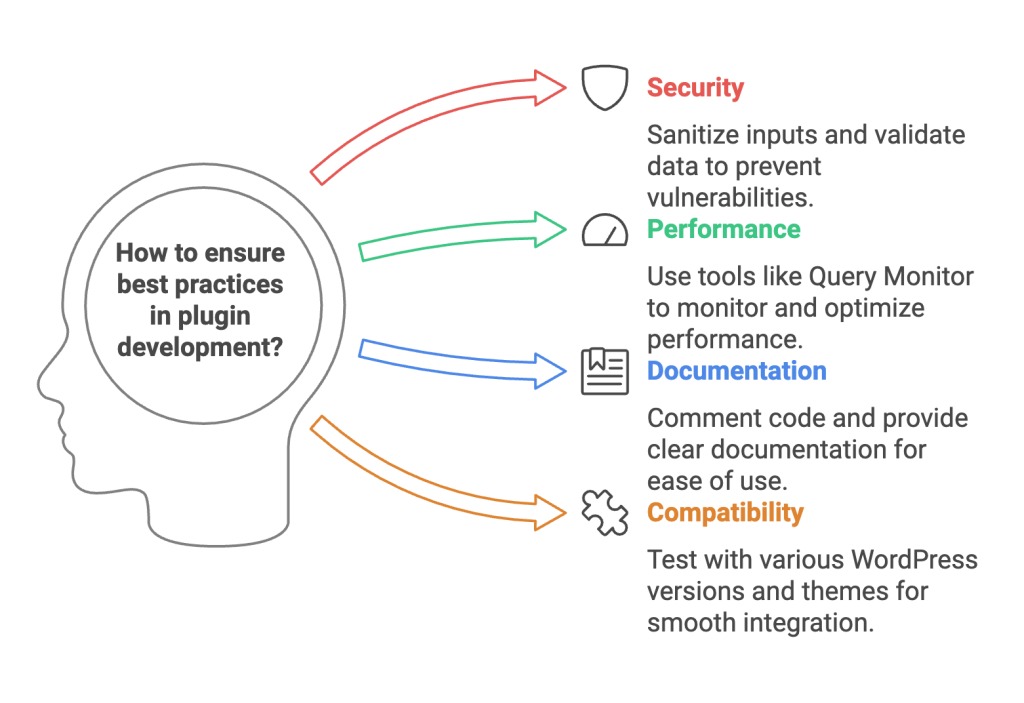
WordPress security has an application side and an infrastructure side. If you run a self-managed VPS, the infrastructure side is yours too: operating-system maintenance, web-server configuration, and server permissions. The WordPress application keeps its own access and software-management needs.
In a security review, answer four questions:
- WordPress accounts: Who grants and removes application access?
- Application software: Who manages core, theme, and plugin changes?
- Server access and configuration: Who administers the operating environment and file permissions?
- Incident recovery: Who can act at each layer if the site is compromised or unavailable?
Manage multiple WordPress sites and their server responsibilities
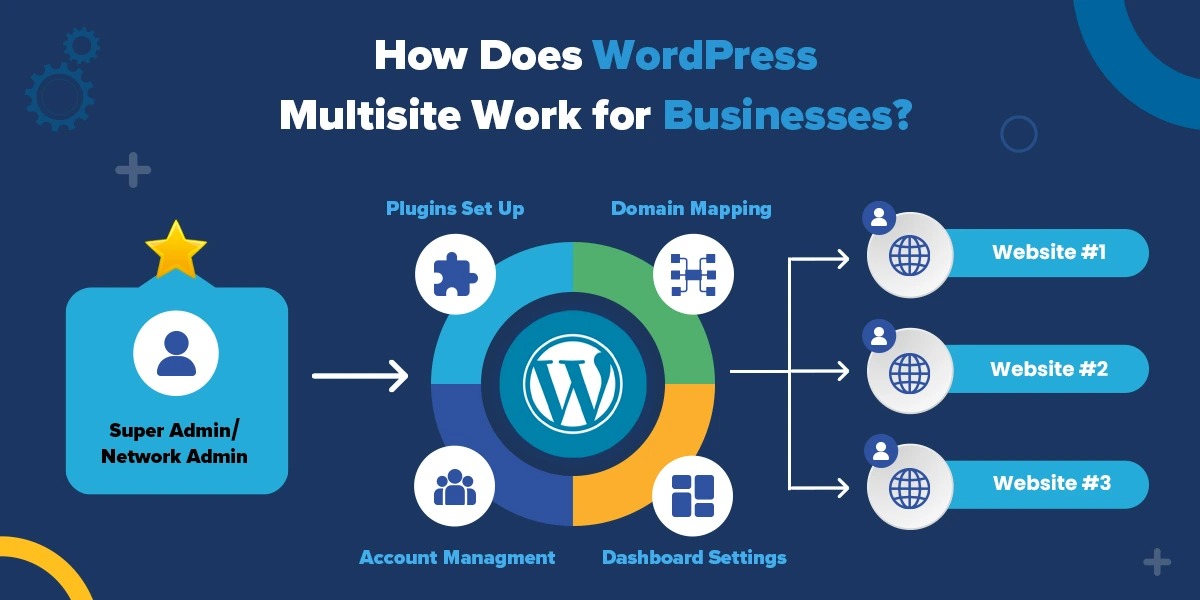
Running several WordPress installations means recurring site work. Server administration follows your hosting arrangement.
If you maintain client websites, you need a repeatable process for updates, backups, access reviews, monitoring, and recovery, and you can coordinate those tasks across installations. Maintaining the operating systems and web servers underneath them is a separate commitment.
A freelancer discussing 30 small-business WordPress sites put it this way in r/Hosting: "I'm also scared of becoming the sysadmin for 30 businesses." The fear is about the server layer, where a failure reaches every site sharing the environment.
WP-CLI is one tool for WordPress command-line administration. Server administration stays a separate job.
