Pick a backup setup by the restore you need: small sites that rarely change can start with scheduled off-site backups, while busy WooCommerce stores and agencies running many sites need stricter recovery and data-protection checks. If your host already provides independently accessible, tested recovery that meets those needs, a plugin adds little. Test a full restore in a separate environment before relying on any option.
Which WordPress backup solution fits your site?
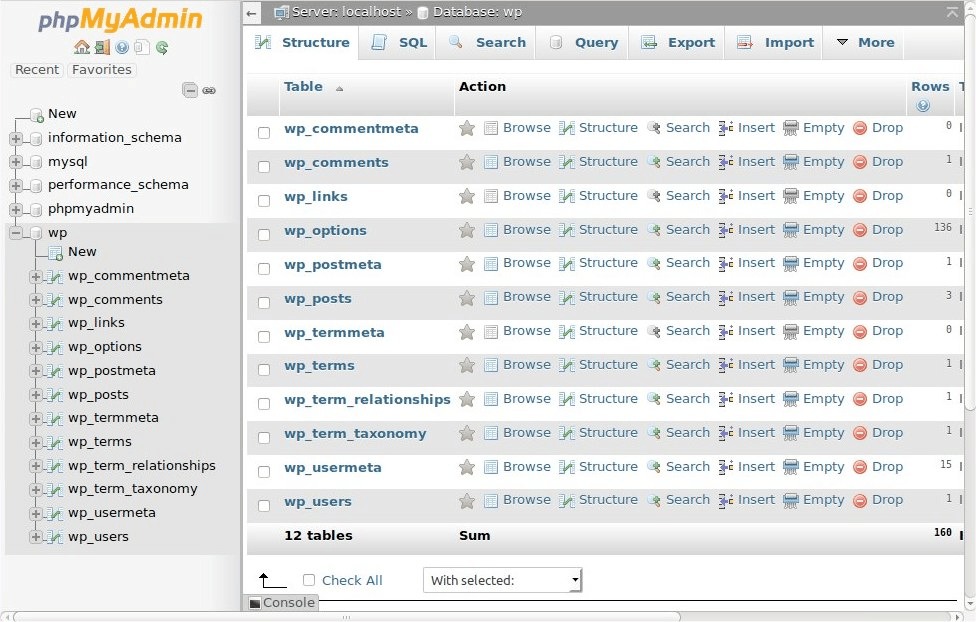
The right backup setup starts with what can disappear. A site updated once a month can tolerate a much older recovery point than a store taking new orders all day.
| Site or operator | Main recovery need | Start with | Trade-off |
|---|---|---|---|
| Occasionally updated blog or business site | Complete files and database in remote storage | A free scheduled backup plugin, such as UpdraftPlus or WPvivid | Some advanced recovery and scheduling functions are paid |
| Active WooCommerce store | Recent order changes and the right rollback method | Frequent or event-based paid protection | Not all changes are captured. Some restores have exceptions |
| Agency handling multiple sites | Central oversight and reliable recovery access | A managed service or a coordinated plugin setup | Subscription reliance or extra administration |
| Developer moving sites | Portable packages and migration tools | Duplicator or WPvivid | A one-time move and continuous protection are different jobs |
| Owner whose host already makes backups | Reachable recovery points kept long enough | Your host's service, plus an independent copy if needed | Two products can share one account you can't access |
What a recoverable WordPress backup must include
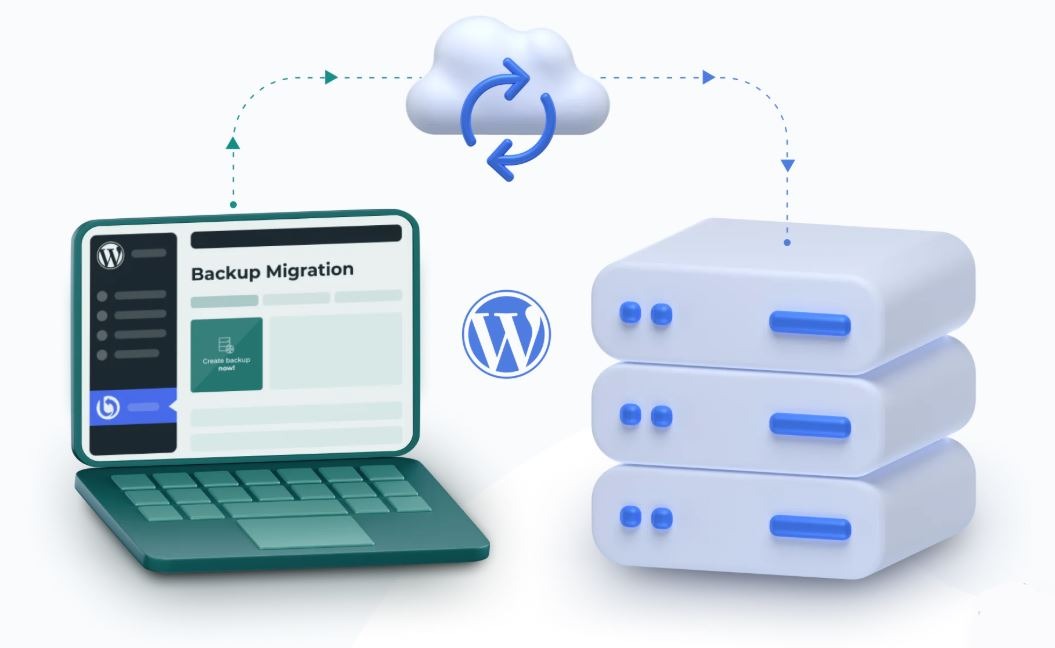
A WordPress restore needs a compatible database and the site's files. Your database holds content, settings and records written by plugins. Your files include uploads, themes, plugins, configuration and anything else the site needs. Both components appear in the WordPress backup handbook, which recommends keeping multiple recent backups in different locations.
A backup labeled “entire site” can leave out custom tables, external file paths or application data outside the standard WordPress directories.
Where you store the copy matters. A copy on the original web server shares the server's failure risk. In a remote account, a copy survives the loss of that server, provided you can still reach the account and retrieve the archive.

- Same-server copies: Convenient for routine work, with limited protection if the server or hosting account disappears.
- Host-managed backups: Fast recovery through your host, within its retention and account-access terms.
- Owner-controlled cloud storage: Backups in a Google Drive, Dropbox or Amazon S3 account you can reach independently.
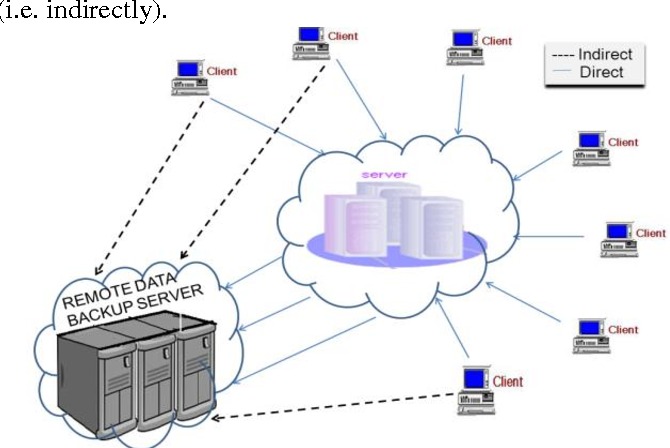
- Vendor-managed backup storage: The provider runs the infrastructure, and restoring relies on the service and its account connections.
List each component above, plus any custom data. Record which storage account holds each one and who can access it after a hosting outage.
Do you need a plugin if your host already makes backups?
Your host's backups are enough when they keep copies long enough, you can reach them, and you can restore from them. Add a plugin if the host leaves gaps.
A site owner on r/Wordpress asked about redundant protection: “I use the free version of UpDraft Plus to back up my site every day. My host - NetNerd - say this is not necessary as they make daily backups anyway.”
Ask whether you can still reach the backup after the host fails. Separate credentials for an archive give you another way to retrieve files if the host account becomes unavailable. Daily schedules in two places still leave the same data-loss window.
Check the hosting agreement for retention, recovery points, downloadable exports and who can start a restore when the WordPress dashboard or hosting login fails.
Six backup options compared: free, paid and managed
| Solution | What it does | Editions and restore method | Best for |
|---|---|---|---|
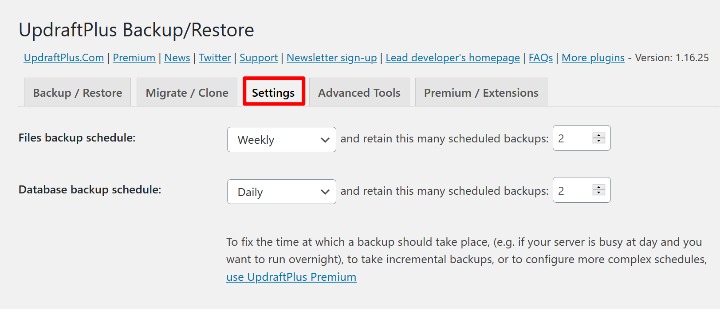
| UpdraftPlus | Scheduled database and file backups, remote destinations, dashboard restore | Free: scheduled backups. Premium adds incremental backups and further controls | Simple recurring copies to storage you control |
| WPvivid | Free scheduled backups, dashboard restore, migration. Destinations: Google Drive, Dropbox, S3, OneDrive, FTP, SFTP | Features and restore methods vary by edition and server environment | A free setup that also handles migration |
| Duplicator | Backup packages, migration, free dashboard restore and a Duplicator Cloud option in Lite | Pro adds broader third-party cloud integrations and scheduling. Check Lite's cloud terms by edition | Portable packages and site moves, plus a named cloud option in Lite |
| BackWPup | Scheduled file and database backups to multiple destinations | Free restores from a manually uploaded archive. Pro adds direct cloud and standalone rescue methods | Admins who accept the free manual restore, or want Pro's separate restore route |
| BlogVault | Paid, managed incremental backup with staging and central administration | Subscription and vendor-managed storage. Exact plan features vary | Many-site oversight without assembling every backup component yourself |
| Jetpack VaultPress Backup | Paid cloud backup plus updates for qualifying events | Needs an eligible plan and active connection. Restore type affects protected WooCommerce changes | Managed recovery points for sites with frequent qualifying changes |
Choose a paid plan when you need a standalone restore route, central management of many sites, or recovery points for a fast-changing site. Count the recurring charges, and who controls the stored copies, as part of the cost. Retention matters too. Several recent copies help when you find damage days after it started. Test a full recovery with your own database and files before choosing a backup product.
Narrow the list to two options and compare schedule, destination, restore path, retained recovery points and edition limits. If a plan feature isn't in the vendor's documentation, don't assume it's included.
Backup frequency, incremental copies and the real cost of lost changes
Your recovery point objective, or RPO, is the point in time to which you must be able to recover data after an outage. Your recovery time objective, or RTO, is how long recovery is allowed to take.
Say you back up nightly at 2:00 and the site fails at 6 p.m. You lose 16 hours of changes. Rarely edited service sites can live with that. Stores lose every order placed in that window.
Full, incremental and event-related copies
Full backups capture the whole recovery data set. Incremental backups capture changes made after a preceding state. That reduces repeated transfer work but creates product-specific dependencies in the recovery chain. Event-related services can capture qualifying activity more frequently than a periodic backup.
Decide how much recent change you can afford to lose and the longest recovery you'll accept.
WooCommerce backups: orders, HPOS and rollback risks
Restoring an older WooCommerce database can overwrite orders and other changes created after the backup. On an active store, the restore operation matters as much as backup frequency.
On r/woocommerce, a store operator asked: “If I was to nuke it & restore from backup... is there any way to backup/restore the order data so the list of sales etc since backuop point can be restored?”
HPOS and order storage
WooCommerce High-Performance Order Storage (HPOS) keeps order information in dedicated tables. WooCommerce 8.2 made HPOS the default for new installations. Older stores can have different configurations. HPOS tables include _wc_orders, _wc_order_addresses, _wc_order_operational_data and _wc_orders_meta, and your installation sets the actual database prefix. Legacy storage uses posts and postmeta structures.
| Restore operation | What happens to newer orders and changes | What decides it |
|---|---|---|
| Older whole-database restore | Orders and changes made after the backup are replaced | The backup is older than the live transactions |
| Jetpack standard restore on an eligible site | Jetpack keeps the order and product objects it protects | The changes must have reached Jetpack in real time |
| Jetpack restore of selected WooCommerce tables | Rows added after the table backup are lost | The object protection doesn't apply to restoring selected tables |
| Restore on a site using HPOS | Order records sit in dedicated tables | Your HPOS setup and application data need compatible handling |
Jetpack's protection covers particular order and product objects during a normal restore on an eligible site. Stock and inventory, some product-description images and certain custom purchase events are exceptions.

Check whether your store uses HPOS, then read the product's rules for whole-site and selective-table restores, including stock and custom events. Edit order tables on a live store only as part of a reviewed recovery procedure.
A backup is only useful if you can restore it
Restoring into a compatible, separate environment shows whether a finished backup produced the files and database a working site needs.
One r/Wordpress poster described a failed restore: “However, now that I have purchased hosting from a new provider and am trying to restore the website from a 269MB backup, the changes are not reflecting.”
Check the restore route before an emergency
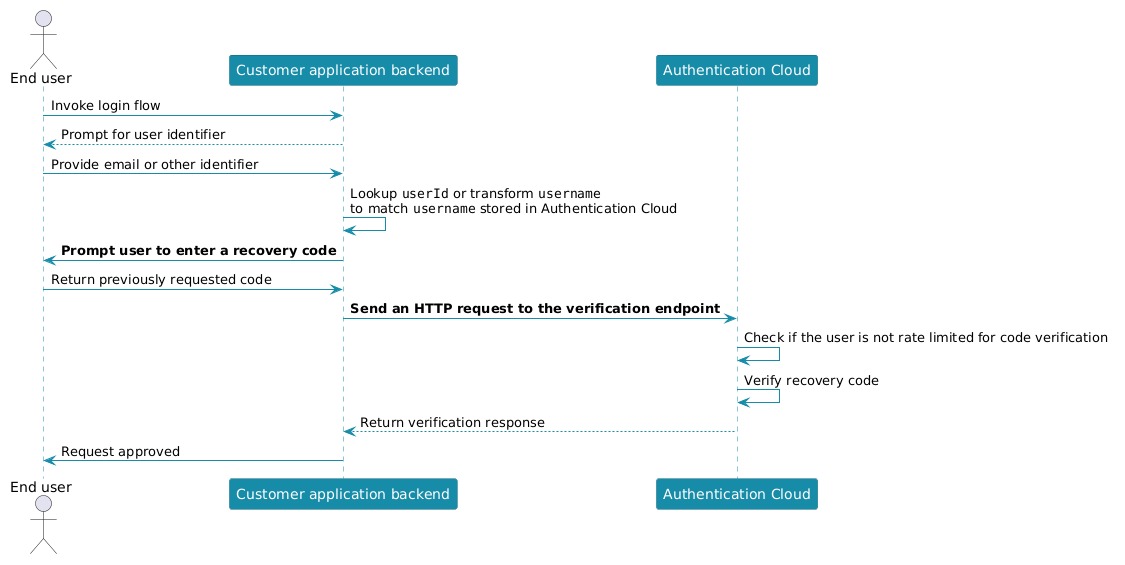
Restore methods differ. Jetpack has a separately accessible cloud management interface, but its normal managed restore needs a working WordPress installation and a healthy Jetpack connection. If your site is completely down, Jetpack describes two routes. One creates a fresh WordPress installation and reconnects the service. The second downloads a backup for manual restoration when the usual process is unavailable.
UpdraftPlus and WPvivid restore from the WordPress dashboard. UpdraftPlus supports uploading locally held backup files through its Backup/Restore tab. Both dashboard routes need a working WordPress admin area at the recovery destination.
| Check | Passes when | If it fails, check for |
|---|---|---|
| Recovery files | Database and file components are present | Missing or incomplete archive |
| Environment | Restore works in a compatible WordPress, PHP and database stack | Version or configuration mismatch |
| Content | Expected posts, pages and settings appear | Wrong recovery point or incomplete database |
| Media | Required uploads and images load | Missing files or broken paths |
| Administration | An authorized administrator can sign in | Credential or application problem |
| Site functions | Forms, store functions and other dynamic features work | Missing plugin or application data |
| Independent route | Recovery works through the external, standalone or manual route | Reliance on admin access that isn't available |
Run these checks on a test copy and record the backup date, the restore route and anything missing.
Migration and long-term archives need portability

Duplicator, WPvivid and migration-oriented options such as All-in-One WP Migration can help move a website. Recurring backup protection is a separate job with its own schedule and recovery path.
Archiving a site for several years? Keep a readable export and a manifest. The manifest lists database and file sets, storage access, account dependencies and the WordPress, PHP and database details.
Backup monitoring, vendor dependence and security updates
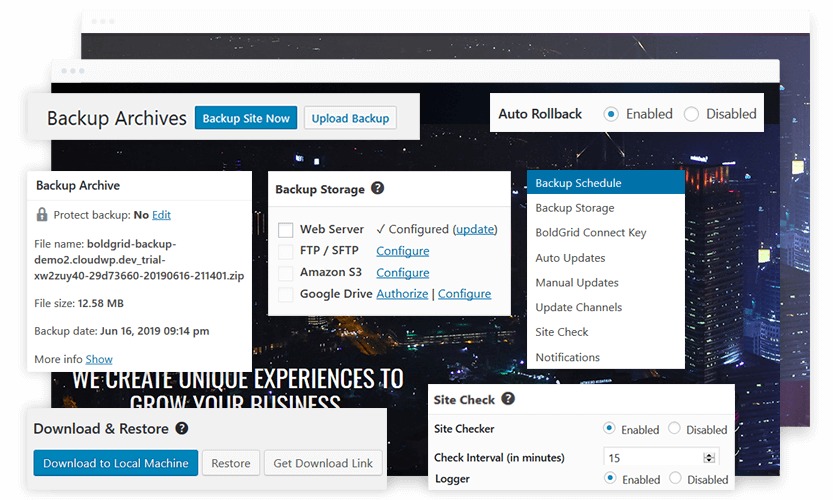
Configured schedules, finished local archives, completed remote transfers and working service connections are separate states. A backup can finish on the server while its second destination stalls, leaving an older recovery point in that account.
Managed services rely on authentication tokens and account access. If a provider revokes connection keys, you need to reconnect the backup workflow, even though independently stored copies remain available.
In its October 2026 security notice, TeamUpdraft reported that compromised service connections were used to create administrator accounts and install malicious plugins on some connected WordPress sites. The notice, published October 19 and updated October 23, identified UpdraftPlus 1.26.13 and 2.26.13 as releases that revoked older UpdraftCentral connection keys.
TeamUpdraft distinguished UpdraftCentral's affected site-access connections from UpdraftVault storage connections, which it reset and required users to reconnect.
TeamUpdraft reported that plugin downloads and backups stored independently with Google Drive, Dropbox or Amazon S3 were unaffected by this intrusion. For sites accessed through UpdraftCentral, it advised reauthorizing remote backup storage and changing its access keys as a precaution.
Confirm your latest backup job finished. Do the same for each remote destination, then compare the newest completed, accessible backup with the recovery point you need.
If a provider advisory warns of possible site changes, check the connected WordPress installation for unauthorized administrators or plugins. Then follow the service's credential or reconnection instructions.
