A WordPress plugin or theme conflict is confirmed only when the same failure appears with the suspected combination and disappears when you remove one of them. A plugin or theme that fails alone, or a failure that survives the clean baseline, needs a different diagnosis. Test away from live visitors when you can, then record the results, restore your normal setup, and take the verified cause or a reproducible test case to the responsible developer or host.
When is a WordPress failure a plugin or theme conflict?

After an update, a broken Customizer, checkout, editor, or Admin screen tells you where to look first: the plugins and themes that changed. In a true interaction, two plugins, or a plugin and a theme, work separately and fail together. In r/Wordpress, a developer updating a client's site wrote, “Updated about 6 plugins in a batch on a client site, and after the update the Customizer stopped loading, just an endless spinner.” (r/Wordpress discussion) Before changing anything, write down the affected URL, the action that fails, the user role, the visible symptom, the approximate time if you know it, and the recent changes.
Choose the safest place to test before changing plugins
Test a suspected conflict on a staging copy, where you can disable plugins or switch themes without touching what serves visitors. Match its software, settings, data, and integrations to production as closely as you can. Before any disruptive test, set up a backup and a recovery route that still works if the dashboard stops responding.
| Method | Best suited to | Effect on visitors | Main limitation |
|---|---|---|---|
| Staging site | Disruptive tests, client sites, stores | Production setup stays in place | A different setup or external integration can change the result |
| Standalone Troubleshooting Mode | Maintainer has Admin access and needs session-level isolation | Isolates changes to the logged-in session | Cache behavior and visitor-specific actions can differ |
| Manual plugin or theme deactivation | Controlled recovery or a site where broader disruption is acceptable | Can change functionality for all visitors | Checkout, forms, memberships, and other essential features can stop working |
With the standalone Troubleshooting plugin, a logged-in administrator can test with a reduced plugin set and an alternate theme while leaving the visitor-facing setup unchanged. After activating it, open Tools → Site Health → Troubleshooting and enable Troubleshooting Mode.
For a WooCommerce checkout failure, use staging and a correctly configured payment test environment. Troubleshooting Mode does not put real payment gateways into sandbox mode. Never let a test checkout become a live charge.
Avoid the deprecated legacy tool. Its project repository marks the original Health Check & Troubleshooting plugin, with the health-check slug, as deprecated. It is a different product from the standalone Troubleshooting plugin.
Published December 15, 2025, a Wordfence advisory describes CVE-2025-64253 in legacy versions through 1.7.1. It requires authenticated Administrator-level access and is rated CVSS 2.7 (Low). Wordfence listed no known patch.
Capture the error before you start toggling plugins
To someone visiting the site, a PHP fatal error, an endlessly loading JavaScript control, and an old cached page can look similar, but they leave different traces.
| Symptom | Where to investigate | Useful evidence |
|---|---|---|
| WordPress critical-error screen or PHP fatal | WordPress debug log, PHP or hosting error logs | Error text, affected file or function, and the request |
| Spinner, failed interaction, AJAX problem | Browser Console and Network panels | Script error, failed request, response or loading behavior |
| Editor looks correct but public page is broken | Logged-in and visitor-facing browser views | Differences in rendered output and cached responses |
Use the browser's Developer Tools for a frontend control that fails without a visible PHP error. Check the Console for client-side errors. Use the Network panel to see whether the failing action sent a request and what response came back. Reproduce the original action while you watch both.
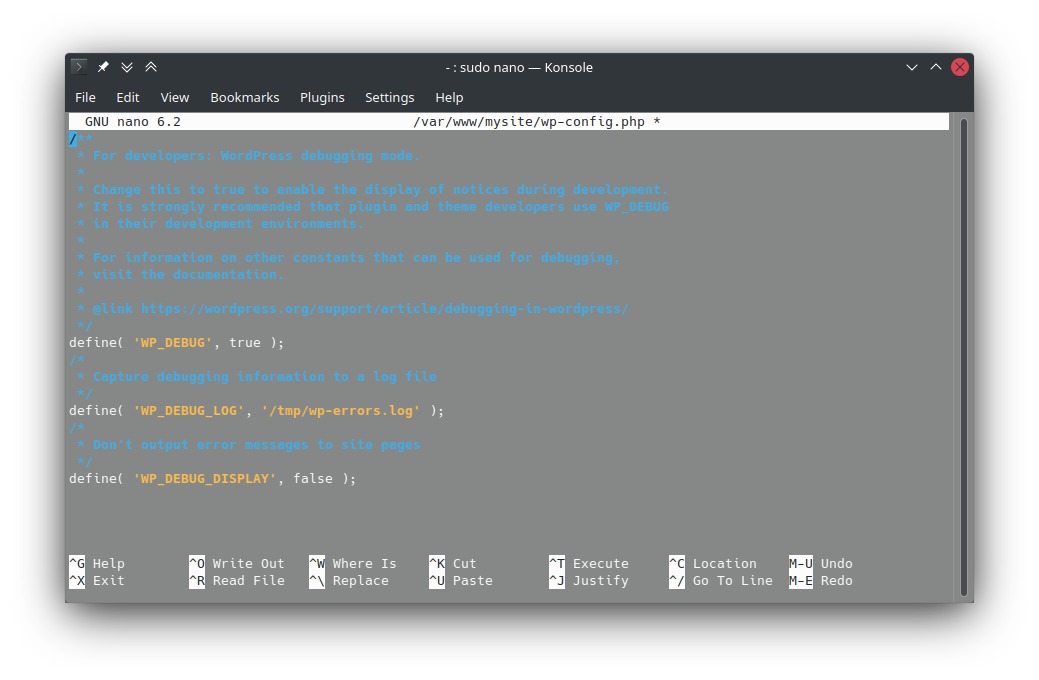
For PHP errors on a local or staging copy, turn on temporary debugging in wp-config.php. WordPress advises against enabling these tools on live sites. On production, use your hosting provider’s existing error logs. Use this setup from the WordPress docs:
define( 'WP_DEBUG', true );
define( 'WP_DEBUG_LOG', true );
define( 'WP_DEBUG_DISPLAY', false );
@ini_set( 'display_errors', 0 );
Place these definitions before the existing “That's all, stop editing!” marker. If they already exist, edit them in place and keep a recoverable copy of the file.
Errors go to wp-content/debug.log, unless the installation's logging settings send them elsewhere. WP_DEBUG_DISPLAY set to false keeps debug output off public pages. Protect sensitive diagnostic files from public access.
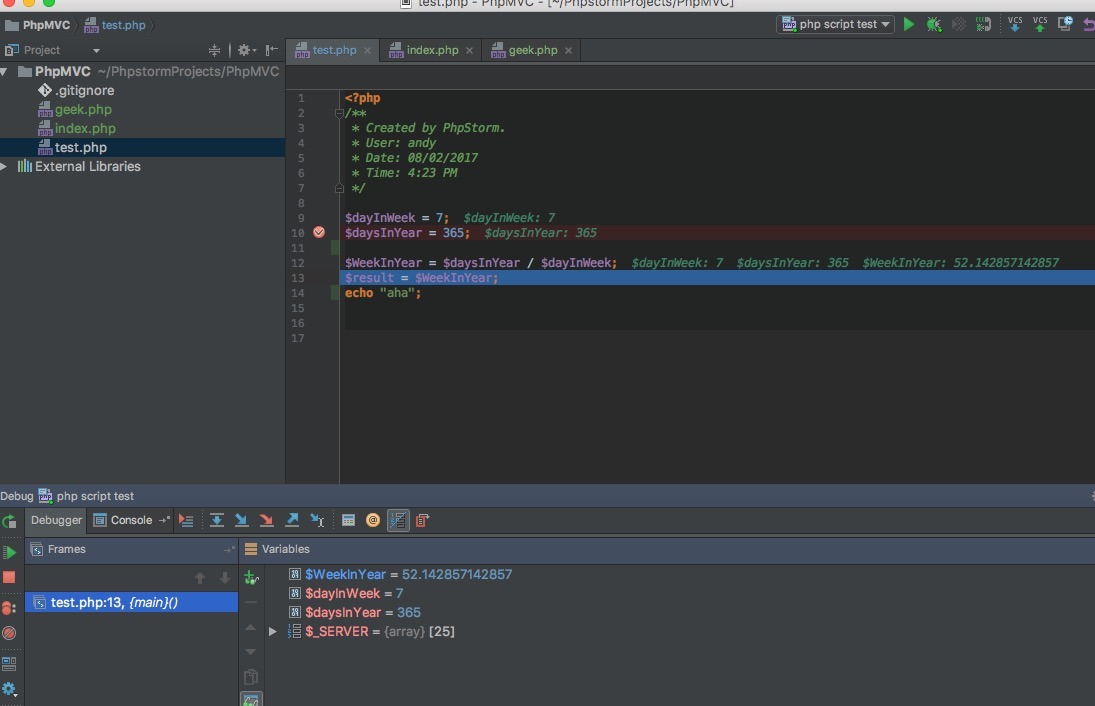
An error trace shows where execution failed and gives you a lead. Because a trace can name a function that another plugin called, the file it names is not always the root cause.
Set a clean baseline, then isolate the first suspect
A clean baseline is the minimum setup needed to reproduce the original failure, with unrelated variables removed and the failing feature still testable. On your test environment, save the initial list of active plugins, the theme, and their versions. In WordPress Admin, open Plugins → Installed Plugins and use the activation controls there. Then follow this sequence:
Reduce the active plugins. Start with a minimal setup that suits the feature. Switch to a default theme if you can, and disable every plugin the feature does not need.
Repeat the original failure. Try the same page, form, editor action, or checkout step under the same user conditions. Record whether the symptom appears.
Add back one plugin. Activate one suspected plugin and repeat the action without changing other settings.
Work through the rest. Record the active plugins and the outcome after each change. Let recently updated plugins set your order, but do not assume they caused the error.
For WooCommerce testing, the baseline needs the core store functionality enabled. If removing a required plugin makes checkout unavailable, an absent checkout error in that state does not count as a pass. Make sure the failing action still exists.
Say a store with a child theme and page-builder extensions shows a checkout error. Leaving those extensions on narrows the possibilities but does not clear the other active plugins.
Keep a simple record of each state you test:
Tested operation: [same failing action]
Theme:            [active theme and version]
Required plugins: [components needed for the operation]
Candidate active: [plugin and version, if any]
Observed result:  [same symptom / works / test invalid]
Confirm the suspect: one faulty plugin, a pair, or the theme

The decisive test runs the suspected plugins separately and together under equivalent conditions. WordPress.com's conflict-testing method uses this distinction to separate an individual failure from an interaction. If each plugin works alone but the error returns with two enabled, record that combination on staging. A one-at-a-time test can miss a two-component conflict.
Call the suspected plugins A and B. On your baseline, run the original action with A alone, B alone, and both together. Keep the theme, user role, URL, data, and cache state the same in every test.
| Test setup | Same failure appears? | What it means |
|---|---|---|
| Baseline without A or B | No | Clean reference |
| A alone | No | A works alone |
| B alone | No | B works alone |
| A + B | Yes | A and B conflict |
Example result with placeholder plugins.
- A or B alone fails. That plugin has its own failure. Look into its behavior before blaming the other one.
- Both pass alone and together. You have not recreated the original failure. Another plugin or an environmental condition can be involved.
- The baseline fails. In that case the A/B comparison cannot show that this pair caused the symptom.
Test whether the theme is involved
For a suspected theme interaction, run the failing action with a default WordPress theme and with the custom theme, keeping other plugins to the minimum the feature needs. Twenty Twenty-Five is one default theme you can use if it is installed and compatible with your site.
If the custom theme fails with minimal plugins, the theme's own setup needs attention. If the custom theme and a suspected plugin each pass alone but fail together, you have a theme-plus-plugin interaction.
That test shows the interaction exists. Finding the cause, whether competing hooks, JavaScript, shared libraries, or settings, takes evidence from the code, logs, or the plugin maintainers.
What to do when WordPress Admin is inaccessible
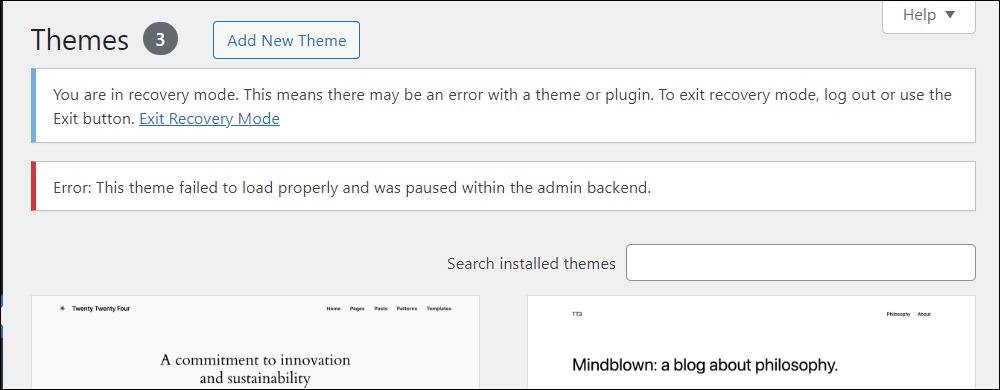
Losing access to the Plugins screen changes how you reach your test setup. For eligible fatal PHP errors, WordPress Recovery Mode, introduced in version 5.2, gives you a built-in way back into the affected dashboard.
In r/Wordpress, a site owner described the narrower failure: “My site is live, but trying to access admin is giving the "There has been a critical error on this website." message for all pages in admin.” (r/Wordpress discussion)
If WordPress generated a recovery message for the error, the administrator's recovery email carries a special login link. When Recovery Mode is unavailable, hosting tools give you another way to change a suspected plugin's state.
Recover through hosting access or SFTP
Use your hosting File Manager or an SFTP client to rename the suspected plugin's directory temporarily. Note the original name and any configuration details you need, so you can restore the plugin later. Do not delete the plugin until you finish the diagnosis.
Recover through WP-CLI
If WP-CLI works on your site, WordPress documents deactivation commands such as:
wp plugin deactivate hello
wp plugin deactivate --all --exclude=hello,wordpress-seo
hello and wordpress-seo are example plugin slugs. The first command deactivates one named plugin, and the second deactivates all ordinary plugins except the ones you list. Renaming a directory and deactivating plugins both change the live site for every visitor.
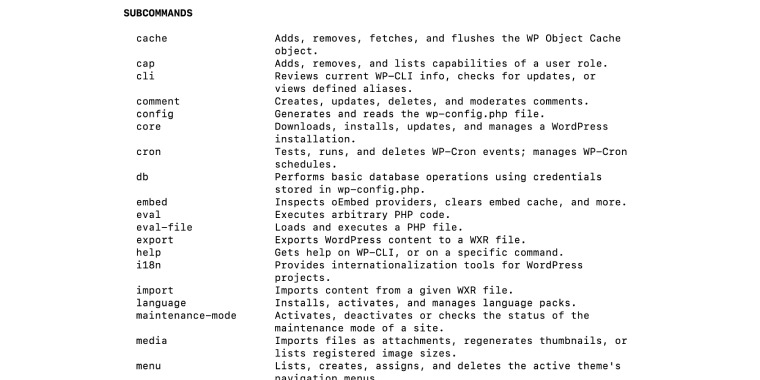
WP-CLI's global --skip-plugins option works differently. It skips loading ordinary plugins during that CLI invocation, while must-use plugins still load. It does not turn off the site's plugins for normal visitors. Once you can reach the Admin screen that failed before, return to the baseline test.
If the clean test still fails, widen the diagnosis
When a clean baseline still fails, check what ordinary plugin testing leaves untouched, in this order:
- Must-use plugins and drop-ins. These do not behave like regular plugins in the standard Plugins list, so your deactivation steps skip them. Find the active ones and check whether the host manages them. A host-managed cache integration, such as an
object-cache.phpdrop-in, can be another remaining layer. - Cache behavior. Compare a fresh browser response with the state you saw before. In browser Developer Tools, the Network panel's Disable cache option keeps local browser caching from obscuring a test. Logged in, you can see a working page while another visitor still gets an earlier cached response.
- Runtime and custom code. Check PHP compatibility, customizations, and external service dependencies when the evidence points beyond plugins.
- Hosting infrastructure. Use the captured error details to decide whether PHP, the web server, or host-managed services need their own investigation.
If you cannot isolate host-managed parts safely, pass the evidence you have to your hosting provider. Persistent server or fatal-error symptoms can require the dedicated WordPress critical-error or HTTP 500/502/503 troubleshooting procedures.
Fix the verified cause and give developers a reproducible report
For an individual plugin or theme failure, check its documented requirements, available settings, and supported version combinations. If a reproducible defect remains, contact the maintainer.
For a confirmed conflict, compare the functions and settings of both plugins, or of the plugin and the theme. You can resolve it by changing overlapping behavior or choosing a compatible maintained version. When a required feature cannot coexist with the other plugin, replace one of them.
You can roll back temporarily to restore a working site after an update, but that can bring back older security issues and leaves the compatibility problem unsolved.
What developers need from the test
Write a support report that lets the developer understand your environment and reproduce the same failure without guessing which settings you changed.
| Information | What to provide |
|---|---|
| Plugins | Suspected plugin names and exact installed versions |
| Theme | Active theme, version, and any child-theme details |
| Environment | WordPress and PHP versions |
| Failure | Affected URL or action, exact visible error and diagnostic evidence |
| Reproduction | Ordered steps, user role and any data or conditions needed |
| Isolation | Baseline state, A-alone result, B-alone result, combined result |
| Current state | Working setup, temporary workaround, or unresolved symptom |
Separate observed facts from suspected causes. For example, “A and B each passed separately. The same checkout failed when both were active.” gives the maintainers a controlled result to investigate. For a confirmed conflict, both developers can use the report.
Restore your normal setup and verify the site works
Finish when the site is back to its normal setup and you have rechecked the original failure. Use your recorded starting setup to restore the site:
Restore your plugins. Return required plugins, theme settings and files to the intended state, except for a documented workaround that avoids a verified broken combination.
End temporary troubleshooting sessions. Exit Troubleshooting Mode if you used it and confirm the site's intended setup is active outside the isolated session.
Repeat the original action. Check the affected page, editor, form, Admin action, or checkout under both logged-in and visitor conditions.
Close temporary diagnostics. Return debug settings to their intended state.
Record the outcome. Mark the incident as fixed, stable with a workaround, or escalated with an unresolved reproducible failure.