Start with the filesystem where the write failed: check its block and inode usage, then run du and find on that same mount to see what takes the space. If the numbers don't add up, or the space belongs to Docker, snapshots or another live service, investigate that owner before deleting anything. After the fix, confirm free space on the same mount and rerun the failed operation.
Start with the write that failed
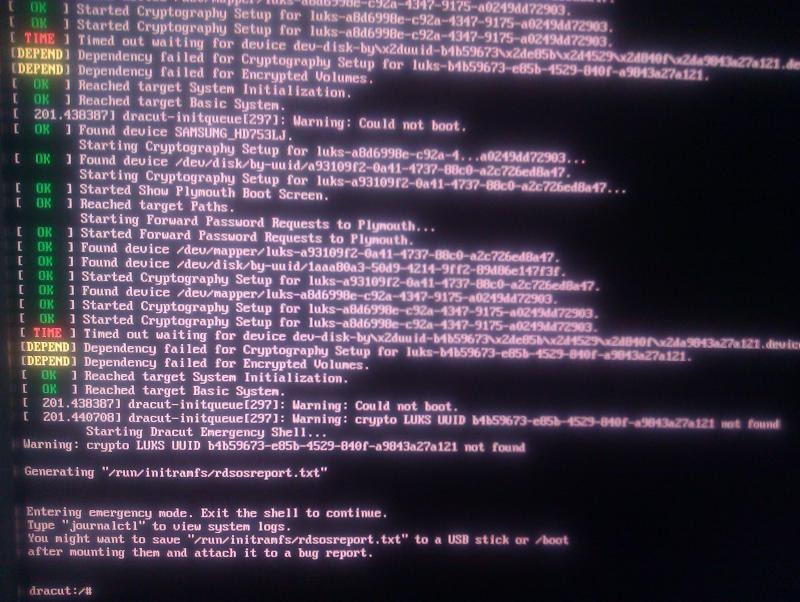
A failed write tells you where to begin: the operation, the service and the destination path that hit the error. An Ubuntu 22.04.4 LTS user running Docker services wrote in an r/Ubuntu discussion: “I'm now showing no space left on the device and I can't seem to figure out my issue.” Their roughly 100 GB root logical volume was full. A separate mounted media volume had free space.
Find the filesystem that holds the failing path
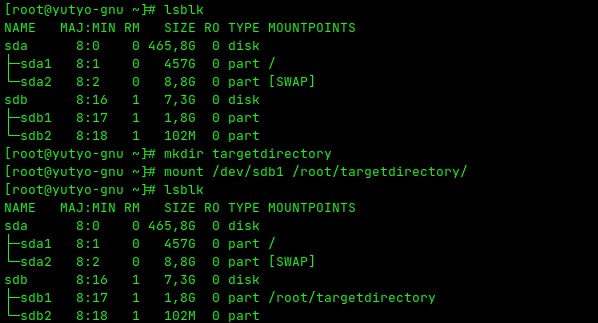
A Linux server can have several filesystems, each with its own capacity and resource limits. Begin with the one that holds the location where the application tried to write.
| What you see | What to check | When to look elsewhere |
|---|---|---|
| A service can't write to a known path | Find the mount that holds the path and check its capacity | The path sits on a different mount than you expected |
| The filesystem has little free space | Look at its largest directory trees | The directories you can see don't add up to the usage |
| Space is free, but new files fail | Check inodes with df -i | Inodes are fine: look for another limit |
df shows high usage, but the visible files look too small | Compare how df and du count space, and look for deleted files that are still open | Filesystem metadata, snapshots or another allocation mechanism explains the difference |
| Docker reports no space, although the host has capacity | Check the relevant Docker storage | A different mount, volume or storage layer hit its limit |
| Space comes back, then shrinks again | Find what keeps consuming it | You find the ongoing writer or the retention process behind it |
Find the mount for the failing path
findmnt -T shows the filesystem that contains a given path. For a write failure under /var, start with:
findmnt -T /var
df -hT /var
Replace /var with the path that failed. The first command shows the mount target, source and filesystem type. The second reports capacity for the filesystem that holds the path.
In the df output, read Type (ext4, XFS or Btrfs, for example), Avail, Use% and Mounted on.
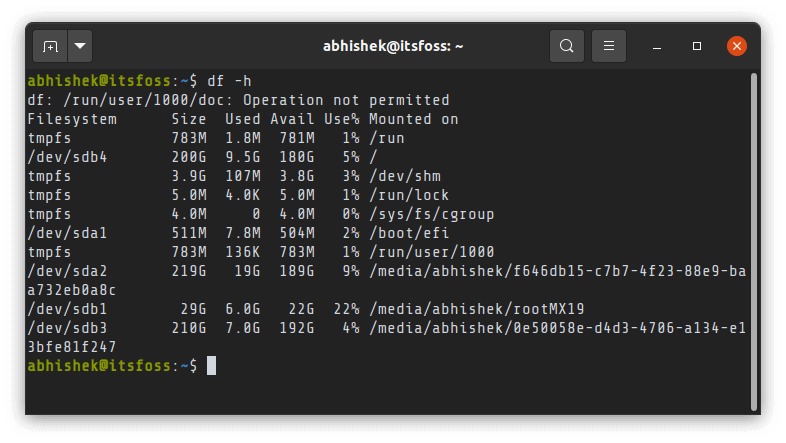
If /var is a separate mount, the available capacity of / is a different measurement.
If the failed pathname no longer exists, use an existing parent within the relevant filesystem. A process inside a container can also see different mounts from the host, so resolve the path in the context where the error occurred.
Find the largest directories on that filesystem
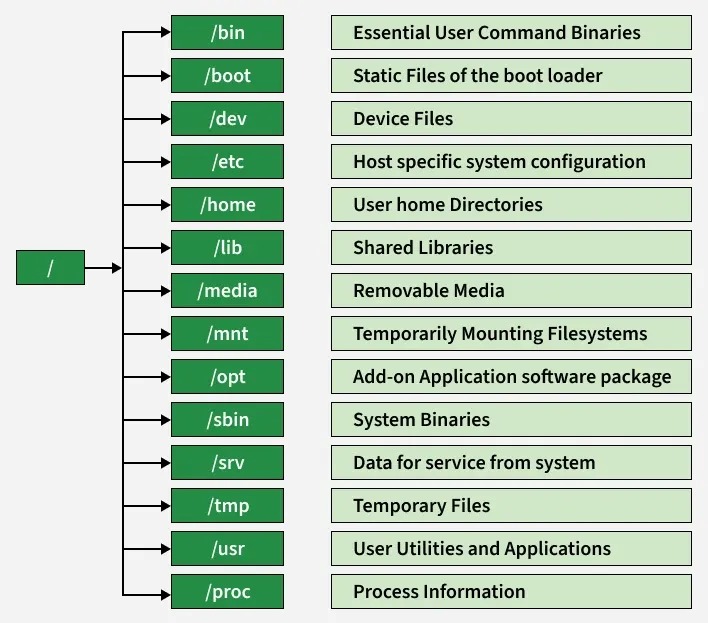
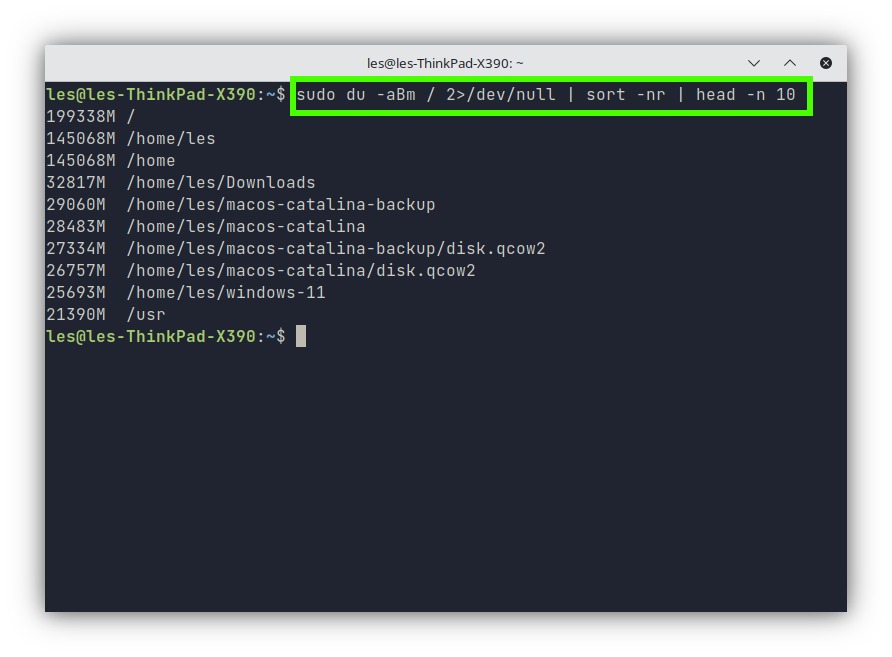
Once you know which filesystem is short on space, GNU du shows which directories take the most. Check one directory level at a time:
sudo du -xhd1 /mountpoint | sort -hReplace /mountpoint with the mount target you found earlier.
-x: Stay on the filesystem that holds the starting directory.-h: Show human-readable units.-d1: Report the starting directory and its immediate children.sort -h: Sort human-readable sizes numerically.
The output also includes the starting directory's total. Its children are part of that total, so adding up every line counts some storage more than once.
Go into the largest directory
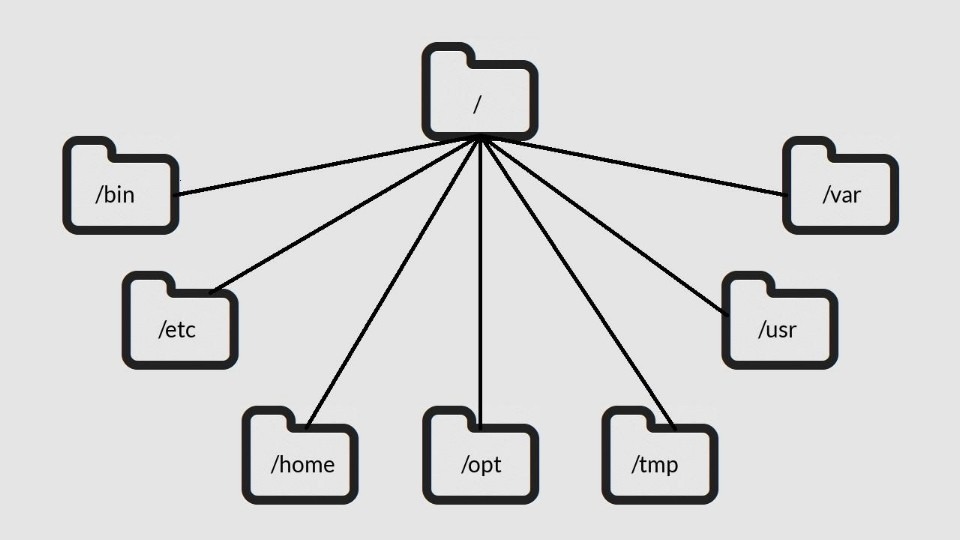
Suppose a scan of the root filesystem shows that /var takes a large share and sits on the filesystem you're checking. Scan it next:
sudo du -xhd1 /var | sort -hIf /var/log dominates, search for files there next. If /var/lib is large, look at which application or service controls that storage.
Don't hide permission and read errors. An inaccessible subtree means the scan can't account for everything under that path.
For interactive browsing, ncdu makes directory navigation easier. Its read-only restrictions differ by version, so check them before using it on sensitive server data.
Find the largest files
Once you've narrowed the directory, GNU find can rank regular files by logical length. That gives you candidates to inspect, ranked by apparent size, which can differ from disk allocation.
sudo find /mountpoint -xdev -type f -printf '%s\t%p\n' |
sort -nr |
head -n 20
The pipeline prints the 20 largest matching regular files by logical size in bytes.
-xdev: Don't descend into other filesystems.-type f: Restrict the search to regular files.%sand%p: Print logical byte length and pathname.sort -nr: Sort numerically in descending order.head -n 20: Show the first 20 records of that ranking.
Display the ranking in readable units
With GNU numfmt, an optional last step converts the first field to readable units:
sudo find /mountpoint -xdev -type f -printf '%s\t%p\n' |
sort -nr |
head -n 20 |
numfmt --to=iec --field=1
The numeric sort runs before the conversion, so the order comes from the original byte counts.
Search above a size threshold
GNU find also takes a size threshold:
sudo find /mountpoint -xdev -type f -size +100M -printIn GNU Findutils, M means 1,048,576 bytes and G means 1,073,741,824 bytes. The -size test compares logical file length and applies its own unit-rounding rules.
What df, du and apparent size each measure
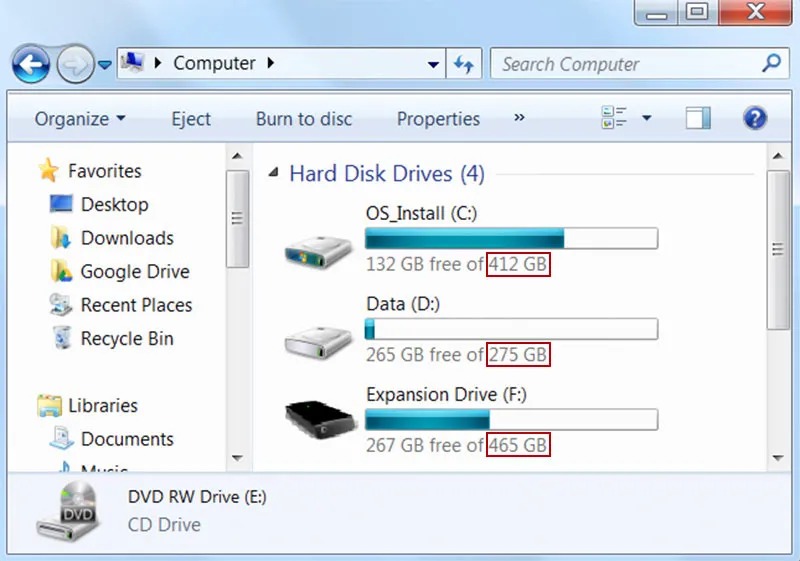
Linux storage tools measure different things, so their numbers can disagree.
| Command | What it reports | How to read it |
|---|---|---|
df | Filesystem capacity and usage | Counts everything allocated on the filesystem |
du | Estimated storage for the directory tree you scan | Depends on which paths you scan and how du counts |
du --apparent-size | Apparent length within the selected tree | Can differ from allocated storage |
GNU find %s | Logical length of a file in bytes | The length the file reports |
df -i | Inode usage on the filesystem | A separate resource from free bytes |
docker system df -v | Resources the Docker daemon tracks | Uses Docker's own resource and sharing accounting |
A du total for /var covers that directory tree. A df reading covers the whole filesystem that contains it. If df reports a nearly full mount but a du scan of the matching tree is much smaller, first rule out a different mount, an incomplete scan and permission errors. The gap is a clue, not permission to delete more files.
Apparent size versus allocated storage
Take a sparse file. The GNU Coreutils du documentation describes one with an apparent size of 2 GiB that can occupy much less physical storage.
For a path you control, compare the two du measurements:
du -sh /path/to/file
du -sh --apparent-size /path/to/file
The first command gives the default disk-usage estimate. The second reports apparent size for the same path.
Hard links, compression, snapshots and copy-on-write sharing complicate this further. Multiple references can share the same storage, and filesystem accounting can include resources outside a visible file tree. Apparent, allocated and exclusively reclaimable bytes are three different quantities, so removing one pathname can leave shared storage allocated elsewhere.
A Btrfs user comparing a reported 371G of filesystem use with smaller visible du totals asked on r/linuxquestions: “Which is the correct one? My file system is Btrfs.”
When df and du disagree: deleted files that are still open
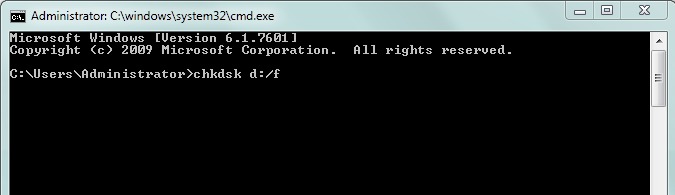
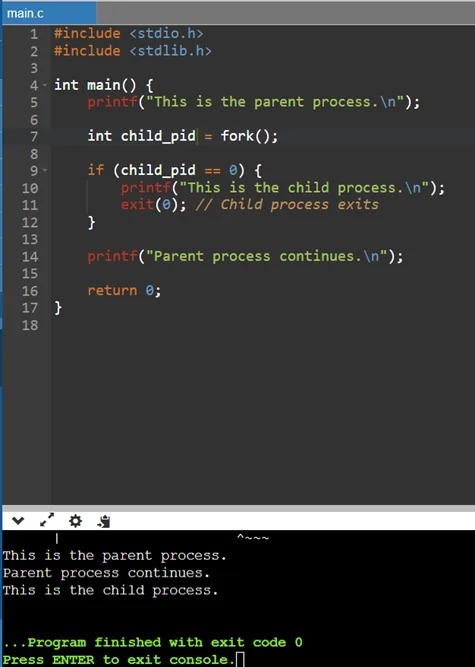
When usage stays high but the visible tree looks too small, one cause is an open file whose directory entry was deleted. Picture a busy service writing to a large log: someone removes the log pathname, but the process keeps the file open. A fresh directory scan cannot see that unlinked file, while the filesystem still counts its allocated blocks.
Deleting a file's directory entry and releasing the storage behind an open file descriptor are separate events. This explains why deleting a large log can leave the free-space reading unchanged. It does not establish that every df/du mismatch has the same cause.
Find unlinked files that processes hold
List them with:
sudo lsof +L1The +L1 selector lists open files whose link count is below one. The output names the process that holds an unlinked file, such as a log that stayed open after removal or rotation. Match its PID and open-file entry to the affected service and filesystem.
Before you restart the service or run another state-changing operation, weigh the downtime and the risk to data consistency. Use the service's supported log-reopen or rotation procedure where available, or plan a controlled restart if appropriate. Do not truncate an unfamiliar process descriptor just to force the space to return.
If the gap is still unexplained
Confirm that your directory scan used the right filesystem, enough permissions, and a scope comparable to the filesystem-level reading.
If lsof +L1 returns nothing, check whether you inspected the right host and mount with sufficient permissions. Then look at mount namespaces, snapshots, filesystem metadata, reservations and storage-specific allocation behavior. A negative lsof result is not proof that the filesystem has no hidden allocations.
An administrator discussing an air-gapped RHEL 7.8 environment on r/linuxadmin wrote: “It's a 1GB partition, but du /boot shows that it contains only 51MB of files.” It was an XFS /boot filesystem.
Stop condition: If the directory scan and the open-file check both come up empty, move to filesystem-specific investigation. Don't force a repair or restart a production process as a speculative way to free space.
Check inodes when writes fail but free space remains
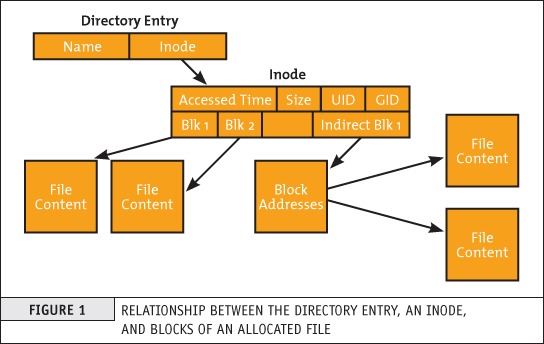
A filesystem can have free bytes and still lack the metadata it needs to create another file. Inode exhaustion can cause this, especially when a service produces large numbers of small files.
Check inode availability on that filesystem:
df -i /affected/pathThe output lists total, used and available inodes. If few or none are left, GNU du can narrow the search by inode count:
sudo du --inodes -x --max-depth=1 /mountpointThis reports inode counts for the selected filesystem, a different measurement from ordinary byte-oriented du.
Take an application that creates many tiny session or cache files. The list of largest files looks unremarkable while creating another file fails.
If inodes are normal, look at quotas, container storage limits and other resource limits, and find out which one you hit before trying a fix.
Find the owner: Docker, journals, snapshots and other managed data
A large directory shows where the files sit. Next, find out which application, daemon or recovery system controls them.
| Large storage area | Owner | Check first |
|---|---|---|
| Application or web logs | The generating service | Whether it's still writing and how rotation works |
| Database files | The database engine and application | Data consistency and recovery requirements |
| Docker images and layers | Docker daemon | Sharing and resource dependencies |
| Docker volumes | Containerized applications | Persistent application data and what uses it |
| Backup archives | Backup and recovery policy | Recoverability and retention rules |
| Filesystem snapshots | Filesystem or snapshot manager | Shared blocks and retained references |
| Systemd journals | Systemd journal management | Which journal files are active and which are archived |
Docker storage
If Docker owns the storage, inspect the resources the daemon tracks:
docker system df -vVerbose output gives details for Docker-managed images, containers and volumes. For images, it separates shared and unique sizes. These figures describe Docker resources and don't give complete host-filesystem allocation totals.
Docker warns that docker system df can be resource-intensive because it traverses storage for images, containers and volumes. On a performance-sensitive host with many or large Docker objects, expect that cost before running it.
A user operating Docker inside a Debian 12 VM under Proxmox asked in an r/docker discussion: “WHY then, is Docker telling me I'm out of space?”
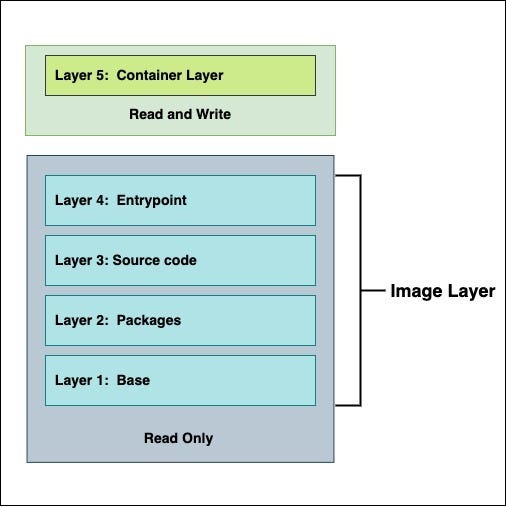
Docker also manages container logging. For the json-file driver, Docker warns against manipulating the daemon-managed JSON log files with external tools, because that can interfere with its file handling.
The Docker JSON-file logging documentation illustrates rotation options using max-size: "10m" and max-file: "3". Changes to daemon logging defaults apply to newly created containers and do not reconfigure existing containers.
System journals
On a systemd host, check journal usage with:
journalctl --disk-usageThe reported amount includes active and archived journal files. Journal vacuum operations target archived files, so their effect can differ from the full amount reported.
Backups, snapshots and application data

Ownership before deletion: Find out which service created the data, whether it's still active, and what retention or recovery rules apply. Don't remove live database files, persistent Docker volumes, snapshots, backups or daemon-managed logs through generic file cleanup.
Confirm the fix on the same mount

After an approved fix, check two outcomes: the available resources on the original filesystem and the operation that failed. Compare the before-and-after df readings on the same mount. If a deleted-open-file issue was confirmed, check that the relevant open handle is gone.
- Free space on the same mount as the original failure.
- Inodes, if relevant.
- The failed operation. Rerun it and confirm it succeeds, or note the error that remains.
More free space doesn't count as recovery if the application still fails.
If space begins disappearing again
If space keeps disappearing, find the ongoing writer or the retention mechanism behind it. Depending on the owner, look at application logs, backup retention, snapshots or capacity monitoring.
