For a service managed by systemd, find its unit and check its state before you pick a command. Use systemctl to control the service or its boot behavior, journalctl to investigate failures, and an application-specific test to confirm the result.
These are the commands you'll use most. The examples use nginx.service, so swap in your own unit name. Commands starting with sudo need administrative privileges.
| What you want to do | Command | What it changes or reveals |
|---|---|---|
| Find loaded services | systemctl list-units --type=service |
Units the manager has loaded |
| Find installed service files | systemctl list-unit-files --type=service |
Installed unit files |
| Check a service | systemctl status nginx.service |
Current state and recent messages |
| Start a service | sudo systemctl start nginx.service |
Starts it now |
| Stop a service | sudo systemctl stop nginx.service |
Stops it now |
| Restart a service | sudo systemctl restart nginx.service |
Stops, then starts it |
| Restart only if running | sudo systemctl try-restart nginx.service |
Skips a unit that's inactive |
| Enable startup | sudo systemctl enable nginx.service |
Sets the unit to start at boot |
| Enable and start | sudo systemctl enable --now nginx.service |
Sets it to start at boot and starts it now |
| Reload app configuration | sudo systemctl reload nginx.service |
Asks the service to reload its configuration |
| Inspect recent service logs | sudo journalctl -u nginx.service -n 50 --no-pager |
Shows up to 50 recent matching entries |
If something has failed or a change can interrupt users, check the unit's state and logs first.
Which tool and service are you managing?
On a Linux host running systemd, systemctl manages units and journalctl reads their journal messages. To confirm the manager on a conventional host, run ps -p 1 -o comm=. Other Linux systems use different init systems, and a container's PID 1 can differ from its host.
The command structure is systemctl [OPTIONS...] COMMAND [UNIT...], as in systemctl status nginx.service. You can drop the .service suffix when the unit type is unambiguous. The older service nginx restart form behaves differently depending on the distribution, and systemctl --user addresses a separate user manager.
Find the correct service unit before changing it
Start with the units loaded into the manager:
systemctl list-units --type=service
That list shows active, pending and failed units. To include inactive units the manager already knows about, run:
systemctl list-units --all --type=service
For the installed service definitions, run:
systemctl list-unit-files --type=service

A web server runs as nginx.service on one machine and httpd.service on another, depending on the software and packaging. Copy a command from another distribution and you can hit the wrong unit or a unit-not-found error.
Once you've picked a unit, read its definition:
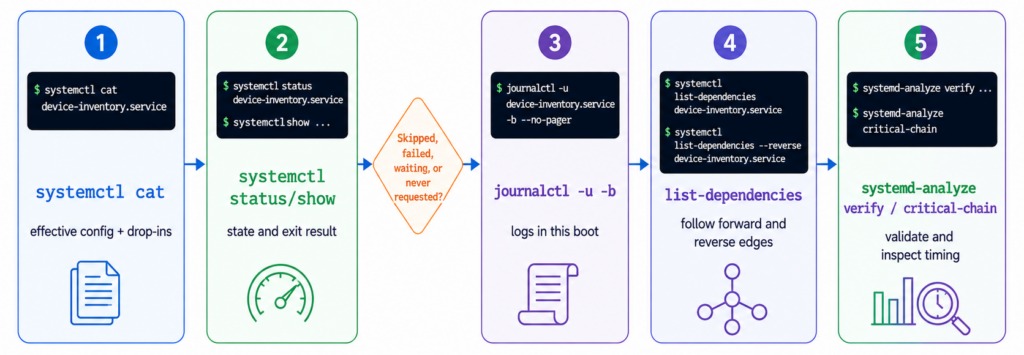
systemctl cat nginx.service
systemctl cat shows the unit's file and drop-ins as they appear on disk. If someone edited them after systemd loaded them, the manager is still using the earlier definition.
Some services use templates. [email protected] defines the template and [email protected] names one instance. Use the instance name when that's what the application runs under.
Read status and boot enablement separately
systemctl status shows a unit's state, its loaded-unit information, process details and recent journal messages.
systemctl status nginx.service
systemctl is-active nginx.service tells you what the unit is doing now. Enablement says how it's set up to start later.
| State | What it tells you |
|---|---|
active (running) |
Active, with a running service process |
inactive |
Not currently active |
failed |
Systemd recorded a failure or an unsuccessful operation |
activating |
Activation is in progress |
deactivating |
Deactivation is in progress |
The two properties combine freely. A unit can be active and enabled, active but disabled, or inactive but enabled.
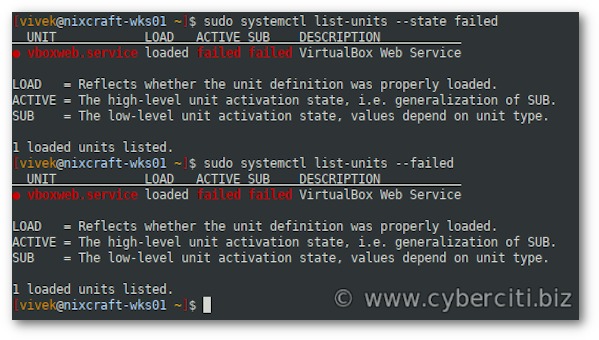
In service listings, ACTIVE gives the broad state and SUB a more specific one whose meaning follows the unit type. Read the two together.
active (exited) is easy to misread. Some service types finish their configured process and stay active under systemd's lifecycle rules, so for those units it's expected.
An enablement query can also return values beyond enabled and disabled. A static unit, for example, is activated through other units and has no ordinary enablement instructions.
Full definitions are in the systemctl manual.
Start, stop, or restart a service safely

Start a stopped service with:
sudo systemctl start nginx.service
Stop a running service with:
sudo systemctl stop nginx.service
Stopping a service can interrupt requests or dependent work in progress.
A restart performs a stop-and-start cycle:
sudo systemctl restart nginx.service
restart also starts a unit that's inactive, which matters if you want a stopped service to stay stopped. In that case, use:
sudo systemctl try-restart nginx.service
try-restart restarts the unit only if it's already running.
On an Nginx VPS, restarting the web service can briefly affect site visitors. Changing SSH, firewall or network services on the same remote machine adds another risk: you can lose the connection you need to recover access. Before a production change, find out which workload or connection uses the unit. For a disruptive remote operation, use a maintenance window or a tested alternate access and recovery route.
Enable or disable startup at boot and know what --now changes
enable sets the unit up to start through the boot target, but it doesn't start an inactive service.
Enable startup with:
sudo systemctl enable nginx.service
Remove boot enablement with:
sudo systemctl disable nginx.service
Disabling a running service leaves the process running. A disabled unit can still be started manually or by a dependency or socket.
To enable the unit and start it now, run:
sudo systemctl enable --now nginx.service
To disable it and stop it now:
sudo systemctl disable --now nginx.service
One admin in an r/linuxquestions Postfix discussion asked, “Is there a single command that will enable a service, and then either start it or restart it if its already running?”
enable --now enables the unit and starts it. It doesn't restart a daemon that's already running.
To check the enablement state after a change, run:
systemctl is-enabled nginx.service
Masking has a stronger effect. systemctl mask blocks normal activation of the unit, and unmask removes the block. Don't use it as a routine way to turn off automatic startup, especially for security-related or essential system services.
Use reload, restart, or daemon-reload for the right change
Match the operation to what you changed. The application's configuration, the running process and systemd's loaded unit definition are three separate targets.
| What changed | Relevant operation | Effect |
|---|---|---|
| Application configuration | systemctl reload UNIT |
Asks the service to reload its configuration |
| Running process needs replacement | systemctl restart UNIT |
Stops and starts the service |
| Systemd unit file or drop-in | systemctl daemon-reload |
Makes the manager reread unit definitions and dependency information |
Say you edit the Nginx configuration. If the service supports reload, run:
sudo systemctl reload nginx.service
Not every service supports reload, and a reload doesn't always keep every client connection.
After you change a .service file, systemd needs to read the new definition:
sudo systemctl daemon-reload
The running application keeps its existing process and configuration until you reload or restart it.

One participant in an r/systemd service-unit discussion asked, “Can anyone explain why daemon-reload isn't automatically called when needed?”
Commands such as enable and disable already reload the manager configuration as part of their operation.
reload-or-restart can fall back to a restart, so it can interrupt clients just as a restart does.
Read the right service logs with journalctl
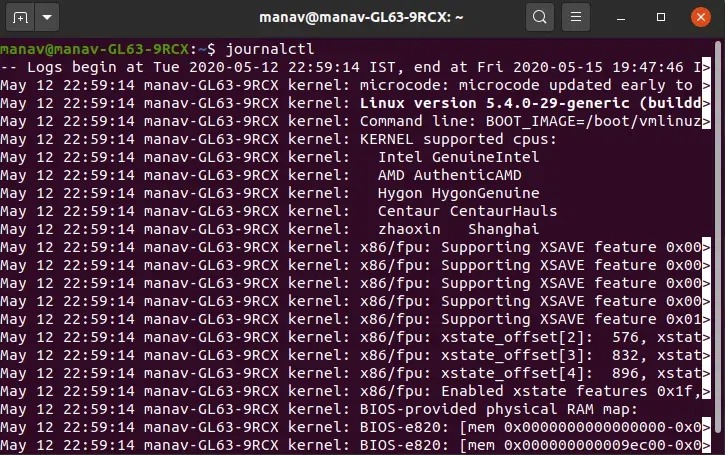
When a service fails, start with the journal entries for that unit around the time of the incident.
Read the unit's recent messages:
sudo journalctl -u nginx.service -n 50 --no-pager
-u selects the unit, -n 50 limits the output to 50 entries, and --no-pager prints without an interactive pager.
When the failure began recently, narrow the time range:
sudo journalctl -u nginx.service --since "1 hour ago"
Use this after a configuration change or a failed start.

To follow new records as they arrive:
sudo journalctl -u nginx.service -f
Following the journal helps while you reproduce a failure or run a new service operation.
You can also limit entries by boot:
sudo journalctl -u nginx.service -b
That selects entries from the current boot. For the previous boot, run:
sudo journalctl -u nginx.service -b -1
Previous-boot entries are missing when the journal uses volatile storage or older records have been removed. Volatile storage uses /run/log/journal. Persistent storage uses /var/log/journal.
An unprivileged account sees fewer records than an administrator, and some applications log diagnostic details outside the system journal. If the filter returns nothing, recheck the unit name, widen the time or boot range, and check permissions and retained history.
Diagnose common systemd failures before trying another restart
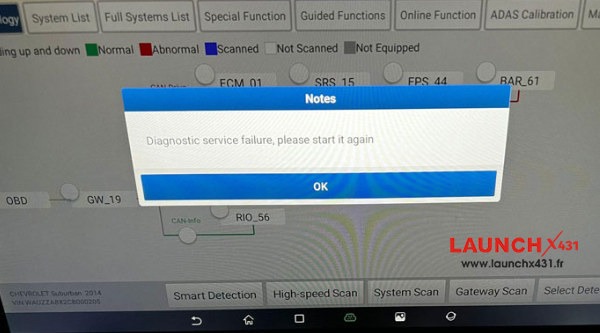
After a failed start, check the unit state, the exit result and the journal. To list units currently in the failed state, run:
systemctl --failed
That lists failed units the manager knows about. Failures from earlier boots show up only in the journal.
| Symptom | Evidence to inspect | Targeted next check |
|---|---|---|
| Unit cannot be found | Exact unit name and installed unit-file inventory | Check the package, the unit definition and the manager scope |
| Unit is masked | Unit-file state and system policy | Find out why activation was blocked |
| Process exits with failure | Reported result and nearby journal messages | Check the executable, configuration, permissions or dependencies the error names |
| Repeated auto-restart | Failure result and restart history | Find the original process failure before touching restart limits |
| Dependency failure | Related unit and dependency messages | Investigate the dependency or resource named in the error |
A user in an r/linuxquestions Python-service discussion about running a Python script as a service on Ubuntu 20.04 reported “Active: activating (auto-restart) (Result: exit-code)”, with /usr/bin/python3 exiting at status=2. That status doesn't give the cause, so read the first relevant journal error.
A repeated failure can hit systemd's start-rate limits. Raising restart attempts hides the problem. So does reset-failed, which clears the recorded failure state and counters but doesn't repair an invalid executable, missing dependency or broken configuration.
Verify the service and the application after the change

is-active confirms the unit is up, not that the application works or is reachable over the network. For systemd, run:
systemctl is-active nginx.service
For a web service that answers HTTP requests on the local machine, an illustrative application check is:
curl -I http://127.0.0.1/
Use the address, port, protocol and endpoint from your real configuration, and remember that a HEAD request doesn't suit every endpoint.
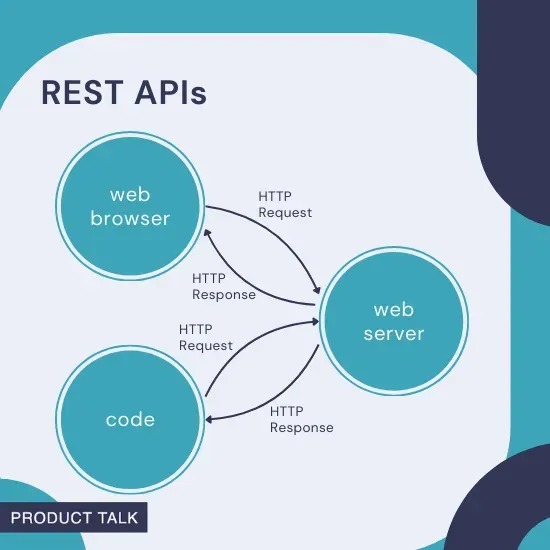
A local HTTP response only tests the path to 127.0.0.1. The public HTTPS route can also involve a reverse proxy, network configuration or DNS.
Other applications need different checks: connect to a database and run a query, or look for a queue task result or health signal from a background worker.
