A WordPress plugin is optional software that adds to or changes what your site can do. Install one only if your site doesn't already have the feature and your hosting allows plugins. Then check compatibility, activate it, and confirm where the feature appears.
What is a WordPress plugin, and how does it work?
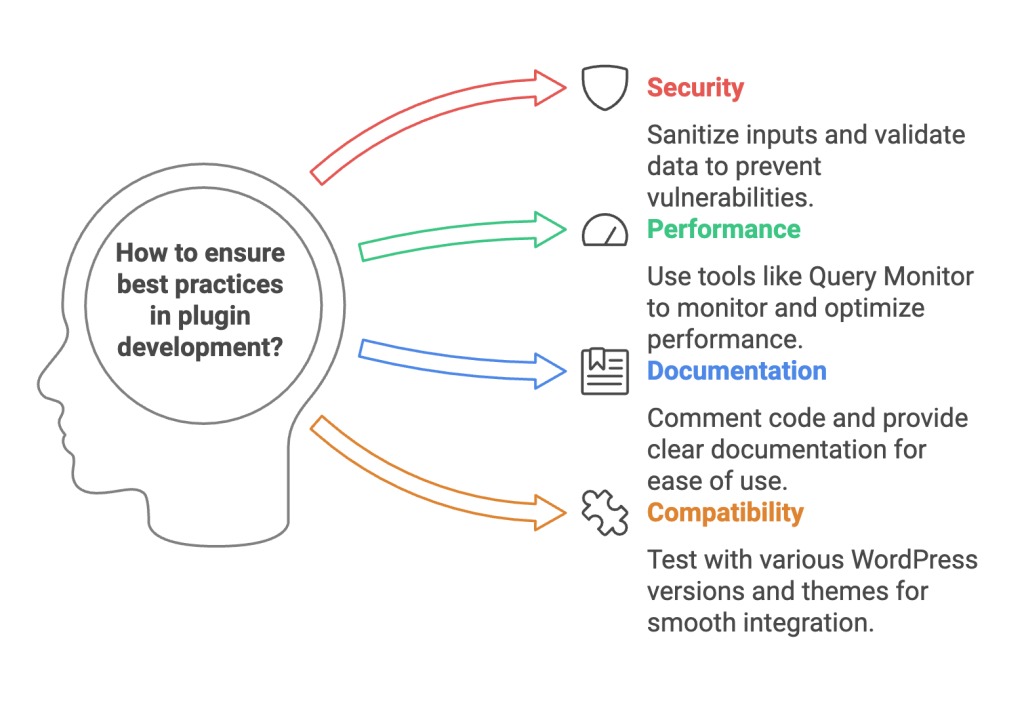
Plugins connect to WordPress core, the content-management system underneath your site, to add features or change its behavior. You don't have to edit core files.
A plugin can add a contact form, an event calendar, or features for running an online store. Some change what visitors see. Others work in the admin dashboard or behind the scenes.
The WordPress Plugin Handbook says plugins contain PHP code and can also include JavaScript, CSS, images, and other files. You can use ordinary plugins without learning PHP.
How is a plugin different from a WordPress theme?
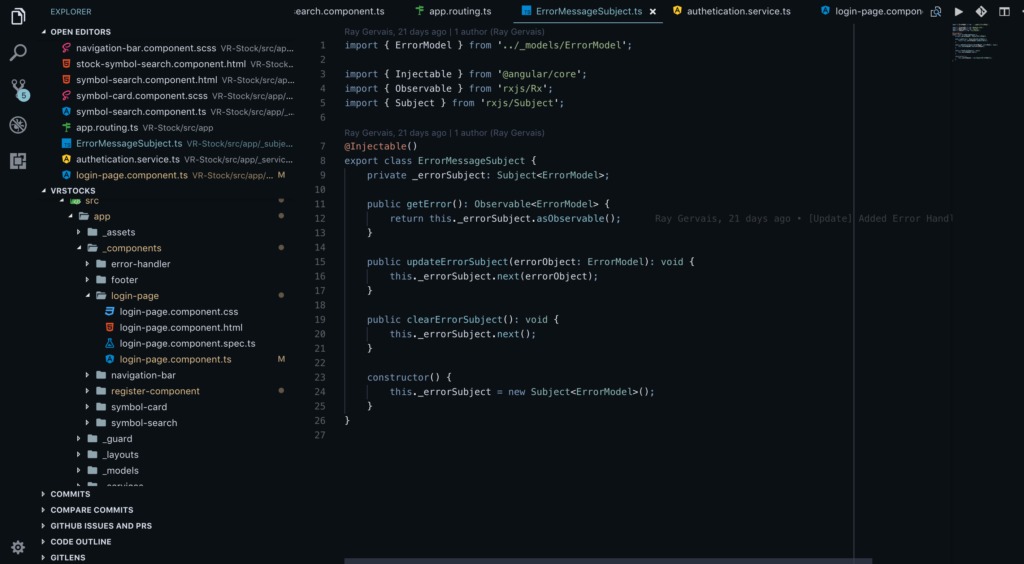
A theme controls how your content looks. A plugin adds functions.
| Component | Handles | Beginner example |
|---|---|---|
| WordPress core | Publishing and managing content | Creating a page or editing a post |
| Theme | Layout and visual presentation | Changing typography or the header design |
| Plugin | Adding or changing site functionality | Adding a form or event calendar |
To change how the header looks, start with the theme or site editor. If you want visitors to register for an event, you need a plugin that adds registration.
The split isn't clean. Themes can include functional code, and plugins can change how a page looks. Elementor shows the overlap: this page builder adds editing controls and changes the layout of content your theme displays.
What can plugins do, and where do you find their features?
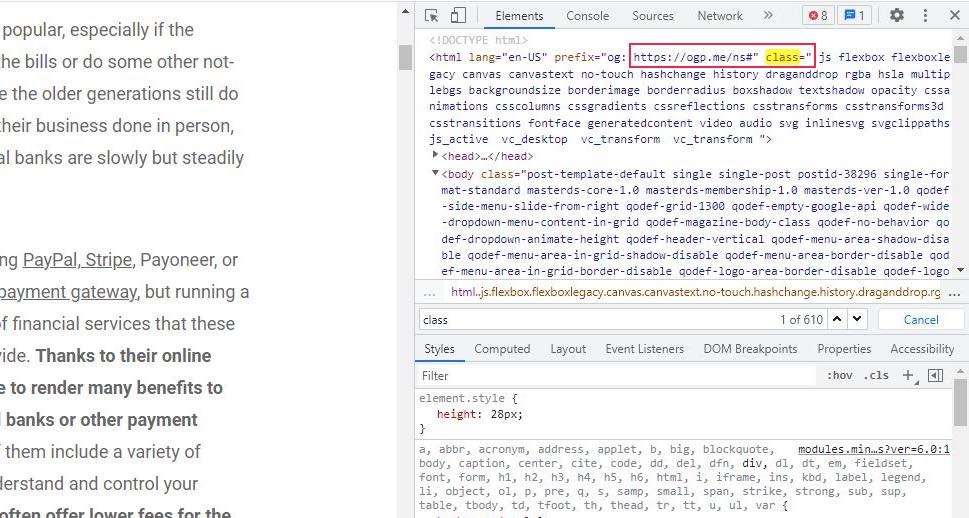
After activation, a plugin's controls appear in a new dashboard menu, under Settings or Tools, inside the page editor, or elsewhere in WordPress. The plugin decides where. Some plugins work without showing visitors any new control.
The Contact Form 7 WordPress.org plugin listing shows a Contact menu in the dashboard and a Contact Form 7 block in the editor. You build the form in the menu and place it on a page with the block.
- Open the plugin's controls. With Contact Form 7 activated, find the Contact menu and create or manage a form there.
- Place the feature. Edit the page where you want the form and insert the Contact Form 7 block.
- Look at the page. Preview or publish it and confirm the form appears where you want it.
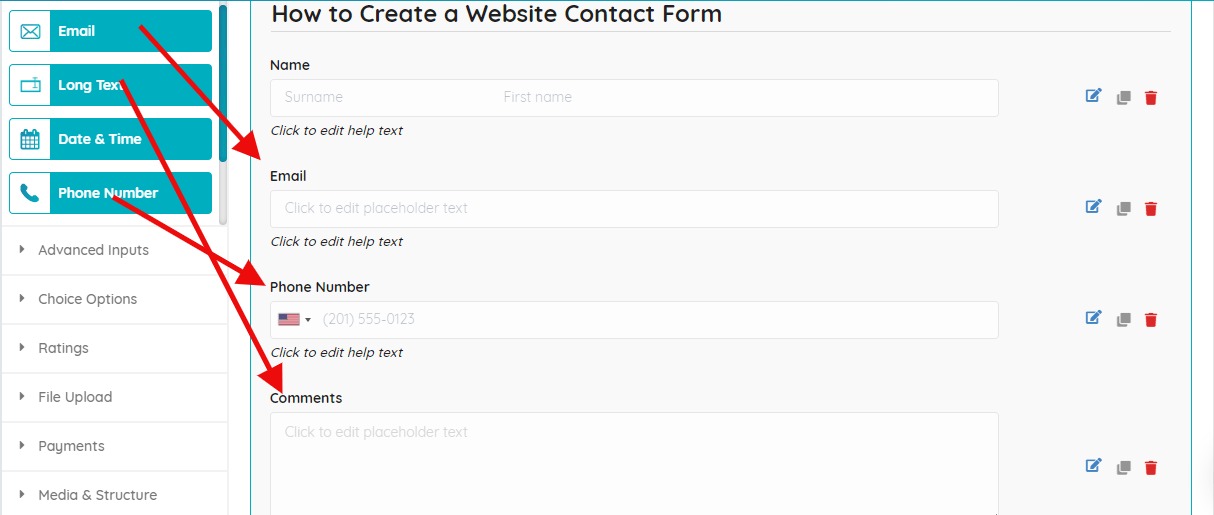
That confirms placement only. A successful submission and email delivery need their own checks.
Not every plugin puts its settings under the plugin title. On the WordPress.org support forum, a user of a countdown-block plugin wrote: “there is not a Settings button under the plugin title on my dashboard”. The reply pointed them to the block's settings in the editor sidebar.
Do you need a plugin?
A new site can offer several optional plugins before you've decided what each one would add.
A first-time installer building a basic site without a store asked on r/Wordpress: “I'm installing my first WordPress site and I wasn't sure which of these plugins I should install?”
Start by naming the result you want, such as collecting inquiries or publishing a calendar. Then check what you already have: WordPress core, your theme, your hosting service, and the plugins already installed. Look for a plugin only if none of them does the job well enough.
For example, WordPress.com has built-in contact forms, so a site hosted there can collect messages without a plugin. A separately hosted WordPress site has its own mix of built-in and host-provided features.
Where can you find a plugin, and how do you choose one?
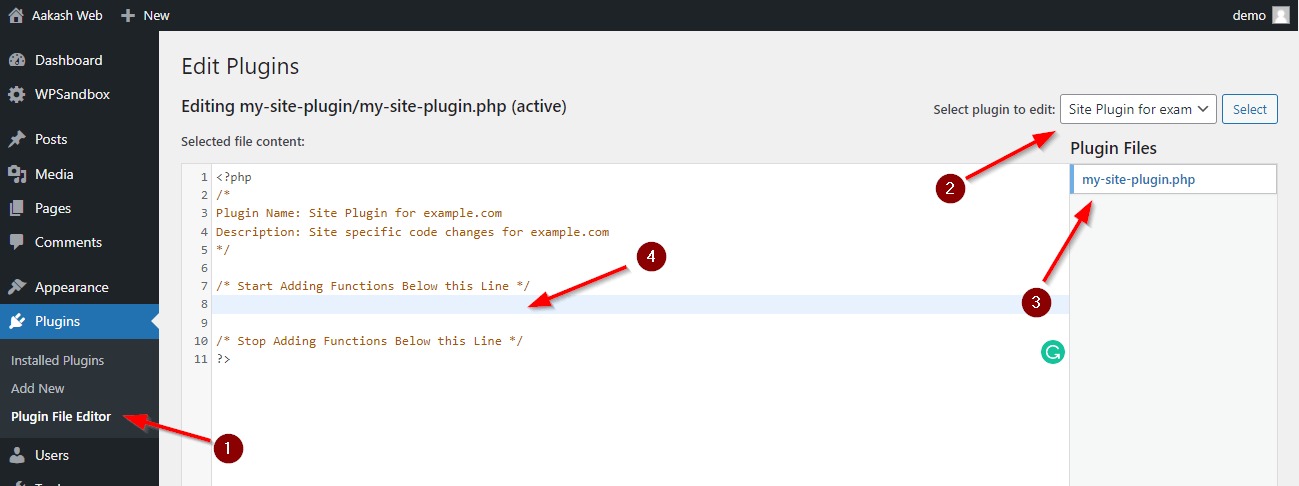
The WordPress.org Plugin Directory is one place to discover plugins. Developers also distribute plugins through their own websites. Start with what the plugin says it does, then check that it fits your site's software and maintenance setup.
| Criterion | Reconsider if |
|---|---|
| Feature fit (documented behavior that solves your task) | Its purpose differs from your need |
| Compatibility (supported WordPress/PHP setup and dependencies) | The requirements don't match your site |
| Maintenance (update history, documentation, support) | It's unclear whether the plugin is maintained or supported |
| Source (identifiable directory listing or developer documentation) | You can't establish where it comes from or who supports it |
On a WordPress.org listing, Tested up to and Last updated are the quickest places to start checking compatibility and maintenance. Compare the stated requirements with your site's setup. Plugins distributed independently can present that information differently.

Since June 2026, WordPress.org has run an automated security check on hosted plugin releases before they go out through its update API. Passing it doesn't mean a plugin is free of security problems.
Can you use plugins on WordPress.com?
Yes, on a paid plan. The WordPress.com installation guidance, reviewed October 22, 2026, says the Personal, Premium, Business, and Commerce plans allow plugin installation. A Free site must upgrade. Separate plan conditions govern installation permission and server-level access such as SSH or direct database access. Each plugin also has its own compatibility requirements. WordPress.com is a hosted service, but WordPress software also runs on independent hosting, and there your hosting provider sets the administrative permissions.
What happens when you install, deactivate, or delete a plugin?
Installing puts a plugin's files on your site, and activating turns the plugin on. Deactivating turns it off. Deleting removes the plugin software from the site.
| State or action | Plugin files | Effect on functionality | Stored data |
|---|---|---|---|
| Activated | Present | Plugin enabled | May use or create data |
| Inactive (installed, or deactivated) | Present | Feature off | Data may remain |
| Deleted / uninstalled | Removed | Plugin no longer active | Depends on the plugin |
WordPress treats deactivating and uninstalling as separate actions. The plugin's developer decides whether uninstalling also removes its settings and database tables.
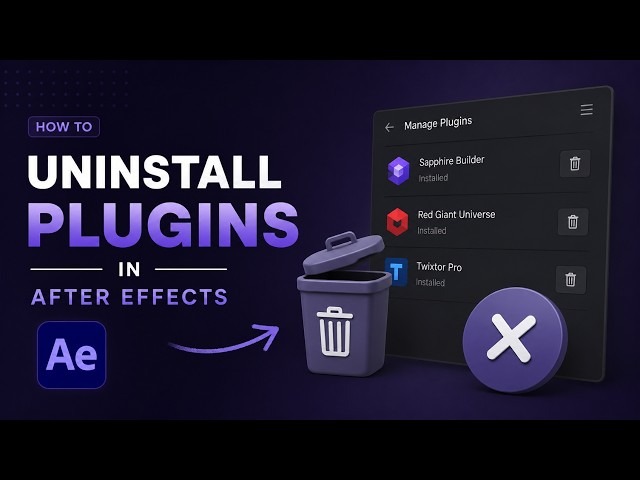
Before deleting a plugin your site relies on, note which feature it supports and read the plugin's removal instructions. If the plugin's stored data matters, check your backups first.
Can WordPress plugins slow down or break a website?
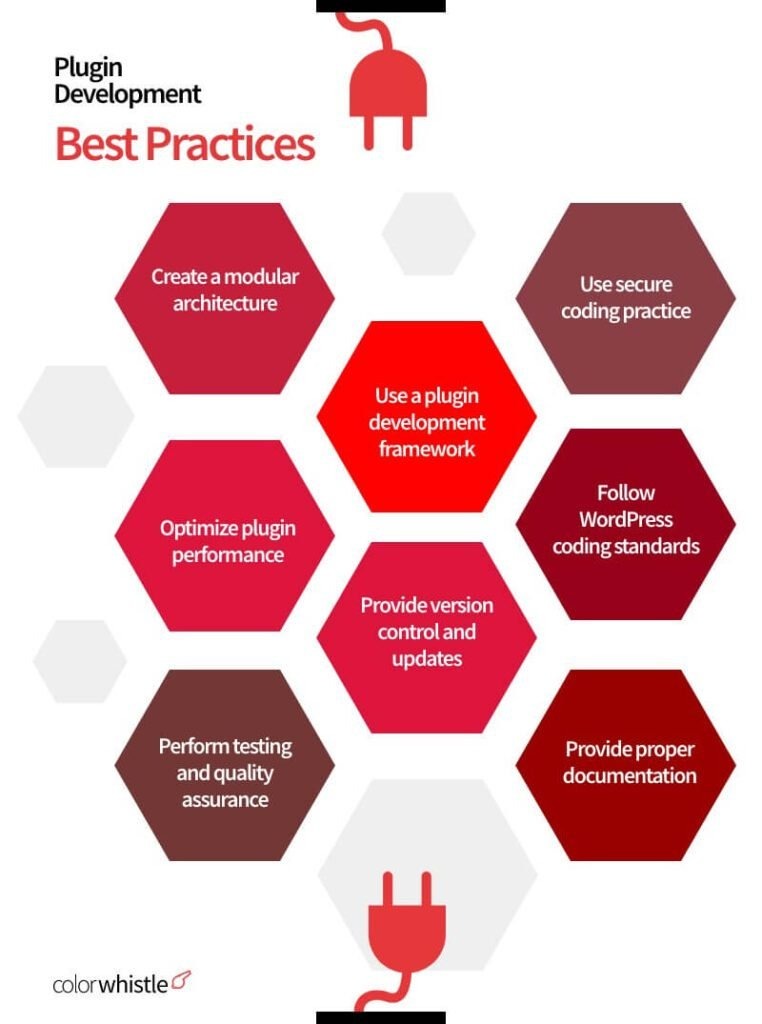
Plugins can affect speed and reliability because they add code to a working website. A plugin can run PHP, use the database, load scripts, or change styling, and what it does decides its effect.
Overlapping plugins can create unnecessary work. Compatibility problems can also appear after a change to the plugin, the theme, or your site's setup.
There's no universal safe number of plugins. A broken feature, an error, or a measured slowdown tells you more than the plugin count does.
Find out what changed, then follow a plugin-conflict troubleshooting guide.
