On a self-hosted WordPress site, install a trusted, compatible plugin from Plugins → Add New, activate it, and check that the feature you installed it for works. Use a ZIP, SFTP or WP-CLI when the plugin's source or your access calls for another method. If a change breaks the site, stop and diagnose the problem or deactivate the plugin before considering a version downgrade or restoring a verified backup.
Before you install: check your site and permissions
Make sure your account can add plugins and that the package suits your website.
Self-hosted WordPress is software you run through your own hosting provider. WordPress.com is a hosted service with its own account plans and dashboard variations.
WordPress.com's plugin installation documentation (reviewed October 22, 2026) says plugin installation is available on its Personal, Premium, Business and Commerce paid plans. Free-plan sites must upgrade to install additional plugins. Even on those plans, SSH, SFTP and other server-management features differ by account.
On a typical self-hosted single-site installation, an administrator can install plugins. WordPress treats the install_plugins and activate_plugins capabilities separately, so someone who can edit posts can still lack permission to add or activate plugins. Multisite works differently: a Super Admin manages installation at network level.
Check four things first:
- Identity and source: Match the name and publisher to the plugin you want. Get it from the WordPress Plugin Directory or from a package the developer supplies.
- Requirements: Read the plugin's WordPress and PHP requirements, its compatibility notes and its changelog.
- Dependencies: Look for required companion plugins, including any declared through
Requires Plugins. - Recovery point: On a site that handles orders, registrations or other important data, have a recovery point or a staging environment ready before changing anything live.
If the install controls are missing, a restriction on your account or hosting applies.
Pick an installation method
Where the plugin comes from and which administrative tools you can use decide the right method.
| Your situation | Installation method | Required access |
|---|---|---|
| The plugin is listed in the WordPress Plugin Directory | Dashboard search and Install Now | Plugin installation permission in WordPress |
The developer supplied an installable .zip |
Dashboard Upload Plugin | Permission to upload plugins |
| The dashboard installer is unavailable, but you have server file access | SFTP transfer | Access to the plugin directory of the site you are installing on |
| You manage the installation from a terminal session | WP-CLI | SSH/server access, a configured WP-CLI and the right permissions |
Install a plugin from the WordPress Plugin Directory
Open the plugin installer. Sign in to your self-hosted WordPress dashboard and go to Plugins → Add New. Some versions label this screen Add New Plugin.
Find the plugin. Enter its name in the search field. Compare the title, publisher and description to tell it apart from similarly named results.
Check the details. Click More Details and compare the listing with the requirements and dependencies above.
Install the plugin. Click Install Now and wait for WordPress to finish.
Activate the plugin. Select Activate or Activate Plugin when the installation completes.
Upload a plugin ZIP file
First, find the installable package. A developer download can contain documentation, license information or several separate archives. A theme package or a general source-code download is not necessarily an installable WordPress plugin ZIP.
- Open the uploader. Go to Plugins → Add New → Upload Plugin.
- Select the file. Choose the intact
.zipthe developer supplied. - Start installation. Click Install Now.
- Wait for the result. WordPress reports when installation is complete.
- Activate the plugin. Select Activate Plugin when it appears.
If WordPress says the plugin already exists, find out which version is installed and whether you are updating or replacing it. Do not overwrite a plugin on a production site until you know which of the two you are doing.
A site owner uploading a ZIP supplied by a display-ad company wrote on r/Wordpress: “I'm trying to install a plugin by uploading it from a zip folder. However it never updates from the install page and just says "Installing plugin from uploaded file".”
Install manually with SFTP or WP-CLI
Transfer the plugin folder with SFTP
Download the legitimate plugin package and extract it locally. Locate the folder that contains the plugin files before transferring anything.
Upload that folder into:
wp-content/plugins/
The plugin's files go in their own folder beneath plugins, for example wp-content/plugins/plugin-name/. Avoid an extra wrapper folder that leaves the plugin files nested one level too deep.
After the transfer, WordPress lists the plugin on its Installed Plugins screen. Activate it from the dashboard.
Install a plugin with WP-CLI
WP-CLI installs plugins from the command line once your environment is configured. Run it from the correct WordPress installation directory with an account that can manage that site.
The official WP-CLI documentation gives this pattern:
wp plugin install bbpress --activate
wp plugin status bbpress
The first command installs the named plugin and requests activation, and the second shows its recorded status.
In this documented example, bbpress is the plugin slug.
WP-CLI can also install from a local ZIP. Its command reference describes version-selection and replacement options, which call for extra care on an existing installation.
The WP-CLI reference lists --with-dependencies and --slug as outside a stable release, so skip them.
For command setup and site selection, see the WordPress WP-CLI administration guide.
Confirm the plugin is active and works
The success message only tells you WordPress finished the installation. After activation, test the one feature you installed the plugin to provide on a real page or in the admin screen.
Check the plugin's state, then test its feature:
Check the version. Open Plugins → Installed Plugins and find the plugin name and the version you expect.
Check activation. Make sure WordPress lists the plugin as active.
Review the configuration. Open any settings or setup flow the plugin provides. Some plugins use existing WordPress screens and never add a top-level sidebar entry.
Test the feature. Use the plugin for the job you installed it to do.
For a contact-form plugin, submit a test form and check that the recipient receives the message.
Also load a representative public page and check that you can still reach the admin area after activation.
If the plugin is active but the feature fails, repeated installation attempts won't help until you know what failed.
Fix a plugin installation or activation problem
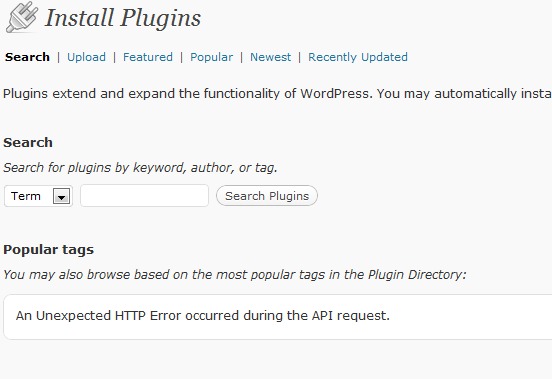
Start by copying the exact error message WordPress displays and noting the step where the process failed.
| Symptom | First safe check | Next step if unresolved |
|---|---|---|
| Add New or plugin controls are missing | Check the platform, your account capabilities and Multisite administration | Contact the site or network administrator, or your host |
| ZIP upload remains on Installing plugin from uploaded file, or its link expires | Check the package and the hosting upload response | Ask the host to look at request processing and the logs |
The package could not be installed, including incompatible_archive_no_plugins |
Check that the archive is an installable plugin package and review its stated compatibility | Look at the server response and the installation environment |
| Install or Activate is blocked by a dependency | Find the required plugin and check its compatibility | Install and activate the supported prerequisite, or ask the developer |
SFTP returns SSH_FX_FAILURE or an I/O error |
Look at access, filesystem and storage conditions | Escalate to the hosting administrator |

WordPress 6.5 introduced declared plugin dependencies through the Requires Plugins header. In the admin interface, a missing required plugin blocks installation or activation, and an active dependent plugin also restricts deactivation of its prerequisite.
When a required plugin is hosted outside the WordPress Plugin Directory, the admin interface does not offer an installation link. Get that prerequisite from its developer and install it separately. WP-CLI can install the dependent plugin's files without their prerequisites, but activation stays restricted until the required plugins are active.
An SFTP deletion error needs evidence from the filesystem or the host. Do not treat an I/O error as proof of malware, and do not run chmod 777 on plugin directories as a general repair.
Recover access if a plugin breaks the site
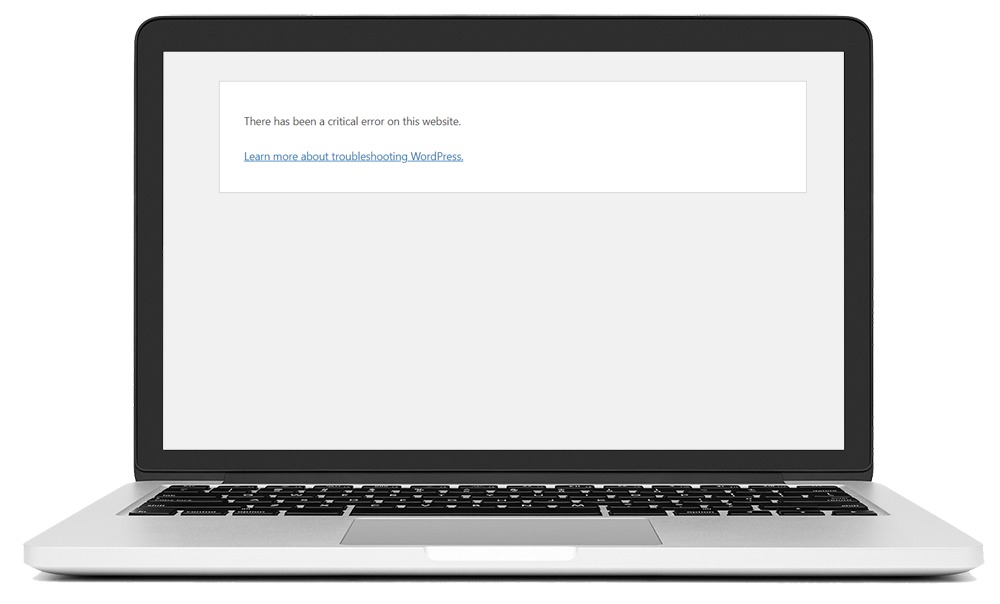
If the site or dashboard stops loading after a plugin installation or update, start here.
A site maintainer wrote on r/Wordpress: “Almost every time I update a plugin or theme, my site breaks and I get that white screen of death.”
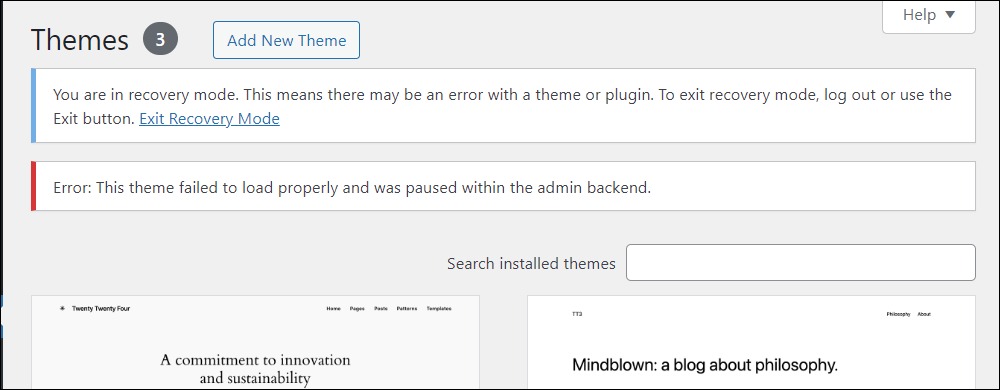
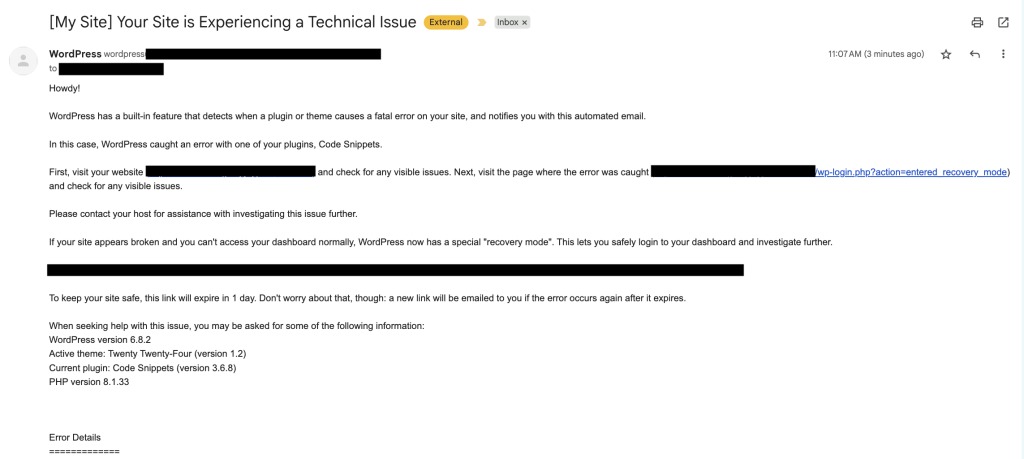
WordPress introduced Recovery Mode in version 5.2. For PHP fatal errors during a normal page request, it emails the site administrator a special recovery link. Background or cron failures and other types of outage do not trigger it.
Take the least disruptive route:
- Identify the failure. Find out whether the public site, the admin area or both have stopped responding.
- Look for the recovery email. If WordPress sent a Recovery Mode link, use it to open the affected installation.
- Deactivate the flagged plugin. When Recovery Mode names a faulty component, deactivate that plugin. If you can't open Recovery Mode, use your host's recovery access or call technical support.
- Check access. Make sure the admin area and the main public pages respond again.
- Exit Recovery Mode. After you fix or disable the offending plugin, use Exit Recovery Mode in the WordPress admin area and check that the site works outside the recovery session.
Deactivating a plugin turns off the features it provides. It does not undo database changes.
If the failure persists or you don't know the cause, follow a dedicated WordPress critical-error recovery procedure before making further changes.
Roll back to an earlier plugin version
The word rollback covers several operations in WordPress. Which one you need turns on whether an update failed during installation, completed but changed the site's behavior, or affected stored data.
| Situation | Recovery mechanism | Scope and limitation |
|---|---|---|
| An eligible manual plugin or theme update fails on WordPress 6.3 or later | WordPress core's failed-manual-update protection | Restores the plugin or theme when the manual update fails |
| An eligible automatic plugin update encounters a detected PHP fatal error on WordPress 6.6 or later | WordPress core's automatic-update rollback protection | Reverts the update after a PHP fatal error |
| A completed update needs a previous working plugin version | Controlled downgrade or a supported version-selection tool | Changes plugin code only. Persistent settings and data stay as the update left them |
| Files, database state or other site data need restoration | Restore a full backup | Returns the site to the recovery point |
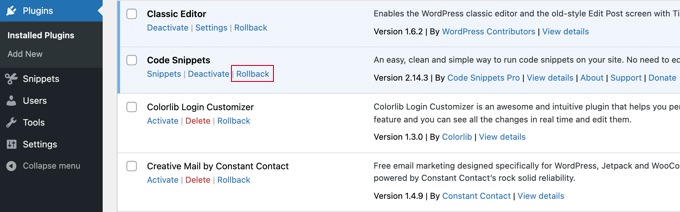
The third-party WP Rollback plugin gives its free edition access to earlier repository versions of supported WordPress.org plugins and themes. Its vendor describes rollback support for premium plugins and themes under its Pro offering.
For plugins distributed through WordPress.org, WP-CLI documents --version=<version> to select a repository release. Its --force option overwrites an existing installation without asking for confirmation, so use it only during a controlled recovery with a restore point in place.
A member of r/Wordpress with a customized events-calendar setup wrote in a discussion: “I tried to downgrade the plugin by uploading an older version and it crashes the site.”
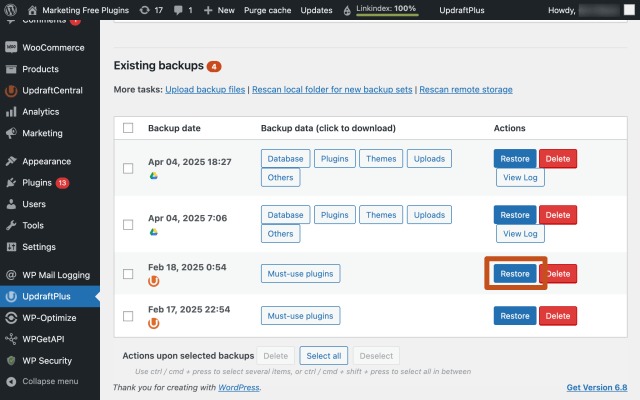
Before going back to a previous release, find out the last working plugin version, the package's source and whether the site's data or settings have changed. Older code can also lack security fixes or compatibility with the installed WordPress and PHP environment.
A complete WordPress backup includes the website files and its database. Orders, posts, registrations and other changes made afterward need separate preservation or recovery. The full WordPress backup restoration guide covers that wider operation.
Keep a record and set up updates
Write down the plugin name or slug, its source, the installed version, your settings, a passing feature test and your recovery point. Automatic plugin updates arrived in WordPress 5.5. To see the setting, open Plugins → Installed Plugins and check the Automatic Updates control. Then pick an update routine that fits the site's risk level, including whether to test updates on a staging copy first. The WordPress updates guide covers the full workflow.
