On a self-managed Linux WordPress server, install the official, signature-verified WP-CLI PHAR if your host does not already give you a working wp command. Check the PHP CLI version, the WordPress directory, and a non-root account, then start with an inspection command before running any update. If your host supplies WP-CLI or blocks shell installs, use the host's method.
WP-CLI lets you inspect and administer WordPress from a terminal. On Ubuntu or another Linux server, the executable, the PHP interpreter, the WordPress directory, the Linux account and the database each play a separate role. Check them in that order and errors are easy to place.
Check whether your hosting already has WP-CLI
Before you download anything, find out whether your provider already installed WP-CLI. Many managed WordPress hosts give you a ready command line, while a self-managed VPS leaves the installation to you.
Open a terminal in the environment that holds your WordPress site: an SSH session, the host's control-panel shell, or your local development shell. Run:
command -v wpIf it prints a path, your shell found wp on its PATH, so skip ahead to the runtime and site checks. If it prints nothing, your shell can't find wp. Pick the installation route your environment supports.
| Environment | What to do | Limit |
|---|---|---|
| Managed WordPress host | Open the provider's terminal and look for an existing wp command. Follow the host's WP-CLI workflow. | Your account can't install software or reach the shell. |
| Self-managed Ubuntu VPS | Connect over SSH and check for wp. Install the official PHAR if it is missing. | Your account has no shell or can't write to the install directory. |
| WordPress.com | Check whether your plan includes SSH and WP-CLI, then follow the provider's access steps. | Your plan does not include that access. |
| Docker or local development | Find which container or host shell owns the WordPress files and use that environment's CLI method. | The shell you picked can't reach the intended site. |
The WordPress.com SSH support page, last reviewed on September 10, 2026, lists Business and Commerce plans for SSH and WP-CLI access. Other hosts set their own rules.
Kinsta documents its own WP-CLI workflow for its hosting.
Confirm the Linux and PHP CLI prerequisites
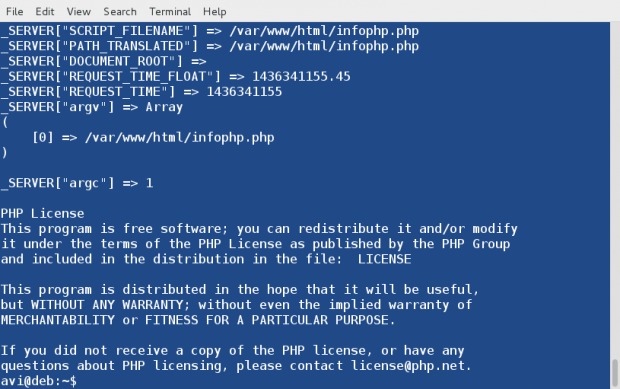
WP-CLI runs on the command-line PHP interpreter. Check the one in the terminal where you plan to run it:
php --versionThe WP-CLI installation documentation sets PHP 7.2.24 or later as the minimum. It doesn't tell you which PHP version to run in production, because WordPress and your installed extensions have their own requirements.
The WP-CLI project also lists WordPress 4.9 or later as a minimum. Features can degrade on releases older than the latest.
Your website's PHP version can differ from the terminal's. Command-line PHP can also load a different php.ini and extension set than PHP-FPM or another web-serving setup.
If the interpreter is missing or incompatible, fix PHP through your server's supported procedure before running the WP-CLI archive. The installation below assumes a Linux shell, PHP CLI, and permission to install an executable in an approved location. It also uses curl and GnuPG (gpg). If either is missing, install it with the server's package manager before downloading the archive.
Download the official PHAR and verify its signature

The WP-CLI project recommends its PHAR distribution, a PHP archive containing the command-line program. Download the archive and its matching detached signature from the locations in the official WP-CLI installation guide:
curl -O https://raw.githubusercontent.com/wp-cli/builds/gh-pages/phar/wp-cli.phar
curl -O https://raw.githubusercontent.com/wp-cli/builds/gh-pages/phar/wp-cli.phar.asc
Import the release-signing key the project publishes:
curl -O https://raw.githubusercontent.com/wp-cli/builds/gh-pages/wp-cli.pgp
gpg --import wp-cli.pgp
Then display the key's fingerprint:
gpg --list-keys --with-fingerprint [email protected]The fingerprint published in the WP-CLI download verification guide is:
63AF 7AA1 5067 C056 16FD DD88 A3A2 E8F2 26F0 BC06Compare every character with the fingerprint in that guide. A checksum only shows agreement with a digest you were given, while a signature from a key whose fingerprint you checked shows who published the file.
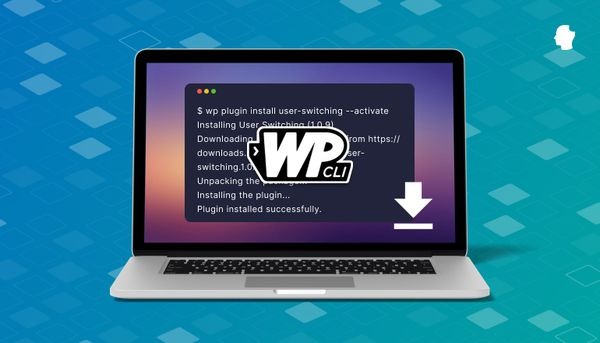
Once the fingerprint matches, verify the downloaded PHAR against its signature:
gpg --verify wp-cli.phar.asc wp-cli.pharGPG reports whether the detached signature is valid for the archive and the imported key. A valid signature can come with a warning that the key isn't locally certified. Local certification and signature verification are separate checks.
Stop if verification fails. Don't run the PHAR if the fingerprint differs from the published one or GPG reports an invalid signature.
Install the wp command and inspect its PHP runtime
Test the verified archive with PHP before installing it as a system command:
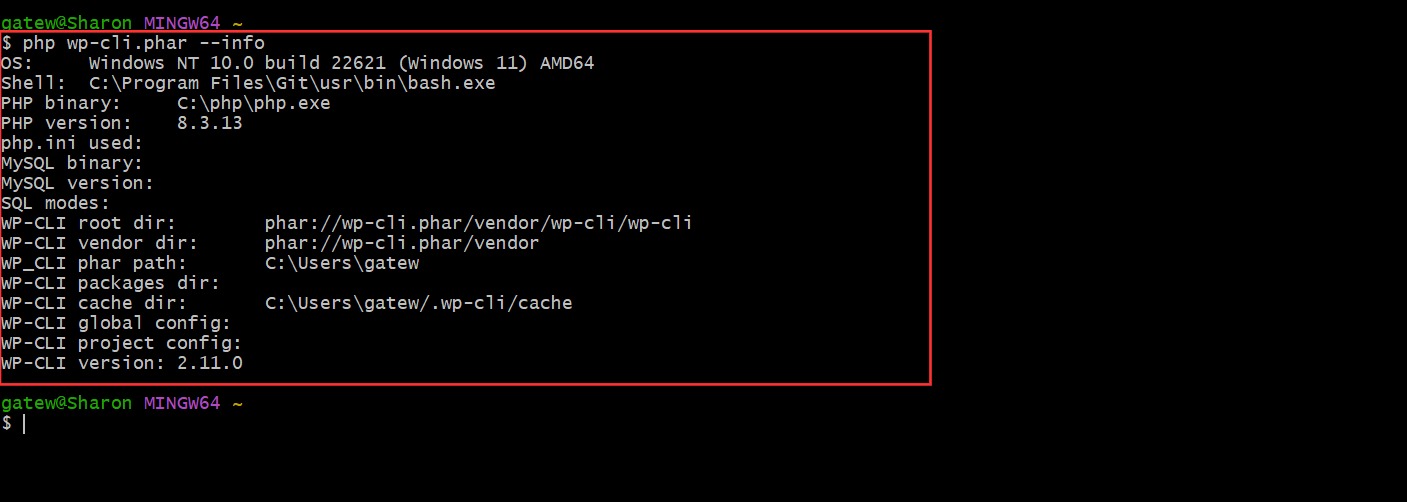
php wp-cli.phar --infoIf it runs, an administrator of a self-managed server can make it executable and move it into an approved directory:
chmod +x wp-cli.phar
sudo mv wp-cli.phar /usr/local/bin/wp
You need sudo only to copy the file into the administrator-owned directory. Don't use it to run WP-CLI on your site.
Inspect the installed command and its interpreter:
wp --info
wp cli info
The report lists the WP-CLI version, the CLI PHP binary and version, the PHP configuration, and the configuration paths WP-CLI found, so you can see which PHP starts the command. wp --info confirms the command runs. It doesn't test the connection to your WordPress database.
If php wp-cli.phar --info worked but wp --info fails after installation, check the installed file's location, its executable permission, and your shell's PATH.
Point WP-CLI at the right WordPress site
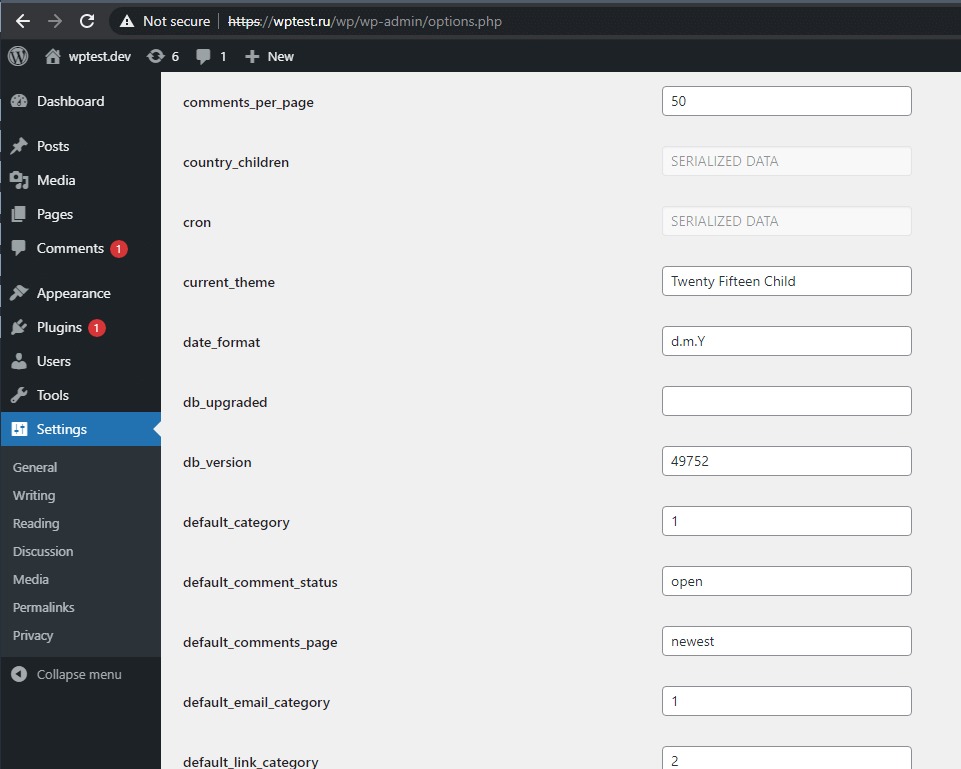
WP-CLI finds the WordPress files to manage from the working directory, an explicit --path option, or configuration.
In a WordPress.org support thread, a user with a live site asked, “Looks like i need to change the path to my live site so i can delete spam registrations. Is there a command for this?”
For any command that targets the site, give the actual WordPress root:
wp core version --path=/path/to/wordpressReplace /path/to/wordpress with the directory that holds your installation, for example /var/www/html or /var/www/mysite.
If WP-CLI runs outside the selected installation, you get:
Error: This does not seem to be a WordPress installation.Persistent path configuration
A project can declare its WordPress path in wp-cli.yml:
path: /path/to/wordpress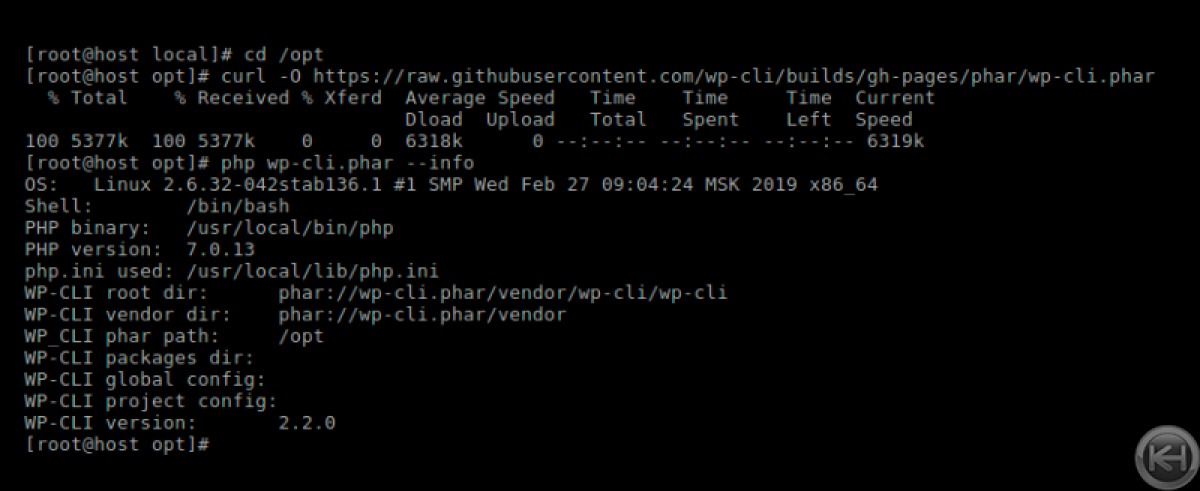
WP-CLI resolves options in this order of precedence:
- Explicit command-line arguments
wp-cli.local.ymlwp-cli.yml~/.wp-cli/config.yml- Built-in defaults
An explicit --path beats configuration-file defaults. On a server that hosts several websites, pick the target on purpose before running a command that uses the active installation.
Run WP-CLI as the site's Linux user and avoid root
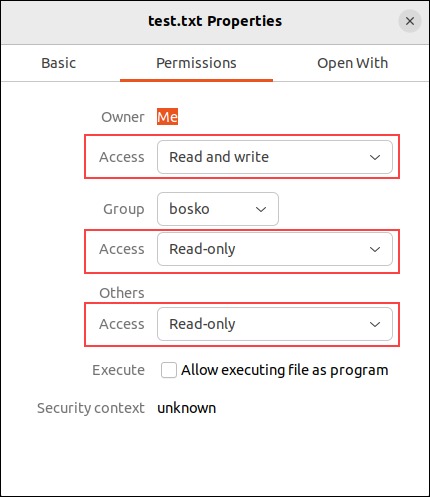
Run site commands with an authorized non-root Linux account. Check your current account and its groups:
whoami
id
On a self-managed Ubuntu server, the owner of a known WordPress file hints at the site account:
stat -c '%U:%G' /path/to/wordpress/wp-config.phpConfirm which account is authorized to manage the site. If your server uses an account such as siteowner for that, an administrator who can switch users runs a site check as that account:
sudo -u siteowner -H wp --path=/path/to/wordpress core versionThe file owner stat shows can differ from the account meant to maintain the site.
Root execution changes the security boundary. If WP-CLI loads WordPress code as root, that code gets system-level access. A root shell triggers YIKES! It looks like you're running this as root. Don't use --allow-root or sudo wp as a routine fix for an account or permission problem.
WP-CLI also offers --user=<wp-user> to select a WordPress application user. The PHP process keeps the Linux identity of the account that launched it.
File-writing operations need directory access for the OS account you use. Avoid chmod 777 on everything and recursive ownership changes until you've identified the authorized user and the exact write location.
Run your first WP-CLI commands and understand what each proves
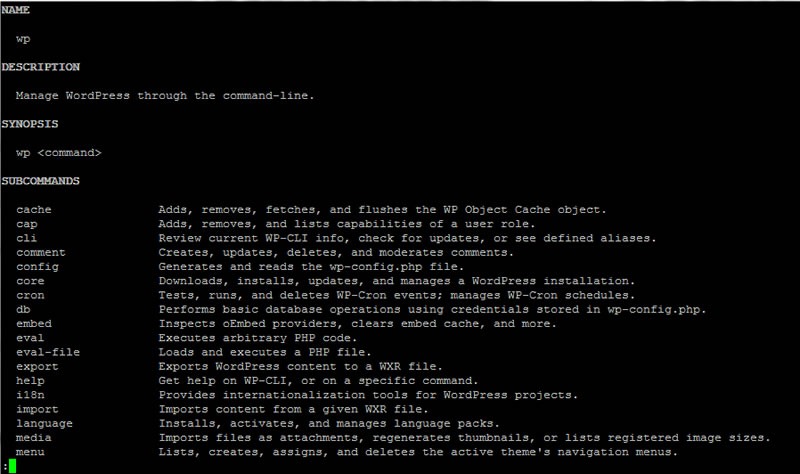
Run inspection commands against the selected site before changing anything. Each one proves a different part of site readiness.
| Command | What it tells you |
|---|---|
wp core version --path=/path/to/wordpress | Prints the core version found at that path. |
wp core is-installed --path=/path/to/wordpress | Checks the standard WordPress database tables. The answer comes back as the exit status. |
wp plugin list --path=/path/to/wordpress | Lists the plugins and their reported status for that site. |
wp help plugin | Shows plugin command syntax and options. |
The version command reads the core version from the files at the selected location. To check that the installation has its expected database tables, run the installed-state command and read its exit status right away:
wp core is-installed --path=/path/to/wordpress
echo $?
A zero status means the check succeeded. A nonzero value points to a condition or an accompanying error you need to read. The check prints nothing on success, so silence is normal.
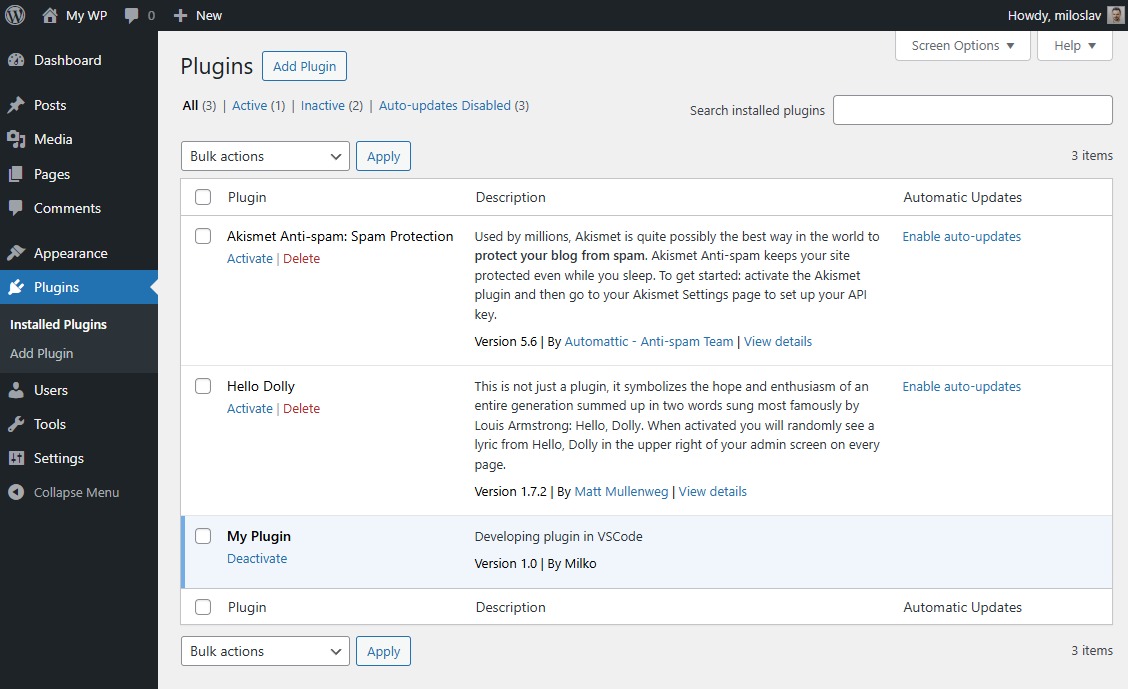
Even read-only commands load WordPress, so plugin and theme code runs as the Linux user you chose.
Match the first WP-CLI error to its cause
| Symptom | Cause | Fix |
|---|---|---|
wp: command not found | The shell can't find the executable. | Check where the file sits and your PATH, then correct the placement or the shell configuration your host approves. |
| PHP error while launching the PHAR | The CLI PHP runtime is broken or incompatible. | Check the interpreter, its configuration and its compatibility, then repair the PHP CLI environment. |
This does not seem to be a WordPress installation. | WP-CLI points at the wrong directory. | Check the real site directory and path configuration, then select the intended installation. |
| Root warning or filesystem permission error | The Linux account running the command is wrong. | Check the calling account and file ownership, use the authorized account, and change only the access you need. |
| Database connection or database-client SSL error | WordPress or the database client fails to connect. | Check connection settings, the database service and the client/TLS setup, then follow the database troubleshooting procedure. |
A database-client TLS error appears after the WP-CLI executable has already started. The database client, the connection settings and the environment that produced the error set the fix.
Commands run inside a Docker container, over SSH and on the local host see different files, processes and network endpoints. For deeper cases, follow the Docker WordPress setup or WordPress critical-error procedure.
Know what to run next and what to hold off on
WP-CLI can also change WordPress files and databases. On PHAR installations, wp cli update updates the tool itself. Site updates and database changes have their own guides: updates and migration. Before production changes, pick the correct target and set up a recovery path. While you learn, practice write commands on staging.
