On a slow Linux VPS or server, start with read-only checks of CPU, memory, filesystem and processes, then take interval samples and follow the metric that matches the symptom. A high load average or a high used-memory figure isn't a diagnosis, so verify the suspected bottleneck before changing anything on the server. For an intermittent slowdown or for alerts, use existing historical metrics or set up ongoing monitoring.
A server can feel slow while its resource readings look ordinary. Only the readings that line up with what your users notice are worth chasing.
Everything below runs in a terminal or an SSH session. To make the investigation repeatable, choose one observable symptom, such as slow page responses during a known busy period, record when it begins, and capture a baseline after it clears.
Check your Linux server's resources without changing anything
Make sure your SSH session is on the intended server. Note each measurement's time, including the time-zone offset, so you can match it to a later sample or application log from the same incident. Keep the service name, one affected request and its observed slowdown beside the readings.
| Question | Command | What to look at |
|---|---|---|
| When was this captured? | date -Is | Local timestamp with offset (ISO 8601) |
| What is the system load? | uptime | Load averages for 1, 5 and 15 minutes |
| What is running and using CPU? | top | Live CPU states and process list |
| How much memory is available? | free -h | available, cache and swap |
| Which filesystem is filling? | df -h | Used/available bytes and mount point |
| Are file counts exhausting inodes? | df -i | Used/available inodes on that mount |
Let the symptom pick your next step. Busy CPUs mean CPU and process checks. Low available memory means memory-pressure checks. A filesystem short on space or inodes means a closer look at that mount.
Watch top refresh. In common procps-ng versions, P sorts by CPU, M by memory, 1 toggles individual CPU lines and q exits. To share a process list, capture it with top -b -n 1. Its first aggregate CPU line doesn't cover a fresh one-second interval.
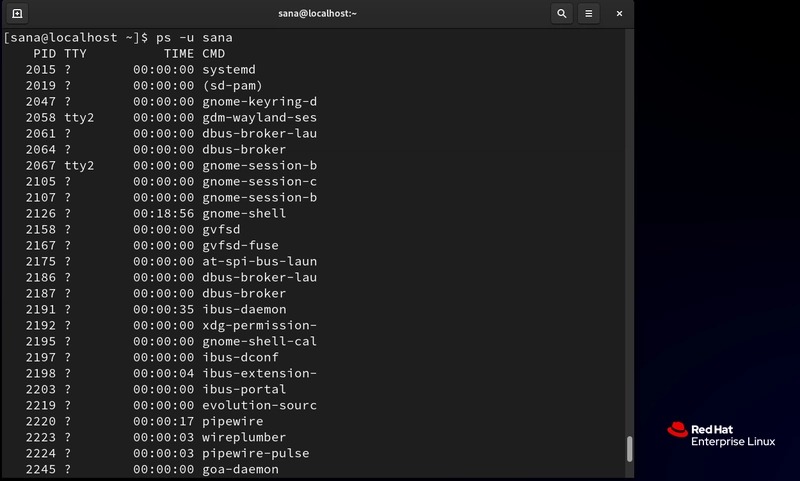
A single snapshot can miss an intermittent slowdown. Repeat the same read-only sampling commands during the next occurrence and during a normal period, using comparable intervals. Inside a VM or container you see that environment's numbers. They can differ from the physical host's because of CPU quotas, and permissions restrict which processes and counters you see.
Tell high CPU usage from a high load average
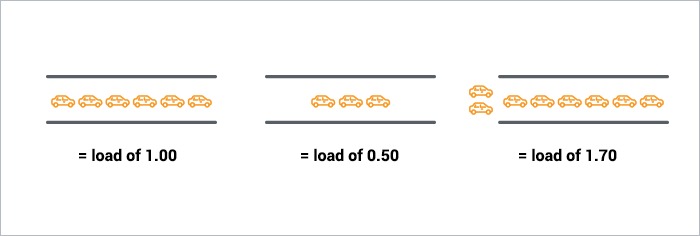
CPU utilization measures processor time. Load average counts tasks that were runnable or in uninterruptible sleep, averaged over 1, 5 and 15 minutes. The Linux uptime manual includes both kinds in the figure. The numbers are raw averages, with no automatic division by the CPU count.
To put the load in perspective, check how many logical processors your environment has:
nprocA many-core machine can sustain more runnable work than a small VPS, and the workload, the waiting tasks and any CPU quota decide whether high load means slower service.
Read CPU states alongside load
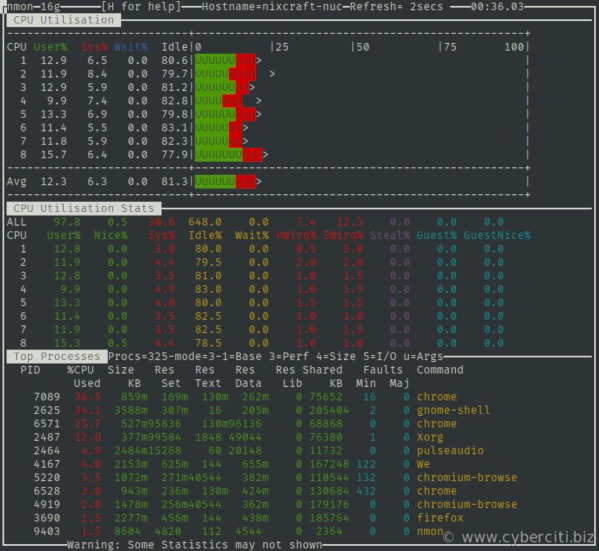
us: Time in user-space computation.sy: Time executing kernel or system work.id: Idle CPU time.wa: CPU time counted as I/O wait.st: Steal time, which applies to virtualized environments.
In some of top's CPU-accounting modes, a multithreaded process shows more than 100% CPU because it uses several logical processors.
A beginning administrator on r/linuxadmin described an interview exercise this way: “I received a task, and I failed on the task. I need help understanding the “Load Averages””
The post listed 87.7% CPU utilization and load averages of 37.66, 36.58 and 32.71 on 24 CPU threads. The poster's explanation also cited 36.7% I/O wait.
If load stays high while the CPUs sit idle, check blocked tasks and storage next.
Read available memory, cache, and swap correctly
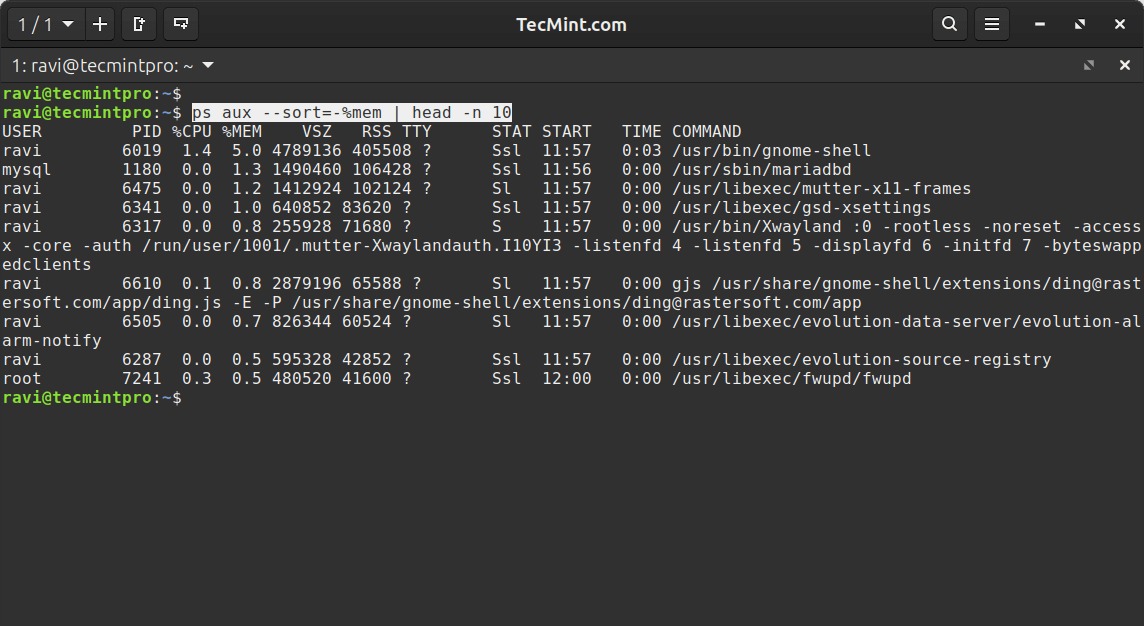
Start with the available column: it's the useful estimate of your memory headroom. Linux also puts RAM to work as file cache and in kernel structures, so used, free and available memory cover different parts of its accounting.
Here's how the Linux free manual describes the fields reported from /proc/meminfo:
total: Memory the operating environment reports.used: Memory counted as used once the tool accounts for free space and cache.free: Memory that's currently unused.buff/cache: Buffers and cached memory. The kernel can reclaim some of it.available: Estimated headroom for new applications without swapping, counting both reclaimable and unreclaimable memory.- Swap: Total space and the amount currently allocated there.
A user on r/linuxquestions wrote, “After a lot of usage, I closed all apps and processes, and saw 6.5GB used.”
The user's free -h table also showed 15 GiB total memory, 6.2 GiB used and 1.9 GiB in buff/cache.
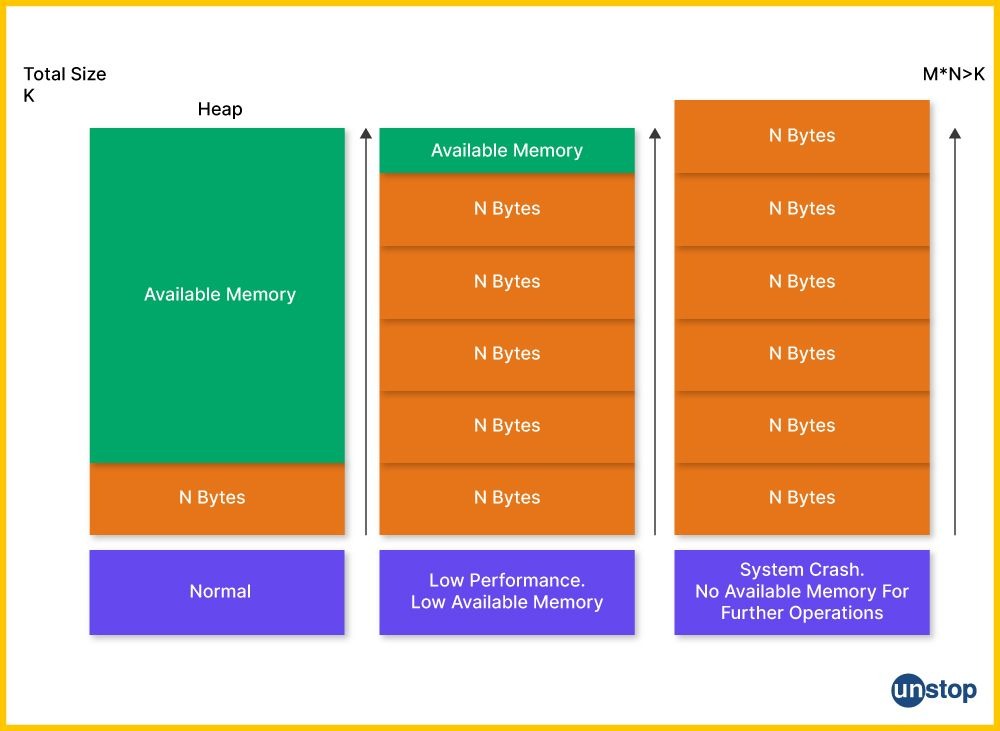
On that system, 7.2 GiB was free and 8.8 GiB was available. The swap line showed 1.3 GiB used.
Swap traffic right now is a separate signal from swap space allocated earlier, and you read it in an interval sample. For a memory-pressure branch, record whether available memory falls during the slow request, whether swap-in/out occurs during those seconds, and whether memory PSI shows stalls. A high used-memory value without those corroborating symptoms is not enough.
If the resident memory of your processes adds up to less than the system reports as used, read /proc/meminfo:
cat /proc/meminfoFields such as MemAvailable, Cached, SReclaimable, SwapTotal and SwapFree help explain the difference. Kernel memory, caches and shared memory affect the totals in ways a simple sum of process RSS values can't reproduce.
Don't clear caches or disable swap just to make a memory number smaller. That risks disrupting the workload before you've established any pressure.
Check disk capacity and inodes before blaming disk speed
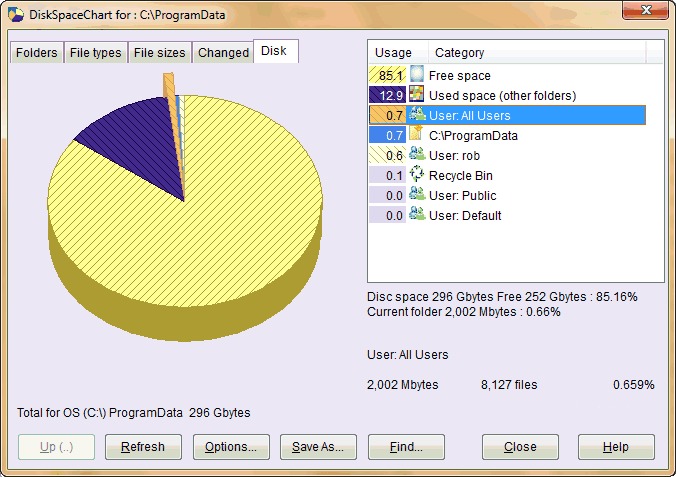
A filesystem can run out of two things: bytes and inodes. df -i matters when a workload creates very many files. Check the mount point that holds the application or data that's failing.
- Little byte headroom: Trace which directories on the affected filesystem are growing.
- Few inodes left: Check file counts and find the process creating objects on that mount.
- Capacity available in both: Move on to interval-based activity and the affected service.
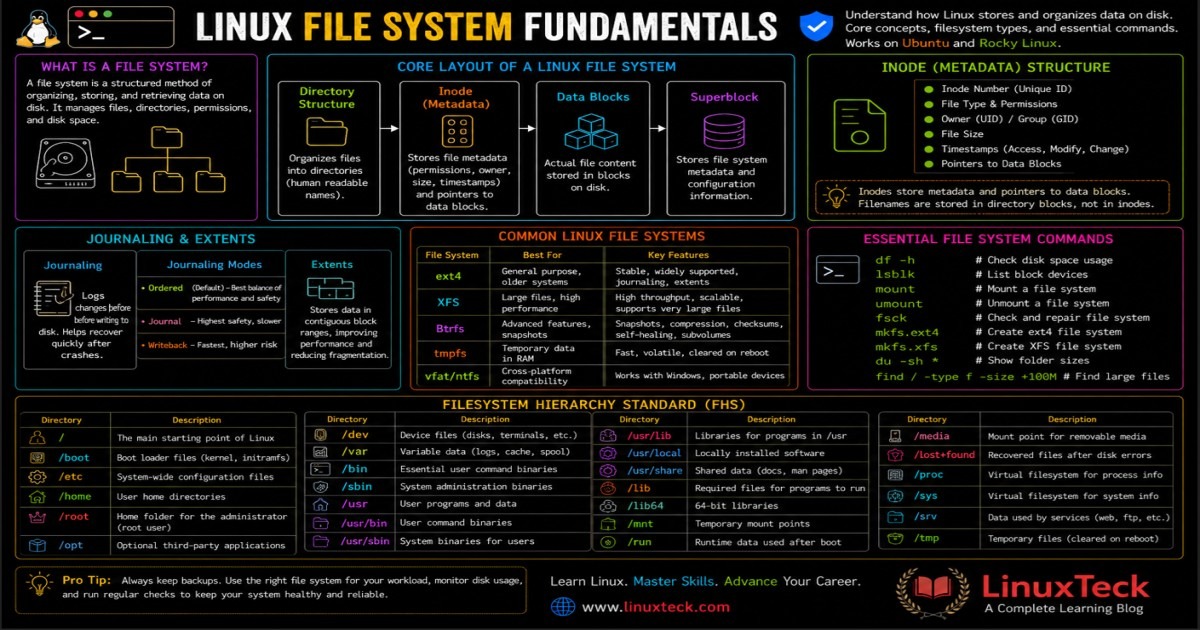
In a June 2026 r/selfhosted discussion, an Ubuntu VPS owner wrote, “This morning my provider sent me an automated mail that my Ubuntu VPS had reached 80% disk usage. Turned out my git server was generating massive logs due to a configuration error.”
On another filesystem, its growth rate, the capacity left and the free space the application needs set the point where usage becomes a problem.
Check whether storage I/O is slowing the host

A filesystem with ample space can still serve requests slowly when I/O is delayed. First find the filesystem source behind your application's path:
findmnt --target /path/to/application --output TARGET,SOURCEReplace the example path with your application's actual path. With device-mapper layers, RAID, bind mounts, virtualized disks or network storage, the reported source can differ from the physical device.
If sysstat and its iostat command are installed, take extended device samples:
iostat -xz -y 1 5The command shows extended device statistics, hides idle devices, skips the first report (it covers activity since boot) and prints five one-second samples. Details are in the Linux iostat manual.
| Counter | Meaning | What to compare |
|---|---|---|
| Read/write throughput | Transfers per second or data volume per second, depending on the field | Volume during the slowdown |
await | Average I/O request time in milliseconds, including queue and service time | Delay while the service is slow |
aqu-sz | Average number of I/O requests queued for the device | Work piling up while requests are delayed |
%util | Percentage of elapsed time with I/O requests issued to the device | Read it against the disk type (SSD, virtual) |
Higher request delay and sustained queueing during the incident point to storage contention. For an I/O branch, compare a normal sample with one collected while the same application operation is slow. %util is hard to interpret on parallel SSDs, virtualized disks and layered storage.
Identify the processes using CPU, RAM, or I/O
Once a host-wide measurement shows a busy resource, a process listing shows which tasks use it.
For a CPU-sorted process snapshot on procps-based Linux systems:
ps -eo pid,user,%cpu,comm --sort=-%cpu | headIn ps, the reported %CPU uses CPU time accumulated over the process lifetime. A long-running process therefore shows a modest lifetime percentage even when it gets busy during a short incident.
For interval-based per-process CPU or I/O activity, use pidstat if sysstat is available:
pidstat -u 1 5
pidstat -d 1 5
The first command samples task CPU activity and the second samples task I/O activity. The -r option shows process memory statistics. Match the PID, user, command name and sample time to the resource that looked constrained, then identify its service or workload.
A process at the top of a CPU ranking can be doing normal work. Terminating, renicing or restarting a production process only because it tops a list risks interrupting the very service you're investigating.
Use interval samples and historical data to catch intermittent slowdowns
For task state, swapping, block I/O and CPU in one view, procps-ng vmstat gives you a compact sample:
vmstat -y 1 5Here -y skips the since-boot report too and prints five one-second reports. Use a comparable five-second window in a later healthy period. Short windows can miss a sporadic fault, so repeat the measurement if needed.
r: Runnable tasks, including tasks waiting for CPU time.b: Tasks blocked in uninterruptible sleep.siandso: Swap-in and swap-out rates over the interval.biandbo: Block I/O activity over the interval.

Inspect a past incident only when history exists
For a fresh CPU sample, run:
sar -u 1 5To read previously collected CPU data, use an existing archive:
sar -u -f /path/to/existing/sa-fileReplace that path with an actual sysstat data archive. sar can only replay an incident if sysstat was already collecting data and the archive covers that period. File locations differ by sysstat version and distribution.
On Linux systems that expose Pressure Stall Information (PSI), another read-only check is:
cat /proc/pressure/memoryPSI reports some and full stall conditions and averages labeled avg10, avg60 and avg300. Finding the process behind it takes a separate measurement.
When SSH checks are enough and when you need alerts
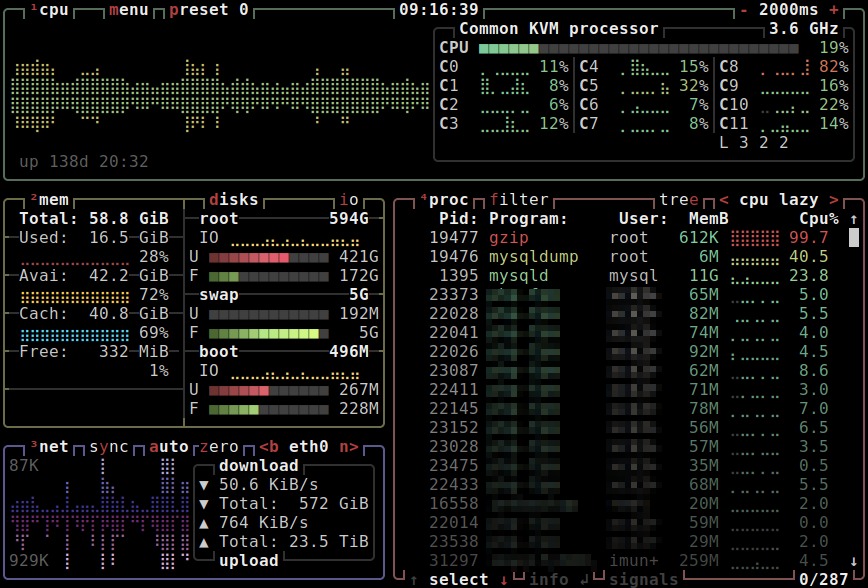
For an occasional problem on a single VPS, an SSH session and targeted sampling are enough, and htop, btop or glances give you a fuller view in the terminal. Consider retained metrics and alerts for recurring failures, unattended incidents and several hosts. Decide which symptom deserves an alert and how much history you want, then weigh that against an agent's configuration, access controls, resource use and maintenance.
Match the symptom to the next step

Label each suspect confirmed, unclear or ruled out, using readings from the incident window and from the same host, process, service or filesystem. Keep a simple incident record: the symptom and its time, CPU and load samples, available memory, swap and PSI, device delay and blocked tasks, the matching process and service, and the result of the next check. A suspect remains unclear when the symptom and metric were never observed together.
| Observation | Likely cause | What confirms it | Next step |
|---|---|---|---|
| Busy CPUs while requests slow | CPU-heavy workload or processor contention | The same task keeps using CPU in interval samples during the slowdown | Examine that service's workload and response behavior |
| High load with idle CPU time | Runnable queues or blocked work | Blocked tasks rise alongside device wait or delayed I/O | Find the resource they wait on and the affected task |
| Much RAM marked used | Cache accounting or genuine memory pressure | Available headroom, swap-in/out activity and pressure readings | If pressure matches poor service response, investigate memory demand |
| Filesystem alert or failed writes | Byte capacity or inode exhaustion | Fewer available bytes or inodes on the application's mount | Trace file growth or excessive file creation on that mount |
| High storage request delays | I/O contention affecting the workload | Higher await and queueing, plus process I/O in the same interval | Inspect the service issuing those requests |
| The slowdown has already ended | Current readings miss the event | Saved records that cover the incident, if available | Use that history. Otherwise plan to collect data for the next occurrence |

Compare a slow window with a healthy one before attributing the cause to CPU, memory or storage, and change nothing until a measurement matches the symptom. If the slowdown comes and goes, use saved history or monitoring to catch it.
