Find the delayed request before choosing a fix. Once your tests point to an expensive component, change that one component in a way you can undo, then test the same task again. If the cause stays unclear, give your host or developer the measured request and the conditions it ran under.
A homepage can appear instantly while the WordPress editor takes several seconds to open. Another site can send its HTML promptly, then spend the next few seconds loading scripts and images. The two call for different investigations.
Start with the exact thing that's slow

Pick the page, screen or action that's delayed and name it by URL or operation.
| What feels slow | Request to isolate | Where to look |
|---|---|---|
| Public page loads slowly | Open the affected public URL | Initial response and browser loading |
| Dashboard or editor lags | Open or save a specific /wp-admin/ screen | Logged-in WordPress processing |
| Product search or checkout stalls | The affected search, cart or order action | Dynamic request processing |
| Slowdowns come and go | A named action during a slow period | Incident timing and host activity |
A public product page and an admin product lookup are different operations, even for the same product.
Write down the URL or action, your login state, device and browser, the approximate time and time zone, and any visible error. If the problem is intermittent, note when it happened even if the delay vanishes before it can be reproduced. Keep guesses about plugins out of it.
Get a baseline measurement

A performance score can go up while one user action stays painfully slow. Google PageSpeed Insights gives you a lab assessment and, when enough observations exist, real-user data from the Chrome User Experience Report (CrUX).
CrUX data in PageSpeed Insights covers the previous 28 days, and Google's field classification uses the 75th percentile of recorded experiences. A fresh lab run and the aggregated field data can disagree. The Google PageSpeed Insights documentation explains both.
| Metric | What it describes | Good | Poor |
|---|---|---|---|
| TTFB | Time to First Byte: initial response timing | ≤ 800 ms | > 1,800 ms |
| LCP | Largest Contentful Paint: largest relevant visible content | ≤ 2.5 s | > 4.0 s |
| INP | Interaction to Next Paint: response to user interaction | ≤ 200 ms | > 500 ms |
| CLS | Cumulative Layout Shift: visual stability | ≤ 0.1 | > 0.25 |
CLS has no time unit, since it measures layout movement. Use the thresholds to pick which metric to investigate.
A Hostinger user discussing WP Rocket, Perfmatters, and other optimizations wrote on r/Wordpress on July 11, 2026: “However, my website still takes time to load. and it frustrates me.”
Take a baseline for the operation you chose in the first section. Run the test more than once, with the same page, login state, device and cache state each time, and save every result. If PageSpeed Insights has no CrUX data for your URL, keep the lab measurement and label it as lab data.
Pick diagnostic tools that match your access
Start with what you can reach. A browser shows request and rendering behavior, WordPress diagnostics add application detail, and server access exposes the processes behind a slow response.
| Access | What you get | Use it to |
|---|---|---|
| Browser only | Network waterfall, request timing, browser performance, PageSpeed Insights | Locate the slow request or rendering phase |
| WordPress administrator | Tools → Site Health; Query Monitor | Check environment details, queries and WordPress operations |
| Host, developer or server administrator | Application performance monitoring (APM), server logs, PHP and database/resource telemetry | Trace the costly parts of a slow transaction and see server conditions during the incident |
In WordPress, Tools → Site Health has Status and Info views that list configuration details and potential problems. An administrator can also use the Query Monitor plugin to inspect queries, HTTP API activity and component timings.
The browser can show that a response arrived late. It can't show how much of the delay came from PHP, a database query or an external service the server called. Your provider and account permissions set APM and log access, so on managed hosting your host can be the one to pull those details for you.

Find out whether the delay happens before or after the HTML arrives
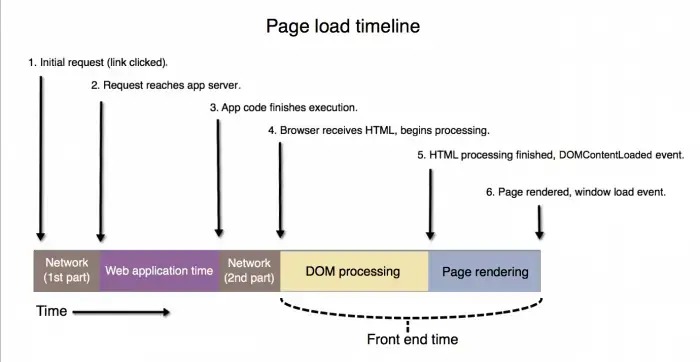
Your browser shows whether the HTML itself starts late, or arrives promptly and the page is slow afterward.
In Chrome, open DevTools → Network, reload the slow public page, select its main document request and open the Timing tab. The Chrome DevTools Network reference describes phases such as DNS lookup, connection, Waiting (TTFB) and Content Download.
The Timing tab's Waiting (TTFB) phase covers the wait inside that one request. TTFB for the whole page navigation can also include earlier redirects and connection time.
If the document response begins late
Check the connection and wait phases. A long wait on the HTML request points to network conditions, cache behavior or backend execution. A server or application trace can then separate PHP work, database operations and remote calls the server makes.
If the HTML arrives promptly but the page remains slow
Read the waterfall below the document request and find the LCP element or the delayed interaction. Large images, blocking scripts, styles, fonts and third-party resources loaded by the browser are the first things to check. A slow LCP and a slow INP are different problems, so go by the action that felt slow.
Why a fast homepage can hide a slow dashboard
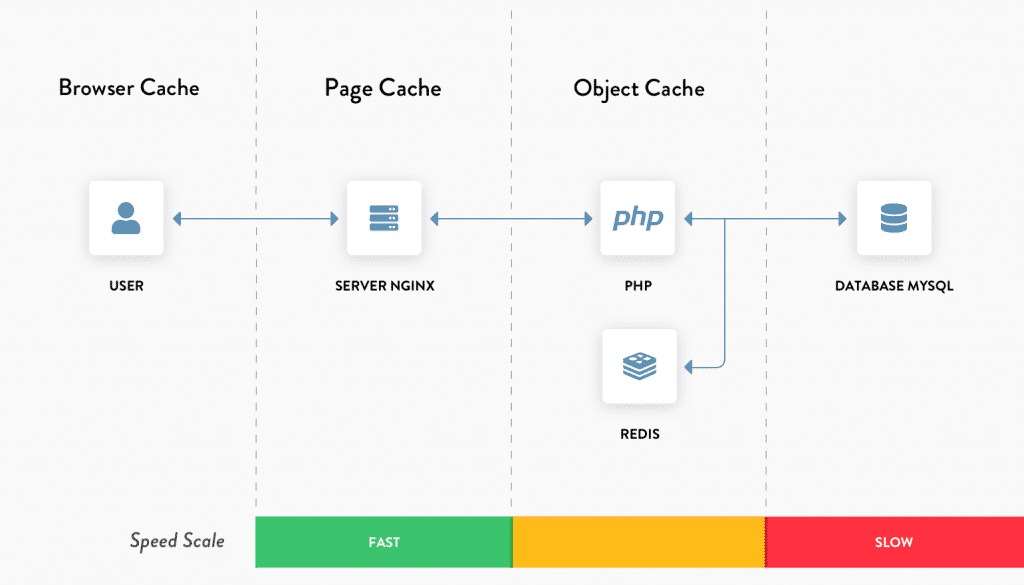
The public homepage and a logged-in dashboard take different paths. A full-page cache can return HTML it generated earlier for an eligible public request, which skips most of the work WordPress would otherwise repeat.
| Request or cache layer | What gets reused | What it tells you |
|---|---|---|
| Anonymous HTML cache hit | Generated page output | A fast hit says nothing about uncached PHP and database speed |
| Authenticated admin or personalized action | Depends on the route and your cache configuration | Can run fresh PHP, queries and plugin code |
| Persistent object cache | Reusable application data | Cuts repeated data work without serving a whole cached page |
The WordPress caching documentation separates page caching from object caching. Personalized routes can be excluded from full-page caching on purpose.
On December 28, 2025, a nonprofit administrator using DreamHost shared hosting and Cloudflare posted this on r/Wordpress: “However, the backend, the WP admin dashboard, runs super slow--not always, but most of the time.”
Load the public page as an anonymous visitor, then compare it with the slow logged-in or dynamic action. Check whether your cache or host reports a status on the response. A hit means the page came from cache. A miss means it didn't. If nothing is reported, you can't tell.

Trace slow WordPress admin screens and recent changes
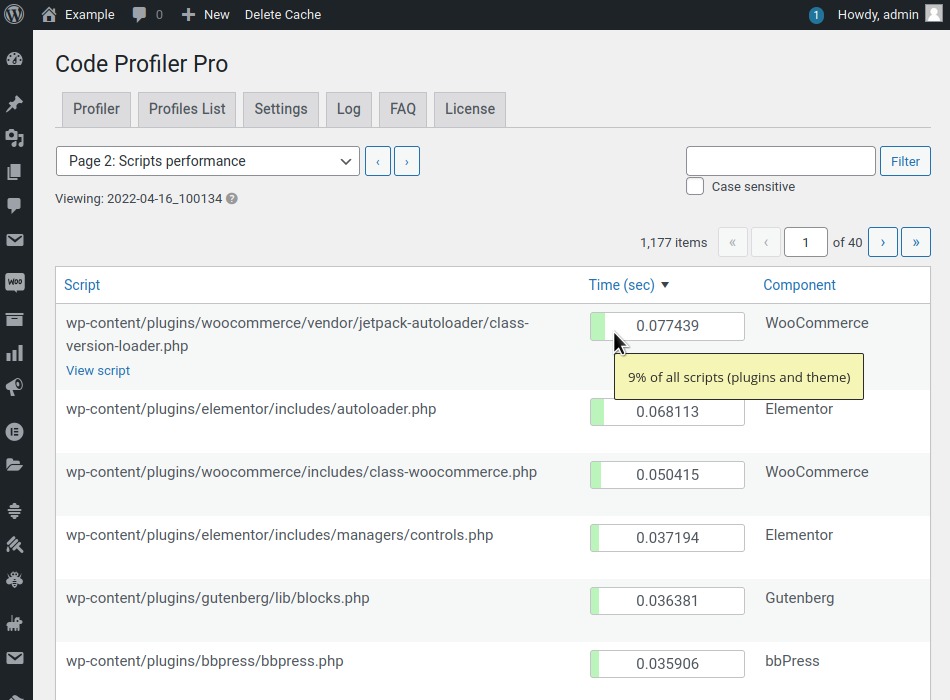
Profile a lagging editor or dashboard as its own logged-in operation. Admin requests run plugin and theme hooks, load metadata, query MySQL or MariaDB and call remote services that a cached public page never needs.
In an August 24, 2026 r/Wordpress thread about structured content built with Advanced Custom Fields (ACF), a poster wrote: “My WordPress admin, however, is absurdly slow.” The same thread mentioned a recent HTTPS change.
Open the slow admin screen or repeat the same save while a trace is running, either in WordPress or from your host. Query Monitor groups database queries by the responsible component, flags slow operations and shows WordPress HTTP API request timing. A provider's APM shows costly PHP transaction segments. The Query Monitor plugin page describes its views.
Look for a query, callback or HTTP call that takes a large share of the time during the slow action, and note which plugin or theme it belongs to. Repeat the action. If the same one is slow again, it's your lead. Many short queries can cost less than one long wait, so plugin count and query count don't point to a culprit.
If the slowdown began after a plugin, theme, PHP or configuration change, add that change to your record.
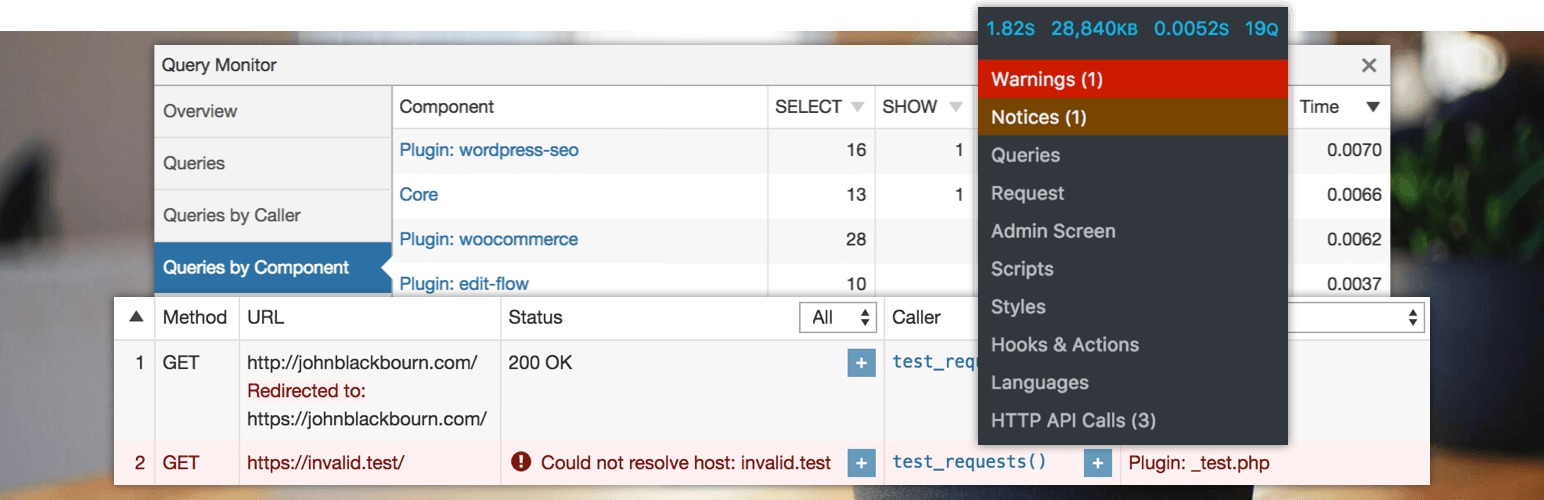
Trace slow AJAX requests, database work, and outside services
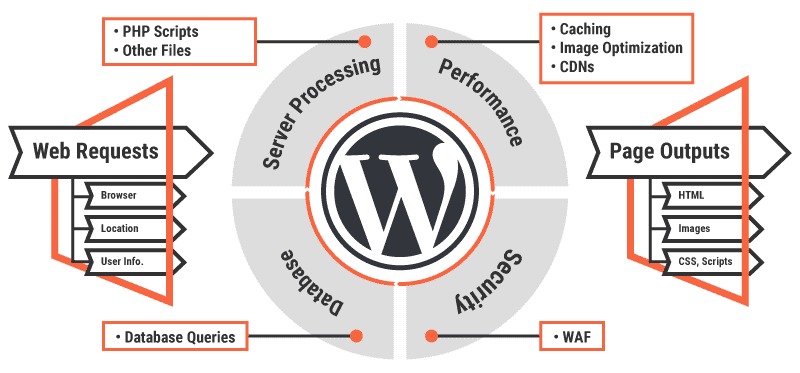
A stalled product lookup or order action can be waiting on one dynamic request while the rest of the page responds. WordPress interactions can go through admin-ajax.php, a REST API route or an application-specific endpoint.
A poster on r/Wordpress asked this on September 4, 2026, in a discussion about a B2B WooCommerce workflow: “Any ideas that I can look into to improve loading speed and improve ajax lookup speed”
Trigger the slow action with the browser's Network panel open and find the matching request by its timing and action. If you have access, line that same request up with WordPress query, PHP, database and HTTP-call diagnostics. Sort the delay into one of these:
- WordPress/PHP processing: A handler, hook or callback takes measurable time to run.
- Database work: A query or database wait takes time during the slow action. Look at its measured duration and whether something blocks it.
- Remote call from the server: PHP waits on another service through WordPress HTTP handling or a related application request.
- Browser-side resources: JavaScript execution or a third-party resource delays the displayed result after the server responds.
- Unresolved: Your tools show a slow request but can't split up its internal cost.
A wait on an API call made from PHP shows up in the application trace. A third-party script loaded by the browser shows up in the browser waterfall. Judge a database query by its behavior and measured time. Never change or delete rows based on table size.
WordPress Site Health warns when autoloaded options exceed a configurable default of 800,000 bytes. Background activity from WP-Cron or Action Scheduler is another candidate if its timing matches the slow operation.
Investigate intermittent slowdowns and hosting limits
When slowness comes and goes, line up the times it happens with resource graphs, PHP worker activity, scheduled jobs, database events and error logs.
A publisher with about 3,000 articles wrote on r/Wordpress on October 23, 2026: “When we move our website to another host then it is fixed for about 2-3 years.”
A move changes the PHP environment, caching, database setup and resource limits all at once, so the improvement doesn't tell you which one mattered. Match the slow periods against your host's telemetry and configuration history. If you can't see those records, ask your host for them.
Test one suspected cause safely
Once your trace points to an expensive component, test by changing one condition you can restore afterward. If you change a caching setting, a plugin configuration and the PHP environment at once, you can't tell which one made the difference.
Use staging or a planned maintenance window. Back up the site and keep the original configuration so you can reverse the change.
Protect the live site. Isolating plugins, changing the database or editing PHP settings can interrupt production workflows. Debugging and profiling add overhead and can expose sensitive information. Limit temporary access and logging, protect what you collect, and turn off diagnostic tools when the test ends.
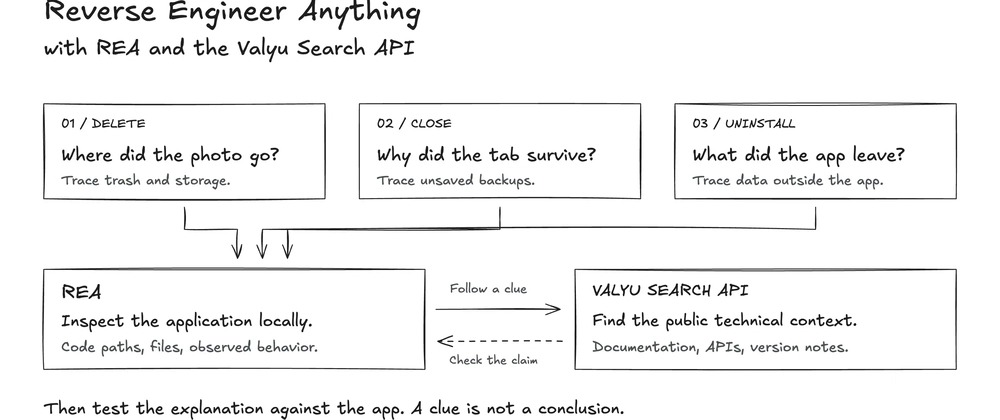
Write the test down in three lines:
- Suspect: The query, component or external call the trace pointed to.
- Change: One setting you can revert, or one component you isolate.
- Must still work: The action that has to keep working, and the failure that triggers a rollback.
For a slow editor save, the save has to keep working while you isolate the expensive operation from its trace.
Verify the fix or give your host an actionable report

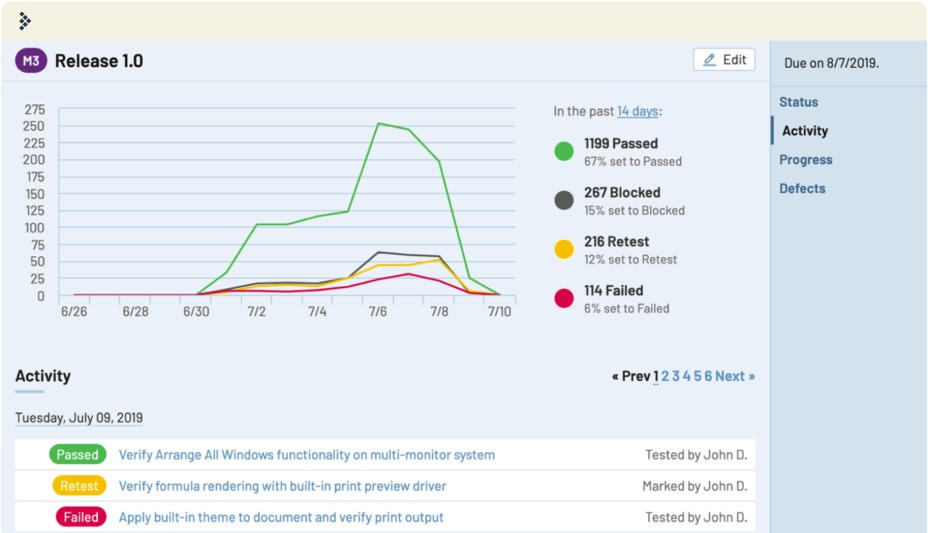
A change worked if the original slow operation got faster and still does its job. Repeat your baseline test on the same URL or action.
Check function as well as speed. A faster editor that can't save, or a checkout that won't complete, is a broken workflow. One fast run doesn't prove an intermittent problem is gone.
- Improved and functional: Timings improve and the action still works. Keep the change.
- Unchanged or broken: The action got no faster or stopped working. Roll back to the saved state.
- Unresolved: You still can't identify the expensive component. Escalate the specific incident.
When you escalate, send your host or developer the record you started in the first section, plus the cache state, measured delay, browser timings, the changes you made and any PHP, database or application trace you have.
