Start with one failing request, its exact URL and the time it failed, and compare the matching entry in the web-server log for that hostname with the service or application logs from the same moment before changing anything. If the request never reached your server, or you can't read its logs, check the upstream or hosting provider's logs instead. Once a log points to one component, repair it and retest the same URL.
A site can return HTTP 500 for one stylesheet while its homepage loads fine. Another can work when you call it from a terminal and still return 502 through the public domain.
Start with one failing request

Describe one failure precisely. “The website is broken” gives you nothing to search for. “The stylesheet cf.core.css returns HTTP 500 through this hostname” gives you a resource to investigate. Correlate the approximate request time across the reverse proxy, application, and journal logs.
In a March 2025 r/selfhosted WordPress discussion, an administrator running Ubuntu Server, Apache and a Cloudflare proxy had several plugin stylesheets returning 500 errors. After trying plugin and proxy changes, the administrator wrote: “I'm not sure where to look or what to check to see why this is throwing these errors.”
Write down five details:
- Host and path: The hostname and exact URL of the failing resource.
- What you saw: The HTTP status, timeout, connection failure or other symptom in the browser.
- When it happened: The approximate time and its timezone.
- Does it repeat? Whether the same request fails again or failed only during a past interval.
- How far it spreads: Whether the fault hits every route, one page or only certain assets.
A failure limited to /wp-admin/ points you somewhere different than a server that refuses every connection. Write down what you observed first, before restarting services, changing permissions or editing plugin settings, because each of those can change what the logs show.
Find your web server log
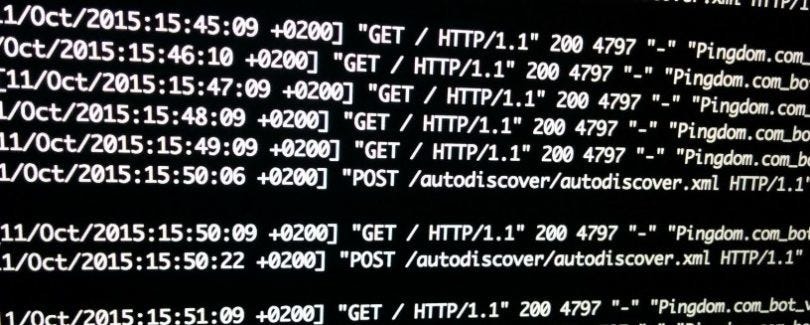
Read the config for the affected virtual host first. The running processes use the settings loaded at the last successful reload, so edits made since then can differ from what is live. On NGINX, sudo nginx -T tests the configuration and prints it, so you can find the access_log and error_log directives that apply to the host. On Apache, sudo apachectl -S shows the parsed virtual-host map, and the selected host's CustomLog and ErrorLog settings point to its logs. Typical paths include /var/log/nginx/error.log, /var/log/apache2/error.log and files under /var/log/httpd/.
Pick the right log

Pick the log that would have recorded the step that failed. An access log holds the fields set in its configured format. An error log holds the diagnostics its own component emitted. The service journal and the application runtime can explain events the web server's error file never sees.
| What you see | Check first | Check next |
|---|---|---|
| A URL returns an HTTP error | Web-server access log | Matching entry in the server error log |
| A proxy reports an upstream problem | Web-server error log | Backend service or runtime log |
| The web server fails to start | Systemd service journal | Startup or configuration error message |
| A PHP route fails | Web-server log | PHP-FPM or application log |
| You suspect a WordPress exception | Server and runtime logs | WordPress log, if one is configured |
| A containerized service fails | Captured container output | Application log file, if it is separate |
NGINX access logging can be disabled, conditional or buffered, and log_format decides which fields get recorded. A PHP-FPM pool sends errors and worker output wherever its own settings say, including catch_workers_output. With Docker, docker logs reads the output the container exposes.
Read only the failure window
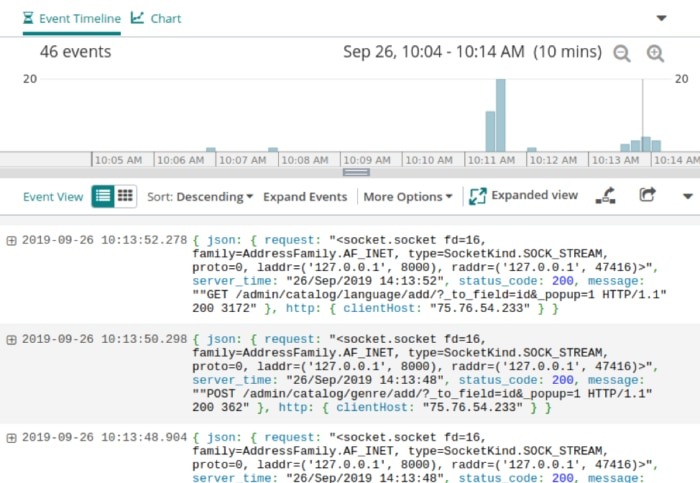
Use the failure time to read a small part of the log. For a readable NGINX error log, this shows the last 50 records:
sudo tail -n 50 /var/log/nginx/error.logIf the failure repeats, watch new lines arrive in the Apache error log:
sudo tail -f /var/log/apache2/error.logFor a systemd service, journalctl takes a unit name and a time range. This example reads the Apache service journal for the interval when a directive error appeared in Apache's file-based error log:
sudo journalctl -u apache2 \
  --since '2025-03-08 21:45:00' \
  --until '2025-03-08 21:50:00' \
  --no-pager
Swap in your real unit name and the date of the incident. A time alone, such as '14:00', means that time today, so historical searches need the date. Journal permissions also decide what you can see.
In a known file, use less or grep for the path or identifier you care about. Searching only for the word error misses messages like an Apache directive one.
Match the request across layers
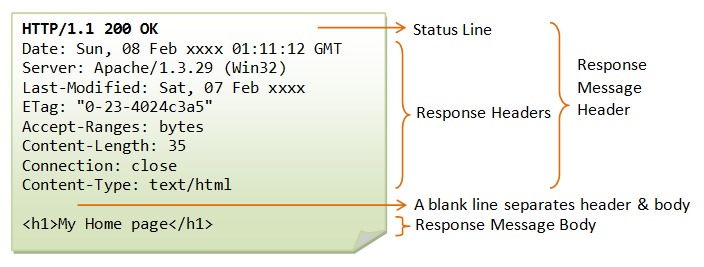
Use the hostname, path, status and time to find the web-server entry, then compare related errors and backend records from that window.
A 502 investigation has three parts:
- Public request: A specific route on the public hostname returns 502.
- What the gateway logged: The matching access entry and any related upstream error show what the gateway saw.
- What the backend logged: A service, runtime or application record shows what the upstream component recorded at that time, or no record matches.
Apache can add %L to its access and error log formats to link an error entry to a request. NGINX can record status, request timing and upstream values through its log format.
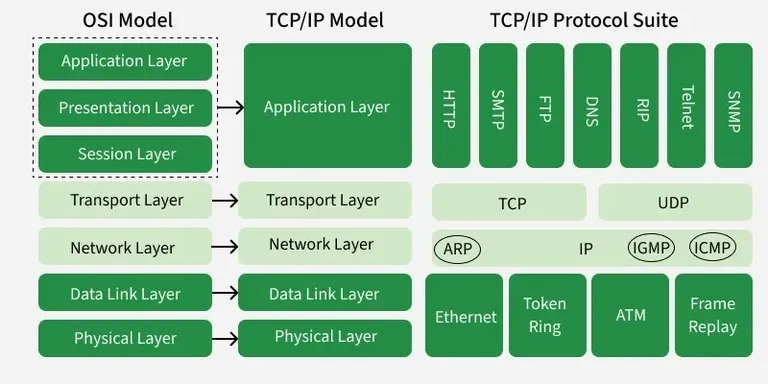
Request IDs and timing fields show up only if you configured logging to include them. Timestamps from different logs can also use different timezones or formats, so align them first. On a busy server, an exact request ID or host and path match beats a shared minute.
A backend that answers from a terminal can still fail through the public hostname. The public request passes through DNS, TLS termination, a CDN or a reverse proxy before it reaches the backend. Cloudflare's 502/504 guidance separates failures tied to origin responses from failures in intermediary processing.
What 500, 502, 503 and 504 tell you
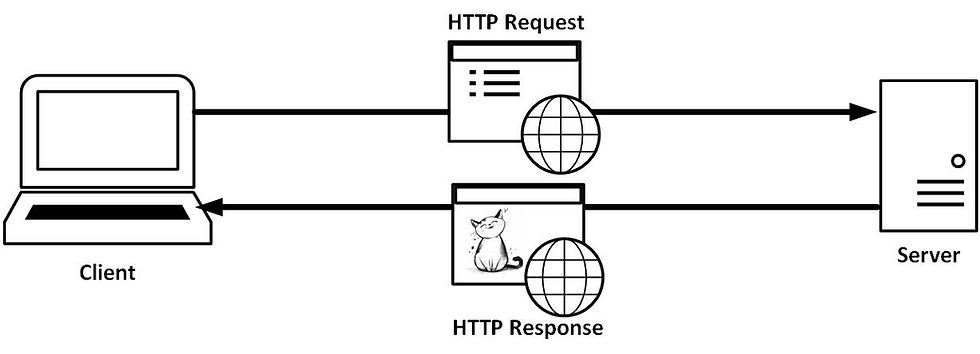
The status code tells you what kind of response failed and which log to read next. Its meaning comes from the component that returned it and the request path involved.
| Response | What it means | What to check | Common wrong guess |
|---|---|---|---|
| 500 Internal Server Error | Server-side processing failed unexpectedly | The server error message, then runtime or application logs | Blaming a plugin or a PHP fatal error automatically |
| 502 Bad Gateway | A gateway or proxy received an invalid upstream response | The upstream endpoint, the connection error and backend logs | Assuming PHP-FPM has stopped |
| 503 Service Unavailable | The server is temporarily unable to handle the request | Service availability, maintenance and capacity | Assuming high traffic caused it |
| 504 Gateway Timeout | A gateway did not receive a timely upstream response | Gateway timing, the upstream route and backend events | Assuming the backend is overloaded |
Look at which component responded. A gateway status sends you to the gateway-to-upstream connection, while an application error points you to the runtime.
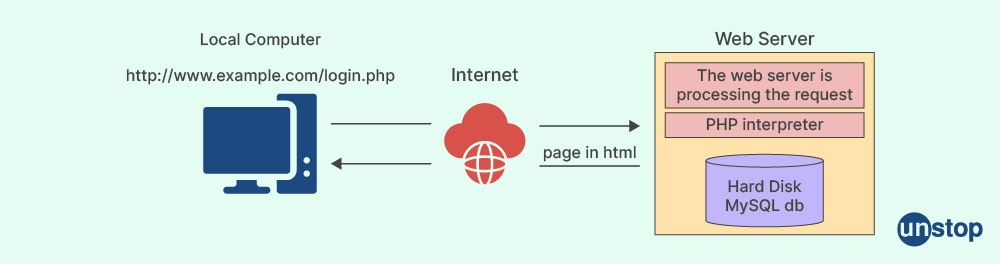
Different paths on one site can take different processing routes. In a January 2026 r/Wordpress migration discussion, the poster wrote: “Some pages that are /item1 /item2 that we have folder in public_html are accessible but the rest of the site is not.”
Some pages loading while the rest fail points you at routing, server config and the application.
When the log is empty
An empty log only tells you about that one file. The event can be logged elsewhere, no longer retained, or never have reached your server.
In a July 2023 r/Wordpress discussion, a site owner whose production site returned 500 after a plugin update wrote: “I checked error_log immediately once I got the 500 error but there was not a single fatal/critical error”. The r/Wordpress production-error discussion contrasts this with staging, where the update worked.
Where to look next follows from how your system logs:
- Systemd journal: Read startup, crash and restart messages for the unit, limited to the time range of the failure.
- PHP-FPM: Check the configured service and pool log destinations.
- Docker: Run the command below.
- WordPress: Check whether
WP_DEBUGandWP_DEBUG_LOGwere configured. The filewp-content/debug.logexists only under that configuration, and its location can be custom. - Historical event: Check retained rotated files and the journal from the relevant previous boot.
- CDN or reverse proxy: If the visitor's failed request has no matching record at your origin, check the layer in front of it.

For a container whose output goes through Docker's logging system, this prints recent entries with timestamps:
docker logs --since 10m --tail 100 \
  --timestamps CONTAINER
Replace CONTAINER with the actual name or ID. journalctl -b -1 reads the previous boot, but only if that history was retained and you can access it.
A real Apache example
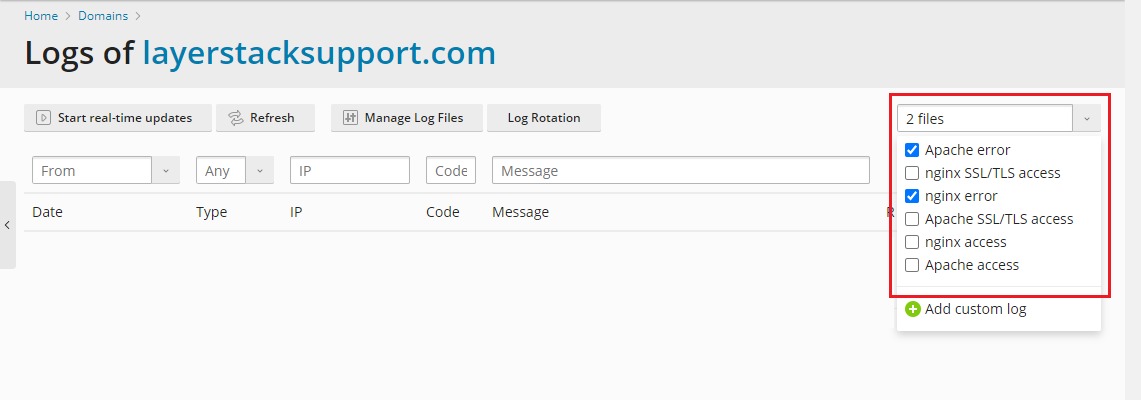
The WordPress and Apache case from the start of this article later produced a specific server error for the Cloudflare plugin's stylesheet requests. The administrator posted a log record from Saturday, March 8, 2025, at 21:47:28.
Here are the relevant parts of that entry, with unrelated identifying details removed:
[Sat Mar 08 21:47:28.971611 2025] [core:alert] [redacted fields] /srv/www/wordpress/wp-content/plugins/cloudflare/.htaccess: Require not allowed hereThe server version was Apache/2.4.62 (Ubuntu).
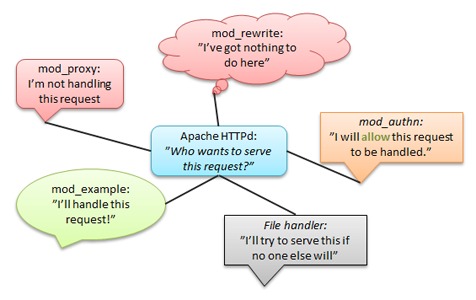
The path points to the plugin's own .htaccess file, and the message names a problem with the Require directive in that file's Apache context. Next, check where that directive is allowed to be overridden and what the effective server configuration is for that directory.
The administrator also reported a PHP memory limit of 512MB.
In a later r/selfhosted reply, another participant wrote: “I solved this issue, just renaming the .htacces file from the plugin.” Renaming or removing an access-control file can change how your site handles authorization, so read the Apache configuration before trying it.
After the logs point to a component
A good finding names the failed request, the component that logged an event, and the log line that supports your next step. If you can't find a matching record, name the missing record or layer.
Before you share a log excerpt, remove visitor identifiers, tokens, sensitive paths and private operational details. Apache logs can contain client-controlled input, and log destinations need protection against unauthorized writes.

A service shown as active tells you its current unit state, a syntax check tells you whether the tested configuration passes, and an HTTP request tells you how the affected route behaves through the path you used.
Then move to the repair step that matches the component: web-server or PHP-FPM configuration, the failing systemd service, WordPress's HTTP 5xx or critical-error troubleshooting, or the application code path the logs named. After you make a change, test the exact URL that failed, on the public path if that is where visitors saw the problem.
