When WordPress returns a 500, 502, or 503 error, find the failing request and the server layer that answered it, then use the matching log entry or maintenance evidence to pick one targeted, reversible fix. If you can't get that evidence or don't control the server, send your host the error, URL, time, and any diagnostic clues. Retest the original failing operation before calling the site recovered.
Your homepage can load fine while the dashboard, an AJAX request, or a WooCommerce operation fails. Start with the one request that broke and the server message logged for it.
What 500, 502, and 503 mean
Each code describes a different kind of failure. Separate 500, 502, and 503 at the first responding layer: the application, the proxy-to-upstream connection, or service availability can each require different log evidence.
| Response | HTTP meaning | First useful clue |
|---|---|---|
| 500 Internal Server Error | The server hit an unexpected condition and couldn't complete the request. | An application fatal error, a web-server configuration failure, or another server-side error entry. |
| 502 Bad Gateway | A gateway or proxy got an invalid response from its upstream. | The upstream destination and the gateway's matching error message. |
| 503 Service Unavailable | The service can't handle the request right now, for example during maintenance or overload. | A maintenance indicator or evidence that the service has no capacity. |
Note the scope along with the status. Does the error hit every public page, only /wp-admin/, or one endpoint such as /wp-admin/admin-ajax.php?
Capture the failure before changing settings
Write down one failed request in enough detail that you can find it in a log.
If the page shows no HTTP status, open Chrome DevTools and select Network. With recording on, repeat the failing page load or action, then click the request to read its URL and Status. A browser label such as (failed) or a CORS error is not an HTTP 500, 502, or 503 response.
- Request: The exact URL or endpoint, what you were doing, and whether you were signed in.
- Response: The HTTP status, the error text on screen, and any non-sensitive CDN or hosting identifiers in the response.
- Time: The date, clock time, and time zone, so a host can match it to server logs.
- Scope and recurrence: Which requests worked, which failed, and whether the failure was constant or intermittent.
- Recent change: A plugin, theme, PHP,
.htaccess, migration, server, or CDN change made before the symptom appeared. - Environment: Hosting provider, managed-hosting panel or VPS access, and CDN if you use one.
An error that follows a configuration edit makes that edit worth checking first.
Find the failing layer: CDN, server, or WordPress
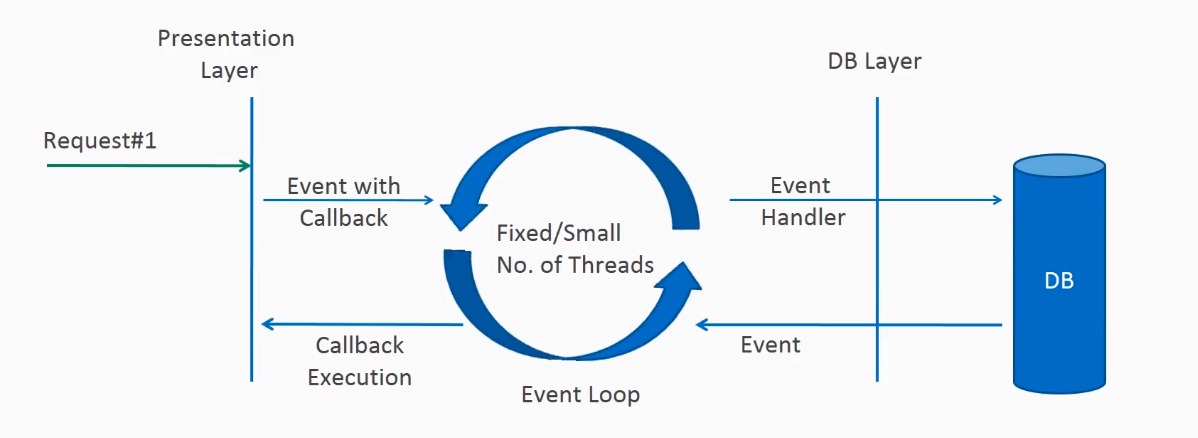
A request can pass through a CDN, an origin proxy, a web server, PHP-FPM, and WordPress before a response comes back. For a 503, Cloudflare's 503 guidance treats cloudflare or cloudflare-nginx in the error HTML as the sign that Cloudflare generated the response. In that case, go to Cloudflare support. If the error HTML lacks that text, the origin generated the response, so check your host's server logs. Custom error pages, extra proxies, and other CDNs need provider-specific evidence.
Find the useful logs even if wp-admin is down
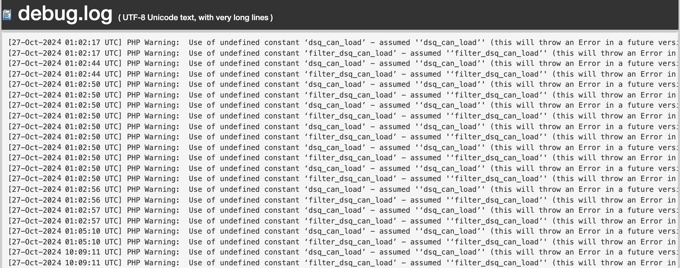
Start with whatever access you have left and find the error entry logged at the time of the failed request.
A GoDaddy/cPanel user wrote on r/Wordpress, “I edited my .htaccess file and now my site shows a 500 error, i failed to access my site using /wp-admin and now i am completely locked-out.” The host's file manager or support channel still works when WordPress doesn't.
| Access available | Specific route | Evidence to obtain |
|---|---|---|
| Managed-hosting panel | Open the site's application or server error-log view, if provided. | The entry for the failing URL at the incident time. |
| File manager or SFTP | Inspect hosting-exposed logs or the site's configured WordPress debug-log file. | A matching PHP or application error, or confirmation that the host exposes no log. |
| Authorized VPS access | Use the server's configured web-server and PHP-FPM error-log locations. | A gateway, service, or runtime message that matches the request. |
| No technical access | Ask the hosting operator to retrieve the web or PHP error entry. | The failing service and its logged message, without guessing a filesystem path. |
On managed hosting, the panel can show an application log but not the PHP-FPM service underneath. On a VPS, the web server and the PHP runtime each record part of the same failure. The timestamp and request tell you which entry belongs to your failure and which is an unrelated warning.
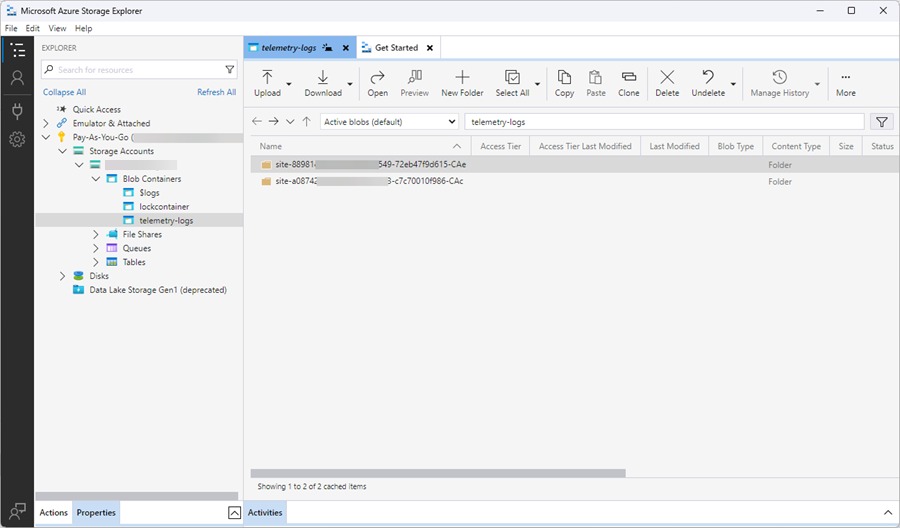
When a WordPress debug log helps
WordPress documents WP_DEBUG, WP_DEBUG_LOG, and WP_DEBUG_DISPLAY in its debugging handbook. The log and display settings take effect when WP_DEBUG is enabled. With WP_DEBUG_LOG on, errors go to wp-content/debug.log by default, though you can configure another path. This helps with off-screen AJAX and cron errors.
While you diagnose, WP_DEBUG_DISPLAY=false keeps WordPress debugging messages off the public page. If the request fails before WordPress runs, the debug log has no matching entry. Use the server or PHP-FPM logs for that layer.
Can a WordPress.org login restore access to a self-hosted site's admin?Your WordPress.org account and the administrator account on a self-hosted WordPress site are separate. Recover access with the site's own credentials or through your host's account recovery.
For a 500 error, match the log to the change
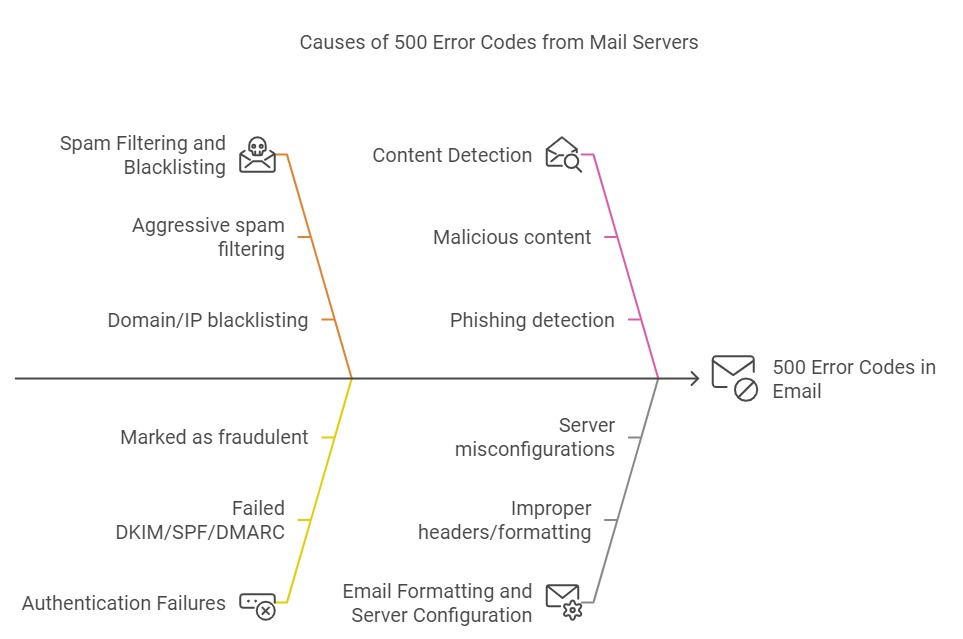
An Apache directive error, a PHP fatal, and a filesystem-access error can all break a WordPress request, and each needs a different fix. Start with the message logged for the failed operation.
Say an Apache-based site returns 500 after an .htaccess edit and the Apache error log names the directive you changed. Save a copy of the current file, then restore the known-good directive or your previous configuration. WordPress's Apache configuration documentation describes the file's role and the basic WordPress rules.
A standalone Nginx server ignores Apache .htaccess directives. Its routing rules live in the Nginx configuration. A setup with both Apache and Nginx can involve both configurations.
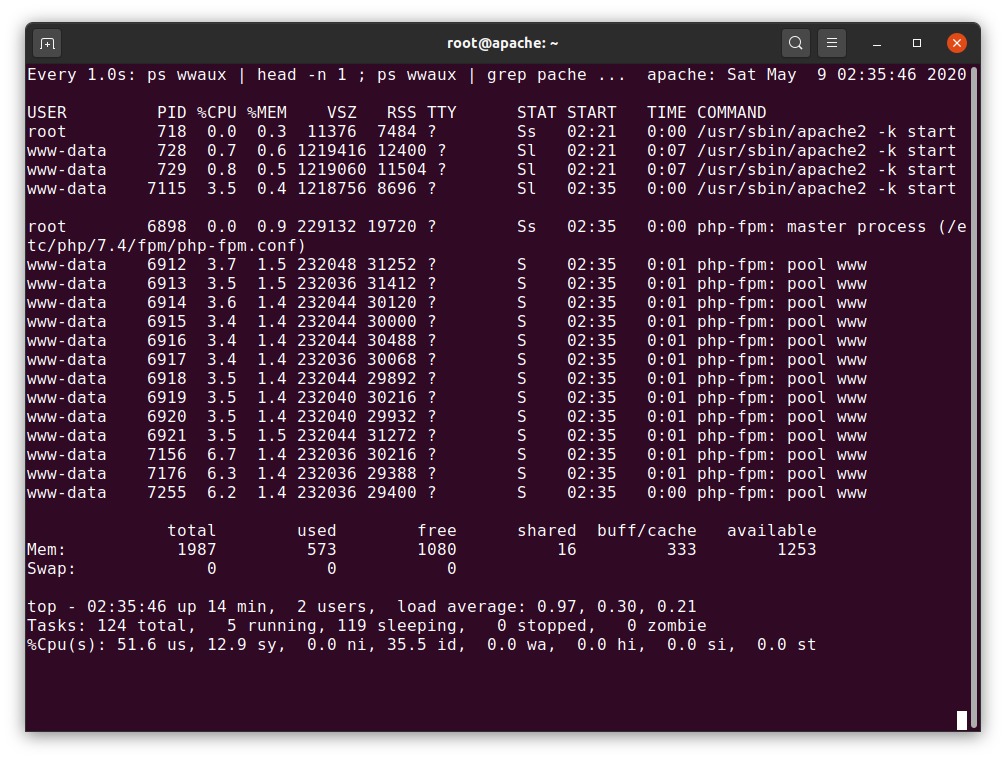
- If the log shows a PHP fatal pointing to a component, find the reported file or function and the code change made just before it, then follow the WordPress critical-error recovery for that component.
- If the message is about server configuration, find the directive it names and the server that reads it. Leave unrelated configuration alone.
- For a permission or ownership error, identify the failing path and the account running the operation before you change any access rights. Blanket permission changes create security risks.
- If the error is database-related, follow the separate WordPress database troubleshooting procedure once the log points there.
- If the log reports resource exhaustion, check which resource it names before changing PHP, process, or storage limits.
For a 502 error, inspect the upstream connection
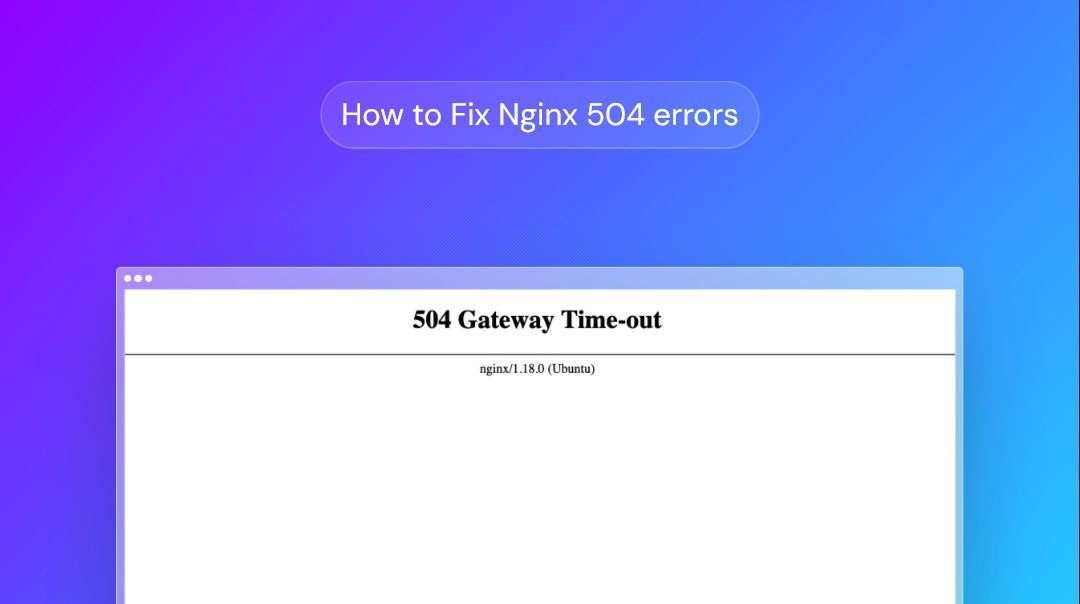
When Nginx is the gateway to PHP-FPM, its error log shows whether the configured upstream accepted the connection and whether it returned a valid response. The fastcgi_pass setting can point to a TCP address or a Unix socket, depending on the server configuration.
| Observed gateway message | What it means and what to check |
|---|---|
| Connection refused to upstream | The connection attempt failed. Compare the fastcgi_pass destination with the PHP-FPM listener and service state. |
upstream prematurely closed connection | The upstream closed the connection before the response finished. Match the request time with the PHP-FPM and application error records. |
| Invalid or empty upstream response/header | The gateway got no valid response. Check the FastCGI response and runtime logs for the affected request. |
A gateway that waits and never gets the upstream response is a timeout, which is a 504. A 502 means the upstream sent an invalid response.
In r/woocommerce, a beginner using Nginx and Plesk wrote, “I keep getting an nginx 502 errors whenever different php endpoints are called, namely for example load-scripts.php or /wp-admin/admin-ajax.php.” The same thread included this recorded message:
2026-08-19 18:34:40 [error] upstream prematurely closed connection while reading response header from upstream
The failing request was POST /wp-admin/admin-ajax.php HTTP/2.0.
The log shows the connection broke. A PHP memory limit, a plugin fault, or a killed process can each cause that, and the PHP-FPM log from the same time shows which.
For a 503 error, separate maintenance from lost capacity
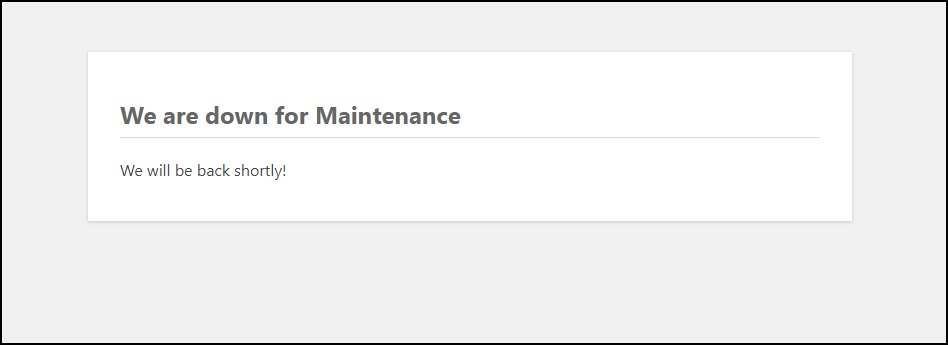
First work out whether WordPress itself is in maintenance mode or the responding service is out of capacity.
During WordPress core maintenance, the default message is “Briefly unavailable for scheduled maintenance. Check back in a minute.” The core handler can send HTTP 503 with Retry-After: 600.
The header sets 600 seconds in that handler. WordPress can also use a custom wp-content/maintenance.php drop-in, and hosting systems can show different maintenance responses.
| Observed evidence | What it suggests | Next investigation |
|---|---|---|
| WordPress maintenance text during an update | Core maintenance is on. | Find out whether the update is still running or was interrupted. |
| 503 with host or runtime resource warnings | The service lacks capacity. | Inspect the host's resource observations and the PHP-FPM pool measurements. |
503 on /wp-admin/ while public pages work | The problem sits on an administrative path. | Compare the admin request with its runtime and application records. |
Don't delete a maintenance marker just because it exists. Confirm the update's state first, then use the maintenance-specific recovery.
Reading PHP-FPM capacity evidence
If the PHP-FPM status interface is enabled and secured, PHP's FPM status documentation describes listen queue, active processes, idle processes, slow requests, and max children reached. A nonzero listen queue means requests were waiting for a free process at the time you looked.
A max children reached value of 0 means the pool hasn't hit that maximum in the recorded period. Any value of 1 or more means it has hit it at least once since the last restart. That is history. It doesn't show the pool is saturated now, and it doesn't give you a safe new value for pm.max_children.
Make one reversible fix, not five guesses
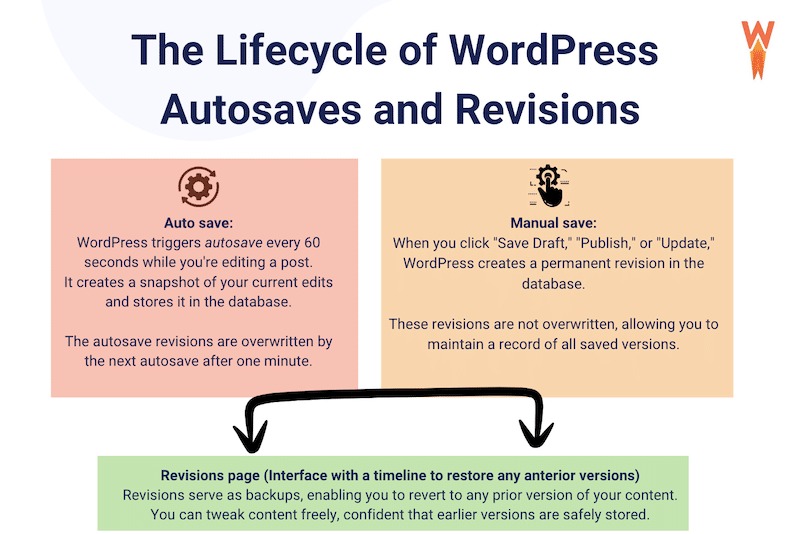
Pick the smallest change the logs support. Prepare a rollback before touching a production site, especially if other functions must stay up.
On r/Wordpress, a managed WooCommerce operator facing persistent 503 errors wrote, “Honestly, I can't risk breaking this more.” Bulk plugin deactivation can break checkout, payment, or login on an active store.
- Match the fix to the log: Name the exact setting, code component, maintenance operation, or service fault the diagnosis points to.
- Keep the old version: Keep the previous configuration or component version and a way to restore it. If the change affects the database, you also need a usable database backup, not just the site files.
- One change: Apply one change and check its effect before making a second. If you combine a PHP upgrade, a plugin change, and a server restart, you can't tell which one affected the response.
- Your host or admin: Ask your server administrator or managed-hosting provider to make service, socket, resource, and runtime changes that go beyond your account's access.
For a severe outage, a host-managed restore of a known-good state is an option, provided you understand its effects and the rollback.
Verify recovery and know when to call the host
Repeat the failing URL or workflow in a safe test. Use the exact operation that failed, not a different page.
- Confirm the admin action, AJAX operation, or business process completes as expected. Don't run test purchases that affect live customers.
- Compare the new attempt with the same server or application log to see whether the failure continues.
- For an intermittent failure, keep watching under the conditions where it recurred.
A useful hosting-support handoff
If the failing system is beyond your access, send your host the domain, failing URL or endpoint, status and visible message, incident time and time zone, affected operations, hosting and CDN setup, a sanitized log extract if you have one, and any change you already tried. Say which public or logged-in functions still work. Remove cookies, authentication headers, credentials, and customer information from anything you share.
For a Cloudflare-generated 503, Cloudflare's support procedure can also ask for the site's /cdn-cgi/trace output. Send that privately.
