To fix “Error establishing a database connection” in WordPress, confirm which database the site is configured to use, then test access to it before repairing tables or restoring a backup, because the error that test returns tells you which fix to apply. If a site that used to work fails now and then, check database availability, disk space, and connection limits before changing credentials. After the fix, test database-backed functions and watch for the error to return.
What “Error Establishing a Database Connection” means
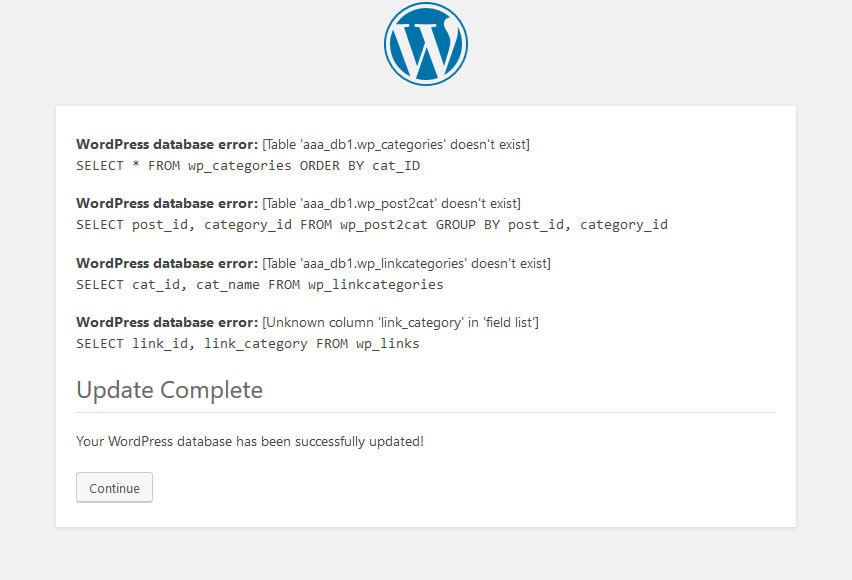
WordPress loads much of its site data, including posts and settings, from its database. This error means it can't establish or use the configured connection. The message doesn't tell you whether any content is lost. A different message, “One or more database tables are unavailable,” points to a table problem instead. “I really hope that i can get back all the edits that were made on the website last night. It took hours. :(” That's what a poster in r/Wordpress wrote after a recently customized site stopped loading.
Before you change anything, find out when and where it failed
Answer three questions first. Did the installation ever work? Does every request fail? What access do you have to the hosting environment?
| What you observe | Where to start | What to check |
|---|---|---|
| New installation or recent migration | The database, account, and destination host you intended | Compare them with the active WordPress configuration |
| Previously working site, consistently unavailable | Recent changes and the database service status | Test the configured connection |
| Error comes and goes | Failure times and resource conditions | Check server health |
| Managed or shared hosting | Your provider's database details and diagnostics | Use the hosting panel or contact provider support |
| Self-managed Linux VPS | Whether the database service is running | Read the logs and test database access on the server |
| Docker Compose deployment | Database readiness and the settings the containers run with | Work through the Docker Compose section |
“The issue turned out to be I was using 100% of available storage space on my digital ocean droplet,” an r/Wordpress poster wrote after investigating a website outage.
Check the database settings WordPress is actually using
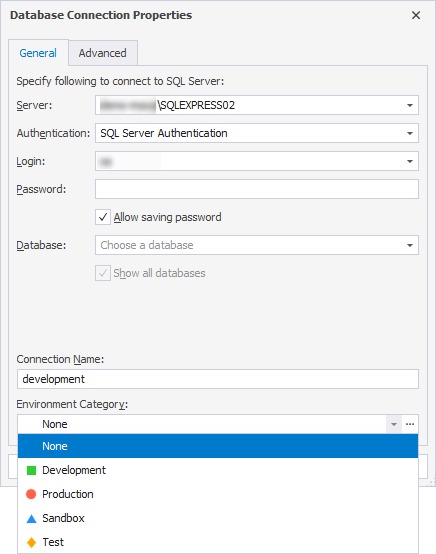
Start with the values WordPress actually uses, especially after a migration or deployment change.
The WordPress configuration reference defines four central settings:
| Setting | Purpose | What must match |
|---|---|---|
DB_NAME |
Names the selected database | The intended database on the selected server |
DB_USER |
Identifies the database account | The account this installation is allowed to use |
DB_PASSWORD |
Authenticates that account | The account's current password |
DB_HOST |
Defines the connection endpoint | The correct hostname, plus the port or socket if one applies |
The database name and account name are different things. A valid account can still lack access to the database WordPress asks for.
On a conventional installation, read these values in wp-config.php. Some deployments generate their configuration from runtime environment variables. In those, an edited example file doesn't control the running application's settings.
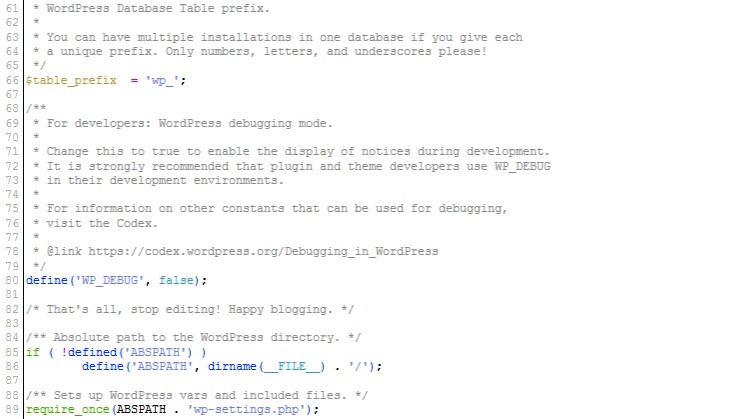
Look closely at DB_HOST. WordPress accepts hostnames with port or Unix socket information when you need it. localhost and 127.0.0.1 can select different connection mechanisms.
Compare the active values with the database details from your host or deployment configuration. Fix any mismatch, and keep the previous configuration so you can roll back.
Protect database credentials: Never put passwords in publicly accessible PHP diagnostic files, screenshots, support messages, or exposed command output.
Test the connection and capture the actual database error
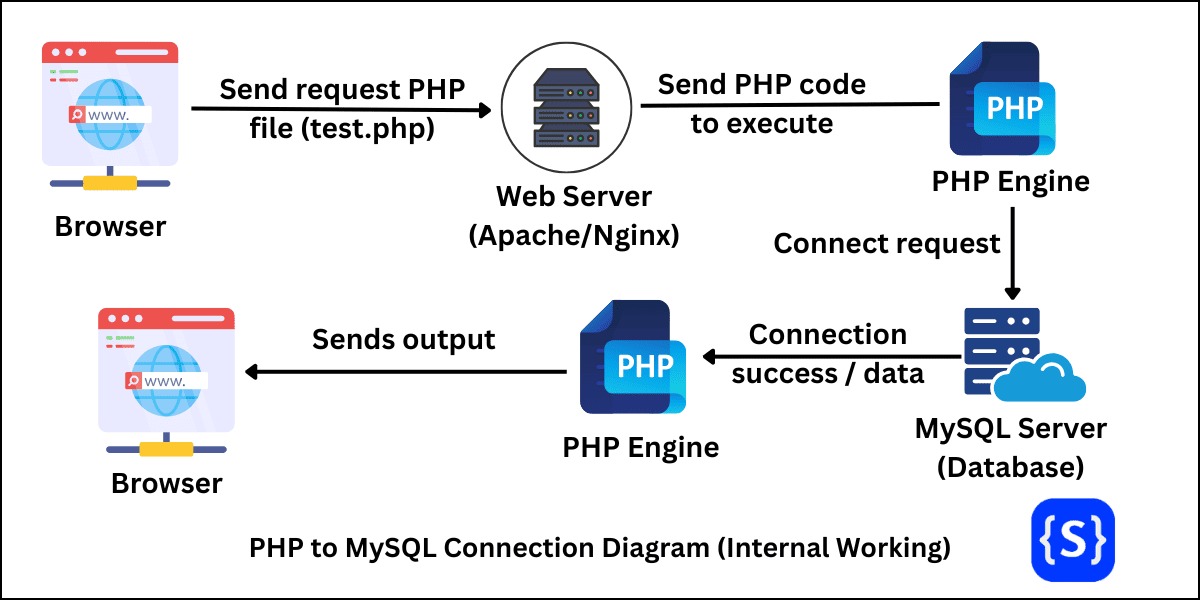
Test the connection with the same details WordPress uses. The test shows whether your database account can reach and use the selected database.
- Managed hosting: Use your provider's database interface or diagnostic tool. Note which database and account you test.
- Linux VPS: Use a restricted database client from the server environment and keep its error message.
- WP-CLI: If WP-CLI and the database client tools are installed, run a read-only query using the site's configuration.
For WP-CLI, the WP-CLI database query command includes an example that returns the selected default database:
wp db query 'SELECT DATABASE();'Run it from the intended WordPress installation. If the result names your database, the connection works and can run the query against its selected database. An authentication, transport, or database-selection error tells you where to look next. The MySQL DATABASE() function returns NULL if the connection has no selected default database.
wp db check is a separate command. It runs mysqlcheck --check with your WordPress configuration and checks tables, so use it for table integrity problems, not for this connection test.
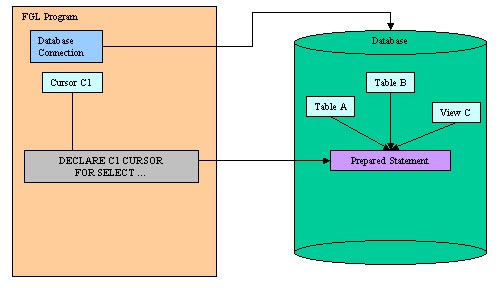
Database login and database selection need a successful connection with the right account and target database. A MySQL client connected to another database instance can succeed while WordPress still can't connect to its configured target.
Match a persistent connection error to its fix
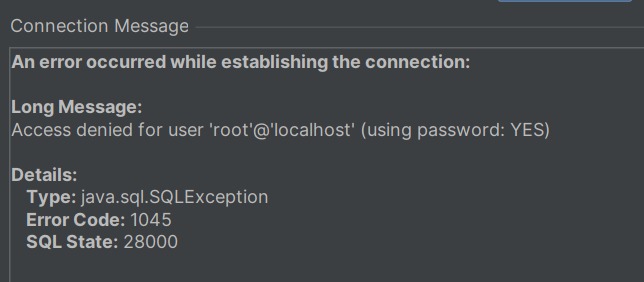
Login, access to a named database, and the connection itself are three separate stages, and the error code tells you which one failed.
The MySQL 8.4 server error reference lists errors the server reports. Its Client Error Message Reference covers connection errors that client libraries report:
| Error | Meaning | Next action |
|---|---|---|
1045 (Access denied) |
The server rejected the account's login, or the host you connect from isn't permitted for that account | Compare the configured account, password, and allowed connecting host |
1044 (Database access denied) |
The account lacks access to the requested database | Check the account's permissions on the named database |
1049 (Unknown database) |
The requested database name is not recognized on that server | Check the database name, the target instance, and whether the database exists |
2002 or 2003 (Cannot connect) |
2002 concerns a local socket connection, 2003 concerns a specified host and port |
For 2002, check the socket and the local service. For 2003, check the host, port, service, and network path |
1040 (Too many connections) |
The database server has reached a connection-capacity limit | Check server load and connection limits |
Find the row for your error before changing any setting.
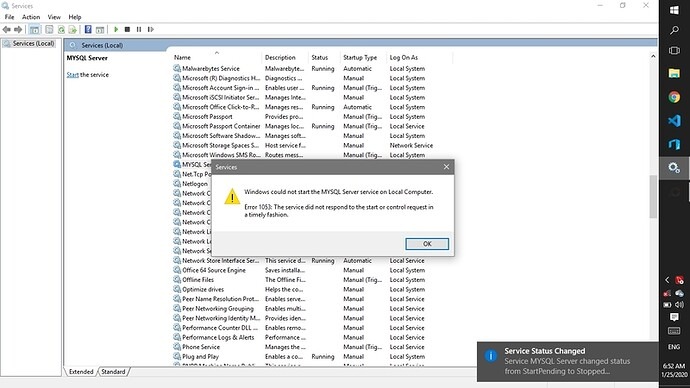
If the account is rejected
With 1045, either the password is wrong or the account isn't allowed to log in from that source host. Check the configured account and the hosts it can connect from before changing anything.
A client that logs in successfully can still hit a database-level privilege rejection, such as 1044. Keep the two errors apart when you check account grants.
If WordPress requests an unknown database
With 1049, confirm which database instance received the request and whether your database exists on it. After a migration, the active configuration can still point to a name from the previous host, or to a destination setup that isn't finished.
If the connection cannot reach the server
A 2002 or 2003 puts the problem at the service or the connection path. The failing endpoint can be a local socket, a TCP hostname and port, or an address the application's environment can't reach.
After you fix the mismatch, repeat the test. If the error changes, a different stage is failing now.
If the site was working or the error comes and goes, check server health
For errors that come and go, look at the server while the failure happens. MySQL or MariaDB can become temporarily unavailable, run short of a resource, or reject connections once capacity runs out.
One poster in r/Wordpress running WordPress and MariaDB in Docker described the symptom: “However, after refreshing the page a few times sometimes the website will load again (live site, not cached).”
On a self-managed VPS, check the database service status and the error logs around the failed requests.
What to look for
- Service availability: Was the database process accepting connections when WordPress failed?
- Database logs: Look for errors tied to the failed requests or to unexpected restarts.
- Disk space: Check free space on the filesystem the database and its operations use.
- Connection pressure: Compare rejected connections with the server's limits during the incident.
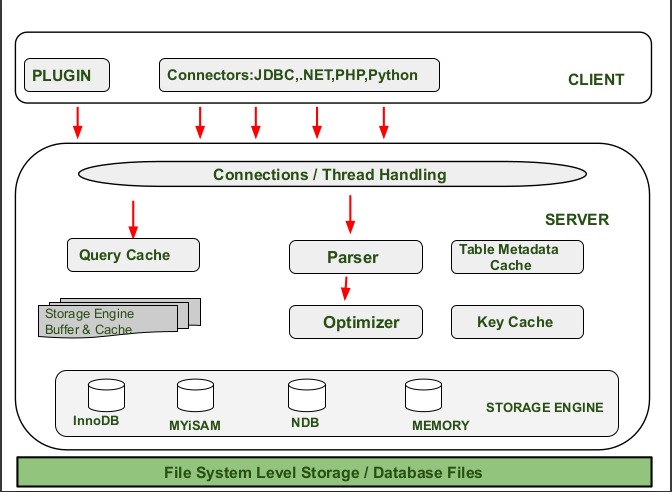
MySQL documents 1040, “Too many connections,” for a server that has used up its client connection capacity.
If a restart brings the database back for a while, look at the errors and resource use before the restart to find what keeps causing the failure.
On shared hosting, you can't read privileged database logs or restart the service yourself. Ask your provider to check them.
Docker Compose: check database readiness, service names, and persistent data
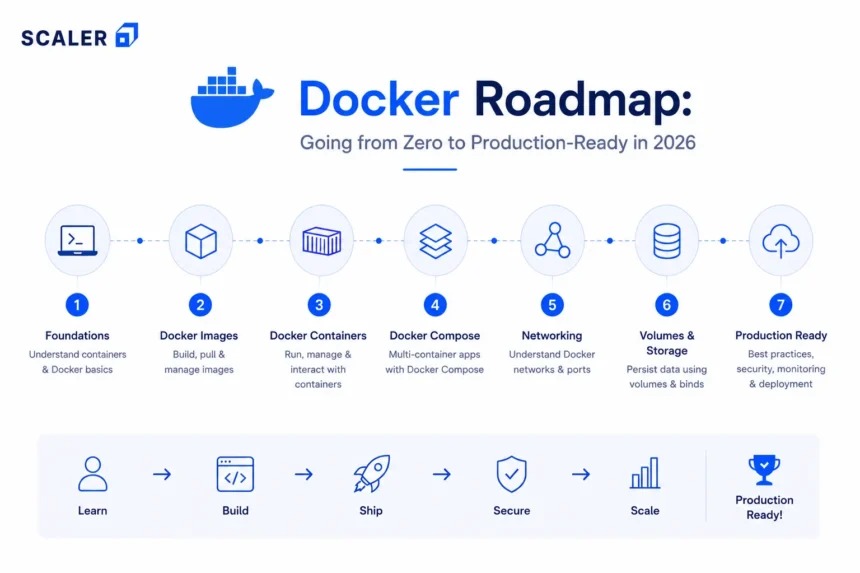
A running Docker container can still be waiting for its database to become ready. WordPress also needs the right service address and the credentials of the database that's already been initialized.
In r/selfhosted, a poster starting WordPress with Docker Compose put it this way: “I have waited as long as 24 hours trying to get it to launch but it never moves from that page.”
Docker Compose can wait for a dependency marked service_healthy, which means its configured health check passed. Read the database logs and look at what the check actually tests to judge readiness. A healthy result reflects that condition, so you still need to run the connection test for WordPress's account and selected database.
Match the service address to the Compose network
When WordPress and its database run in separate containers, the database host must name the database's endpoint on their network. Inside the WordPress container, localhost refers to that container's own environment.
Compare the application's database target with the database service defined in Compose. Check the database name and account the running installation uses.
Keep the initialized database data intact
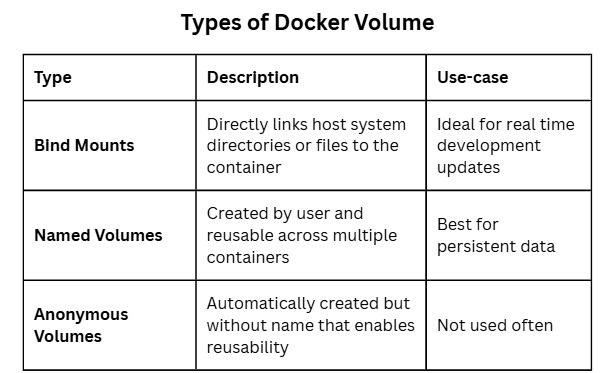
Initialization environment variables don't reconfigure a MySQL database that already sits in a populated data directory. A password you changed in an environment file therefore won't match the credentials that remain in the existing database.
Find the persistent data volume attached to the active database service before modifying its configuration or storage.
Preserve the database volume: Deleting or recreating a populated database volume can destroy WordPress content.
When to repair, restore, or contact the host

Repair modifies database tables. Restoration recovers data from an existing backup. Before doing either, check the connection result and see what stored data you can still read.
| What you see | What to do | Rule |
|---|---|---|
| Credentials, endpoint, or service connection fails | Fix access or bring the service back | Don't repair tables for a connection failure |
| Database connects, but required tables are unavailable or damaged | Check table integrity, then repair only the affected tables | Save recoverable data first |
| Required data is missing or unusable, and a suitable backup exists | Consider restoring the backup | Check what the backup covers and what changed after it |
| Necessary server-side information is inaccessible | Escalate to hosting support or the server administrator | Send the exact error and the timeline |
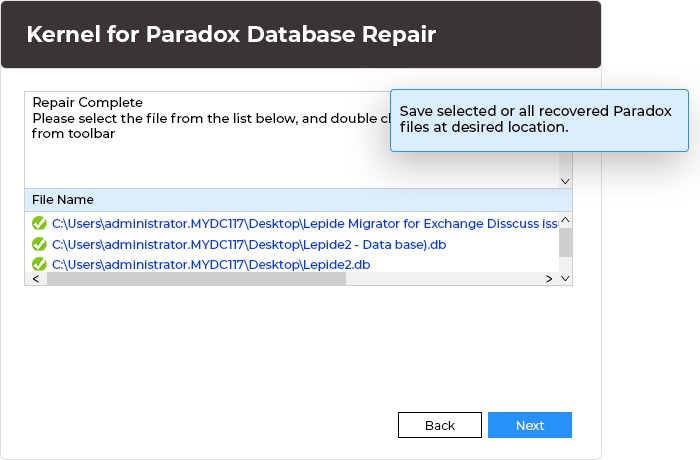
When WordPress database repair makes sense
Before running repair, make sure you have a recoverable backup or preserved copy of the current database and site files. If database access blocks a safe backup, ask your host or server administrator about recovery options before altering tables.
WordPress has a repair facility controlled by WP_ALLOW_REPAIR, with its interface at /wp-admin/maint/repair.php. The WordPress repair documentation explains that the interface requires no logged-in user while repair mode is enabled.
Use this feature only to repair tables you've confirmed are damaged, and remove or disable WP_ALLOW_REPAIR as soon as you finish. Know which database and tables are affected before starting.
Before restoring a backup
A complete WordPress backup includes the site's files and database.
Check the backup's contents and recovery point before overwriting production data. Restoring an older database replaces any posts, settings, or other changes made after the backup was created.
When to hand it to your hosting provider
If you can't reach service health, privileged logs, or database account settings, give your provider a short incident report:
- Time and behavior: When the failure began, when the site last worked, and whether it comes and goes.
- Deployment: Whether it's a new installation, a recent migration, or a site that worked before.
- Test result: The exact database error and how you ran the test.
- Changes made: The configuration edits or recovery attempts you've already tried.
Verify the site is back and that the error stays gone
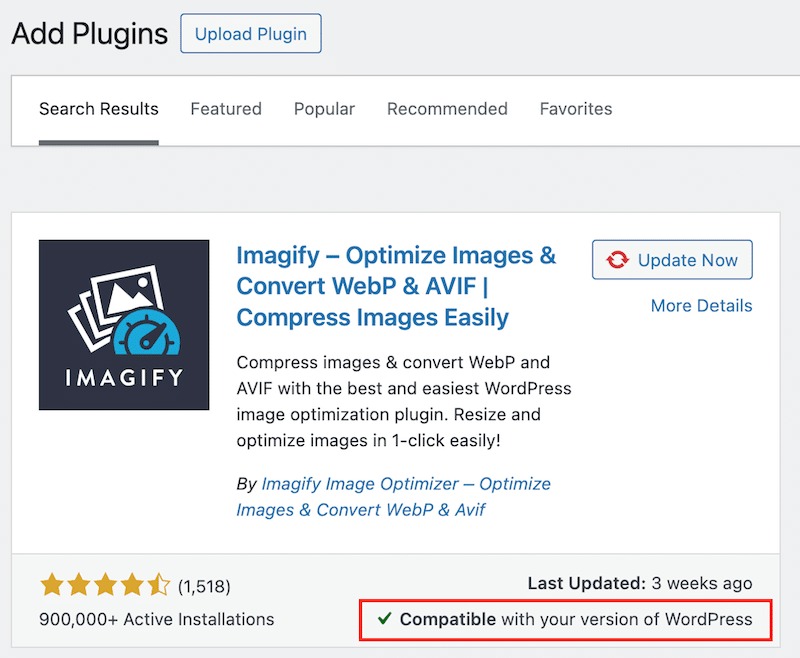
A cached public page can look normal while database-backed requests still fail, so check more than the front page.
Run these checks after your fix:
- Open a public page and the WordPress admin area. The page should behave as expected, and the admin area should retrieve site information.
- Repeat the action that showed the error, and run one non-cached action that needs database access. If you ran a connection test, confirm it no longer fails.
- For intermittent failures, compare later errors and service behavior with the original failure pattern.
