On one trusted VPS, give each independently installed WordPress site its own non-root PHP-FPM user and pool, lock down its files and database, and test two things: that WordPress still works, and that each site is denied access to the other. If you need hard tenant or resource isolation, use a stronger separate environment. Begin by checking which PHP identities already run your sites, and keep a way to roll back.
The examples below use an existing Ubuntu 24.04 LTS server with Nginx, distribution-packaged PHP 8.3-FPM, and two independent WordPress installations. Domains, accounts, paths, and database names are placeholders.
What per-site PHP-FPM isolation protects
A PHP-FPM worker runs WordPress code as a Unix user and group. If two installations share that identity, code in one site can read the other's wp-config.php whenever the filesystem allows it, and that file holds the database credentials. Give each installation its own PHP identity, then restrict files and database privileges to match. If one site gets compromised, its PHP processes reach far less.
Decide whether PHP-FPM pools are the right boundary
Separate pools suit independently installed WordPress sites run by one trusted administrator. WordPress Multisite is different. Its sites share one WordPress installation, so this per-installation approach doesn't apply.
The deciding question is who controls the code and who trusts whom. An agency maintaining several websites on its own VPS has different needs than a host that lets unrelated customers run arbitrary PHP.
| Arrangement | PHP execution | Separation provided | When to consider it |
|---|---|---|---|
Different pools, shared www-data | Same Unix identity | Separate process settings and routes. The shared identity keeps its existing file access. | You only need separate process management |
| Dedicated pool and Unix user per site | Distinct identity per site | Filesystem and database access restricted per installation | Independent sites under one trusted administrator |
| Separately configured containers or services | Set by the users, mounts, and configuration you choose | Extra boundaries, depending on how you design the deployment | Stricter tenant or resource separation |
| Separate VMs or VPSs | Independent guest environments | Stronger administrative and operating-environment separation | Sites with materially different trust requirements |
A pool named site-a that still runs PHP as www-data adds no Unix-user boundary around Site B's files.
Inspect your existing WordPress server before changing it
Start by taking inventory of the server as it is: service versions, active PHP-FPM pools, Nginx routes, file owners, database logins, and backups you can restore.
On the Ubuntu 24.04 and PHP 8.3 example, these commands give you a first inventory:
cat /etc/os-release
php-fpm8.3 -v
dpkg-query -W 'php8.3*'
sudo nginx -T
sudo systemctl status php8.3-fpm
The full Nginx configuration output can contain sensitive details, so don't share it publicly. Note each site's document root, PHP handler, fastcgi_pass endpoint, current pool identity, and any extra configuration the server block includes.
On this setup, pool definitions live under /etc/php/8.3/fpm/pool.d/, and the running configuration can also include a default [www] pool. Check its user, group, and listen directives to see how PHP currently runs.
For each WordPress root, record ownership, groups, ACLs, and directory traversal permissions. Find out which database accounts the sites use, without printing passwords or config contents. If both sites send PHP to /run/php/php8.3-fpm.sock, look at the pool behind that listener.
Before you change anything, copy the Nginx and PHP-FPM configuration and take a restorable backup of each site's files and database.
PHP security prerequisite. On October 21, 2026, the PHP project released fixes for CVE-2026-109618 and CVE-2026-109619 in upstream releases 8.2.35, 8.3.36, 8.4.27, and 8.5.12. Separate pools don't repair a vulnerable PHP runtime. Ubuntu's USN-8948-1 lists 8.3.6-0ubuntu0.24.04.13 as the corrected php8.3-fpm package for Ubuntu 24.04 LTS. Distribution packages can carry backported fixes, so compare your full package version with the notice, not the upstream version number.
Ubuntu 26.04 uses a different PHP branch in the referenced distribution setup. Adapt package names, service names, and paths to your installed environment before continuing.
Plan separate site users, file roots, sockets, and database accounts
Give each WordPress installation its own PHP worker account, pool, socket, protected configuration, and database credentials.
| Component | Site A | Site B |
|---|---|---|
| Hostname | site-a.example | site-b.example |
| PHP Unix user/group | wp_site_a | wp_site_b |
| WordPress root | /srv/www/site-a.example/ | /srv/www/site-b.example/ |
| FPM pool | [site-a] | [site-b] |
| Unix socket | /run/php/php8.3-fpm-site-a.sock | /run/php/php8.3-fpm-site-b.sock |
| Database / login | wp_a / wp_a | wp_b / wp_b |
| Protected config | site-a.example/wp-config.php | site-b.example/wp-config.php |
On this Ubuntu example, Nginx workers run as www-data. They need to connect to the PHP sockets and read public files. They don't need access to private WordPress configuration or to another installation's database credentials.
Check whether the accounts already exist before creating anything:
getent passwd wp_site_a
getent passwd wp_site_b
If an account exists, inspect its UID, primary group, supplementary groups, and any site files it already owns, and keep it. Create an account only if it's absent, and never replace an existing one just to match these names. On this Ubuntu setup, a dedicated system account looks like this:
sudo adduser --system --group --no-create-home wp_site_a
sudo adduser --system --group --no-create-home wp_site_b
In this example, each account's primary group takes the account's name.
Plan deployment tools, backup processes, and static asset access as separate permission requirements. Don't put both site users in a shared group that can write to both installations.
Give each WordPress site its own PHP-FPM pool
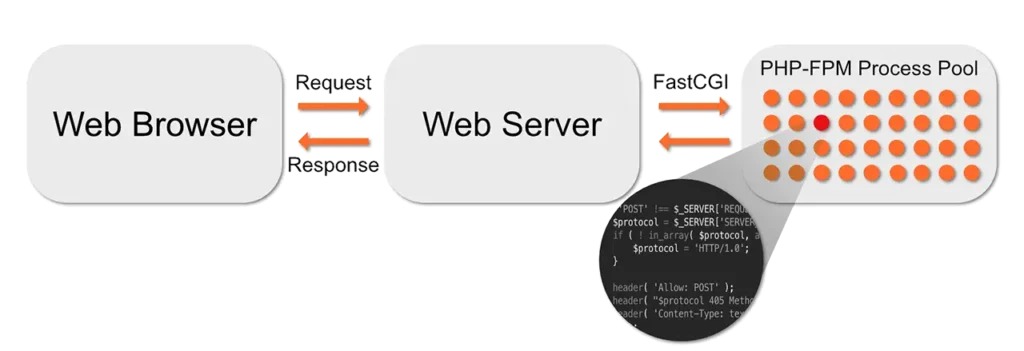
Each pool needs a unique name, an existing non-root Unix identity for its workers, a FastCGI listener, and valid process-manager settings. On the reference system, create one file per site, such as /etc/php/8.3/fpm/pool.d/site-a.conf and site-b.conf.
Both configurations below use ondemand process management. The value pm.max_children = 1 only demonstrates valid syntax and is not a production recommendation. Set each site's real limit from server memory, workload, and concurrency.
Site A pool
[site-a]
user = wp_site_a
group = wp_site_a

listen = /run/php/php8.3-fpm-site-a.sock
listen.owner = www-data
listen.group = www-data
listen.mode = 0660

pm = ondemand
pm.max_children = 1
Site B pool
[site-b]
user = wp_site_b
group = wp_site_b

listen = /run/php/php8.3-fpm-site-b.sock
listen.owner = www-data
listen.group = www-data
listen.mode = 0660

pm = ondemand
pm.max_children = 1
The user and group fields set the identity of the PHP workers. The listen.owner, listen.group, and listen.mode fields control who can open the Unix socket Nginx uses. Nginx connects to the socket as www-data. The PHP code behind it still runs as wp_site_a.

PHP documents three pm modes: static, dynamic, and ondemand. All require pm.max_children, and dynamic also requires startup and spare-worker settings.
PHP-FPM also supports listen.acl_users and listen.acl_groups. Per the manual, when listen.acl_users is set, listen.owner and listen.group are ignored for the listener-access decision. Check existing ACL settings before trusting the visible socket owner and group.
These directives are documented in the PHP-FPM configuration reference, which also warns against exposing the FastCGI listener to unauthorized clients.
Check configuration syntax before activating the new pools:
sudo php-fpm8.3 -t
Connect each Nginx site to the correct PHP-FPM socket
Nginx sends each site's PHP requests to the socket named in fastcgi_pass inside that site's PHP handler.
Within Site A's existing PHP location:
fastcgi_pass unix:/run/php/php8.3-fpm-site-a.sock;
Within Site B's existing PHP location:
fastcgi_pass unix:/run/php/php8.3-fpm-site-b.sock;
These lines change only the backend target inside your existing handler. Keep its root, SCRIPT_FILENAME, FastCGI parameters, HTTPS configuration, rewrite rules, and restrictions on which PHP files can execute.
The path must match the pool's listen value character for character, and the Nginx worker needs permission to connect to it. A copied path is a costly mistake: if Site B sends requests to Site A's socket, they run as Site A's PHP user.
sudo nginx -t
This only checks syntax. A valid configuration can still point at a socket that doesn't exist or can't be opened, and you'll see that in the live connection and the logs after cutover.
Enforce filesystem and database boundaries without breaking WordPress
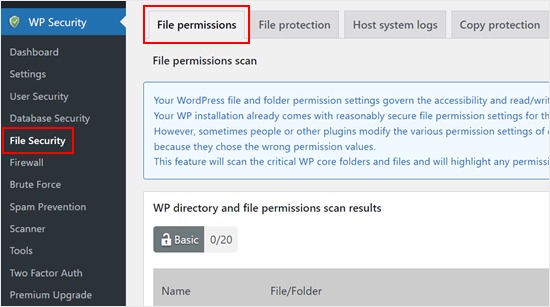
Separate PHP users only help if each site's files and database refuse the other site's user. Set access for each installation deliberately and keep WordPress's normal writes working.
In the example, wp_site_a must read Site A's PHP files and wp-config.php and write only where Site A's workflows require it. wp_site_b needs the same access to Site B. Neither identity should be able to get the other site's database secrets through normal Unix permissions.
Effective access comes from file owner, file group, mode bits, traversal permissions on every parent directory, supplementary groups, and ACLs. A strict file mode doesn't help if an unrelated account has another route in.
For a protected file, check ownership and every parent directory:
sudo stat /srv/www/site-a.example/wp-config.php
sudo namei -l /srv/www/site-a.example/wp-config.php
If Site A's PHP worker should own its private configuration, mode 0600 protects the file through ordinary owner, group, and other bits. Change ownership only after you confirm that the application and your maintenance tools use that account:
sudo chown wp_site_a:wp_site_a /srv/www/site-a.example/wp-config.php
sudo chmod 0600 /srv/www/site-a.example/wp-config.php
These commands change one file. Repeat them for Site B.
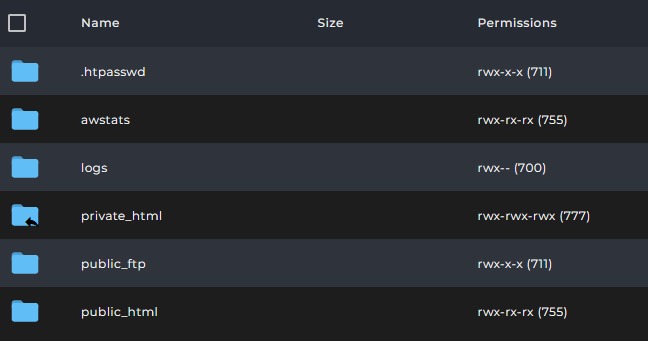
WordPress also needs to write files, mainly to media-upload directories and during updates. If those paths stay owned by the former PHP account, a site that otherwise works can fail on an upload or a plugin install.
Check Site A's uploads directory and test write access as the site's PHP user:
sudo stat /srv/www/site-a.example/wp-content/uploads
sudo namei -l /srv/www/site-a.example/wp-content/uploads
sudo -u wp_site_a test -w /srv/www/site-a.example/wp-content/uploads
If the site user lacks access, find the affected path and its descendants in the ownership and traversal output. Adjust the owner, group permissions, or ACL only for those writable paths. Run the same check as wp_site_b on Site B's uploads directory.
Give write access only to the account that performs the operation, and keep the web server's read access to public static assets separate from PHP's access to private configuration. Don't run a recursive chmod 777, which makes files writable to unrelated accounts and defeats the restriction.
Database access belongs to the same boundary
Use a separate database login for each installation and grant it privileges on that site's database only. Changing the WordPress table prefix while keeping one broad login creates no database separation.
A database administrator can inspect the grants for the account and host WordPress actually uses:
SHOW GRANTS FOR 'wp_a'@'localhost';
SHOW GRANTS FOR 'wp_b'@'localhost';
Replace localhost if your accounts use a different host. Grants scoped to wp_a.* and wp_b.* reach one database each, while a grant on *.* reaches all of them. Changing an existing site's database login also means updating the credentials in its WordPress configuration at the same time.
If both sites currently share a login, have a database administrator create a separate account for each and grant it only the privileges it needs on its own database. During Site A's cutover, update the database credentials in its wp-config.php, confirm the connection and effective grants, and then migrate Site B. Keep the old account until no site or rollback path uses it. Revoke it only after both sites have moved.
WordPress core, plugin, and theme updates can need schema-changing privileges such as CREATE, ALTER, and DROP. Your grants must allow those operations without giving one site's login unrestricted access to another site's database.
Handle temporary data, OPcache, and WordPress maintenance paths
Depending on the installation, sessions, uploads, cache entries, temporary files, logs, and scheduled tasks can use other paths with their own permissions. For each site, find where its sessions, cache, temporary files, and logs live, and check which Unix user owns them. Another site's user must not be able to read that private runtime data, including anything outside wp-content.
PHP documents opcache.validate_permission with a default of 0. Enabling it checks cached-file permissions for the current user. It's an INI_SYSTEM setting, so look at the INI configuration the PHP-FPM service loads and at any pool-level overrides for both sites. If they differ, confirm the effective value in the PHP-FPM context, because the CLI configuration can differ from what the web workers use.
About open_basedir. PHP describes this directive as a supplementary restriction on certain filesystem operations and not a full security boundary. It doesn't restrict Unix-domain socket connections and can disable the realpath cache. Protecting another WordPress installation still needs operating-system and database permissions.
WP-CLI, deployment tools, cron jobs, and backup services can run under a different account than the web-facing PHP worker. For each maintenance task, note which account runs it and what filesystem access it needs. Keep those permissions consistent with the site's ownership model and denied to the other site's worker account.
Apply the changes with a rollback path
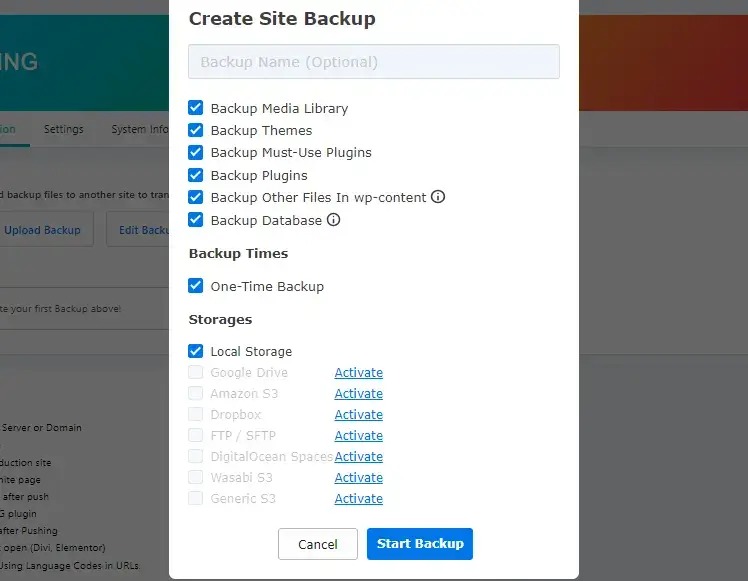
Convert one installation at a time.
- Prepare Site A. Set up its service account and file access. Create the full PHP-FPM pool and keep the working site's other required PHP settings.
- Check the configuration. Fix any PHP-FPM or Nginx syntax errors before touching live routing.
- Activate the pool. Load the new PHP-FPM configuration through your service manager. On the Ubuntu example, a reload works:
Confirm the listener exists before sending traffic to it.sudo systemctl reload php8.3-fpm - Switch Site A's Nginx handler. Apply the prepared socket mapping, and reload Nginx only after its configuration passes validation:
sudo systemctl reload nginx - Test Site A. Run the site-function and cross-site authorization checks from the next section. Stop if either fails.
- Convert Site B. Repeat the steps only after Site A passes.
- Keep your recovery material. Hold on to the original configuration, the permissions record, and the backups until the deployment has passed its checks and you no longer need to recover.
A failed syntax test stops the cutover before activation. A broken hostname, a failed WordPress maintenance operation, or a failed cross-site check stops you from moving to the next site. If you can't repair the new setup safely, restore the matching former Nginx route and PHP-FPM pool configuration during a controlled maintenance window.
Reverse ownership and ACL changes separately, using the values you recorded. If files or databases changed, restoring application data is a separate step. Reloading a service restores neither permissions nor data.
Verify each site works and cannot read the other site
Verification has two parts. Authorized WordPress operations must work, and cross-site access must be denied. Run both against the live configuration.
First confirm the hostnames, WordPress administration, uploads, and your maintenance operations. Then identify the PHP workers that handled requests. Under an ondemand pool, no workers exist until PHP traffic arrives.
ps -eo user,group,args | grep '[p]hp-fpm'
Site A's workers should run as wp_site_a and Site B's as wp_site_b. Read the process list together with the active pool and routing configuration. A cached response that bypasses PHP tells you nothing about worker identity.
| Test | Actor and target | Expected result | Your result |
|---|---|---|---|
| Site A response and administration | Site A hostname | Correct WordPress site works | |
| Site B response and administration | Site B hostname | Correct WordPress site works | |
| Required writes | Each site's intended PHP/maintenance account | Authorized uploads and updates work | |
| Worker identity | Each active FPM pool | Site A pool runs as wp_site_a, Site B pool as wp_site_b | |
| File read A → B | wp_site_a and Site B private configuration | Permission denied | |
| File read B → A | wp_site_b and Site A private configuration | Permission denied | |
| Database access A → B | Site A application login, Site B database | Access refused | |
| Database access B → A | Site B application login, Site A database | Access refused |
A loading homepage only shows the site is up. The two cross-site file reads and the two cross-database queries show whether the isolation works.
Test file access without disclosing secrets
Before reading anything into a failure, confirm the target file exists and that you're testing as the right identity. These examples use the mapped WordPress paths:
sudo test -f /srv/www/site-a.example/wp-config.php
sudo test -f /srv/www/site-b.example/wp-config.php

sudo -u wp_site_a test -r /srv/www/site-b.example/wp-config.php
sudo -u wp_site_b test -r /srv/www/site-a.example/wp-config.php
Both cross-site test -r commands should fail for protected files that exist. Check the exit status right after each command, and note the result without printing the protected file.
Test the application's database identity
WP-CLI's wp db query uses the site's configured database connection. If WP-CLI is installed and the site account can run it, a read-only check as the matching site user looks like this:
sudo -u wp_site_a wp --path=/srv/www/site-a.example db query "SELECT 1;"
sudo -u wp_site_b wp --path=/srv/www/site-b.example db query "SELECT 1;"
The application's account should connect without trouble. To see its effective grants through that same connection, run a read-only grant query your database version supports:
sudo -u wp_site_a wp --path=/srv/www/site-a.example db query "SHOW GRANTS FOR CURRENT_USER()"
To test cross-database denial on a shared MySQL/MariaDB server, query a known, non-sensitive table in Site B's database while connected as Site A's login:
sudo -u wp_site_a wp --path=/srv/www/site-a.example db query "SELECT 1 FROM wp_b.existing_table LIMIT 1;"
Replace existing_table with a real table you've confirmed exists in that database. If the query succeeds, your privilege boundary has failed. Access denied is the result you want. A missing table, an unavailable database server, or an invalid account makes the test inconclusive, so diagnose it. Repeat the check in the opposite direction with Site B's login and a known Site A table.
If the installations use different database servers, this cross-schema example doesn't apply. Test against the connection and grant model of the servers you actually run.
Prefer local checks to public PHP diagnostic pages. Restrict any temporary web-accessible test, remove it afterward, and never let it expose database credentials, protected paths, or execution identities to visitors.
This procedure won't clean a compromised site, which needs its own containment, credential handling, investigation, and clean recovery.
Fix PHP-FPM, socket, permission, and WordPress failures
After a cutover, find the failed layer in the error and service logs.
| Symptom | Inspect first | Likely layer | Targeted repair |
|---|---|---|---|
| 502, socket missing | FPM service state and pool listen path | Listener or service | Match fastcgi_pass to the pool's listen path and confirm the service is running |
502, (13: Permission denied) | Socket owner/group, mode, ACL and Nginx UID | Unix socket access | Set listen.owner, listen.group, and listen.mode so the Nginx user can connect, and check listen.acl_users |
| FPM rejects configuration | Pool names, service accounts, paths, pm settings | Pool syntax | Fix the pool name, user, group, or pm settings and rerun php-fpm8.3 -t |
| Wrong application or PHP identity | Server block and fastcgi_pass mapping | Request routing | Point each server block's fastcgi_pass at its own site's socket |
| Uploads or updates fail | Worker identity, writable paths and ancestor traversal | Filesystem permissions | Fix owner, group permissions, or ACL on the specific writable paths only |
| Database connection error | Site-specific connection settings and account grants | Database authorization | Fix the site's credentials in wp-config.php or its grants on its own database |
A Server Fault question about Laravel on Ubuntu 24.04 and PHP 8.3 quoted the Nginx message connect() to unix:/run/php/php-fpm.sock failed (13: Permission denied). The same message applies to WordPress, because it points to the same Nginx-to-PHP-FPM listener-access layer.
Know when separate pools are not enough
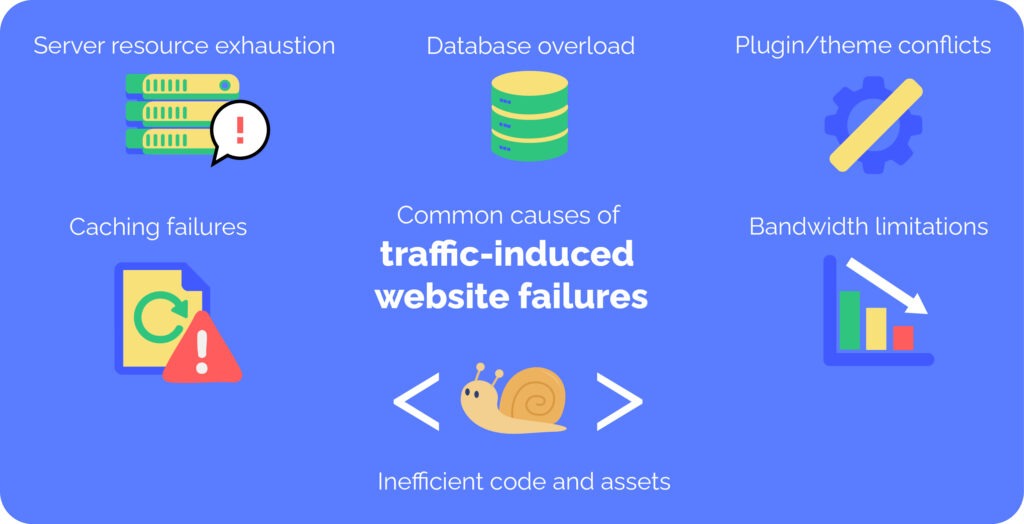
Separate PHP worker identities limit access only through the permissions assigned to those processes. The sites still share the Linux kernel, privileged server administration, Nginx, PHP-FPM, databases, caches, storage, and the machine's total resources.
PHP-FPM's pm.max_children caps the number of concurrent PHP workers in a pool. It reserves no CPU time, RAM, disk throughput, or network capacity for the site.
An r/sysadmin operator running four WordPress sites on a VPS with 4 GB RAM and two vCPUs described a traffic incident this way: “This of course resulted in CPU exhaustion and all 4 websites became unresponsive for some time.”
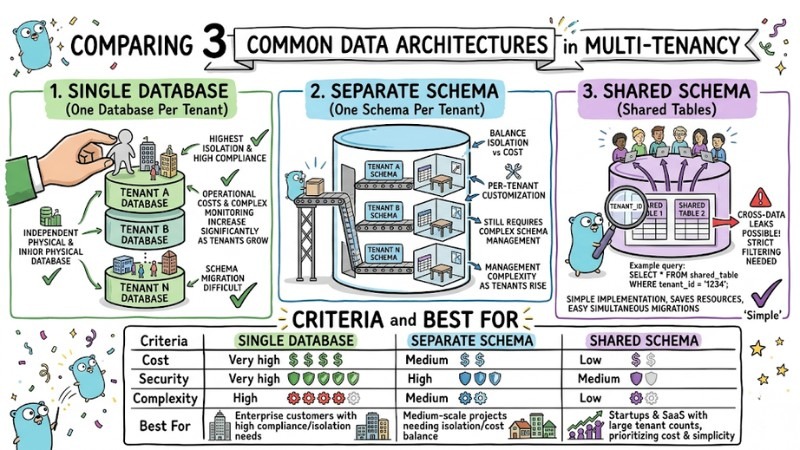
Containers with suitable user, mount, network, and resource restrictions, or separate VMs or VPSs, give you stronger separation at the cost of more infrastructure and maintenance.
