If your self-hosted WordPress site shows no signs of compromise, start with a backup you can restore, software updates, fewer administrators, MFA, and protections that match your hosting, then check that the site's key functions still work. Unknown administrators, injected files or recurring malware mean you have an incident to handle, not routine hardening. Give each remaining control an owner and set a review date.
A site can run a firewall, a security plugin and two-factor authentication and still be exposed. The weak spot can be outdated PHP on the server, an old contractor's administrator account, or a rule that quietly stops editors from saving posts.
For each control, ask four things: does it apply to your installation, who can enforce it, what can it break, and how will you know it worked?
Before you harden WordPress, find out who controls what and how you restore it

Find out who controls the application, the server and recovery before touching any security setting. On managed WordPress hosting, you can change plugins and users but not Nginx, PHP-FPM or firewall configuration. On a self-managed VPS, the same administrator holds all of them.
| Security layer | Managed or shared hosting | Self-managed VPS or containers |
|---|---|---|
| WordPress core, plugins, themes | You and your provider share updates | Site or deployment administrator |
| PHP and web-server software | Provider | Server administrator |
| WordPress users and MFA | You | You |
| HTTPS, WAF and rate limiting | Host or edge provider, if offered | You configure it or delegate it |
| File write policy | Constrained by your host | Site or server operator |
| Backup and restoration | Host backups, if offered. Confirm what they cover | You or a backup service |
Before changing anything, list your dashboard and hosting-panel access, any SSH/SFTP or recovery console, your business-critical flows, and who is responsible for each layer. A store needs checkout and order notifications. An editorial site needs its publishing workflow. A site with integrations needs its API consumers to keep working.
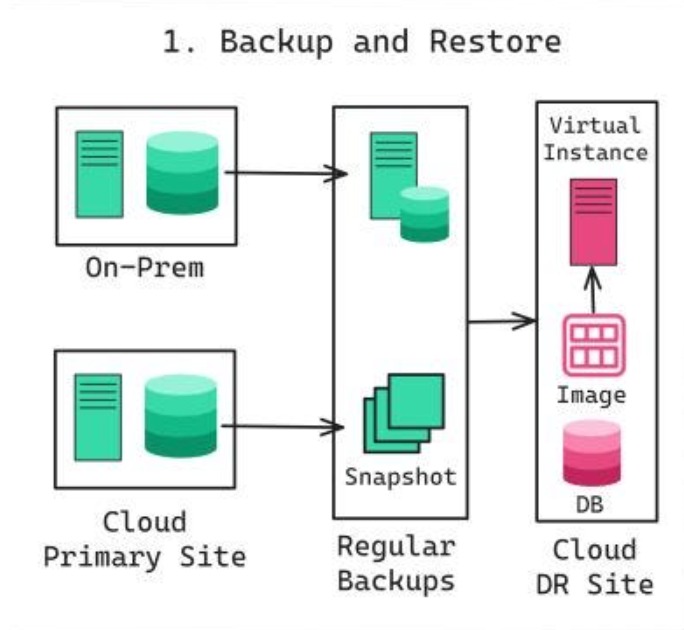
A full WordPress recovery needs both the site's files and its database, as the WordPress backup documentation explains. Note where the backup lives, who restores it, and a second way into the admin if your main login fails.
| Control | What can break | How to check |
|---|---|---|
| Software maintenance | An incompatible release, or an unpatched PHP runtime | Installed versions and update results |
| Extension reduction | A removed plugin takes a feature with it | Installed list and the purpose of each item you keep |
| Privileges and MFA | An authorized administrator loses access | Who has which role, who has MFA, who can recover access |
| File and configuration rules | Updates or uploads stop working | File ownership, writable paths, editing policy |
| HTTPS, firewall, upload controls | Valid traffic gets blocked, or a rule is ignored | Where the rule runs, plus the logs |
| Login and API restrictions | A lockout, or a broken editor or integration | Which clients depend on each entry point, and your exception decisions |
| Post-change checks | A regression goes unnoticed | Frontend, admin and workflow test results |
| Continuing maintenance | Alerts are missed and updates go unattended | Next review date and who is accountable |
Rule out an active compromise before starting routine hardening
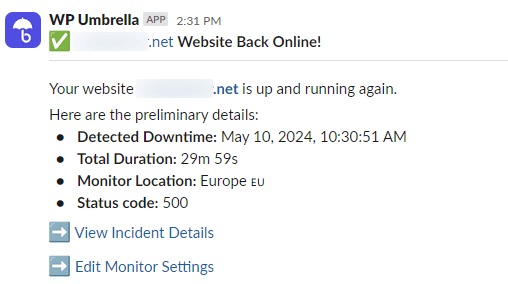
“Despite this, the malware has returned multiple times, so I feel like I'm missing the actual entry point.” A business owner wrote that in r/Wordpress about repeated gambling-content injection.
Unexpected administrators, unexplained executable PHP files, injected HTML or theme code, unfamiliar redirects and recurring malware alerts all call for an investigation first. New MFA settings or passwords will not find an unknown persistence mechanism.
Sort your site into one of three states:
- No suspicious indicators observed.
- Suspicious or unresolved findings.
- Confirmed incident.
For the last two, the responsible team handles containment, investigation and trusted recovery before using the preventive checklist.
Patch the software you actually run: WordPress, plugins, themes and PHP
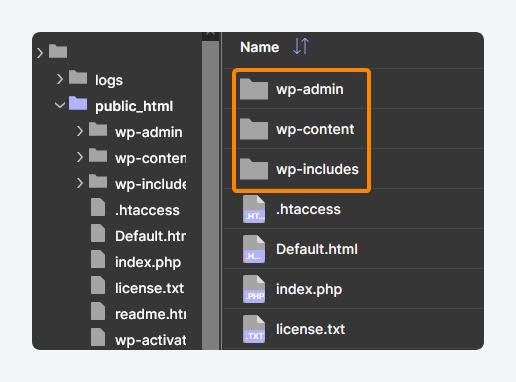
Keep four software layers current: WordPress core, plugins, themes and PHP. The dashboard reports updates for the first three, while your host or VPS administrator controls the PHP runtime. A dashboard notice only says an update exists. Check which version is installed and whether the update went through.
WordPress announced version 7.1.3 on October 6, 2026, with seven security fixes and four bug fixes. A separate WordPress PHP security advisory dated October 21, 2026, described two critical PHP vulnerabilities and urged prompt PHP remediation or coordination with the host.
Updating WordPress core does not patch a separate PHP vulnerability. If your host runs PHP, ask the provider how it is responding. On a VPS, you patch PHP yourself through the server's supported maintenance process.
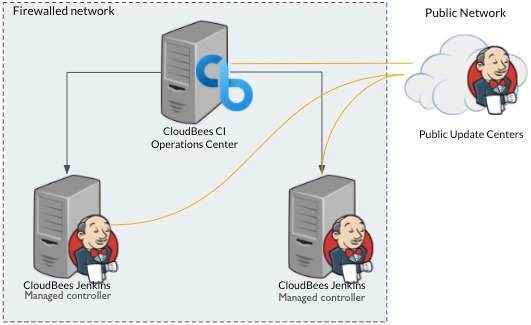
For each component, compare the installed version with the latest release and any security notices. Apply the update through WordPress or your host, and record any failure. Because a release can break something, test it on staging and have a recovery plan ready, but do not use that as a reason to postpone a security fix.
Automatic plugin and theme updates shorten the time between a release and its installation. A business-critical checkout integration justifies a more controlled rollout. A simpler site can accept automatic updates with notifications and a way to roll back. Know which policy covers each important component.
Remove unused plugins and themes, and know what your security tools cover

Inactive plugins and themes still leave code on disk. Go through the full extension list and keep only what has a real use, a trusted source, active maintenance and compatibility with your site. Remove the rest through the standard uninstall process, and investigate any extension you do not recognize.
Security tools each do one job: a scanner checks selected files or signals, a WAF filters certain requests, login defenses handle authentication attempts, and activity logs record events.
“Recently some of my clients got hacked, they had free versions of Sucuri and Wordfence (very good plugins) but that did not stop the malware.” A person maintaining client sites reported this in r/Wordpress. A plugin covers one layer. PHP maintenance, account privileges, file ownership and incident response stay separate jobs.
Pick a security tool to fill a specific missing function. If your managed host already filters requests, a second overlapping plugin needs its own purpose, and it cannot make up for unmaintained extensions.
Limit administrator accounts and strengthen how administrators sign in
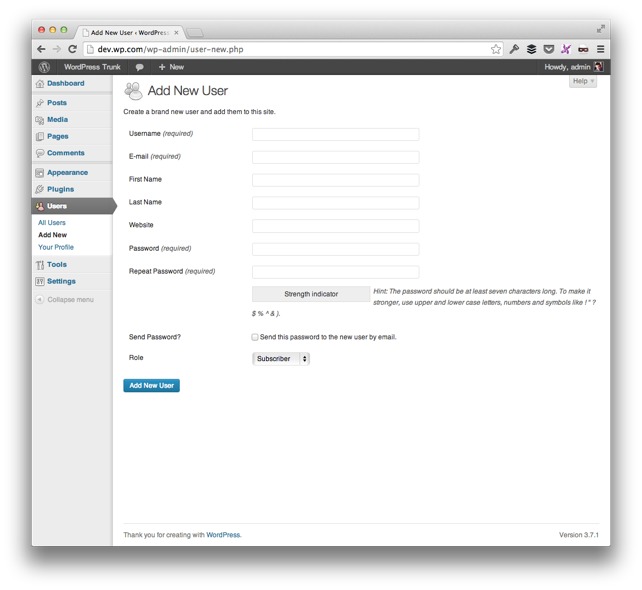
Give administrator rights only to people who change WordPress configuration or manage installed code. Someone who writes and publishes posts needs a narrower role.
Review your user list for former contractors, dormant users and unnecessary administrators, and match each role to the work the person does.
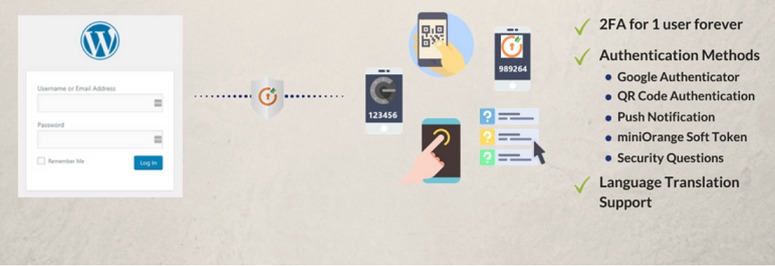
Give every administrator a unique strong password and multi-factor authentication. WordPress security guidance also covers passkeys through WebAuthn where supported. MFA and passkeys come from an authentication plugin, your hosting, or an identity provider.
Application passwords are for software integrations. People use their own logins. Add rate limiting and request filtering on top, as long as real users keep access.
Before enforcing a new login requirement, set up account recovery. If your only administrator has no recovery path, you are locked out of your own site.
Protect wp-config.php, file ownership and writable directories without stopping maintenance
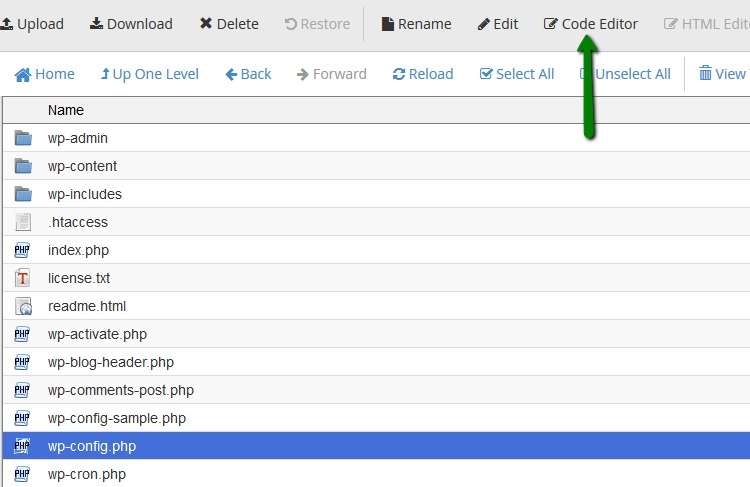
wp-config.php holds your database connection details and authentication-related configuration. Protect access to it in a way that fits your hosting. Moving it is not always an improvement: Kinsta, for example, advises customers on its managed platform against it.
The wp-config.php documentation defines two flags with very different effects on maintenance:
DISALLOW_FILE_EDIT: Disables the built-in theme and plugin code editors. A documented example isdefine( 'DISALLOW_FILE_EDIT', true );in the site's configuration file.DISALLOW_FILE_MODS: Also blocks plugin and theme installation and updates through WordPress administration. If you use it, you need an update process outside those dashboard actions.
File ownership is a separate control. The PHP process identity, the deployment user and group, and the paths that truly need write access decide which permissions are right. A blind recursive permission change can grant too much access or break normal maintenance.
Uploads need a clear limit too. WordPress must accept real media files without letting uploaded PHP run through the web server. For changes that need server access, follow permissions guidance written for your environment.
Match firewall, HTTPS and PHP-execution rules to your actual web server
HTTPS termination, network exposure, firewall policy, PHP execution and server logging live outside WordPress, in your hosting platform, a reverse proxy or the VPS itself.
Apache enforces per-directory .htaccess directives where the override settings permit them. With AllowOverride None, category-based overrides are disabled, but AllowOverrideList can still permit individually named directives. Standalone Nginx does not read Apache .htaccess directives and uses its own server configuration. If Nginx is a reverse proxy in front of Apache, Apache's rules still apply to requests that reach it.
This matters for upload directories. The goal is to stop PHP from executing in writable media paths, and the method differs by web server and PHP handling. An Apache file copied into a standalone Nginx deployment protects nothing.
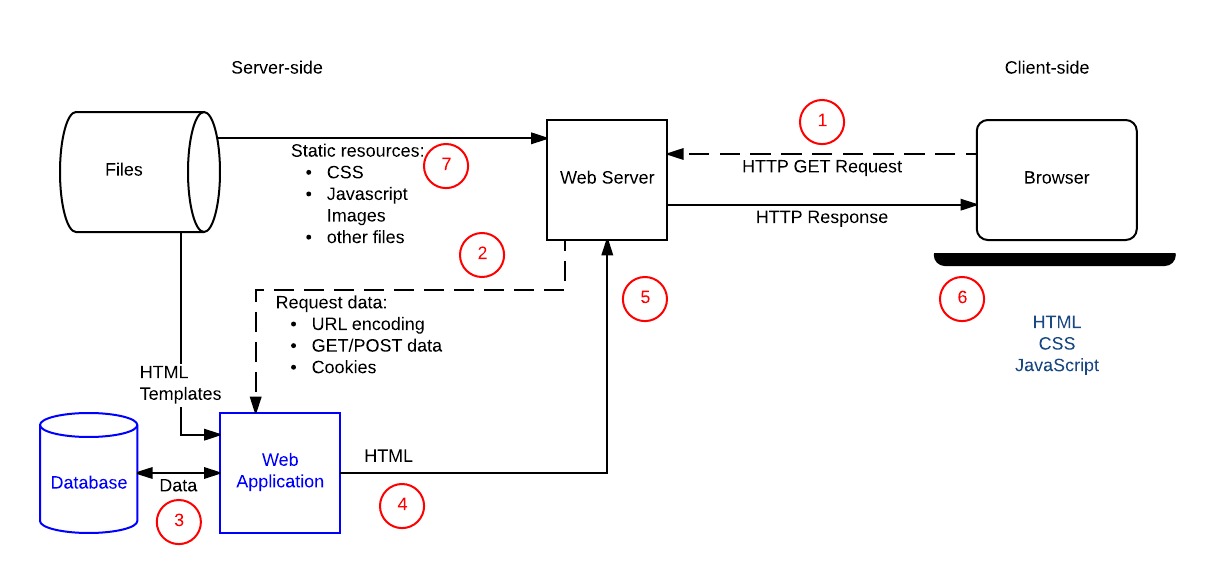
Containerized WordPress adds its own public-entry, reverse-proxy, service-network, persistent-storage and host-maintenance responsibilities. Container isolation does not remove the application's security work.
Establish where HTTPS, WAF and rate limiting, public exposure, upload PHP restrictions and logs are enforced, and mark each one provider-managed, administrator-managed or not yet verified. Match any configuration procedure to your actual Apache, Nginx, managed-host or container setup before deploying it.
Restrict login IPs, XML-RPC and the REST API only after checking what relies on them
Login IP filtering, XML-RPC and REST API controls each affect different users and software clients. Before restricting one, identify the access it has to keep working.
One approach on a small VPS, described by a sole administrator on r/Wordpress: “I've blocked access to the WordPress login page for everyone except my own IP address, directly in .htaccess.” That design works if you always connect from the same known location. A changing residential IP, travel, mobile access or a second administrator can lock you out.
| Entry point | Usual protection | Narrow access when | What can break |
|---|---|---|---|
wp-login.php / admin access | MFA, strong credentials, suitable rate limits | You have known access locations and an independent recovery route | An IP change locks out the administrator |
xmlrpc.php | Identify connected clients and protect authentication | Nothing real depends on it, or a narrower client policy fits | An older publishing service stops working |
| WordPress REST API | Keep the administration and integration functions you need | You can safely restrict specific authenticated operations | The editor, an admin feature or an integration breaks |
The WordPress REST API FAQ advises against disabling the API altogether, because WordPress administration relies on it.
XML-RPC is unnecessary on one site and essential to an older connected service on another. For each of the three entry points, test what relies on it, then record the client, the reason for the restriction, where the rule runs and your recovery route.
Verify your changes without mistaking a clean check for proof of safety
After each change, confirm that the site still works, real access holds and your business workflows function, and write down any unexpected effects. For every protection, record whether WordPress, the hosting provider or a separate service owns it, and verify the resulting access behavior.
- Visitors: Open a few representative public pages and submit a real form if your site has one.
- HTTPS: Confirm that public pages and the WordPress login and admin pages use HTTPS. If you redirect HTTP to HTTPS, test the redirect through the public URL.
- Editors and administrators: Log in, save and publish content, and run your update mechanism.
- Site operations: Upload media, run checkout or member flows if you have them, and confirm background jobs run.
- Integrations: Confirm that known API clients and authentication connections still work.
- Recovery from a failed change: If a rule blocks something real, reverse that one change through your recovery route.
A restrictive REST rule can leave login working while stopping an editor from saving. Only the publishing test catches that.
| Tool | What it tells you | Use it to |
|---|---|---|
| Tools > Site Health, Status / Info | Reported configuration issues, plus PHP, server and environment details | Spot issues and document your configuration |
wp core verify-checksums | Whether core files match or differ from expected release checksums | Check core-file integrity (needs WP-CLI access) |
wp plugin list | Installed plugins, activation state and update information | Review your extension inventory |
| Functional smoke test | Whether the workflows you tested worked | Find regressions from changed rules |
| Server/WAF/security logs | Events your monitored systems recorded | Investigate failed updates or unexpected activity |
| Backup restoration | Whether one specific restore path worked at test time | Confirm you can recover by that route |
Site Health, passing core checksums or a clean scanner report cannot certify that every plugin, upload, database entry or account is clean.
Mark each test result pass, fail or unresolved, and note the affected function and the layer responsible.
Put WordPress hardening on a repeatable maintenance schedule
“How can I be absolutely sure that the website will be safe and continue to be safe?” A creator preparing a small sticker shop asked that in r/Wordpress. No schedule or security plugin makes permanent safety certain. An accountable maintenance routine is the workable answer.
Keep one short list of who handles what. For each item, record the owner, the alert or evidence source, what triggers a recheck, the last confirmed action and the next review.
- WordPress and extensions: Whoever maintains the site follows release notices, failed updates and changes to installed components.
- PHP and infrastructure: Your hosting contact or VPS administrator handles provider notices and PHP and server advisories.
- Accounts: The site administrator reviews role changes after staff leave, contractors change or unusual logins appear.
- Recovery: The backup owner responds to failed backup jobs and to changes that can affect restoration.
- Edge controls: Your provider or site operator reviews WAF alerts, policy changes and unexpected traffic.
Set the next review date based on your business needs, how frequently the site changes and what monitoring you have, and move it earlier when an alert or security advisory calls for it.
