On a self-hosted WordPress site, start with 755 for directories and 644 for files. If an upload or update fails, find the failing path and the account that runs the operation before changing anything. A different owner, a hosting isolation rule, or a filesystem restriction can each cause the failure and needs its own fix, so repeat the failed operation afterward to confirm it works.
What file permissions should WordPress use?
Directories conventionally use 755, and regular files use 644. Your hosting account and the user PHP runs as set the right values.
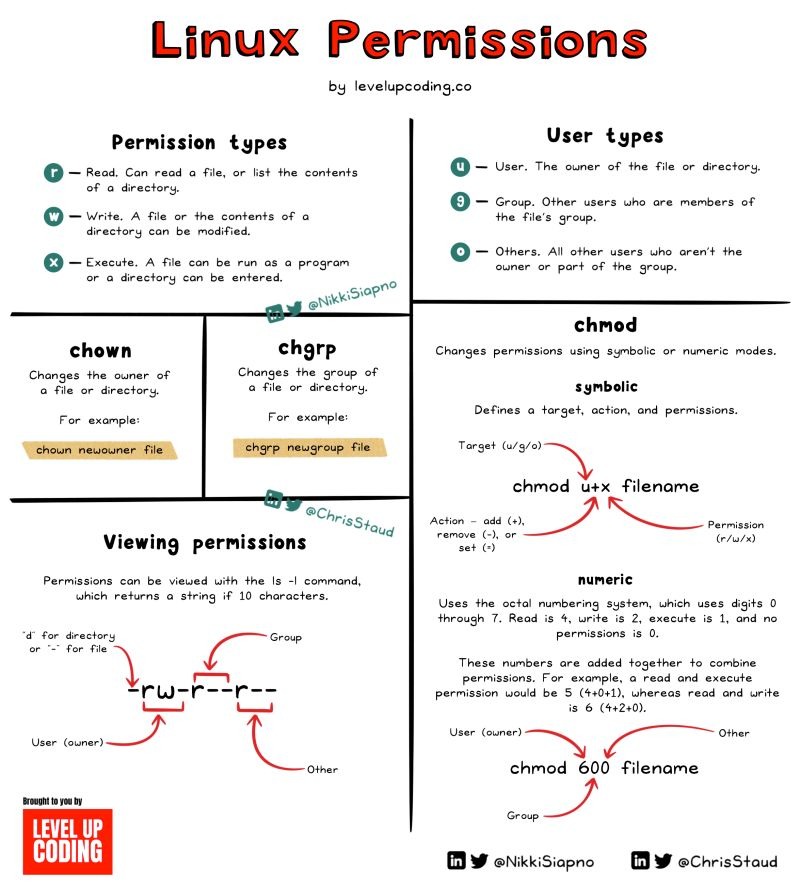
Unix permissions split access into three categories: the file's owner, members of its group, and everyone else. Each category gets some mix of read (r), write (w), and execute (x). The numeric values are 4 for read, 2 for write, and 1 for execute.
| WordPress object | Common mode | What it permits |
|---|---|---|
| Ordinary directory | 755 | Owner reads, writes, and traverses. Group and others read and traverse |
| Ordinary PHP or other file | 644 | Owner reads and writes. Group and others read |
wp-content/uploads directory | Often 755 | Same as any directory. The account creating uploads needs write access |
755 corresponds to rwxr-xr-x. On a directory, the execute bit allows traversal.
644 corresponds to rw-r--r--. A PHP file needs to be readable by the interpreter and carries no Unix executable bit.
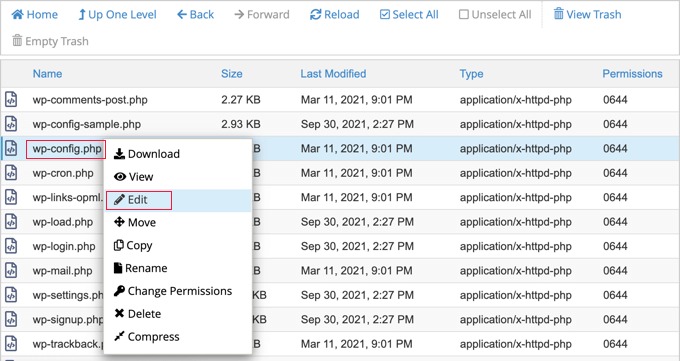
WordPress's Changing File Permissions documentation describes the conventional modes and the ownership setups that make them work.
Find the failing WordPress operation before changing anything
A failed upload, plugin update, or backup tells you which operation broke and where to look.
| Symptom | Operation involved | Where to look |
|---|---|---|
| “The uploaded file could not be moved” | Media upload | The destination WordPress tried to place the file in |
| “Unable to create directory … Is its parent directory writable by the server?” | Media upload | The directory WordPress tried to create, or its existing parent |
| “Could not create directory” | Plugin, theme, or core update | The directory named in the error, and which update was running |
| Backup cannot be created | Backup plugin or scheduled task | The configured backup destination: does it exist, and can the account reach it? |
| “Permission denied” | File or directory access | The path in the error or logs, and which process attempted the operation |
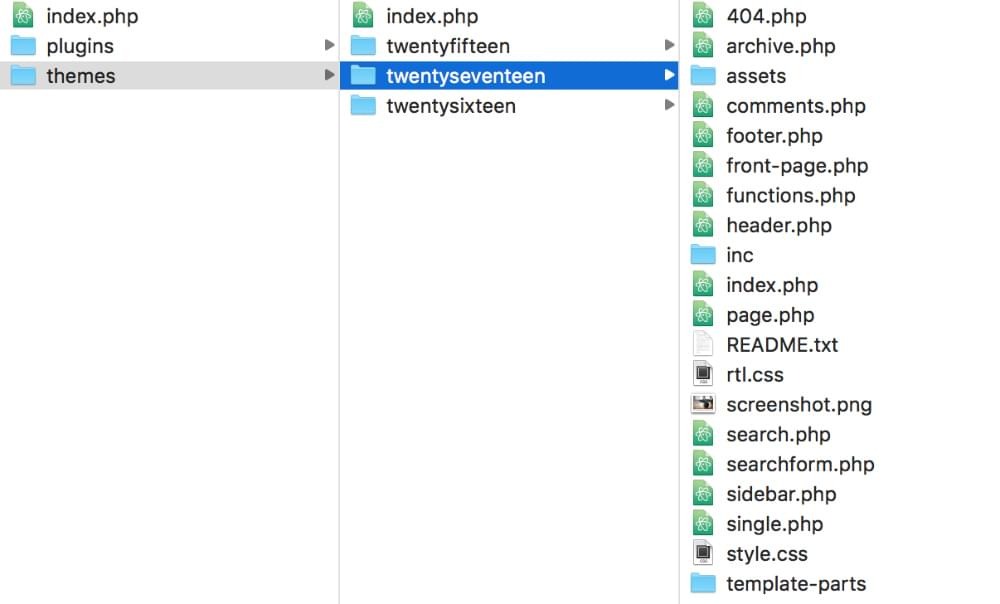
WordPress can store uploads in dated directories such as wp-content/uploads/2025/07. A failure limited to one new month's directory points to a different cause than a failure across the whole uploads tree.
A WordPress admin login doesn't give you control over the operating-system file owner. Someone running an inherited nonprofit website without hosting credentials hit this wall in an April 2026 r/Wordpress discussion and asked, “Does anyone know of a workaround I can do to create a backup of my site?”
Write down the failed operation, the exact message, and the destination if WordPress or the logs name one.
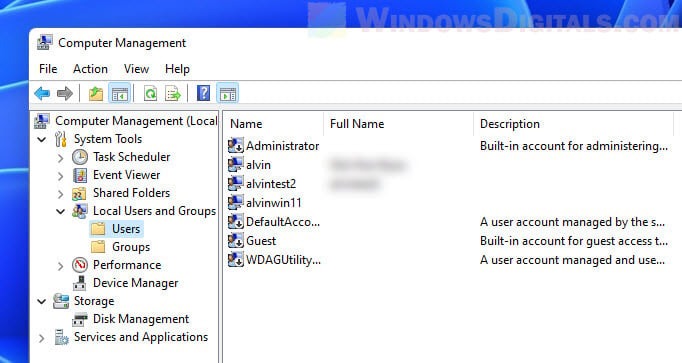
Why 755 can still fail: owner, group, and the account running PHP
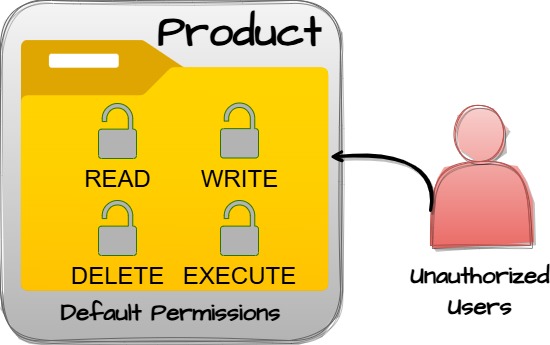
A directory set to 755 grants write permission to its owner only. So WordPress needs to write as the directory's owner or hold some other authorized write access. A 755 directory can still fail an upload when the PHP process lacks the right owner or group access.
Say wp-content/uploads belongs to a deployment account, deployuser, and has mode 755. PHP runs as a different account, sitephp (example names). If the parent path allows traversal and no other write grant applies, sitephp can enter the directory but can't create a file in it.
Several accounts can be involved:
- Hosting or SFTP user: manages files through the hosting service.
- Deployment or automation account: installs files or creates directories through a script.
- PHP user: the operating-system account that performs WordPress operations through PHP.
- File owner and group: the accounts assigned to the object WordPress needs to access.
On servers running PHP-FPM, the pool configuration sets the user and group for PHP workers. One example is www-data.
The PHP user also needs access through every directory on the way to the target.
One poster tracing a failure in a dated uploads folder wrote in r/Wordpress in July 2025: “Issue found and the automatic folder creation was creating it under the wrong owner.” A new directory can end up with a different owner than the older one beside it.
A scheduled task or deployment process can create a directory under a different account than the PHP user that later writes into it. Changing the directory once can restore access for a while, but a recurring task creates the mismatch again.
To find the PHP user and group, read the PHP-FPM pool settings if you can reach them. On managed hosting, check the provider's documentation.
Inspect the path, permissions, and ownership without changing them
These read-only commands show the mode, owner, and group of the path that fails.
Replace the example path with your site's actual directory.
ls -ld "/path/to/wordpress/wp-content/uploads"
ls -l "/path/to/wordpress/wp-content/uploads/usefulmix-import/"
The first command shows the permissions and ownership of uploads. The second lists the items inside it.
On GNU/Linux, stat prints the numeric mode and the ownership for a known path:
stat -c '%a %U %G %n' "/path/to/wordpress/wp-content/uploads"The format prints the mode, user name, group name, and pathname.
Where it's installed, namei -l walks the path:
namei -l "/path/to/wordpress/wp-content/uploads"It lists every component of the path, including intermediate directories and their permissions. Use it when the target looks accessible but a parent directory blocks traversal.
These commands assume a Linux shell. Shared hosting can give you only a file manager, and other Unix-like systems use different options.
For a failure in a dated uploads directory, compare it with a nearby working directory, provided both belong to the same installation under the same ownership policy. If the directory doesn't exist yet, inspect its nearest existing parent. Watch for symlinks, since the path you inspect can lead somewhere else.
Record the path's original mode, owner, group, and the access on its parent directories. A difference from 755 or 644 isn't automatically a defect.
Choose the right repair route: hosting panel, SFTP, or SSH
A hosting file manager is enough for an ordinary mode change. Ownership changes, PHP runtime settings, and server security policy can need more privileges than it gives you.
| Access available | Useful for | Limit and next step |
|---|---|---|
| WordPress dashboard only | Viewing application errors and status information | No filesystem ownership privileges. Recover hosting access or contact the account owner. |
| Hosting file manager | Inspecting files, using the provider's permission controls | Features and ownership control vary. Follow the provider's documented procedure. |
| FTP or SFTP | Inspecting files and, where supported, changing modes | Ownership changes may be unavailable. Use hosting controls or ask an administrator for owner mismatches. |
| SSH with authorized administrative privileges | Inspecting runtime configuration, making controlled filesystem changes | Can affect unrelated files or sites. Limit your work to the identified installation and path. |
Hostinger, for example, documents its own permissions repair tool.
Use the least-privileged interface that can fix the problem. If the owner, a PHP pool setting, or a protected hosting boundary is outside what that interface can change, send your host or administrator the exact error and your read-only ownership findings.
Make the smallest justified permission or ownership change
Once you know the path, the PHP user, and the access it needs, change only the part that's wrong.
chmod changes permission modes. chown changes ownership.
Back up the site before changing a production path. A change across the wrong document root, several installations, or a shared directory can interrupt service or expose files to the wrong users.
If one existing directory has the wrong mode and your ownership setup calls for 755, run:
chmod 755 "/path/to/wordpress/wp-content/uploads/usefulmix-import/2025/07"Swap in your actual directory. This command won't fix an ownership mismatch.
If the owner and group are wrong and you have admin rights, run this with the verified user and group:
chown VERIFIED_USER:VERIFIED_GROUP "/path/to/wordpress/wp-content/uploads/usefulmix-import/2025/07"VERIFIED_USER and VERIFIED_GROUP are placeholders for the user and group you confirmed from the site's real configuration. Don't guess an owner.
Avoid chmod -R 755 on an entire WordPress installation, since it reaches regular files as well as directories. A recursive chown can break the separation between deployment accounts, runtime accounts, and multiple sites.
A poster in an r/Wordpress discussion about media and update failures wrote, “Still, I keep getting an error about inconsistent file permission. But if I set the folder at 777 everything seems to work.”
777 lets every local user on the server write to the directory. The operation succeeds, but only because everyone can write. Don't use it.
If an automated task keeps creating directories under the wrong user, correct the task's execution account or creation workflow through your server management process.
Keep updates working without exposing wp-config.php
The WordPress get_filesystem_method() function selects among direct, ssh2, ftpext, and ftpsockets, using checks tied to the operation and environment. You can override its choice with FS_METHOD in wp-config.php.
Without an override, WordPress tests direct access by creating a temporary file in the directory and comparing its owner with a core file's owner. A relaxed ownership option is documented for modifying existing files, while file creation has a separate owner-matching condition. So an account can write to a directory while WordPress still picks a transport that asks for credentials.
If an update asks for credentials, check the configured update method and the file access first. FS_METHOD only selects a transport. Forcing it to direct doesn't give PHP permissions it lacks at the operating-system level.
wp-config.php holds sensitive configuration values, so treat it separately. The account or process that loads it must be able to read it, and nobody else needs access.
Tighter modes for it include 600 and 640, and in some setups 400 or 440. The owner or group that must read the file decides which one fits.
A deployment can keep core and plugin files unwritable by live PHP while a separate authorized process handles updates, as long as that update channel can finish its operations and the account that reads wp-config.php keeps access.
When the modes look right but writes still fail

A normal-looking mode and owner can still fail a write when another filesystem or security control applies. Mode bits don't show ACL entries, SELinux rules, or mount restrictions, so check those separately.
| Possible layer | What can interfere | Evidence to investigate |
|---|---|---|
| Full or read-only storage | New data can't be written to the filesystem | Storage state and write errors |
| SELinux policy or labels | Mandatory access rules block an otherwise permitted operation | Audit records and security context |
| Access control lists | More specific permissions affect the writing account | ACL entries and the account's group memberships |
| Docker-mounted storage | Host and container user IDs interact with the mount's ownership | Numeric UID/GID, mount configuration, and the observed error |
WordPress's file-permissions documentation discusses SELinux as an additional access-control layer. If SELinux applies, check the policy and labels first. Don't disable enforcement as a permission fix.

A process inside a WordPress container uses mounted storage whose ownership and numeric user and group IDs come from outside the process. So the same path needs checking from both the container and the host.
Confirm the fix worked

The repair worked when the failed upload, update, or backup completes, makes the expected filesystem change, and the error clears. That verifies the operation, not the security of the whole site. If it still fails, restore the previous setting and investigate what's left.
