Install a WordPress security plugin only when it fills a gap in your protection, since a second plugin that duplicates what your host, Cloudflare or another tool already does just adds complexity. List who handles each security control, pick the plugin for the one that's missing, and check that it doesn't block real visitors. If unauthorized changes keep coming back, stop shopping for plugins and start incident recovery.
A firewall can reject a suspicious request. A scanner can flag an altered file. Neither establishes whether your hosting account is secure or whether you can restore the site tomorrow.
What a WordPress security plugin can and can't do
Recovery is a different job from what a plugin does. It takes trusted backups, access to your hosting and admin accounts, and an investigation into how the compromise happened.
One r/Wordpress user building a simple site with an official theme and a small plugin set asked: “What manual configurations should I still make to ensure the basic security of the site is in place?”
Most of the answer sits outside the plugin dashboard: updates, admin accounts, server setup and recovery.
Plugin features fall into three groups:
- Prevent: Block malicious requests and restrict unauthorized login attempts.
- Detect: Spot suspicious file changes and report known vulnerabilities in installed software.
- Monitor: Record events and send alerts to someone who will read them.
One product can cover all three. If you run an edge firewall, you still need file checks or two-factor authentication when nothing else provides them.
Cloud WAF, hosting protection, and WordPress firewalls are different layers
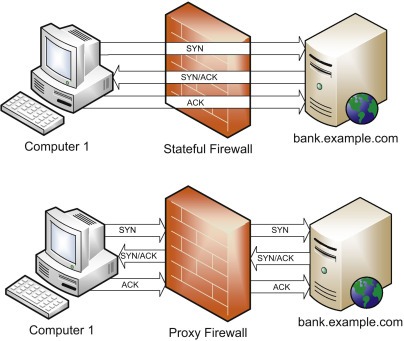
A cloud web application firewall and a WordPress endpoint firewall can inspect some of the same HTTP threats, but they sit at different points on a request's path.
With Cloudflare as the reverse proxy, a request travels like this:
Visitor → Cloudflare edge WAF → origin web server → PHP endpoint firewall → WordPress
Cloudflare applies your configured rules to requests passing through its network before they reach the origin. Wordfence runs inside your WordPress hosting environment.
In Basic Protection mode, the Wordfence firewall loads through the normal WordPress plugin process. In Extended Protection, PHP settings load it before WordPress and before other directly accessible PHP files.
When the two layers overlap
Both services can filter suspicious HTTP requests. Wordfence's local file-integrity checks and WordPress login controls do jobs that edge request inspection doesn't.
Another r/Wordpress user running Cloudflare Free with Wordfence Free asked: “Is Wordfence still necessary/recommended when Cloudflare is handling most of the edge-level threats? Or is it redundant/overkill?”
Partly. The two overlap on request filtering, and if yours is already adequate, extra blocking rules only add maintenance work and false positives. Keep an endpoint tool if you need its file inspection or application-level authentication.
Where the origin fits
Cloudflare filters traffic routed through its edge. If you want all public requests to take that route, you also need to restrict direct access to your origin server.
The Cloudflare origin-server protection guidance treats origin security as a separate configuration job. Your hosting and Cloudflare settings show which filtering layers are active and whether a direct route to the origin is open.
Pick the security function you're missing
Request filtering, vulnerability alerts, file-integrity checks and stronger logins each solve a different problem.
The table lists vendor-documented functions and plan features, which can change. It doesn't rank performance.
| Product or service | What it does | Limit |
|---|---|---|
| Wordfence Free | Endpoint firewall, file-integrity and malware scanning, login security and 2FA | New firewall rules and malware signatures arrive later than in Premium. Hosting security is a separate job. |
| Cloudflare WAF | Edge filtering of requests routed through Cloudflare | Doesn't scan local WordPress files. Rule and plan coverage differ. |
| Sucuri free plugin | Security monitoring, file-integrity checks, hardening and remote SiteCheck scanning | Its premium Website Firewall is a separate service. |
| Patchstack | Identification of known vulnerabilities in WordPress components | Alerts don't change vulnerable source code, and mitigation varies with the service you enable. |
| Jetpack Protect Free | Daily vulnerability checks of core, plugins and themes | Malware and firewall features belong to paid plans. |
| Kadence Security | Login hardening, two-factor authentication and brute-force controls | Covers the WordPress login only. Hosting access and administrator devices are separate. |
A site with strong firewall coverage can still need vulnerability monitoring. One with solid advisory coverage can need stronger administrator authentication.
Kadence Security is the listing name for what was earlier branded iThemes Security and Solid Security. Some tutorials still use the old names.
Detection, mitigation, and fixing the source
A vulnerability alert tells you which component needs attention. Virtual patching, when your service and plan include it, can block certain attack paths while the vulnerable component stays installed. Updating or otherwise fixing the component deals with the underlying code. Cleaning a site that's already compromised is a separate job.
Wordfence Free receives newly released firewall rules and malware signatures 30 days after Premium does. See the Wordfence Free documentation.
A quick example
Say you run a blog on managed hosting. Your plan already includes an edge WAF and restorable backups, but nothing alerts you to known vulnerabilities. Compare Jetpack Protect Free and Patchstack before buying another firewall.
For your own site, mark each function as covered, uncovered or unknown. Match each uncovered one to a documented feature, then confirm in the vendor settings or service agreement that your plan includes it.
The safeguards no security plugin should replace

Site security also rests on who maintains WordPress, protects accounts and devices, configures hosting, controls file access and owns recovery.
| Responsibility | Who handles it | How you confirm it |
|---|---|---|
| Core, theme and plugin maintenance | You, a developer or your managed host | Supported software and a defined update process |
| WordPress, email, hosting and registrar accounts | Account owner and service provider | Authentication and account recovery set up on each |
| Server and origin configuration | Host or VPS administrator | Settings and responsibilities your plan documents |
| File ownership and permissions | Host or server administrator | Access limits that fit your setup |
| Backups and restoration | You or a backup service, plus whoever runs recovery | Files and database both copied, restore tested |
On managed WordPress hosting, the host can handle server updates and backups. On a self-managed VPS, those duties can fall to you. Check your service agreement and configuration to see who is responsible.
Accounts and file access
WordPress 2FA protects the WordPress sign-in. Your hosting credentials, admin email, and the computer or browser you manage the site from each carry their own exposure. File ownership and permissions follow operating-system accounts and how the server is set up.
Several WordPress sites on one VPS can also need host-level isolation.
Backups must support restoration
A complete WordPress recovery needs both the database and the site files. They hold different parts of the installation, as the WordPress backup documentation explains.
Store backups separately from the live site, and run a restore test to confirm they can recreate a working installation.
A clean scan doesn't prove the site is clean
A clean scan tells you what one tool saw at one moment. Remote website scanning, local file-integrity checks and known-vulnerability monitoring each look at a different surface.
If a clean report doesn't match what you see, such as unfamiliar accounts, files or content, compare the scan's scope with those changes and your logs. Keep investigating while the symptoms continue.
Verify protection without breaking legitimate traffic
WordPress.org support threads include cases where visitor-IP detection affected Wordfence's blocking. Behind a proxy, a misread client address can lump legitimate users together under the proxy's address. A feature list is not a test result: verify what the plugin actually blocks on your host, which layers the provider already covers, and whether normal logins and checkout still work.
How to test a change
Before changing blocking settings, make sure you can still get in through your hosting panel, SFTP or another recovery route. Change one setting at a time, then test the functions your site uses.
| Check | Expected result | What to do |
|---|---|---|
| Protection | Feature is enabled in the service | Check active settings, scan schedule or alert setup |
| Visitor IP behind Cloudflare | Wordfence sees the real visitor address through a trusted proxy path | Compare the address it detects with a public address you know independently. Check trusted CF-Connecting-IP handling only if Cloudflare is your proxy. |
| Administrator login | Authorized sign-in succeeds | Review unexpected blocks or authentication challenges |
| Public pages | Logged-out pages load | Check failed requests and error records |
| Forms | Normal submissions complete | Confirm the submission went through |
| Checkout, if present | Legitimate purchase flow completes | Run a safe test suited to your store |
| Logs and alerts | Relevant events reach someone who reviews them | Check blocks, errors and alert delivery |
If an authorized login or checkout fails right after a blocking change, inspect the related rule and logs. If the change caused it, use your recovery route to correct or reverse it.
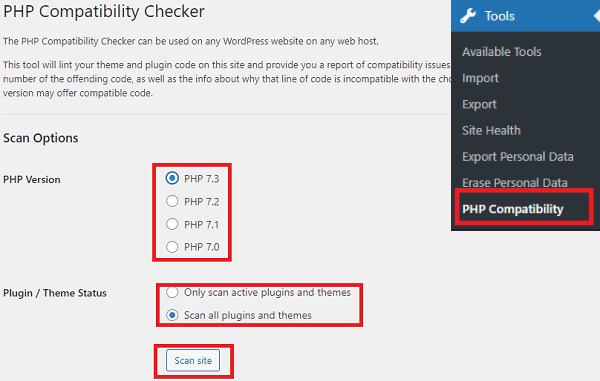
Measure performance on your own site
Someone comparing security plugins on r/Wordpress wrote: “I’m trying to balance security vs performance.”
Measure it on your own site. WordPress.org support threads report slow WooCommerce product and add-to-cart activity, plus HTTP 503 errors, while Wordfence was active. Host capacity, scan settings, caching, competing plugins and proxy behavior can all affect those cases.
Run the same workflow under similar conditions before and after a change, and compare error logs and scan activity. A difference you can repeat after one configuration change is a better reason to adjust than a single slow page load.
When to stop adding plugins and treat the site as compromised
Recurring unauthorized changes call for incident response. Unexpected administrator accounts, unfamiliar executable files and posts that return after you delete them mean you need to investigate the site before trusting it again.
One owner of a product-catalogue site described the problem on r/Wordpress: “However, someone keeps publishing spam blog posts on my website every day. I delete them, but they reappear.”
Treat that as an incident. Preserve evidence and logs where you can, involve the hosting or security team responsible for the environment, assess which accounts and devices are affected, and coordinate recovery from a known-good state. Work out the entry point from the evidence instead of guessing.
The WordPress guidance for a hacked site covers the broader recovery workflow, including detailed cleanup and restoration.
