First, work out which situation you are in. If your self-hosted WordPress site shows no credible signs of compromise, check who has privileged access, whether software and PHP are up to date, what your host protects, and whether you can restore both files and the database, then assign someone to maintain those protections. If you see unauthorized changes or other credible signs of intrusion, start incident response with your host or a qualified responder.
Is your WordPress site already showing signs of compromise?
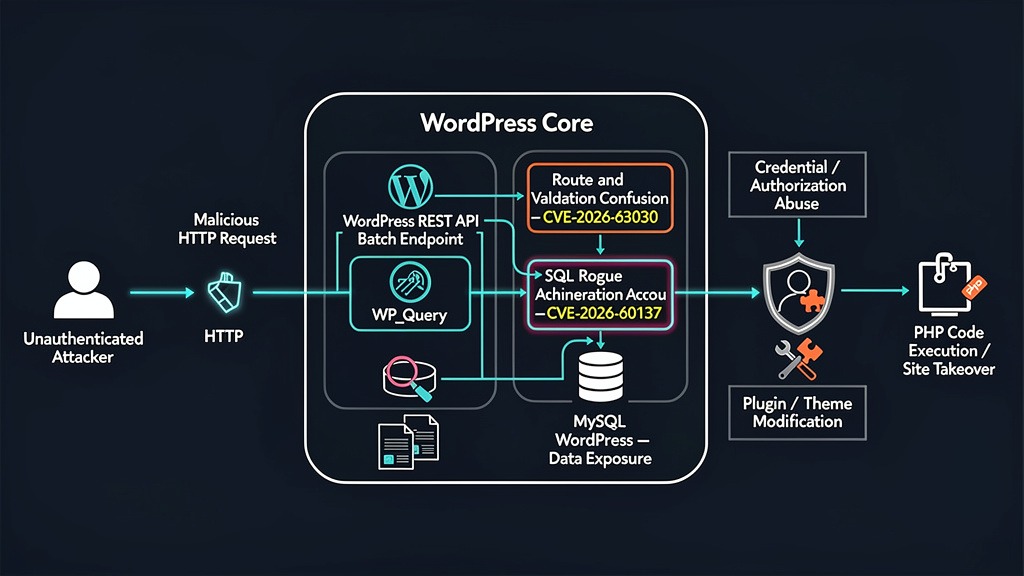
Start with what you see on the site. With no signs of intrusion, routine protection is enough. Unauthorized changes need an investigation before ordinary maintenance.
| What you observe | How to treat it | Next route |
|---|---|---|
| No unauthorized changes or credible alerts | Routine protection | Preventive security assessment |
| An unusual event with no clear explanation | Uncertain until you find what changed | Investigate before you classify the event |
| Unknown administrator, unauthorized posts, recurring file changes, credible malware or hosting warning | Possible compromise | Incident response with the responsible host or security operator |
Unexpected password-change notices also need investigation. A slow dashboard alone is not a reliable sign, since many unrelated causes can slow it down.
A catalogue-site owner on r/Wordpress described recurring unauthorized content: “However, someone keeps publishing spam blog posts on my website every day. I delete them, but they reappear.” Posts that reappear after deletion mean someone still has access.
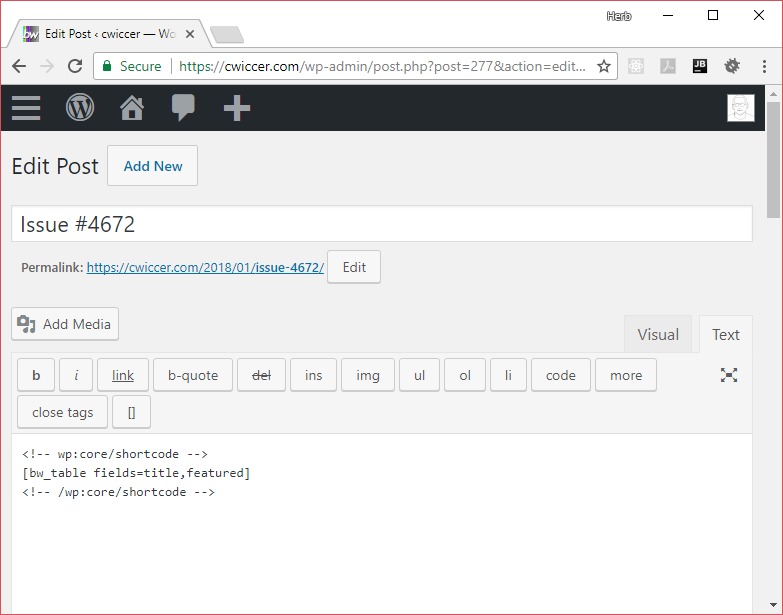
If you suspect an incident, write down what changed and roughly when. Keep relevant notifications and available copies, and do not delete files indiscriminately. For investigation and recovery, see WordPress’s hacked-site FAQ.
Deleting visible spam, resetting a password or running a scan does not show that a continuing intrusion is gone.
Establish which WordPress protections are already in place
Before adding a product or changing a setting, list the protection you already have. Sort it into five areas and give each one a status: confirmed, not confirmed, or needs an owner. Mark a control confirmed when you can name it, name who maintains it and show evidence such as its configuration or a completed test. Use not confirmed when evidence is missing and needs an owner when nobody is accountable for it. Carry out specific file, login, PHP, and firewall changes in the hardening guide after checking what the host already provides.
| Area | Evidence to locate | Detailed review |
|---|---|---|
| Accounts | Users and their privileges | Access section |
| Software | Core, plugin, theme and server-runtime status | Updates section |
| Hosting | Plan documentation and enabled infrastructure controls | Host-responsibility section |
| Recovery | Backup components and an actual restore result | Backups section |
| Monitoring | Alerts, activity sources and their recipients | Monitoring section |
In the Dashboard, open Tools > Site Health. The Status screen groups technical findings, and Info gives more detail about your WordPress installation, server, database, plugins and themes.
If your site already uses Cloudflare, a security plugin, hosting backups or automatic updates, check what each one is configured to do and keep the evidence.
Fix access problems, unpatched software and unusable recovery before adding optional extras.
Limit administrator access and protect logins
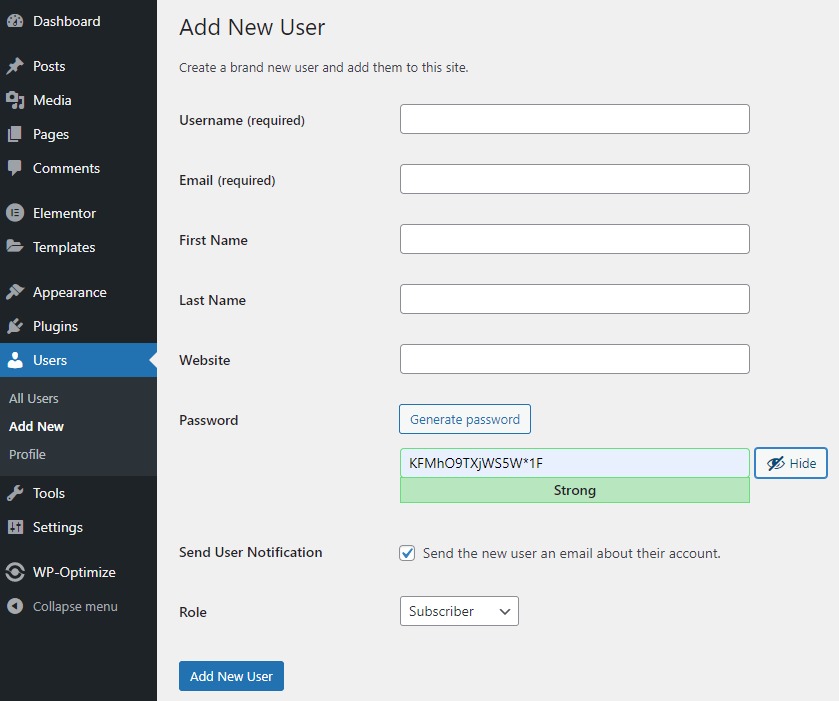
Give people only the capabilities their work needs. A writer who publishes articles needs a publishing role. Administrator privileges include substantial control over site settings, users and software.
WordPress roles are collections of capabilities, and you can customize them. On a typical single-site installation, the default roles work like this:
- Administrator: Broad site administration, including major configuration and user management.
- Editor: Publishes and manages editorial work without the ordinary sitewide Administrator privileges.
- Author: Creates and publishes their own posts.
- Contributor: Writes posts but lacks the publishing permission Authors have.
- Subscriber: Has a limited account with no administration or publishing powers.
Open Users and go through every Administrator and Editor account. Match each person's role to what they do today, revoke access nobody needs and drop shared logins.
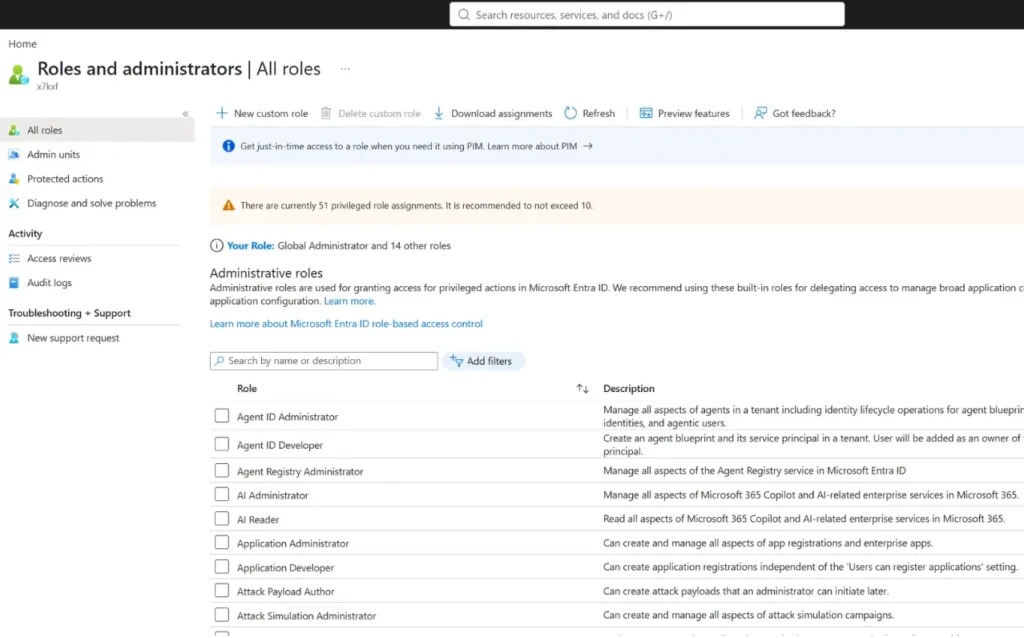
Protect important accounts with unique credentials and multi-factor authentication (MFA, also called 2FA). WordPress core does not provide MFA by default on a self-hosted installation, and its security guidance points to a plugin or identity provider for it. Set up a legitimate recovery route before enforcing MFA, so the remaining administrator can regain access if an authentication factor becomes unavailable.
On WordPress Multisite, the network-level Super Admin role has capabilities beyond those of an Administrator for one site.
Can I delete a former contributor after an assignment ends?When you remove an account, decide who owns the person's content first. WordPress's user-management tools give you options for handling the posts attached to the account. Keep the legitimate material and remove the person's access.
Keep WordPress, plugins, themes and PHP patched
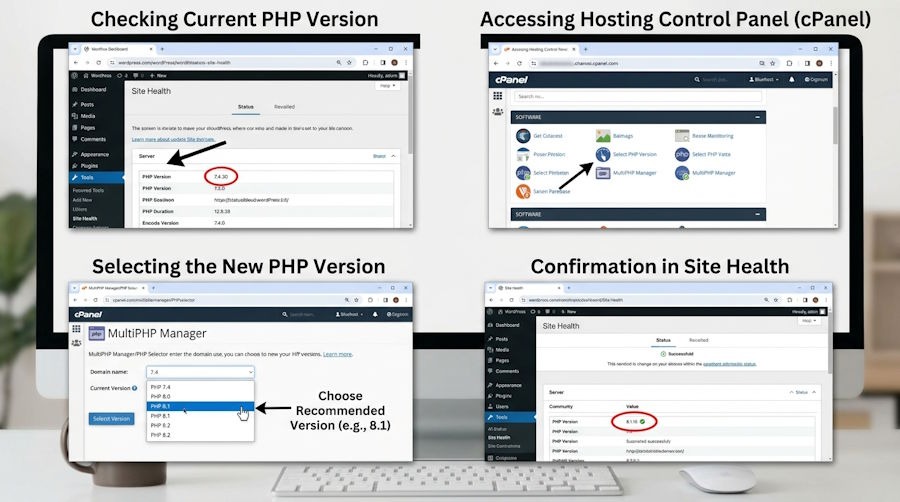
WordPress core and the software around it update separately. Check core, active and inactive plugins, themes and the PHP runtime. Premium or privately distributed extensions can update through their vendor's own channel instead.
Dashboard > Updates shows core and available extension updates. WordPress also lets you switch on automatic updates for individual plugins and themes, a feature added in version 5.5. Scheduling and delivery failures still need your attention, and updates that can break compatibility need a workable rollback plan.
WordPress 7.1.3, released October 6, 2026, included seven security fixes and four bug fixes.
PHP runs at the server level. In its October 21, 2026 critical PHP security advisory, WordPress.org described two critical PHP vulnerabilities addressed by PHP releases. Those fixes belong to PHP itself, not WordPress core. The advisory also said PHP versions before 8.2 no longer receive upstream security fixes from the PHP project. The WordPress requirements it referenced recommend PHP 8.3 or later, MariaDB 10.11 or later or MySQL 8.0 or later, and HTTPS. A site can stay compatible with older software after that software loses upstream security support.
Find your PHP version in Tools > Site Health > Info > Server. Compare it and your other software with official vendor security notices and the available patched releases. When a critical advisory applies to you, get the fix applied quickly through whoever controls that runtime.
Know which protections your hosting provider handles
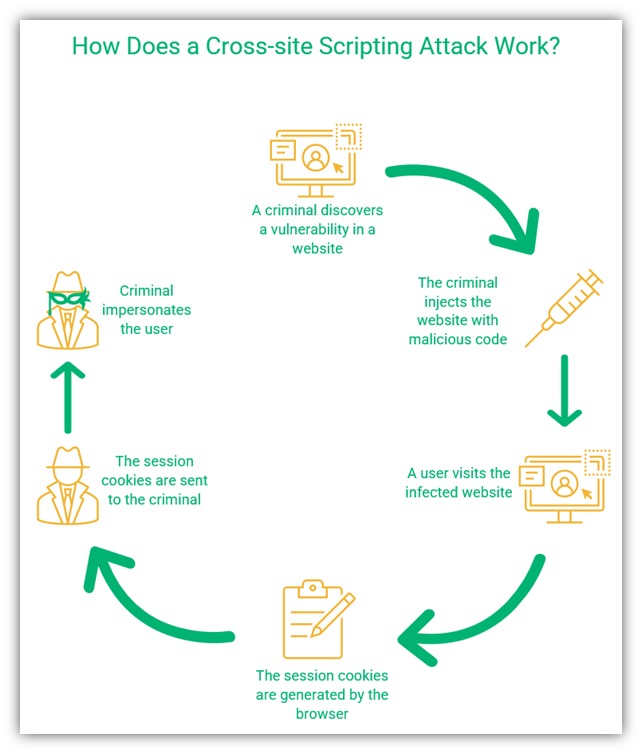
Your hosting type decides who can change the server environment. A managed WordPress plan can include PHP maintenance, firewall services or backups. On shared hosting, the provider controls much of the server. A self-managed VPS puts a larger security workload on its administrator.
Coverage and access differ by provider and plan, so check your contract or service documentation. For anything those documents leave unanswered, ask your host's support who is responsible.
| Control | Managed or shared hosting | Self-managed VPS | What you do |
|---|---|---|---|
| PHP and server patches | Provider | Administrator maintains runtime and services | Tell the host what your site needs and report problems |
| Service isolation | Provider | Administrator configures it | Ask your host where its responsibility ends |
| HTTPS/TLS | May be supplied through hosting controls | Administrator configures and maintains it | Check that visitor and login connections are protected |
| Network or edge filtering | Included, optional or separately purchased | Administrator or edge-service operator | Find out which protections are switched on |
| WordPress roles and extensions | Scope depends on the managed service | Usually site-level administration | Manage user access and keep plugins and themes current |
| Backups and incident support | Limited services, if the provider offers them | Administrator provisions or contracts them | Know how you reach a backup and who to call during an incident |
TLS protects information in transit between a visitor's browser and your site. TLS does not address application permissions or vulnerable plugins.
Choose a security plugin or firewall for a specific gap
Pick security software for the function you are missing. An edge web application firewall (WAF) screens selected incoming requests before they reach WordPress. WordPress security plugins add login controls, scanning, activity information and alerts.
| Protection | Useful function | Selection question | Cost or constraint |
|---|---|---|---|
| CDN or edge WAF | Filters selected requests at the edge | Do active rules cover the traffic your site gets? | False blocks of legitimate visitors |
| Hosting controls | Secures network and server services | Which functions does the provider maintain? | Plan limits and restricted configuration access |
| WordPress security plugin | Application-level MFA, logs, scans or alerts, depending on edition | Which needed capability is missing today? | Compatibility and maintenance work |
| Managed security support | Operational response or specialist help within service scope | Do you need outside people to respond to incidents? | Cost and the exact terms of the support agreement |
On r/Wordpress, a small-business owner comparing paid and free security tools asked, “Would WordFence free be sufficient with that combination or it must be the pro version?” Answer it with a feature check. List what your host or CDN already supplies, then compare the gaps with what the plugin edition includes.
A site with edge filtering can still need application-level MFA or a usable activity record. Another site can have both and lack a response service.
After you enable a new rule, test logins, publishing, checkout and integrations. Overlapping tools also send duplicate alerts and add maintenance work. A WAF cannot patch vulnerable application code.
Confirm you can restore both files and the database
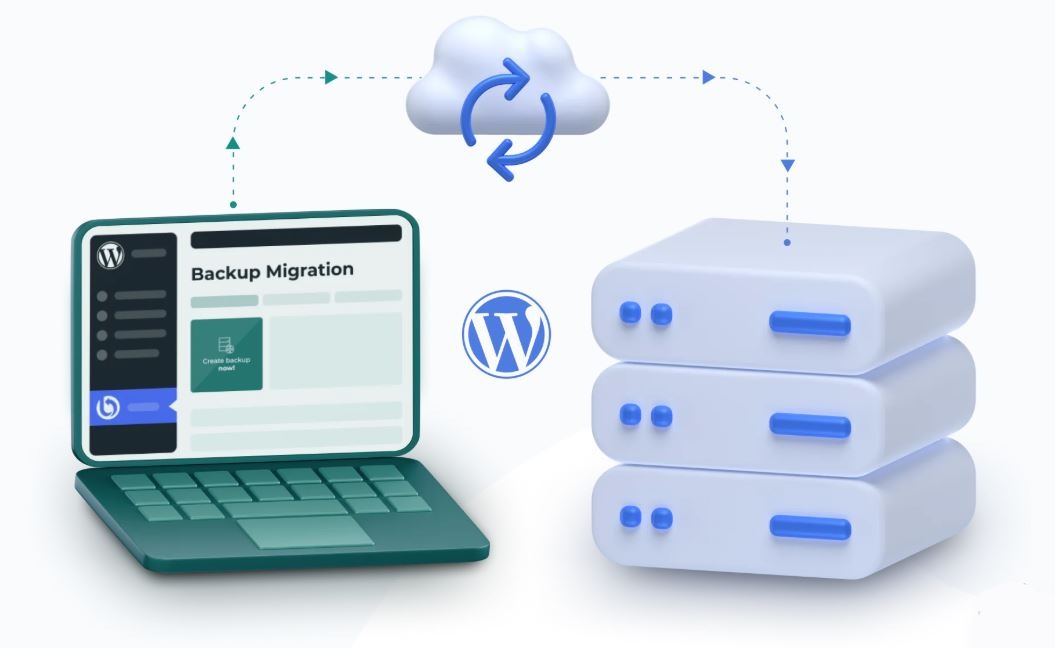
You need both the database and the site files to recover WordPress. The database holds posts, comments, settings and other stored data. The files include uploads, themes, plugins, configuration and application components.
WordPress's backup documentation describes both components.
Run this recovery check:
- Database: Find a database copy for the recovery point you want.
- Files: Confirm the matching site files and configuration are included.
- Access: Confirm you can retrieve a copy when the production site or hosting account is unavailable.
- Completion: Note the last successful backup and any reported failures.
- Restore: Test a restore in a nonproduction destination. Check that content, administrative access and important workflows function.
Scheduled snapshots from your host count only after you have restored an accessible, usable set in a safe test.
Copies taken after a suspected compromise can also contain affected files or data, so incident recovery can require an earlier or otherwise appropriate backup.
Monitor changes that warrant investigation
Send WordPress Site Health findings, update-failure messages, security-service alerts and relevant hosting activity to someone who reads them. A failed plugin update needs a maintenance review. An unexplained new administrator or unauthorized published content needs an investigation. Check that your notification channel delivers messages, and decide which events trigger escalation.
Make someone responsible for WordPress security maintenance
People leave projects, vendors issue fixes, integrations change, and backup or notification jobs fail. A short register makes someone accountable for each area. Give every row these five fields:
- Area: Access, software, hosting, recovery or monitoring.
- Owner: A named person or team with authority to handle it.
- Trigger: A vendor advisory, a contractor leaving, a failed backup or another relevant change.
- Last checked: The date the owner finished the review.
- Escalation: Who to contact when the owner cannot fix it: your provider, administrator or a specialist.
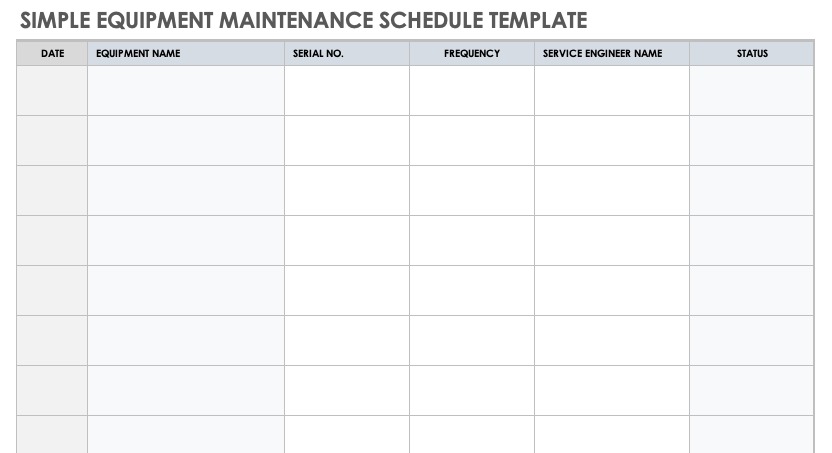
A small personal site and a shop with customer accounts need different review schedules and support levels. Set the cadence by the site's exposure, your service agreement and the staff you have to do the work. Record each completed review, because a calendar entry only shows the work was planned.
