For a self-hosted WordPress site, check what the site serves and what Google reports before installing another plugin or resubmitting a sitemap. If those checks show no crawl, indexing-directive or canonical blocker, stop changing WordPress settings. Look at the URL's indexing evidence and its content instead, starting with one representative URL in Search Console.
Your WordPress sitemap can load fine, your SEO plugin can report favorable settings, and Google Search Console can still show pages excluded from the index. Each observation answers a different question, so separate them before looking for a cause.
Pick the right starting point for your WordPress site
Start with your site's history. A new site, an established blog and a recently migrated site can show the same indexing symptoms and carry different risks.
- New public website: Confirm that the site is meant to appear in Google and that its discovery and indexing settings agree with each other. You have no earlier post URLs to protect.
- Established website: Focus on the affected pages and keep existing addresses intact. Changing published permalinks breaks old links unless redirects are in place.
- Recently migrated or restructured website: Include old domains and former addresses, along with where each should point.
Pick one public page you want Google to index. Write down its URL, whether it is new, previously indexed or recently moved, and the exact symptom that made you look.
The table below separates configuration, the response your site serves and what Google reports.
| Observation | What it tells you | Next check |
|---|---|---|
| WordPress discourages search indexing | A sitewide setting requests exclusion | Check the robots directive the page serves |
The response contains noindex |
That response requests exclusion from indexing | Find what outputs the directive |
robots.txt disallows a path |
A crawler access restriction applies | Check whether Googlebot may fetch the URL |
| An XML sitemap loads | A file for URL discovery is available | Check that its entries are your preferred URLs |
| A page declares a canonical URL | You have stated a preferred URL | Compare redirects and Google's selected canonical |
| Search Console reports an excluded URL | Google has recorded an indexing outcome | Read the URL-specific reason and crawl information |
| An SEO plugin reports a favorable score | The plugin's own checks have passed | Check whether its controls cover the issue you see |
Check what your pages tell Google about indexing
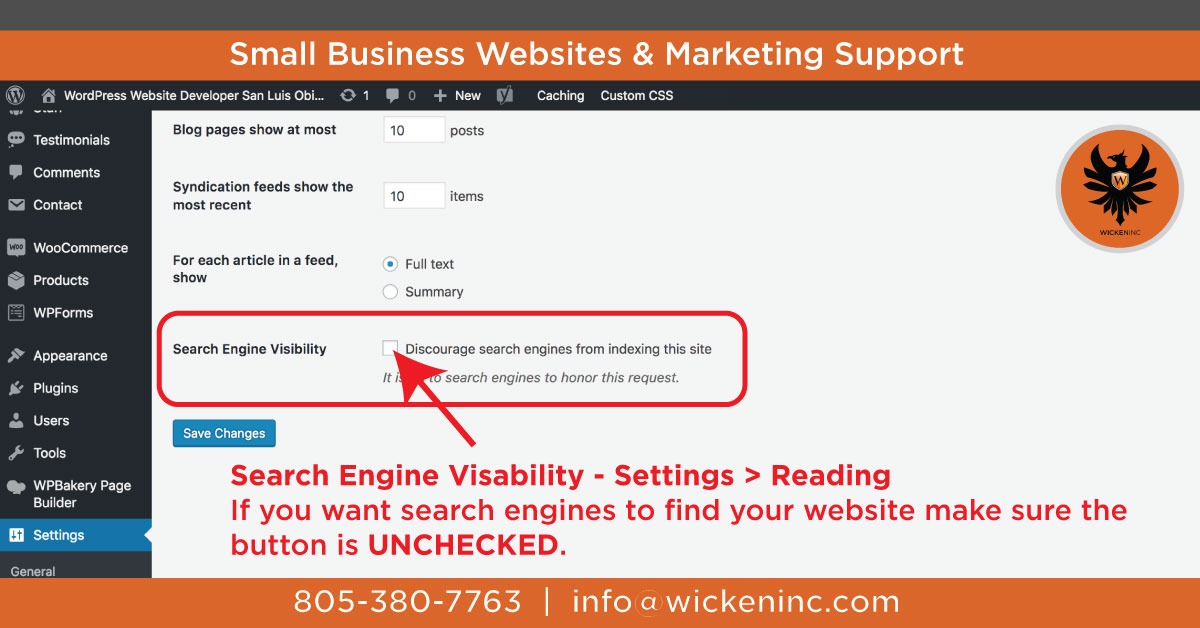
WordPress has a sitewide search visibility setting, and each URL also carries its own robots directive.
Open Settings > Reading in the WordPress dashboard and find “Discourage search engines from indexing this site.” With the box checked, WordPress asks compliant search engines to exclude the site. Public pages stay accessible.
The WordPress Reading settings documentation describes a noindex,nofollow meta tag from WordPress 5.3 onward, provided the theme calls wp_head. WordPress 5.7 introduced the wp_robots mechanism. Your WordPress version and anything else that outputs robots directives on the page set the exact output.
An unchecked box doesn't rule out a page-level restriction from a plugin, theme or other code, so check the response itself.
Open your chosen URL in a browser and select View Page Source. Search for name="robots" and read its content value. A noindex directive can also arrive as an X-Robots-Tag HTTP response header.
To see the header, open the browser's developer tools, select Network, reload the page, click the main document request and read its Response Headers. Note the robots meta value and any X-Robots-Tag value separately.
A user in an r/Wordpress discussion about removing noindex asked, “Do you get a notification if it’s successfully done or do I wait for the error message again?”
Once you fix an unwanted directive at its source, reload the page to confirm the live response has changed. Google's stored report keeps showing the old state until it crawls the page again, so don't expect an immediate notification.
Separate crawl access from indexing instructions

A crawler has to fetch a page before it can read a noindex directive in its HTML or HTTP headers. Check crawl access on its own.
Googlebot follows the applicable robots.txt rules to decide which paths it can request. Google does not support a noindex rule inside robots.txt.
Say a site disallows /private-section/ in robots.txt while the page HTML contains noindex. Google can't read the HTML instruction because the crawler restriction stops it first.
Open your site's /robots.txt and read the rules that apply to Googlebot and your chosen path. Google's minimum technical requirements for indexing include permitted Googlebot access, an HTTP 200 (success) response and indexable content. In the Network panel, check the status of the document request. A redirect or an error needs its own diagnosis before treating the address as a working page. A page that loads in your browser can still be inaccessible to Googlebot.
Label the result accessible, disallowed, unavailable or unresolved. The label tells you where to look next.
Check the sitemap without treating submission as success
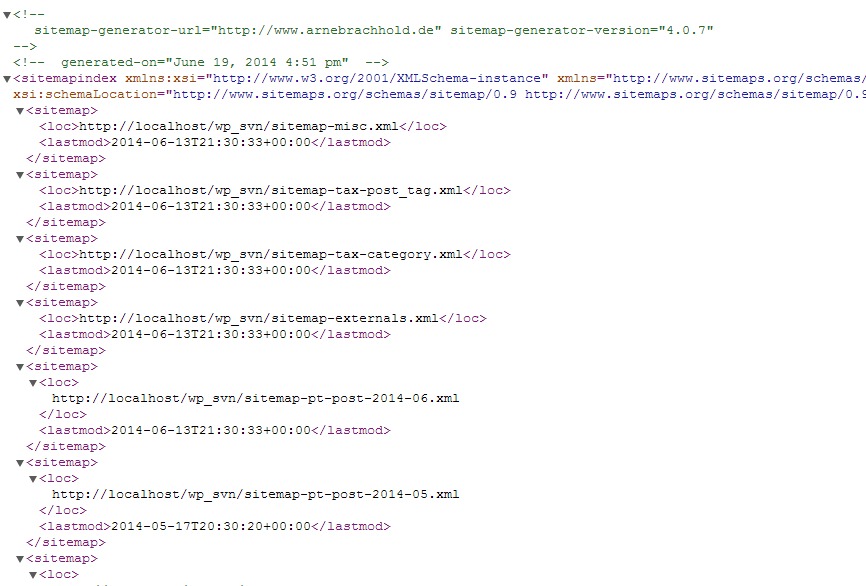
An XML sitemap helps Google discover URLs and signals which addresses you prefer. Whether Google indexes them is a separate decision.
WordPress 5.5 introduced built-in XML sitemaps. The standard core sitemap index is at /wp-sitemap.xml when the matching rewrite routing is active.
Plugins or custom configuration can serve the sitemap from a different endpoint, so open the one your site actually serves. Check that your chosen URL is listed and that the listed address matches your preferred public URL.
An outdated address, or a missing page you want discovered, is something concrete to fix. If the sitemap loads and lists the right preferred URLs, you are done with this check.
Search Console's Sitemaps report shows how Google processed your submission. A single page's crawl and indexing status needs URL-level evidence, covered below.
Make redirects, permalinks and canonical signals agree
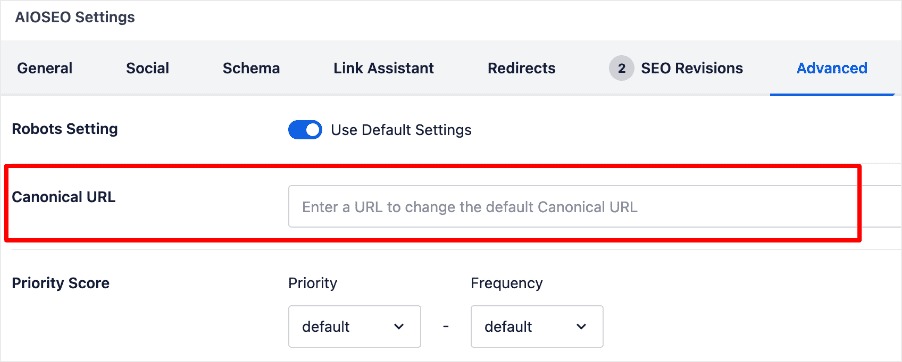
A site can serve similar content at several addresses. Redirects, canonical annotations and sitemap entries tell Google which URL should represent that content in Search.
A permalink is a published page address, a redirect sends a request from one address to another, and a rel="canonical" annotation names your preferred address for equivalent or closely related content.
Google describes redirects and canonical annotations as strong canonicalization signals and sitemap inclusion as a weak one. It weighs all of them and can select a canonical different from the one you declared.
Say an article first appeared at /2025/11/post-name/ and later moved to /post-name/. The old address should redirect to the new one, and the final page's canonical annotation and the sitemap entry should name the new one as well.
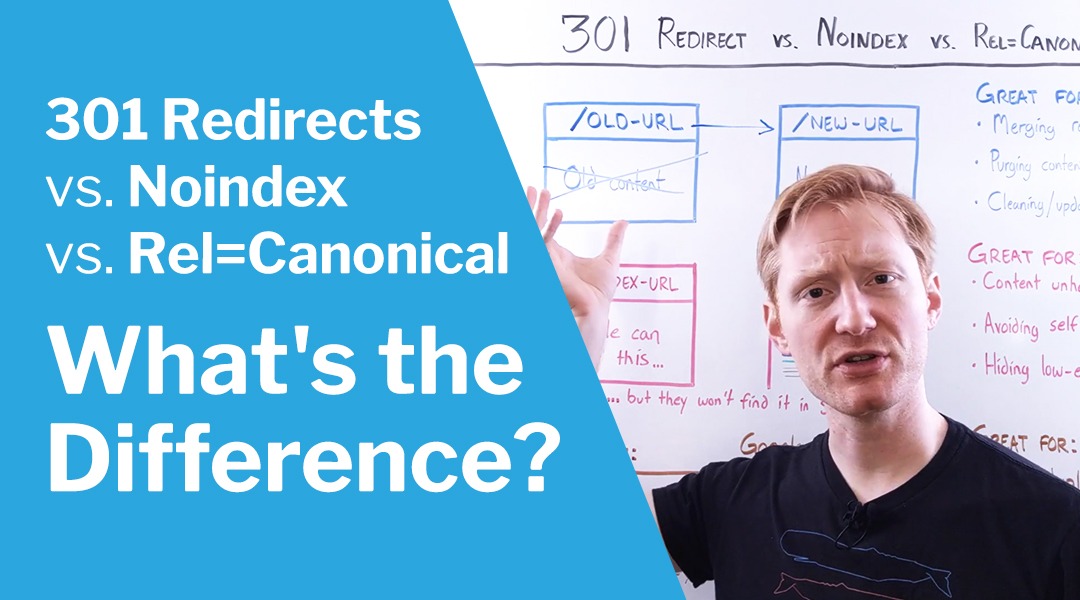
Follow your chosen URL through any redirect and note the final destination. Read its declared canonical and compare that with the sitemap entry. If an established page's permalink changed, include the former URL in the comparison.
If the signals disagree, check the redirect or canonical configuration. Large redirect lists, permalink restructures and migration repairs affect many existing pages, so handle them in their own dedicated procedures.
Read the evidence in Google Search Console
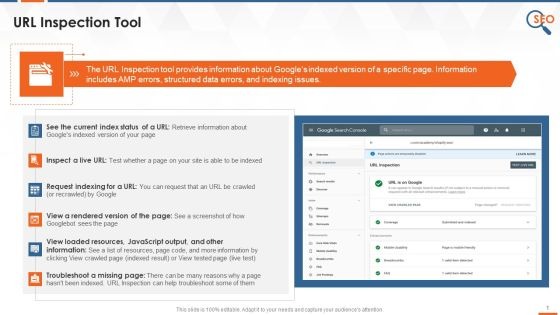
Search Console reports what Google has recorded about a specific URL. URL Inspection links what your site serves to Google's discovery, crawl and indexing information. For an excluded URL, read the reported status and the inspected canonical alongside the page response.
In your verified Search Console property, inspect the URL you chose earlier. Read the indexing status and the reported reason, then “Crawl allowed?” and “Page fetch” in the indexed details.
The indexed URL information shows Google's selected canonical. The live URL test checks the page's current accessibility and indexability but can't predict which canonical Google will select. Keep the two views apart when you read the result of a recent fix or a canonical mismatch.
Two exclusion statuses mean different things:
- Discovered – currently not indexed: Google has found the URL but hasn't crawled it yet. The label names a stage of processing and gives no cause, so you need more evidence to find one.
- Crawled – currently not indexed: Google crawled the URL but didn't index it. You don't need to request crawling again just because you see this status.
In an r/Wordpress indexing discussion, an independent WordPress publisher wrote, “However, Google isn’t indexing me. I’ve submitted a sitemap, manually submitted each post’s URL, and nothing.”
If the URL report names a crawl restriction, an unwanted indexing directive or an unexpected Google-selected canonical, keep working on the technical side. If Google crawled the page without indexing it and you have found no technical blocker, look at the page itself: duplication, distinctiveness and usefulness to its audience. Meeting Google's technical requirements doesn't oblige Google to index or show a URL.
Decide whether an SEO plugin adds a feature you need
WordPress already supplies a native XML sitemap and several basic configuration controls. An SEO plugin is worth adding when it gives you an editorial or technical capability your site needs.
Plugin necessity came up in an r/Wordpress SEO plugin discussion, where a user asked, “Since WordPress provides XML sitemap, my questions is - is SEO plugin still necessary (such as Yeast, Rankmath...etc)?”
The answer turns on which capability you are missing. Page-specific metadata, robots directives, canonical editing, structured-data interfaces and redirect management can justify extra controls for some sites. The plugin, theme and implementation decide which of these you get.
| Site requirement | WordPress foundation | When extra control helps |
|---|---|---|
| XML sitemap | Native sitemap functionality | Customized sitemap inclusion or integration |
| Sitewide indexing preference | Settings > Reading | Page-specific indexing management |
| Permanent URL structure | Settings > Permalinks | Complex redirect or migration management |
| Detailed metadata and canonical editing | Existing theme or custom output varies | A usable interface for granular page-level settings |
| Structured-data management | Existing theme or custom output may contribute markup | Controls for applicable structured-data types |
If all you need is an accessible XML sitemap, native WordPress covers it. If you regularly manage individual canonical annotations, you need a reliable way to control that output.
List the SEO functions already supplied by WordPress core, your active plugins, your theme and custom code, and note which one handles each feature you need. Several of them can control the same setting, so add or replace a plugin only after you have found a real gap.
Assess page experience and structured data separately
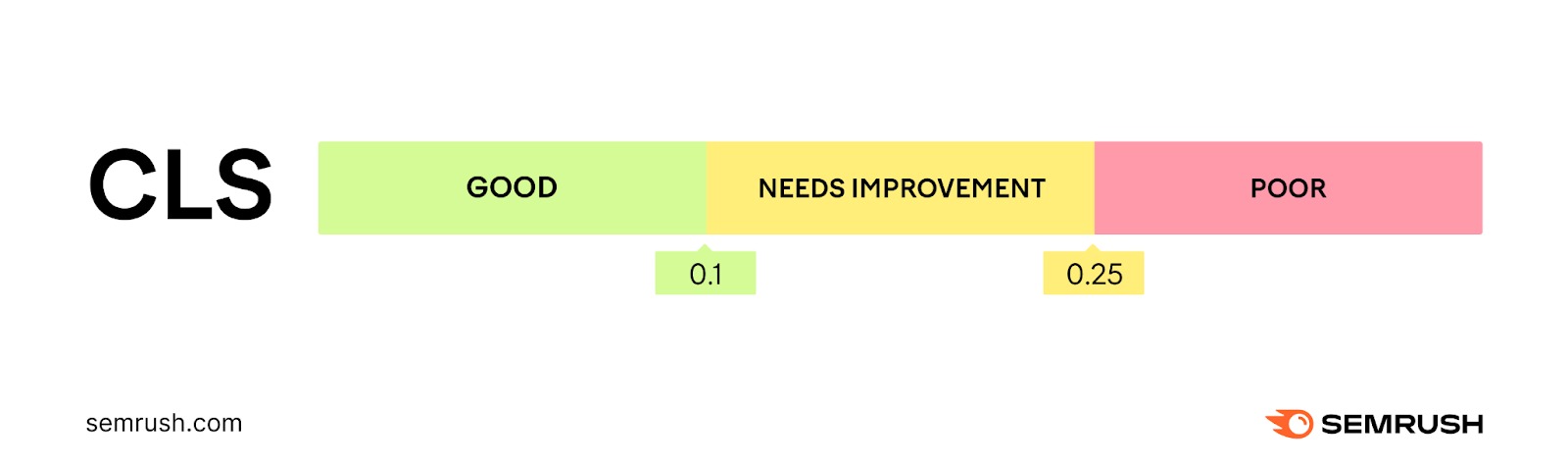
Search Console's Core Web Vitals report uses real-user field measurements when enough data is available. A laboratory test measures a separate test run. Google's good thresholds are Largest Contentful Paint within 2.5 seconds, Interaction to Next Paint below 200 milliseconds and Cumulative Layout Shift below 0.1. Meeting them doesn't guarantee rankings.
If your page has applicable structured data, Google's Rich Results Test checks the supported markup. Valid markup doesn't guarantee that Google will display a rich result.
Match the finding to a safe next action
Tie your diagnosis to the evidence, then act on the matching case:
- If a plugin or theme outputs the unwanted
noindex, fix it there. - When the redirect and the canonical point to different URLs, work through redirect and canonical troubleshooting.
- If Googlebot can't reach the page, look at the server.
Keep a short record of the case. Write down the URL, what you saw, where you saw it (a response header, a redirect destination or a Search Console result), the one change you propose and who is responsible for it, plus the result that will show the change worked.
