On an active WordPress site, push your tested files and only the database changes you can safely isolate and verify, so newer production orders, accounts and content stay untouched. A full staging overwrite is an option when the live site is intentionally replaceable, or when you have reconciled all the data that differs and controlled writes. Start by listing your changes, confirming a restorable backup and choosing the smallest push that still carries the whole change.
Is a full replacement of the live site safe?
A staging site is a copy of your website at one point in time. From the moment you create it, the two environments start to differ. A customer buys something on the live site. Someone registers an account. The staging database has none of those records. A checkout redesign can be ready to ship while the staging copy is already missing a newer real order.
Replace the live database with that older copy and you lose the newer records. The WordPress Hosting Handbook warns about orders, comments and users added after staging was created.
Full database push: GO or NO-GO? Mark NO-GO when production holds valuable changes made since staging was created and you have not reconciled them.
An agency maintainer on r/woocommerce asked: “I'm wondering how people are handling staging pushes on live sites taking transactions... I would imagine you'd want to do a selective database sync excluding woocommerce tables, correct?”
Direction decides the answer. A push moves changes from staging to production, while a pull refreshes staging from production. Tested code moves up from staging. Valuable live records stay on production. Carefully controlled database changes move up too, once you know what they touch.
A change inventory covering files, database records and uploads
A redesigned page can come from edited theme files, a Site Editor template stored in the database, plugin settings, or several of these together. You can't see from the visible change where it is stored.
WordPress keeps different parts of the site in different places. A plugin's PHP code lives in its directory, while its configuration and activation state live in the database. A media attachment has two parts: a file in wp-content/uploads and its Media Library record.
Files-only pushes leave database-stored layouts and settings behind. Copy an image without its attachment information and it goes missing from the Media Library. Push its record without the file and the asset breaks.
List each change, where it lives and which site holds the right version
| What changed | Where it lives | Which site has the right version | What must move with it |
|---|---|---|---|
| Custom theme stylesheet | Theme files | Staging, tested version | Related theme settings |
| Site Editor template or style | Database | Staging, tested design | Template and global-style records |
| New WooCommerce order | Order-related database records | Production | Order and extension relationships |
| Page-builder layout | Database metadata, possibly files | Depends on what was edited | Builder templates, settings, assets |
| Newly uploaded photograph | Uploads and attachment records | The site where it was uploaded | File and database metadata |
| Plugin update and configuration | Plugin files and database | Depends on the plugin release | Activation, settings, schema changes |
Hold back any item with an unknown database dependency until you understand how it behaves. For a WooCommerce checkout change, explicitly distinguish the template or configuration being deployed from the live order and customer records that must not be replaced.
Take a new stylesheet and a redesigned checkout. The stylesheet is a plain file change. The checkout involves plugin code, templates, options and related database records. Copying both as plain files carries a different failure risk for each.
New customer uploads are easy to overlook, because the uploads directory looks like ordinary site files. Say a customer added an image to production after you cloned staging.
Which push method fits your changes?
Pick the method that carries the whole tested change and keeps the required live state intact. A staging plugin, a managed host and a manual file transfer behave differently, even when each offers a feature called Push to Live.
| Method | Best for | What it does | Rule it out when |
|---|---|---|---|
| Files-only push | Theme, plugin, CSS or application code changes | Copies the selected files and leaves the production database alone when configured correctly | Required settings, content or migrations are missing |
| Host or plugin selective push | Files, directories or tables the tool supports | Copies the selected parts under provider-specific rules | The selection would replace valuable live data |
| Content import or manual recreation | Posts, pages or builder content the tool supports | Moves the selected content through a suitable workflow | Required relationships or metadata cannot be moved |
| Full files and database push | Prelaunch sites or production you can deliberately replace | Replaces a broad portion of the destination site | Unreconciled live records remain |
| Git or CI code deployment | Repeated code releases that developers manage | Moves version-controlled changes | Database dependencies have no separate migration plan |
The biggest difference is how much of the database a tool can move. Some tools let you pick a table, then replace every destination row in it without automatically merging individual records or resolving conflicts between the two databases.
WP STAGING documents file and table selection in its push workflow. WordPress.com's staging synchronization has different controls. Including its database sync transfers the database as a whole, without selecting individual posts or pages through that workflow.
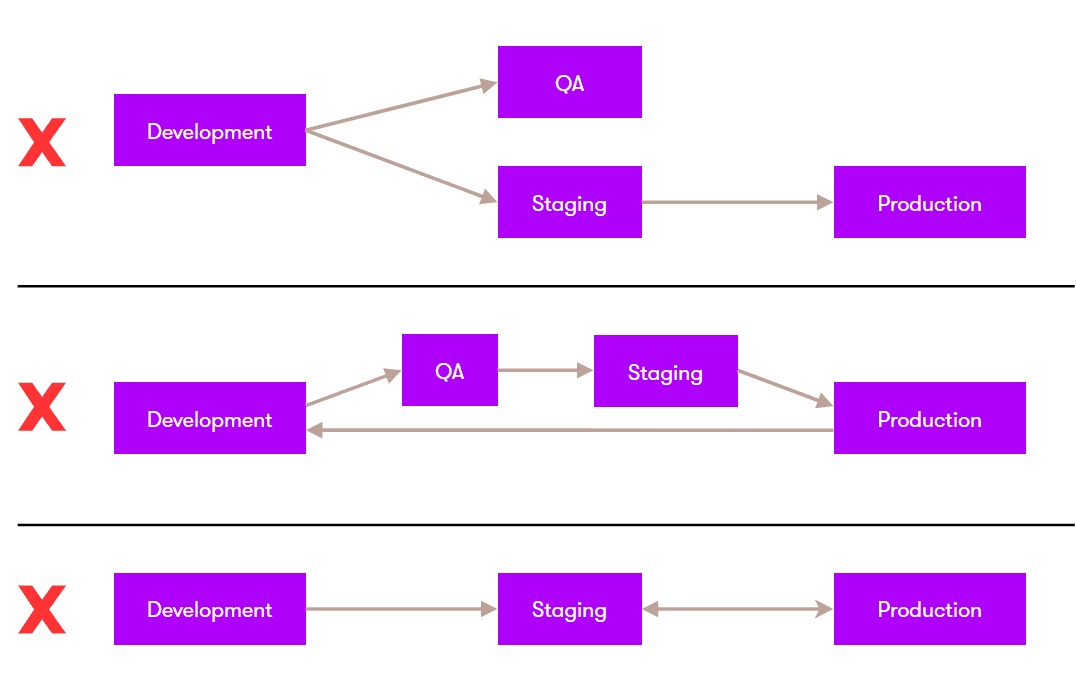
When the preferred push tool is unavailable
Some site owners get staging but not the product's preferred push feature. If the change is only tested files, a file push limited to those files does the job. Supported content imports handle some page changes. Complex database-backed templates and settings need their own transfer method or a manual rebuild.
Protect live orders, users and other production records
List the live records that must still be there after the push. For a WooCommerce store, that list includes the latest real order, its status, a recent customer account and extension-generated transaction state. A learning platform must keep progress and memberships. A booking site, a contact-form system or a publishing site each has its own live records to protect.
Record what must survive
- Transactions: Note references for recent orders, refunds and statuses, plus any custom order-numbering system.
- Accounts: Find recent registrations and the roles that must keep working.
- Application activity: Note references for new form submissions, course completions, bookings or membership updates that relate to this push.
- Content and assets: Find pages, comments and uploads created directly on production.
Pick references and timestamps for a later comparison. Skip private customer data. A safe rehearsal can use synthetic orders and accounts on isolated copies: record an order created on the production-side copy after the staging split, then check that its identifier, status and related records still match after the proposed transfer.
Check how WooCommerce stores orders
WooCommerce High-Performance Order Storage (HPOS) uses dedicated order-related tables. Older WooCommerce configurations stored orders through WordPress posts and postmeta. HPOS became the default for new WooCommerce installations starting with version 8.2, and existing stores differ in storage mode and compatibility synchronization settings. The WooCommerce HPOS documentation explains the differences.
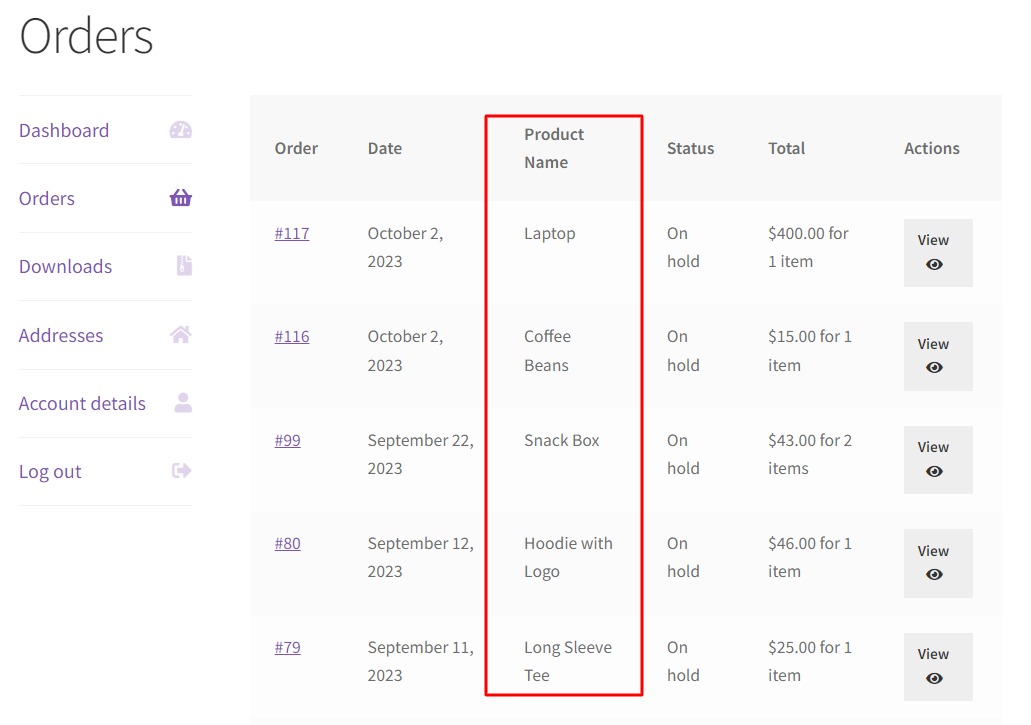
In the WordPress admin, open WooCommerce → Settings → Advanced → Features and check the selected order-data storage and compatibility mode settings. Record those settings for both sides of the rehearsal. A fixed list of excluded WooCommerce tables cannot account for every installation's order storage, compatibility mode or custom extension data. The transfer must also preserve the related metadata, customer links, payment or extension state and order-numbering behavior for the setup you actually run.
A maintainer discussing a Cloudways and Divi WooCommerce site on r/woocommerce described an order-numbering problem after staging pushes: “Now when someone places another order, there will be a duplicate W2004.”
Controlling new writes temporarily reduces the number of records that differ during the push. It does not recover orders or submissions already missing from the staging copy.
Page builders, LMS data and other coupled database changes
A redesign gets harder when the visual change lives in database records and production keeps receiving orders, registrations or learning activity.
WordPress Site Editor changes can be database-backed. Page builders also rely on templates, post types, options, metadata and related files.
A maintainer moving from Elementor Pro to Breakdance described the obstacle on r/BreakdanceWP: “Can’t just push the staging site live since we have a dynamic LMS that’ll be overwritten if we do.”
For supported posts and pages, WordPress content export/import is suitable. Other changes call for a builder's own transfer tools or a deliberate recreation of its settings. The native WordPress import does not guarantee a complete transfer of proprietary builder templates, plugin-specific metadata or all related assets.
Test the transferred feature on a copy
- Check that templates, styles and page content appear as designed.
- Exercise changed forms, popups and other affected builder features.
- Confirm that the required plugin settings, assets and configuration move with the change.
- Make sure the proposed transfer leaves course progress, memberships and transactional records intact.
A restorable backup and a rollback point come before the push
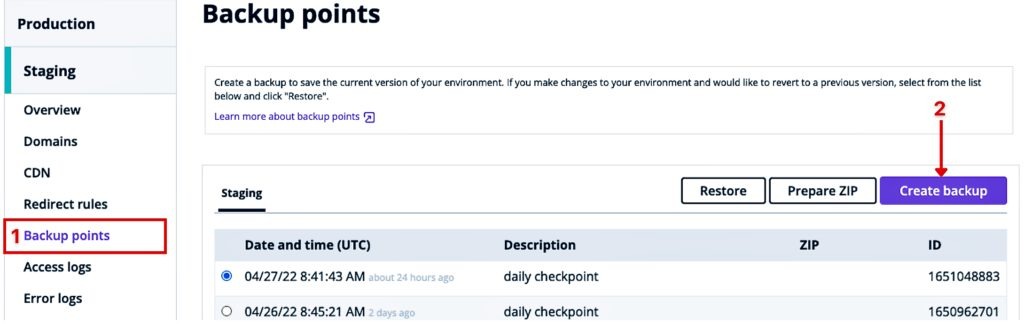
Preserve the tested staging work. Separately, create a production backup of the relevant site files and database.
Confirm where the backup lives and who has access to it during an outage. Check that you have tested the restoration path, and decide which backup you would restore from. A backup-complete notification alone does not prove recoverability.
Decide which failures justify a rollback. Set the maximum loss of live activity you will accept, since restoring an earlier backup can remove legitimate orders or other records created afterward. If an important site has no credible restore path, hold the push until you have one.
Settings that differ between staging and production
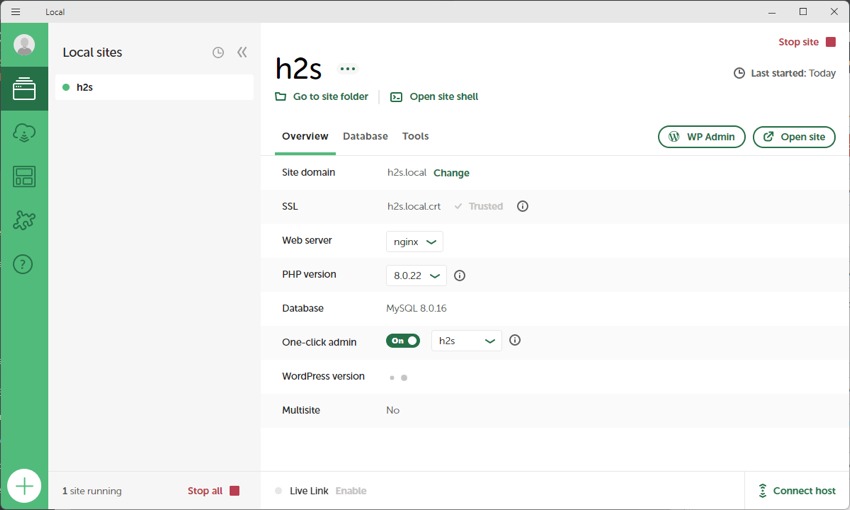
Staging and production differ in PHP configuration, security plugins, URLs, scheduled tasks and integrations. Those differences matter even when the right files and data are pushed.
| Setting | On staging | Needed on production | What to check |
|---|---|---|---|
| PHP and dependencies | Tested runtime and plugin versions | Compatible runtime and dependencies | Compare PHP version, theme and plugin requirements |
WP_ENVIRONMENT_TYPE | Typically identified as staging | Production environment value | Read the setting on the destination |
| Login and security | Staging authentication or login plugin rules | Working live administrator access | Review the login path and configuration |
| Captured, disabled or test routing | Approved production delivery | Find out where messages go and how they are sent | |
| Payments and APIs | Sandbox accounts and test services | Intended production integrations | Check credentials, webhooks and endpoints |
| Scheduled tasks | Staging jobs restricted as intended | Production automation runs correctly | Compare cron and external job configuration |
| URLs and visibility | Staging hostnames and access restrictions | Correct live hostname, HTTPS and indexing state | Compare redirects and visibility settings |
WordPress.com's documented staging synchronization does not automatically update the production PHP version to match staging. A successful database and file transfer therefore leaves a runtime difference.
WordPress recognizes the environment values local, development, staging and production, and uses production when none is set. That value informs plugin and theme behavior. The value alone does not stop outgoing emails, payment requests, cron activity or visitor access.
Staging needs safeguards for test messages, external APIs, payment services and scheduled activity. Search visibility has three separate controls: authentication limits access, noindex governs indexing and robots.txt controls crawling. A crawler blocked by robots.txt can never see the page's noindex directive.
A site owner on r/Wordpress described a login configuration difference: “One thing I have noticed is that I use WPS hidelogin plugin but this hasn’t copied across to the staging site.”
Kinsta's push-environment documentation says its selective pushes include specified environment settings, including redirects, geolocation, PHP and Nginx configuration. It separately documents retention of the destination's custom Nginx configuration.
Push only the changes on your list
With the method, backup and environment checks settled, run the push.
- Name the tested staging source, the production destination and the changes you are pushing.
- Control interruptions and new writes where the method requires it, and account for external systems that can keep sending data.
- Read the final preview. Confirm that the push matches your list of changes and that you understand the destination-deletion controls.
- Move the tested files, supported content or precisely mapped data changes with your chosen tool.
- Save the tool's status, warnings and transfer details for diagnosis and sign-off.
Options that delete live data: A push affects more than the items it copies into production. WP STAGING documents options to uninstall production plugins that are absent from staging and to delete the production wp-content/uploads directory before copying staging uploads. Do not run a push that would remove live plugins or uploads outside what the push covers. Check the actual options your provider shows.
Adjust stored URLs only when the transfer requires it
Database-backed content moved between staging and production hostnames can keep the staging URLs. WordPress can store URLs in PHP-serialized values, and a naive text replacement can corrupt that data.
The WP-CLI search-replace documentation describes serialization-aware replacement and a --dry-run option. When you need URL changes, review the proposed replacement and the tables it covers before running it for real. Custom tables, plugin data and multisite behavior change which tables the replacement should cover.
If the push carries no stored URLs, skip the URL replacement.
Verification covers the new changes and the preserved production data
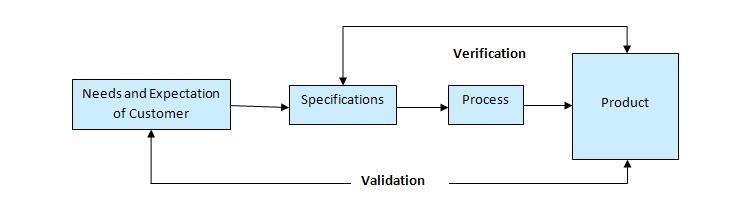
Mark the push PASS only when two things hold: the intended changes work, and the production records you listed stay intact. In a WooCommerce rehearsal, that means the staging checkout change appears on the destination while the newer synthetic order from the production-side copy remains complete, with its expected status and relationships. Save the before-and-after evidence.
A homepage that loads correctly can still hide a missing recent order, a changed customer role or a broken form submission history. Use your change inventory and your list of live records to test the two outcomes separately.
| Feature check | Data check | What you should see | Feature / data result |
|---|---|---|---|
| Updated theme or layout | Recent order state | Design works. The newer order, status and linked data remain | Feature: ____. Data: ____ |
| Changed templates | Recently registered account | Template renders and the account remains usable | Feature: ____. Data: ____ |
| Updated media presentation | Recent attachment records | Images load, and records and files align | Feature: ____. Data: ____ |
| Login-related change | Administrator account and access | Login works and required access remains | Feature: ____. Data: ____ |
| Form or plugin behavior | Existing submissions | Changed workflow works and older entries remain | Feature: ____. Data: ____ |
| HTTPS or routing change | Required production configuration | Correct URLs, redirects and environment behavior | Feature: ____. Data: ____ |

Test the affected visitor and administrator workflows
Exercise every path the push touched, such as mobile and desktop layouts, relevant templates, administrator login, forms, membership access and checkout. If a test that charges no one is available, use it.
Check live URLs, HTTPS behavior, media and indexing configuration. If a change looks missing, find out whether you are seeing cached output or whether the transfer never delivered the template or setting. Application and PHP logs reveal failures the homepage hides.
A presentation defect that is isolated and understood, with production data intact, can wait for a targeted fix.
What should you do after a failed push?
Sort a failed push by its symptom before trying another transfer. A stalled file transfer, a PHP error, broken access and missing customer records each have different causes and call for different recovery steps.
- Push stalls or reports failure: Read the transfer tool's error details and the relevant hosting logs.
- White screen or HTTP 500: Examine PHP, server and WordPress error evidence to find the failing component. Keep sensitive debug output away from public visitors.
- Administrator access disappears: Compare user records, authentication rules and login-plugin behavior with their known state before the push.
- Wrong URLs or missing media: Work out whether stored hostnames, attachment records, incomplete file transfers or caches explain the symptom.
- Orders, users or other live records are missing: Stop pushing, keep whatever evidence you have, and follow the recovery plan you set before the push.
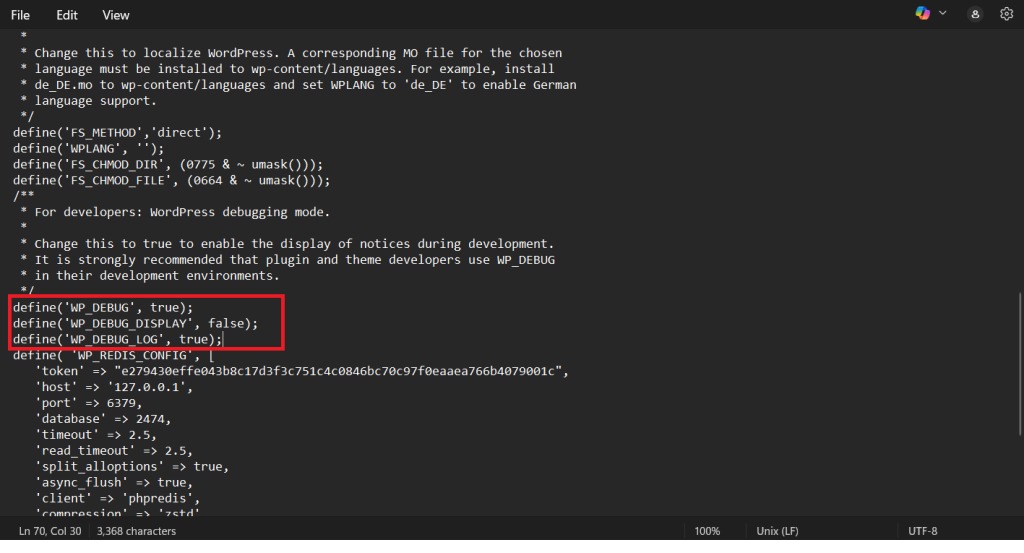
When a page looks unchanged but the production data is intact, a narrowly targeted repair can fix it, such as addressing cached output or one untransferred template. Check your notes from the push to see what was transferred before trying another.
When you suspect production data is already damaged, a second full-database push can make the problem worse, and an untested bulk restore can reverse legitimate activity. Compare the saved order references and related records against the pre-push state before choosing a controlled repair or the documented restore path. Your recovery plan decides how to protect good transactions that arrived after the backup.
