On an active WordPress site, protect live content, orders, and submissions by first classifying the change and confirming a restorable backup. Test away from production, release tracked code separately, and move database-stored changes through a scoped, verified process. Replace the full production database only when live changes can safely be discarded or reconciled.
What exactly are you changing in WordPress?
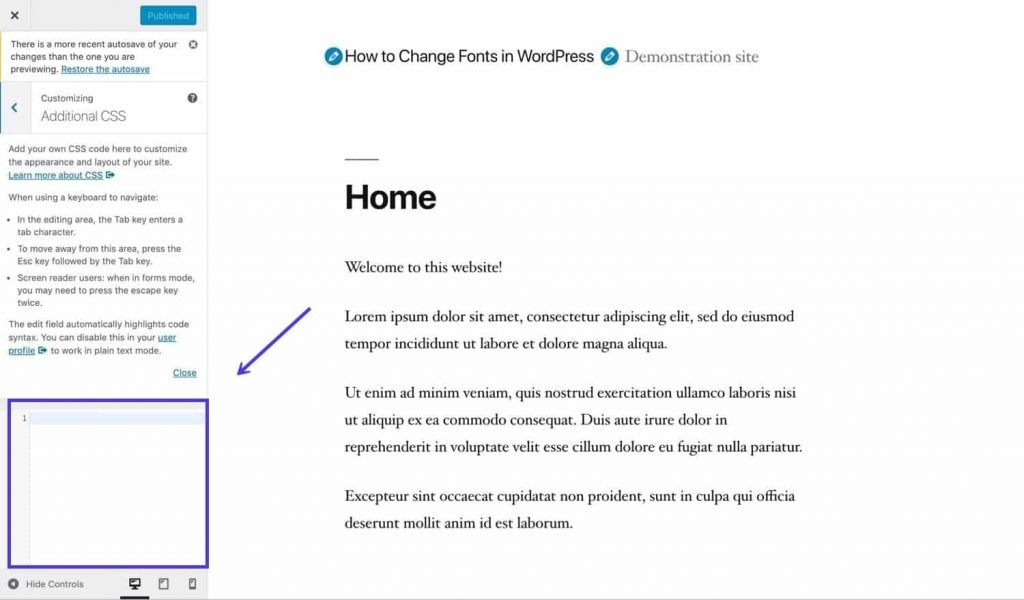
A WordPress change can sit in several places at once. Before choosing Git, a staging tool, or a database import, identify which part of the installation holds the work.
Changing a PHP template is a different operation from editing a homepage with a page builder. The first changes tracked files. The second changes posts, metadata, plugin settings, uploaded images, and generated assets.
That is why a deployment can succeed while part of your change never appears.
| Change | Where it's stored | What to transfer |
|---|---|---|
| Custom theme or plugin code | PHP, templates, CSS, JavaScript, and other tracked files | Deploy the file revisions and account for dependencies |
| Pages, posts, and builder layouts | WordPress database records and associated metadata | Move the content and its relationships |
| Images and other uploads | Filesystem uploads plus attachment records and metadata | Keep the files and their database references |
| Plugin or theme settings | WordPress options, metadata, or plugin-specific storage | Decide which settings go to production |
| Environment configuration | Configuration files, credentials, secrets, and host settings | Use values that fit the destination environment |
Coming from a file-based Laravel and Blade workflow, one developer described the difference on r/Wordpress: “With WordPress, I’ve run into a problem: most of the work (especially with page builders) is stored in the database.”
Start with a small change inventory. For each item, record what changed, where it is stored, what it relies on, and how your release method will carry it.
Take a redesign with a custom PHP template, Advanced Custom Fields (ACF), and a featured image. The template is ready in Git, but the custom-field values, page content, and attachment records are still in the staging database. All of them have to reach production together.
Keep credentials and production secrets out of Git and handle them separately for each environment.
Give local, staging, and production different jobs
Local development is where you build and iterate. Staging is where you test changes against a representative installation, and production serves real visitors and holds the records their activity creates.
WordPress recognizes four environment types through WP_ENVIRONMENT_TYPE: local, development, staging, and production. Its environment API returns production when the setting is absent or invalid, and the WordPress environment-type reference documents those values.
Tools such as @wordpress/env, also called wp-env, provide a local development setup for plugin and theme work. Match staging to production in PHP, theme, plugin, caching, and integration behavior, or your tests prove little.
On r/Wordpress, a developer using a Hostinger VPS with a staging subdomain and live site wrote: “Right now when I make changes on staging (theme edits, plugin configuration, design updates), I’m unsure what the best workflow is to push those changes to production without breaking the live site.”
A staging hostname or the staging environment label does not establish access restrictions, prevent indexing, or disable outgoing email, webhooks, payment activity, and scheduled jobs. Check each of those controls separately, and find any live integrations a copied installation can still contact.
Choose a release method by what must move
Pick the method by what it moves and whether it overwrites anything production must keep. Move version-controlled code separately from live database content. Decide which settings, uploads, and user-generated records are allowed to cross environments.
| Method | Suitable situation | Transfer scope | Avoid when |
|---|---|---|---|
| Git-based release or CI/CD | Tracked custom code with a repeatable build | Selected source files and deployment artifacts | The change exists outside the tracked code |
| Controlled SSH, SFTP, or rsync | Small, identified file changes with server access | Chosen files and directories | The task needs database content or related records |
| Managed-host environment push | Your host has a built-in environment push | Selected files or database. On Kinsta, environment settings are also pushed | The push would overwrite data or configuration production must keep |
| Scoped content or template transfer | Pages, custom fields, or builder content you must publish selectively | Supported content objects and dependencies | The tool does not carry the fields, media, and IDs your pages depend on |
| Full-site copy or database replacement | New, disposable, or frozen and reconciled destination | Broad filesystem and database contents | Production has newer authoritative data that would be lost |
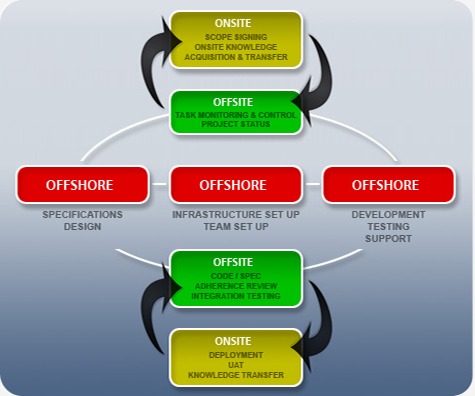
A Git-connected deployment adds review, history, and automation, and GitHub Actions, for example, documents deployment environments, protection rules, and concurrency controls. Database-stored WordPress content still needs a separate transfer process.
For a small code-only correction, a controlled file transfer is enough. You are responsible for choosing the exact files, compatible versions, and destination.
Check what a managed-host push transfers. Kinsta documents that even a selective files or database push also carries environment settings, including redirects, geolocation, PHP and Nginx configuration, overwriting the destination settings.
Record in your change inventory one chosen route, the access it requires, the objects it transfers, and anything it overwrites.
Protect the live database before moving staging changes
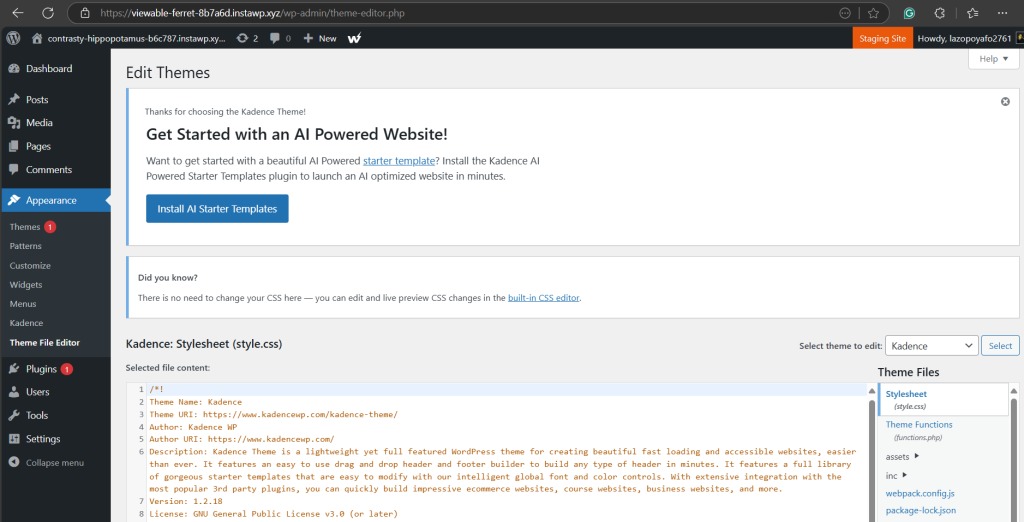
A staging database becomes older than production as soon as the live site begins receiving new activity.
An older staging snapshot therefore holds the desired design and outdated business records at the same time.
Stores and membership sites feel this most. A whole-database push overwrites records created after you copied staging, even when you meant to publish only a theme or layout change.
A WooCommerce operator asked the question directly in an r/Wordpress discussion: “If I make changes to the staging site, is there a way to push changes selectively through a single tool?”
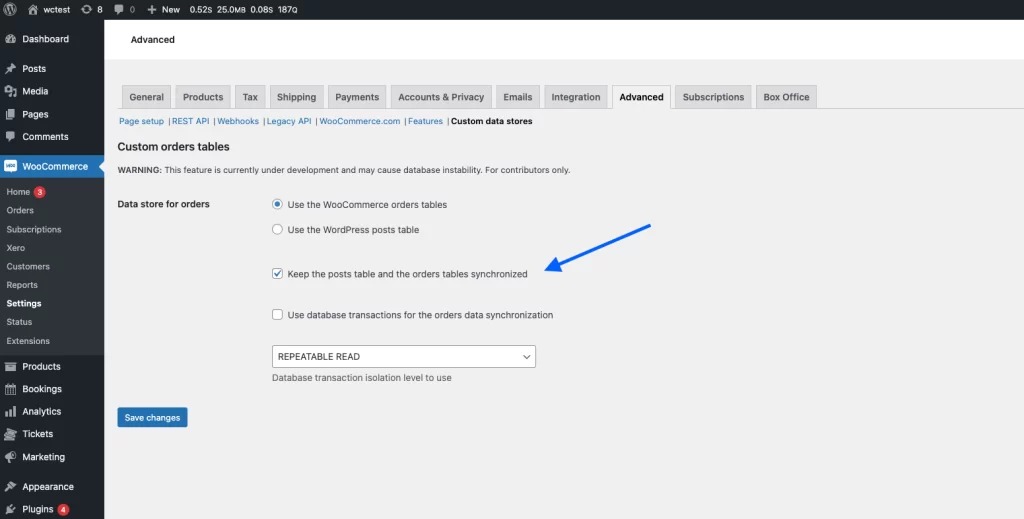
WooCommerce 8.2, released in October 2023, made High-Performance Order Storage (HPOS) the default for new installations. The WooCommerce HPOS documentation identifies order-related tables including _wc_orders, _wc_order_addresses, _wc_order_operational_data, and _wc_orders_meta.
On an existing store, first identify whether the dedicated HPOS tables or the traditional WordPress post tables are the authoritative order store. Compatibility synchronization can leave corresponding records in both structures, and extensions can hold more order-related data. Migrating only wp_posts and wp_postmeta can miss order data.
For the planned release, identify what production has gained since staging was cloned:
- Commerce activity: orders, payment-related data, and inventory changes.
- Accounts: new users, memberships, and account updates.
- Submissions: contact forms, leads, registrations, and other incoming records.
- Editorial changes: published posts, comments, scheduled content, and changed settings.
Write these in your release plan as production data you must not overwrite.
Handle page-builder and custom-field changes as a separate case
For a small set of content changes, publishing drafts on production or using a supported selective content-transfer process gives you more control than replacing a whole staging database.
Imagine a team has rebuilt three landing pages with Elementor, ACF, and new images, and during the redesign the live site keeps collecting Gravity Forms submissions. You release the redesigned content and its dependencies. The existing submissions stay in place. Promoting the PHP theme files would leave some of that work behind.
Identify everything the pages rely on:
- Content objects: the exact posts, pages, or templates to release.
- Custom data: fields, metadata, taxonomies, and related records.
- Media: uploads, attachment records, and references used by the content.
- Generated assets: files or editor-generated output needed for the rendered result.
- Identifiers and relationships: references that need mapping in the destination environment.
Check that the relationships and assets work on the destination before trusting a plugin's claim to move selected pages.
WP-CLI provides a separate tool for one part of this work. Its search-replace command supports serialized values and a --dry-run option for examining changes without saving them.
The command's default scope is based on WordPress-registered database tables, with documented options for broader scope. Search-replace corrects stored strings after a URL change, but it does not select and publish everything a page relies on, and it does not move uploaded files.
Prepare a release with a usable recovery point
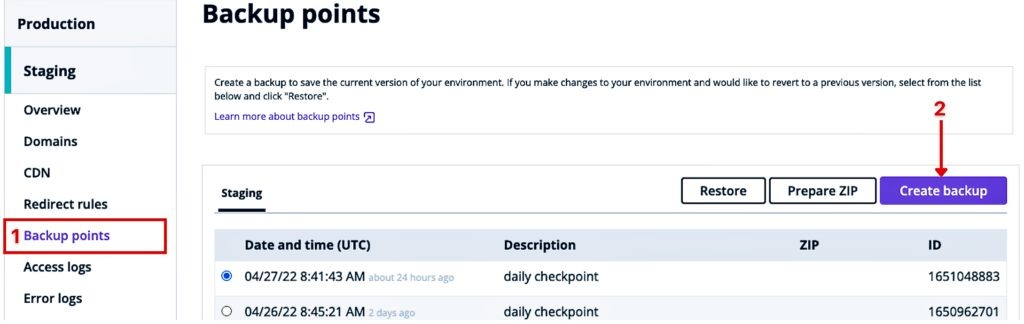
A Git repository, WordPress XML export, database dump, and filesystem backup preserve different kinds of material.
| Artifact | What it preserves | Limits |
|---|---|---|
| Git repository | Tracked source code and its history | Does not capture current live database records or untracked uploads |
| WordPress WXR export | Supported exported content types and related content metadata | Does not provide a full SQL database or filesystem backup |
| SQL/database backup | Database records included in the snapshot | Does not contain theme, plugin, and upload files |
| Filesystem/uploads backup | Captured files and media assets | Does not restore database content or configuration records held in SQL |
| Coordinated database and files backup | The main components needed for typical WordPress site restoration | Check what it restores, whether it is accessible, and whether it is compatible |
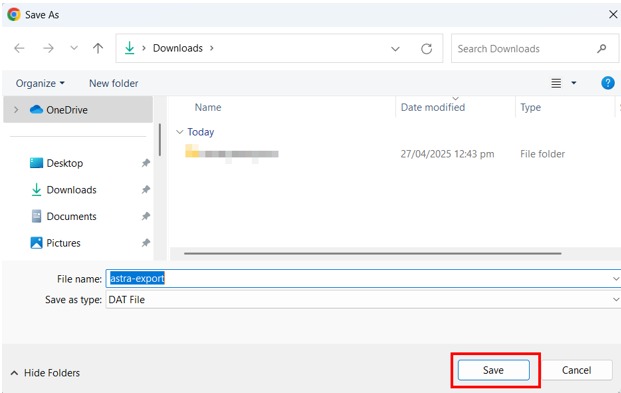
The WordPress dashboard's Tools → Export → All content feature generates a WordPress Extended RSS file, also called WXR. The official Tools Export documentation identifies this as an XML content-export format.
WXR is useful for moving supported content. It is not a complete SQL dump, a copy of every plugin setting, or a full disaster-recovery image.
Before the release, establish one recoverable checkpoint. Identify the database snapshot, the file snapshot, when each was captured, where to restore them, and who performs the restoration.
Backup files don't help if you can't reach the restore route or if the snapshots leave out the data your release changes.
Before a live database write, run it on a safe copy or with a dry run to see what it will change.
Verify the live release, and know what rollback cannot undo
A working homepage is a weak release test when the change affects logged-in users, forms, checkout, media, or background processing.
A focused release check covers:
- Changed pages: the template, content, and layout you released appear at the production URL.
- User access: signed-in and signed-out views work under your caching conditions.
- Forms and transactions: affected submissions or commerce flows work without losing existing records.
- Media and links: uploads load from the correct location, with no unresolved staging references.
- Operational behavior: permissions, scheduled tasks, and integrations work.
- Recorded outcome: record what you checked and the result, for diagnosis if something fails later.
If the release changed tracked code and left the database untouched, deploy an earlier compatible code revision.
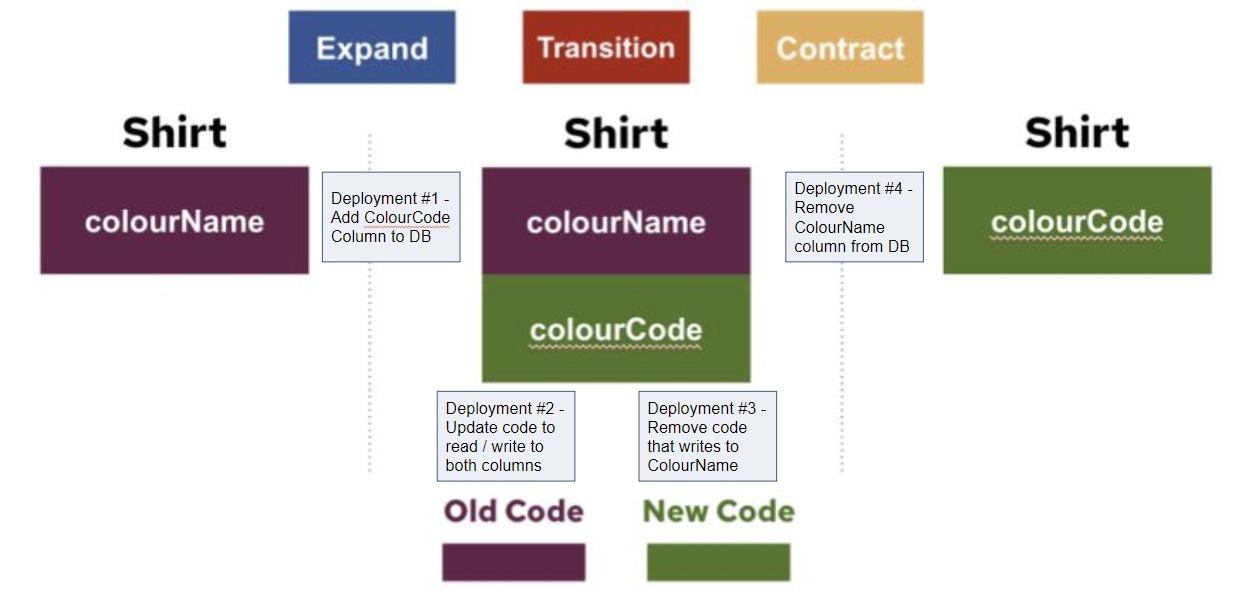
If a release wrote database records, changed a schema, moved uploads, or triggered external actions, reverting the code does not reverse those effects. Restore the affected data, use a compatible earlier snapshot, or repair the changed records, and keep what production recorded after the release.
For example, a theme release breaks a template while checkout keeps accepting orders. Restoring the earlier theme files fixes the template, but replacing the entire database with an older staging copy would put those orders at risk.
If a check fails, find the affected component and what you can restore before making another broad change.
Where to go next
Use the matching specialist instructions for each of these:
wp-config.phpconfiguration, for environment settings- Staging-to-production deployment, for release execution
- Multisite, for network setup
- Whole-site migration
- Backups
- WP-CLI
- Updates
