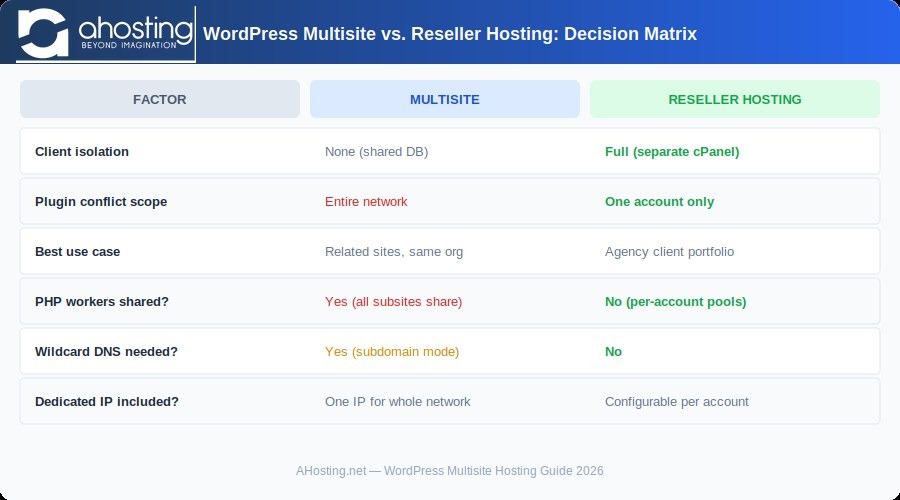
Use Multisite when one team runs several separate websites from one shared WordPress installation, and use separate installations when independent deployment, recovery, or strict security isolation matter more than central control. Multisite centralizes software administration but doesn't automatically share content, products, or orders. Before converting an existing site, check that your host supports the URLs you plan to use and that you can restore both its files and its database, then configure the network and test a real subsite before going live.
Should you use WordPress Multisite or separate installations?
Multisite suits teams that own all their sites and maintain them together.
Say a company runs a corporate website, a training portal, a regional publication, and a knowledge base. The number of domains doesn't matter. What matters is whether the sites should share their WordPress software and administration.
| What you need | Option to consider | Reason |
|---|---|---|
| Different sections, layouts, or access levels within one publication | One WordPress site | One editorial and administrative structure covers all of it. |
| Distinct sites run by one team with coordinated software maintenance | WordPress Multisite | One installation and one network admin fit how the team works. |
| Sites with separate owners, deployment schedules, or recovery requirements | Independent WordPress installations | Each site keeps its own maintenance and restoration process. |
The deciding question is how independent each site must be. Multisite shares the WordPress software and infrastructure.
Separate installations let each site follow its own core-update schedule, administrative arrangements, and recovery procedures. The hosting environment, filesystem permissions, credentials, and other access controls also decide how strongly the sites are separated.
Start by deciding who owns each site, who approves changes, and whether you need to contain an incident on one site without disturbing the others.
What does a Multisite network share, and what stays separate?
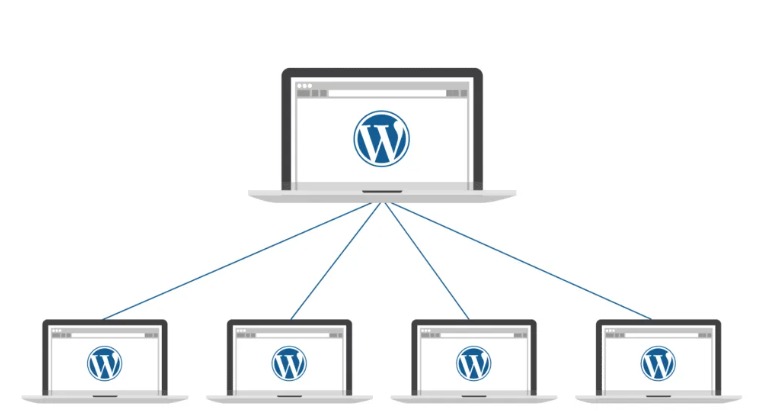
A network shares WordPress core and the installed plugin and theme code. Each subsite has its own content and settings.
| Component | Shared network layer | Individual site layer |
|---|---|---|
| WordPress core | One installation | Every site depends on it. |
| Plugin code | Installed centrally | Activated network-wide or per site. |
| Theme code | Installed centrally | Each site picks from the themes available to it. |
| Posts and pages | No built-in automatic sync | Each site manages its own content. |
| Media | Shared installation infrastructure | Uploads belong to individual sites. |
| Users | Shared network user records | Roles and permissions are set per site. |
Editorial content also stays separate by default. Say you manage regional publications and want two sites to reuse an article while keeping different navigation, translations, or local details. Multisite gives you the sites, but a cross-site publishing workflow needs a separate mechanism.
One user in an r/Wordpress regional content-sharing thread asked, “In a multisite setup, is there a reliable, maintainable way to share content across sites to reduce duplication?”
Will Multisite work for multiple brands or stores with shared data?
Not on its own. Two brands can use different domains within one Multisite network. Mapping a domain doesn't combine products, stock, orders, or editorial content. A retailer running separate wholesale and consumer storefronts off one inventory ledger needs an integration or application architecture designed for that purpose. List the data that must stay in sync before deciding whether a network fits.
Choose subdomains, subdirectories, or mapped domains
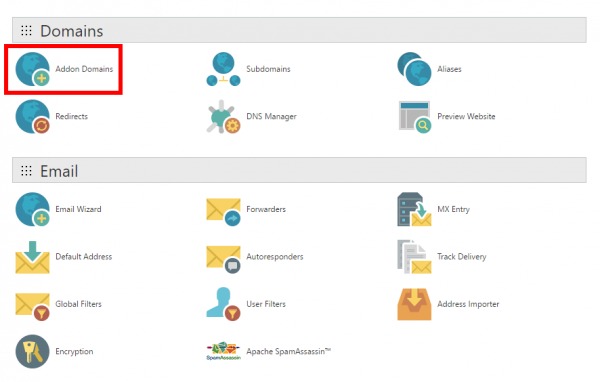
WordPress offers domain-based and path-based networks. Domain mapping also lets a subsite use a separate public domain. Each has different DNS and server-routing requirements.
| Addressing model | Example | Requirement or constraint |
|---|---|---|
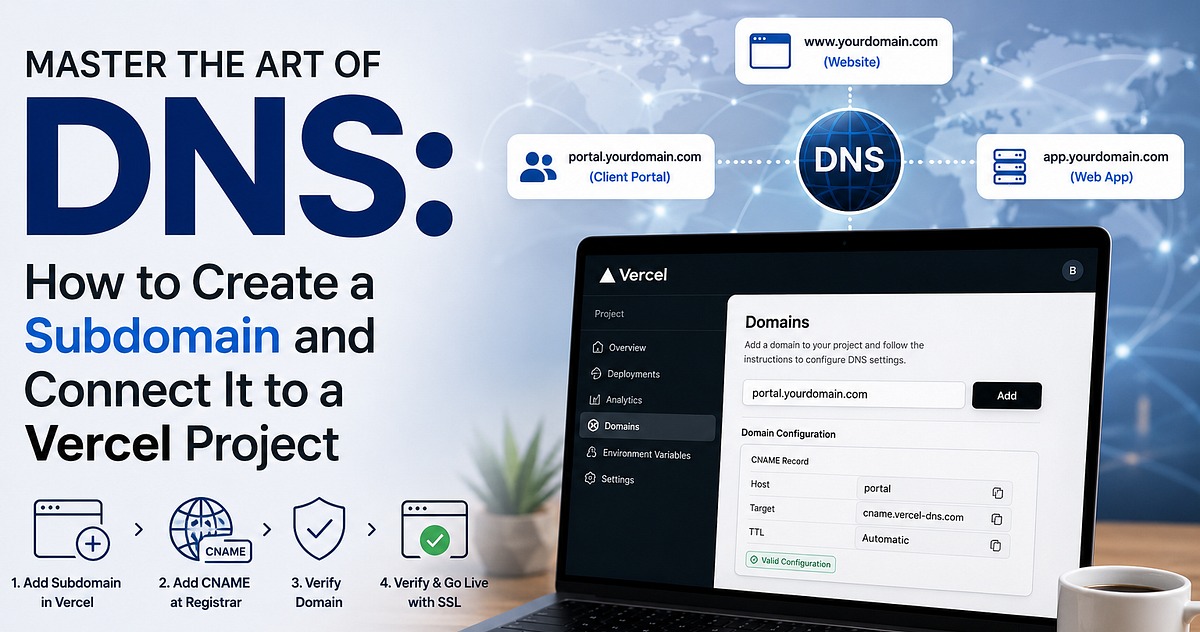
| Subdomain network | blog.example.com | The hostname must reach the WordPress server. Automatically created arbitrary subdomains need wildcard DNS. |
| Subdirectory network | example.com/blog/ | Path rewrites must work, and the path can't clash with existing content. |
| Mapped external domain | regionalbrand.com | DNS, web-server handling, HTTPS, and the site's mapped address must all match. |
When wildcard DNS matters
You need wildcard DNS for on-demand domain-based networks that create arbitrary subdomains automatically. For instance, a provisioning workflow that creates newsite.example.com without anyone adding each name by hand needs a wildcard record.
A small network with individually configured subdomains works with explicit DNS records and matching web-server configuration. The WordPress installer can still show a wildcard test warning when you don't plan to create subdomains automatically.
Existing sites and path-based networks
WordPress restricts the path-based option on an existing install that's more than one month old. Existing content paths can clash with new subsite addresses.
There's also a permalink effect on the main site. In a path-based network, WordPress puts a /blog/ prefix in the main site's post permalink structure. Static page URLs stay directly beneath the main site's address, where their slugs can conflict with planned subsite paths.
Mapped domains and HTTPS
WordPress has supported native Multisite domain mapping since version 4.5. That lets a site use a public address such as regionalbrand.com, provided the network and its infrastructure are configured for it.
WordPress domain mapping doesn't set up external DNS or issue TLS certificates. Each public hostname must resolve to the correct installation, reach the right server configuration, and have HTTPS coverage.
Raw IP addresses and ordinary localhost setups also restrict domain-based networks. A local test that mirrors production needs local hostnames configured.
Choose your initial URL model and note one subsite address you expect to use.
Check your host, DNS, and permalinks before you convert
Work through this checklist before editing WordPress:
- Host support: Ask your host whether it allows Multisite and gives your account the configuration access it needs.
- DNS: Find out who can create or change the hostname records your chosen URLs need.
- HTTPS: Work out how your public names will get certificate coverage.
- Web server: See whether your install uses Apache, Nginx, or a provider-managed routing layer.
- Permalinks: Make sure ordinary WordPress page and post URLs work before converting.
- File access: Find a supported way to edit
wp-config.phpand the server config.
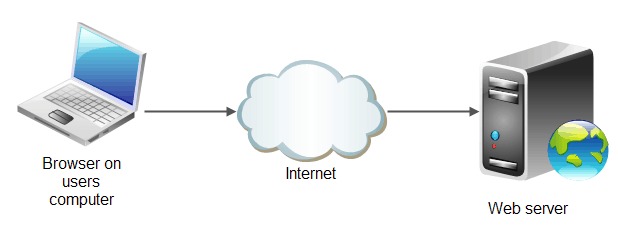
Apache and Nginx need different handling when you activate the network. WordPress gives you installation-specific Apache rewrite instructions for .htaccess. It doesn't generate Nginx config. You'll supply that through your Nginx setup or your host's procedure.
The Cloudways docs describe a provider-managed Multisite workflow. On a self-managed Nginx install, you arrange the server routing yourself. On a managed plan, your host decides the available controls.
If you can't get the hostname, HTTPS, or routing changes you need, fix that before converting a live site.
Make a recoverable backup before changing a live site
A complete WordPress recovery needs both the database and the site's files, because they preserve different information. A WordPress content export alone isn't a full installation backup. Before making the Multisite changes, save the current database and the WordPress files, including themes, plugins, uploads, and configuration. Keep copies of your existing wp-config.php and web-server rewrite settings so you can restore the original configuration.
Plan the restore as part of the backup. A controlled restore test, or a hosting recovery procedure that's already been verified, is stronger evidence than an untested archive.
A whole network is different from one subsite
The difference matters to agencies whose clients can later need independent websites.
One user in an r/ProWordPress subsite-backup thread described the problem: “Full network backups are easy enough. But whenever a client wants to back up or isolate just one specific subsite—or worse, move a subsite out to its own standalone WP install—it turns into a headache.”
A backup of the entire installation doesn't automatically give you a tested selective-subsite restore. Decide whether you need recovery for the whole network, an individual subsite, or both. Then check that your process covers it before changing the install.
Enable WordPress Multisite and create the network
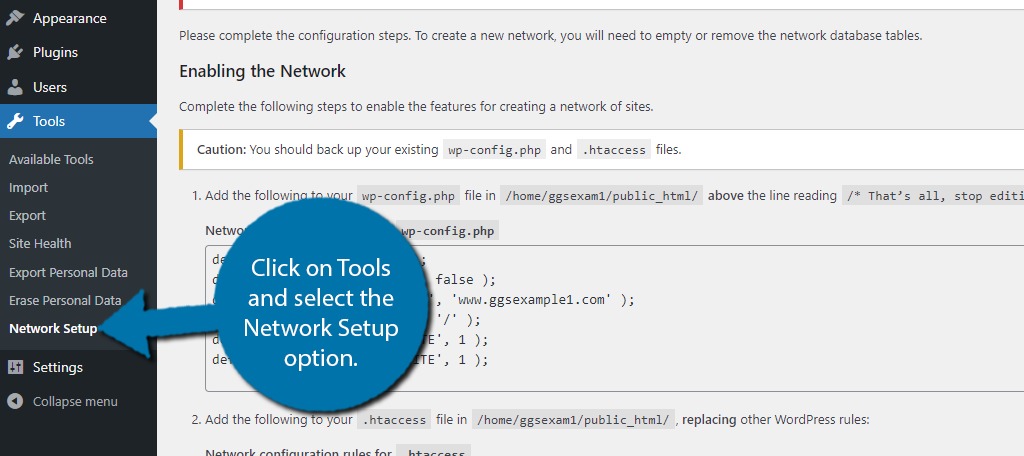
WordPress creates a network through its Network Setup workflow. A configuration constant exposes the setup screen. WordPress then gives you the extra settings, specific to your install, that activate the network.
1. Prepare the installation
Sign in as an admin. Temporarily deactivate your active plugins, as the WordPress network installation procedure directs.
If WordPress needs to move to the directory it'll be served from, do that move before creating the network.
2. Enable network setup in wp-config.php
Edit wp-config.php and add this line above the WordPress stop-editing comment:
define( 'WP_ALLOW_MULTISITE', true );If the stop-editing comment isn't there, place the line before the main require or include statement that loads WordPress.
Save the file, refresh the admin dashboard, and open Tools → Network Setup.
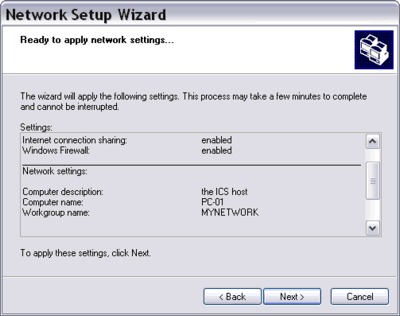
3. Configure the network
Pick one of the addressing options WordPress offers. An existing install can offer fewer choices because of its URL structure and eligibility restrictions.
Review the Network Title and Network Admin E-mail fields, then select Install.
4. Apply the generated configuration
Add the wp-config.php lines with the exact values WordPress generates. On Apache, update the WordPress rewrite section of .htaccess as instructed. Keep any unrelated custom hosting or security directives you still need. On Nginx, apply the Nginx-specific routing setup you settled during the checklist.
Use the lines WordPress generates for your install, not a settings block from an unrelated example.
The WordPress Create a Network guide covers the generated configuration stage and the sign-in procedure that follows.
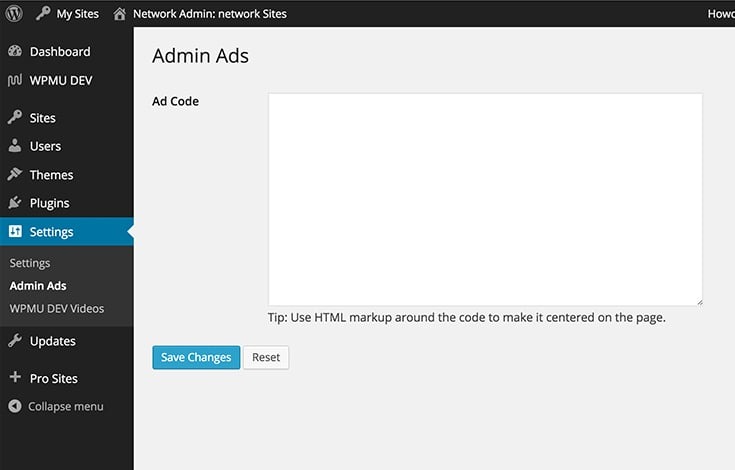
5. Sign in and open network admin
Sign in to WordPress again after you make the changes. Then open My Sites → Network Admin → Dashboard with the account that administers the network.
If Network Admin opens, WordPress has accepted the network settings.
If you work from the command line, WP-CLI's wp core multisite-convert command is an alternative supported conversion route. It doesn't configure external DNS or Nginx routing for you.
Create a subsite and learn what network admin controls
Network administration and subsite administration carry different permissions. A Super Admin controls the network-level software and settings. A site's admins work within the capabilities assigned to that site.
Create a test site
From My Sites → Network Admin → Sites, add a test subsite. Enter the site address and details using the addressing model you've already chosen for the network.
The new site appears in the network's list of sites. Give its admin the right site role.
Plugin installation and activation
Plugin code is installed under network administration. A Super Admin can activate a plugin across the network, or allow site-specific activation when the plugin supports it.
A network setting also controls whether ordinary site admins see the Plugins menu. Under Network Admin → Settings → Network Settings → Menu Settings, the Super Admin can enable that menu.
Site admins can then activate or deactivate eligible plugins for their own sites. That permission doesn't let them install new plugin code.
Theme availability and site selection
A theme installed centrally can be enabled for use within the network.
Set up one plugin and one theme on the test site using the procedures above. For plugin-specific configuration and compatibility, follow the developer's instructions.
Verify the network and diagnose subsite errors
A working Multisite installation serves real requests for the main site and at least one subsite. A site record only shows that WordPress knows about the site. DNS, HTTPS, rewrites, and administrator login each need their own test.
Test the main site and a subsite
| Test | Main site | Test subsite | Passing result |
|---|---|---|---|
| Homepage | Open the home URL | Open the subsite URL | Both load the right page. |
| Inner permalink | Open a post or page | Open a post or page | Both resolve through the configured rewrites. |
| Administrator login | Sign in to the main site | Sign in to the subsite | The right admin area opens. |
| User capabilities | Use an assigned role | Use an assigned role | Allowed actions match the permissions you set. |
| Content creation | Create a test draft | Create a test draft | Each site saves its own content. |
| Media upload | Upload and display media | Upload and display media | Each uses its own upload path. |
| Theme and plugin | Check the active configuration | Check the available configuration | Activation and availability work as set. |
| HTTPS hostname | Open the secure public address | Open the secure public address | Each hostname has TLS coverage. |
For a mapped domain, use its actual public hostname in the subsite column. Test that hostname's login route as well as its public pages.
Find what failed first
- Subsite 404: Check hostname resolution, virtual-host routing, the network settings, and the rewrite rules.
- Inner pages fail but the homepage loads: Look at the permalink and web-server rewrite behavior.
- Repeated login redirects: Compare the configured site addresses, mapped-domain handling, and cookie behavior.
- Network Admin is inaccessible: Check the network configuration and the account's Super Admin privileges.
- Media or plugin operations fail: Check filesystem permissions, site context, and activation scope.
A team described a related staging problem in an r/Wordpress mapped-domain staging thread: “We've been struggling with setting up a staging environment for a multisite network with mapped domain.”
WP-CLI's wp site list lists the network's site records. Open each site in a browser to see whether it loads and works.
Fix each failure and rerun that test.
Plan for shared updates and plugin compatibility

Network administration centralizes software installation and updates, so the sites share common WordPress core, plugin code, and theme code.
A core update applies to the shared installation. A plugin or theme update affects the sites that use it. Configuration and activation scope decide which ones.
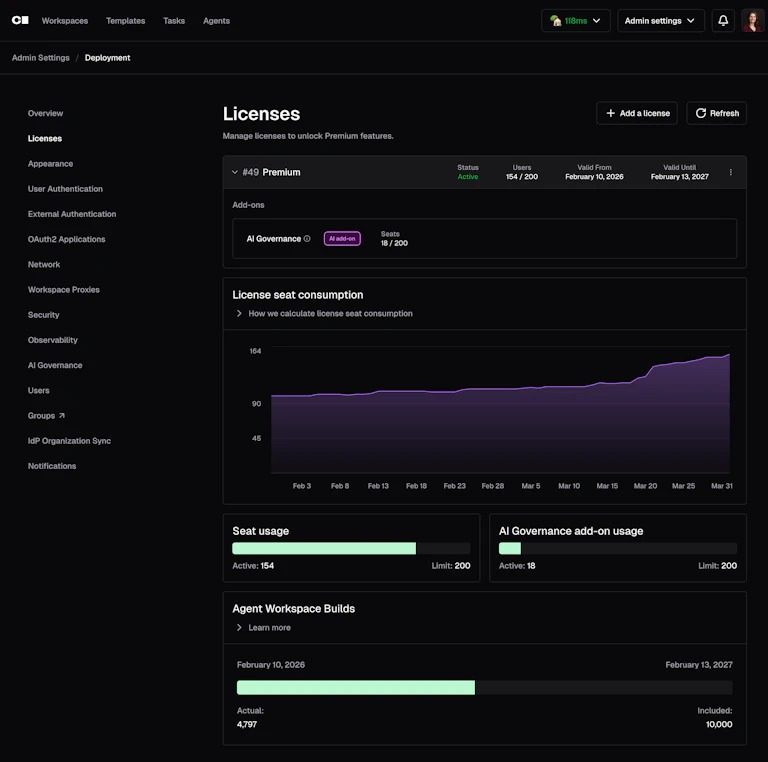
Commercial licensing follows each vendor's terms. Some products count subsites separately, and the WordPress network itself doesn't set a universal license count.
Settle these points before the first shared update:
- Compatibility: Find out which installed extensions support your network and its activation mode.
- License scope: Find out whether the commercial license covers the network, individual sites, or another vendor-defined unit.
- Update approval: Decide who approves changes to shared core, plugin, and theme code.
- Staging: Test major software changes in a nonproduction environment first.
- Recovery: Document how you'd respond if a shared update causes a failure.
What if you need to move a site or change the network later?
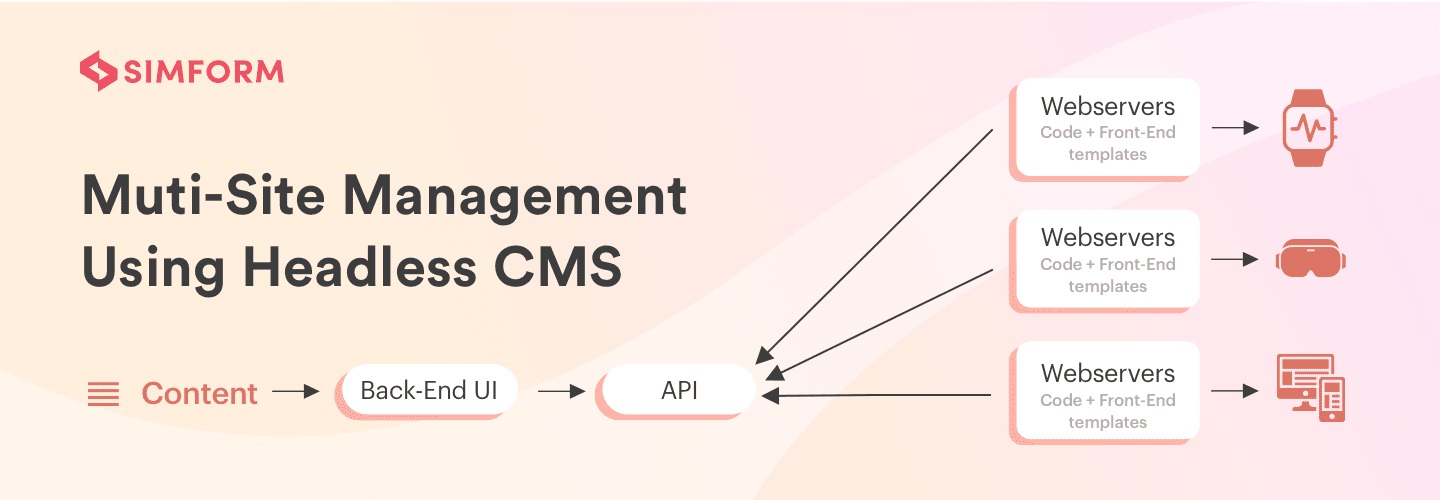
Moving a Multisite network, changing its addressing type, and extracting one subsite aren't the same migration.
Moving the entire network preserves the existing network arrangement at another location. Switching a network between domain-based and path-based addressing changes how requests identify sites within the network.
The WordPress docs call network-type switching an advanced procedure. The SUBDOMAIN_INSTALL constant is only one piece. Stored site addresses, server rewrites, DNS, virtual hosts, TLS certificates, redirects, and cookies can also need coordinated changes.
Extracting one subsite into a standalone installation is its own task. You'll have to separate its content, users, media, installed software, and site-specific settings from the resources that belong to the existing network.
The primary site is a special case. Moving site ID 1 into another network that already has a primary site needs more detailed planning than a routine subsite transfer.
Decide now how you'd move a site out, and work out a staged migration and validation procedure before the need arises.
