Edit wp-config.php on a self-hosted WordPress site you control when the setting you need belongs in that file: find the right installation, save an untouched copy, make one change, then check the PHP syntax and how the site behaves. Use your host's File Manager or SFTP, or SSH and WP-CLI if available. If access is restricted or the restored original still leaves the site broken, investigate the hosting, database, PHP or application before changing more settings.
The file contains the credentials WordPress needs to connect to its database, and a misplaced character can stop the site from loading.
Where to find wp-config.php (and why it can look missing)
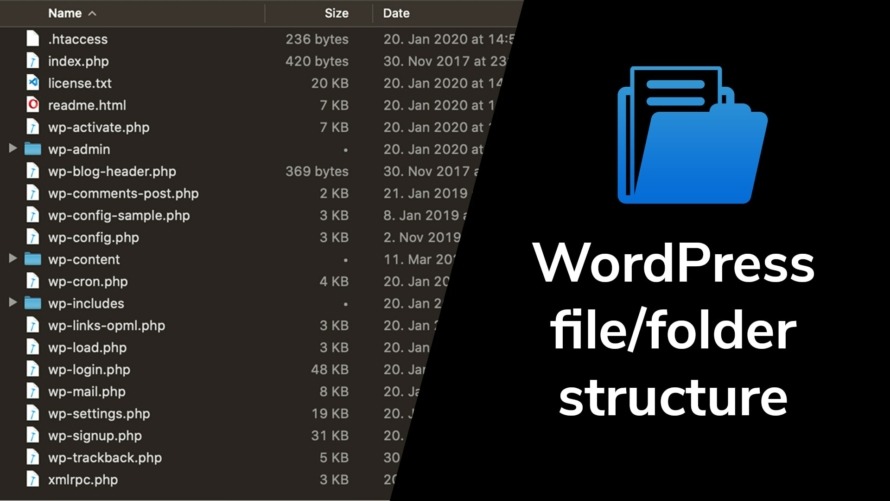
The active wp-config.php sits in your WordPress installation directory, the folder that holds wp-admin, wp-content and wp-includes.
On shared hosting, look inside public_html. Other setups use a domain-specific directory, a subdirectory or a custom application path. Start from your hosting account or server filesystem and find the installation directory of the site you intend to change. If several WordPress installations are present, pick the right one before going on.
If wp-config.php isn't in that directory, look one level above it. WordPress also supports placing the file there.
wp-config-sample.php is a template that ships with WordPress. Finding it doesn't mean you've found your site's configuration, and copying it over a working file discards your connection settings.
With WP-CLI installed, this command prints the configuration path:
wp config pathThe WP-CLI config path reference shows an example result of /home/person/htdocs/project/wp-config.php.
Choose how to access the file
You can edit wp-config.php without signing in to the WordPress dashboard. Pick a method your host allows and you can use reliably.
| Available access | Choose | Best suited to | What you need |
|---|---|---|---|
| Hosting control panel | File Manager | Shared-hosting owner | Hosting login and file access |
| File-transfer credentials | SFTP | Local plain-text editing | SFTP client and credentials |
| Server shell | SSH and terminal editor | VPS administrator | SSH account and file permissions |
| WP-CLI installation | wp config commands |
Command-line maintainer | WP-CLI and correct site context |
File manager or SFTP
In your hosting panel's File Manager, open the directory from the previous section and select the active wp-config.php. Open it with the panel's editor as plain text.
With SFTP, connect with an SFTP client and the credentials your host supplied, then open the active configuration file.
SSH or WP-CLI
On a Linux VPS, an authorized account gets terminal access to the filesystem over SSH. If your account has the permissions the file needs, open it in a terminal editor.
WP-CLI provides a WordPress-specific editor command:
wp config editIt opens the configuration in your system editor. Other wp config subcommands can read or change particular settings without opening the whole file.
One r/Wordpress poster lost access to both the site and the dashboard and wrote, “I can't access my website or WordPress and the host platform isn't showing any issues or getting me anywhere.”
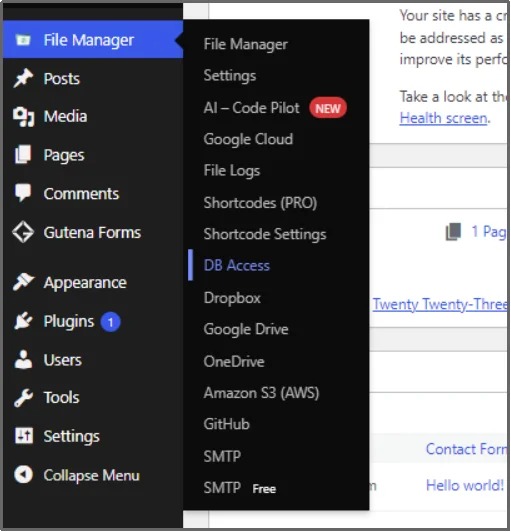
When WordPress won't load, your hosting filesystem can still be reachable. A file-manager plugin that needs a working WordPress installation can't be your only way back in.
Hosts set their own rules. WordPress.com is one example: its support documentation (reviewed on September 21, 2026) describes SFTP access to wp-config.php for Business and Commerce sites, with other core files restricted.
Preserve the working configuration before you change it
Save a readable, unaltered copy of the working wp-config.php before editing it. The file holds your database connection details and authentication secrets, so the copy needs the same care as the original.
- Download the copy to a private location.
- Name it after the site it belongs to.
- Keep it where you can reach it without the WordPress dashboard.
Never leave a downloadable wp-config.php.bak, .old or text copy in a publicly served directory, where its contents expose your credentials.
Make one precise wp-config.php edit
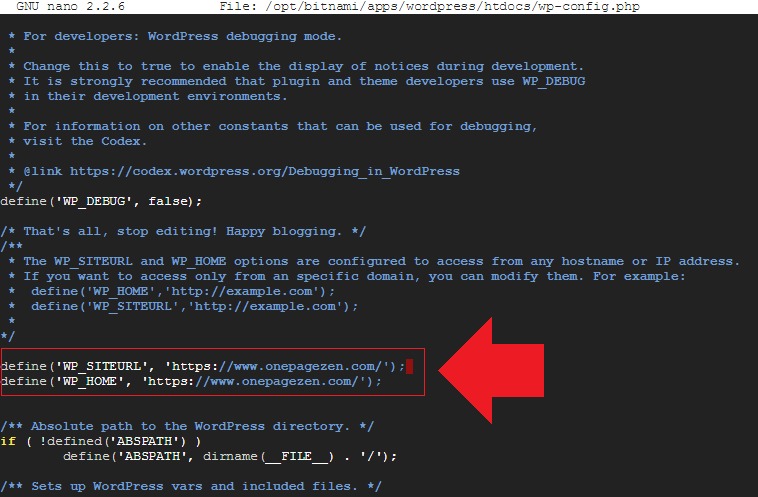
wp-config.php contains PHP code. A typical setting is a statement like this:
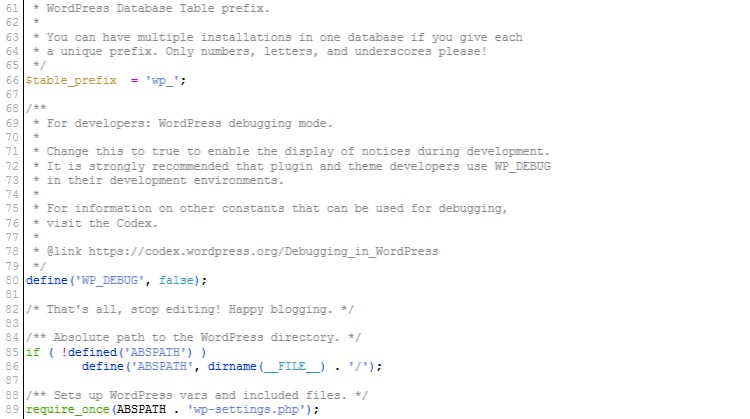
define( 'WP_DEBUG', false );The name identifies the constant, the value sets it, and the semicolon ends the PHP statement.
To turn debugging on for a temporary diagnostic task, replace the existing WP_DEBUG line with this single definition:
define( 'WP_DEBUG', true );Keep only one WP_DEBUG definition in the active configuration.
Most additional configuration constants must be defined before WordPress loads its application code. A standard file contains a bootstrap statement like this:
require_once ABSPATH . 'wp-settings.php';Put a new debugging definition above the “That's all, stop editing!” comment and above that statement. In a custom layout the rule is the same: define the constant before the code that reads it.
Use the correct PHP value type
The definition above uses the Boolean false to disable WordPress debugging. Writing 'false' with quotation marks supplies a nonempty PHP string, which is truthy, so it doesn't disable WP_DEBUG. The same distinction applies to true, 'true', numbers and strings.
If you use WP-CLI, the WP-CLI config set documentation includes this example:
wp config set WP_DEBUG true --rawThe --raw option writes an unquoted PHP value. Without it, wp config set treats the supplied value as a quoted string by default. This command enables WordPress debugging, so run it only when you want that.
With the original saved, keep the file's PHP structure, filename and text encoding as they are. In File Manager, save your edit over the active file. With SFTP, edit a working copy in a plain-text editor and upload it to the original remote path. Leave unrelated settings untouched, including database credentials, authentication salts, keys and the table prefix.
What the common settings do
The problem you're solving decides the right constant, and WordPress configuration controls several distinct parts of site behavior.
| Constant or group | Why someone changes it | What it does not fix |
|---|---|---|
DB_NAME, DB_USER, DB_PASSWORD, DB_HOST |
Match WordPress to database connection settings | Database service outage or missing privileges |
WP_DEBUG, WP_DEBUG_LOG, WP_DEBUG_DISPLAY |
Control debugging, logging and error display | The underlying PHP or plugin error |
WP_HOME, WP_SITEURL |
Override effective WordPress URLs | Stored URLs throughout the database. A runtime override is not a completed migration |
WP_MEMORY_LIMIT |
Set the memory limit WordPress asks for | Limits enforced by PHP or hosting infrastructure |
WP_CACHE |
Work with a compatible caching setup | Missing cache infrastructure or automatic Redis setup |
Database credentials
After a database password is rotated, update the matching WordPress setting.
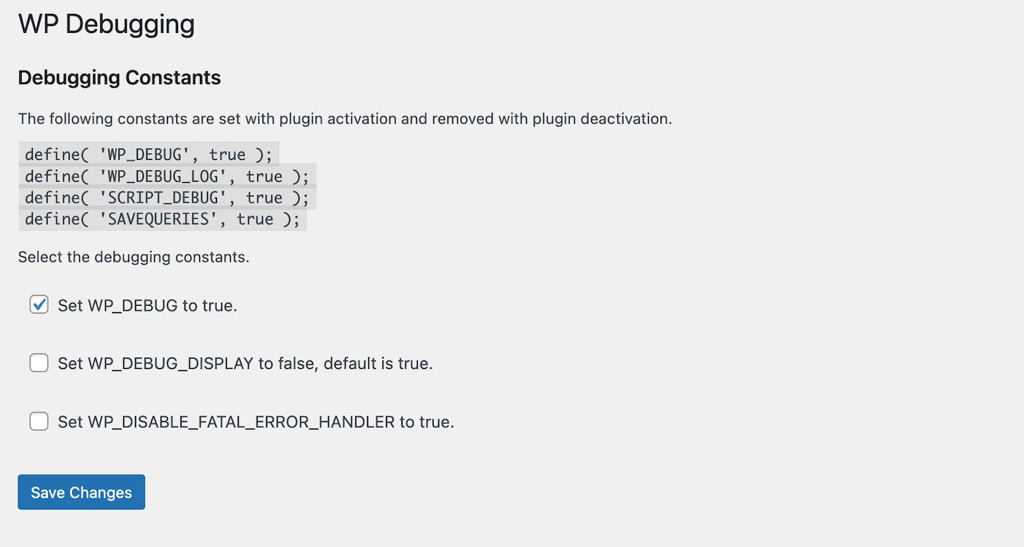
Debugging controls
As the WordPress debugging documentation explains, WP_DEBUG turns WordPress debugging on, WP_DEBUG_LOG controls logging when debugging is on, and WP_DEBUG_DISPLAY controls whether WordPress displays errors.
When enabled and writable, the default WordPress debug log is wp-content/debug.log.
You can configure WordPress debugging to collect diagnostic information without showing warnings to visitors. To suppress displayed PHP errors, also check the host's PHP-level display_errors setting, because WP_DEBUG_DISPLAY alone doesn't necessarily override it.
Caching
According to WordPress, early page-cache integration runs through the advanced-cache.php drop-in. Persistent object caching uses a separate mechanism, and setting WP_CACHE alone does not configure Redis.
Check the syntax, then check the site
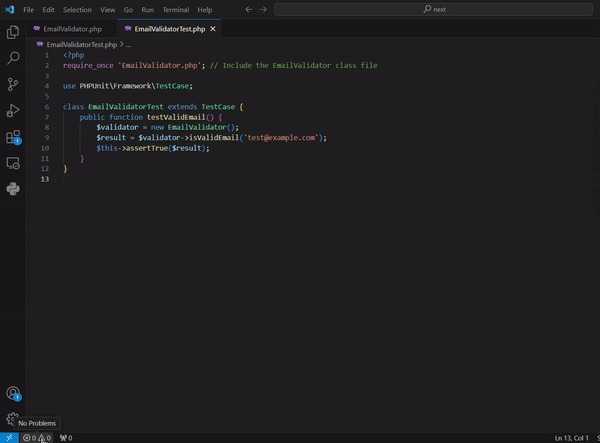
If PHP CLI is available, run its lint option on the edited copy before replacing the live configuration, and keep the original file available for immediate rollback.
php -l /path/to/wp-config.phpReplace the placeholder with your configuration path. A successful check prints “No syntax errors detected.”
According to the PHP command-line manual, -l checks syntax without executing the file.
A missing semicolon fails lint immediately. An incorrect database password can pass the same check while WordPress remains inaccessible.
Some managed hosts don't provide PHP CLI access. On others, the command-line PHP environment differs from the PHP runtime used for web requests.
Confirm the effect on the website
- Syntax result: Run the lint command and note whether it reports valid PHP or a parse error.
- Public site: Load a front-end page and look for HTTP, PHP or database failures.
- Administration or application behavior: Try a non-destructive action related to the changed setting, including dashboard access when appropriate.
- Intended setting: Look for the expected behavior. With debug logging, the setting can be in place before any loggable event has occurred.
WP-CLI can also retrieve a specific nonsecret constant:
wp config get WP_DEBUG --type=constant
One r/Wordpress poster with a critical error on a newly created staging installation wrote, “The main site is working just fine so I'm confused how this can even happen?” Staging can differ from production in PHP configuration, permissions and infrastructure, so a working production site doesn't tell you which difference broke staging.
Restore the original if the edit breaks the site
If the site stops loading after a configuration change, restore the known-good original before making further changes.
Put the saved original back in its original active location under its original filename, using the hosting or server access you already have. That works even when WordPress itself can't start.
What to check for each symptom
- PHP parsing failure: A syntax error you introduced is reason enough to reverse the edit.
- Database connection failure: If the original configuration is back and the error remains, investigate the database service, connectivity and credentials.
- Critical error or blank site: Use the application or server error information to find the failing component.
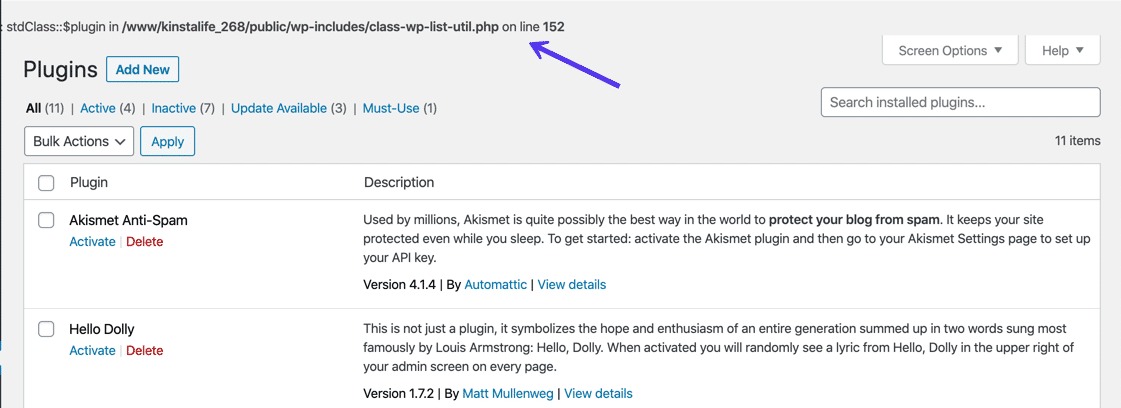
- Permission denied: Determine which file is unreadable and which server identity needs access before changing permissions. A file named in an error trace isn't necessarily the defective one. If PHP reports
Permission deniedwhile arequire_oncestatement tries to load another core file, look at that target file and its permissions.
A WordPress.org Support poster whose site went blank after a memory-related configuration edit eventually wrote, “they pulled some backup files from a snapshot and now back in business.”
Restoring the original wp-config.php reverses the changes to that file only. Database modifications, plugin changes and hosting-level state stay as they are.
Broader recovery needs a separate backup of the WordPress files and the database, or a hosting snapshot. A snapshot restores a larger part of the site's state, files and database data included, and it also rolls back changes made after it was taken.
Protect the configuration and remove temporary diagnostics
Protect both the active wp-config.php and any private copies you keep, using the access controls your hosting environment provides. Don't publish the configuration in a support ticket, repository or screenshot, and keep real passwords, keys and salts out of troubleshooting messages and shared command output.
The filesystem, the hosting account and the identity PHP runs as decide the right ownership and permissions. A blanket chmod 777 weakens protection, and an overly restrictive setting can stop WordPress from reading the file.
Moving wp-config.php above the installation directory is supported in certain configurations, but it isn't an automatic hardening requirement, and your hosting model decides whether it fits.
If you enabled temporary debugging, return the debugging, logging and error-display options to the site's operational policy after the investigation.
Check who can reach the accumulated diagnostic logs and how much storage they use. Disabling browser-visible errors doesn't secure stored log files.
On restricted managed hosting, use the provider's supported file-access and ownership controls. If the host refuses a configuration edit, use its hosting-management route instead of weakening permissions.
