Use a theme for visual changes and a plugin for a feature your site doesn't have. If something is broken, diagnose it and recover first, before installing or switching anything. Then follow the guide for your task or symptom.
A new contact form, an unfamiliar Appearance menu, and a damaged homepage each call for different work. Start with what the site needs.
Find the right plugin or theme guide for your task
| I need to... | First decision | Where to go next |
|---|---|---|
| Change fonts, colors, headers, or layout | Which theme am I using, and how do I edit it? | Theme editing controls |
| Add a contact form, membership feature, or integration | Does my site already do this? | Check existing features |
| Find or install a plugin | Which plugin fits the job and my site? | WordPress.org Manage Plugins guide |
| Install or switch themes | What will switching themes change? | WordPress.org Work with Themes guide |
| Update plugins or themes | Can I get back to the working version? | Recovery checks before updating |
| Fix a broken or unexpectedly changed site | What symptom do I see, and where? | Classify the failure |
| Find out why the site is slow | What can I measure under the same conditions? | Start measuring site speed |
| Choose a backup plugin | What must it back up, and how does it restore? | Backup and restore requirements |
What WordPress themes and plugins control
A WordPress theme shapes presentation: fonts, colors, layout, and templates. A plugin adds or changes what the site does: contact forms, membership features, or integrations. The two overlap. Themes can include functional features, and plugins can change what visitors see.
Before you add a plugin, check what's already there
Describe the missing feature in plain language before naming a plugin. “Visitors need to send an inquiry through a form” is a requirement you can check.
Look at WordPress's built-in features, the active theme, and your installed plugins. Your site can already have the form feature you need, managed from a different part of the dashboard.
Then decide who will change it later. A developer can replace a plugin with custom functions. Your plugin list stays shorter, but your staff then need a developer for routine changes. A maintained plugin with a usable settings screen suits an owner who needs to edit form fields without writing code.
Why theme editing controls look different
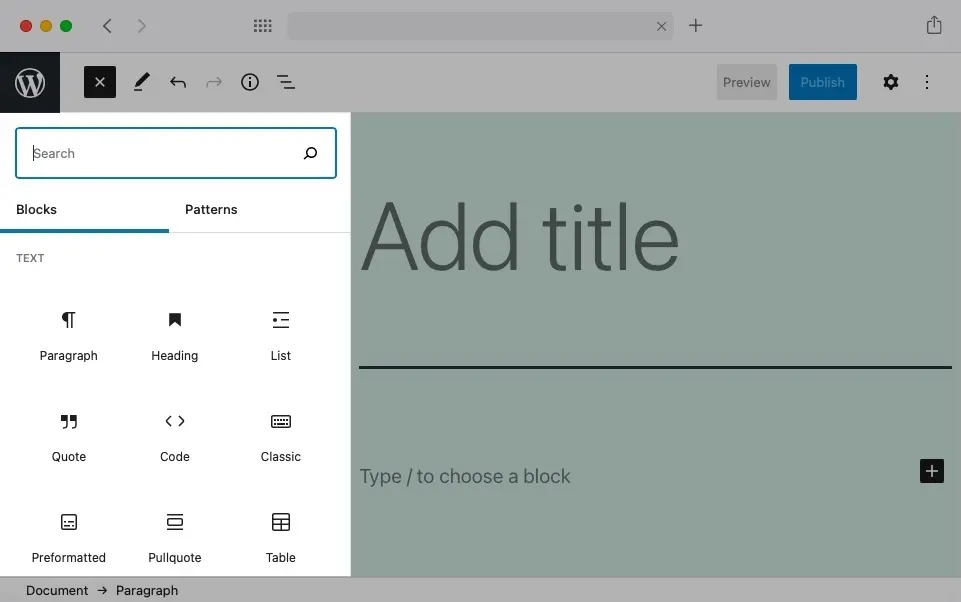
Your active theme decides how you edit the site. With a block theme installed and activated, WordPress provides the Site Editor for site-wide styles, templates, headers, and footers. A classic theme shows the familiar Appearance controls: Customize, Widgets, and Menus.
For a block theme, open Appearance > Editor. Work with navigation menus in the Site Editor's Navigation area. The WordPress.org Site Editor guide covers that interface and the block-theme requirement.
A site administrator in a WordPress.org support thread wrote, “The Appearance Menu on my WordPress dashboard has lost all menu items except for Themes and Editor.”
Before following instructions that mention missing dashboard items, find out which kind of theme you run. Hybrid themes and page builders can add their own controls, so follow your theme's own instructions for the exact interface.
How to evaluate a plugin or theme before installing it
A plugin or theme must solve your problem and work on your site. Check that it does the required job, then check its compatibility, maintenance, support, and ownership before treating a directory listing as a recommendation.
| Check | What to examine |
|---|---|
| Required job | The feature you need, and any overlap with tools you already run |
| Compatibility | Declared WordPress and PHP requirements, testing information, and dependencies |
| Maintenance | Update history and visible development activity |
| Support | Documentation, support channel, and responses to relevant issues |
| Ownership and recovery | Who configures, updates, and can reverse changes |
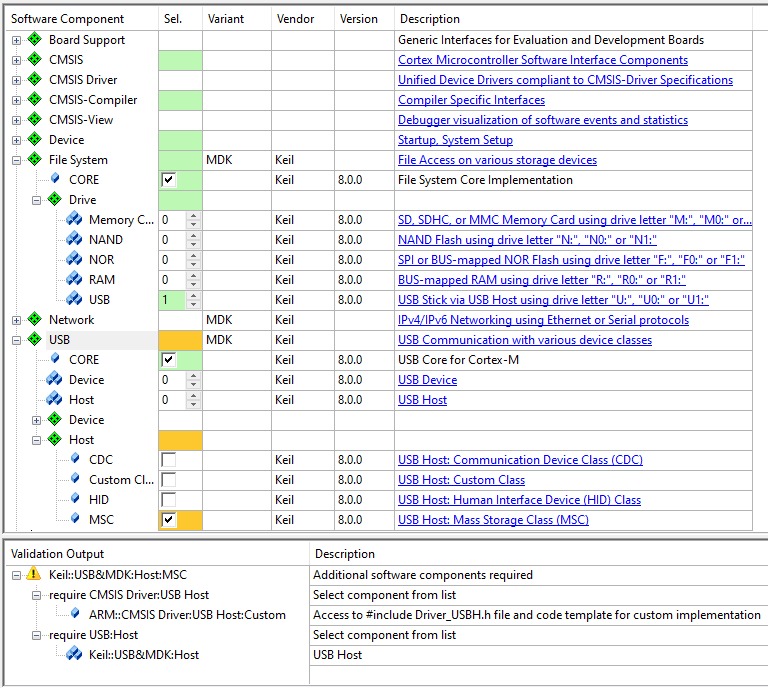
For a plugin in the WordPress.org directory, open Plugins > Add New in the dashboard and read its details. Compare its declared WordPress and PHP requirements and testing status with your site’s setup and dependencies. Reviews and installation totals help you screen plugins. Before choosing one, look up reported security issues and how the developer handled them.
Support is another filter. Ask the plugin or theme developer about product-specific settings and defects, and ask your hosting provider about hosting or environment issues. Don't assume WordPress.com's published support commitments cover an independent host.
Plan plugin updates and theme changes around recovery
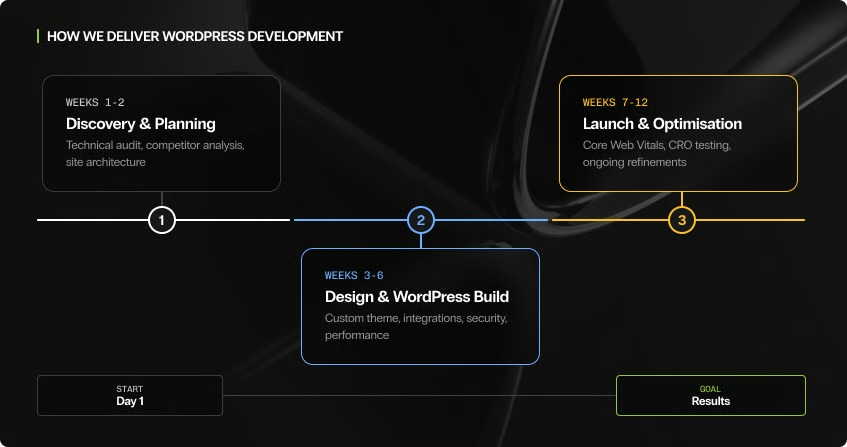
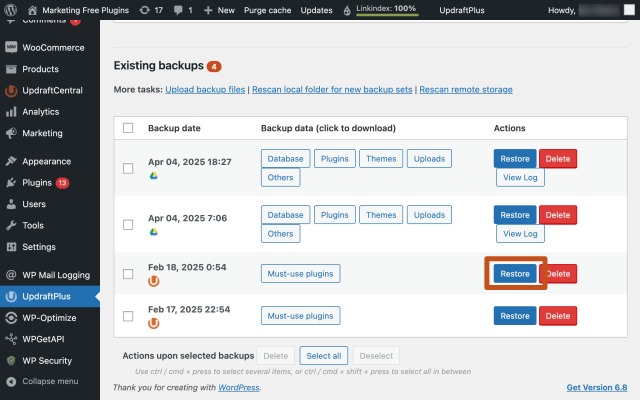
Before an update or a theme switch, plan how you'll get back to the working site. WordPress has individual automatic-update controls for plugins and themes. Keep updates manual and you control the timing, but you must check for them regularly.
Recovery requirement: Having a backup file doesn't prove you can restore it. Test the restore before changing a live site.
Before changing a working site, check four things:
- Coverage: Confirm the backup includes the relevant files, uploaded content, and database data.
- Recovery owner: Know who can restore the site and where the restoration steps are documented.
- Staging test: If you have staging, use it for changes that affect valuable content or business workflows.
- Post-change check: Check public pages, required features, and admin access after the change.
Switching themes changes templates and styling even when your content stays. A style adjustment inside your active theme is the smaller change.
If a plugin or theme breaks the site, diagnose first
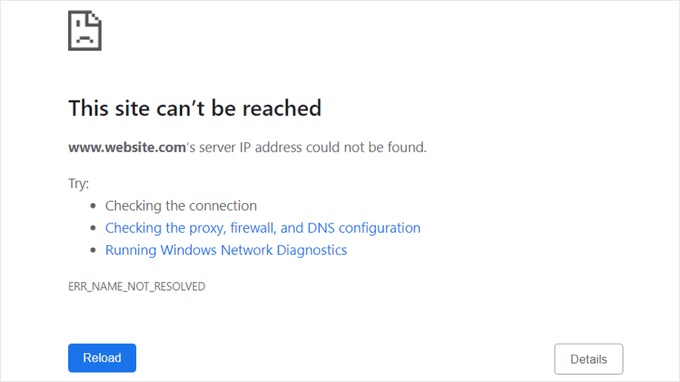
Start with what you can see: the published page looks wrong, a critical-error message appears, a request fails, or you can't open the dashboard.
| Symptom | Where to start |
|---|---|
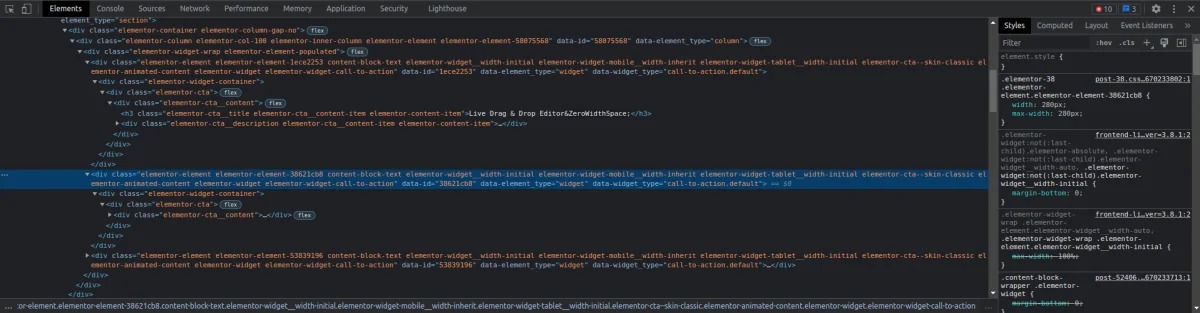
| Broken layout or styling | Check the theme, page builder, and plugins that affect appearance. |
| Blank page or critical-error message | Diagnose the application error and recover. |
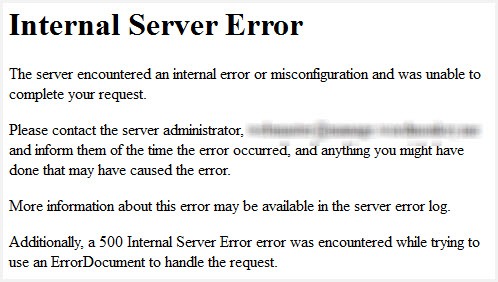
| HTTP 500-class response | Run WordPress and hosting error diagnostics. |
| No dashboard access | Troubleshoot access and recovery. |
Write down the symptom, which pages or interfaces it affects, and what changed last. The timing of an update tells you where to start looking, not which plugin or theme caused the problem.
After an update, a non-developer on r/Wordpress wrote, “My Elementor shows like it's normal and working. But the live site is completely destroyed.” Note when the editor looks fine and the live site doesn't. That detail helps you isolate the failure.
The WordPress Common Errors guide separates critical errors, blank screens, failed upgrades, and other failure types. A suspected plugin conflict needs a controlled conflict test. A server error can need help from your host. If an outage disrupts your business, restore service or call qualified support first.
Don't judge WordPress speed by plugin count alone
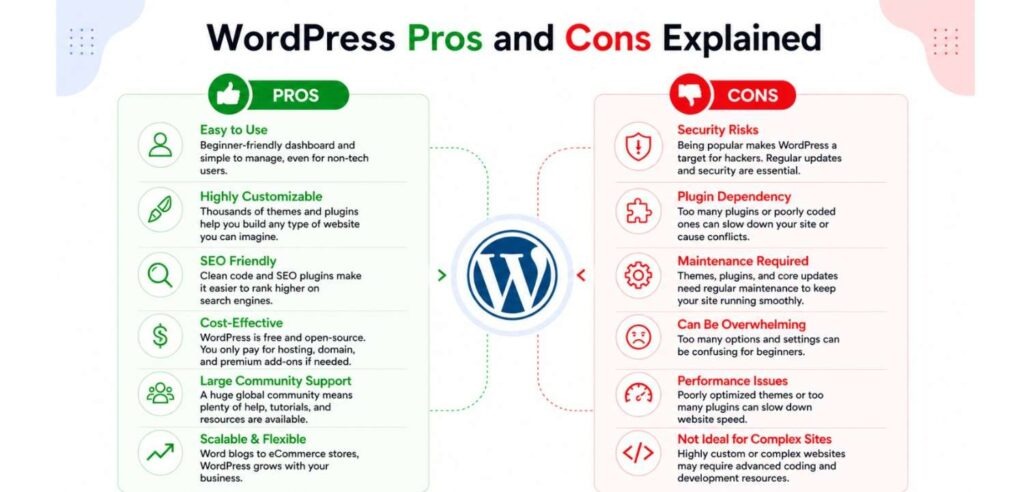
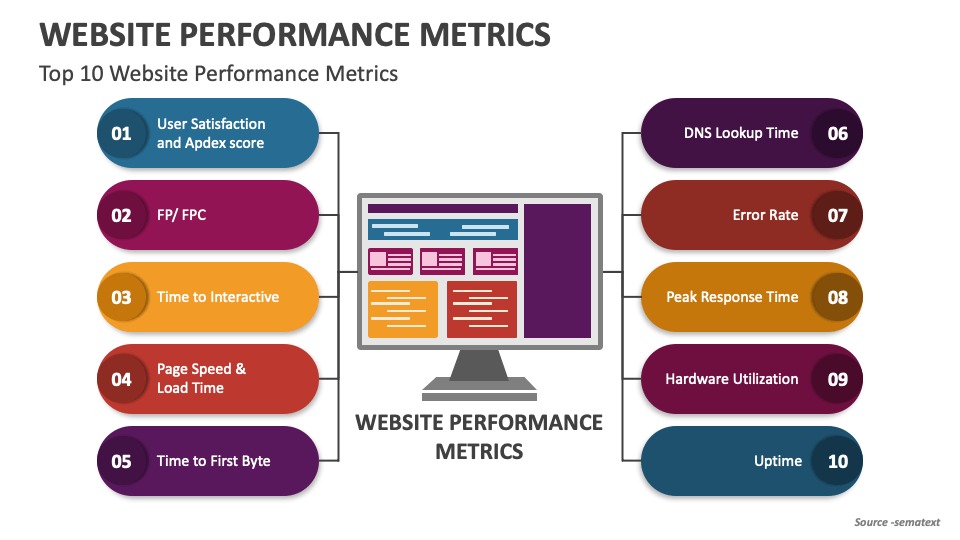
There is no universal number of active plugins that makes a WordPress site fast or slow. The work the plugins do and the site's hosting, caching, database activity, assets, and external requests decide performance.
After removing unnecessary plugins and optimizing images, an owner on r/Wordpress wrote, “Despite this, the site still feels slow, especially on first load. Would really appreciate any suggestions or tools I should check.”
For a slow first load, measure the same representative page several times before and after one change, under the same testing conditions, and compare the results.
When your plugins are necessary, treat them as a trade-off
A store or membership site can need features beyond WordPress core. Payment connections, access controls, forms, and other integrations are each a real business requirement. Removing the plugin removes a feature your business relies on.
A WooCommerce operator on r/Wordpress reported 107 active plugins and 5+ seconds of time to first byte. The operator wrote, “We cannot do this without cutting functionality we see as necessary and important.”
An unused plugin creates maintenance work and meets no current requirement, so remove it. A payment or membership plugin you need has a different role. Judge its cost by the site's measured performance and the work of keeping it running.
