Install and activate the theme with whichever method your setup allows. On a live site, back it up and test the new theme first, then check the homepage, navigation, layouts, and key functions before keeping it. Your posts, pages, and media stay when you switch themes, but the design and theme-specific settings change.
Which installation route fits your WordPress site

Two facts decide your route: where WordPress is hosted and whether the site is already in use. They set which installation controls you can reach and how careful you need to be with the change.
On a self-hosted site, you install themes from the dashboard if your role allows it. WordPress.com has its own theme picker. Uploading a third-party theme there works only if your account's features include it, which the WordPress.com custom theme guide spells out.
Permissions can also hide an install option. With a restricted role, you can't add themes.
| Your situation | Route |
|---|---|
| New self-hosted site, theme listed in the WordPress directory | Dashboard directory installation |
| Downloaded or purchased theme ZIP | Dashboard upload, if permitted |
| Theme already installed on the website | Preview, then activate |
| Established public website | Back up and test first |
| WordPress.com site | Theme Showcase, or Themes in the Default interface |
| Administrator with terminal access | WP-CLI |
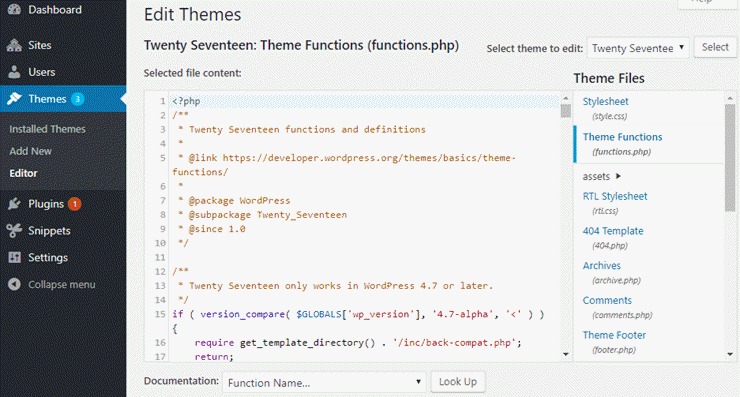
Protect an existing site before switching themes
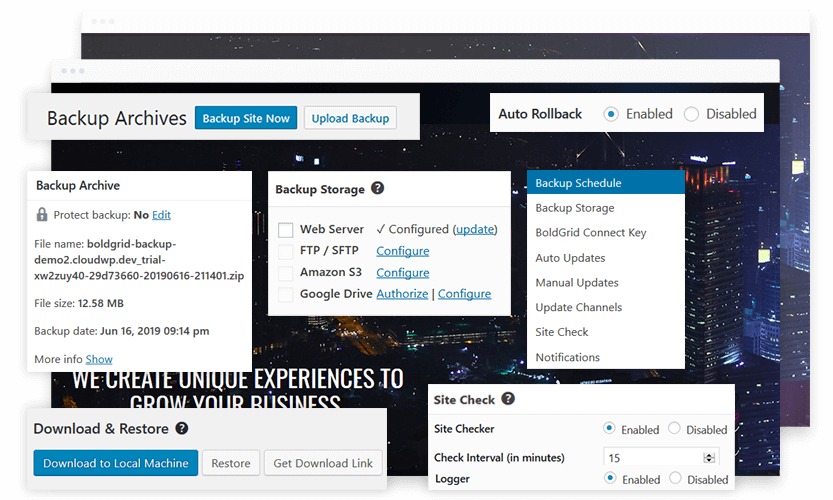
Before changing the theme on a working site, record how it looks and behaves today. You'll compare against that after the switch, and you'll have a way back if something breaks.
Here's what to capture:
- Active theme: Write down its name and any configuration you'll need again.
- Homepage and key pages: Take screenshots of their layout, including any custom home section or sidebar.
- Navigation and widgets: Note where the main menu, footer links, and theme-specific widget areas appear.
- Styling: Find the custom CSS and design changes tied to the current theme.
- Key functions: List the contact forms, store workflows, member access, and other features the site relies on.
A usable WordPress backup includes the site files and the database (details in the WordPress backup handbook). A saved theme ZIP holds only the theme.
Preview a theme to judge its look. On a business site or WooCommerce store, a staging environment also lets you test page layouts, forms, checkout, and account workflows before the public switch.
Before moving staged changes to the live site, check whether the deployment includes the database. Pushing an older staging database can overwrite new production posts, customer accounts, or WooCommerce orders. Keep those changes, or use a selective deployment if your host supports it.
An empty practice blog needs little beyond a sensible backup. A store taking orders needs a staged change and a clear way back.
Keep your backup and notes available until the new design passes the checks.
Install a theme from the WordPress directory
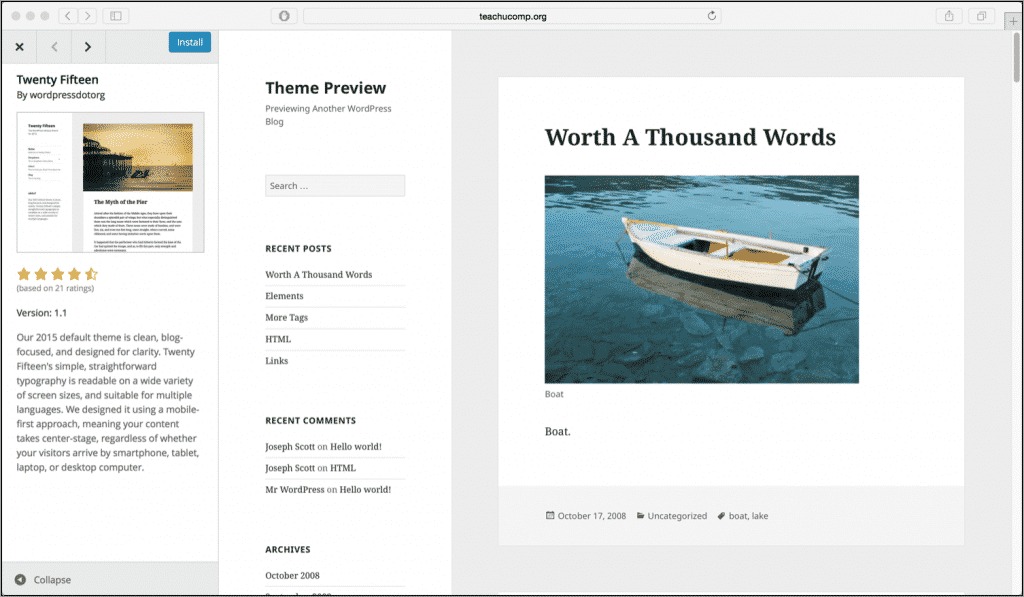
In a self-hosted dashboard with theme-install privileges, open Appearance → Themes → Add New. Search for the theme by name or browse the directory, read its listing, and click Install. When the installation finishes, check that the theme appears among your installed themes.
Theme ZIP uploads, WP-CLI and manual installs
You can install a vendor-supplied theme from the dashboard when your setup permits uploads. A purchase download can hold documentation, plugins, demo assets, and several ZIP files.
To upload from the dashboard:
- Open the theme installer. From
Appearance → Themes → Add New, selectUpload Theme. - Choose the package. Select the ZIP that contains the theme. If the vendor gave you an outer archive, find the installable theme ZIP inside it.
- Run installation. Upload and install the file, then wait for WordPress to report the result.
- Confirm the theme is there. Return to the installed themes screen and find the new theme.
Manual files and WP-CLI
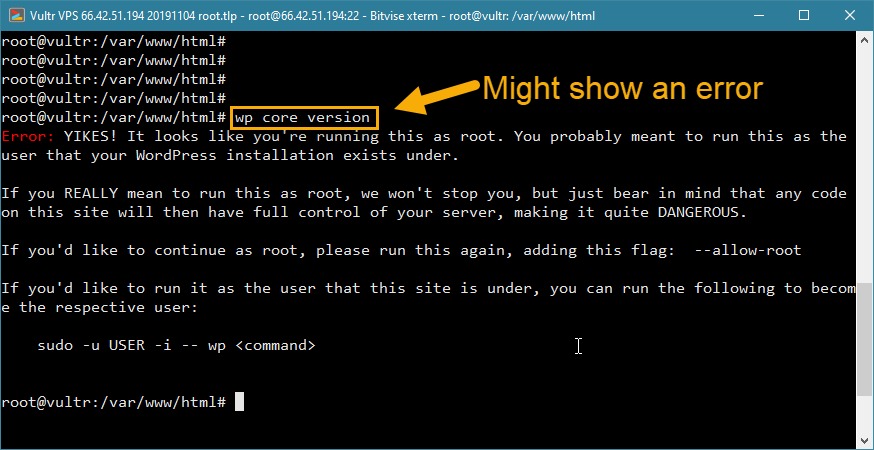
With server access, you can also transfer files manually or use WP-CLI. The dashboard is simpler if you have no server experience.
WP-CLI accepts a theme slug, ZIP file path, or supported URL. Its documentation gives this installation example:
wp theme install twentysixteen
The optional activation flag activates the theme in the same command:
wp theme install twentysixteen --activate
The slug twentysixteen names the example theme in the WP-CLI documentation. Manual file installation places valid theme files inside /wp-content/themes/. Your hosting environment sets filesystem access and ownership, so follow your host's or administrator's instructions.
Activating the theme and finding its editor
Installing a theme puts its files on your site. Activating it makes the theme your site's active design.
On a self-hosted site, open Appearance → Themes, select the installed theme, and use the preview control if you want to look it over. Choose Activate when you're ready to switch.
On WordPress.com, open Appearance → Theme Showcase, or Appearance → Themes in its Default interface. Open the theme's information page and use Activate.
- Active block theme: WordPress provides the Site Editor under
Appearance → Editor, where you work with supported site-wide templates and design elements. - Classic theme: Customization uses the controls the theme supplies, such as
Appearance → Customize. - Hybrid or vendor-specific theme: Some themes combine features or add their own setup controls. Follow the editing workflow in that theme's documentation.
One r/Wordpress poster building a business site wrote: “I've spent days and I just can't figure out this block editor thing. It's driving me insane.”
If you're coming from a classic theme, the biggest adjustment is finding where the layout controls went. A homepage template can be controlled from the Site Editor even when the words and images on an individual page are edited elsewhere.
What stays when you change themes, and what can change
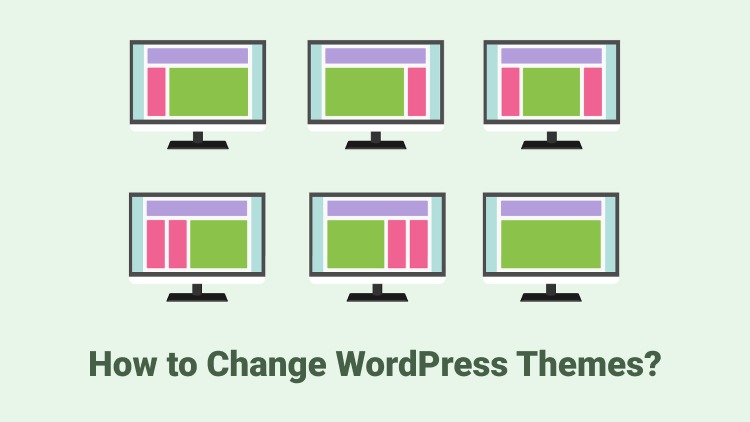
Changing the active theme leaves your posts, pages, and uploaded media in place. The new theme shows that content through its own templates, menu locations, widget areas, and styling. Restoring the old theme doesn't always recreate every display choice automatically.
| Site element | What happens | What to check |
|---|---|---|
| Posts and pages | Content stays in WordPress | Templates and page layout |
| Media library | Uploaded media stays | Image placement and presentation |
| Navigation menus | Menu data stays | Menu locations and layout |
| Widgets and sidebars | Widget setup depends on the theme | Widget areas and placement |
| Custom CSS | Styling is tied to the old theme | Selectors and how it should look |
| Homepage | Page content and settings persist | Active Front Page template |
| WooCommerce presentation | Store content follows its existing setup | Theme-specific product and store templates |
The homepage needs extra attention. WordPress can use a static page as its home, while the active block theme's Front Page template influences what visitors see.

Take a blog that keeps every article but loses its familiar sidebar placement. The old theme supplied that display area, and the new design handles it differently.
Why the installed theme doesn't look like its demo
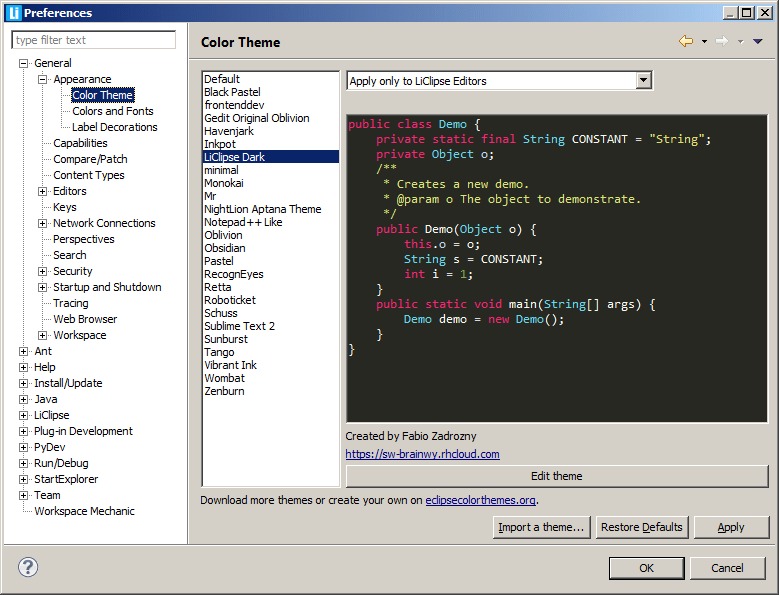
A theme can activate successfully while its homepage looks unlike the vendor's demo. The demo needs extra setup and content.
On r/Wordpress, a beginner described the problem: “I installed a theme and when I activate it, I only see the background applied, but not the full design like in the theme demo.”
Depending on the theme, a demo can use templates, patterns, sample pages, media, homepage settings, companion plugins, or a separate import procedure.
The demo is reproduced once any vendor-specific sample material and the layout steps the preview needs are done.
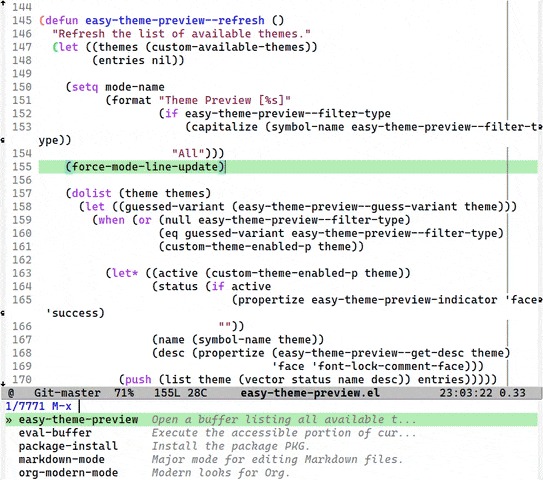
If the result differs from the preview, open that theme's documentation and look for setup, starter-content, or demo-import instructions. Find out which templates and content are already present before applying more changes. A demo import can alter a site's content or configuration.
When the theme ZIP fails or the install options are missing
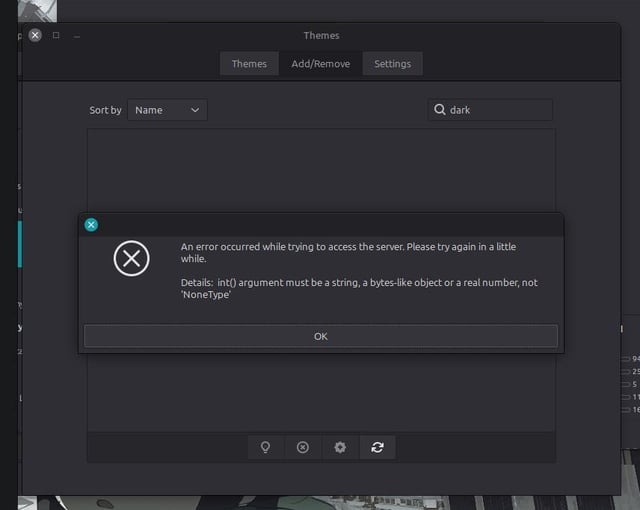
When WordPress rejects a theme package, check the file you uploaded before changing anything else on the site.
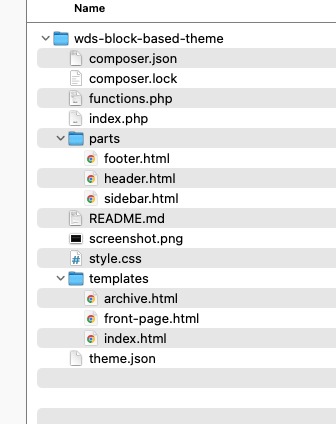
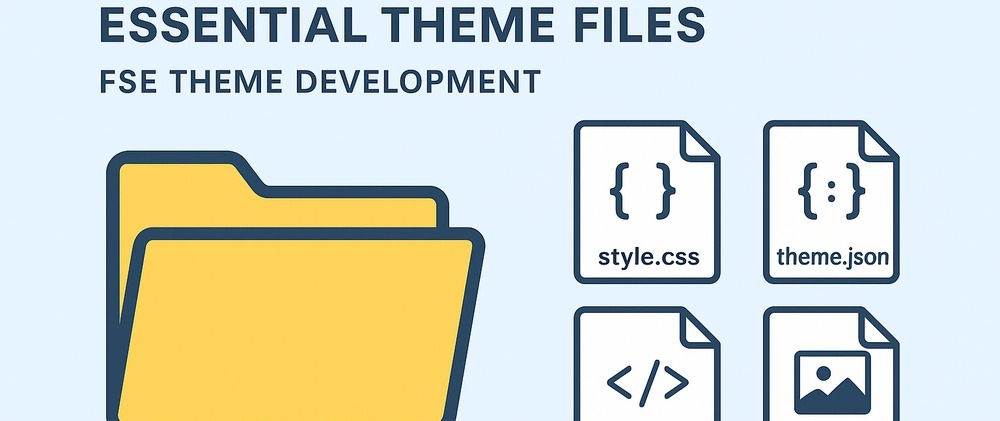
WordPress recognizes a valid theme by its file structure. The theme's main style.css belongs at the theme root and supplies metadata that WordPress uses, as the WordPress theme stylesheet documentation describes.
An r/Wordpress user got this error from the wrong kind of package: “The package could not be installed. The theme is missing the style.css stylesheet.”
That means the ZIP has no style.css at its root, as happens with an outer vendor bundle or a plugin ZIP uploaded as a theme. Find the inner theme ZIP.
If Add New or Upload Theme is missing, check your platform, account role, and Multisite capabilities.
Spectra is a plugin. Spectra One is a theme. Each goes through its own installer, so upload the plugin under Plugins and the theme under Themes.
If the failure persists, follow the WordPress troubleshooting procedure. Blind changes to server permissions or deletions of unrelated files add risk without identifying the package problem.
Check the site after installing or switching themes
After you activate the theme, test it. Open the public site and try its main features. On an established site, compare what you see with the notes you made before the switch.
Quick checks after switching
- Homepage: Open the public homepage and compare its layout, main content, and template with what you wanted.
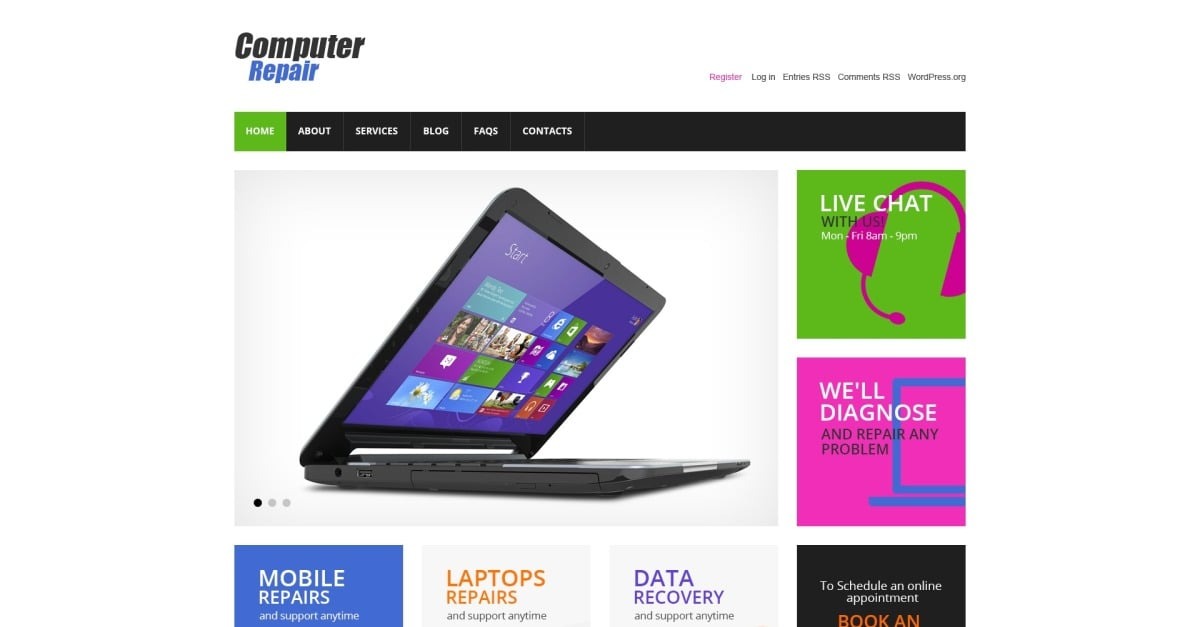
- Internal pages: Open at least one typical article or page. Include a page with an important theme-specific layout if the site has one.
- Navigation: Click through the main menu links and look over the header, footer, and any important widget placement.
- Mobile appearance: View the site at a phone-sized width as well as on desktop, and check the navigation and content arrangement in both.
- Business functions: On a business site, submit a contact form or try another critical visitor interaction.
- Store or member workflows: On a WooCommerce site, test product, cart, and checkout behavior. If the site has member access, test the login or account flow.
For each item, record whether it passes, needs a design adjustment, or is seriously broken. Where staging is available, fix the problems there before carrying the change to the public site.
A moved sidebar can be fine in a redesign. A broken customer contact action or failed checkout changes the decision about keeping the theme.
Going back to the old theme or restoring a backup
If the result isn't acceptable, what changed decides the recovery method.
A new blogger trying Astra, Wabi and Ollie asked r/Wordpress: “Can I not revert back to an old theme?”
Yes, as long as the old theme is still installed.
- Presentation problem: Reactivate the previous theme under
Appearance → Themesto restore its former template and design behavior, including a previous menu location. Its old theme-specific settings can still be there, but later edits and configuration changes mean some details won't match right away. - Files or database also changed: Restore a known-good full backup when an import, configuration change, or file modification affected more than the active theme. Database content changed by a separate demo import comes back only through a backup restore.
- Site no longer accessible: Run a critical-error recovery procedure first. Don't attempt further changes through the unavailable dashboard.
On WordPress.com, a previous homepage can move to Drafts after a theme change. To fix it, open Pages → Drafts and republish the page. Then go to Settings → Reading, select A static page, and assign the published page as your homepage. Click Save Changes.
