Check compatibility and make sure you have a backup you can restore. Test PHP changes, uncertain plugins, and anything involving live customer data on staging first. After updating, test what your visitors use, and stop if a check fails.
Choose an update path that fits your site
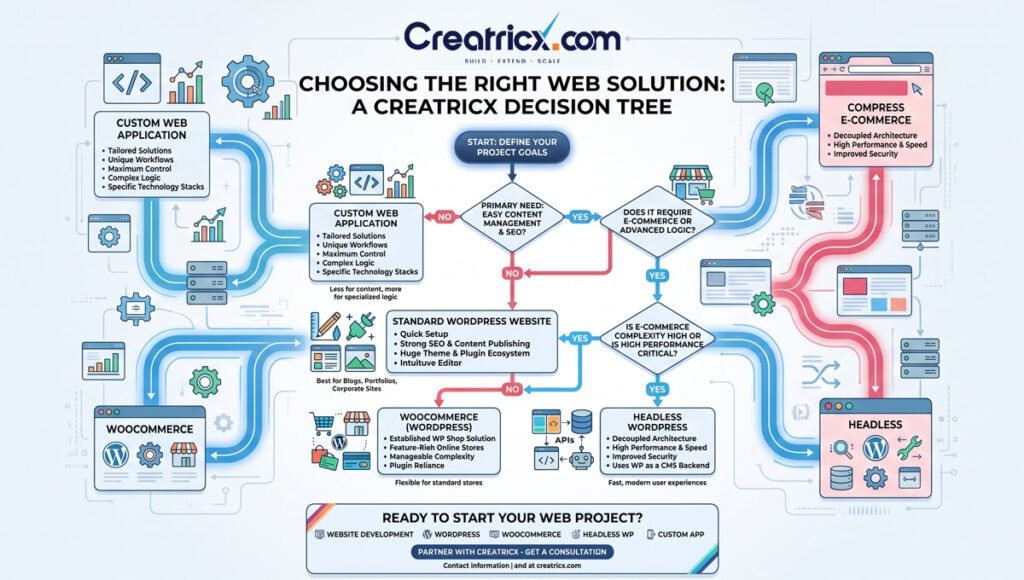
Before you click Update, work out what will change and what a failure would interrupt. A routine plugin update on an informational site needs less preparation than a PHP upgrade on a store that is processing orders. Record which version you will return to if the release fails.
Read the release notes for the component and see whether the update fixes a security issue or is routine maintenance.
| Situation | Update approach | Reason |
|---|---|---|
| Routine, known-compatible component update | Monitored update after basic preparation | Few parts of the site are affected |
| Major WordPress change or multiple dependent updates | Supervised update, with staging when needed | More interactions to test |
| PHP upgrade or aging custom code | Dependency review, then staging before production | Code written for the old PHP version can fail on the new one |
| Store, membership site, or other transactional website | Staging plus a plan to preserve live data | Orders, accounts, and submissions keep arriving |
| Time-sensitive security fix | Prompt patching with a recovery point ready | Waiting also carries risk |
On a brochure site, the contact form can be the most important feature. The plugin that runs it deserves close attention even when its update looks small.
Check compatibility across WordPress, plugins, themes, and PHP

WordPress core, your active plugins, the theme, custom code, PHP, and the database server all have to work together after the change. An update notice only tells you a new release exists. You still have to check whether it fits the rest of your installation.
The WordPress requirements page recommends PHP 8.3 or greater, MariaDB 10.11 or greater or MySQL 8.0 or greater, and HTTPS.
WordPress core's PHP compatibility matrix covers core only. Plugins, themes, and custom PHP code have their own requirements and can fail even when core supports your PHP version.
- WordPress core: Record the installed and proposed versions and read the release notes.
- Plugins: Check each active plugin affected by the change for its version requirements and dependencies.
- Theme and custom code: Look for vendor compatibility statements, direct customizations, and code that relies on older PHP behavior.
- Server stack: Record your PHP and database versions and the versions your host or administrator proposes.
A self-hosted site owner facing a host-driven PHP 8.2 to 8.3 change wrote on r/Wordpress, “I'm not sure where to go from here - I can see that some of the error messages have to do with specific plugins, but I'm not sure what to do about that.”
Error messages that name a plugin, like the ones this owner saw, only tell you where to look, and so does a scanner flag. Compare the reported location with the plugin's or theme's requirements and changelog, then separate deprecation or compatibility warnings from fatal errors you can reproduce. An abandoned commercial theme can need repair or replacement before a runtime change can go ahead.
Hold the production change until you resolve any fatal compatibility problem you have reproduced. Test warnings with unclear effects on staging.
Create a recovery point you can use
Before a production update, secure a recovery point that covers both your files and your database. The WordPress backup documentation treats them as separate components.
A database export without those files can leave the recovered site incomplete. A folder of plugin files cannot restore the database.
- Database: Confirm the backup includes your site's database.
- Files: Include uploads, themes, plugins, and the configuration the installation needs.
- Timestamp, storage, and access: Know when the backup was taken, where it is held, and who can retrieve it.
- Restore path: Know the process and credentials you need to recover the site, and check whether you have ever tested a restore.
The timestamp matters on any site that accepts new data. Restoring an older database can erase orders, contact submissions, registrations, and other records created after the backup. A store restored from yesterday's database needs a separate way to preserve today's orders.
Test risky changes without overwriting live data
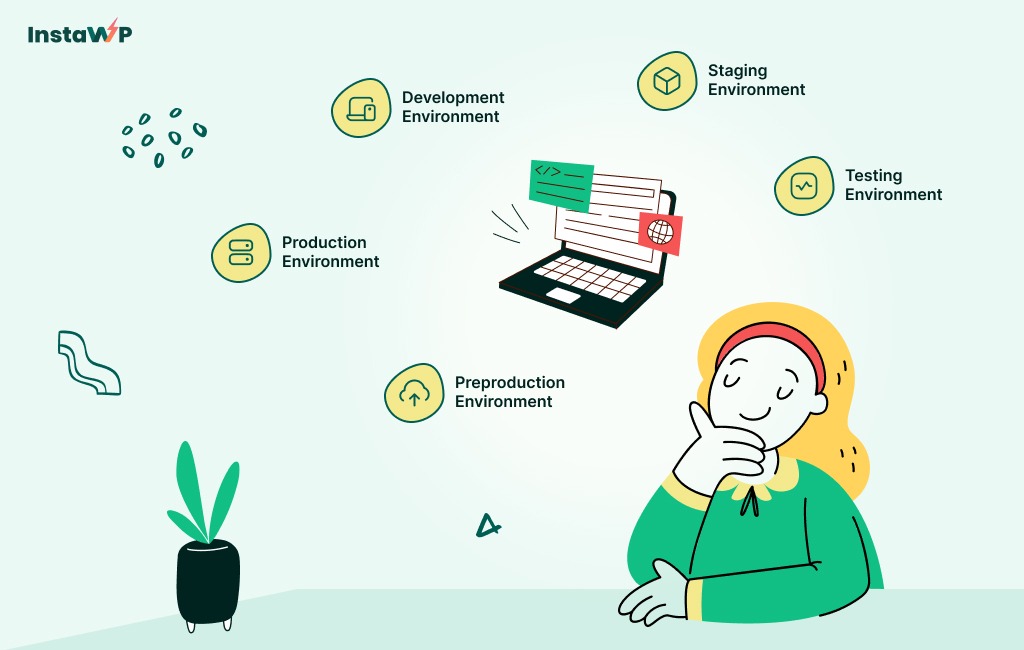
Staging gives you a separate copy of the site for testing uncertain changes.
A Hostinger VPS operator described the setup on r/Wordpress: “I’m running a WordPress site on a Hostinger VPS and currently have a staging environment on a subdomain (staging.domain.com) and the live site on domain.com.”
While you update the staging copy, the live site keeps receiving orders, registrations, and form submissions in its own database. A full database push from staging can replace those newer records with older data. Kinsta documents this risk in its own staging deployment workflow.
| What changed | State involved | Deployment decision |
|---|---|---|
| Plugin, theme, or core files | Application code | Deploy the changed files at the versions you tested |
| Configuration | Files or database options | Find where the changed settings are stored and move them from there |
| Database schema or plugin data | Persistent structure or records | Run the required migration or a controlled transfer |
| Orders, accounts, and submissions | New live production records | Keep everything created since you copied staging |
| Generated output or caches | Environment-specific derived content | Check the output on production after deployment |
A file-only deployment suits a code change that leaves persistent data alone. Some plugin updates also change tables or stored settings, and those need a data migration too.
Update WordPress core, plugins, and themes
WordPress 7.2 Beta 1, released on October 20, 2026, is a testing release meant for testing environments, not for normal stable production updates.
With the checks done and a recovery point in place, apply each update through the supported WordPress dashboard, your host's controls, or WP-CLI. Note which component you changed and whether its updater reported an error.
Use the WordPress dashboard
- Update core: Sign in to
wp-admin, openDashboard → Updates, and use the WordPress update button for the stable release you are installing. - Update a plugin: Open
Plugins → Installed Pluginsand clickUpdate Nownext to any plugin with an update.Dashboard → Updatesalso lists plugin updates. - Update a theme: Open
Appearance → Themes, select the theme, and use its update control. - Complete a database update: If WordPress prompts for a database upgrade after a core update, follow the on-screen action and wait for it to finish.
- Clear caches: If the site uses page or other caches, clear them through your caching controls so later checks show fresh output.
The WordPress updating guide covers the core dashboard flow and the related completion steps.
Let dependencies set the order. A plugin with a stated WordPress version requirement, for example, can need the core update first.
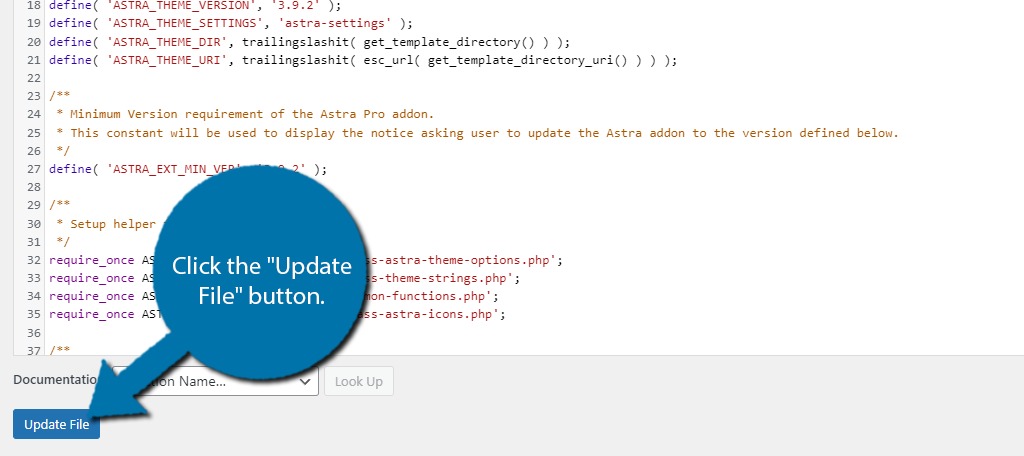
Updates can replace the original software files, so direct edits to WordPress core or to an updated parent theme's files can be lost. Account for those customizations before updating.
Use WP-CLI when you administer the installation
If you have the right access and permissions on the installation, WP-CLI offers matching commands:
- WordPress core:
wp core update - A selected plugin:
wp plugin update <plugin-slug> - A selected theme:
wp theme update <theme-slug>
If a core update requires a database upgrade, run wp core update-db in the target installation.
Handle PHP as a separate server change
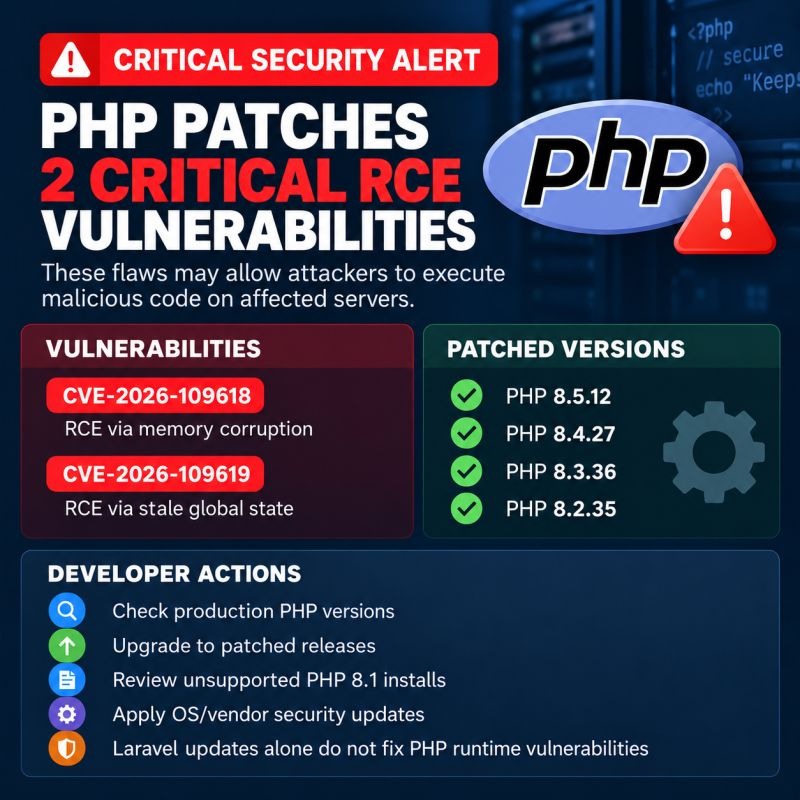
Changing PHP is a hosting or server-administration task. Updating core, plugins, or themes through the dashboard does not change the PHP version your server runs.
Where their requirements allow, bring WordPress core, plugins, and the theme to versions that support the new PHP before switching.
For a PHP 8.2 to 8.3 move, use your compatibility inventory to find the plugins, themes, or custom code that need attention. On managed hosting, look for the PHP selector in the provider's control panel. A self-managed VPS can need a qualified administrator who works with the installed PHP and web services.
Write down the current PHP version and find out how your host supports switching back.
Make the change through the documented hosting or server control, then confirm which PHP version WordPress is running on.
Test what visitors use
An updater can report success while something visitors rely on is broken. Once the updates are done, test the site's actual functions.
On r/Wordpress, a maintainer with two small-business clients wrote, “I've never had a good nor time-efficient method of checking to ensure nothing is broken after a pass of plugin updates.”
A short, repeatable checklist fixes that. Build yours from the features your site actually has:
| Function | What to test | Pass condition |
|---|---|---|
| Public content | Open the homepage and a typical internal page | Content and navigation load as expected |
| Administration | Sign in with an authorized account | The dashboard and the controls you need open |
| Contact or lead capture | Send a safe test form submission | The message or record reaches its destination |
| Customer accounts | Log in or use account functions | The account flow completes |
| Store functions | Run cart and checkout without creating a real charge | Each stage works |
| Updated plugin feature | Use the function the changed plugin provides | The feature behaves as it did before |
| Error signals | Review error messages or logs | No new fatal failure in the flows you checked |

A company brochure site needs its contact form, navigation, and administrator sign-in tested. A WooCommerce store adds cart, checkout, and customer-account paths. Include the updated plugin's central function when the site relies on it.
Record the checks you ran, whether each passed or failed, and the components and versions you changed. A pass covers only the flows you tested, on the day you tested them.
Identify the failure before choosing recovery
If an update fails or a feature breaks, stop making changes until you know which kind of failure you have.
One maintainer working on a live client store posted this on r/Wordpress: “Unfortunately after updating Yoast SEO plugin the website crashed and it returned a white screen.”
A white screen like that belongs in the last row below.
| What you observe | Likely cause | First response |
|---|---|---|
| Update operation remains active | Normal installation or maintenance work | Let it finish and do not interrupt it |
| Maintenance notice persists after the updater stops | Stale .maintenance file | Confirm the updater is inactive, then use the documented maintenance recovery |
| Plugin or theme installation fails | Installer failure that can qualify for supported rollback | Check the update status and the available recovery mechanism |
| Installation finishes but a feature fails | Application regression or compatibility fault | Investigate the affected feature and its errors |
| Site or dashboard becomes inaccessible | Critical error or access problem | Use the administrator and hosting recovery path |
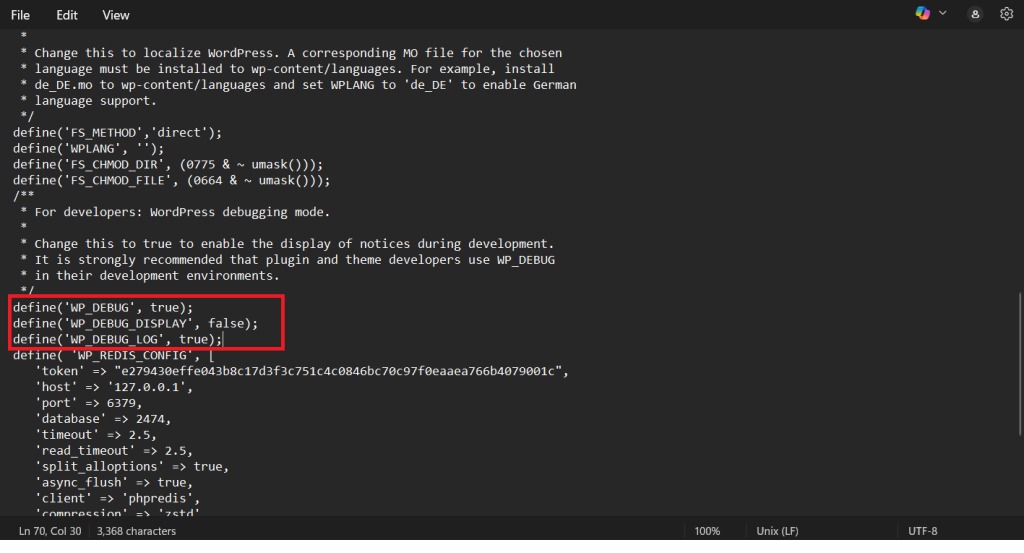
WordPress 6.3 introduced rollback protection for certain failed manual plugin and theme updates. The WordPress 6.3 rollback explanation covers that installation-time protection. It does not cover completed updates that later break functionality, custom-code changes, or persistent database changes.
A “Briefly unavailable for scheduled maintenance” message that won't go away can point to the .maintenance file. Do not remove it or touch update files unless the updater has stopped.
Use the updater's result and any error logs to choose between supported component recovery, targeted troubleshooting, and restoring a complete backup.
Regain access when wp-admin is unavailable
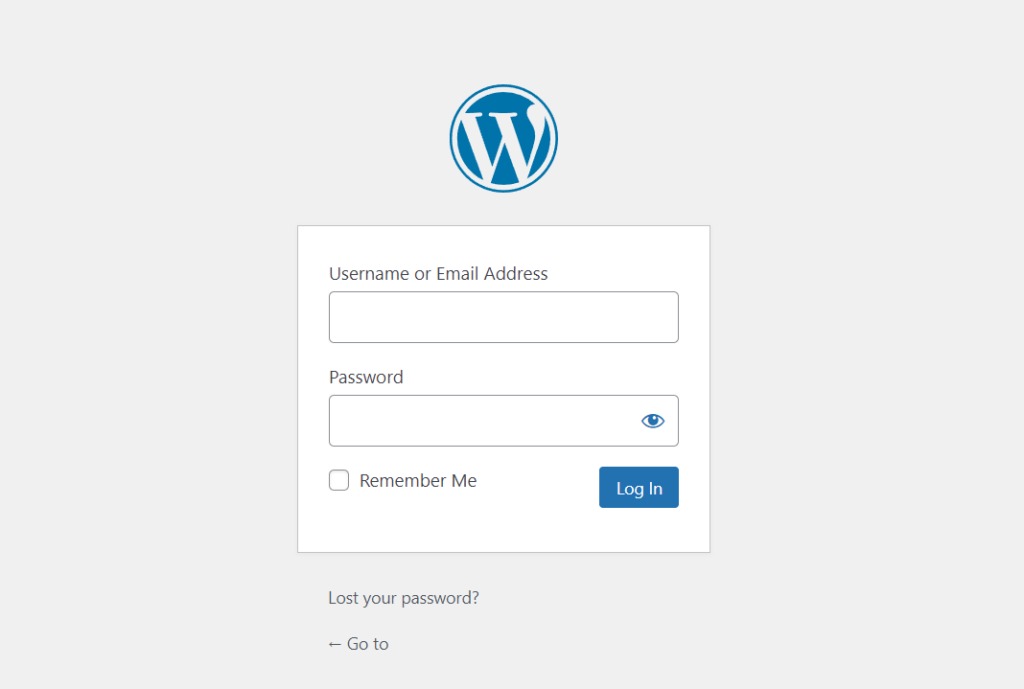
A critical error can lock you out of wp-admin and tell you that recovery instructions went to the site's administrator email. You can lack control over that inbox or the hosting account. Find out who owns the administrator email and the hosting access, follow the recovery instructions or ask hosting support, and give any plugin or theme problem to an authorized administrator for targeted critical-error troubleshooting.
Decide which updates to automate
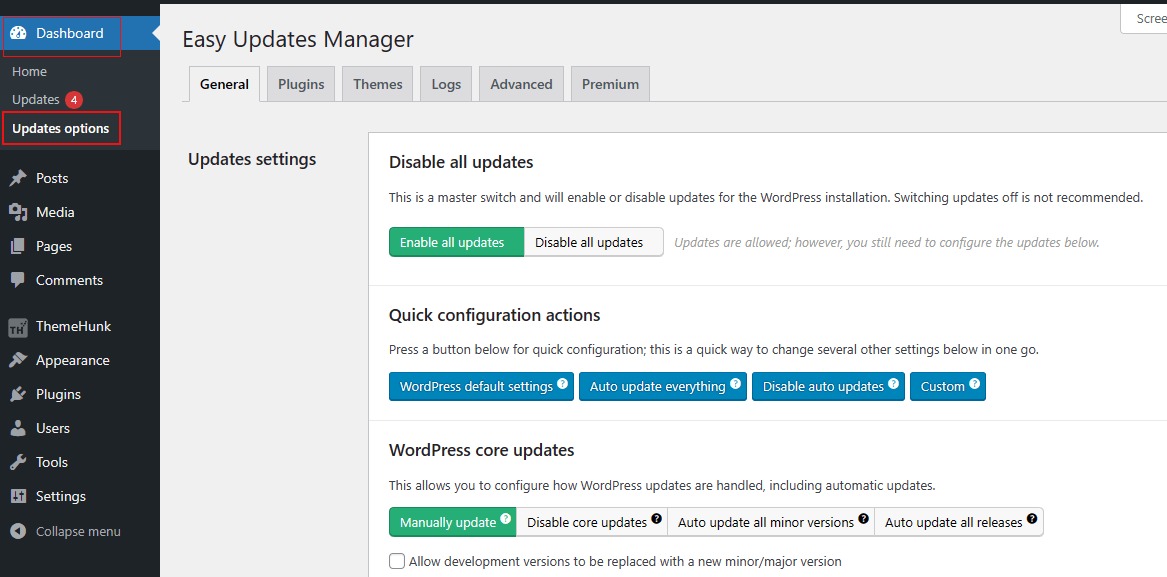
Automatic updates work when the site has dependable recovery and someone can respond to failures. Supervised updates give you more control over staging and the timing of high-stakes changes. Which components are affected, what the business relies on, and how well the site is monitored set the right mix.
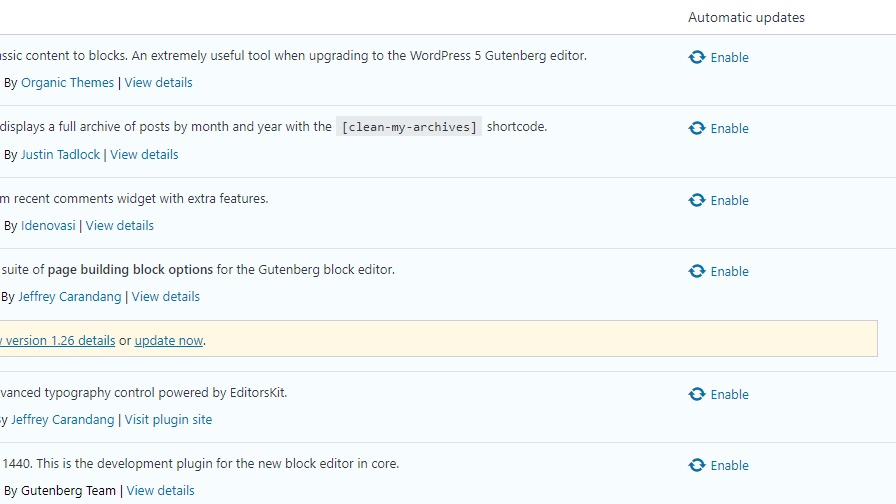
Plugin auto-update controls sit under Plugins → Installed Plugins, where each entry offers Enable auto-updates or the matching disable control. For themes, open Appearance → Themes, select the theme, and use its automatic-update setting.
Your installation's configuration and your host's policy set core update behavior. A managed provider can apply or defer certain WordPress releases through its own controls, so check your host's settings too.
On a simple brochure site with recovery access and monitoring, automated updates cut manual work. A transactional site, or one that runs a plugin you are unsure about, can warrant supervised updates and staging for major releases. Security fixes need prompt attention either way.
- Coverage: Decide which core, plugin, and theme updates run automatically and which you supervise.
- Ownership: Assign a person or team to receive failure notices and respond.
