Check whether the event was scheduled, whether anything ran it, and whether the task finished. Fix the layer that failed. If waiting on visitors causes the delay, move to a monitored server cron job.
A scheduled post can miss its publication time while other WordPress jobs run as expected. A backup plugin can register an event and still produce no backup. WooCommerce can accumulate pending actions while the store's pages stay accessible.
Find the failing task before changing WP-Cron
Open Tools → Site Health and note any scheduled-event warning. For a missed post, compare the scheduled publication time with the site's timezone under Settings → General, then check the post status and the public URL. A stale cache can also make an updated page look unchanged. The presence of an event in WP-CLI does not prove the server invoked it at the intended time.
| What you see | What to check first | Likely cause |
|---|---|---|
One post says Missed Schedule | Post status, scheduled time, timezone | Timing or publishing callback |
| Several events are overdue | Overdue events and what is running them | WP-Cron triggering or server cron job |
| An expected plugin event is absent | Plugin state and list of registered hooks | Event registration |
wp cron test reports disabled | Cron constant and host job | Server cron job setup |
| Manual execution works, automatic execution fails | Loopback response and server cron job logs | Loopback request or server cron job |
| Backup event runs but no file appears | Plugin and PHP logs, expected file | Plugin callback |
| WooCommerce actions pile up | Action status, age, hook, logs | Action Scheduler queue |
Site Health and a Missed Schedule label flag a problem without naming the cause. If unrelated scheduled jobs succeed, inspect the affected task before changing any site-wide setting.
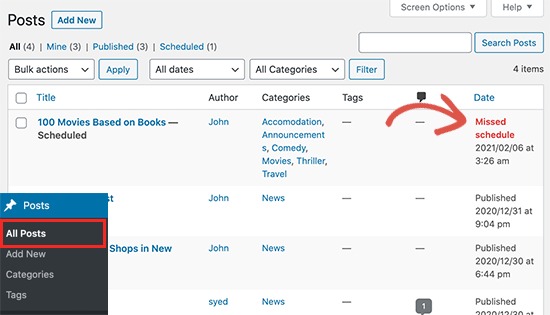
A publisher whose newsletter linked to a scheduled article described the failure in an r/Wordpress discussion: “This morning, our newsletter led to a 404, so I checked and found out that it was scheduled correctly but didn't post.”
Write down the hook or post name, the expected local time and timezone, the warning's exact wording, the visible result, and whether other scheduled jobs work.
How WP-Cron gets triggered and what a server job changes
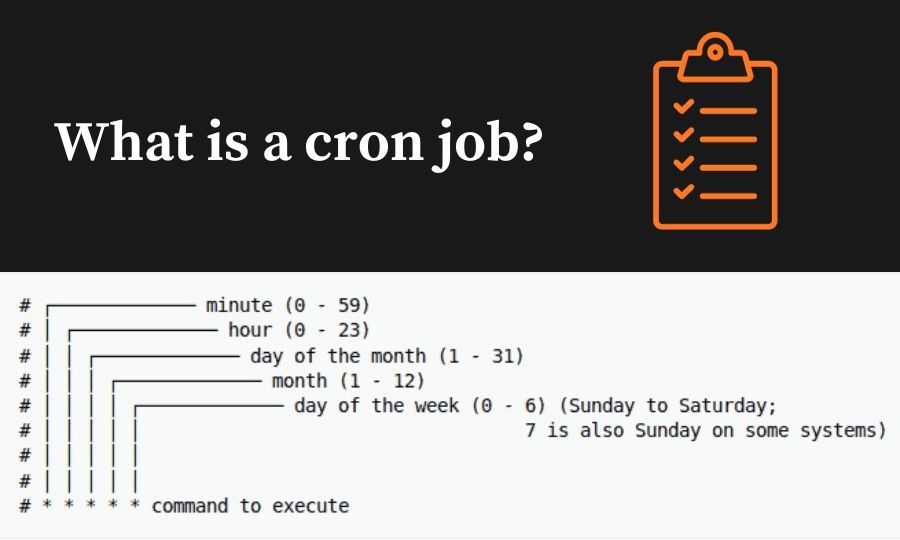
WordPress registers scheduled hooks and checks for due ones when someone loads a page. On a quiet site, due events wait for the next visit. The HTTP spawning path uses a doing_cron transient lock. A server cron job starts the check on a fixed schedule whatever the traffic, but the callback registered for each event still decides whether the task succeeds. WordPress 6.9 moved the ordinary wp_cron() call to shutdown, except when alternate cron is enabled.
Check scheduled events in Site Health, WP Crontrol, or WP-CLI
WordPress can only run a registered event. An event list shows which hooks exist, when they are due and whether they repeat.
For a dashboard view, WP Crontrol 2.0.0 documents Cron → Cron Events, and the earlier Tools → Cron Events route remains available in its documentation. Its expanded event logs are opt-in: enable logging for the event you care about, then look under Cron → Cron Logs.
With SSH and WP-CLI access, run this from the intended WordPress installation:
wp cron event list
The default listing includes the hook, next run time and recurrence. To see arguments and registered actions too, use:
wp cron event list --fields=hook,next_run_gmt,recurrence,args,actions
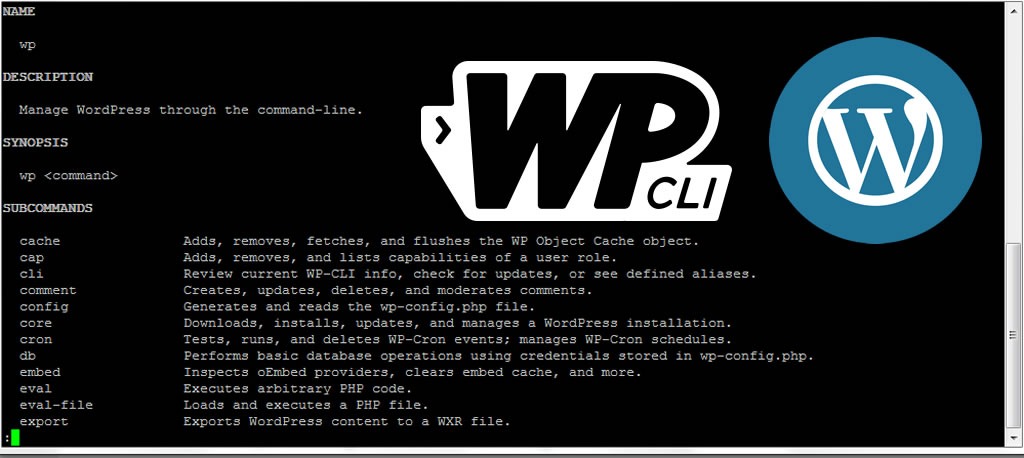
The hook links the event to its callback, and the next run time shows whether the event is overdue. Recurrence tells you if it repeats. Arguments separate instances that share a hook name. Actions list the callbacks registered in the command's execution context.
The list shows what is scheduled and when. It can't tell you whether the task finished.
When the expected event is missing
The plugin can be inactive, or its code can register the hook only under certain conditions. Find which plugin owns the hook before changing anything about how cron runs. Developers can call wp_next_scheduled() to check for an existing hook and argument combination before scheduling recurring work.
When WP Crontrol shows no action
A hook can have no callback in the context where the inspection tool runs, even though the callback loads in another one.
Check DISABLE_WP_CRON and test the actual trigger
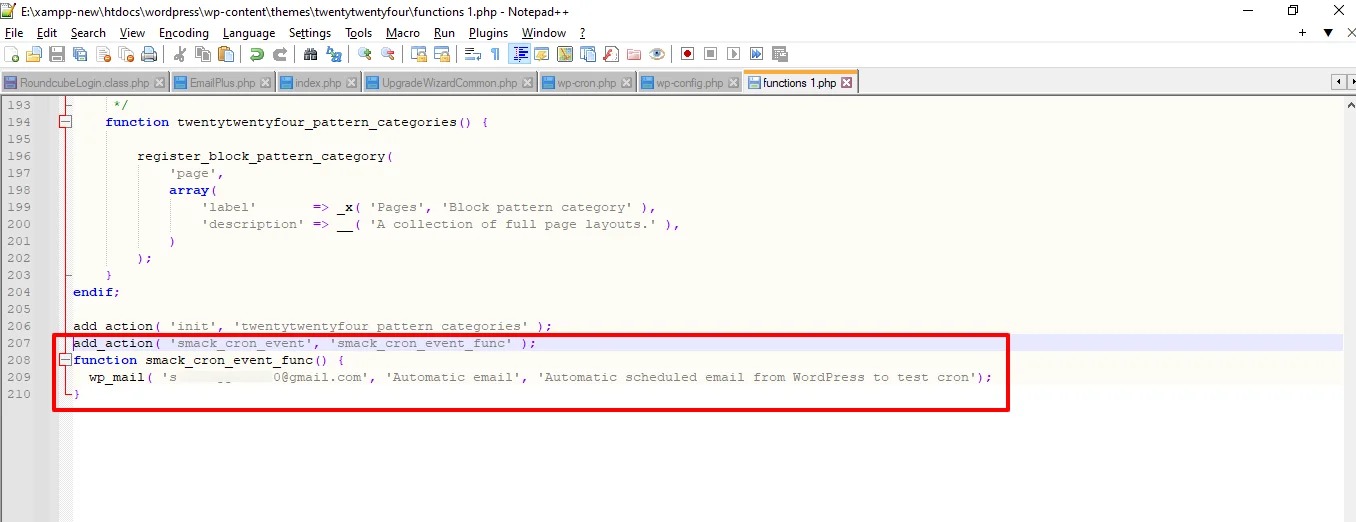
The DISABLE_WP_CRON constant turns off request-triggered spawning.
The line in wp-config.php looks like this:
define('DISABLE_WP_CRON', true);
WP-CLI can test HTTP spawning:
wp cron test
With DISABLE_WP_CRON set to true, the test reports spawning as disabled. That result is normal when a server cron job runs your events, so read it against your own setup.
On a site that relies on page requests, investigate any failure the HTTP test returns. On a site with a server cron job, check the hosting panel or system job: the account it runs under, the WordPress installation or multisite URL it targets, and its execution logs. The job log shows whether the server cron job fired.
ALTERNATE_WP_CRON is a separate mode, so treat it separately from the disabling constant when you work out how your site schedules events.
Trace blocked loopback requests and wp-cron.php HTTP errors
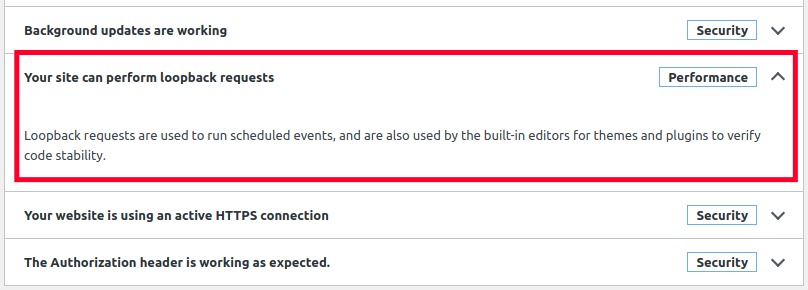
WordPress can start due work with an HTTP request back to its own installation. A blocked or misdirected loopback request breaks that automatic path. WP-CLI takes a different route to the callbacks.
The error code tells you where to start:
| Response | What it means | What to inspect |
|---|---|---|
cURL 6 | DNS resolution failure | DNS resolution of the site's configured hostname |
cURL 7 | Connection failure | Listener, target port, route and firewall |
cURL 28 | Timed-out loopback request | Request timeout and network path |
cURL 35 | SSL connection failure | TLS negotiation and certificate configuration |
HTTP 401 or 403 | Access restriction | Authentication, WAF and access-control logs |
HTTP 404 | Missing or inaccessible cron endpoint | Effective request URL and wp-cron.php path |
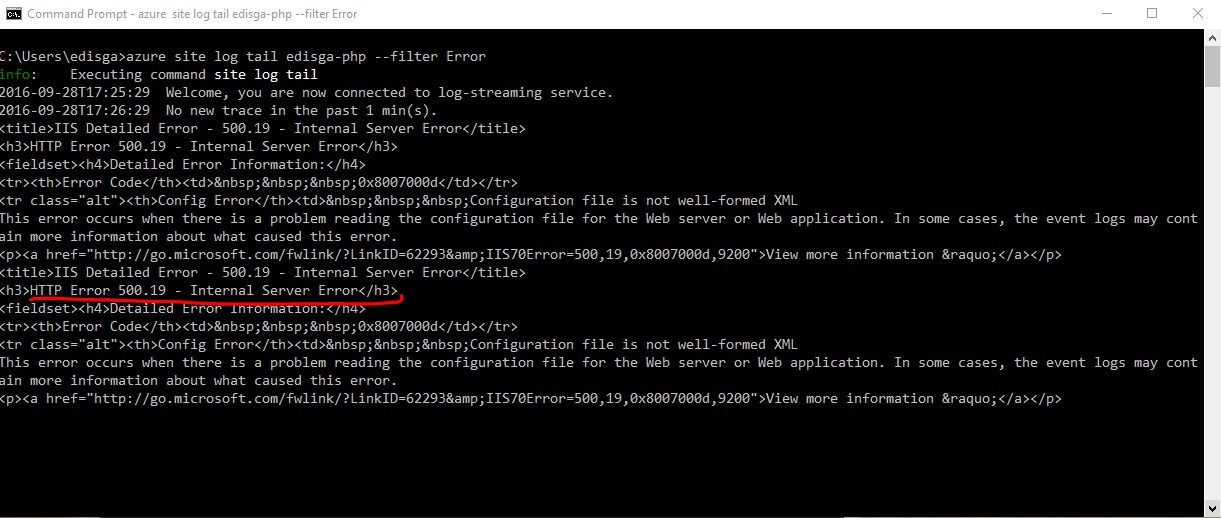
HTTP 500 | Server-side error | Web server and PHP error logs |
WP Crontrol's spawning-error guide documents these categories.
Manual WP-CLI execution works, but scheduled spawning fails
A maintainer who saw Site Health failures despite successful manual WP-CLI runs wrote in a WordPress.org support thread: “My server is configured to work only over HTTPS and does not accept HTTP requests, so the cron trigger was failing silently.” Correcting the scheme resolved that case.
If you see the same symptom, match the loopback request's URL, scheme, time, and status or cURL response against the access, security and PHP logs.
Never disable TLS certificate validation or weaken authentication to make a cron request pass. Fix the URL, access-control, network or server fault the logs point to.
Diagnose callback errors, duplicate hooks, and tasks that run only manually
A cron request can reach WordPress and the task can still fail inside its callback. The owning plugin or custom code can hit a PHP error, an execution limit, a missing permission or an unavailable external service.
Take a backup plugin whose hook is registered but whose backup file never appears. The callback and what it uses are the place to look, even when other scheduled tasks work.
Read the callback's evidence
Find the plugin, theme or custom code that owns the hook.
- PHP error: Look for the exception or fatal error tied to the operation.
- Remote dependency: Look for a failed API request or an unavailable service the callback uses.
- Missing artifact: Compare the logged attempt with the output it should have produced, such as a backup file.
- Duplicate event: Compare hook names and argument sets.
- Inactive integration: Check whether the callback code loads in the context where the event runs.
Understand the consequences of manual execution
wp cron event run --due-now executes every event that is currently due, and --all widens the scope further. Both can send messages, create files, call webhooks or trigger other operations. On a production site, work out what the events will do before you run them.
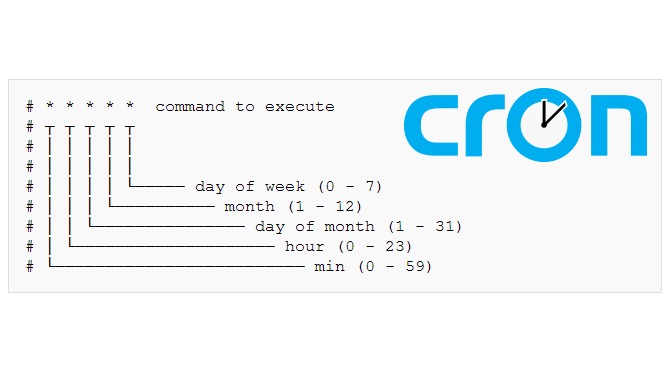
Fix the proven cause or switch to monitored server cron when needed
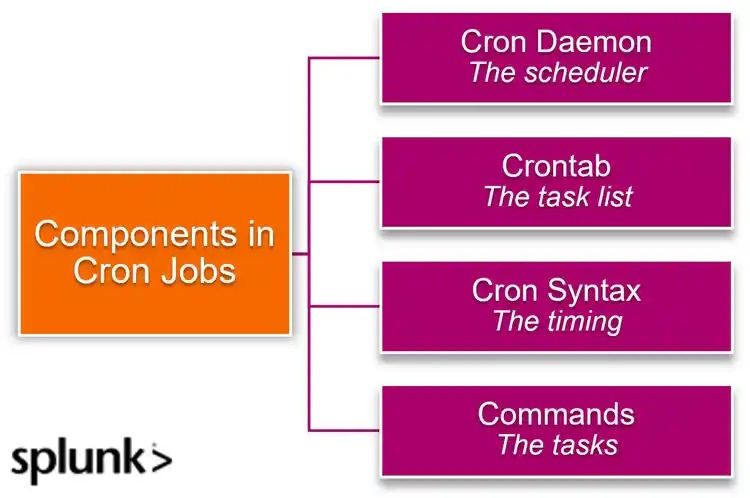
Task deadlines and the scheduling tools your host provides decide whether a server cron job fits.
| What you found | What to do |
|---|---|
| Default WP-Cron finishes tasks within an acceptable delay | Keep it |
| Normal spawning is disabled and no external job runs | Set up a server cron job so events don't go unrun |
| HTTP spawning fails because of an identified configuration problem | Fix the request path the error and logs point to |
| A single callback fails after it starts | Fix the plugin or application error shown in the task logs |
| Visitor-dependent spawning makes tasks late, such as overdue hooks on a quiet site whose callbacks otherwise work | Use a monitored host or system cron job |
| WooCommerce background actions fail or accumulate | Investigate Action Scheduler (next section) |
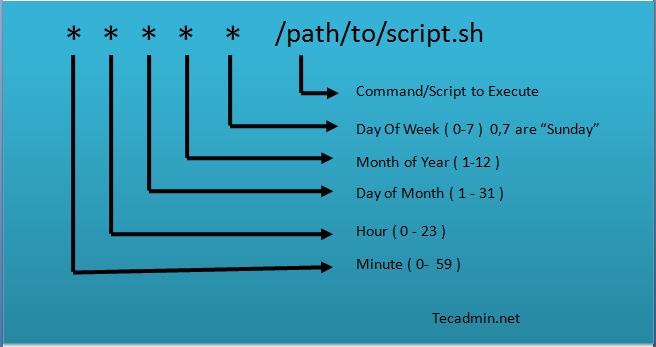
A documented hosting-panel example
SiteGround documents the path Site Tools → Devs → Cron Jobs. Its example schedules wp cron event run --due-now from the WordPress installation directory through the hosting panel.
Kinsta's published managed example runs every 15 minutes, SiteGround's every 30. Pick an interval based on how late a task can run and what your host allows.
Some vendor examples send command output to /dev/null. While you diagnose, keep a job log or error file so failures show up.
Switch to a server cron job in a safe order
Set up the new job for the correct WordPress site and account. Wait for at least one run started by the host schedule and confirm it in the job log or in the expected task result. Then, if your setup calls for it, turn off request-triggered WP-Cron and keep a way to restore the old configuration.
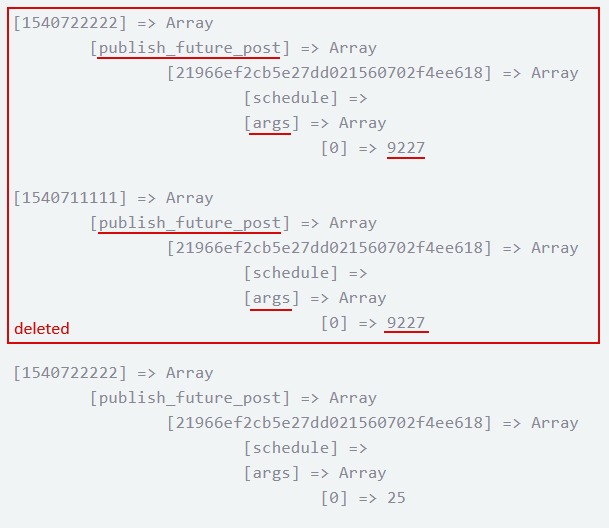
On Multisite, each site has its own execution context, and every extra WordPress launch adds overhead. A single-site job copied unchanged across a network can miss the subsites you want.
Separate WooCommerce Action Scheduler backlogs from WP-Cron failures
WooCommerce uses Action Scheduler for background jobs, each with its own status and log. WP-Cron can start the queue.
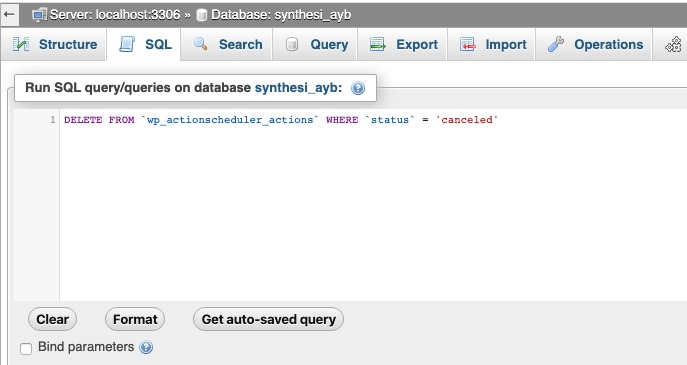
Open WooCommerce → Status → Scheduled Actions and check the affected hook, the owning integration, status, age and failure messages. A pending action can be normal queued work. A failed action has a logged cause.
One merchant running a mid-size store described the symptoms in an r/woocommerce discussion: “Checkout and admin felt randomly slow. PageSpeed still looked fine.”
Action Scheduler has its own WP-CLI tooling for queue operations, including wp action-scheduler run.
Never bulk-delete or blindly rerun pending and failed actions on a live store. Orders, renewals, webhooks and payment integrations can rely on them.
If the fault belongs to one integration, recover it through that plugin or a dedicated Action Scheduler procedure.
Verify automatic scheduling by checking the real result
The next automatic run is your test. Let WordPress or the server cron job reach the event, then check what the task actually produced and whether the Site Health warning is gone.
| Scheduled work | Evidence of completion |
|---|---|
| Scheduled WordPress post | Published status and a post URL that loads publicly |
| Automated backup | Backup file exists and passes validation |
| Plugin background task | Logged success or the expected output |
| WooCommerce action | Completed status and log |
| Recurring maintenance job | Expected result at the next interval |
Compare the completion time with the delay your site can accept.
For recurring tasks that matter, watch several more cycles at the job's own interval. Add the automatic run's timestamp, what started it, the result and any new errors to the notes you made at the start.
