Pick the task first, make sure you can recover the site, then check that everything works after the change. If your site takes live orders, restoring an old backup can erase newer ones, so plan for that before any risky step. Use the table below to find your guide.
Choose the WordPress maintenance task that matches your problem
Start with what triggered the work. Routine checks, software changes, a server move, and a broken site each call for a different procedure. Find your situation in the table, then follow the guide it points to.
| What's happening | First decision | Where to go |
|---|---|---|
| The site is working and upkeep is due | Pick checks that fit how active the site is | Maintenance rhythm |
| WordPress core, a plugin, a theme, or PHP needs updating | Decide how much testing the change needs | Update strategy, then the WordPress updates guide |
| You need a recovery copy | Decide what to capture and how you will restore it | Backup readiness, then the WordPress backup guide |
| You need to recover an earlier site state | Check what failed and what a rollback would erase | Fix or restore, then the WordPress restore guide |
| You are moving hosts or changing domains | Check whether the public domain changes | Migration planning, then the WordPress migration guide |
| Old URLs remain after a domain change | Find where the URLs are stored and limit the replacement scope | Stored URLs, then the WP-CLI search-replace guide |
| Scheduled posts or background jobs are missing | Find the scheduled event and check the available diagnostics | Scheduled operations, then the WordPress cron guide |
| The public site is already broken | Handle the outage and live data before any optional maintenance | Failure triage or problem-specific troubleshooting |
A backup gives you a recovery copy. Restoring applies an earlier state. Migrating moves the installation to another environment or address.
Before any planned disruptive change, use the backup check below to confirm you can recover the site.
Know what your WordPress host handles and what you still own
The service and plan set what a host provides, and your account's permissions set what you can do. What counts is who can back up, stage, restore, update, and investigate the installation.
| Hosting arrangement | What to establish | Likely division of work |
|---|---|---|
| Managed WordPress hosting | Backup and restore controls, retention, staging, software updates, and support limits | The provider handles its services. You handle business functions. |
| Hosting with a control panel | Available backup, database, PHP, restore, and diagnostic tools | Split among you, the host, and the site administrator |
| Self-managed VPS | Server access, site files, database credentials, backup storage, restore method, and logs | The server operator handles it, except for services the contract expressly supplies |
Open your host's dashboard and support terms. Find out who makes backups, where and how long they are kept, who can restore them, and whether you get staging. Then note who handles updates, PHP changes, and command-line diagnostics, and assign each task to a person or service.
Confirm you have a WordPress backup you can recover from
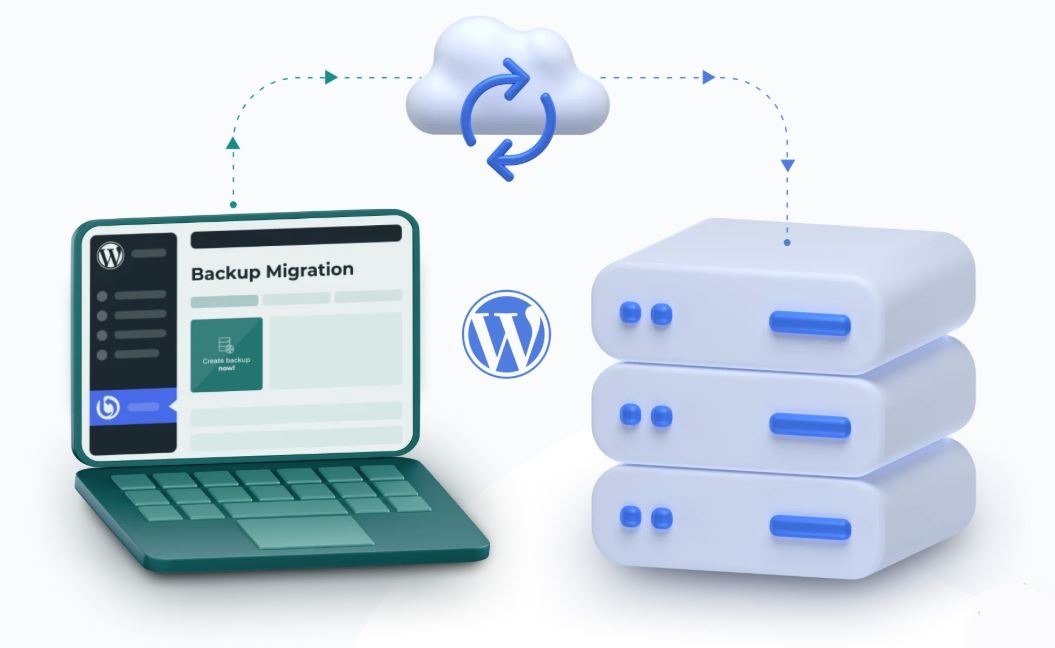
A recovery copy of WordPress needs the site files and the database. A file archive leaves out the database, and the WordPress backup documentation treats the two as distinct parts of recovery.
- Site files: WordPress code, plugins, themes, uploaded media, and configuration.
- Database: A matching backup of the site's stored content and configuration.
- Recovery point: The time of capture and what has changed since.
- Access: A reachable copy and the permissions or credentials to use it, even if the original host is unavailable.
- Test restore: A successful controlled restore in staging or another suitable environment. Without one, a documented recovery method.
A brochure site that rarely changes has little new material to recover. A shop taking orders all day accumulates records quickly, so the age of your recovery point matters more.
Kinsta's documented maintenance routine for its hosting service includes a monthly backup restore test in staging. The test confirms the backup can actually be recovered.
Before a planned risky change, confirm that you have the components, the access, and a restore method that fit your site. If any essential piece is missing or you can't show that a restore would work, postpone optional changes and set up recovery first, using the WordPress backup or restore procedure. If the site is already down, use the available recovery support.
Choose how to update WordPress safely
WordPress core, plugins, themes, and PHP each bring different compatibility changes. Choose your update approach by the functions at risk, the testing controls you have, and who deals with a failure.
Maintainer of personal and business websites, r/Wordpress“Not updating them makes me feel uneasy too, like I'm leaving the door open for security problems.”
| Update approach | Where it fits | Trade-off |
|---|---|---|
| Automatic updates | Sites where you accept automated deployment and have recovery and monitoring in place | Less manual work, but you can't review an individual change before it deploys |
| Scheduled manual review | Sites with an owner who can promptly assess and install available changes | More control over timing, plus an ongoing review duty |
| Staging-first deployment | Sites with checkout, complex integrations, or other workflows where compatibility testing is valuable | Regressions show up before production, at the cost of extra operational effort |
An informational site with a simple configuration suits a lighter process. A store with checkout and payment integrations warrants staged testing before deployment.
The WordPress upgrade guidance warns about rollback complications. Installing an older software version can bring compatibility or security concerns, and a version downgrade does not automatically reconstruct the database state from before the change. For the deployment and compatibility steps, see the WordPress updates guide.
Treat a WordPress migration as its own project
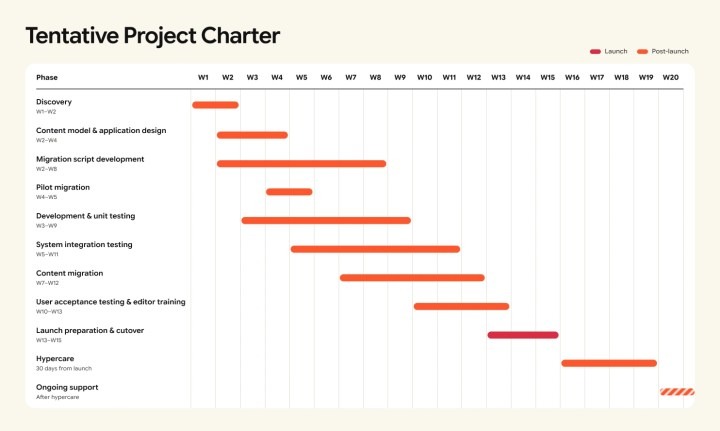
A migration moves a WordPress installation to another environment or public address. Files and database travel together, and the cutover also follows the destination configuration and where your domain sends visitors.
- Same-domain host move: The site moves servers and keeps its public address. The destination environment and the traffic cutover are the key decisions.
- Domain-changing move: The public address changes too. Stored WordPress links and media references can need changing along with the transfer.
DNS decides where a domain sends visitors. Changing it does not rewrite the addresses stored in WordPress content or settings. That is why a site can load from the new host while individual links still point to the old domain.
WordPress database values can contain serialized data. The official WP-CLI search-replace documentation describes serialized-data-aware replacement and a --dry-run option. You still need the correct target and scope. For execution, see the WP-CLI guide.
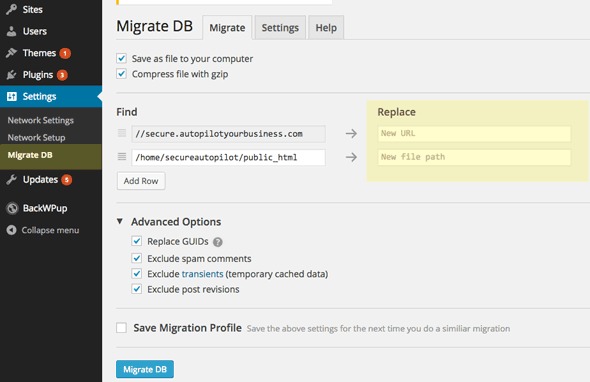
A supported migration plugin works where your access and installation requirements allow it. A manual or provider-assisted transfer fits a more customized environment. For method selection and detail, see the migration-tools guide.
In your migration plan, record the source and destination hosts, whether the domain changes, the transfer method, and how you will preview the destination before switching traffic. After the cutover, run the checks in the next section.
Check the parts of the site that can break after a change
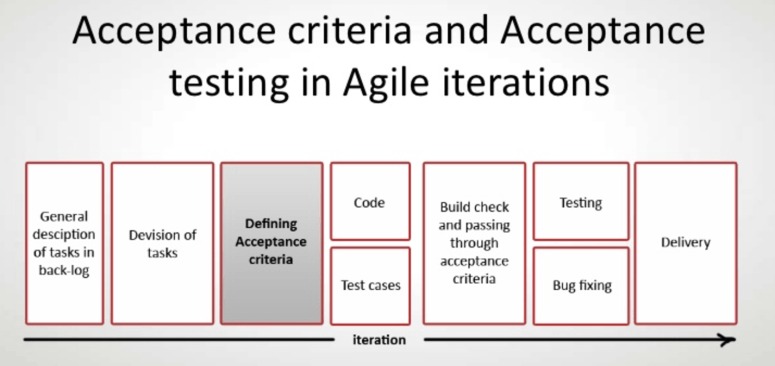
A homepage can load while important parts of the site stay broken. After an update or migration, test the public pages and the functions your site relies on, such as checkout and forms.
After a move from Bluehost to Hostinger with a changed domain, r/Wordpress“Now my links of images and pdf files are broken on domain B”
| Area | Passing result | Failure to investigate |
|---|---|---|
| Homepage and key page types | Expected public content loads | Missing pages, content, or templates |
| Administration | An authorized user can reach the required dashboard functions | Login or admin failure |
| Navigation and links | Representative links reach their intended destinations | Old-domain or broken links |
| Images and PDFs | Media displays or downloads from the expected location | Unavailable files or outdated media addresses |
| Forms and email | A controlled submission is accepted and you can confirm receipt or delivery | Submission failure or undelivered messages |
| Cart and checkout, where used | A controlled purchase flow works as expected | Failure at a critical transaction step |
| Scheduled tasks, where used | Relevant events complete as expected | Missed posts or background work |
If checkout, an essential form, or another critical function fails, keep diagnosing before you call the change done. Record each test result that applies. Use controlled test records for anything that sends messages or creates transactions.
When a change fails, decide whether to fix or restore
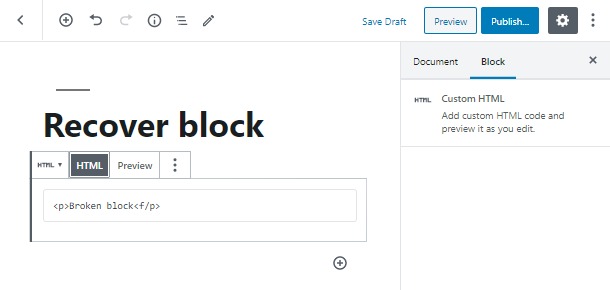
When a change breaks the site, find out what failed and what you changed. That tells you whether a targeted repair or a broader restore fits.
After updating Yoast SEO on a client ecommerce site, r/Wordpress“Unfortunately after updating Yoast SEO plugin the website crashed and it returned a white screen.”
Restoring an older database can overwrite newer orders, account changes, posts, or submissions.
Some hosts offer selective restoration that keeps the records you specify. The service sets the available controls and how orders or subscriptions are treated.
Compare your most recent usable restore point with the records created afterward. Then choose the focused repair or the restore that keeps the live data your site still needs. For the restore steps, see the WordPress restore guide.
Set a maintenance rhythm without missing scheduled WordPress work
No single daily, weekly, or monthly schedule fits every installation. A static brochure site and an active community or ecommerce site differ in how fast they change and how much data loss they can accept, so set the review interval to match.
- Recurring review: Check your backups, outstanding software changes, and the installation's operational condition.
- After substantive changes: Revisit the plan when hosting, software, integrations, or business requirements change materially.
- When scheduled work is missed: Treat a missed post or background job as a problem to investigate, even when ordinary public pages still work.
Where you have WP-CLI access, its cron event commands show pending events and run them. An event listing shows scheduling information. To confirm that a task finished, use an appropriate diagnostic or check the result.
For missing scheduled content, inspect the scheduled event and your host's diagnostic information. Then use the WordPress cron troubleshooting guide to find the underlying cause. Adjust the review frequency as the site changes.
