If your new host offers to move the site and your site qualifies, let them, and otherwise use a migration plugin for a standard single-site install or go manual or hybrid for a customized site where you have server and database access. Multisite, staging, and busy stores need a method that names your exact setup. Whichever you pick, keep the old site and a restorable files-and-database backup until the new site passes its checks.
Which method matches your situation?
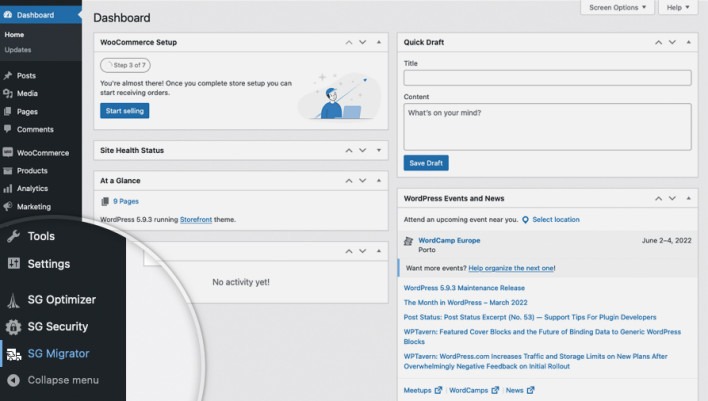
Start with three things: the site you're moving, the access you have, and what your new host supports. A plugin can give you an export button and still leave you with no way to import at the other end. A store adds another problem, because orders keep coming in while you move. Test the option you select on a nonproduction copy.
| Situation | Method to evaluate | Deciding condition |
|---|---|---|
| The new host offers to move your site | Host-assisted service | Your installation and source environment qualify for the service |
| A standard single-site WordPress installation with dashboard access | Migration plugin | The edition you choose can transfer and import into the new host |
| Browser uploads can't handle your backup | Direct-transfer plugin, host service, or manual transfer | The alternative works with your permissions |
| A customized installation with server and database access | Manual or hybrid migration | You can manage configuration and recovery |
| Multisite, staging, or a store accepting new orders | Specialized method | The method handles your exact setup and data that keeps changing |
If your site or host fails a requirement, pick another method before starting.
Sort your case into one of four: a full-site move, an entire Multisite network, a single subsite, or a staging deployment.
What does a full WordPress migration move?
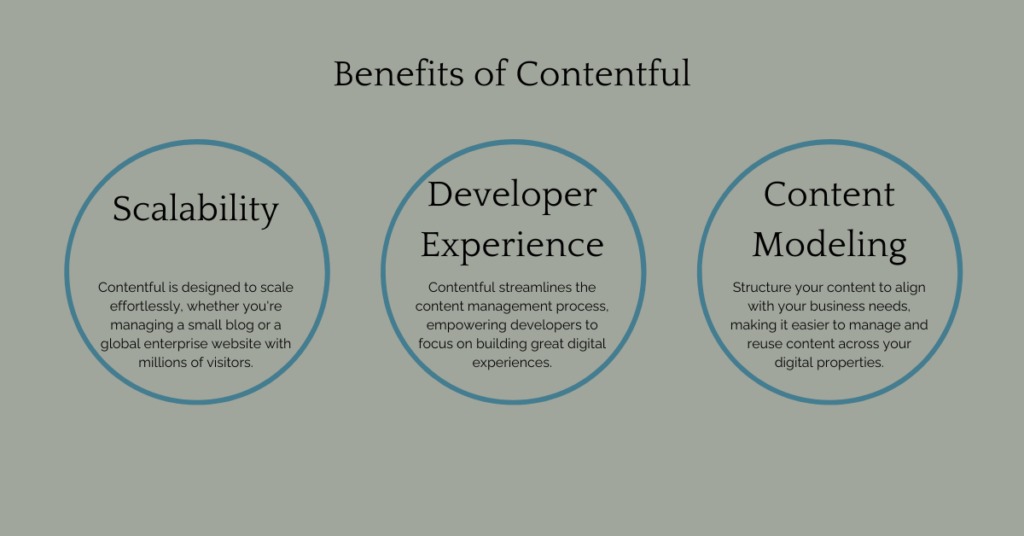
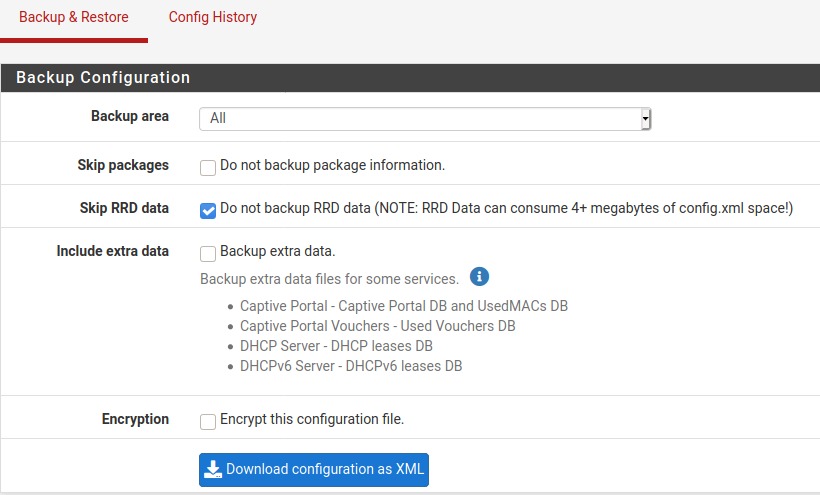
A full migration moves two things: files and the database. Files cover themes, plugins, uploads, and configuration. The database holds content, settings, and the data your plugins use. WordPress treats these as separate parts of a complete WordPress backup.
Tools > Export does something different. It creates an XML export of selected content. That transfers the content, but it doesn't replace themes, installed plugins, database configuration, or the original hosting environment.
A host move can also involve DNS control, mailboxes, server settings, redirects, and services outside WordPress. Those sit outside the basic files-and-database scope unless your host or tool explicitly includes them. Move only the posts and pages without the theme files, for example, and the new site has your content but none of its design.
Write down your scope once: the WordPress files, the database, domain and host-controlled settings, and any external integrations your site relies on. Judge every service or tool against that list.
How do plugins, manual migration, host help, and hybrid methods compare?
The main trade-off is who takes responsibility. Manual work gives a qualified person direct control over the transfer and configuration. Each method has requirements that can rule it out before speed or convenience matters.
| Method | Access needed | Main benefit | Limitation |
|---|---|---|---|
| Host-assisted service | Source access the provider specifies | The provider does the covered transfer work | Eligibility and service scope differ by host |
| Archive/import plugin | WordPress admin and import capability at the new host | Guided package and restore workflow | Upload, storage, and edition limits |
| Direct-transfer plugin | Supported connectivity and credentials | Transfers without uploading a full archive through the browser | Server and network permissions and site-type restrictions apply |
| Manual files and database | Filesystem, database, and configuration access | You control each operation | You're responsible for correctness and recovery |
| Hybrid workflow | Enough access for both methods | Automates routine work and keeps manual control where you need it | Each task needs a clear owner |
When several methods qualify, compare your time, any paid extension or professional transfer fee, and how much control you need once the data arrives.
When will a migration plugin fail your requirements?
A plugin fails you when its transfer mechanism can't work within the new host's limits. An archive import can require uploading a large file through WordPress. A direct server transfer skips that upload, provided the host supports the connectivity and permissions it needs. Migrate Guru, for example, advertises server-assisted transfers for websites up to 200 GB.
In an August 2026 r/Wordpress thread, a user attempting an All-in-One WP Migration import wrote, “I have export wordpress website from this all in one WP plugin and then trying to import the backup of around 547mb.” The backup was around 547 MB against a 2 MB upload cap set by that user's host.
Other things can stop a migration too: not enough storage, missing credentials for the new host, or a plugin edition without the import or restore feature you need. Raising the browser upload allowance won't fix every failed migration.
For any tool you're considering, find out how it actually moves the data. Then compare its access and size requirements with your new host's upload settings, storage, and network permissions, and with your site type.
What can free and paid WordPress migration tools do?
“Free migration” can mean a backup export followed by an import, while the paid edition adds direct transfer or one-click restoration. Before buying, check that the edition you can use covers every stage of your move.
| Tool | Free or standard route | Paid or advanced options | Fit or restriction |
|---|---|---|---|
| All-in-One WP Migration | Export a package and import it through the WordPress Import screen | Unlimited Extension adds Backups-screen one-click Restore and import/upload capabilities beyond the free route | Free browser import is subject to the new host's upload settings |
| UpdraftPlus | Move backups between installations and import the backup at the destination | Premium offers a more direct migration workflow | The free backup-transfer steps differ from the Premium procedure |
| Migrate Guru | Server-assisted site migration | None noted | Depends on connectivity, host eligibility, and whether you're moving a network or a subsite |
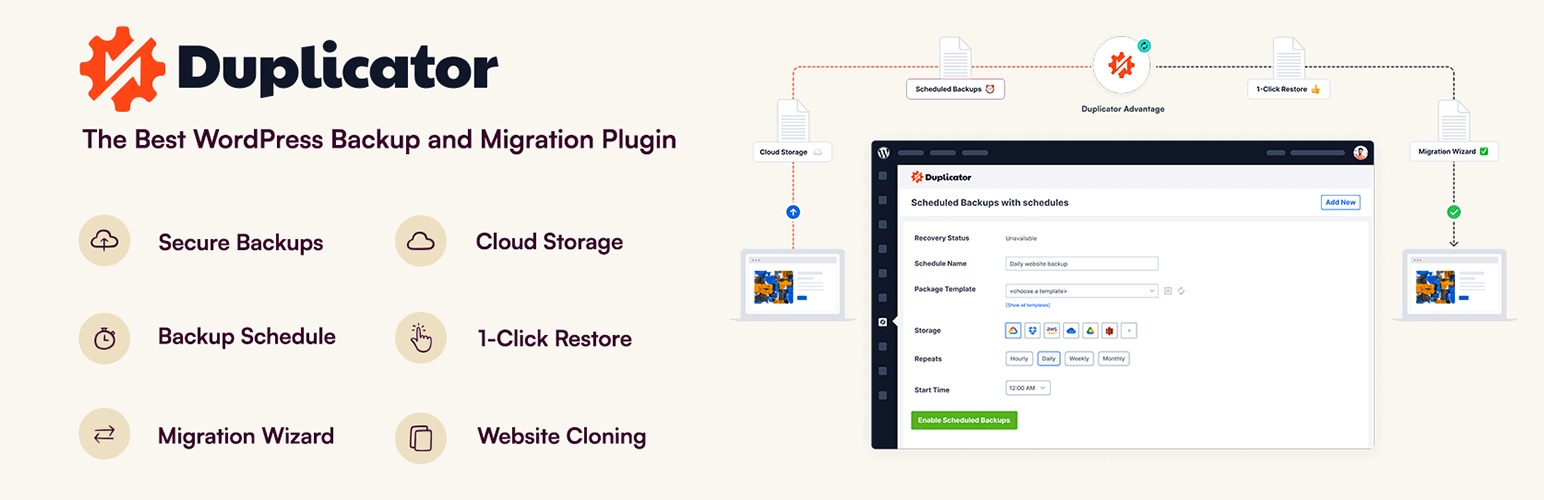
| Duplicator | Packaged migration and restoration workflow | Adds archive-engine and chunked-processing capabilities. Check that your edition includes what you need | Pick an archive engine that fits the source host's resource limits and your edition |
| WPvivid | Backup, migration, and staging functions | Pro lists staging-to-live deployment and migration of a Multisite childsite to a standalone installation | Staging-to-live deployment needs care with newer production data |
| WP Migrate Lite | Full-site ZIP export | Direct push/pull workflows are associated with Pro | Exporting gives you a package. Pushing or pulling between installations is a separate step |
| SiteGround Migrator | Transfers eligible sites into SiteGround | SiteGround also sells a professional transfer service separately | Specific to SiteGround. Excludes localhost sources and full-network Multisite moves, but moves separate blogs from a Multisite network |
In a November 2025 r/Wordpress discussion, a maintainer responsible for five DreamHost sites wrote, “I am willing to attempt manual migration and backup, but it would nice to have some kind of plugin to ease the process, preferably a free plugin or one with much lower cost than $199.” The $199 was the poster's historical reference to a Duplicator plan.
For any product you're considering, trace the whole workflow: backup or export, transfer, import at the new host, restoration. Check edition access, your site type, and any required extension before comparing prices.
When is host-assisted or manual migration the better choice?
Kinsta documents qualifying migration options, and each host sets its own rules for which installations, source environments, and plans qualify. Manual migration suits an administrator with filesystem, database, and configuration access, especially when a customized site can't use an automated method.
What changes for Multisite, WooCommerce, and staging?
These installations need different operations and different compatibility checks. A tool that moves an entire Multisite network can have no workflow for extracting one subsite into a standalone installation.
| Situation | What changes | Method requirement |
|---|---|---|
| Whole Multisite network | Several sites share one WordPress network | A tool that supports moving the whole network |
| One Multisite subsite | One site must be separated or moved individually | A tool that explicitly supports extracting a single subsite |
| Active WooCommerce store | Orders, customers, or subscriptions keep changing | A controlled switchover that keeps new orders and renewals |
| Staging into production | Changes move from a test environment to the live site | A staging workflow that preserves newer production data |
Migrate Guru's publisher materials describe moving a complete Multisite network, and its support discussion treats extracting an individual subsite as a different operation.
A WooCommerce database copied while orders and subscriptions keep changing can go stale before public cutover. Restoring that older copy over active production data risks losing later records. WooCommerce's subscription restoration guidance details the effect on orders and renewal records.
Host-assisted transfers have a similar timing boundary. Kinsta's documented migration process states that changes made to the original site after its migration begins are not reflected in the transferred copy. For frequently updated e-commerce, membership, and community sites, Kinsta recommends coordinating maintenance mode during its managed migration, or discussing alternatives with its support team.
Staging-to-production deployment moves changes from a test environment into the live site, and deploying only selected changes can let newer production content survive. Decide what you're moving and which environment is still receiving new records, then pick the deployment method.
What should be ready before the move?
Before you start, you need three things: a backup of your WordPress files and database, access to the working original, and a way to restore service if the transfer fails. Having an archive doesn't prove you can restore from it.
In a November 2025 r/Wordpress restoration thread, a user wrote, “I deleted the previous host and website and exported it into AIO wordpress migration tool.”
- Capture the complete installation. Back up the website files and the database, including the data your plugins rely on.
- Test the restore. Restore the backup on a non-production copy before relying on it.
- Prepare access. Have the administrator, filesystem, database, and configuration access your chosen method needs.
- Retain the original environment. Keep the working site and its access until the new one passes your checks. If a critical check fails, recover from the original while you diagnose the problem.
- Assign owners. Name who handles backups, DNS changes, new-host configuration, and recovery.
How do you verify the move and recover if it fails?
The new site must pass tests that reflect what visitors and administrators need it to do. A plugin's transfer-complete message confirms the transfer ran. To confirm the site works, check the installation yourself and preserve any records created during the move.
In an October 2025 r/Wordpress discussion about moving from Linode to DreamHost, a user wrote, “It's more than often that after I change the DNS, some part of the site is not working. It's usually caused by wrong URL.” Old-domain references are one reason to test a preview before switching DNS.
- Content and media. Open the homepage, representative posts and pages, and important image or download files.
- Administrative access. Log in and check the admin functions you need to manage the site.
- URLs and HTTPS. Inspect internal links, redirects, canonical addresses, and any resources still pointing to the original domain.
- Essential site functions. Test forms, email flows, and integrations on the new host.
- Changing production data. For a store, run controlled checks of checkout and order behavior without creating live records.
A domain change can require replacing URLs in the database, including values stored in serialized data. The WP-CLI search-replace command handles serialized data, and its --dry-run flag shows what it would change before it changes anything.
