Use WP-CLI's serialization-aware search-replace when you've confirmed URLs in your WordPress database need changing. Confirm which installation you're targeting, keep a recoverable SQL backup, and approve the table scope with --dry-run. Then search the database for leftover references and load the pages visitors see.
The basic preview command is wp search-replace OLD NEW --skip-columns=guid --dry-run, with your old and new strings in place of OLD and NEW.
When WP-CLI search-replace is the right tool
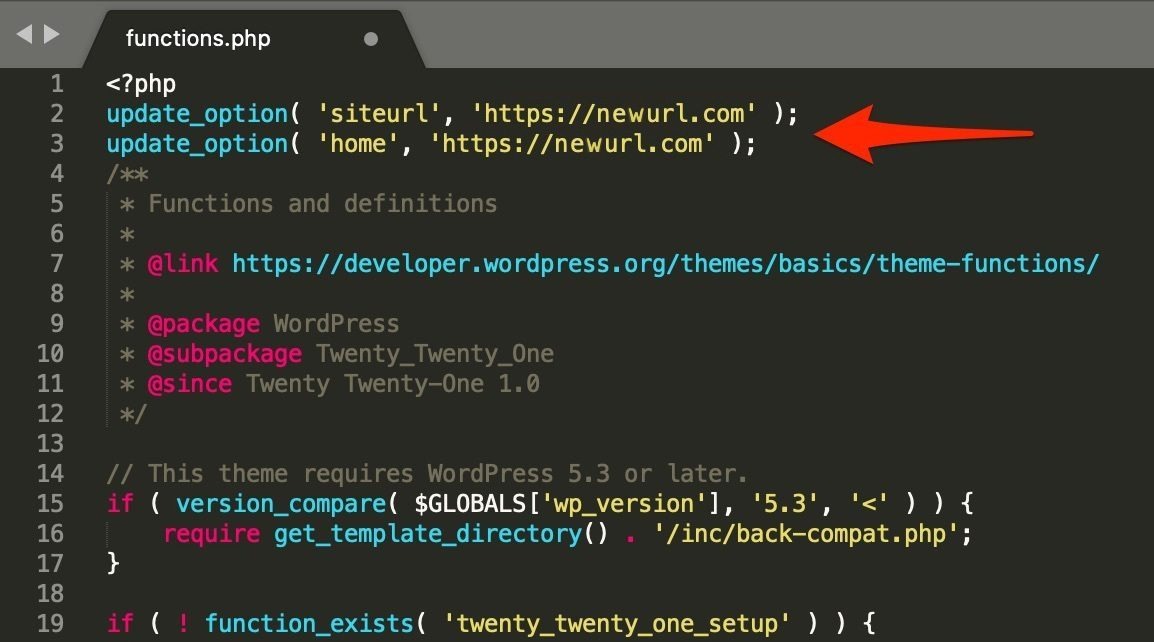
wp search-replace fits when a domain, staging-path, or HTTP-to-HTTPS change leaves old URLs in your database. Absolute links can linger in posts, widget settings, or plugin options. The command edits the database data you select. It can't move site files or change web-server redirect rules.
- You know the database references: You have the old value, the replacement, database access, and a way to recover.
- Only WordPress Address or Site Address is wrong: Fix the options or configuration that control the effective WordPress URL.
- The whole installation is moving: Plan the file transfer, database transfer, destination configuration, and cutover as a full migration.
- You have no usable CLI access: Use a supported hosting interface or a WordPress plugin.
Confirm the site and the exact strings before changing anything
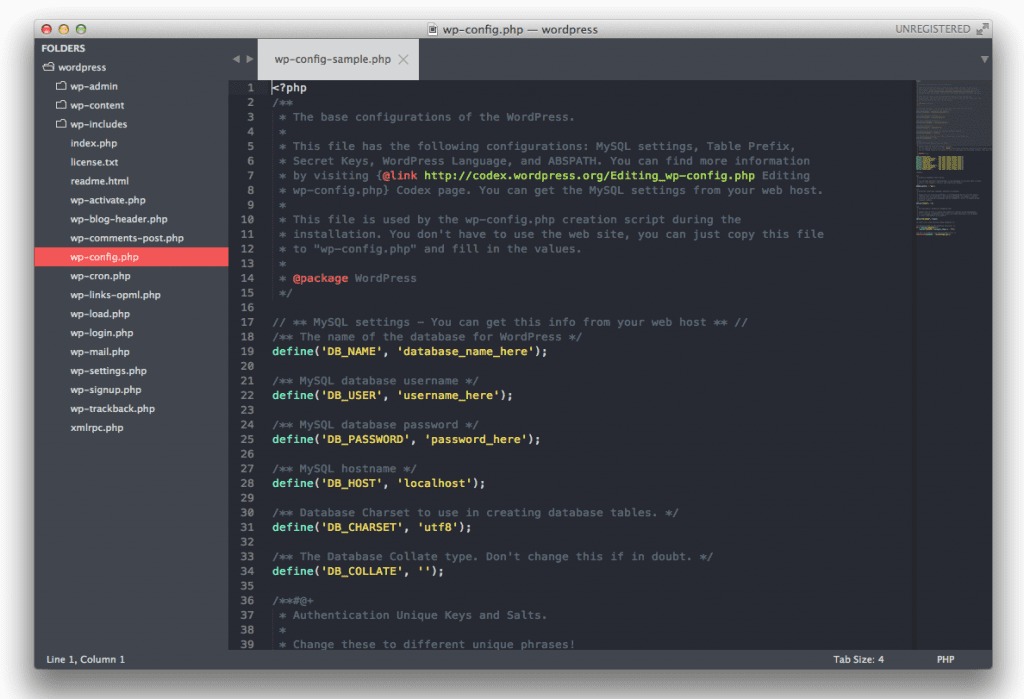
On a server with several WordPress installations, correct syntax can still target the wrong database. WP-CLI's global --path option names the installation to operate on. Don't rely on the current shell directory.
For a single-site installation, these commands inspect the target without changing anything:
wp --path=/path/to/site core is-installed
wp --path=/path/to/site config get DB_NAME
wp --path=/path/to/site db prefix
wp --path=/path/to/site option get home
wp --path=/path/to/site option get siteurl
config get DB_NAME reads the configured database name from wp-config.php. The prefix shows how WordPress names its tables. It doesn't prove that other applications or installations have no tables in the same database. On multisite, the selected site's --url context also matters.
Find the exact old value in the records you want to change, including http or https, www, the hostname, and any subdirectory. http://example.com, https://example.com, and https://www.example.com are different strings.
One r/Wordpress poster planning a staging-directory test wrote, “I wish to test a manual migration process (from /staging to /test folder before moving to /root folder).” (r/Wordpress staging migration discussion) The path matters: replacing https://example.com/staging with https://example.com/test leaves the hostname alone.
A fragment like example can also appear in unrelated data, so search for the full literal as stored.
Back up the database before the replacement
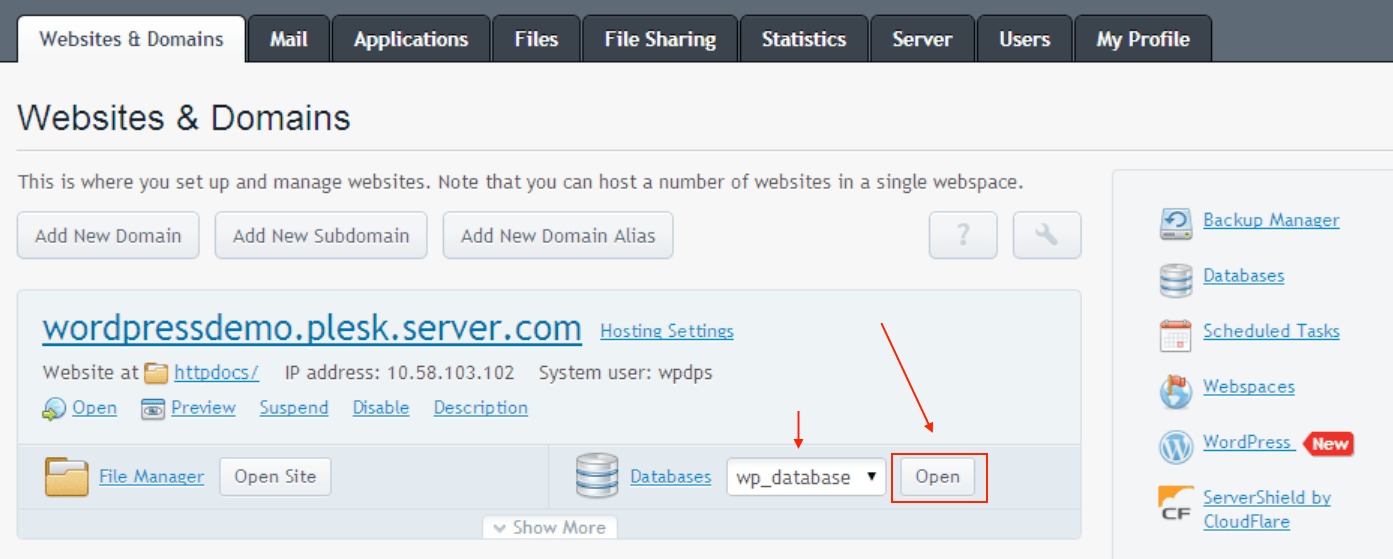
A bulk database change needs a recovery point. wp db export, also available as wp db dump, writes the database to SQL using your WordPress database configuration. Unless you restrict the tables, the dump includes every table in the configured database, which matters when another application shares it.
wp --path=/path/to/site db export \
  /secure-backups/before-url-change.sql
The destination directory must already exist and be writable. Store the export outside the publicly served site directory with suitable access controls. Then confirm the file exists, finished successfully, and can be accessed through your recovery procedure.
Don't confuse the SQL dump with a content export. wp db export creates an SQL database dump. wp export creates WordPress eXtended RSS (WXR), an XML file of content records, including posts, comments, terms, and attachment information. WXR omits site options and the actual media files, so it can't serve as a complete database recovery snapshot. The WP-CLI WXR export reference documents that narrower purpose.

If you need a complete recovery, copy the WordPress files too: uploads, themes, plugins, and configuration.
Why serialized WordPress data needs a serialization-aware replacement
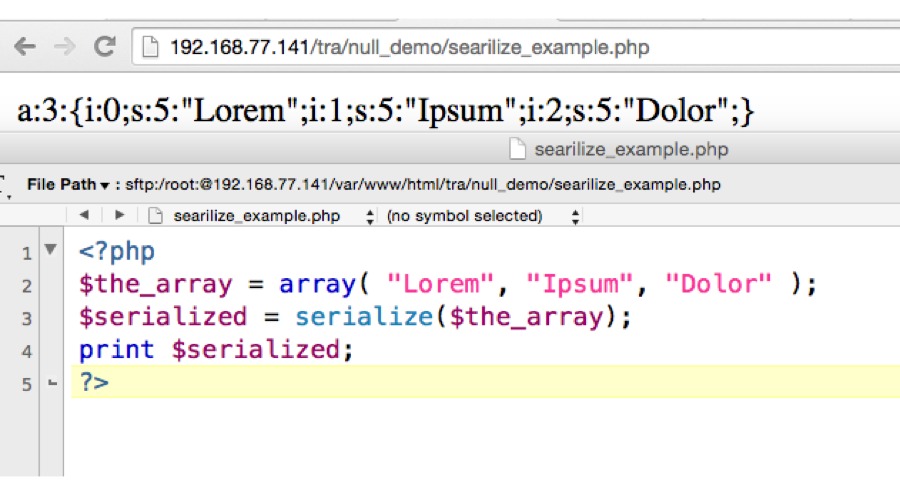
PHP serialized strings store their byte lengths beside their values. The sample URL https://old.example contains 19 ASCII bytes and can appear as s:19:"https://old.example";. A blanket SQL text replacement that changes the length can invalidate the stored value and damage plugin or widget settings. WP-CLI's search-replace handles serialized data, using PHP processing where necessary alongside SQL processing for other values. The optional --precise flag forces PHP processing for all columns and is slower.
Select which tables and columns the command can change

Table selection decides what a URL replacement can change.
| Selection | Covers | Use it when | Watch for |
|---|---|---|---|
| Default | Registered $wpdb tables for the selected site | The old URLs sit in the usual WordPress data | Plugin tables that aren't registered are left out |
| Named tables | Only the tables you list | You know exactly where the old URLs are | Other tables holding the old URL stay untouched |
--all-tables-with-prefix | Tables with the configured prefix | Plugin tables use your prefix | A matching prefix doesn't prove the table belongs to this site |
--all-tables | Every table in the database, regardless of prefix | Database-wide work is explicitly authorized | Unrelated applications or sites can be affected |
--network | Registered tables across a multisite network | A network-wide change is approved | Arbitrary plugin tables aren't included automatically |
Pick the smallest scope that covers the data you need to change. --all-tables extends the operation to the whole database, which matters most on shared hosting or a shared database.
Protect GUIDs and know which tables get skipped
During a URL migration, use --skip-columns=guid. A WordPress guid can look like an old permalink, but it works as a persistent identifier, and changing it can disrupt feed identification. The WP-CLI search-replace command reference documents column exclusions and scope options.
WP-CLI skips tables that lack a primary key and never modifies primary-key values. Both rules apply on top of the guid exclusion. If a table you need is missing, check its ownership and schema. A DESCRIBE query shows whether it has a PRI key.
Run a dry run and read what would change
A dry run reports the replacements it would make and writes nothing to the database.
wp --path=/path/to/site search-replace \
  'https://old.example' 'https://new.example' \
  --skip-columns=guid --dry-run
The example assumes the single-site target from earlier and the default table scope. If default coverage doesn't suit your site, add the approved table restriction to the preview.
| What the preview shows | Cause | What to do |
|---|---|---|
| Zero replacements | The old string isn't there, the scheme or host differs, or you targeted the wrong site or tables | Check the exact string and confirm --path points at the right site |
| More matches than expected | A broad string, widespread old links, or too many tables | Check which tables and columns the matches come from |
| Expected plugin table absent | It isn't registered, you excluded it, or it has no primary key | Check who owns the table and whether it has a primary key |
| Unexpected table present | The scope covers data outside the job | Narrow the table list |
Read the table and column names first, then the counts. Zero is correct when the old string isn't in the database.
The preview can't test rendered pages, and the real command runs against whatever the database holds at that moment.
Apply only the replacement you have reviewed
When the preview shows the tables and counts you expected, remove --dry-run. Keep the same installation, old and new strings, table restrictions or other scope flags, and column exclusions.
wp --path=/path/to/site search-replace \
  'https://old.example' 'https://new.example' \
  --skip-columns=guid
Record the command you ran, the installation, the values and scope, and the result.
Write transformed SQL to a file instead
With --export, wp search-replace writes transformed SQL to a file and leaves the source database unmodified.
wp --path=/path/to/site search-replace \
  'https://old.example' 'https://new.example' \
  --skip-columns=guid \
  --export=/secure-backups/transformed.sql
This file doesn't replace the pre-change backup. The output directory must exist and accept writes. The official command reference describes --old and --new as options outside a stable release, so these examples use the established positional strings.
Look for old URLs that remain in the database
After the replacement, search the database for old references that remain. wp db search does this without writing anything:
wp --path=/path/to/site db search \
  'https://old.example' --stats
By default it searches registered WordPress tables and is case-insensitive, so a match can differ in letter case from your input. Look at the stored value before deciding which reference survived.
If the replacement covered a wider authorized scope, extend the search with --all-tables-with-prefix, --all-tables, or --network, as applicable.
You're done when no unwanted old URLs remain. A leftover match points to one of these:
- Active content or option: A page, link, or setting still uses the old location.
- Plugin storage outside the first scope: A table you intended to change wasn't part of the first run.
- Preserved identifier: An old-looking
guidstays valid because it identifies the post. - Historical or unrelated record: A log or archived value correctly refers to the former address.
Check the live pages, admin area, and generated files

Check the site as visitors see it. Open representative pages at the new address, including pages that had internal links or media, and test navigation, images, and the WordPress administration area.
search-replace can't modify file-based URLs or generated CSS, so page builders need their own check. A migrated Elementor page, for example, can show correct database values and still load a background image from the old hostname through generated CSS.
Elementor: Elementor documents a Replace URL tool and a Clear Files & Data operation for URL and generated-file problems. On an Elementor site, run those tools and do a targeted generated-asset cache refresh before checking the affected page again.
If the old domain still appears, locate its source
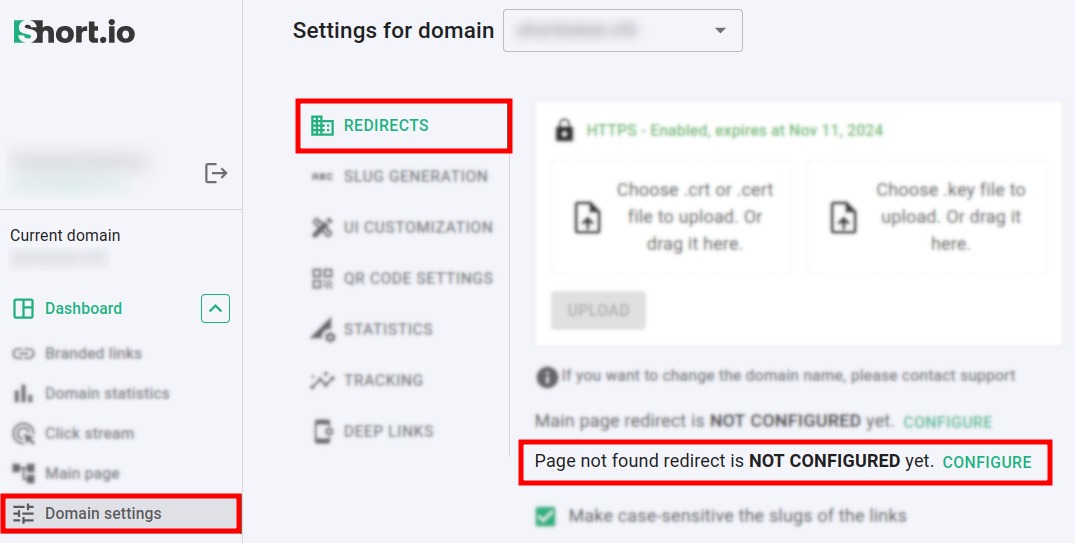
If the site redirects to its development domain after the database update, find the cause before running anything else. A wider replacement can change unrelated records without touching the redirect source.
After moving a development site to production on shared hosting, another r/Wordpress user described this exact symptom: “However, whenever I try to access the site, it keeps redirecting to the development URL.” (r/Wordpress development URL discussion)
WordPress supports WP_HOME and WP_SITEURL constants in wp-config.php. When defined, they override the corresponding database-stored URL options.
- The browser sends visitors to the former domain: Find out whether WordPress configuration, the web server, or the hosting platform issues the redirect.
- The page loads but its assets refer to the former domain: Trace each asset to its content or generated-file source.
- Database references are already fixed: Inspect the configuration and delivery mechanisms behind the remaining symptom.

When a hosted tool or plugin is the better route

If you can't open an SSH session, your hosting account can still offer search-and-replace controls. WP Engine and Kinsta describe provider-specific interfaces, and WordPress plugins are another route where the installation permits them.
WP-CLI needs authorized CLI access. A host tool needs a supported function in your hosting account, and a plugin needs WordPress and plugin permissions. WP-CLI gives you documented table and column options, documented handling of serialized values, --dry-run, and an SQL backup you control. Before using a host tool or plugin, confirm that it offers the same four things.
Restore deliberately if the change has caused damage
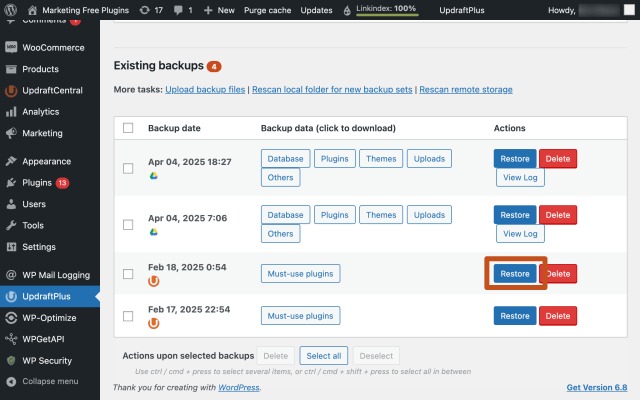
Before you restore, consider what changed after the backup was taken. wp db import imports SQL into the configured database, and restoring an earlier dump can overwrite valid later orders, comments, registrations, or edits on an active site.
If you know the mistake and the affected records, a targeted correction can preserve later changes. Otherwise, restore under the site's recovery procedure and bring the database and files into a consistent state.
