For a self-hosted WordPress site that keeps its domain, pick a method that moves the complete files and database, test the new installation before changing DNS, and keep the old host running until you have verified the move. If the site takes orders, registrations, or other changes during the transfer, plan a final sync or a maintenance window before switching visitors. Start by finding out who controls the site's files, database, backups, DNS, and email.
A new server can look ready and still be missing recent comments, stored images, or an essential integration. Visitors can also reach the new server before every cached DNS answer has changed.
Choose the right way to move your WordPress site
If your domain and public page URLs stay the same, the migration is mainly a change of hosting infrastructure, and the new server serves the existing addresses. The WordPress migration handbook treats a move with unchanged URLs differently from a move that changes the site's address.
A move to a different public domain also needs URL updates and a separate search-engine relocation plan. The steps here cover keeping the original domain.
| Method | Best fit | Access and work involved | When to reconsider |
|---|---|---|---|
| Host-assisted migration | Conventional sites covered by the destination provider's service | Give the provider the access it requests, and find out what its team transfers and tests | Custom services, transactions, or external infrastructure fall outside the service scope |
| Migration plugin | Compatible single-site installations with ordinary file and database requirements | WordPress administrator access, a supported destination import process, and enough server resources | Archive size, extraction limits, access restrictions, or custom components prevent a complete move |
| Manual file and SQL transfer | Installations that need direct control over files, database, and server configuration | Filesystem and database access, server-administration skills, and responsibility for the full cutover | You lack essential access, compatibility knowledge, or recovery capability |
Ask what each method does if the copy stalls, who tests the new site, and who handles changes made while the old site is still live. WordPress Multisite, a large custom installation, or a store taking orders needs a more specialized process.
Inventory the site and check the new host before copying anything
List what the site relies on and who has access to each part. A migration tool can copy WordPress and still leave scheduled tasks, email accounts, custom APIs, and DNS settings with the old provider.
- Site access: WordPress administrator login, hosting panel, SFTP or SSH, database export access, and any files stored outside the usual WordPress directory.
- WordPress content: Core files, plugins and themes, custom code, uploads, database tables, and the active table prefix.
- Destination compatibility: PHP version and extensions, database compatibility, disk and processing resources, required writable paths, and web-server rewrite behavior.
- External dependencies: CDN or proxy, scheduled jobs, contact forms, SMTP, payment integrations, subscriptions, webhooks, and services tied to a fixed domain or server configuration.
- Domain control: Registrar, authoritative DNS provider, current web and mail records, root and
wwwhostname configuration, the current web-record TTL (and whether your DNS provider lets you change it ahead of time), and certificate provisioning. - Recovery access: Source-host account, destination account, backup storage, and the person authorized to stop or reverse the move.
A contributor on r/webhosting described a 35 GB WordPress installation with custom APIs, mail, DNS dependencies, and no working credentials for the existing host: “I need to migrate a wordpress site that will be very tricky.”
On a store or a heavily customized site, one side service can decide which migration method works.
Stop condition: If you can't confirm the source data, administrative access, or destination compatibility, resolve that before starting an import that modifies anything.
Capture the full site and confirm you have a usable recovery point
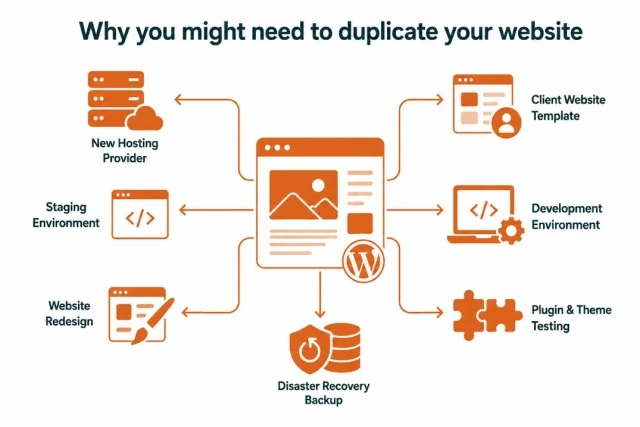
The file set covers wp-content/uploads, plugins, themes, custom files, and wp-config.php.
The database holds posts, comments, users, settings, and much plugin state. Export it as a separate SQL file.
Store dated copies outside any destination that an import can overwrite. SQL exports can contain personal data or credentials, so protect them.
Check that both sets open and contain the expected files and tables. A finished export doesn't prove the backup restores, so where you can, restore it in a test environment and try a few representative site functions.
Prepare the destination and move WordPress files and database
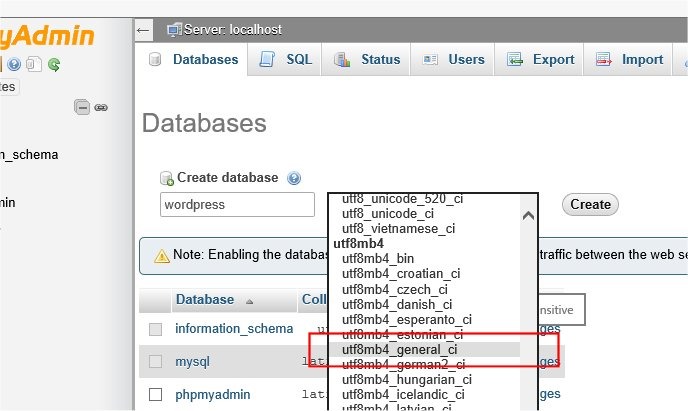
Build the destination following its provider's import procedure. Identify the target database and document root before replacing or clearing an existing installation.
Two documented hosting models: Kinsta's manual migration procedure uses an empty destination environment, because the incoming files include WordPress core. DreamHost's documented manual procedure begins with WordPress preinstalled on the destination. Deleting unrelated destination files or tables can destroy existing data.
Manual migration: files, SQL, and configuration
- Prepare the receiving environment. Create or find the destination site, its document root, and its database service. Make sure its PHP version, extensions, storage, and web-server configuration can run the existing installation.
- Export the source files. Use the source host's file-transfer or archive tools to collect WordPress core,
wp-content,wp-config.php, custom code, and any other application files. Include hidden files and any custom server configuration the new environment needs. - Export the source database. In the source host's database tool, find the database this WordPress installation uses and export its tables to an SQL file.
- Transfer the files. Use SFTP, SSH-based transfer, or the provider's file manager. Put the WordPress files in the document root the new site actually serves, and keep a safe copy of anything already there that you can't lose.
- Create or identify the destination database and account. Check the database name, connection host, and user permissions, and whether the provider expects an empty database or an existing WordPress installation.
- Import the SQL export. Use phpMyAdmin or the provider's import tool, select the destination database, and confirm the import finished without errors.
- Connect the installation. In
wp-config.php, set the destination database name, account, password, and host. Keep the table prefix that matches the imported tables. Restore file ownership, writable directories, and rewrite configuration for the new environment.
For host-assisted and plugin methods, follow that service's own procedure. Don't apply the manual deletion or import steps to a plugin installation that handles them itself.
Decide whether WordPress URLs need replacing
WordPress keeps two addresses: WordPress Address (siteurl) and Site Address (home). Both must match the URL you want the public to use.
Say example.com is the public domain before and after the move. Copying the installation to a new server doesn't require a database-wide replacement of example.com.
If the domain or URL scheme changes, update the stored references. Some database values hold serialized PHP data, and plain text replacement can damage it. The WP-CLI search-replace reference covers serialized-data handling and --dry-run, which shows the changes it would make without saving them. Its default scope is the registered tables, narrower than the --all-tables-with-prefix option.
Test the new site privately before changing public DNS
Preview the new site while ordinary visitors still reach the source host. Use a provider-supported preview service, a temporary hostname, or a local hosts-file override that points the intended domain to the new origin on your testing machine.
Check the hosting panel or the server logs to confirm your test request reached the new server.
A temporary hostname can change redirects, cookies, plugin-license behavior, or third-party callbacks. A hosts-file override keeps the real hostname on your testing machine but can't create a valid TLS certificate by itself.
On r/Wordpress, an owner moving from Linode to DreamHost described repeated migration problems: “It's usually caused by wrong URL.” Use the real hostname and HTTPS in your tests wherever the preview method allows.
| Feature | Private test | What you should see |
|---|---|---|
| Homepage and deep links | Load the homepage and one internal permalink | Expected content, navigation, and URLs |
| Media and downloads | Open a few uploaded images and downloadable files | Assets load from the right paths |
| Administrator login | Sign in and out on the domain you are testing | Login and session work as expected |
| Forms | Send a test submission that doesn't reach real customers | The form processes and delivers safely |
| HTTPS | Inspect the certificate and the hostname you requested | Valid TLS for that hostname |
| Critical integrations | Run one feature in its safe test mode | Expected response with no unintended external actions |
| Search visibility | Check which restrictions the test environment uses | The test copy is protected, and you know which settings change for launch |
Google's hosting-change procedure recommends testing pages, images, forms, and downloads before changing DNS. A temporary hostname can use access restrictions or a test-only noindex setting. Remove any such crawl or indexing block before the production site serves public traffic.
Certificate provisioning differs by host. Let's Encrypt's HTTP-01 validation uses a token served from the domain beneath /.well-known/acme-challenge/ on port 80. DNS-01 checks a TXT record under _acme-challenge instead, so some setups can validate the certificate before the web-routing switch.
Keep new posts, comments and orders from disappearing at cutover
A database import captures the source at one moment. Before the new site takes over, carry over any comments, orders, uploads, or registrations created after that moment. At cutover, verify DNS resolution, the certificate, redirect destinations, and both admin and public pages.
Say you copy a WooCommerce database at T1. Between T1 and T2, a customer places an order on the old site. At T3, DNS starts sending visitors to the new one. Unless you saved or reconciled that order, the new database is missing a real transaction.
WooCommerce's live-deployment guidance warns against overwriting newer production orders and customer activity with older staging data.
Choose the final-write strategy
- Site with little or no changing data: Set aside a period with no content changes. After the first copy, move the final database state and confirm the new site has it before routing requests there.
- Store or membership application: Use a provider service or a qualified operator with a defined plan for orders, customers, inventory, registrations, and other writes around the switch. Confirm how the final data reaches the new site.
- Background or external writers: Account for scheduled tasks, webhooks, payment callbacks, APIs, and integrations. They can still change data while WordPress maintenance mode is on.
Decide when the old site takes its last write, when you copy the final database, and when the new site starts accepting new writes, orders included.
Make a go/no-go decision
- Backup: You can open the recovery set and you know what it contains.
- New site: The critical private checks passed, including the business actions your site relies on.
- Data: Changes made after the earlier snapshot are frozen, transferred, queued, or reconciled through a procedure you understand.
- Control: The person who switches traffic and starts a recovery has the access to do both.
A missing recovery path, a failed essential function, or unresolved live writes means NO-GO. A small cosmetic glitch can wait.
Switch web DNS without breaking HTTPS or email
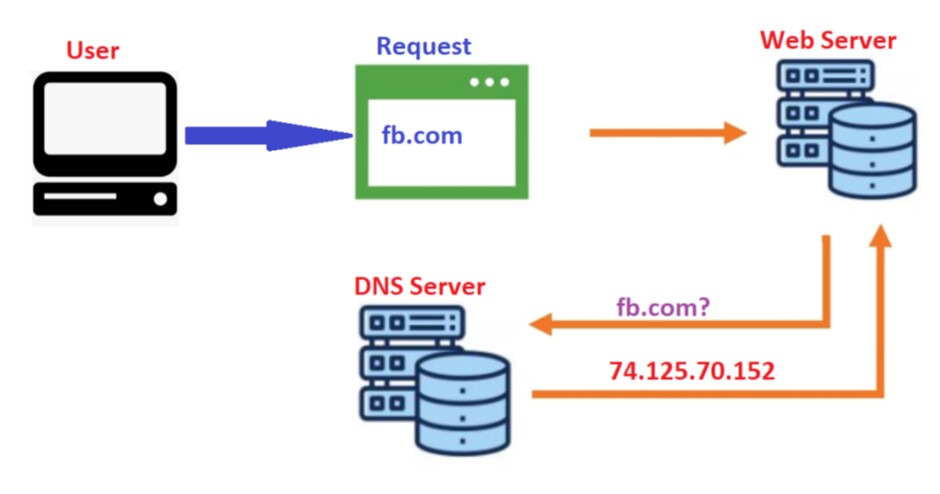
DNS cutover sends public web requests to the new server. Your authoritative DNS provider and any CDN or reverse proxy in front of the host decide which records you change.
The registrar handles domain registration and delegation. Authoritative DNS serves the domain's records. The web host serves the website, and a separate email provider can run the mailboxes.
On r/webhosting, someone rebuilding a client's former cPanel site described the remaining difficulty: “The issue I’m running into is email functionality.”
Preserve records for services that are staying put
- Website: Find the A, AAAA, or CNAME records your new host designates for the domain root and
www, including any routing through a CDN or proxy. - Delegation: Leave nameservers alone if the current authoritative DNS service keeps managing the zone. If delegation changes, make sure the new zone has the necessary records for every service before the switch.
- Inbound mail: Keep the MX configuration if mail stays with its current provider.
- Mail authentication: Carry over the SPF, DKIM, and DMARC configuration when you change authoritative DNS zones.
- HTTPS: Get a certificate that is valid for your public hostname and works with the new host's issuance and routing setup.
Account for DNS caching before cutover
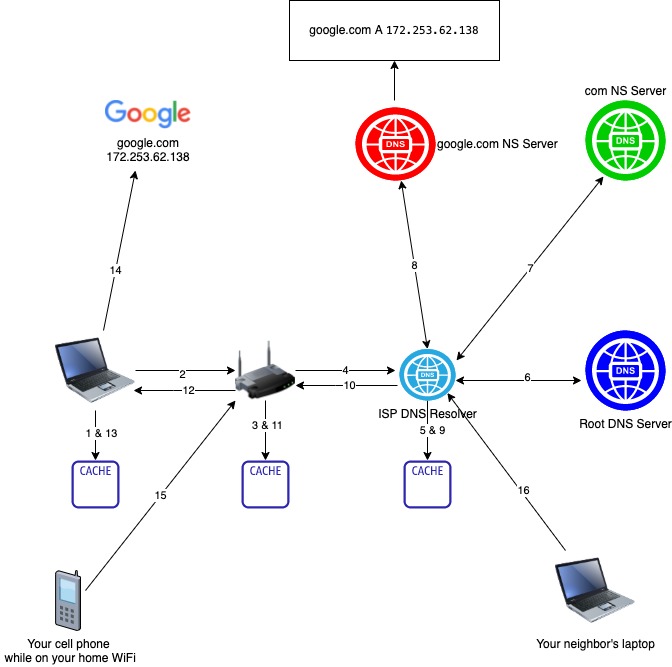
DNS TTL sets how long resolvers cache a response. Google's hosting-change guidance gives the example of lowering the relevant TTL to a few hours at least a week before the move, so older, longer-lived cached answers expire before the switch.
Cloudflare documents a 300-second Auto TTL for proxied DNS records. Those records resolve to Cloudflare edge addresses, and the published DNS response doesn't expose the origin address. Changing the origin behind Cloudflare and changing a DNS-only web record therefore route traffic differently.
Once the new site and data gates pass, change the web-routing record or provider setting your new host specifies. Check the authoritative DNS response and several recursive results, for both the root domain and www. Confirm that HTTPS works and the email records are still in place.
Verify the live site and watch both hosts after the switch

After cutover, check production traffic and the functions that matter to your site.
| Public function | Expected behavior | Evidence to record |
|---|---|---|
| Homepage and internal URLs | Correct content, navigation, and HTTP behavior | Public response and web-server logs |
| Media and downloads | Required resources open | Resource response and asset errors |
| WordPress administration | Login and essential administrative operations work | Session result and application errors |
| Forms and integrations | Test submissions reach their destination | Submission record and service response |
| Transactions, if applicable | An authorized safe test reaches the expected application state | Transaction and system records |
| Crawling access | Production URLs have the indexing and crawl settings you want | Search Console status and configuration check |
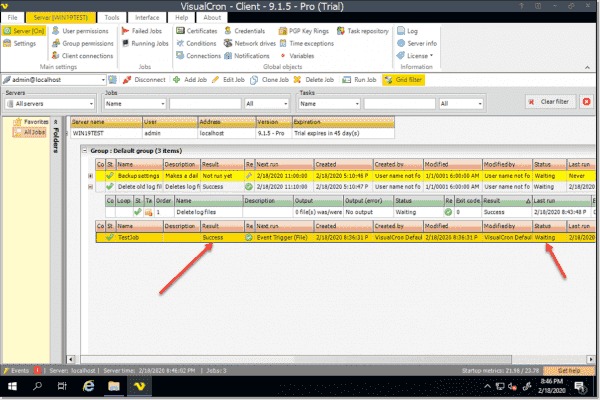
The Google Search Central hosting-change guide recommends monitoring both old and new servers and checking whether Googlebot still reaches the old host.
Keep your Search Console ownership verification in place.
Fix common WordPress migration errors by identifying the failing layer
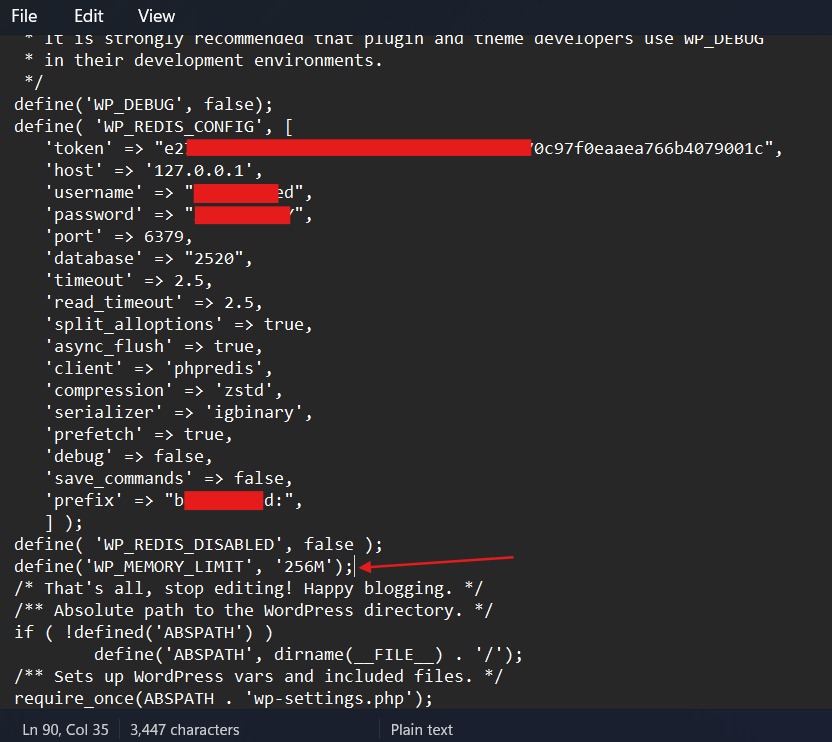
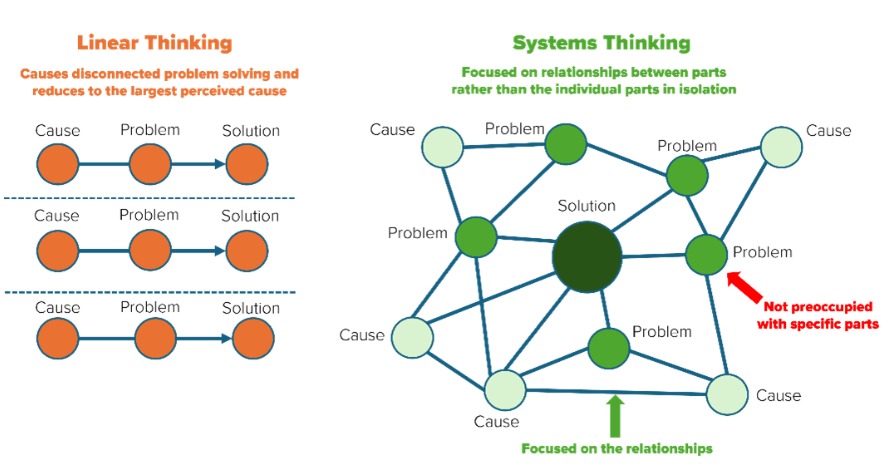
Use the symptom to pick the subsystem to inspect, and start with the evidence in that row before changing files or database records.
| Symptom | Subsystem to investigate | First evidence to inspect | Escalation when unresolved |
|---|---|---|---|
| Extraction stalls or freezes | Archive handling and destination resources | Installer logs, archive integrity, available storage, PHP execution or memory limits | Switch to a supported alternative transfer method, or contact host or plugin support |
| Admin login fails or redirects | Domain, sessions, URL and HTTPS configuration | home, siteurl, redirects, cookies, and the login result | Follow WordPress URL or login troubleshooting |
| Database connection error | Database service and credentials | wp-config.php database name, account, host, and whether the service is reachable | Follow database connection troubleshooting |
| Default or empty WordPress site appears | Wrong database, import, prefix, or document root | Imported tables, table prefix, configuration, and served files | Compare the restored or transferred data with the source |
| Images or styles are missing | Files, URLs, cache, or generated assets | Requested URL, browser errors, uploads, paths, and relevant plugin settings | Repair the media, or the page builder's generated files |
| HTTP 500, 502, or 503 | Web server, PHP runtime, or application | Server and PHP logs, service status, application errors | Ask the host for a server-level diagnosis |
| Website works but email fails | Mail provider, DNS, or SMTP | MX and mail configuration, application delivery settings | Contact your mail or DNS provider's support |
Elementor's migration guidance covers wrong URLs and missing generated styles, with remedies such as Replace URL and Clear Files & Data. Use them only for matching Elementor problems.
Duplicator published an analysis on August 20, 2026, based on more than 8,000 structured support requests gathered over several years. About one in five of its migration-related tickets concerned installation or extraction stalls, and nearly one in ten involved trouble logging into WordPress administration.
Fix the failing subsystem and repeat the affected check. Before any import or replacement that can damage a working site, save its current state.
Know when to roll back and when the old host can be closed
Fix some post-cutover faults on the new host. A form configuration problem or a missing generated stylesheet needs a targeted fix. A failed checkout, missing transactions, or a sustained inability to serve critical functions justifies invoking the recovery plan you prepared.
Before you roll back, find out which database holds the newest orders and comments. If visitors have already submitted comments, registrations, payments, or orders on the new host, the old database doesn't have those records. Reversing DNS moves traffic back but doesn't merge the databases or restore those newer writes.
Preserve the post-cutover changes and decide how to reconcile them before moving traffic back. If the new records can't be saved in a safe reversal, don't point DNS back. Have your administrator or provider fix the data first.
Google's hosting-change process advises keeping the old infrastructure available while traffic moves and shutting it down only when users and Googlebot no longer use it. Keep watching requests on both hosts, and base the decision on traffic evidence and a working production site, not on a fixed waiting period.
When you close the old hosting account, keep the final DNS configuration, the recovery assets, the transfer and acceptance records, and the administrator's contact details.
