Restore the smallest complete, compatible set of WordPress files and database records that fixes the failure. Use your host's backup tools, the plugin that created the archive, or a controlled manual restore, depending on the backup and access you have. If the backup is older than orders, accounts or content you still need, save and reconcile those before rolling back, and test the site's essential functions before returning it to normal service.
A WordPress backup can bring a site back after a failed update, missing content, damaged files or a broken installation. The hard part is picking the restore point and knowing exactly what it will replace.
A hosting checkpoint, an UpdraftPlus backup, and a directory archive with an SQL export each call for a different procedure. Start with the scope of the damage.
Decide whether to restore the whole WordPress site
Restore the whole site when the installation needs to go back to an earlier state as one piece.
| What needs recovery | Approach | What you need |
|---|---|---|
| One deleted page or post | Recover from Trash or revisions, or extract the item from a separate restored copy | Recoverable content in the site or backup |
| One broken plugin or theme | Targeted repair or WordPress Recovery Mode | A faulty component you can identify |
| Selected damaged files | Restore the affected files | Files that match the existing site and database |
| Missing or damaged application files and database | Restore a complete, matching backup set | Files and database from an acceptable restore point |
In an r/Wordpress discussion, a poster trying to recover one deleted page wrote, “However I just want to restore one Page and I am worried that restoring this will overwrite my entire WordPress.” If Trash and revisions don't have the page, restore the backup in a separate environment and extract the page from there.
WordPress Recovery Mode, introduced in WordPress 5.2, can pause a faulty plugin or theme for the length of your recovery session after certain fatal PHP errors. That can give you enough access to fix the problem without touching the rest of the database.
Check the backup set and preserve the current site
A complete WordPress restore needs the website files and the matching database. Depending on what you backed up, the files can include WordPress core, themes, plugins, uploads, custom files and wp-config.php. The MySQL or MariaDB database holds posts, pages, comments, users, settings and other data stored by WordPress and its plugins.
Copying the WordPress directory leaves the database behind. An archive contains an SQL export only if someone included one, and a .zip or .tar.gz extension doesn't tell you.
List what you have
- Installation: Find the original site and domain, the backup's date, and its time zone if the backup records one.
- Origin: Work out whether the copy came from hosting, a WordPress plugin, or separate file and SQL exports.
- Files: Find the backed-up themes, plugins, uploads, configuration, custom files and any core files.
- Database: Find the matching SQL export, including a compressed
.gzor.bz2file. - Multiple parts: Separate archives for uploads, themes, plugins and the database are normal in a plugin backup. Group the pieces by restore point, make sure they belong to one compatible set, and note any that are missing or incomplete.
- Access: Make sure you can log in to your hosting account and database, and that you have any decryption details. Keep archives and credentials outside public web directories.
- Fallback: Save the current files and database, or a hosting checkpoint, before the restore replaces them.
A matching archive and SQL dump are only a candidate backup set until a test restore produces a working site.
Protect orders, subscriptions and other newer changes before rolling back
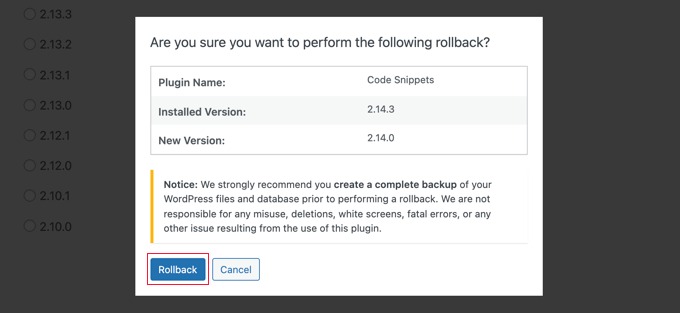
Restoring an older database can overwrite records created after the backup. Before you roll back the database, compare the backup's timestamp with the time you plan to restore. The gap can hold posts, registrations, customer accounts, orders, payments and plugin records the site still needs. Identify those changes and the recovery boundary before restoring.
In an r/woocommerce discussion, someone considering a rollback asked, “is there any way to backup/restore the order data so the list of sales etc since backuop point can be restored?” Sales recorded after the backup point are exactly the records a database rollback puts at risk.
| Type of site | Newer records at risk |
|---|---|
| Blog or editorial site | Posts, comments, settings |
| Membership or lead-generation site | Users, registrations, form or plugin records |
| WooCommerce store | Orders, customer data, product changes, payment-related records |
| WooCommerce Subscriptions store | New subscriptions, processed renewals, scheduled actions |
If the failure is limited to site files and your restore tool supports it, restore only the files. The database, with its newer records, stays as it is.
WooCommerce Subscriptions: Restoring older scheduled-action data can return completed renewals to Pending and risk duplicate customer charges. The documented recovery work covers reconciling actions already processed, next-payment dates, and orders, subscriptions, customer records and payment tokens created during the gap. Keep automated renewal processing, live payment attempts and emails switched off, including in any test restoration, until the product's workflow or a qualified operator has dealt with that state.

On eligible sites, WordPress.com documents a managed restore option that preserves certain WooCommerce records.
Work out which newer records the restore would overwrite and whether your host or plugin can keep them. If you can't account for orders or accounts created after the backup, don't import the database yet.
Choose the restoration method for your backup and access
Pick the route that can read your backup, works with the access you have, and restores what you need.
| Backup type | Access you have | Route | Deciding condition |
|---|---|---|---|
| Hosting checkpoint | Host account and restore controls | Provider restoration | The checkpoint and its options cover what you need to restore |
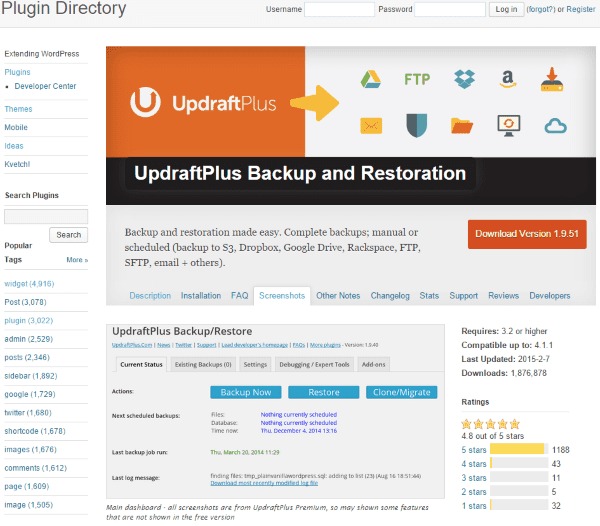
| UpdraftPlus backup set | Working wp-admin | UpdraftPlus restore wizard | The plugin can see a complete, compatible set |
| Plugin archive, dashboard unavailable | Host filesystem/database access | Plugin's documented method without wp-admin | The required archives and your access still exist |
| File archive and SQL export | File and database access | Manual recovery | You can reach the correct target directory and database |
| Backup for another domain or server | Depends on destination | Migration workflow | Host configuration or site URLs must change |
A host can restore an entire environment, including database content, while a plugin can let you pick components. Check what the restore control actually covers before clicking it.
If wp-admin is inaccessible, the normal UpdraftPlus wizard won't work. An All-in-One WP Migration .wpress file is a product-specific archive, and Duplicator has its own documented workflows and edition-specific features.
Moving to another domain or server can mean new database credentials, different hosting configuration and URL replacements. WP-CLI can replace URLs in serialized database data during a migration.
Restore WordPress from a hosting-provider backup
On WP Engine, open Sites, select the right environment and open Backups. Choose the checkpoint's actions menu, then Restore. The Restore with database choice decides whether database content is included.
WP Engine's automated restore doesn't let you pick individual database tables.
On eligible WordPress.com Business or Commerce sites, go to Jetpack → Backup, choose a restore point, select Restore to this point, pick the available components and confirm with Restore now.
Other providers and plans have different checkpoints, retention periods and restore controls. Save the restore log and note how to undo the restore on your host.
Restore a backup created with a WordPress plugin
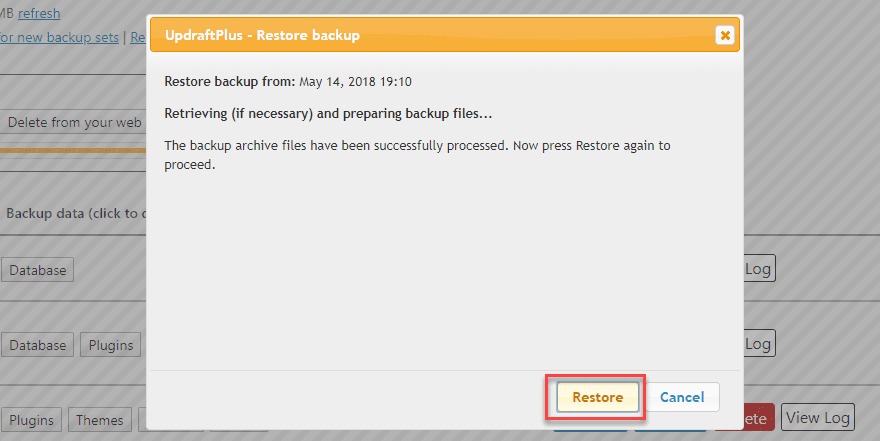
Use the plugin that created the backup and its own restore process.
Restore with UpdraftPlus in wp-admin
- Open the backups screen. In wp-admin, go to Settings → UpdraftPlus Backups → Existing Backups.
- Find the restore point. Find the matching set. If it isn't listed, the plugin documents these options: reconnect to remote storage or rescan it, upload the backed-up files, or put them in
wp-content/updraftand rescan local storage. - Choose Restore. Select the components you need and follow the wizard's prompts.
- Keep the result. Save any messages and errors if the restore doesn't finish as expected.
The UpdraftPlus restoration tutorial says a normal same-URL database restore doesn't need its migration/search-replace option.
When the dashboard is unavailable
If you can't get into wp-admin, UpdraftPlus documents a manual alternative and a recovery approach that uses a fresh WordPress installation with the plugin. Both need your backup files and hosting access.

UpdraftPlus leaves WordPress core out of its default backup unless the optional files capability was used. A manual recovery therefore needs fresh WordPress core files along with the backed-up plugins, themes, uploads, database and other included parts.
UpdraftPlus documents a default 400 MB split threshold for upload archives. Filenames such as uploads.zip, uploads2.zip and uploads3.zip can be pieces of one backup set.
In a July 2025 r/Wordpress discussion about a relative's shop, a poster wrote, “In all articles they just “work” while in reality… not so much.” If an import fails, rerunning it rarely helps. Read the error messages from the tool that created the backup and check which parts you actually have.
Restore WordPress files and the database manually
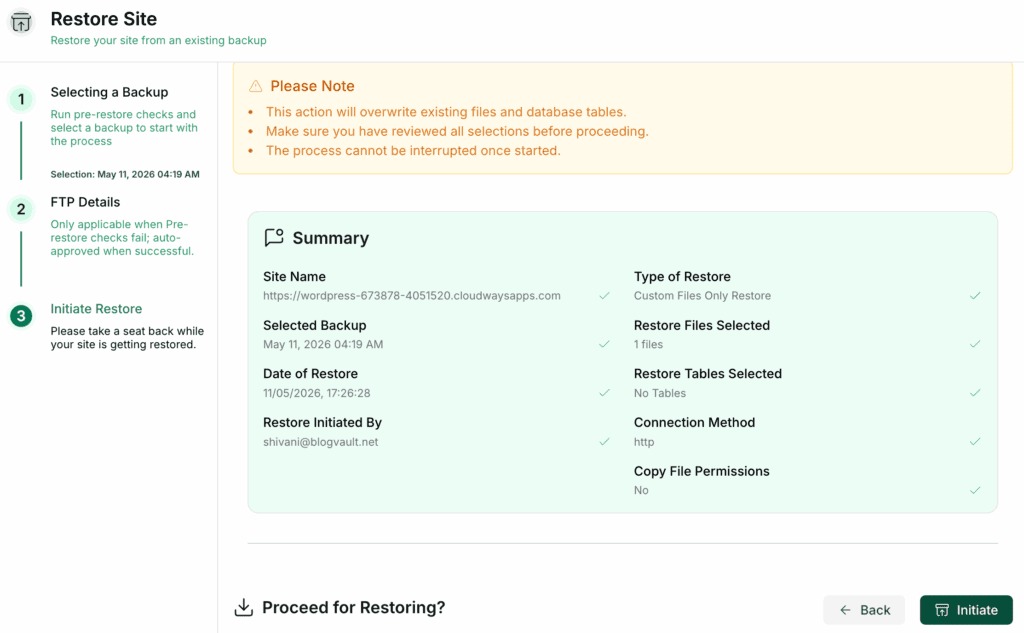
A manual restore ties together the WordPress files, a matching SQL database export and the configuration that connects them. You need file access through a host file manager, SFTP or SSH, plus a database and credentials with import permissions.
Prepare the recovery destination
Find your document root, the target database and the layout inside the file archive. An archive can open directly into WordPress files or sit inside an extra parent folder. The web root needs the directory that holds the application files.
If your host supports it, work in a separate recovery directory or test environment so the previous application tree stays available until you deploy.
Put the WordPress files in place
Extract or transfer the archive contents to your recovery directory. Keep the wp-content plugins, themes, uploads and custom files in their usual locations. If the backup didn't include core files and your product's documented recovery method calls for it, add clean WordPress core files.
Import the matching SQL database
WordPress describes a typical order: files first, then the database import. In phpMyAdmin, select the existing database you want, open Import, choose the matching SQL backup and click Go. Check the result and any errors it reports.
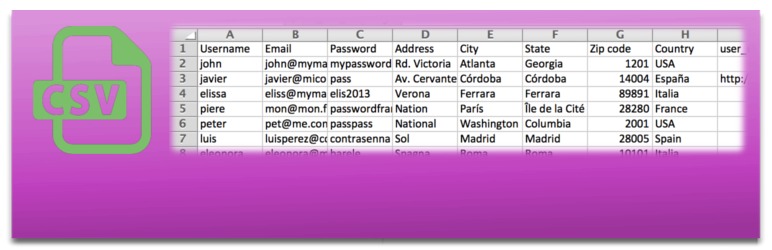
If you have shell access, WordPress documents this MySQL import command:
mysql -h DB_HOST -u DB_USER -p DB_NAME < backup.sqlIf WP-CLI is configured, the WP-CLI database import reference documents:
wp db import /path/to/backup.sqlThese commands act on the database you specify or configure. wp db import reads the WordPress database configuration and doesn't create the database. The SQL can replace existing tables or records, so confirm the destination database and your permissions before running either command.
Align configuration and deploy the recovered tree
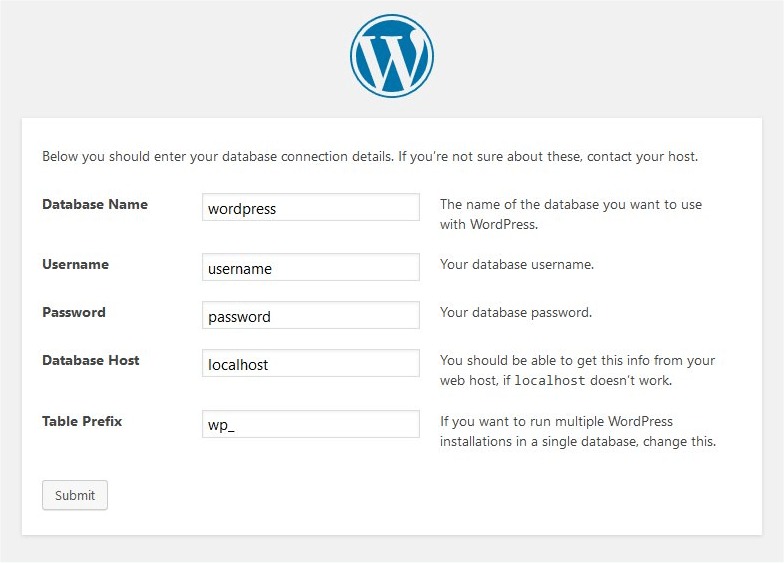
The active wp-config.php must hold the right DB_NAME, DB_USER, DB_PASSWORD and DB_HOST values for the destination. A backed-up copy from another environment can point to a database that no longer exists.
For a staged recovery, find the restored directory that holds the WordPress entry files and use your host's deployment tool to make it the web root. Keep the former application tree so you can reverse the change, and make sure the restored files use the matching database. If your host has no staging or directory-switch option, place the restored contents in the document root using the provider's file controls.
Troubleshoot a restore that finishes but leaves WordPress broken
A restore can finish while WordPress still shows errors, missing assets or unexpected content.
- Database connection error: Check that the database exists, that the values in
wp-config.phpmatch it, and that the database user has permission to use it. - Missing posts, pages or settings: Check whether the SQL export belongs to the right site and went into the active database.
- Broken images or incorrect styling: Check
wp-content/uploadsand the theme and plugin files. - White screen, fatal error or HTTP 500: Use Recovery Mode details and PHP or host error logs to find the faulty code or a compatibility problem. Confirm a PHP-version mismatch from the site's own logs before blaming it.
- Redirects, 404 pages or stale content: Tell wrong site URLs and rewrite settings apart from cached pages or assets, and check whether the site moved to a different address.
- Possible compromise: An old backup can contain malicious or vulnerable code, or leave the original entry point exposed. Recover from a clean state and follow a credential, vulnerability and incident-response process.

Verify the restored site before returning it to normal service
| Test | Expected result |
|---|---|
| Homepage and an internal page | Correct recovered content appears |
/wp-admin login | You can sign in as an administrator |
| Media and theme presentation | Sample uploads and the expected layout load |
| Links, permalinks, and HTTPS | Sample destinations open correctly |
| Forms or registrations, if used | The feature completes its workflow |
| Commerce checkout, if used | A safe configured test completes without charging customers or sending unintended notifications |
| Current records and renewals, if used | Required records are still there and processed renewals are accounted for |
Test only what your site uses. A brochure site can rely on a contact form, a membership site on registration, and a shop on both order handling and checkout.
Record the restore point you used, the result, any unresolved defects and who is responsible in your maintenance notes. Don't reopen the site while a critical feature is broken or a needed record is missing.
