Back up both the files and the database, keep a copy away from the live server, and restore it once on a staging or local site to confirm it works. Your host's backup tool, a plugin, a phpMyAdmin export or WP-CLI can all do the job, so pick the one your access allows. If your method can't do all of that, change it before relying on it.
A backup can look complete and still miss the database, the media library or a configuration file. Decide what it must contain before choosing a method.
What a complete WordPress backup needs to include
A self-hosted WordPress site needs two things: its files and its database.
| Component | What it preserves | What to recognize |
|---|---|---|
| WordPress database | Posts, pages, users, comments, settings and plugin-created records | MySQL or MariaDB database. Commonly saved as an SQL export |
| Core files | WordPress application code | Files in the installation directory |
| Uploads | Site images, documents and other local media | Usually wp-content/uploads/ |
| Themes and plugins | Site design, extensions and custom code | Usually wp-content/themes/ and wp-content/plugins/ |
| Local configuration | Database connection and web-server settings | wp-config.php, and .htaccess where used |
| Nonstandard dependencies | Custom directories, external assets and installation-specific services | Paths and services specific to your site |
WordPress's file-backup guide lists the standard directories. A custom upload path, external object storage or a Multisite install adds to what you need to back up.
Why a WordPress XML export is different
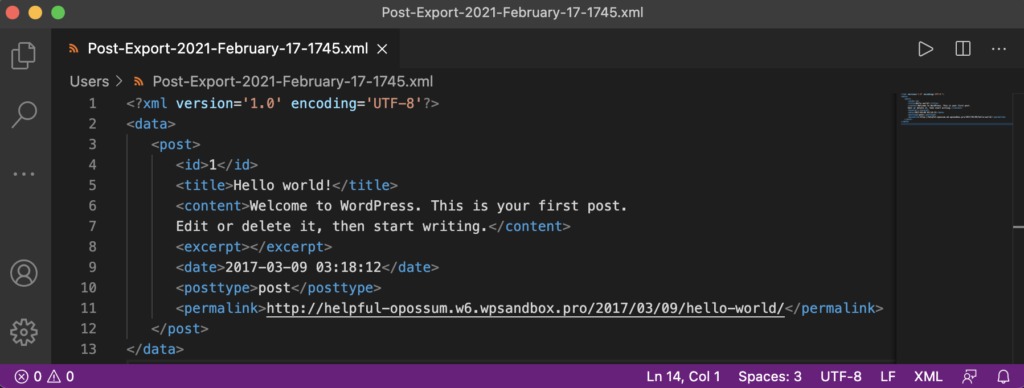
Tools → Export and wp export produce a WordPress eXtended RSS (WXR) file. It moves content between sites. It does not include the full site configuration or the media files themselves.
Choose the backup method that fits your access and recovery plan
Your current access and what you can still reach if WordPress stops loading set the right method.
| Access available | Method to consider | Recovery dependency |
|---|---|---|
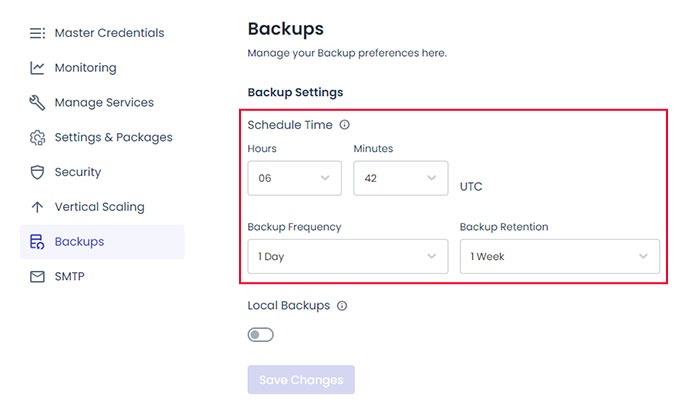
| Managed hosting dashboard | Host's site or account backup | Your host's restore tools, retention period and account login |
| Working WordPress Admin | Backup plugin | The plugin's restore feature, and how you restore when WP Admin fails |
| cPanel or a file manager and database tools | Files plus a phpMyAdmin SQL export | Picking the right database and having a way to restore |
| SFTP and database access | Transferred site files plus SQL | A complete transfer and database credentials |
| SSH and WP-CLI | Command-line database and file backup | Server permissions, a private output location and separate access to the copy |
A small site with working managed-host backups can skip the plugin. If all you have is cPanel or server credentials, a manual backup is your route. Whichever you pick, you must be able to download and restore the backup after the failure you are protecting against. An Azure user on r/Wordpress wanted exactly that: “The big ask is I want to be able to restore my wordpress site even if I hit a critical error and cannot access the dashboard.”
cPanel's full-account backup documentation says automatic restoration of a full-account archive requires WHM or host assistance.
Back up WordPress with your host or a plugin
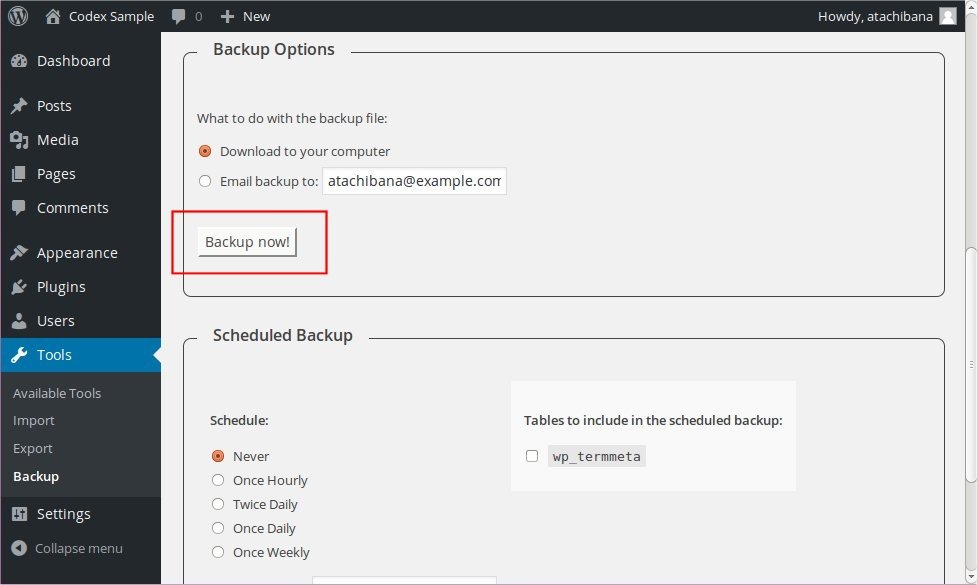
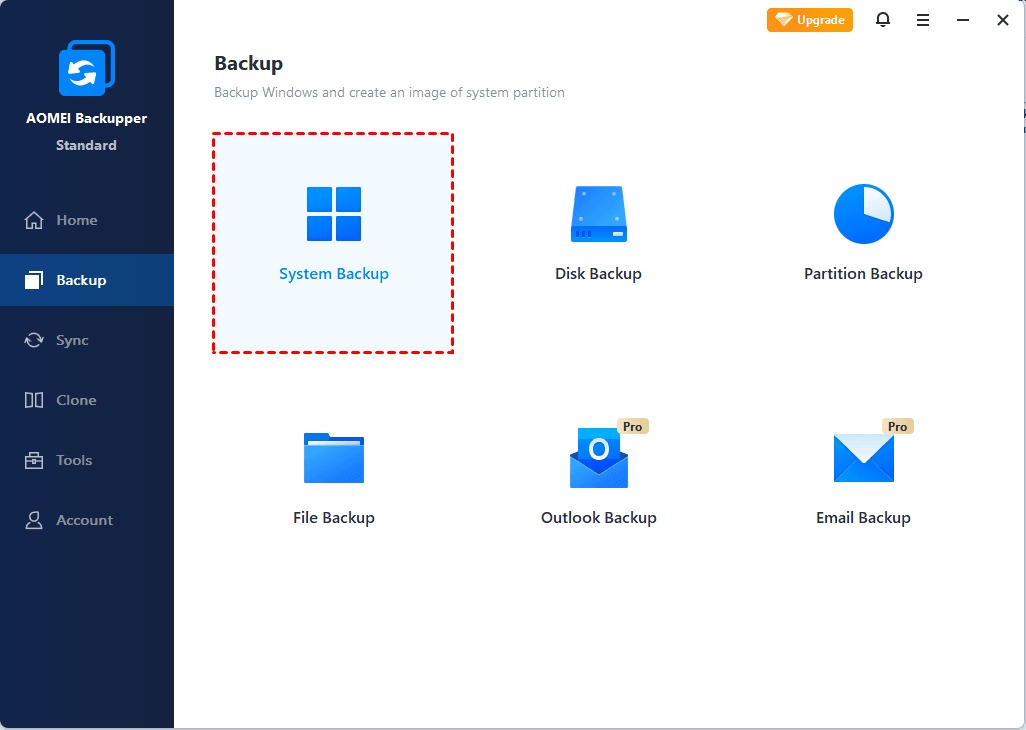
Hosting tools and backup plugins are the easiest route when you can reach the dashboard. Pick the right WordPress installation, include the files and the database, and download everything the job produces.
Using a hosting backup tool
- Open your hosting account and find the backup function for the WordPress site you want to protect.
- Check what it covers: the full installation, only the files, only the database, or the whole hosting account, which can include several WordPress installations.
- Run the backup and check the job result for skipped files or errors.
- Check where you can download the backup and whether restoring it requires your host.
Using a WordPress backup plugin
- Open the plugin's backup controls in WordPress Admin.
- Choose the site files and the database. Check which components the plugin lets you select.
- Run the backup and watch for warnings.
- Download every archive or remote-storage object in that backup set, along with the plugin's recovery instructions.
One archive or several files?
One large archive is easier to handle, but on a big site packing and transferring it takes a lot of disk space, processing time and bandwidth. Split components take more care to collect and make it easier to grab a specific part.
“We are currently using updraft plus but because it saves all backups in separate files it's a nightmare to download the back locally let alone restore it on another server.” That came from an UpdraftPlus user.
Give all components the same backup identifier and keep the set together.
Back up WordPress manually: files plus database
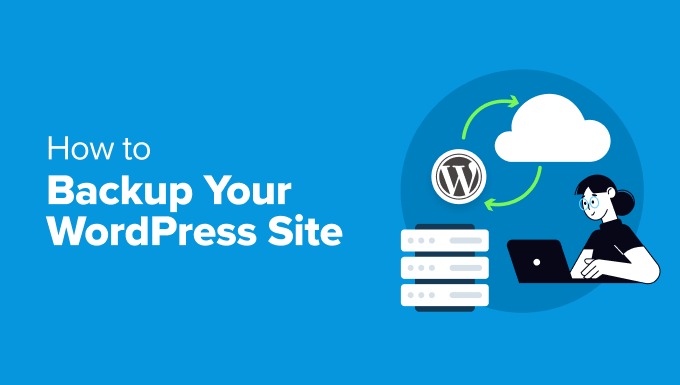
A manual backup has two parts: the site files and an SQL export of the database that site uses. Use your host's file manager or SFTP for the files and phpMyAdmin for the database.
Back up the site files
- Find the WordPress installation in the file manager, or connect through SFTP. An account with several sites can hold multiple installations.
- Select WordPress core,
wp-content/,wp-config.php, any hidden configuration files and custom site directories. - Create an archive with the host's file tools if they support it, or transfer the selected files over SFTP.
- Save the file copy under the site name and a timestamp.
Check where WordPress actually lives. public_html is a common directory, but some setups put it elsewhere.
Export the database with phpMyAdmin
- Find the database named in the installation's
wp-config.phpconnection settings. - Open phpMyAdmin through your host and select that database in the list.
- Choose the Export tab. For an ordinary full-table export, select Quick and SQL when those controls are available, then choose Go to download the export. A more complex database can need the custom export settings.
- Save the SQL file with the same timestamp as the file copy.
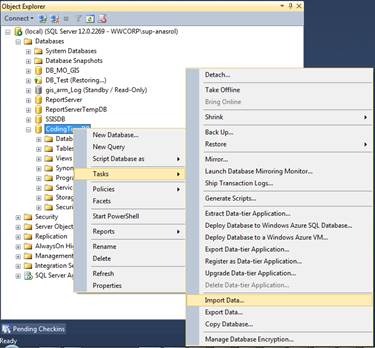
The WordPress database-backup instructions cover these export steps. Menus differ by phpMyAdmin version and host panel.
Keep wp-config.php and SQL exports private: they can contain credentials and sensitive site records.
Back up a VPS-hosted WordPress site with SSH and WP-CLI
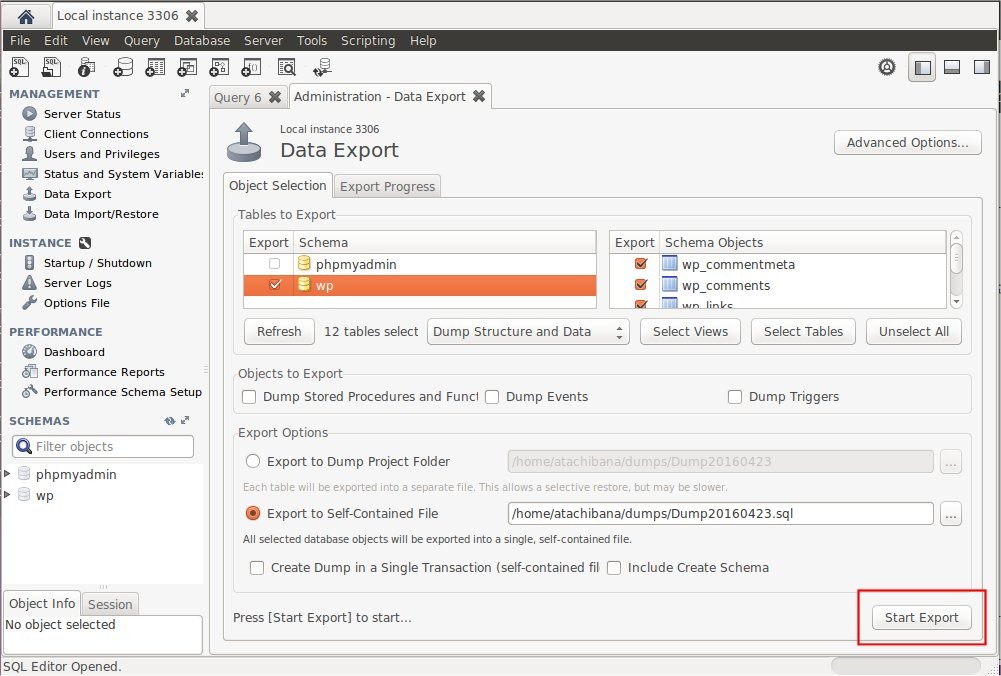
On a VPS with SSH and a working WP-CLI, go to the WordPress directory and run wp db export /private/backup-directory/site.sql. Replace that path with an existing, writable private location outside the web-served site.
As the WP-CLI export reference describes, this is a database-only mysqldump operation that reads its connection settings from wp-config.php. Back up the matching WordPress files separately with a secure archive, a transfer or a host snapshot.
Check the command's exit status and any errors, and make sure no file copy was interrupted.
The example does not request --single-transaction. This optional mysqldump flag can give consistent InnoDB dumps under MySQL 8.4 conditions, with limitations for nontransactional tables and concurrent schema changes.
Set the backup schedule and keep a protected copy elsewhere
Set the schedule by how much recent data you can afford to lose. WordPress suggests weekly backups for quieter sites and daily backups for sites that change quickly.
- Infrequently edited site: Weekly works when pages and settings rarely change. Take a fresh backup before every significant update.
- Active publication: Back up daily.
- WooCommerce store: Restoring an earlier database copy can omit later orders and other store changes, so use a more frequent or transaction-aware approach when the business cannot afford that loss.
Coordinate files and database
Data changes while a backup runs. If the database and the media files are copied at different times, they can end up in incompatible states, especially when an upload or configuration change lands between the two copies.
On a busy site, handle ongoing writes with a coordinated snapshot or a maintenance approach your environment supports.
Keep an independent, protected copy
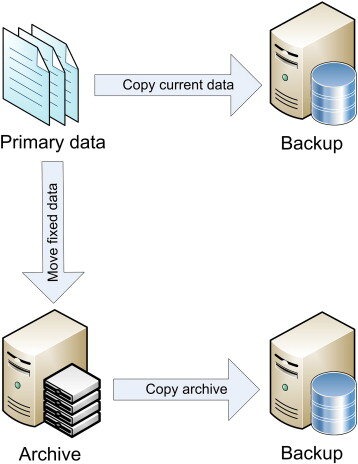
Store a copy somewhere a server failure cannot reach. Options include storage with its own credentials, a separate storage system or an offline copy.
Restrict access to wherever the copy lives, and protect backup credentials and any encryption keys. A public download URL with an unpredictable filename is not access control.
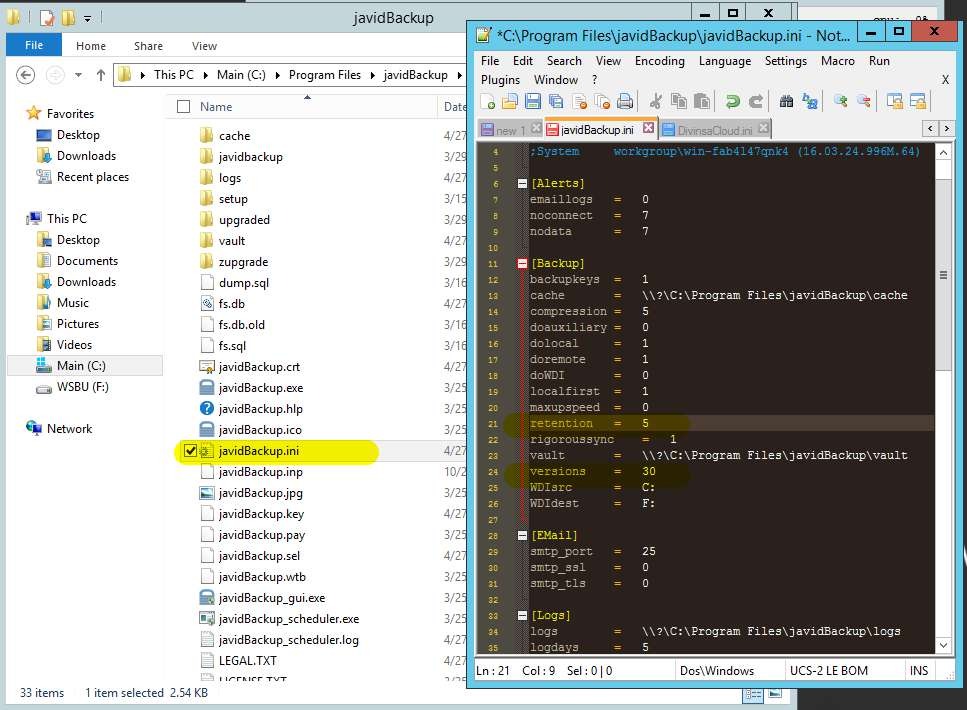
Set a retention and rotation policy so older versions stay available when the latest copy turns out to be unusable.
A Synology NAS works as a local storage destination. Its credentials, network exposure and separation from the production server decide whether it counts as independent protection.
Verify the backup set and test recovery before you need it
Keep a short log of what you backed up, where it is stored and whether a test restore worked. Do not treat a backup ZIP as proven recoverable. Select an isolated target and verify that the database and uploaded files can both be restored.
- Date and time zone of the recovery point.
- Site and whether the source was production or staging.
- Method: host, plugin, manual or SSH/WP-CLI, plus what you need to restore if WordPress Admin is down.
- Storage location of the files and the SQL export, plus anything that lives outside them, such as external media or custom paths. Never write secrets in a public document.
- Software versions: WordPress, PHP, database, theme and plugins.
- Test result: the date, where you restored it, which checks passed or failed, any environment differences that affected the test, and the next test date.
Match every saved component to the right installation: each archive of a split plugin backup, or the file set and SQL export of a manual one.
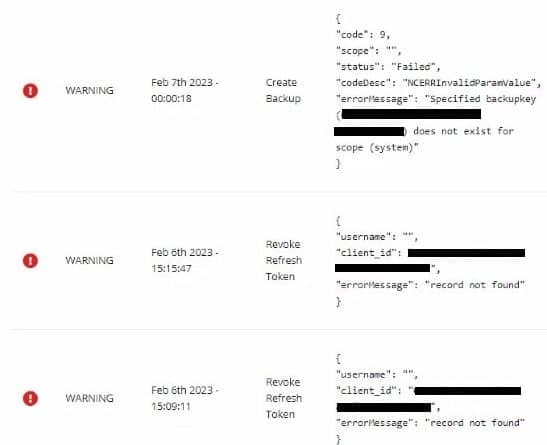
Try the recovery away from production
Download the copy from wherever you stored it and restore it on a staging site or a local install, following the recovery procedure for your method. Leave the live site and its data untouched.
- Content: Compare a few pages, recent posts and key settings against the recovery point.
- Media: Open a few images and uploaded documents.
- Administration: Confirm the dashboard works and the right users can log in.
- Site functions: Check the theme, plugins and visible features.
- Store data: For WooCommerce, check order records and critical workflows without creating live payments or real orders.
Record the outcome in your log.
If a WordPress backup fails or restores incompletely
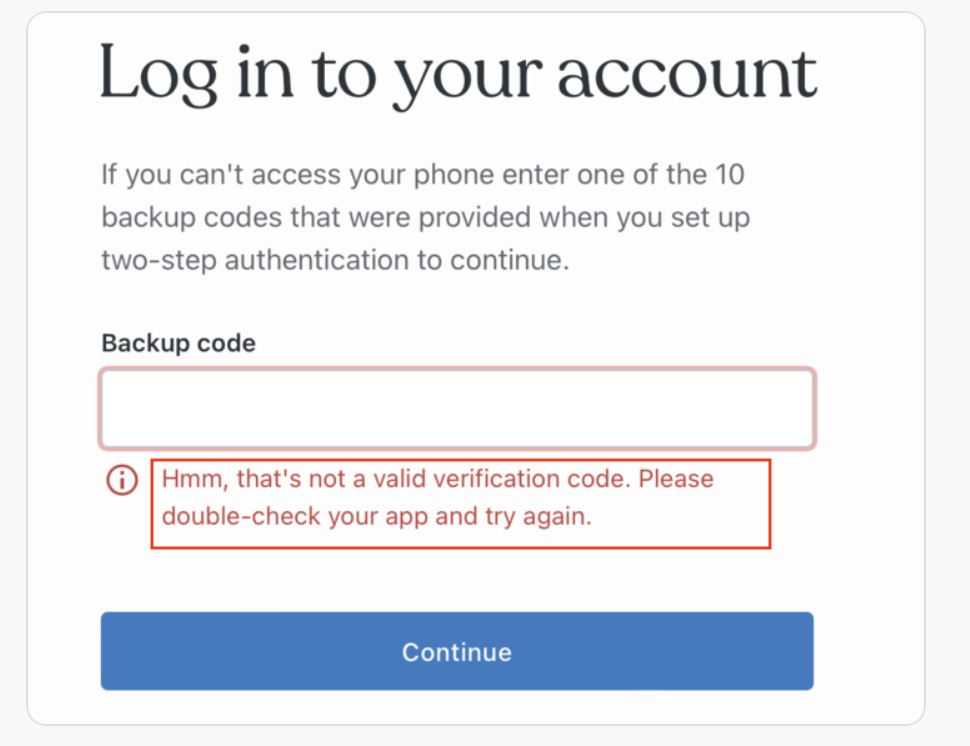
Where it broke sets the fix: file backup, SQL export, archive transfer or the restore itself.
| Symptom | What to inspect | Safe next action |
|---|---|---|
| Backup job fails or stops | Job log, quota, disk space, timeout, permissions, skipped files | Fix the constraint you find and run a fresh backup |
| Files are present but SQL is absent | The database name, connection details, export output and errors | Run the database export for the correct site |
| Only some archive volumes arrived | The plugin's component list and transfer destination | Download the missing parts or make a new, complete backup |
| Dashboard or hosting account is unavailable | Your independent copy and the installer or provider restore path | Use the recovery route you set up in advance |
| Restored content or appearance differs | Recovery point, SQL, uploads, site identity, PHP, themes, plugins and configuration | Diagnose the mismatch on a staging or local site before any production restore |
Protect the live site. Do not overwrite or delete the only working production copy while you diagnose a failure.
