For a new WordPress site on compatible hosting, use your provider's supported installer when one is available, install manually when you need control over the files and database, or use WP-CLI for repeatable deployments on a prepared server. Choose a VPS when you need server-level control and can maintain the server yourself or have someone manage it. If you must keep an existing WordPress site, plan a migration before running a fresh installer.
Installing self-hosted WordPress comes down to three decisions: where the software runs, how its files and database get created, and which address visitors use.
A hosting control panel automates most of the work. With a manual install, you control file placement and database configuration directly. WP-CLI handles the installation through commands.
Choose your WordPress installation route
Shared hosting, managed hosting, and a virtual private server (VPS) describe where WordPress runs. A hosting-panel installer, manual setup, and WP-CLI describe how you install it. Choose the installation route before following steps: a hosting panel hides many server decisions, a manual install exposes them, and WP-CLI assumes working shell access.
Some VPS plans come with a control panel or a WordPress image. A shared hosting account can allow manual installation. WP-CLI works on either type of environment when you have command-line access.
| Your situation | Recommended route | What you need | Main responsibility |
|---|---|---|---|
| New site on compatible cPanel, Plesk, or managed hosting | Host's WordPress installer | Access to the installer and the correct domain | Choose the installation location and manage the site |
| New site on hosting without an installer | Manual installation | File access, database access, and a working PHP environment | Place files and configure the database connection |
| Custom application or server configuration needed | VPS with a suitable WordPress installation method | Server administration or managed support | Maintain the operating system and application stack |
| Repeated deployments with shell access | WP-CLI | Prepared web stack, database access, and WP-CLI | Use consistent commands and protect credentials |
| Existing WordPress site being moved | Migration or restore | Restorable backup, files, database, and cutover plan | Preserve existing content and configuration |
A personal blog on a compatible cPanel account can start with the host's installer. Move that same blog to a bare VPS and you take on operating-system updates, web-server configuration, and server security.
Check your hosting and domain before installing
Before you create the site, confirm that your hosting account supports WordPress and decide where the installation goes.
The official WordPress requirements recommend PHP 8.3 or newer, MariaDB 10.11 or newer or MySQL 8.0 or newer, and HTTPS. Apache and Nginx are the recommended web servers.
Some older software versions still run WordPress, but WordPress marks them as end-of-life. For a new site, use the recommended versions if your host allows it.
- Hosting access: Have your account login and the permissions your chosen method requires.
- Domain: Make sure the domain points to the hosting account you plan to use.
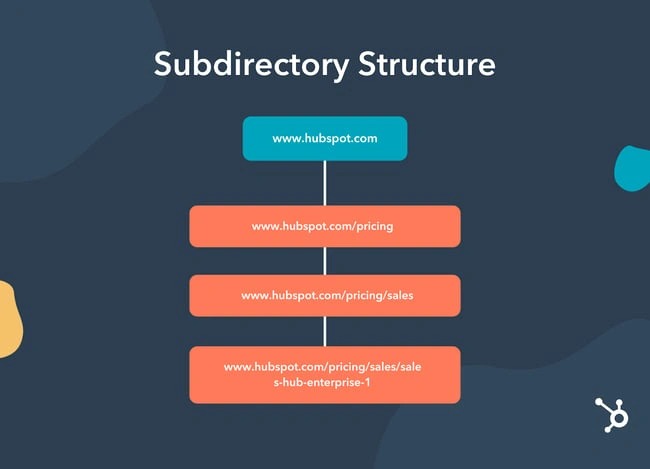
- Destination: Decide whether WordPress belongs at the domain root or in a subdirectory.
- Software: Confirm the available PHP version, database engine, and HTTPS capability.
- Installation access: Find the host's installer, or the file and database tools you can use.
- Existing content: Check whether the destination folder or database already holds a site or data you need to keep.
A root installation serves WordPress at https://example.com/. A subdirectory installation can serve it at https://example.com/blog/. The choice decides where the WordPress files go and which address you use during installation.
Your document root is not always called public_html. Use the folder your host assigned to your domain.
A domain registration alone does not give you PHP, a database, or a configured web server.
Install WordPress with cPanel, Plesk, or your host's installer
On cPanel, look for WP Toolkit or the WordPress installer from your hosting provider. On Plesk, WP Toolkit can be installed as an extension. The WordPress control-panel documentation describes both options.
- Sign in to the hosting control panel and open the WordPress installation tool.
- Select the domain where the new website will live.
- Choose the installation directory. If your tool uses the empty-field convention for a root installation, leave the subdirectory blank. Read the field's description before continuing.
- Enter the site title and create a WordPress administrator username, password, and email address.
- Review the database, update, and installation settings your host shows.
- Run the installer and save the site address and administrator login details.
The WordPress administrator account is separate from your hosting account.
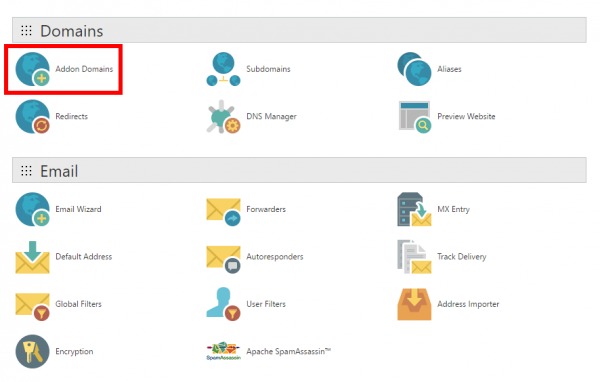
A one-click installer automates the creation and configuration steps. Labels and options differ by host, and some tools create the database without asking you to enter its credentials.
In an r/Wordpress discussion, a user familiar with manual setup asked, “I can install WP myself manually but is there any major downside in doing so?” The trade-off is extra work: you place the files, create the database, and configure wp-config.php yourself.
Install WordPress manually when your host has no installer
A manual installation needs a prepared PHP hosting environment, a database, the WordPress files, and the browser-based installer. It works on compatible shared hosting or a configured VPS.
The official WordPress installation guide describes the procedure behind these steps.
Download and place the WordPress files
- Download the WordPress package from WordPress.org and extract it.
- Open the hosting file manager or connect using an approved file-transfer method.
- Upload the WordPress files into the installation directory.
- Check that the location matches the URL you want visitors to use.
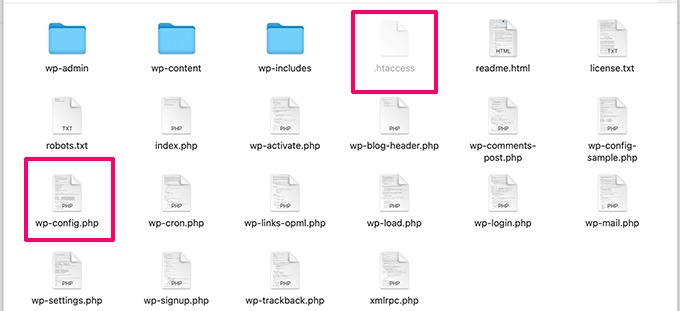
For a root installation, the files go directly inside the domain's document root. Upload the whole extracted wordpress folder there and the site can end up under /wordpress/. For a site at /blog/, place the files in the directory mapped to that path.
Create the database and configure WordPress
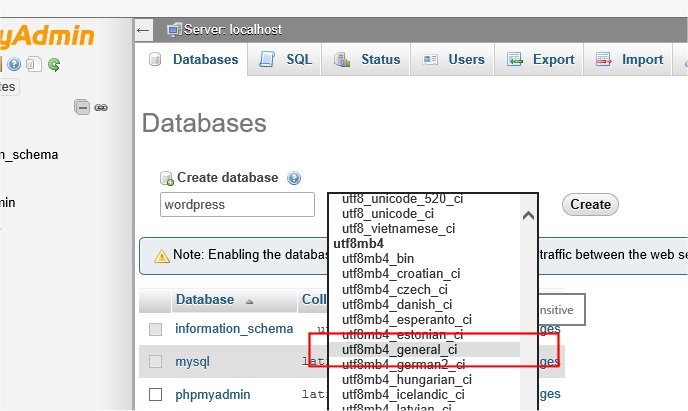
Create a database and a database user in your hosting tools, then grant that user the privileges the WordPress database requires. Write down the database name, username, password, and host value your provider gives you.
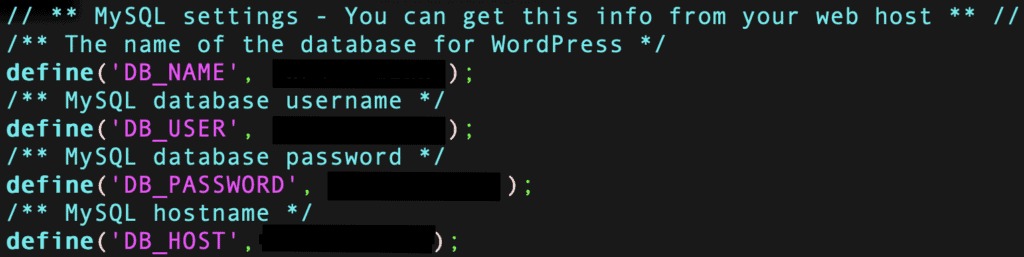
WordPress uses four database connection settings in wp-config.php:
DB_NAME: The database WordPress will use.DB_USER: The database account allowed to access it.DB_PASSWORD: That database account's password.DB_HOST: The database server address, which islocalhostor a provider-specific hostname.
WordPress can guide you through creating its configuration file in the browser. Or you can copy wp-config-sample.php to wp-config.php and enter the connection settings yourself. If you do, replace the sample authentication keys and salts with unique values from WordPress's official secret-key service.
Run the browser installer
Open the installation URL for the directory you chose:
- Domain root:
https://example.com/wp-admin/install.php - Blog subdirectory:
https://example.com/blog/wp-admin/install.php
Follow the setup screen to enter the site title and create the WordPress administrator account.
If the browser shows a database error or a server directory listing, go to the troubleshooting section below.
Install WordPress on a VPS: setup and maintenance responsibilities
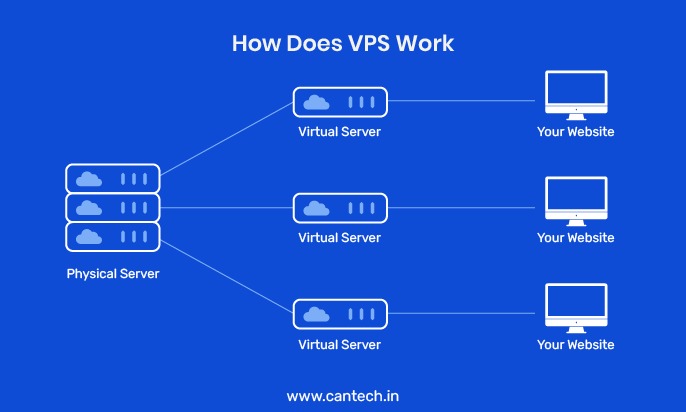
A VPS gives you control over the server environment. WordPress runs there once the web server, PHP, database service, domain routing, and HTTPS are configured.
Some VPS products include a preconfigured WordPress image, a control panel, or a managed service.
| Responsibility | Typical shared or managed hosting | Self-managed VPS |
|---|---|---|
| Operating system | Provider manages the hosting platform | Server owner or administrator maintains it |
| Web server and PHP | Provider supplies the configured environment | Administrator configures and updates the stack |
| Database service | Provider supplies database hosting and account tools | Administrator manages the service and its availability |
| WordPress updates | Differs by host | Site owner or appointed administrator manages them |
| Backups and recovery | Differs by plan | Administrator must arrange and verify recovery |
Be careful with the word managed when you compare VPS services. One provider can maintain the operating system and leave WordPress administration to you. Another can include broader application support.
Use WP-CLI for repeatable WordPress installations
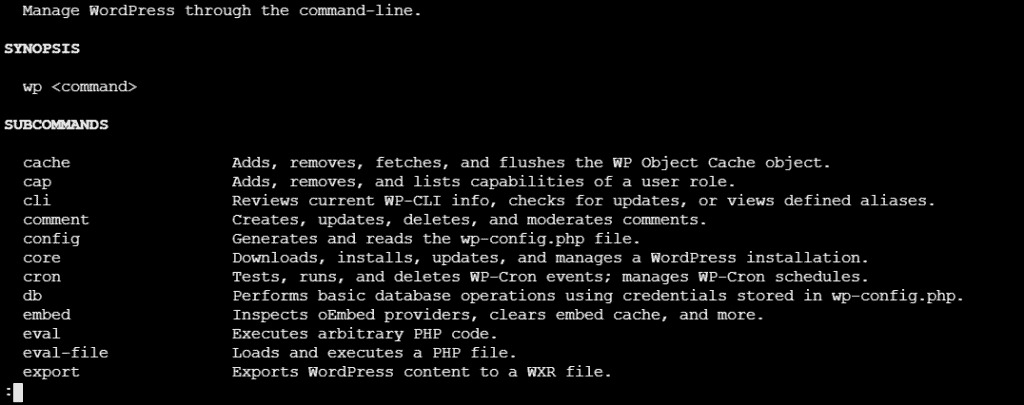
WP-CLI installs and manages WordPress from a terminal. It helps when you have shell access and want a repeatable setup across development, staging, and production environments.
Start with a working web server, PHP, database service, and HTTPS configuration. You also need WP-CLI installed, write permission for the WordPress directory, and a database account with the required access.
Download WordPress and create its configuration
Open a terminal in the directory that should contain the WordPress files. Confirm that WP-CLI is available, then download WordPress core:
wp --info
wp core download
Next, create the configuration file with the database name and user for this site:
wp config create --dbname=site_db --dbuser=site_user --prompt=dbpassReplace site_db and site_user with your own database values. The prompt asks for the database password interactively. Add the database-host option if your provider requires a host other than the default.
Create the database when permitted
If the database account has permission to create a database, WP-CLI can create the database defined in the configuration:
wp db createIf your host creates databases through a control panel, use the database you prepared there. The database account still needs permission to work with the WordPress tables.
Complete the WordPress installation
Initialize WordPress with the site's URL, title, administrator username, and administrator email:
wp core install --url=https://example.com --title="Example Site" --admin_user=siteadmin [email protected] --prompt=admin_passwordReplace the example URL, title, username, and email with your site's details. The --prompt=admin_password option asks for the administrator password interactively. Do not put production passwords directly in commands. Shell history can retain them, and process inspection can expose them.
These commands follow the official WP-CLI installation handbook.
Already have a WordPress site? Stop before a fresh install
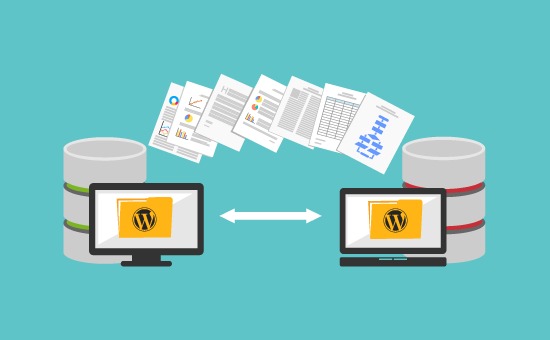
If you need to keep an existing WordPress website, stop before running a fresh installer into its destination. A fresh installation creates a new WordPress site. It does not transfer the existing site's posts, media, themes, users, settings, or database. In an r/webhosting discussion about moving WordPress to a VPS, a user asked, “can i easily deploy the wordpress websites on the vps without losing it as i cant get a straight answer to this question”.
Keep the source site's files and database, make a backup and verify that you can restore it, then follow a migration or restore process before changing the live destination.
Verify that your WordPress installation works
After the installer finishes, test the site from the public address and from the administrator dashboard. A success message is only the first checkpoint.
| Check | What to do | Expected result |
|---|---|---|
| Public website | Open your root or subdirectory URL | The WordPress website loads |
| Administrator access | Open the corresponding /wp-admin/ address and sign in | The new administrator reaches the dashboard |
| HTTPS and address | Check the browser URL and the configured site address | The site uses the HTTPS address you chose |
| Basic WordPress operation | Save a private test draft or a harmless setting | The change saves without a database error |
| Ongoing operations | Confirm the update and backup arrangements | You know who handles updates and backups |
For a WP-CLI installation, you can also run wp core is-installed from the WordPress directory. The command checks for the standard WordPress database tables and returns a status that scripts can read.
Fix common WordPress installation problems
Start with the symptom you see.
| Symptom | First check | When to escalate |
|---|---|---|
| “Error establishing a database connection” | Compare DB_NAME, DB_USER, DB_PASSWORD, and DB_HOST with the database account. Check permissions and service availability | The values match but the connection still fails |
| Directory listing instead of WordPress | Check the installation directory and whether the server serves index.php | The server's directory-index configuration needs changes |
| PHP source or tags appear in the browser | Check whether PHP is configured to execute for the site | PHP or web-server configuration is outside your account access |
| Missing database extension error | Check that the required PHP database extension is installed and enabled | The hosting environment needs a PHP configuration change |
| Site appears under an unexpected path | Compare the URL you want with the directory that holds the WordPress files | Changing the path would affect an existing live installation |
| HTTPS or domain address fails | Check the domain's hosting assignment and certificate configuration | DNS, certificate, or server routing needs provider-level access |
If the first check points to an infrastructure problem, use your hosting provider's support tools or the server administrator's logs. Do not delete files, drop database tables, or rerun the installer repeatedly while the cause is unknown.
