Standalone Nginx with PHP-FPM and MariaDB is a sound way to host WordPress on an Ubuntu VPS you control and will maintain. Install the versions for your Ubuntu release, add HTTPS, and test the admin, post URLs and REST API. If you don't want to run a server, choose managed WordPress hosting.
What you need before you start
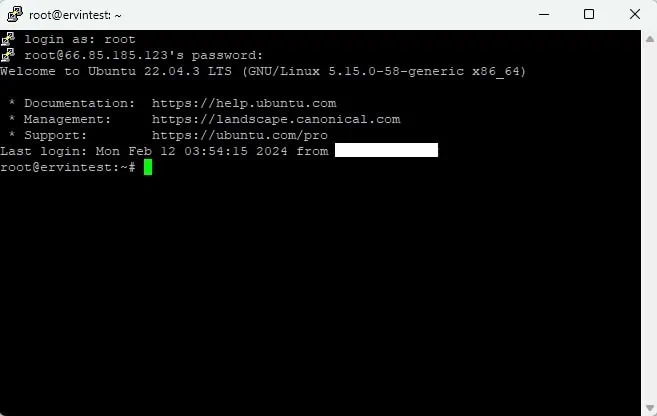
This walkthrough installs one new WordPress site on a clean, self-managed Ubuntu 24.04 or 26.04 LTS VPS. You need SSH access, sudo privileges, a domain you control, and the ability to configure the services on the machine.
An existing production server needs a separate inventory and change plan. Replacing its default Nginx configuration or writing into an occupied document root can interrupt another website.
- Access: Confirm that your SSH session works and your account has sudo privileges. Keep SSH open in both your server firewall and your provider's firewall.
- Network: Know the VPS's public IPv4 address and whether it serves IPv6. Incoming TCP ports 80 and 443 must be reachable for web traffic and certificate requests.
- Domain: Choose the hostname, such as
example.com, and decide whether www.example.com should also work.
- Downloads: Make sure the server can reach the Ubuntu repositories and the official WordPress download endpoint.
The examples use
example.com and
/var/www/example.com/public/. Replace both with your own domain and path throughout the commands.
These are native-package instructions. Docker Compose, hosting panels, Apache and Nginx reverse-proxy deployments each need their own configuration.
Which PHP and database versions Ubuntu installs
Ubuntu 24.04 and 26.04 LTS install different default PHP and database branches, so identify your release before copying a PHP-FPM service name or socket path. Do not infer the installed versions from this comparison table alone.
| Component | Ubuntu 24.04 LTS | Ubuntu 26.04 LTS |
|---|
| PHP branch | 8.3 | 8.5 |
| PHP-FPM service family | php8.3-fpm | php8.5-fpm |
| MariaDB branch | 10.11 | 11.8 LTS |
| MySQL alternative | 8.0 | 8.4 LTS |
The
WordPress requirements recommend PHP 8.3 or newer, MariaDB 10.11 or newer or MySQL 8.0 or newer, and HTTPS. The WordPress Hosting Handbook also recommends PHP 8.4 or newer for production, and PHP 8.3 entered security-only support on December 31, 2025.
WordPress 7.1 core documentation includes support for PHP 8.3, 8.4 and 8.5. Themes and plugins need their own PHP 8.5 support.
Ubuntu 26.04 LTS was released on April 23, 2026, and its standard security maintenance period runs through April 2031. Its release documentation also lists the Nginx 1.28 series.
Check the operating system:
cat /etc/os-release
List the database and PHP package candidates:
apt-cache policy php-fpm mariadb-server
Once PHP is installed, check the CLI binary, the FPM services and the runtime socket directory:
php -v
systemctl list-unit-files 'php*-fpm.service'
ls -l /run/php/
The CLI interpreter and PHP-FPM are separate runtimes.
Use one database server. The commands below use MariaDB, and you don't need MySQL alongside it for the same WordPress database.
Install Nginx, PHP-FPM and MariaDB
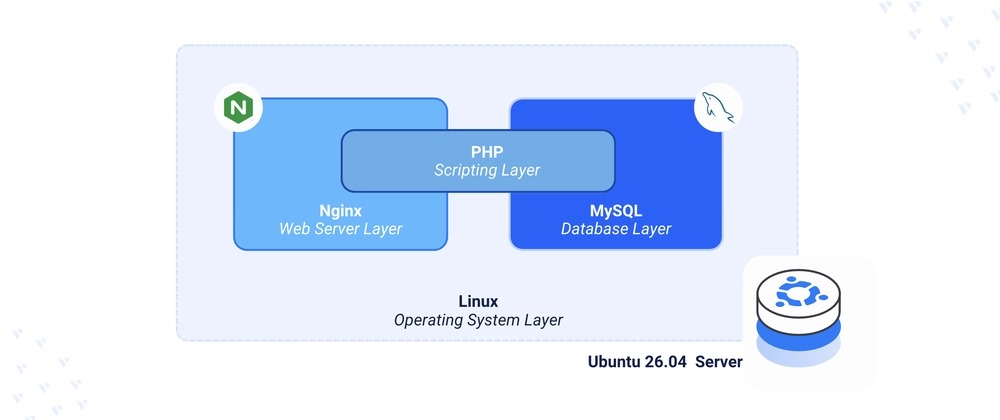
Nginx handles HTTP requests, PHP-FPM executes WordPress PHP scripts, and MariaDB stores WordPress data. Install the three services from the repositories configured for your Ubuntu release.
sudo apt update
sudo apt install nginx mariadb-server php-fpm \
php-mysql php-curl php-gd php-mbstring \
php-xml php-zip php-intl wget curl
These extensions cover a standard install. Some plugins need more.
Check each service on its own. For Ubuntu 24.04:
sudo systemctl status nginx mariadb php8.3-fpm --no-pager
On Ubuntu 26.04, every
php8.3-fpm name in the commands becomes
php8.5-fpm.
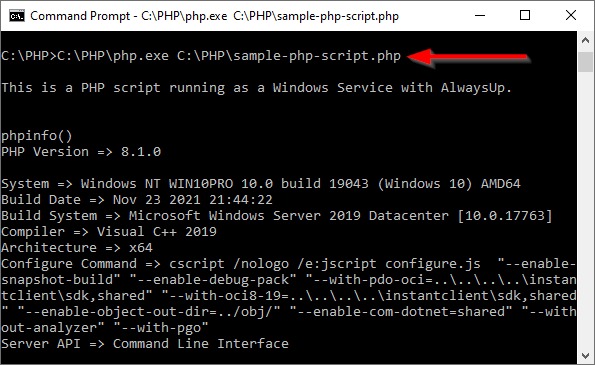
Each unit should report active. If a unit is missing or inactive, diagnose it. Nginx still shows Ubuntu's default welcome page, because you haven't configured a WordPress virtual host yet.
Give WordPress its own database and user
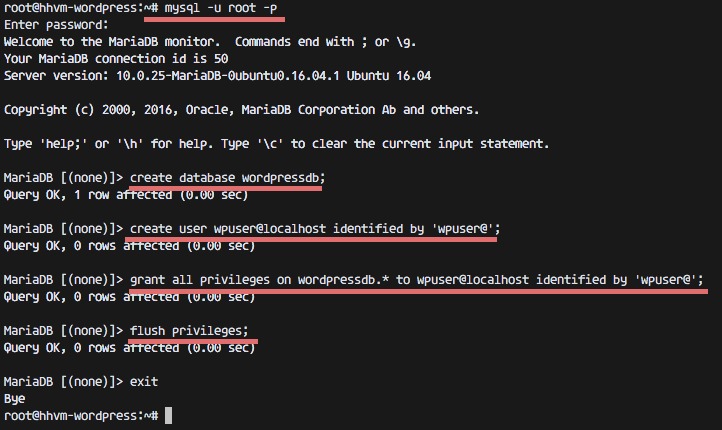
Create a dedicated database and an application account with permissions limited to that database.
Open MariaDB's administrative shell on the server:
sudo mariadb
Create the database using the WordPress-compatible character set:
CREATE DATABASE wp_site
CHARACTER SET utf8mb4
COLLATE utf8mb4_unicode_ci;
Create its local login and grant privileges within
wp_site:
CREATE USER 'wp_site_user'@'localhost'
IDENTIFIED BY 'REPLACE_WITH_UNIQUE_RANDOM_SECRET';

GRANT ALL PRIVILEGES ON wp_site.*
TO 'wp_site_user'@'localhost';
Replace the example secret with a strong, unique password. The privilege scope
wp_site.* limits the account to the WordPress database. It has no administrative access to other databases.
Leave the SQL shell and test the dedicated account:
exit
mariadb -u wp_site_user -p wp_site
Enter the password. If you reach the MariaDB prompt, the account works. Leave that session with
exit.
| WordPress setting | Example value |
|---|
| Database name | wp_site |
| Database username | wp_site_user |
| Database hostname | localhost |
| Database password | The unique secret created above |
Keep the database password outside public notes, screenshots and shared diagnostic output.
Download WordPress and set file ownership
Put WordPress in its own empty directory. Its
index.php,
wp-admin,
wp-content and
wp-includes must sit directly inside the directory that Nginx serves.
List the destination before writing to it:
sudo ls -la /var/www/example.com/public
A missing directory is normal on a fresh site. If the path already contains another application, stop before copying files into it.
Create the site directory and download the official WordPress archive over HTTPS into a working directory:
sudo mkdir -p /var/www/example.com/public
cd /tmp
wget https://wordpress.org/latest.tar.gz
tar -xzf latest.tar.gz
sudo cp -a wordpress/. /var/www/example.com/public/
The extracted archive contains a
wordpress directory. Copying its contents as shown puts the application files in the document root. The
latest.tar.gz endpoint changes with each release. The command pins no version and verifies no checksum.
Now create WordPress's configuration from the supplied sample:
sudo cp /var/www/example.com/public/wp-config-sample.php \
/var/www/example.com/public/wp-config.php

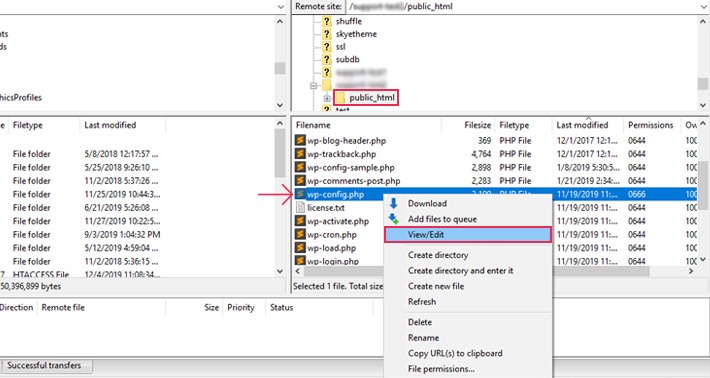
sudoedit /var/www/example.com/public/wp-config.php
In that file, set the four database constants to the values you created in the previous section:
define( 'DB_NAME', 'wp_site' );
define( 'DB_USER', 'wp_site_user' );
define( 'DB_PASSWORD', 'YOUR_UNIQUE_DATABASE_PASSWORD' );
define( 'DB_HOST', 'localhost' );
Replace the password placeholder with your database password and keep the
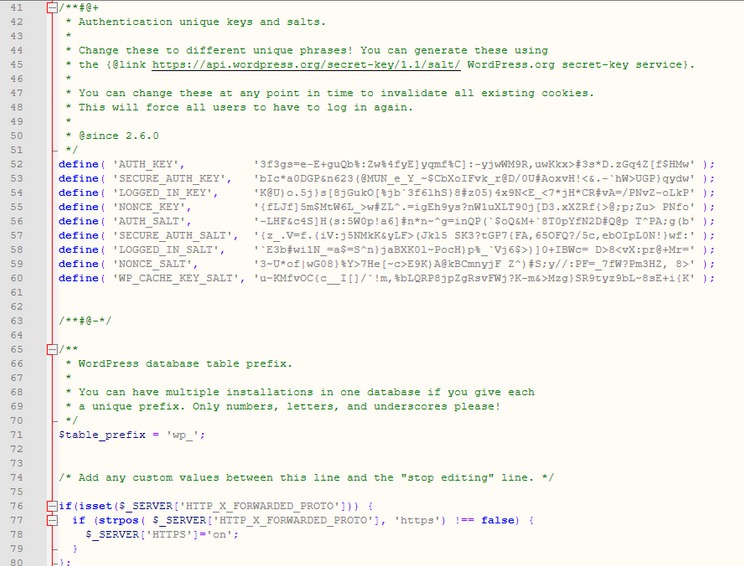
utf8mb4 database settings. Get a fresh set of authentication keys and salts from the official WordPress.org generator:
wget -qO- https://api.wordpress.org/secret-key/1.1/salt/
Replace all eight sample key and salt
define() entries in
wp-config.php with the returned values.
The
official WordPress installation instructions document the configuration fields and authentication-key setup.
Choose who owns the files
In this fresh single-site example, your SSH user owns the WordPress files and the group PHP-FPM runs as gets read access. Here that group is
www-data.
The commands assume a non-root SSH account with sudo privileges and a PHP-FPM pool that runs as
www-data. If your pool uses another account, substitute it throughout.
sudo chown -R "$USER":www-data /var/www/example.com/public
sudo find /var/www/example.com/public -type d -exec chmod 750 {} +
sudo find /var/www/example.com/public -type f -exec chmod 640 {} +
Allow PHP to write user uploads in the dedicated uploads directory:
sudo mkdir -p /var/www/example.com/public/wp-content/uploads
sudo chown -R www-data:www-data \
/var/www/example.com/public/wp-content/uploads
sudo find /var/www/example.com/public/wp-content/uploads \
-type d -exec chmod 750 {} +
sudo find /var/www/example.com/public/wp-content/uploads \
-type f -exec chmod 640 {} +
This setup separates deployment ownership from the web process's write access. Updates that modify core or plugin files need a deployment method with the right permissions.

Check ownership and modes:
stat -c '%U:%G %a %n' \
/var/www/example.com/public \
/var/www/example.com/public/wp-config.php \
/var/www/example.com/public/wp-content/uploads
The PHP-FPM worker must read the application and its configuration, and write to the uploads directory. Avoid permission mode
777 and blanket write access across the document root.
Configure Nginx for WordPress permalinks
Nginx must pick the right hostname, serve WordPress from the document root and pass PHP requests to your PHP-FPM pool. Pretty permalinks need front-controller routing.
Start by finding your PHP-FPM pool's listener:
sudo grep -R '^[[:space:]]*listen[[:space:]]*=' \
/etc/php/*/fpm/pool.d/*.conf
The
listen value is either a Unix socket or a TCP address. For example, Ubuntu 24.04's package-based PHP 8.3 pool uses
/run/php/php8.3-fpm.sock.
Create the server block
The following example assumes standalone Nginx, the Ubuntu-packaged FastCGI include and the PHP 8.3 socket. For a 26.04 verification run, confirm the actual PHP 8.5 pool listener and use that value in every applicable location block before testing. Do not copy the 24.04 socket literally.
Create
/etc/nginx/sites-available/example.com and insert the following configuration. Replace
YOUR_PUBLIC_IP with the public IP address you will use for the browser installer. Use a valid address or CIDR value before testing the configuration.
server {
listen 80;
server_name example.com www.example.com;

root /var/www/example.com/public;
index index.php;

location / {
try_files $uri $uri/ /index.php?$args;
}

location = /wp-admin/install.php {
allow YOUR_PUBLIC_IP;
deny all;
include snippets/fastcgi-php.conf;
fastcgi_pass unix:/run/php/php8.3-fpm.sock;
}

location = /wp-admin/setup-config.php {
deny all;
}

location = /wp-config.php {
deny all;
}

location ~* /(?:uploads|files)/.*\.php$ {
deny all;
}

location ~ \.php$ {
include snippets/fastcgi-php.conf;
fastcgi_pass unix:/run/php/php8.3-fpm.sock;
}

location ~ /\.(?!well-known).* {
deny all;
}
}
The exact-match installer location limits the uninitialized application's setup endpoint to the allowed IP. The PHP execution denial for uploads and file directories sits before the general PHP location, because Nginx evaluates regular-expression locations in configuration order.
For WordPress URLs,
try_files $uri $uri/ /index.php?$args; serves existing files and directories directly and passes other requests to WordPress's front controller. Standalone Nginx ignores Apache
.htaccess rewrite rules.
The
fastcgi_pass value must match your PHP-FPM listener, on Ubuntu 26.04 too. The Ubuntu
snippets/fastcgi-php.conf include supplies the FastCGI script parameters used with the packaged configuration.
The
WordPress Nginx configuration reference documents the front-controller pattern and application-specific restrictions.
On r/Wordpress, a user changing permalink settings wrote, “When it is changed the individual pages, except for the main ones, return 404 errors.” A correct front-controller rule is necessary for post URLs, and the WordPress permalink setting has to match it.
Enable and validate the site
On a fresh Ubuntu Nginx installation, enable the new server block:
sudo ln -s /etc/nginx/sites-available/example.com \
/etc/nginx/sites-enabled/example.com
Look at the enabled sites first. If the default catch-all site conflicts with your new hostname, disable it only after you confirm that it serves no other application.
Test the syntax and then apply it:
sudo nginx -t
sudo systemctl reload nginx
Run the reload only if
nginx -t succeeds.
Set up DNS, then HTTPS with Certbot
Point the domain's DNS A record to the VPS's public IPv4 address. If you use
www.example.com, configure that name too. An AAAA record must point to a reachable IPv6 service for the same site.
Automatic certificate issuance requires DNS to resolve correctly and the certificate challenge to reach the server over a public connection. A private-only hostname or an unreachable challenge path needs a different validation method.
Install Certbot
Use the official Certbot Nginx snap method for this example. First make sure the server has snap support:
sudo apt install snapd
If a different Certbot package is already installed, resolve that installation before switching methods. Mixing two Certbot installations creates conflicting executables and renewal paths.
Install Certbot:
sudo snap install --classic certbot
The
Certbot Nginx instructions provide the official preparation and installation steps for this method.
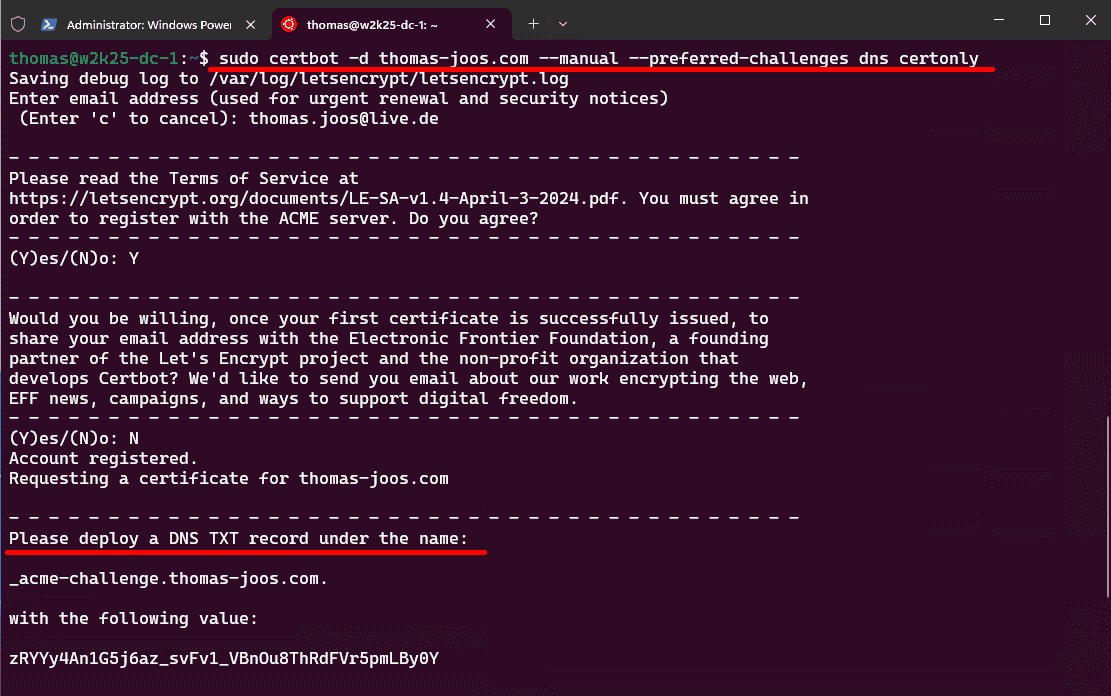
Once DNS and Nginx are configured, request a certificate for each hostname that is reachable:
sudo /snap/bin/certbot --nginx \
-d example.com -d www.example.com
Omit
-d www.example.com if that hostname doesn't resolve to your server. Follow Certbot's prompts to set up the site's TLS listener and the HTTP-to-HTTPS redirect.
Open
https://example.com in a browser and confirm that the certificate matches the hostname. Then confirm that an HTTP request follows the redirect you chose.
Before running the WordPress installer, read Nginx's configuration after Certbot has modified it:
sudo nginx -T
Find the HTTPS
server block for
example.com. Confirm that its
location = /wp-admin/install.php still has your
allow address followed by
deny all. Then test the rule on the live HTTPS hostname, first from the approved public IP and again from a different public IP, such as a mobile connection with Wi-Fi off:
curl -sS -o /dev/null -w '%{http_code}\n' \
  https://example.com/wp-admin/install.php
Before initialization, the approved connection reaches the WordPress installer and the unapproved connection gets HTTP 403. A successful local request does not verify the unapproved-IP rule. If an unapproved request reaches the installer, fix the access rule on the HTTPS server before continuing.
Test the PHP-execution restriction separately, with a request for a nonexistent PHP path under uploads:
curl -sS -o /dev/null -w '%{http_code}\n' \
  https://example.com/wp-content/uploads/usefulmix-import/nginx-php-check.php
With the
deny all rule shown earlier, the response is HTTP 403 even though the probe file doesn't exist. HTTP 404 means you should check which HTTPS location matched. This test sends a request only, so don't upload or run a PHP test file.
Test the renewal mechanism:
sudo /snap/bin/certbot renew --dry-run
The dry run should finish without a certificate-validation error.
Run the WordPress installer

- From the IP your temporary Nginx rule allows, open
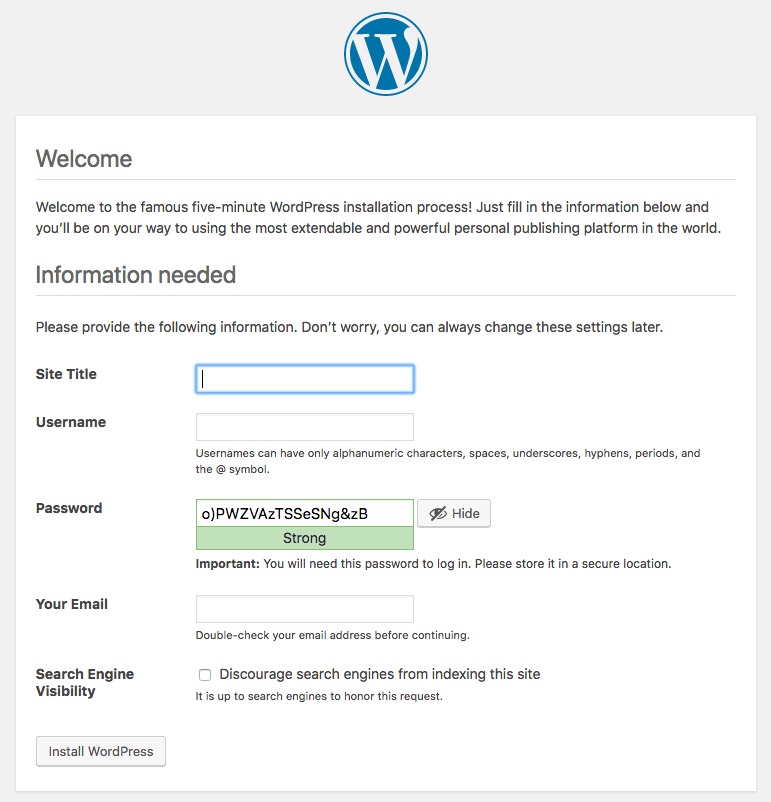
https://example.com/wp-admin/install.php.
- Enter the site title, a distinct administrator username, a strong unique password and an email address you control.
- Finish the installation and sign in at
/wp-admin/.
- Once the administrator account exists, remove the temporary installer rule and keep the other file restrictions.
- Test the revised Nginx configuration and reload it.
If WordPress asks for the database details again, fix
wp-config.php before going on.
Test the finished site
The install is done when the site works at your hostname. Active services alone don't prove that. Create one published test post with a readable permalink, then run these tests.
| Test | Location | Expected behavior |
|---|
| Homepage | https://example.com/ | The correct WordPress site loads |
| Administrator | /wp-admin/ | The created administrator can sign in |
| Pretty permalink | /sample-post/ | The published post opens at its URL |
| REST API | /wp-json/ | WordPress responds through its REST route |
| Static asset | A real image or stylesheet URL | The resource loads from the intended host |
| Initialization | Public site after setup | The site is initialized and no longer offers an unclaimed installer |
A poster on r/Wordpress using Debian and Nginx reported, “All works well but the Rest Api which fails with 404 error.”
Where to look when the install fails
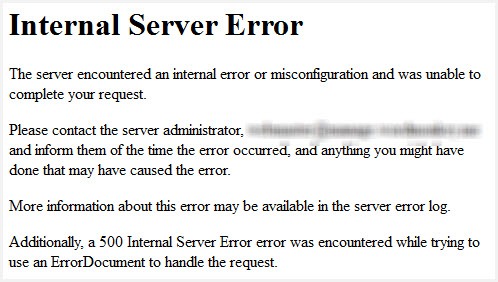
A 404, 500 or 502 response has several possible causes, so use the code to decide where to look first.
In a discussion on r/nginx, a user configuring WordPress on an Ubuntu virtual machine wrote, “I keep getting the error 500 or 502 bad gateway.”
| Symptom | First check |
|---|
| Nginx welcome page | Enabled server blocks, hostname selection and document root |
| Homepage works, post URL returns 404 | Permalink setting and try_files |
| REST API returns 404 | /wp-json/ routing, rewrite handling and application logs |
| 502 Bad Gateway | Nginx log, PHP-FPM service and listener (FastCGI upstream connection or execution) |
| 500 Internal Server Error | Application and PHP error logs (PHP, configuration or permissions) |
| Database connection error | Database service, app credentials and host (MariaDB authentication or availability) |
| Certificate issuance fails | DNS, public ports and challenge reachability (hostname or validation path) |
For a PHP-FPM error on the Ubuntu 24.04 example, read the service journal:
sudo journalctl -u php8.3-fpm --no-pager
To investigate Nginx routing and upstream failures, read the error log configured for the site. The packaged default uses:
sudo tail -n 50 /var/log/nginx/error.log
If the log reports a FastCGI connection failure, compare the Nginx upstream address with the pool's listener. For a database error, compare
wp-config.php with the dedicated account you created earlier.
For failed permalinks or REST requests, find out whether Nginx or WordPress generated the 404 before changing the configuration.
Save the last working configuration, then make the smallest correction the error supports. Rerun the failed test afterward and keep the failing and passing observations in the corresponding release-specific record.
After the install: backups, updates, monitoring
- Back up both components: Set up copies of the WordPress files and the MariaDB database, then schedule a restore test in a nonproduction environment.
- Save your configuration: Keep the Nginx server block, PHP-FPM settings and the access-control decisions you need to rebuild the setup.
- Assign updates: Decide who maintains Ubuntu packages, PHP, WordPress core, themes and plugins, and how.
- Catch failures: Pick a way to spot web, PHP-FPM or database errors, including ones that show up after a planned reboot.
With HTTPS, the admin, permalinks and the REST API all working, the setup is complete. Keep any 24.04 or 26.04 deployment results labeled with the exact system tested, and back up the files and the database and test a restore.
