On a new Ubuntu 24.04 VPS with one site, Apache, PHP and a dedicated MySQL user work well for WordPress. Set up HTTPS before entering admin credentials, check that post URLs, login and uploads work on the secure domain, and test an off-host backup of files and database before relying on the site. If the site already exists or uses another web server, follow a migration or stack-specific guide instead.
The Apache welcome page and a working homepage each tell you something, but neither proves the whole install works.
Before you start: confirm the Ubuntu, server, and domain setup
These steps set up one new WordPress site on Ubuntu Server 24.04 LTS. You need SSH access, sudo permission, a public server address and control of the domain you plan to use.
cat /etc/os-release
sudo -v
sudo ss -ltnp
The first command shows your Ubuntu release, the second confirms you have sudo access, and the third lists processes listening on TCP ports, including any web server already using port 80 or 443.
- New versus existing site: If the server already hosts WordPress or another production site, list what runs there and follow a migration guide before changing any service configuration.
- Domain: Have your hostname and public IP ready. The examples use
example.com. Replace it with your real domain everywhere. - Network: Keep SSH open and allow the HTTP and HTTPS traffic that the web server and the later certificate challenge need. If you use UFW, check its rules.
- Software sources: Make sure the server can reach its Ubuntu repositories and the official WordPress download host.
sudo ufw statusIf UFW is active, confirm that its rules allow SSH before changing anything.
Canonical's Install and configure WordPress walkthrough uses Ubuntu Server 20.04 LTS.
WordPress's hosting requirements recommend PHP 8.3 or higher, MySQL 8.0 or higher or MariaDB 10.11 or higher, and HTTPS.
Install Apache, PHP, and MySQL for WordPress

Apache receives HTTP requests, PHP runs WordPress and MySQL stores the site's content and settings. Install all three, then check each one before adding WordPress.
sudo apt update
sudo apt install apache2 mysql-server php libapache2-mod-php php-mysql \
php-curl php-xml php-mbstring php-zip php-intl php-bcmath \
php-imagick curl
The PHP extensions cover database access, HTTP requests, text and XML handling, archives and image processing. WordPress lists Imagick for image manipulation, and GD also works for some operations.
Ubuntu's repositories decide which package versions you get. Run php -v and compare the result with the requirements above.
php -v
php -m
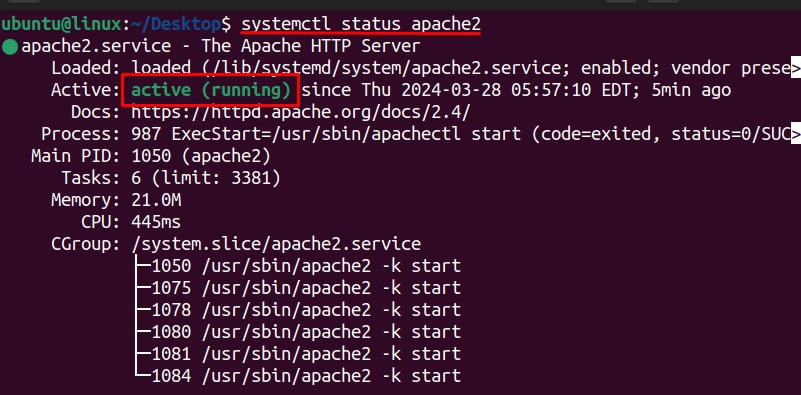
sudo systemctl status apache2
sudo systemctl status mysql
sudo apache2ctl -M| Component | Command | Good result |
|---|---|---|
| Apache | systemctl status apache2 | Service runs with no startup errors |
| MySQL | systemctl status mysql | Database service is running |
| PHP | php -v | Version meets the WordPress requirements above |
| Modules and handler | php -m and apache2ctl -M | Required extensions are listed and Apache loads the PHP module |
On more complex hosts, the command-line PHP can differ from the handler Apache uses. This guide uses libapache2-mod-php.
MySQL stays local to this machine. WordPress reaches it through localhost, so you don't open a public MySQL port.
With Apache installed, open the web ports if UFW is active. Look at the available profiles. If Apache Full exists and HTTP/HTTPS isn't already allowed, run:
sudo ufw app list
sudo ufw app info 'Apache Full'
sudo ufw allow 'Apache Full'
sudo ufw status
The Apache Full profile allows HTTP and HTTPS on ports 80 and 443. Your VPS provider can also block inbound traffic with its own firewall. If connections are refused at that layer, fix it there before troubleshooting Apache or Certbot.
Create a MySQL database and a dedicated WordPress user
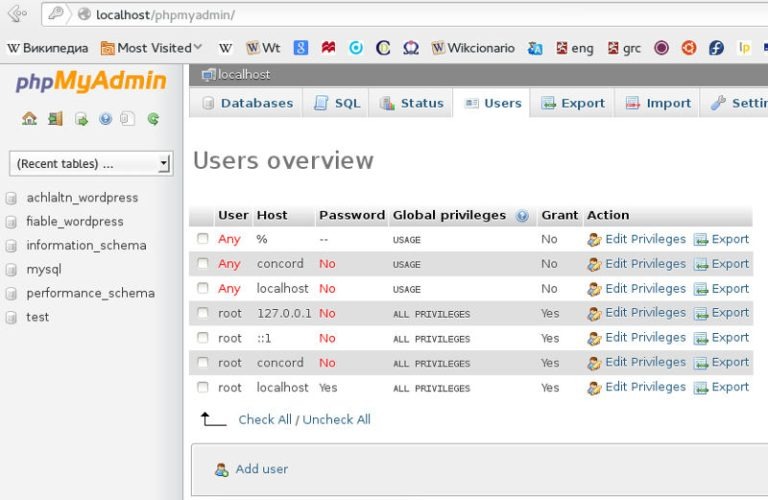
Give WordPress its own database and its own local MySQL account. Your SSH login, MySQL admin account, application database user and WordPress dashboard admin each do a different job.
If your Ubuntu MySQL install allows administrative socket authentication, run:
sudo mysqlThe example uses wordpress for both the database name and the username. Pick different names if they clash with an existing database, and use a unique, private password.
CREATE DATABASE wordpress;

CREATE USER 'wordpress'@'localhost'
IDENTIFIED BY 'REPLACE_WITH_STRONG_UNIQUE_PASSWORD';

GRANT SELECT, INSERT, UPDATE, DELETE, CREATE, DROP, ALTER
ON wordpress.*
TO 'wordpress'@'localhost';

SHOW GRANTS FOR 'wordpress'@'localhost';
EXIT;
The privileges cover only wordpress.*, and if a plugin needs more, extend them after a review instead of switching the site to the MySQL admin account.
Log in with the new account to test it:
mysql -u wordpress -p wordpressEnter the password when prompted, then exit the client. If you can log in, the account works.
Download WordPress and configure its files safely
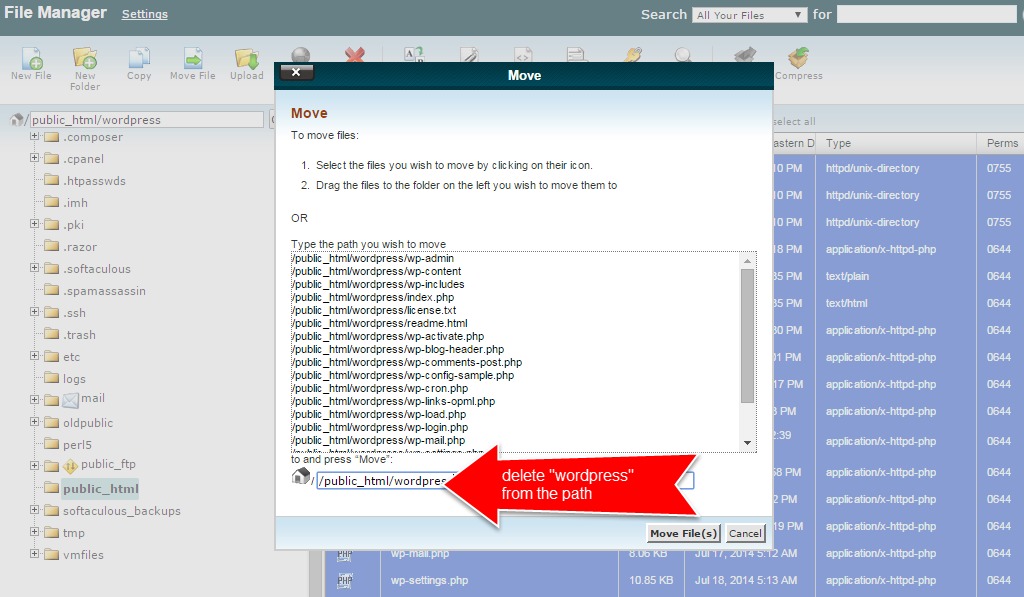
Put the official WordPress files under /srv/www/wordpress.
sudo mkdir -p /srv/www
cd /tmp
curl -L -o wordpress.tar.gz https://wordpress.org/latest.tar.gz
sudo tar -xzf wordpress.tar.gz -C /srv/www
ls -la /srv/www/wordpress
The archive contains a wordpress directory. Inside it, look for index.php, wp-admin, wp-content and wp-config-sample.php.
Set up the database connection
sudo cp /srv/www/wordpress/wp-config-sample.php \
/srv/www/wordpress/wp-config.php
sudoedit /srv/www/wordpress/wp-config.php
Replace the database constants in wp-config.php with the credentials you created earlier:
define( 'DB_NAME', 'wordpress' );
define( 'DB_USER', 'wordpress' );
define( 'DB_PASSWORD', 'REPLACE_WITH_STRONG_UNIQUE_PASSWORD' );
define( 'DB_HOST', 'localhost' );
Use the same password in MySQL and the config file. Replace the sample authentication keys and salts with unique values from the official WordPress salt service. Keep real secrets out of repositories, tickets and shared screenshots.
Set file ownership
The web service runs as www-data, so that user owns the files:
sudo chown -R www-data:www-data /srv/www/wordpressThen restrict wp-config.php to its owner and check the result:
sudo chmod 600 /srv/www/wordpress/wp-config.php
sudo stat -c '%a %U:%G %n' /srv/www/wordpress/wp-config.php
You should see mode 600 with owner and group www-data:www-data. The PHP process can read the file and other users on the server can't.
Shared www-data ownership works for a single site. Independently managed sites and separate PHP-FPM pools need their own access model, with permissions that match the user each PHP process runs as. The web process needs write access for uploads, while configuration and core files stay restrictive. Never run recursive chmod 777 to make an install work.
Configure Apache's virtual host and enable WordPress permalinks
Apache has to map your public hostname to /srv/www/wordpress. Without that, it keeps serving its default page and never touches the WordPress files.
Create /etc/apache2/sites-available/wordpress.conf with this configuration and replace example.com with your domain:
<VirtualHost *:80>
ServerName example.com
DocumentRoot /srv/www/wordpress

<Directory /srv/www/wordpress>
Options FollowSymLinks
AllowOverride Limit Options FileInfo
Require all granted
</Directory>
</VirtualHost>
ServerName is the hostname Apache matches, and DocumentRoot is the folder it serves. Your DNS record points that hostname at the VPS.
Enable the site and rewrite module
sudo a2ensite wordpress
sudo a2enmod rewrite
sudo apache2ctl configtest
Fix any syntax error the test reports, then reload Apache:
sudo systemctl reload apache2If the default Apache site still answers for your hostname, check the enabled virtual hosts and how they match. Disable 000-default only if it doesn't serve another application on the machine.
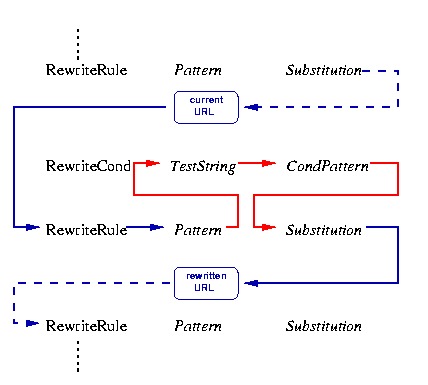
Readable post URLs need mod_rewrite and WordPress's .htaccess rules to be active. The FileInfo class in this example allows the rewrite directives those rules use.
Enable HTTPS for the domain and check certificate renewal
Certificate issuance needs control of the hostname and a server the certificate challenge can reach. A private localhost setup needs a different validation method. After Apache starts, test the configured site over HTTP and HTTPS separately. An active service does not prove the virtual host, certificate, and redirect are correct.
Once DNS points at the server, the Apache site is enabled and the web ports are reachable, install Certbot and its Apache plugin from Ubuntu's packages:
sudo apt install certbot python3-certbot-apacheThe Ubuntu 24.04 package archive lists python3-certbot-apache as depending on Certbot. This is the APT route. Don't mix it with other Certbot installation methods.
Certbot's Apache plugin requests the certificate and sets up the matching HTTPS configuration. Request one for your configured hostname:
sudo certbot --apache -d example.comRead Certbot's prompts and output. If the challenge fails, fix the hostname or network problem before going to the WordPress admin screen. The Certbot user guide also covers certonly, which obtains a certificate without installing it, and webroot validation, which uses an existing served directory.
Open https://example.com/ and check the certificate's hostname and validity. Add a www name only if its DNS record, Apache host configuration and certificate request all cover it. Check any HTTP-to-HTTPS redirect for loops or the wrong hostname.
Test certificate renewal separately:
sudo certbot renew --dry-runA successful dry run shows that renewal works under test conditions.
Complete the WordPress browser installer
Open https://example.com/. Fill in the setup form: site title, admin username, a strong unique password, admin email and your search-engine visibility setting. Use an admin password that differs from your Linux login and your MySQL password. Sign in at /wp-admin/ and store the credentials safely.
Verify the homepage, a real post, admin access, and uploads
Test the site through its public HTTPS hostname.
In Settings → Permalinks, choose a readable structure such as Post name. Publish a test post, then open its slug URL as a visitor, in a logged-out browser session.
In the r/Wordpress permalink discussion, a person migrating a nonprofit site between Amazon Linux versions wrote in June 2026: “I can render the pages successfully using the Plain method, but when I revert back to the Post Name it immediately returns the Apache 404 (page not found) error.”
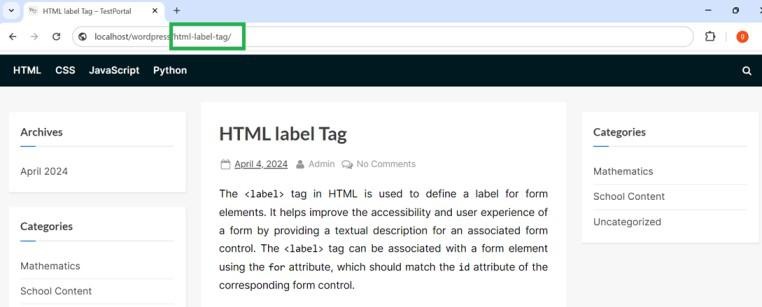
| Test | Pass | If it fails |
|---|---|---|
| Homepage | Your WordPress site loads at the domain | Check the hostname and the active virtual host |
| Readable post URL | The test post opens at its slug | Check permalinks and rewrite settings |
| Admin | Login and dashboard work over HTTPS | Check the login response and the site URL |
| Media | A new image uploads, opens at its media URL and goes through image processing | Check file writes, the image extension and the logs |
| HTTPS hostname | The domain shows a valid certificate that matches it | Check which certificate is served and how redirects behave |
Fix every failed row before calling the site ready.
Troubleshoot Apache, PHP, database, and WordPress failures

Start with the failed request and its server log. The log entry and the active Apache or WordPress configuration show which layer to look at.
In March 2025, a person running WordPress with Apache on Ubuntu Server asked r/selfhosted for help finding the cause of server errors. The r/selfhosted Apache error discussion includes an Apache log entry for a plugin .htaccess file: Require not allowed here.
That entry means Apache doesn't allow the directive in that context. Require falls under the AuthConfig class, while the sample virtual host allows FileInfo, which covers rewrites. A Require rule inside a plugin's .htaccess file is therefore rejected. The fix follows the specific rule and where the file lives.
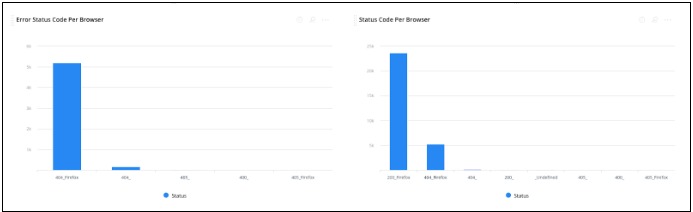
| Symptom | Look at first | Then work out |
|---|---|---|
| Apache welcome page | Enabled virtual hosts, ServerName, document root | Which site matches the request |
| Post slug returns 404 | Post existence, mod_rewrite, .htaccess, overrides | Whether the problem is WordPress permalinks or Apache routing |
| Asset or page returns 500 | Apache error log and PHP logs | The logged application error or disallowed directive |
| Database connection error | MySQL service and wp-config.php database fields | Whether the service is down, the credentials are wrong or the account lacks permissions |
| HTTPS redirect loop | Hostname/protocol settings and any reverse proxy | Which redirect or forwarded-protocol setting conflicts |
| Permission-related 403 | Apache directory access, filesystem ownership, error log | Which access rule or process user is blocking the request |
With Ubuntu's default Apache log location, read recent messages with:
sudo tail -n 80 /var/log/apache2/error.logA virtual host or PHP configuration can write logs elsewhere. Match the message to the request that failed before editing a plugin, a directory policy or a database setting.
For a post 404, WordPress documents saving Settings → Permalinks to refresh its rules. For a rejected Require directive, check which override classes the directory allows and whether the rule belongs in the main Apache configuration. Change one thing, repeat the failed request, and keep sensitive debug output out of public files.
Decide whether the site is ready for production
A working install needs someone who can maintain and recover it. On a self-managed VPS, settle these points before real users arrive.
- Updates: Decide who updates Ubuntu packages, PHP, Apache, MySQL, WordPress core, themes and plugins, and plan checks after each change.
- Privileged access: Give each administrator their own credentials and remove privileges nobody needs.
- Backups and restore test: Keep off-host copies of the WordPress files, the database and the configuration needed to restore them. Write down a recovery procedure and confirm the files and database restore together.
- TLS: Monitor real certificate renewals and the HTTPS endpoint visitors see, not just the dry run.
- Service failures: Name who or what notices outages, and agree on the rollback path after a bad change.
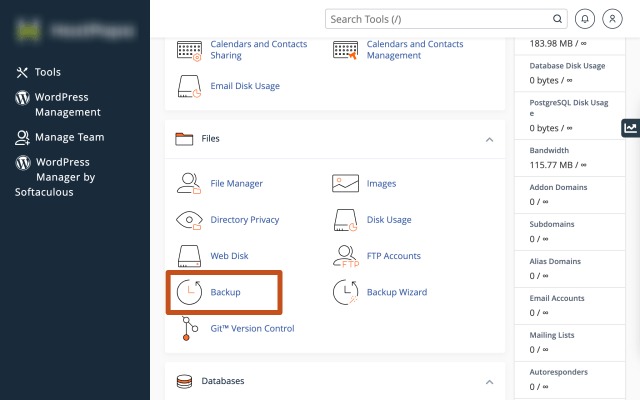
A database export alone can't restore uploaded media or files that exist only on the failed VPS.
