Use Docker Compose for WordPress if you want control over a self-hosted installation and can maintain its data, updates, and recovery. A local setup starts with an Apache-based WordPress container, a MariaDB container, and two persistent volumes. Public hosting adds HTTPS, security, and tested-backup responsibilities.
Without a health check, WordPress can start before MariaDB is ready. Files outside a persistent volume are lost when the container is replaced.
The example binds to a loopback HTTP port, so you can verify the installation before exposing anything on a public domain.
Is Docker Compose the right way to run your WordPress site?
Compose suits you if you want the WordPress runtime, database, network, and storage defined in one project and you're ready to administer them. Before deploying a WordPress Compose stack, decide which images and versions you will pin and which named volume holds the database. Prove the data survives a container replacement.
| Situation | Starting point | Who handles operations? |
|---|---|---|
| Local development or testing | WordPress and MariaDB in Compose | You manage the local containers and test data. |
| Public site on your VPS | Compose behind a configured HTTPS entry point | You manage infrastructure security, updates, backups, and incidents. |
| Site owner seeking less server administration | Managed WordPress hosting | The provider handles the infrastructure responsibilities included in its service. |
| Developer who mainly needs a local editor | LocalWP, DDEV, or another local development tool | The development tool manages much of the environment setup. |
A developer looking to replace XAMPP started an r/Wordpress discussion with the question, “What's your go-to local development environment for WordPress in 2025?” Compose fits when you want direct control of the containers.
The example uses the Apache variant of the WordPress image. Apache handles HTTP requests inside the container, so you only need WordPress and MariaDB.
The PHP-FPM image works differently. It processes PHP through FastCGI and needs a web server such as Nginx in front of it to handle HTTP requests. Never expose its FastCGI port as the site's public HTTP endpoint.
The address http://localhost:8080 is a test endpoint on the Docker host.
Prepare the project, Docker prerequisites, and image versions
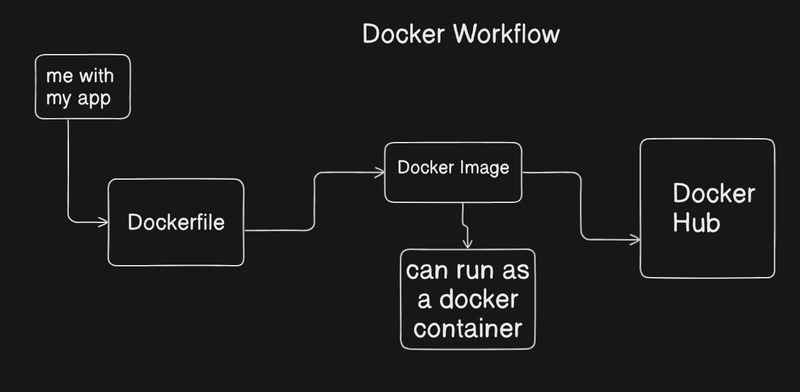
You need Docker Engine, the Docker Compose plugin, a free host port, enough disk space, and a writable project directory. The commands use the docker compose plugin syntax.
Check that Compose is available:
docker compose versionCreate a project directory and enter it:
mkdir wordpress-compose
cd wordpress-compose
The project will contain these files:
wordpress-compose/
├── compose.yaml
├── .env
└── .gitignore
compose.yaml defines the services. .env supplies values that Compose substitutes into the configuration. .gitignore keeps the credentials out of Git.
Pin your image versions. The configuration below uses the WordPress Apache image with PHP 8.3 and MariaDB 11.8, both documented image options. Check plugin compatibility and database upgrades for your own site.
WordPress's hosting requirements list PHP 8.3 or newer, MariaDB 10.11 or newer or MySQL 8.0 or newer, and HTTPS support. For new WordPress 7.1 installations, the Hosting Team recommends PHP 8.4 or 8.5 with MySQL 8.4 or MariaDB 10.11, 11.4, or 11.8.
The wordpress:7.1.3-php8.3-apache tag names a WordPress image with PHP 8.3 and Apache. A tag can point to rebuilt image content. If you need the exact same image every time, record its digest.
The example publishes WordPress with 127.0.0.1:8080:80: host loopback address, host port 8080, and WordPress container port 80, in that order.
If Docker runs on a remote VPS, localhost means that VPS. To reach it from your own computer, use a secure route such as an SSH tunnel or a separately configured proxy.
Define WordPress, MariaDB, credentials, and service readiness in compose.yaml
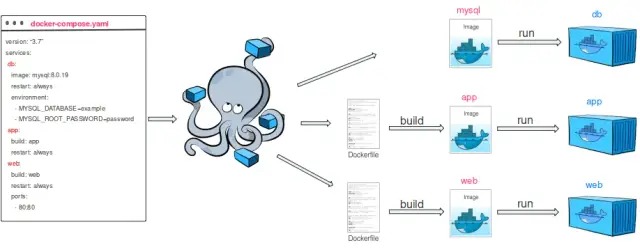
WordPress and MariaDB need matching database credentials and a shared internal network. MariaDB creates the named database and application user during initial setup, and WordPress connects to it by the Compose service name.
Create compose.yaml with this configuration:
services:
  db:
    image: mariadb:11.8
    restart: unless-stopped
    environment:
      MARIADB_DATABASE: wordpress
      MARIADB_USER: wordpress
      MARIADB_PASSWORD: ${WP_DB_PASSWORD:?Set WP_DB_PASSWORD in .env}
      MARIADB_ROOT_PASSWORD: ${DB_ROOT_PASSWORD:?Set DB_ROOT_PASSWORD in .env}
    volumes:
      - db_data:/var/lib/mysql
    healthcheck:
      test: ["CMD", "healthcheck.sh", "--connect", "--innodb_initialized"]
      interval: 10s
      timeout: 5s
      retries: 10

  wordpress:
    image: wordpress:7.1.3-php8.3-apache
    restart: unless-stopped
    depends_on:
      db:
        condition: service_healthy
    ports:
      - "127.0.0.1:8080:80"
    environment:
      WORDPRESS_DB_HOST: db:3306
      WORDPRESS_DB_NAME: wordpress
      WORDPRESS_DB_USER: wordpress
      WORDPRESS_DB_PASSWORD: ${WP_DB_PASSWORD:?Set WP_DB_PASSWORD in .env}
    volumes:
      - wp_data:/var/www/html

volumes:
  db_data:
  wp_data:
The configuration builds on the Docker Official WordPress Image and MariaDB's documented initialization and health-check mechanisms.
Match the database name, hostname, and credentials
The MariaDB service is named db. Compose exposes that service name on the internal network, so WordPress uses WORDPRESS_DB_HOST=db:3306.
Inside the WordPress container, localhost is the WordPress container itself, not MariaDB.
Both services use the database name wordpress, the username wordpress, and the same application password. WordPress connects with that application account. MariaDB's root account has its own administrator credential.
MariaDB reads MARIADB_DATABASE, MARIADB_USER, and the password settings when it initializes a new database directory. Its separate automatic-upgrade setting is the documented exception. The WordPress image uses its WORDPRESS_DB_* settings to connect to the database MariaDB created.
Provide the passwords
Create .env with placeholders, then replace both with different, strong, generated passwords:
WP_DB_PASSWORD=REPLACE_WITH_UNIQUE_APP_PASSWORD
DB_ROOT_PASSWORD=REPLACE_WITH_DIFFERENT_ROOT_PASSWORD
Add the credential file to .gitignore:
.envRestrict access to the file on the host and keep it out of version control. Compose substitutes the values into the explicit service environment settings. A .env file alone doesn't inject every value into every container.
Interpolated passwords are visible in a rendered Compose configuration and in the container environment, so don't share output from commands that print them.
Compose also supports secrets granted to a service and mounted as files under /run/secrets/. The WordPress image supports _FILE password variables that read credentials from those files.
Wait for MariaDB readiness
Compose can start a database container before the database accepts application connections. The db health check runs MariaDB's documented healthcheck.sh with --connect and --innodb_initialized.
With depends_on set to condition: service_healthy, Compose waits for the database to pass that check before it starts WordPress.
The health check only covers the database. You verify WordPress itself in the browser.
Store WordPress files and database data where containers cannot accidentally discard them
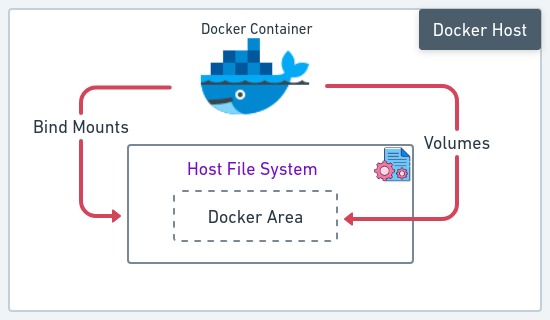
WordPress files and the MariaDB database need separate persistent storage. The configuration uses Docker named volumes, which keep the data out of the containers' disposable writable layers.
| Storage | Contents | Container location |
|---|---|---|
db_data | MariaDB database files, including WordPress posts and settings stored in the database | /var/lib/mysql |
wp_data | WordPress application files, uploads, themes, plugins, and relevant filesystem configuration | /var/www/html |
| Container writable layer | Changes outside persistent mounts | Specific to the container |
| Optional bind mount | A host directory shared into the container | The destination selected in the mount definition |
You can replace a container and keep its named volume. A bind mount exposes a host directory you choose. That's convenient for local theme development, but it brings host and container file-ownership issues.
A Linux developer mounting wp-content for child-theme work described the problem in an r/docker discussion: “If I use $USER:$USER, then the WordPress installation doesn't have sufficient permissions.” Your editor and the container's web-server process need different access to the same files. Setting mode 777 on the whole site doesn't solve ownership, and it's unsafe.
Protect the named volumes. A plain docker compose down removes the project's containers and networks and keeps the declared named volumes. docker compose down -v also removes declared named volumes and attached anonymous volumes. External volumes are excluded. Never use the -v form as a routine reset on site data you want to keep.
Project names matter too. Rename the project and Compose can create or select a different set of volume names, leaving your original data in the earlier project's volumes.
Write down the two named volumes and their mount paths.
Validate the Compose file and start the WordPress stack
Validate the configuration before creating the services. From the directory containing compose.yaml, run:
docker compose config -qThis checks the configuration quietly and doesn't print the rendered service model. Fix any syntax or interpolation errors it reports before starting the stack.
Start WordPress and MariaDB in detached mode:
docker compose up -dInspect service state:
docker compose psExpect MariaDB to turn healthy first, then WordPress to run. Initial database preparation takes time, so the health check can stay pending before it passes.
If the database reports a failure or stays unhealthy, read its logs:
docker compose logs --tail=50 dbTo read the WordPress logs:
docker compose logs --tail=50 wordpressComplete WordPress setup and verify that your data survives recreation
On the machine running Docker, open http://localhost:8080. Once WordPress connects to MariaDB, you should see its installation screen.
Choose the site's language, title, administrator username, and administrator password. Complete the installation and sign in to the dashboard.
Publish a harmless, easy-to-spot post. For example, one titled:
Docker persistence testUpload a small disposable image through the Media Library too. The post tests database content. The image tests the WordPress filesystem.
Recreate the WordPress application container
From the same Compose project directory, run:
docker compose up -d --no-deps --force-recreate wordpressThis recreates the WordPress container and keeps its configured volume. --no-deps leaves MariaDB running.

When WordPress is back up, reload the site. Sign in and confirm the test post is still there.
This test covers one case: you replace the WordPress container while MariaDB keeps running. Recreating the database container or restoring from an off-host backup needs its own test.
The local hostname is part of the installation's state, so a later move from localhost to a public domain also means updating the WordPress URL and proxy configuration.
Troubleshoot database errors, unhealthy containers, and file permissions
When WordPress fails, read the service state and logs to find which layer broke before changing any stored data.
| Symptom | Possible failure layer | First focused check |
|---|---|---|
| Compose fails before starting services | Configuration, interpolation, image retrieval, or host setup | Read the reported Compose error. |
| MariaDB stays unhealthy | Initialization, data directory, or database readiness | Examine the database health status and error logs. |
| WordPress shows a database connection error | Hostname, database name, application account, password, or stored DB state | Compare WordPress's connection settings with the actual database. |
| The browser cannot reach the site | Host port, binding address, or application service | Check the address being opened and the configured port mapping. |
| WordPress cannot write or upload files | Mount ownership or runtime permissions | Inspect the affected path and process identity. |
When WordPress cannot connect to MariaDB
A reachable database port proves network access only. WordPress still needs the right database name and an account allowed to connect. Compare WORDPRESS_DB_HOST, WORDPRESS_DB_NAME, WORDPRESS_DB_USER, and WORDPRESS_DB_PASSWORD against the database that exists.
In this project, the database hostname is db:3306.
Editing a password in .env after the first start doesn't change the password stored for the existing database account.
When WordPress cannot write to its files
With bind-mounted directories, the host file owner and the container process user can differ. Check the ownership and permissions of the files in question and the user the process runs as.
What changes before you put WordPress Docker Compose on a public domain?

A public WordPress deployment needs an HTTPS entry point, domain routing, controlled service exposure, and ongoing administration. The local example has no public TLS endpoint.
Three addresses play different roles:
- Container port 80: Apache serves HTTP inside the WordPress container.
- Host port 8080: The local example publishes WordPress on the Docker host's loopback address.
- Public HTTPS endpoint: A separate entry point receives requests for your domain over TLS.
Without a host address, Docker publishes a port on every host interface. The 127.0.0.1:8080:80 mapping in this example limits it to loopback.
MariaDB has no published host port in this configuration, and public visitors have no reason to reach it.
A reverse proxy such as Nginx, Caddy, or Traefik can receive public HTTPS traffic and forward requests to WordPress.
Why WordPress redirects can use the wrong scheme or port
WordPress builds links and redirects from its configured site URLs and request information. When a reverse proxy terminates TLS, the application has to receive reliable information that the original request used HTTPS.
The official WordPress Docker image already handles the HTTP_X_FORWARDED_PROTO header, so you don't always need a WORDPRESS_CONFIG_EXTRA snippet for it.
The proxy has to set the forwarded request information itself, in a trusted configuration. Don't treat client-controlled forwarding headers as proof that the request was secure.
Before going public, check these:
- DNS: Your public hostname resolves to the entry point.
- TLS: The certificate validates for that hostname, and the browser reaches the site over HTTPS.
- WordPress URLs: Redirects and generated links keep the intended scheme, hostname, and external port.
- Network access: Only the services meant for outside access are reachable from the internet.
Back up both parts of WordPress and prove the backup can restore
Recovering WordPress requires both the database and the site files. Posts and many site settings live in the database. Uploads, themes, plugins, and other application files sit in the WordPress filesystem.
A volume that survives container recreation protects that local state. It doesn't help when the volume itself is deleted, corrupted, or unavailable. For that you need an independently stored backup.
In another r/docker discussion, a self-hoster considering backup automation asked, “For those running Nextcloud or WordPress in Docker: how do you handle backups?” What matters technically is whether the database and filesystem captures together make a usable copy of the site.
A transactional dump with an option such as mysqldump --single-transaction gives a consistent view of supported transactional database operations. It doesn't coordinate with media uploads or other filesystem writes happening at the same time.
If the site keeps changing during the backup, use a coordinated capture process or a maintenance window. Keep the database snapshot, the required files, and the protected configuration needed to reconnect the restored site.
Define a restoration acceptance test
Restore a backup into an isolated environment with its own project name and storage, so the test can't overwrite the working site. The recovered instance should pass these checks:
- WordPress authenticates to the recovered database.
- A known published post and representative settings are present.
- A known uploaded image, the required themes, and your plugins are available.
- An administrator can sign in.
- Links and media paths work under the test hostname.

A backup command that exits cleanly only tells you the tool finished. Restore it into an isolated copy to see whether the database and files rebuild a working site.
Maintain and update the WordPress Compose installation without losing track of state
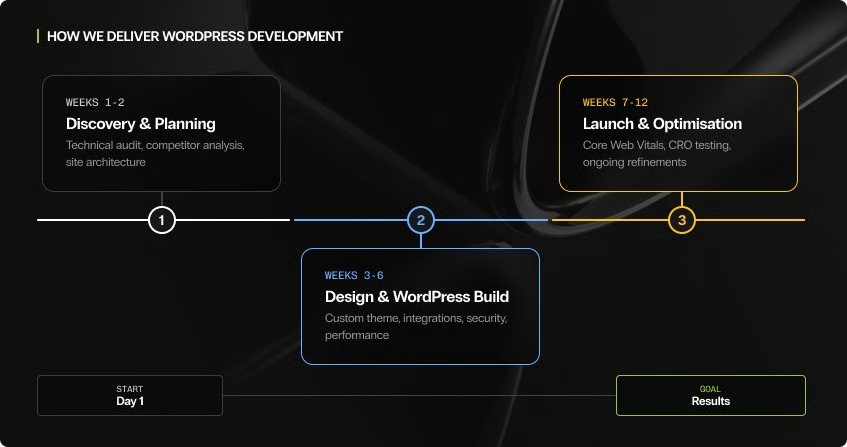
WordPress maintenance involves several components that change independently: the container image, the persisted WordPress core files, plugins and themes, and the MariaDB server. An image update can leave application files already in the volume untouched.
Compose can download the images declared in the project without starting the services:
docker compose pullPulling doesn't apply the image to a running container. That's a separate step. A WordPress update and a MariaDB data-format upgrade each have their own behavior and compatibility requirements.
Before each change, keep a short operating record:
- Application image: the WordPress image reference, the PHP/Apache variant, and how you'll replace it.
- Application state: installed WordPress core, plugin, and theme versions, plus any compatibility constraints.
- Database: the MariaDB release and any requirements for upgrading its existing data directory.
- Recovery: the backup and restore method you have before a major change.
- Post-change checks: service readiness, administrator login, a few posts and media files, and error logs.
Should you use Docker Compose for WordPress? The deciding rule
If you can't maintain HTTPS, security, and tested backups on a public server, use managed hosting and keep Compose for local work.
