Use this page as a route finder, not a second installation tutorial, and pick the path that matches what you already have. If WordPress isn’t installed yet, decide where it will run and follow a dedicated installation guide, and if it already runs, skip installation and configure the site. If you’re rebuilding a live site or working privately, use a staging or migration workflow, not a new-launch setup.
You can start with an empty account, a domain you purchased last week, or an active WordPress dashboard with no finished homepage. Each starting point has a different next action.
Where are you starting with WordPress?
| What you have | Where to go | First sign of progress |
|---|---|---|
| Nothing set up | Choose a platform and a host | You’ve chosen WordPress.com or a self-hosted setup |
| A domain name only | Check what hosting and installation you have | You know which service will host the site |
| Hosting, but no WordPress yet | WordPress.org installation guide or your host’s installer | You can log in to the WordPress admin |
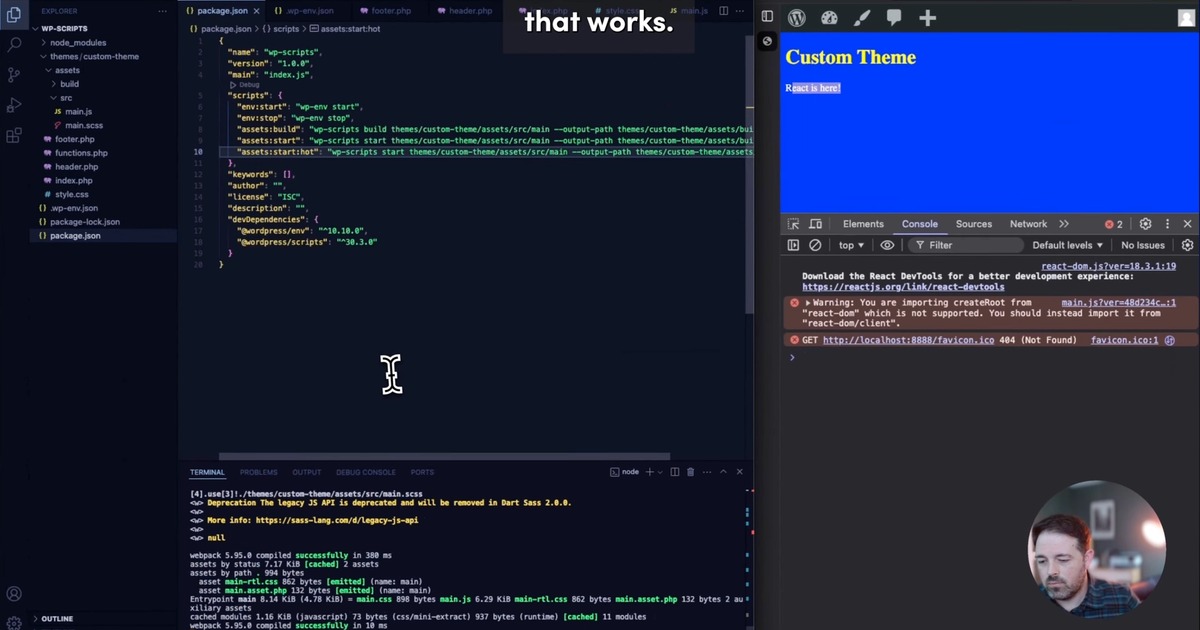
| WordPress already installed | Configure the first site settings | One typical page looks the way you want |
| Local, staging, or replacement site | Pick a local, staging, or migration workflow | You know what has to stay live |
Some hosting providers install WordPress for you when they create the account. Others provide an installer. A hosting receipt alone won’t tell you whether you still need to install it. Check for a working admin login before opening an installation walkthrough.
WordPress.com or self-hosted WordPress: who manages what?
WordPress.com provides WordPress as a hosted service. WordPress.org distributes the software, and you choose your own hosting service. That independent host can manage much of the infrastructure, so you don’t automatically have to administer Linux, PHP-FPM, or a web server. You can also operate the server yourself. Use a dedicated WordPress.com-versus-self-hosted comparison for plan limits and trade-offs.
A first-time site creator on r/Hosting wrote in May 2026, “I didn’t realize there was 2 different ones(.com vs.org) and bought a subscription to the .com.” If you’ve already paid for WordPress.com, check what your plan includes before deciding whether you need a different setup.
| Option | Hosting | Who runs the server? | What to consider |
|---|---|---|---|
| WordPress.com | Included in the service | WordPress.com | Features depend on your plan |
| Independent managed WordPress host | Included in the hosting purchase | Provider handles much of the infrastructure | Check the provider’s support and administrative access |
| Self-managed VPS | Purchased separately | You or your administrator | Server updates, configuration, and troubleshooting are your responsibility |

Plugin installation and advanced access
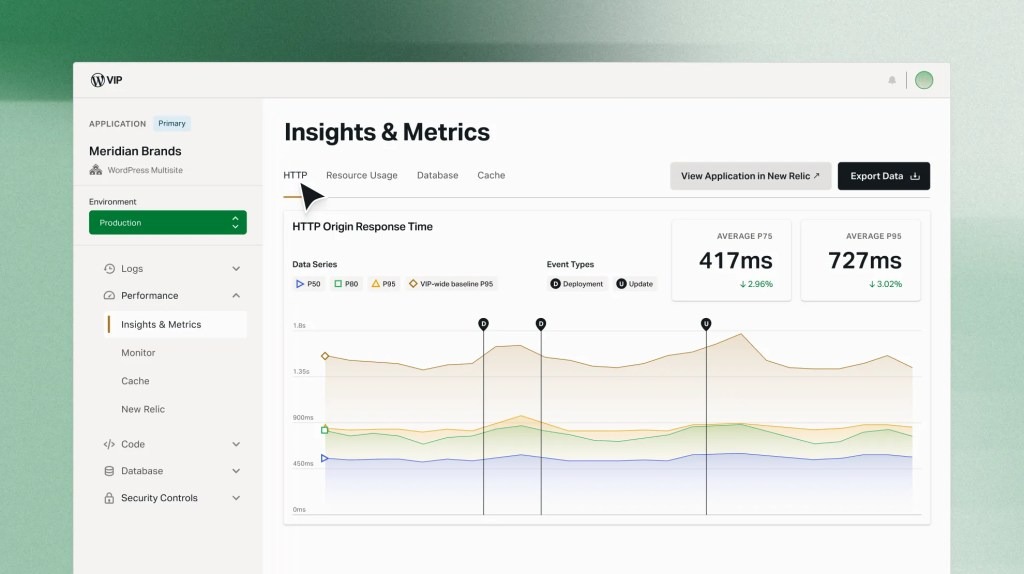
WordPress.com’s plugin documentation, reviewed October 22, 2026, lists plugin installation on its paid plans: Personal, Premium, Business, and Commerce. The free plan does not support installing outside plugins. Staging, certain backup and restore tools, and server or database access are also set by the plan, so plugin access alone doesn’t tell you what else a plan includes.
Before you buy, check the current plan or host documentation against what your project needs, such as file access and how much administration you’re willing to handle. If an older tutorial disagrees, trust the documentation.
For a new self-managed setup, WordPress.org recommends PHP 8.3 or newer, MySQL 8.0 or newer or MariaDB 10.11 or newer, and HTTPS. Its recommended web servers are Apache and Nginx.
Domain, hosting, and installation: what do you already have?
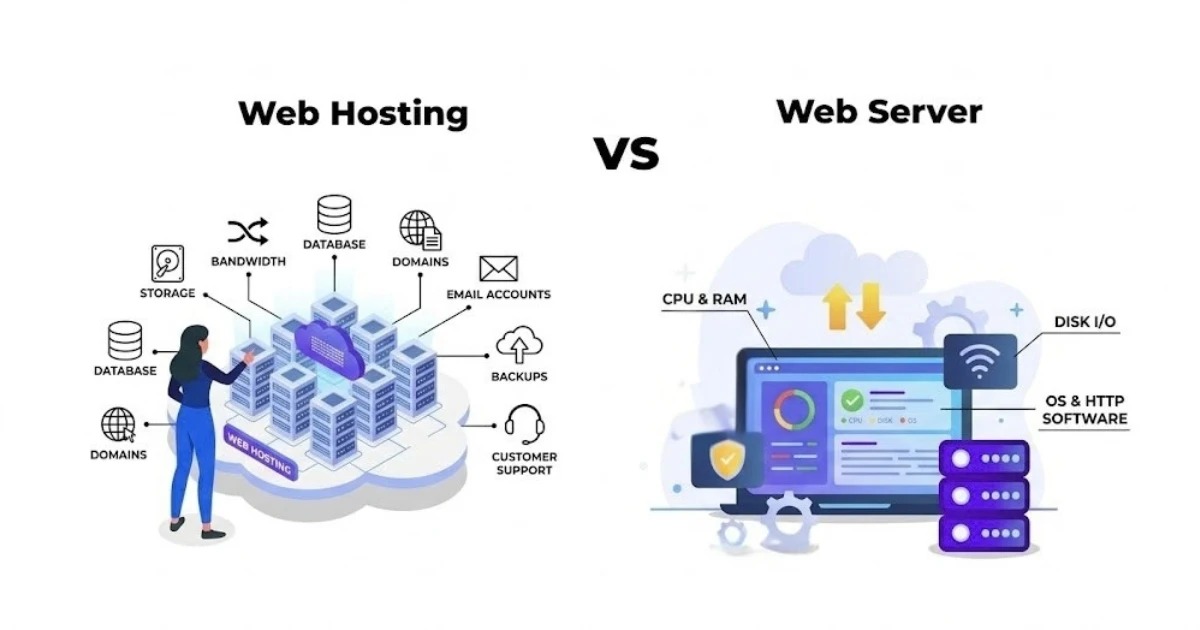
A domain is the address of a website. Hosting is the environment that serves it. A WordPress installation is the content management software running there. DNS points the domain at the service you want to use.
Owning a domain still leaves two tasks open: getting a website service and confirming that WordPress is installed. Some registrars and hosts bundle several of these pieces into one purchase.
A WordPress.com site can use the address that WordPress.com supplies, so buying a custom domain is optional.

Check three things in your accounts:
- Address: If you want a custom domain, is its registration active and under your control?
- Service: Is a WordPress.com site or an independent hosting environment set up?
- Installation: Does the account show WordPress as installed, and can you reach its admin login?
WordPress is installed: configure the essentials first
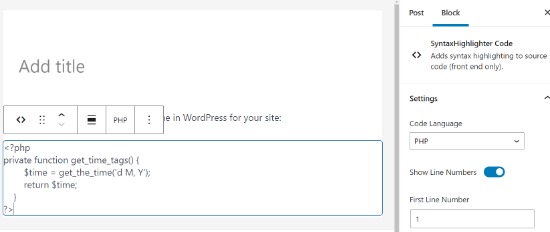
Once you can log in to the WordPress admin, skip the host and installation instructions. Make three decisions: the site title and tagline, what the homepage shows, and which editor controls what.
Set the site title and homepage
Set the site title and tagline under Settings → General.
Pages hold material such as About or Contact information. Posts are the entries you publish over time. Under Settings → Reading, choose whether the homepage shows recent posts or a static page. A business can use a static introduction to its services. A blog can show its latest posts.
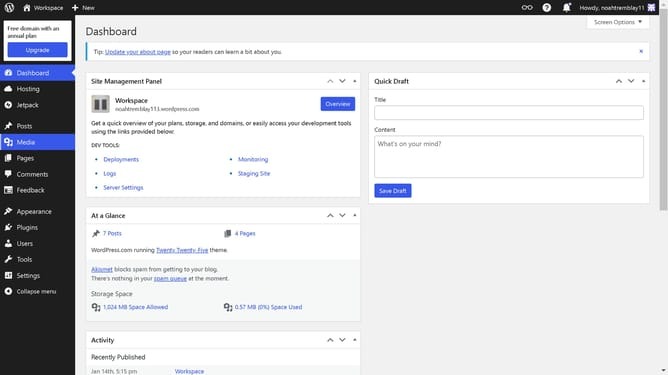
Know which editor controls the element
In August 2026, a business-site beginner wrote on r/Wordpress, “I’ve spent days and I just can’t figure out this block editor thing. It’s driving me insane.”
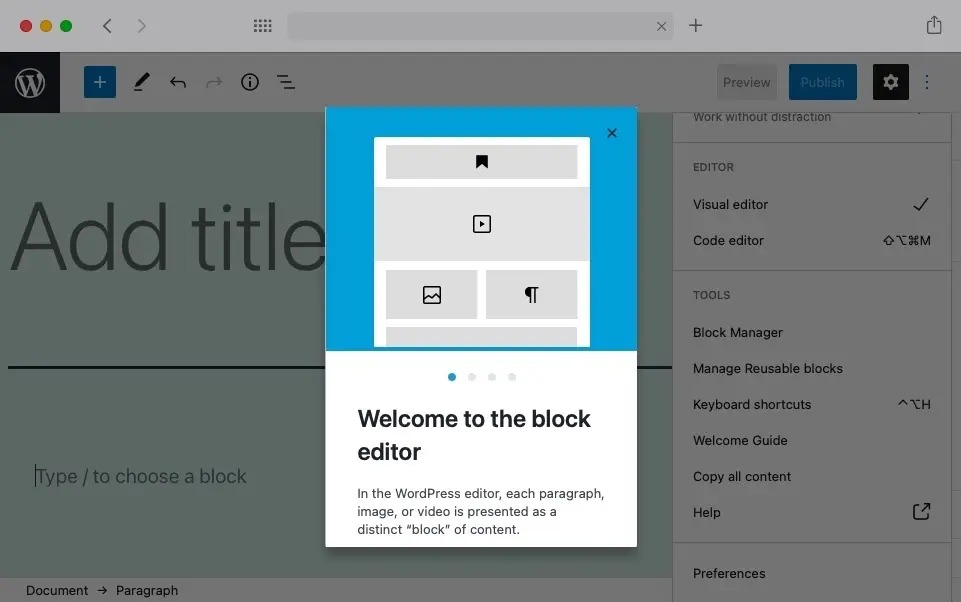
The Block Editor handles content in pages and posts. The Site Editor handles templates and shared site areas when the active theme is a block theme. You open it under Appearance → Editor. Other themes can offer different design controls.
If you edit a page and the header or layout stays the same, it belongs to the theme’s site-level design, not the page.
When you’re done, open one typical page and check that its content and design work together. Settle the permalink structure before publishing much, because changing it later changes page URLs that visitors or other websites already use.
If you’re working privately or replacing a live site, don’t use the fresh-launch path
A live-site replacement belongs in a migration or staging-deployment guide. The fresh-install path does not explain how to preserve production orders, members or content.
| Environment | What it is for | What to watch for | Related guide |
|---|---|---|---|
| Local prototype | Build or test on your computer | Moving files and database to public hosting | Transfer to hosting |
| Staging copy | Try changes away from production | Keeping newer live data intact | Staging deployment |
| New public site | Publish the site’s initial version | What first-time visitors will see | Launch review |
| Replacement site | Rebuild an existing web presence | Existing content, links, and visitors | Migration |
WordPress.com’s staging feature is documented for Business and Commerce plans. Other hosts set their own staging options and deployment steps.
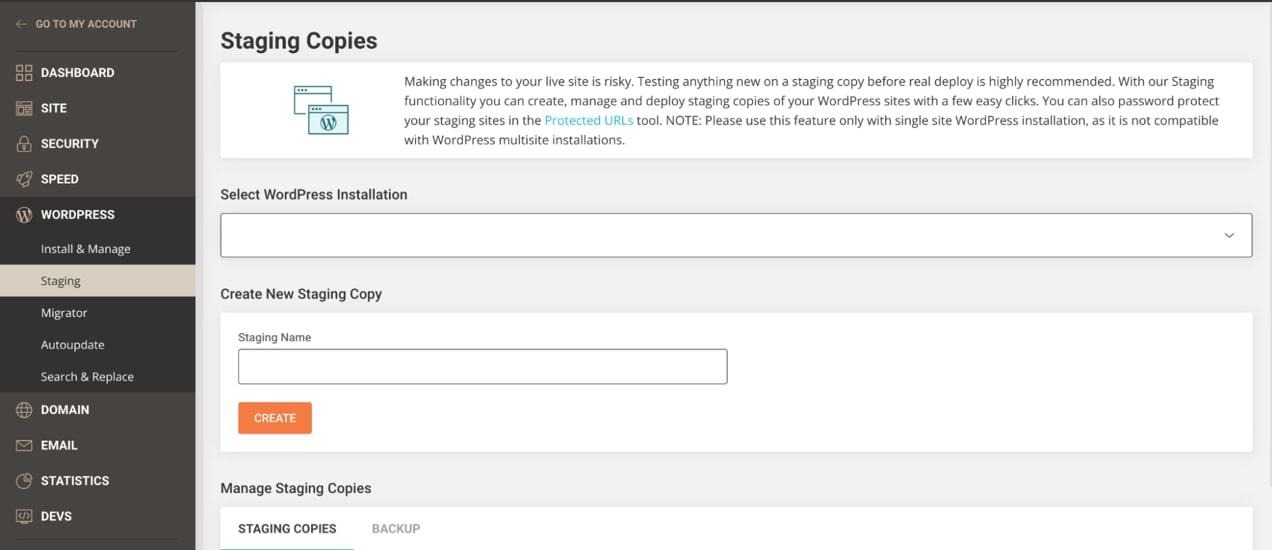
On WordPress.com, syncing a staging database back to production can overwrite data added to the live site since production was last copied to staging, including newer orders, customer information, and user records. If your site keeps accepting orders, you need a deployment plan that protects its production data.
Changing DNS points your domain at a new host. WordPress itself, the database, the media, and your existing URLs still have to be handled in the migration.
Check what visitors will see before launch
Test the pages, links, and functions your visitors will use:
- Content: View the homepage and an important secondary page. Check that the copy is what you meant to publish and that no theme demo content remains.
- Navigation: Follow key links. If the site has forms or other interactions, test the essential ones.
- Screen sizes: Check the navigation and main content at desktop and mobile widths.
- Address and connection: Confirm your domain reaches the right website with HTTPS.
- Visibility: Check whether the site is public, private, or not launched yet.

WordPress.com has a launch action for unpublished sites, and account-email confirmation is one of its prerequisites. Independently hosted sites use the visibility and publishing controls of their own installation and host.
WordPress’s “Discourage search engines from indexing this site” option asks search engines to avoid indexing. It does not restrict public visitors or guarantee deindexing. If a site must stay private, use an actual access-control method.
Who handles updates, backups, and support afterward?
Responsibilities differ between WordPress.com, managed hosting, and a self-managed server.
| Responsibility | Who handles it | Related guide |
|---|---|---|
| WordPress, theme, and plugin updates | Service provider or site administrator | Software updates |
| Backups and recovery | Host or site owner responsible for recoverable copies | Full-site backup and restore |
| Technical problems | Hosting support or administrator, plus WordPress Site Health for diagnostics | Troubleshooting |
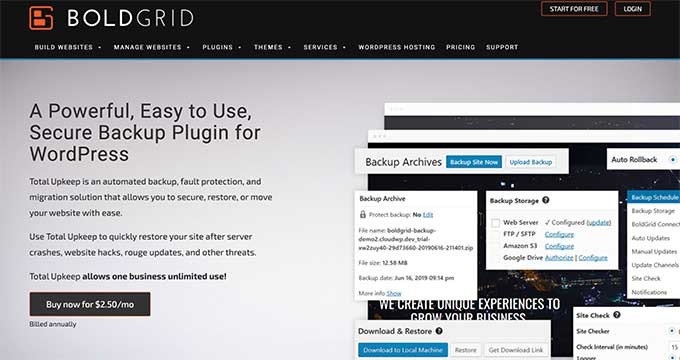
To restore a WordPress site, you need the database and the website files: themes, plugins, uploads, and configuration. A content export or a database-only backup doesn’t include those files.
Your next WordPress step
Choose one next step rather than reading every setup guide: for platform trade-offs, use the detailed WordPress.com versus self-hosted comparison. If WordPress is installed, use the WordPress editor first-steps guide. If you are changing an existing site, check the WordPress.com staging instructions for supported plans.
