Start with 755 for most WordPress directories and 644 for ordinary files. When an upload or update fails, find the file owner and the account running PHP before changing any permissions. Make one targeted change, retry the failed action, and keep sensitive files restricted.
What file permissions should WordPress use?
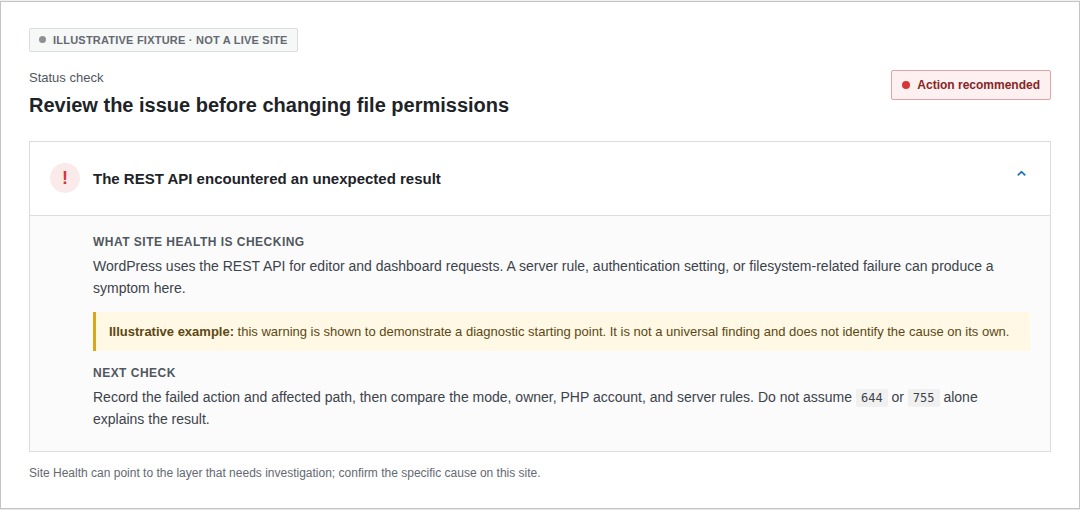
Hosts that run PHP under a separate account, rely on a trusted group, or manage the filesystem themselves can need different settings. If writes still fail, investigate ownership in the dedicated permissions troubleshooting guide.
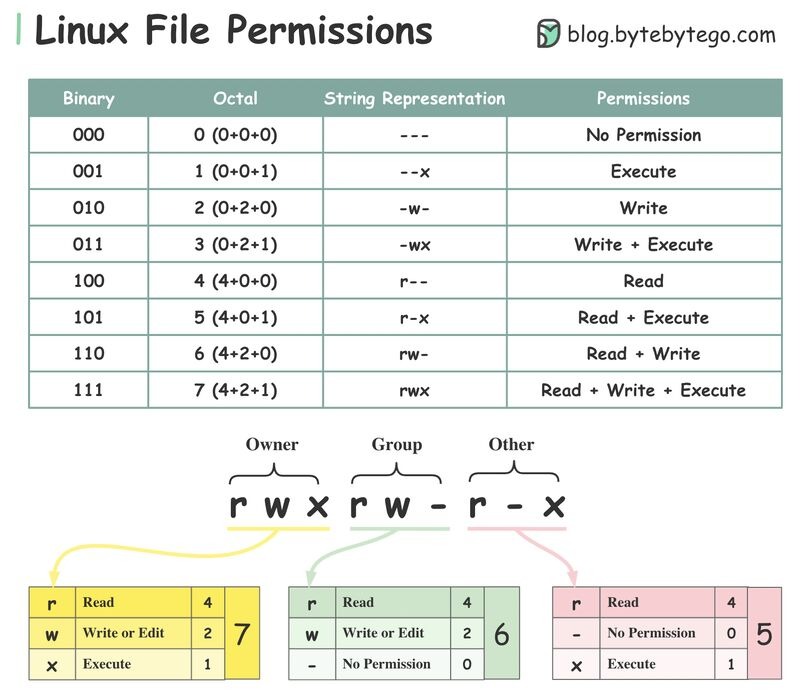
Unix permissions give read, write and execute rights to three classes: the owner, the group, and everyone else. Read counts as 4, write as 2, execute as 1. A directory set to 755 has rwxr-xr-x permissions, and a file set to 644 has rw-r--r--.
| Object | Common mode | When another mode applies |
|---|---|---|
| Ordinary directories | 755 |
750 for hosts with controlled group access. |
| Ordinary files | 644 |
640 limits reading to the owner and the group. |
| Trusted group-write deployment | 775 directories, 664 files |
Only where you trust the whole group to write. |
wp-config.php |
Restricted, 600 or 640 |
WordPress also documents 400 or 440 for some hosts. |
wp-content/uploads |
755 |
PHP must be able to create files there. |
On a directory, the execute bit allows traversal. PHP source files need read access for the interpreter but no Unix executable bit. A writable upload directory also needs the right owner or group, because the mode alone doesn't say who can create files.
The WordPress file permissions documentation covers the ownership relationships and hosting-specific alternatives behind these values.
Start with the action that failed
Note which action failed and which path it tried to use. An upload creates media files, a plugin update replaces application code, and an HTTP 403 in the browser is a separate problem.
| Symptom | First check |
|---|---|
| Unable to create an upload directory | Check the destination and its parent directory. |
| Plugin or theme update fails | Compare file ownership with the PHP account and the update method. |
| FTP credentials prompt | See which filesystem method WordPress picked. |
| HTTP 403 after migration | Check the requested path and the server's reason for denying it. |
| Writes fail despite suitable access | Ask the host to check storage and account quota. |
On a host that enforces SELinux, its security policy can deny a write even when mode and ownership look correct. Check the host or security-policy logs before changing permissions.
One r/Wordpress poster in July 2025 described an update failure: “All permissions are correct (644 for files, 755 for directories). Cannot upgrade anything.” Correct numbers don't settle it. You still need to know which account runs the update and which path it has to modify.
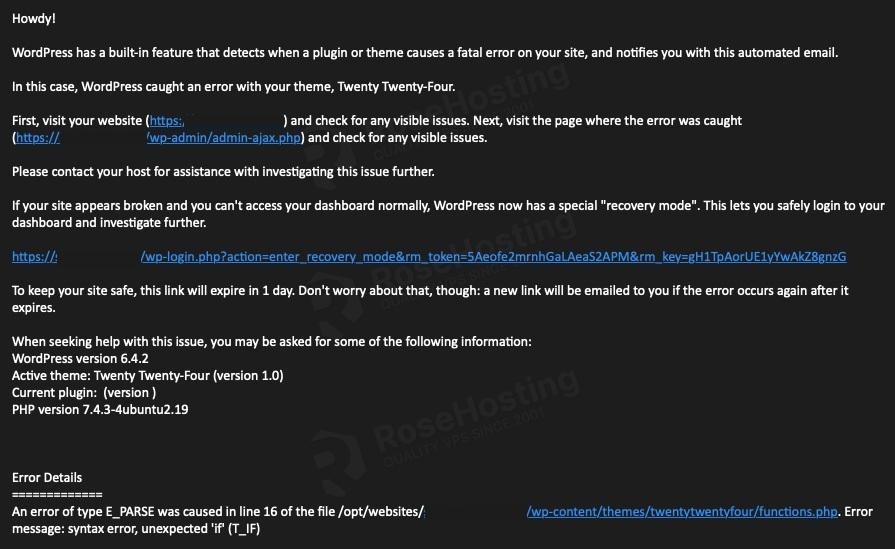
Write down the exact error text, the first thing that fails, and the path if the message shows one. If a failed upload names a dated subfolder under wp-content/uploads, start there instead of the installation root.
Check who owns the files and who runs PHP
The file owner and the account the process runs as decide which permissions apply. On a site using PHP-FPM, the worker serving it can run under a different account than the SSH user who deployed WordPress.
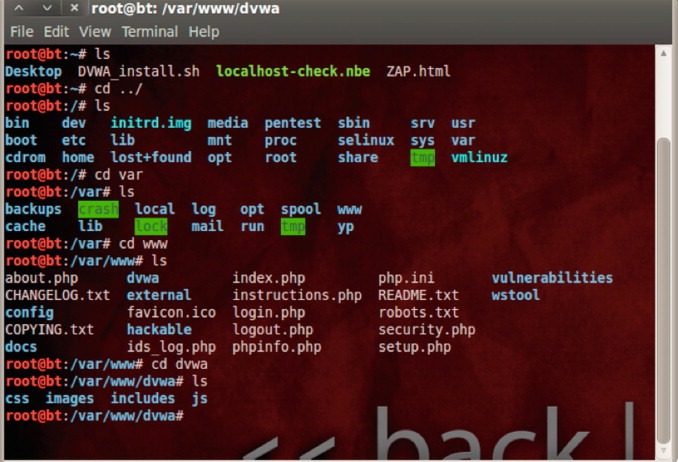
With shell access, check the directories and the config file:
ls -ld /path/to/wordpress/wp-content /path/to/wordpress/wp-content/uploads
ls -l /path/to/wordpress/wp-config.php
Replace the example path with your installation location. The output shows the permission string, owner and group.
On a self-managed PHP-FPM server, start with a process listing:
ps aux | grep php-fpm
Find the PHP-FPM pool that handles this site's requests, then read that pool's user and group settings. If several pools exist, check which socket or listener the web server routes the site to. The web server account and the PHP-FPM master process don't necessarily show which account runs the site's PHP.
A NOC.org PHP-FPM troubleshooting example shows WordPress files owned by ubuntu while the PHP-FPM pool runs as www-data.
A directory owned by the deployment account lets that account write, while the PHP account gets read and traversal access only. Both accounts can get write access on purpose through a trusted group.
Why uploads and cache writes fail
To create a media file, PHP needs write and traversal access to the destination directory, plus traversal rights through every parent directory on the way.
WordPress writes uploaded media under wp-content/uploads. A caching plugin can write under wp-content/cache or another directory the plugin defines. The path in the error message tells you which one matters.
Inspect the destination directory and its immediate parent. Changing permissions on an existing image won't let PHP create a new file in a directory it can't reach.
Follow the plugin's own documentation for plugin-specific storage paths. An upload error calls for access to the upload destination only. Leave core directories such as wp-admin and wp-includes out of it.
Why updates ask for FTP credentials
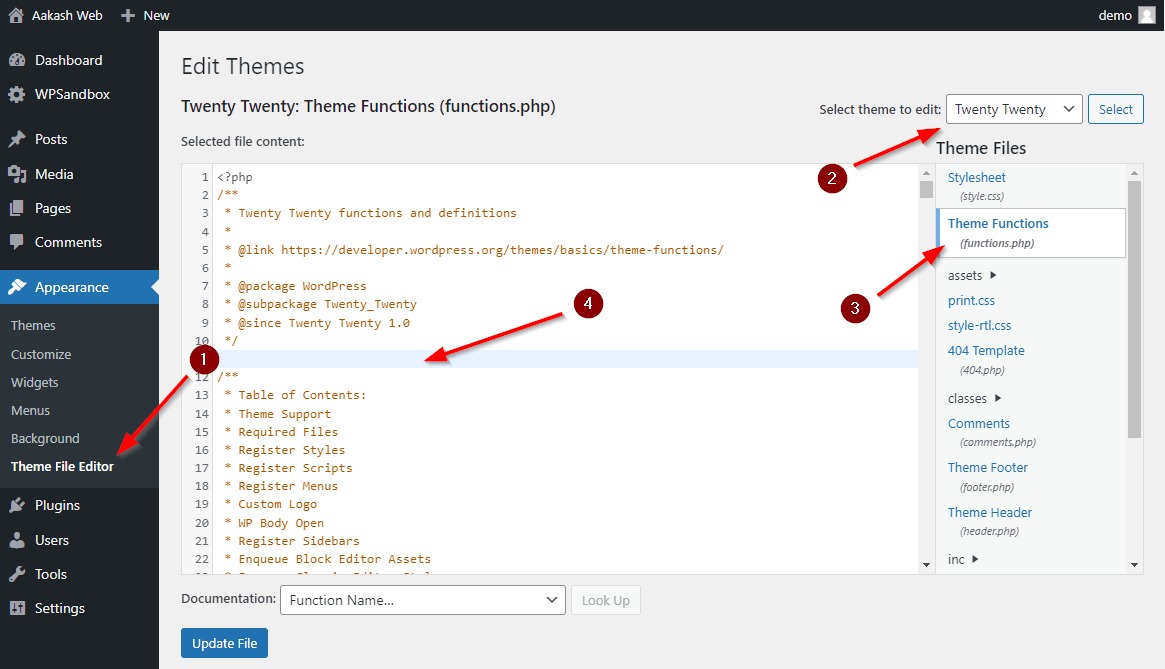
WordPress uses its filesystem API to choose how updates access files. The methods include direct, ssh2, ftpext and ftpsockets. You get a credentials prompt when WordPress picks a method that needs credentials.
Without an overriding method setting, get_filesystem_method() tests direct access by creating a temporary file in a context directory. It compares that file's owner with the owner of a WordPress core file, and matching owners allow the direct method.
The WordPress function reference documents this logic. Setting FS_METHOD overrides the selection. Forcing direct can't create missing write permission at the operating-system level, and it can turn a credentials prompt into a write failure.
| Access available | Useful next action | Typical limitation |
|---|---|---|
| WordPress dashboard only | Copy the update error and ask for hosting account details. | You can't see file ownership. |
| Hosting panel or SFTP | Inspect the path and the permission controls. | Changing the owner can need the host. |
| SSH as the site account | Check ownership and which files the account can modify. | Server-wide PHP settings can be locked. |
| Server administrator | Find the pool the site runs in and who owns the deployed files. | Changes can affect site isolation and other applications. |
An r/Wordpress poster who had inherited a site wrote in April 2026: “Every other solution involves having something called C-pannel or FTP credentials, which were never given to me.” Dashboard login and hosting login are separate credentials, so your options follow who controls the hosting account.
Keep sensitive WordPress files more restricted
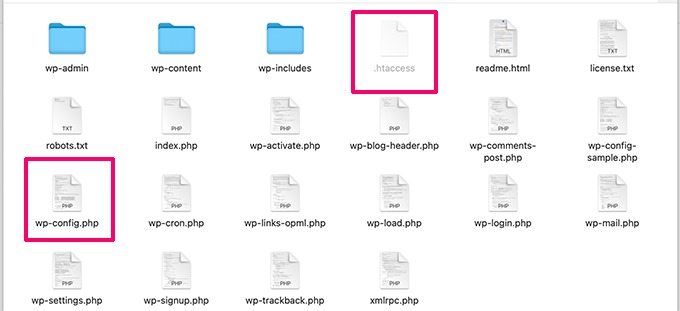
wp-config.php holds your database connection details and security keys, so limit its readers to the accounts that need it. Don't tighten the mode so far that PHP or your maintenance tools lose access.
A config file readable only by its owner works when PHP runs as that owner. When the host runs PHP under a different account, the file can need controlled group read access.
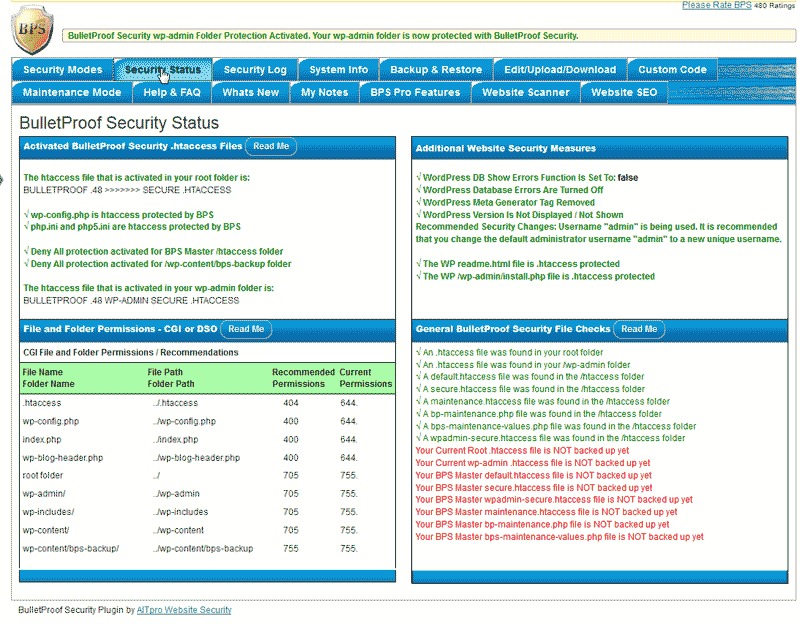
WordPress hardening guidance favors limiting who can modify application code. Allow writes to wp-admin, wp-includes and plugin files only for the accounts that run updates.
The .htaccess file applies to Apache, including its rewrite rules. Nginx uses its own server configuration and ignores .htaccess.
HTTP 403 after a WordPress migration
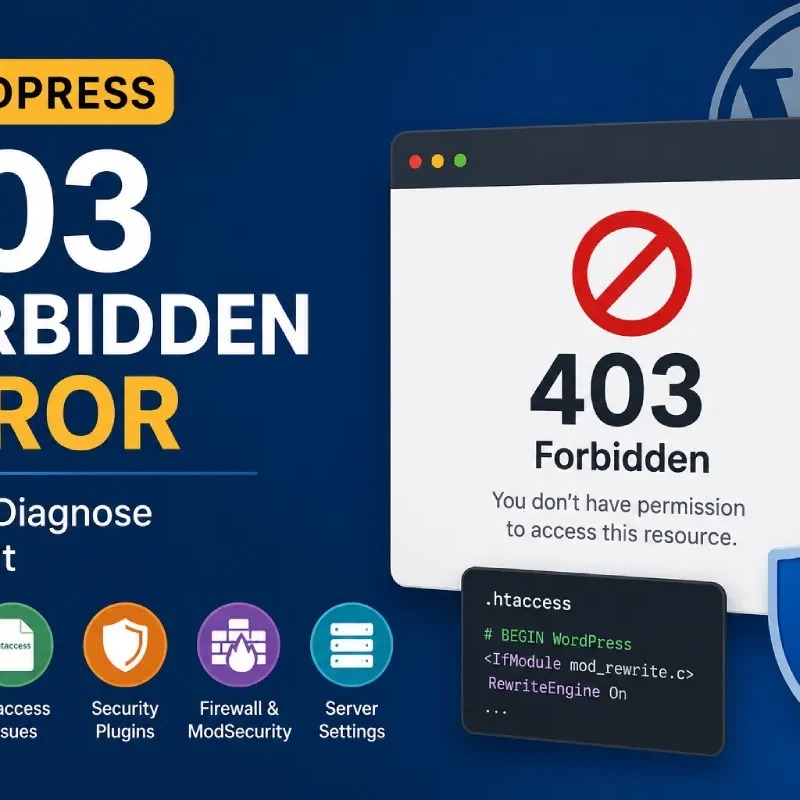
After a migration, check the web server's document root, the requested file and the access rules, including Apache .htaccess directives or Nginx server configuration.
In May 2025, an r/webhosting poster describing a MAMP-to-cPanel move reported: “Set permissions: 755 for folders, 644 for files (including index.php and .htaccess)”.
A 403 can come from server configuration or routing as well as filesystem access, so the response alone doesn't show a chmod problem.
Make the smallest safe change, then test it
Once you know the failed path, its owner and the account that needs to write, fix that specific mismatch. chmod changes permission bits and chown changes ownership.
| Finding | Fix |
|---|---|
| One directory has an unintended mode | Restore the intended mode on that directory. |
| PHP account and file owner differ | Fix ownership or group access in a way your host approves. |
| WordPress picked a method that needs credentials | Fix the ownership setup or use an approved method. |
| Host controls ownership or filesystem policy | Ask the provider to fix it. |
If the uploads directory needs 755, its ownership and PHP setup are correct, and you're allowed to change its mode, fix that one path:
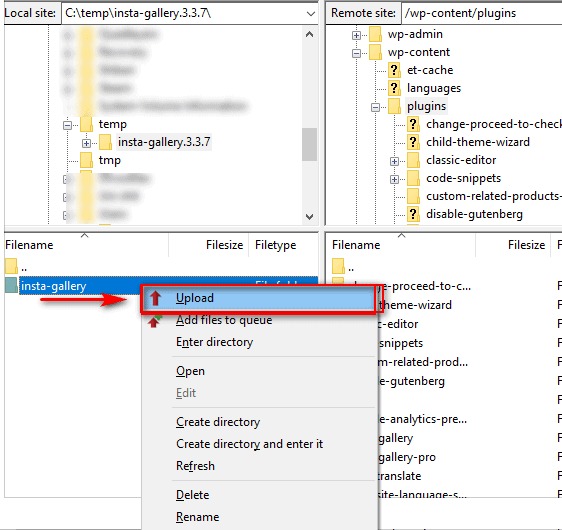
chmod 755 /path/to/wordpress/wp-content/uploadsWithout SSH, open an SFTP client or the hosting file manager, select that same directory, and set its permissions to 755. Leave any recursive option off.
Work through these steps:
- Back up first. Keep a backup, snapshot or rollback path before you modify a live site.
- Change only what you diagnosed. Apply the mode, owner or group change to that path and nothing else.
- Retry the exact action that failed. Run the same upload, cache write or update again.
- Check the rest of the site. Confirm pages still load and sensitive files stay restricted.
- Undo the change if it didn't help.
Recursive permission or ownership changes can overwrite deliberate exceptions, including restricted configuration files and host-managed paths. Avoid 777 as a routine fix, and avoid blanket ownership transfers to a guessed web-server account. Both expand write access far beyond the action that failed.
When to stop changing permissions and ask for help
Stop changing modes when the host controls ownership, you can't tell which process serves the site, or an allowed change keeps failing to persist. Next, ask the host to investigate its configuration.
In your support request, include the exact action that fails, the path, its current owner, group and mode, the PHP account if you know it, and when the problem began. Ask the provider which account should perform the write and which access rule blocks it.
A possible security incident needs a different response. An r/Wordpress poster in October 2026 reported an earlier hack and wrote: “I can't even rename the folder or individual files.” The failed rename doesn't explain the filesystem cause, and the reported compromise calls for incident-response help.
Resetting permissions won't clean up malware. If compromise looks plausible, preserve evidence and use the host's security or recovery process before making more changes.
