Use the WordPress Recovery Mode link if the admin email arrives. If it doesn't, find the relevant PHP fatal error in your hosting or WordPress logs, then repair or reverse the change it points to. If you lack access or the evidence points to a server-level problem, send your host or developer the error details, and treat the repair as done once the original failing action works again.
What the WordPress critical error message means
The message “There has been a critical error on this website” means WordPress hit a serious failure in PHP. It doesn't tell you what caused it. The error can appear on the public site, throughout wp-admin, or only during one action. Write down the exact wording and the failing URL or action before changing anything. A blank page, a standalone HTTP 502 response, or “Error establishing a database connection” is a different problem with a different fix.
Find out what still works before choosing a recovery route
An admin described a typical split in an r/Wordpress thread on March 5, 2026: “My site is live, but trying to access admin is giving the "There has been a critical error on this website." message for all pages in admin.” Match your own access to a route:
| Access or evidence available | Recovery route |
|---|---|
| Valid WordPress recovery email | Enter the protected Recovery Mode session |
| Hosting files or PHP logs, but no recovery email | Identify the relevant fatal error |
| Identified faulty extension or recent edit | Make a targeted reversible change |
| Server fault or insufficient technical access | Give the evidence to an authorized administrator |
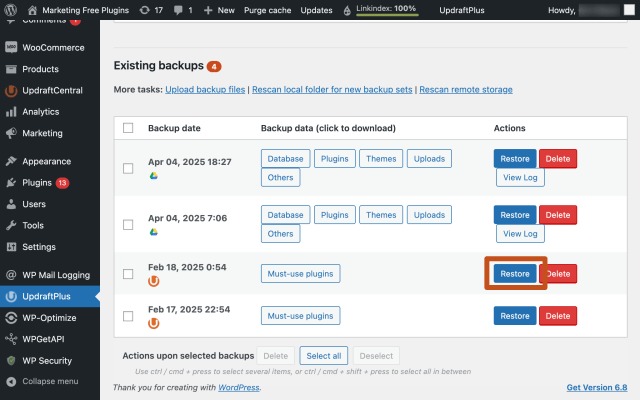
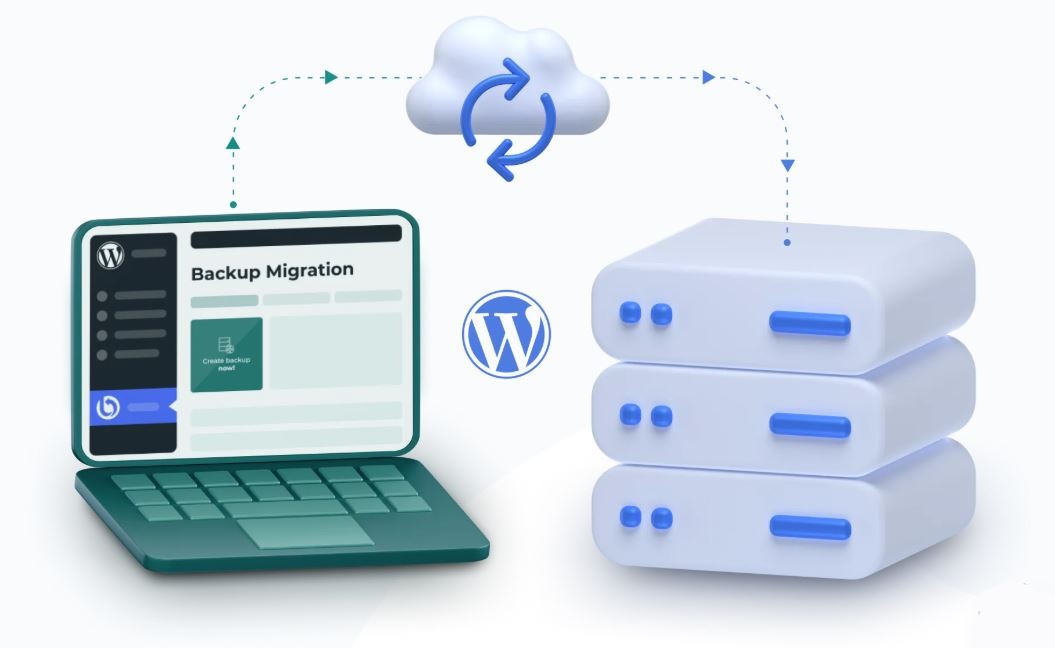
Before you touch site files or plugin state, work in a staging copy or make sure you have a backup you can restore. WordPress keeps its data in both files and the database.
Limit the impact on a live site. A sitewide plugin shutdown can interrupt features that still work. On an active store or membership site, make sure you can reverse each step before trying anything broad.
Use the WordPress Recovery Mode email if you have it
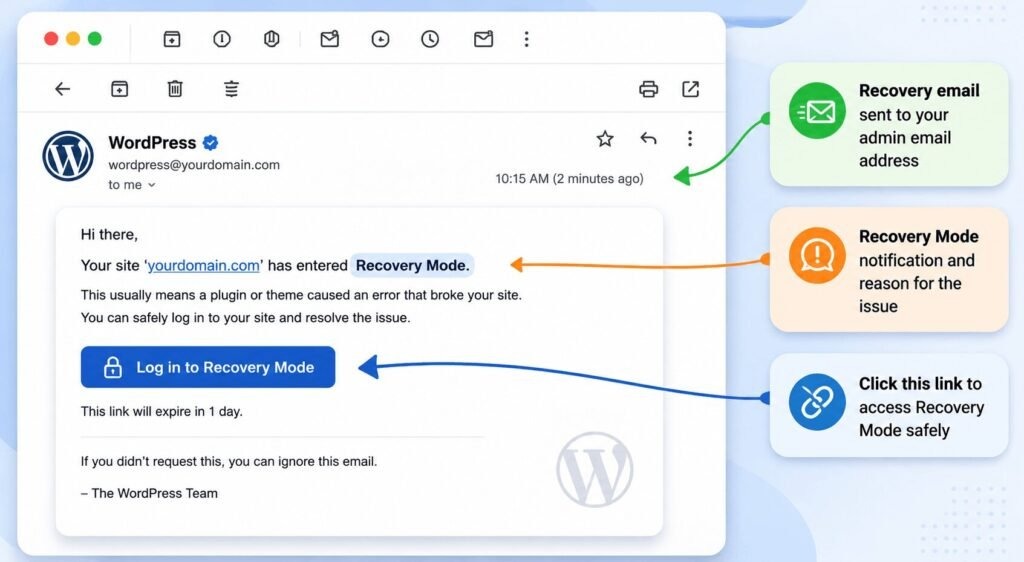
WordPress Recovery Mode gets you back into administration when a fatal error traces to a plugin or theme. WordPress 5.2 introduced it, and it emails a special recovery link to the site's admin address.
- Find the genuine WordPress recovery email in the admin mailbox, including spam and filtered folders.
- Open the protected link and log in with an administrator account.
- Check which plugin or theme Recovery Mode flags and use the controls it offers to fix it.
The WordPress Recovery Mode documentation explains that WordPress can pause the flagged plugin during your recovery session.
Why the recovery email can fail to arrive
An April 8, 2026 r/Wordpress post shows the problem: “I am a site admin but have not received an email to say what the critical error was. This happened last week as well.”
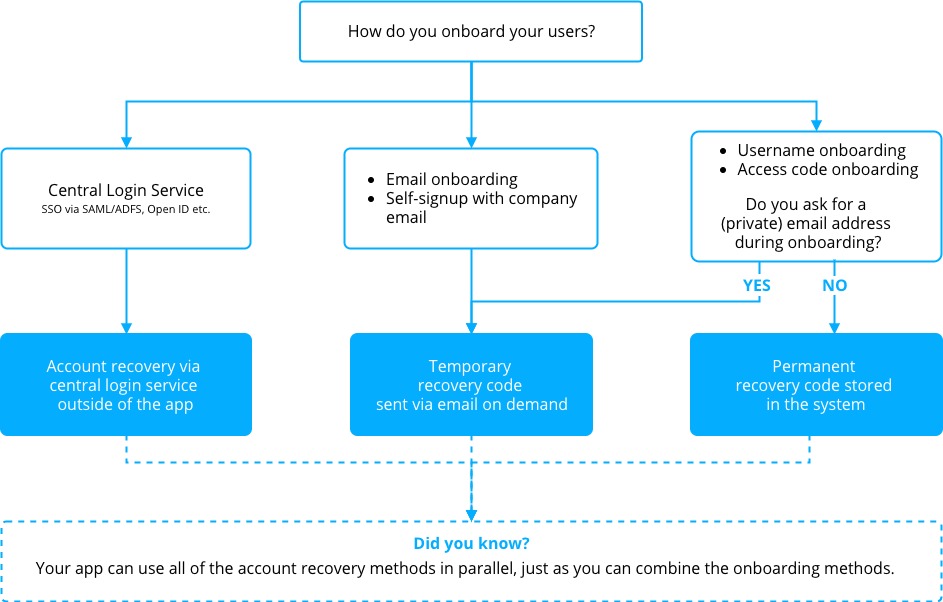
Recovery Mode needs two conditions. The fatal error must occur where WordPress's handler can process it, and WordPress must tie it to a plugin or theme. Email adds more failure points: outgoing mail handling before an email plugin loads, host delivery, spam filtering and notification rate limits.
Don't try to build a recovery link by guessing URL parameters. The real link carries protected recovery information.
No recovery email? Find the PHP fatal error in the logs
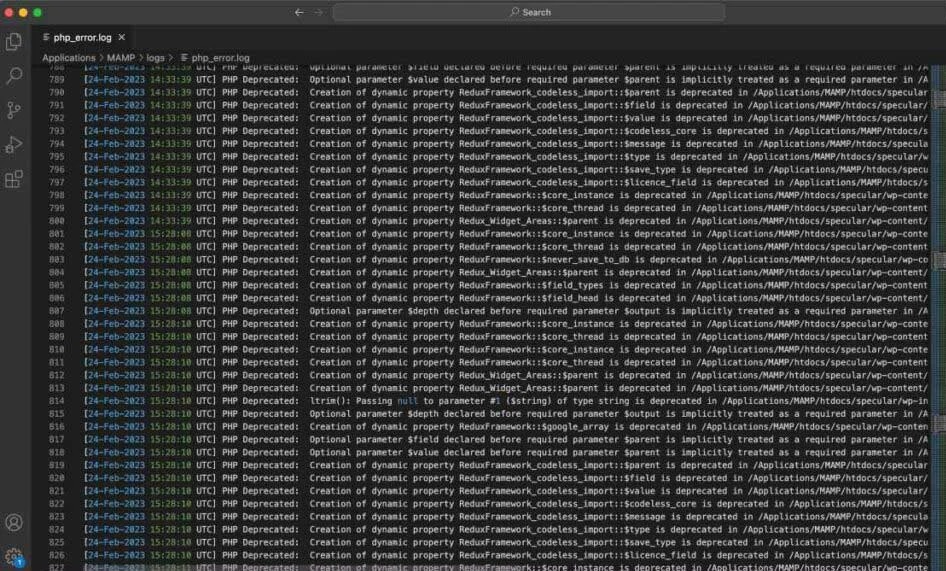
The most useful evidence is the PHP fatal error tied to the failed action. Start with the PHP or web-server error log in your hosting account. If it tells you too little and you have file access, WordPress debugging gives you a second source.
Read the error that matches the failure
Find the entry whose timestamp matches your failing action, then read its error class, message, file, line and stack trace.
A WordPress.org support report about NGG Smart Image Search shows what this looks like:
PHP Fatal error: Uncaught Error: Call to undefined function shell_exec()PHP reports an uncaught Error from a call to the unavailable shell_exec() function, and the plugin file named line 2974. That points to the plugin and your host's PHP environment. The WordPress core file visible elsewhere in the stack trace isn't the suspect.
Configure temporary WordPress logging if necessary
If host logs are missing or too thin, the WordPress debugging documentation describes a log-first setup. Find wp-config.php in the WordPress installation and edit any existing definitions of these constants. Don't add duplicates.
define( 'WP_DEBUG', true );
define( 'WP_DEBUG_LOG', true );
define( 'WP_DEBUG_DISPLAY', false );
@ini_set( 'display_errors', 0 );
Place the settings before WordPress's standard configuration marker:
/* That's all, stop editing! Happy blogging. */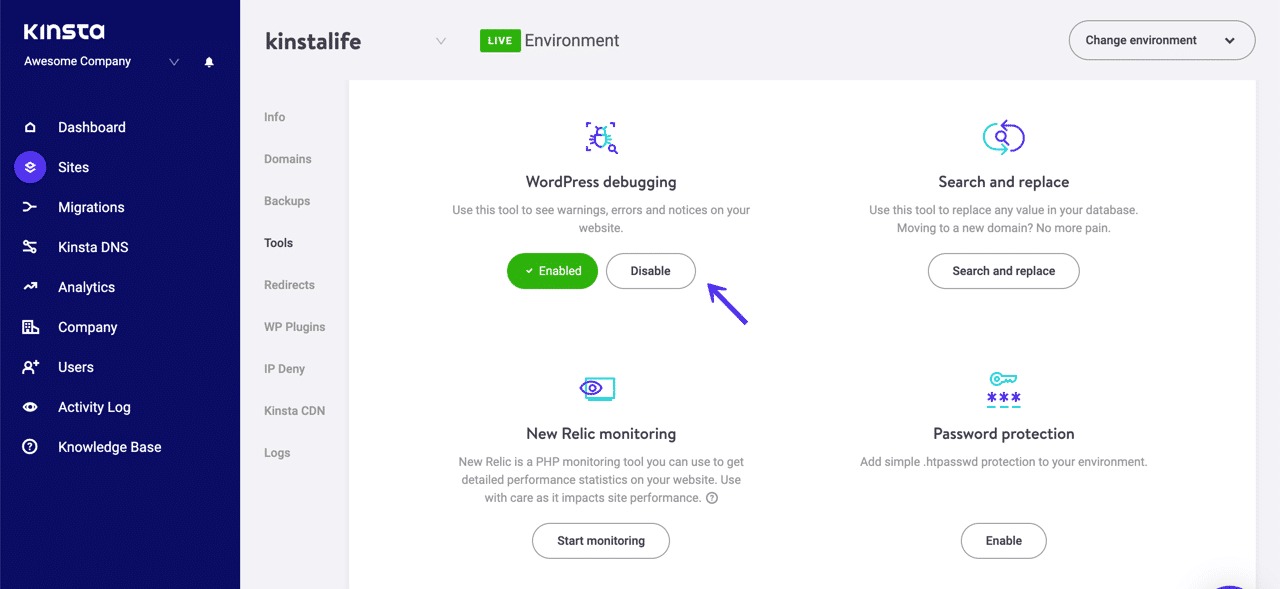
WordPress writes the log to wp-content/debug.log. Setting WP_DEBUG_DISPLAY to false keeps errors off your public pages. Repeat the failing action once, then check wp-content/debug.log through your file manager or SFTP for the new entry. If the action can alter live data, rely on your host's logs or reproduce the failure in staging.
Keep diagnostic output private. WordPress recommends debugging in development or staging. If you have to log on a live site, keep it controlled and temporary. A file like debug.log can contain filesystem paths or sensitive information, and turning off on-page display doesn't protect a log that anyone can open.
If debug.log is missing or empty, WordPress logging didn't reach the failed operation or your host recorded the error elsewhere. Go back to the PHP or web-server logs.
Fix the implicated plugin, theme, or recent code change first
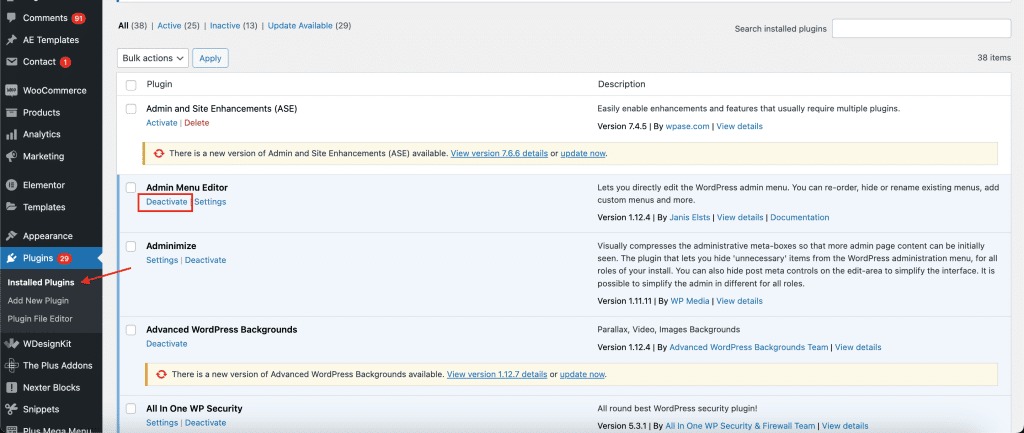
When the log or a recent change points to one plugin, theme or file, reverse that one change first. Deactivate the plugin, revert the theme or custom edit, or restore the previous version if an update caused the problem. A plugin installed just before an editor failure is your first suspect, especially if the fatal entry names its code.
Deactivate a specific plugin
If Recovery Mode gives you dashboard access, open the flagged plugin and use its deactivation or correction controls.
No admin access? Open your host's file manager or SFTP and rename the plugin's folder. WordPress documents this approach, for example:
/wp-content/plugins/hello-dolly/
/wp-content/plugins/hello-dolly-1/
The second path is the same folder under a temporary name. Use the folder of the plugin you're investigating, write down its original name and keep the files so you can reverse the change.
With SSH and a working WP-CLI setup, you can deactivate a named plugin with:
wp plugin deactivate example-pluginReplace example-plugin with the plugin's slug.
Deactivate all plugins only if the targeted checks found nothing.
Identify the culprit after broad plugin isolation
WP-CLI can deactivate all regular plugins with wp plugin deactivate --all. You need the same CLI access, and the command can interrupt services on a live site.
If the failure disappears, restore the normal plugin directory arrangement where you renamed folders, then reactivate plugins one at a time. Repeat the failing operation after each activation. If the error returns after one activation, that plugin is your suspect, or it conflicts with a plugin that's already active.
Run the reactivation tests during a maintenance window. Don't knowingly reactivate a plugin you've confirmed crashes a critical production operation.
On multisite installations, check network-activated plugins too. WP-CLI's global --skip-plugins option doesn't skip must-use plugins, which can still matter when ordinary plugin isolation fails.
A temporary deactivation can restore access and remove a feature your site needs, so a lasting fix means a compatible release, repaired custom code or a controlled rollback.
When the log points to PHP or the hosting environment instead
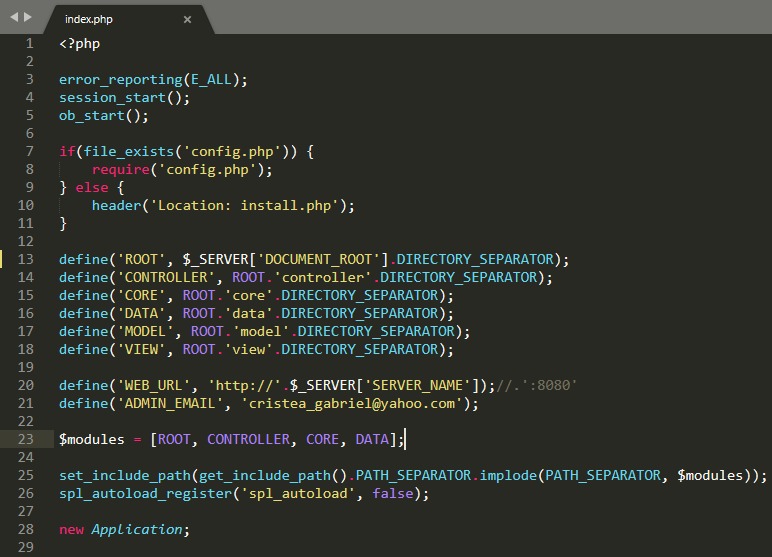
A PHP fatal error can come from an unavailable function, an execution-time limit, exhausted memory or faulty code. Each needs a different fix.
| Error category | Typical diagnostic wording | What to check |
|---|---|---|
| Unavailable function | Call to undefined function ... | Whether the plugin works with your host's PHP setup |
| Execution-time limit | Maximum execution time ... exceeded | What the operation does and which time limit applies |
| Memory exhaustion | Allowed memory size ... exhausted | How much memory the failing task needs |
| Type or syntax failure | TypeError or a PHP parse error | Code or dependencies that changed recently |
The error class tells you where to start. Raise a PHP limit only when the error names a resource constraint.
Disabled functions and plugin compatibility
In an August 2026 WordPress.org support discussion, NGG Smart Image Search v4.0.0 hit the disabled-function failure from the log example above. It happened in editor-related functionality, and the developer then supplied a fix. One participant reported that v3.4.3 had worked on the same hosting setup, which made the version change a useful lead.
Enabling a server-disabled function just to suit one plugin is a poor default. Check how the plugin handles the restriction, then use a supported fix or ask the developer or host about compatibility.
Execution time and code changes
Another WordPress.org support case described a plugin update to version 1.64 followed by this fatal message:
PHP Fatal error: Maximum execution time of 30 seconds exceededThe failure appeared while changing conditions in a complex operation. The reporter said restoring plugin version 1.63 recovered that operation.
That environment included WordPress 7.0.2 and PHP 8.2.14, and the discussion also mentioned WooCommerce order editing.
If the first fix fails, stop guessing and escalate with evidence

If a targeted change makes no difference, undo that test and reassess. Another plugin, a must-use plugin, custom code, the theme or the PHP environment can be involved. Contact your host or developer when you lack the logs or permissions you need, the cause is still unclear, or further experiments would disrupt an essential production workflow.
If disabling ordinary plugins changes nothing, look at other loaded code and the server environment. Don't delete WordPress or replace core files.
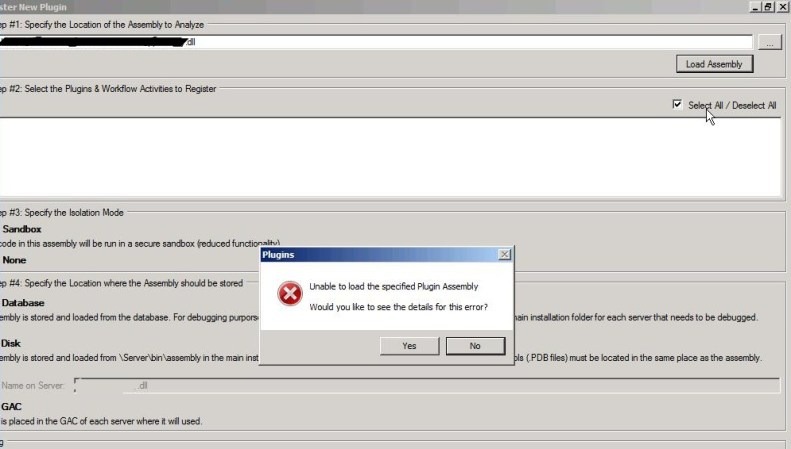
What to send your host or developer
- Symptom: The exact message, the affected URL and the action that triggers it.
- Timing: When it failed and any changes made just before.
- Error: The PHP fatal message, error class and a shortened stack trace with private details removed.
- Versions: WordPress, PHP and plugin versions.
- Tests: What you changed, what happened and what you reversed.
- Restore point: Whether you have a backup covering both files and database.
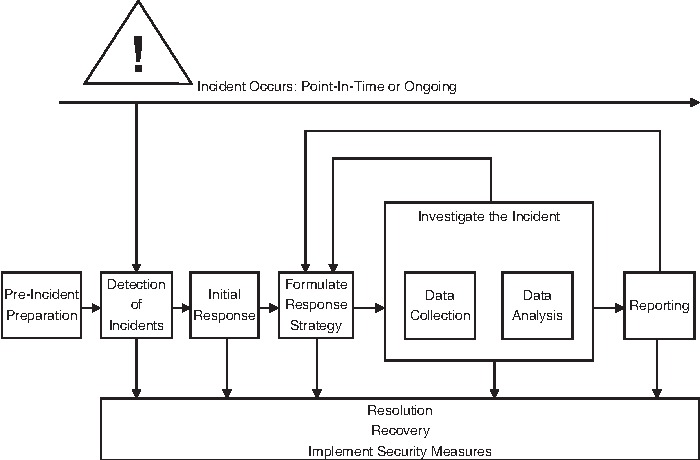
When a backup restore is justified
A complete known-good backup is your option when no targeted fix is available and the incident requires restoration. The restore point must cover a consistent set of WordPress files and database information.
On a site that takes orders, membership updates or new content, a restore can overwrite changes made after the backup. What you lose follows from what was written since then and how you restore. Treat a full restore as its own procedure with a final test. Don't improvise a database overwrite in the middle of a plugin investigation.
Verify the repair and remove the temporary debugging setup
You're done when the action that failed works again and your debug settings are off. Loading the homepage proves little when the failure involved the editor or an admin action.
- Repeat the original action: Open the same editor, dashboard screen or public-page operation and confirm it completes.
- Check the site: Load a few public pages and the admin screens you use, plus any feature the affected plugin provides.
- Leave Recovery Mode: Confirm normal behavior outside the temporary recovery session.
- Clean up: Turn debug off, then secure or delete
debug.log.
Test in a normal visitor or administrator session, since caching or an existing session can hide the result.
