When your WordPress site or dashboard goes blank, find out which requests fail and read the recovery message or error logs, then make the smallest repair those clues support and make sure you can undo it. If you have no safe fix and no reliable recovery point, stop experimenting and call your hosting provider or administrator. Confirm that public pages, the dashboard and essential functions work before closing the incident.
A blank white page tells you almost nothing about what broke. WordPress calls it the White Screen of Death (WSOD). The cause can be a plugin, a theme, PHP, the database or the host.
Start by noting where the failure stops. A working homepage with a blank admin screen points to a different problem than a site that fails on every URL.
Find out which part of WordPress is blank
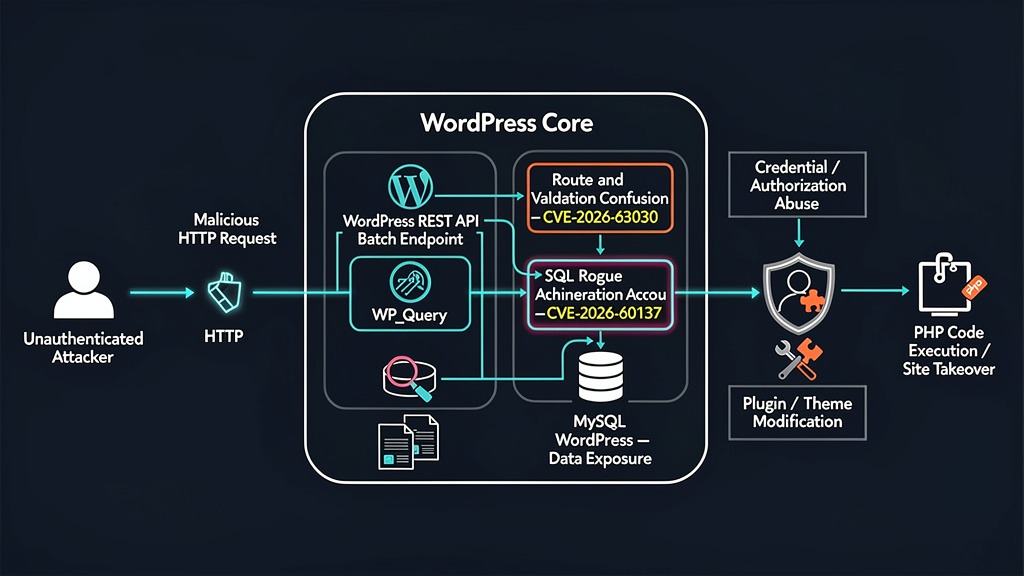
A white screen describes what the visitor sees. It doesn't point to one cause or one HTTP status. The browser can show an empty page even when the server returns 200, and then you need to look at what the application returned. Other incidents return an error such as 500, and a 502 points to the web server and its upstream service. A completely blank response calls for checking the actual HTTP status and PHP error log even when WordPress displays no message.
Open the affected URL and compare it with the homepage, another public page and /wp-admin. Note which ones work. Then open the browser's Developer Tools, the Network tab, reload the failing page and check the main document request: its status and response body.
| What is blank? | What to check | What to do next |
|---|---|---|
| Public pages, but not the dashboard | Which URLs fail, their status, recent front-end changes | Read existing error logs, then test the theme or plugin you suspect |
/wp-admin, but the public site works | Whether login, dashboard or both fail | Use Recovery Mode or a method that doesn't need the dashboard |
| One post or page | The exact URL and whether neighboring pages load | Look at changes to that page and matching log errors |
| Nearly every site URL | Public and admin response statuses | Check recovery messages and hosting or PHP logs |
| One browser or user session | How logged-in, private and other sessions differ | Compare logged-in and private sessions, then check the cache |
Requests return 500, 502, or 503 | The exact status and the failing URL | Diagnose the web server or PHP service |
An owner in a January 7, 2026 r/Wordpress discussion wrote, “For the past two days, my website hasn't allowed me to log in directly from wp-admin, but the site itself functions normally.”
Also load the failing page in a private or logged-out window, and on another device or account. Write down any difference.
Use Recovery Mode if WordPress offers it
WordPress added Recovery Mode in version 5.2 for qualifying fatal errors. A fully blank site can produce no recovery message or email. If you do get a genuine recovery email, open its private link. That starts an administrator recovery session where WordPress temporarily pauses the failing plugin or theme, so you can find and fix it. The WordPress Recovery Mode documentation explains the process. No valid link? Go to the error logs or your hosting access instead of waiting for an email that can fail to arrive.
Check what changed and collect the first error messages
Before you change anything, look at what changed around the failure: plugin or theme updates, PHP settings, deployments, WordPress updates and host maintenance. If the failure started soon after one of those changes, suspect that change first.
Note these four things before testing anything:
- Failure timeline: The approximate time of the first failure and your last visit when the page worked.
- Recent changes: The update, setting or deployment closest to that time.
- Recovery state: Which files and database data your backup contains, and how you would restore it.
- Existing errors: Hosting or PHP error entries from around the failed request. Copy the relevant message and keep it private.
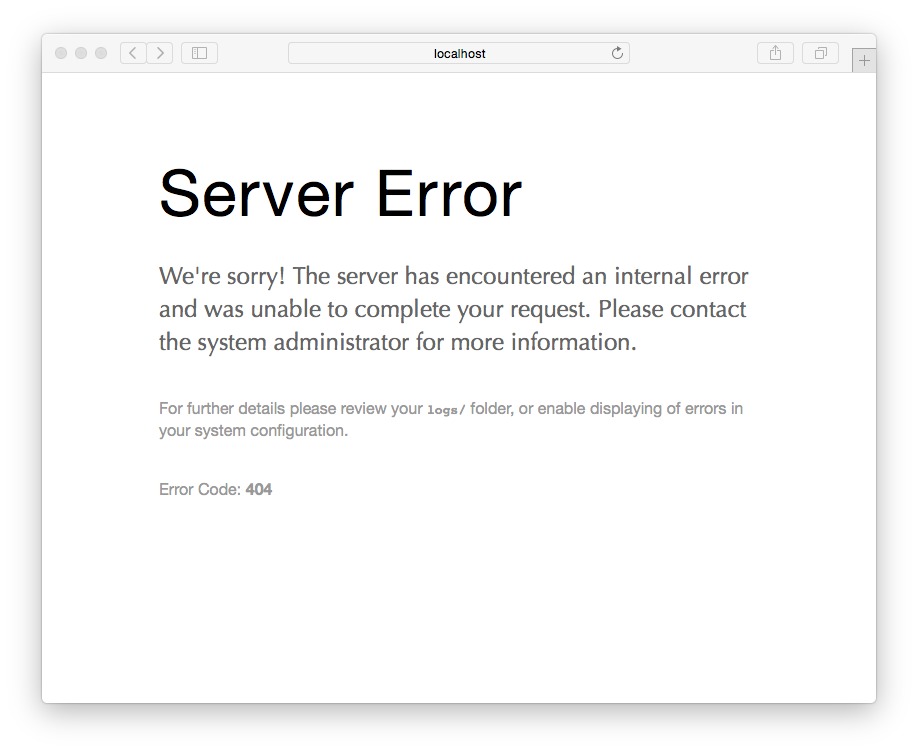
A log entry that names a plugin file, a theme file, exhausted memory or a parse error tells you where to look next. The stack trace shows where the error appeared.
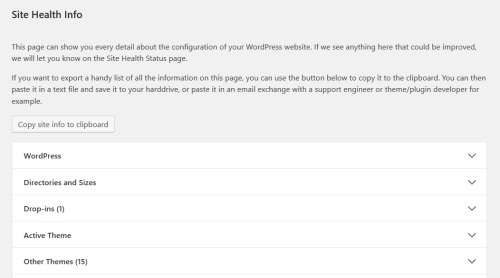
You can get an error viewer in the control panel, while a server administrator reads separate PHP or web-server logs. If none of those entries explain the blank page, turn on temporary WordPress debugging.
Log the error without showing it to visitors
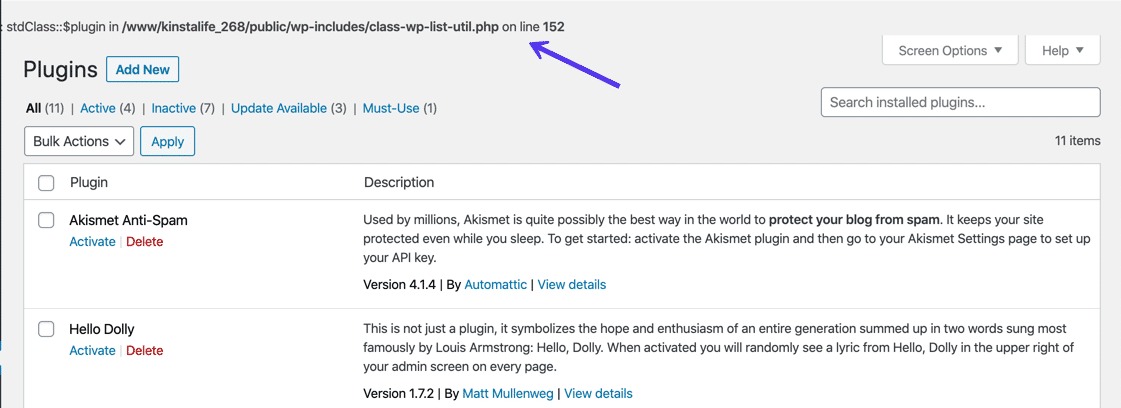
WordPress can write temporary diagnostic information to a log and keep debug output off the page. If you can reproduce the failure on staging, debug there. In a live incident you can need temporary protected logging on production.
Each of the three settings does one job:
| Setting | What it controls |
|---|---|
WP_DEBUG | Turns WordPress debugging on |
WP_DEBUG_LOG | Sends debug information to a log when debugging is on |
WP_DEBUG_DISPLAY | Decides whether debug output appears on the page |
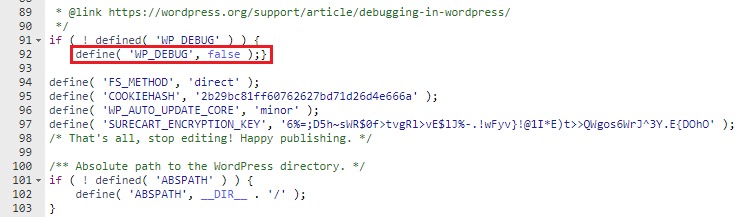
Keep a copy of the original wp-config.php. Find any existing definitions of these settings and edit them in place, above the stop-editing line. Don't add duplicates.
WordPress documents this temporary configuration:
define( 'WP_DEBUG', true );
define( 'WP_DEBUG_LOG', true );
define( 'WP_DEBUG_DISPLAY', false );
@ini_set( 'display_errors', 0 );
The last line asks PHP to stop displaying errors for the running process. Your server-level PHP configuration must also block public error display, especially for failures that happen before WordPress loads.
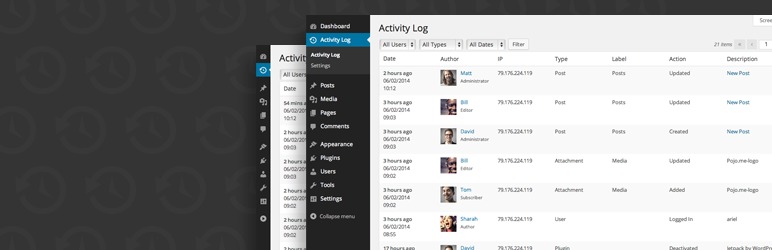
With the standard log destination, WordPress writes to wp-content/debug.log. On many installations that path sits in a web-served directory, so block public access to the file before generating sensitive diagnostic information. If your environment supports it, use a secured destination or a protected host logging facility instead.
Apply the settings, reload the failing request and read the private log. The WordPress debugging documentation describes these constants and how to use them.
If debug.log doesn't appear, check the PHP or hosting error log. Early PHP startup or configuration failures stop WordPress logging from running, and some installations use a different log location.
Test the plugin or theme most likely to have changed
If a recent change or an error points to a particular plugin, start with that one. Test one suspect at a time. If a test changes nothing, undo it before trying the next.
When the dashboard still works
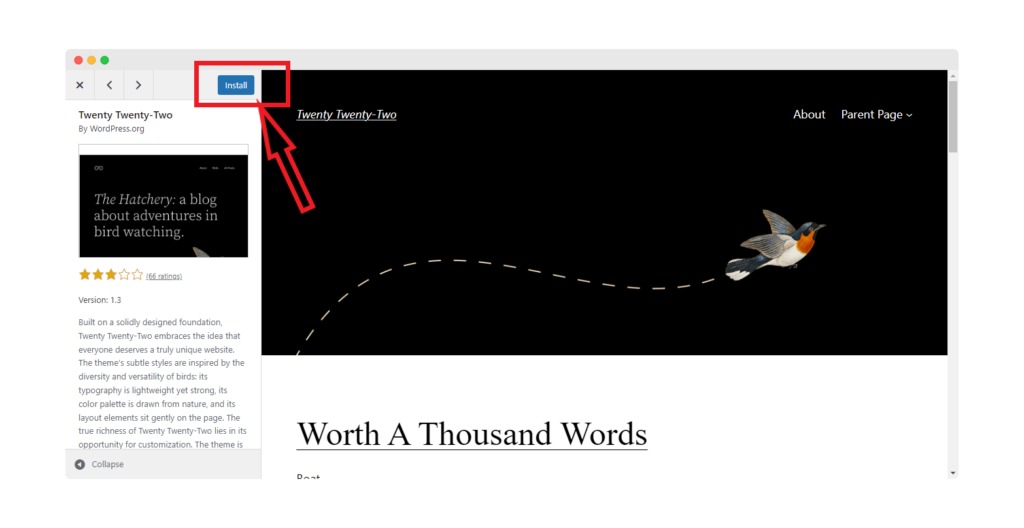
Deactivate the suspect plugin on the Plugins screen, then reload the page that went blank. If the page loads again, that plugin is the cause.
To test a theme, temporarily switch to an installed default theme. Note any changes to the site's appearance or functions when you read the result.
Deactivating many plugins or changing the active theme can break checkout, forms, membership access and other live functions. Run a wider test only when you can accept that and can't narrow the suspect down.
Restoring service and fixing the underlying incompatibility are separate jobs. Before putting the plugin or theme back, review its recent changes and compatibility requirements with whoever maintains it.
Recover when wp-admin won't load

If the dashboard is blank, you can't use the usual plugin and theme controls. Your next step follows from whether you have a hosting file manager, SFTP or SSH with WP-CLI. Change only servers you are authorized to change.
| Access you have | Recovery method |
|---|---|
| Hosting file manager | Temporarily rename the suspect plugin or theme folder. Note its original path and name. |
| SFTP | Run the same folder-rename test. Make sure you're in the correct WordPress installation. |
| SSH with WP-CLI | Deactivate a plugin with the WP-CLI command. Run it from the right site directory. |
| No file or command access | Ask the host or the person who maintains the site to recover it. |
Temporarily isolate a plugin through files
When the clues point to one ordinary plugin, find its folder under wp-content/plugins and rename it to something easy to recognize. Write down the original name and path. WordPress can no longer load the plugin from its original folder, so you can see whether the affected screen changes.
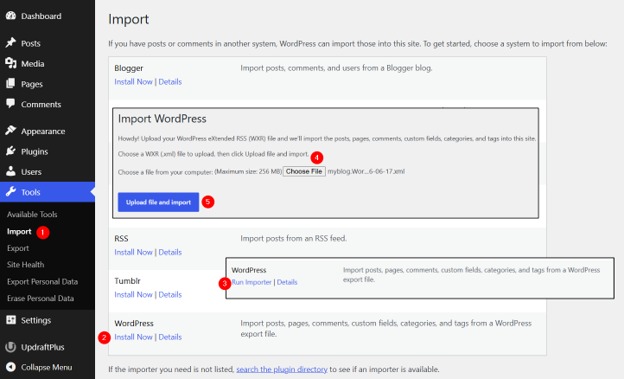
If you don't know which plugin is responsible, WordPress documents a broader test: temporarily rename the whole plugins directory. For example:
wp-content/plugins
wp-content/plugins.hold
The second line is the temporary name for the first. After the test, restore the original directory name. WordPress can mark ordinary plugins as deactivated while the directory is missing, so restoring the name doesn't reactivate every plugin that was active before. Re-enable only the plugins you want.
Use WP-CLI when SSH access exists
With WP-CLI working, deactivate the suspect plugin:
wp plugin deactivate PLUGIN_SLUGReplace PLUGIN_SLUG with the real identifier. If plugin loading stops the command from starting, WP-CLI documents a form that skips plugin loading:
wp plugin deactivate PLUGIN_SLUG --skip-plugins--skip-plugins skips ordinary plugin loading for that one command. It leaves must-use plugins loaded and doesn't change activation state. The separate wp plugin deactivate --all command deactivates all ordinary plugins.
When the active theme is suspected
If the failure followed a theme change and you've lost dashboard access, first confirm that an installed fallback theme exists. WordPress documents a file-based test: temporarily rename the active theme's folder, so a suitable installed default theme can take over. If the test settles nothing, or WordPress can't pick a valid alternative, rename the folder back.
After each no-dashboard test, check the page that failed and the relevant admin screen.
If plugins and themes aren't the cause, follow the next clue
If the plugin and theme tests leave the screen unchanged, look at another layer. A failed test still narrows the search, as long as it really stopped the component from loading.
An owner in an April 26, 2026 r/Wordpress thread wrote, “My website is showing a white screen. I tried to deactivate the plugins and themes folder, but no luck.”
| What you find | Where to look next |
|---|---|
| PHP reports exhausted memory | PHP resource usage and host memory limits |
| PHP startup or early runtime error | Hosting PHP configuration or service |
HTTP 500, 502, or 503 | The web server or upstream PHP service |
| Database error | The database connection and server availability |
| Blank output only from a cached view | Cache delivery versus origin response |
| Possible WordPress core modification | WordPress core integrity |
| Plugin tests don't isolate the code that is running | Must-use plugins or other application components. Note which loading paths your test actually excluded. |
Whatever you find, save the exact error message, the request time and the failing URL. Keep database credentials out of any notes you share.
When the error points to PHP memory
Look at memory limits only when logs or measurements show memory exhaustion. Find out which operation needs the memory and what your host allows before changing the limit.
When cache changes what a visitor sees
If you can get an uncached or origin response, compare it with the cached view. A cached blank page can persist after the underlying problem is fixed. If the origin itself fails, diagnose the origin.
When WordPress core files are suspect
If damaged or altered core files are a real possibility, WP-CLI can check them:
wp core verify-checksumsIt compares your core files against the published WordPress checksums. The command checks core files only. If you get an unexpected mismatch, confirm that the comparison uses the installed WordPress version and locale.
Know when to stop changing files and recover the site another way
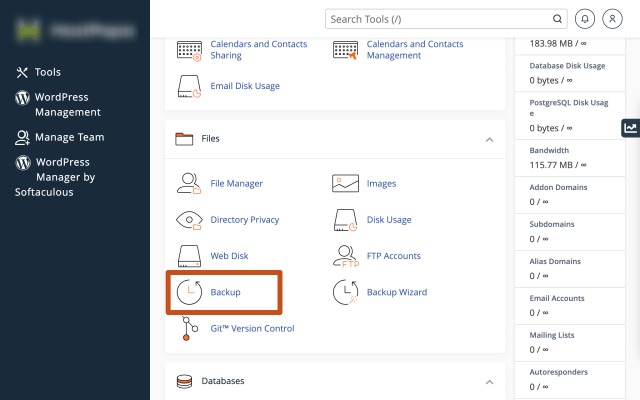
Stop experimenting when you have no plausible next test, can't undo a change, or can't get into the failing service. Also stop when a production site handles important transactions and an unplanned restore can overwrite newer data.
A managed host can inspect service logs and run a controlled recovery outside the WordPress dashboard. On a self-managed server, that job falls to an administrator who knows its PHP, database and web-server setup.
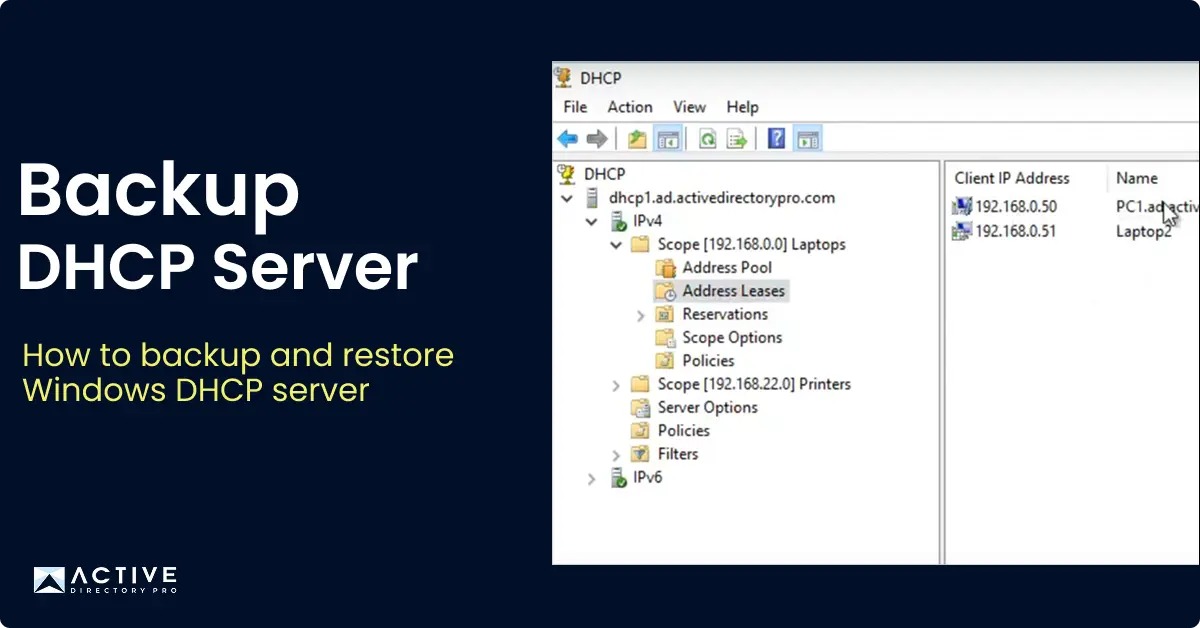
Before choosing a restore point, check which files and database contents it includes and what happened on the site afterward. A backup taken before new orders, form submissions, posts or account changes restores an earlier database state. If you need that newer information, save or reconcile it first.
Verify the repair and close the debug session
A working homepage is only part of a recovery. Check the page that originally failed and the functions your visitors and administrators rely on.
- Original symptom: Open the exact page, dashboard view or login URL that went blank.
- Public pages: Load the homepage and one other public URL.
- Administration: Confirm you can log in, reach
/wp-adminand open the affected management screen. - Different user contexts: Repeat any logged-in, logged-out, browser or device condition that gave a different result at the start.
- Essential functionality: Check the contact form, publishing, membership login or a test-mode checkout, whichever applies.
- Error recurrence: Read the private logs for new failures from the recovered request.
Record which plugin, theme or setting stays changed. Return the debug constants to your intended production settings, confirm that PHP errors aren't shown publicly, and either store the temporary logs securely or delete them, depending on what you need for the incident.
