To speed up WordPress, find the slow request or interaction, match it to the metric that measures it, and test one reversible fix for the suspected bottleneck. A public page, the WordPress dashboard and a personalized checkout can each need a different solution. Keep the change when comparable speed measurements improve and the affected user flow still works.
Find out where WordPress is slow before changing anything

Start with the exact experience that feels slow. A visitor waiting for a blog post to start loading has a different problem from an editor waiting for a post to save. A page can also respond fast and still take too long to show its main image or react to a click. Use the slow-site diagnostic guide to identify unknown bottlenecks.
Pick one URL or action where the delay repeats, and note who is making the request: an anonymous visitor, a logged-in user, a WordPress administrator, or a customer with a personalized cart or checkout. Each runs different application work and follows different cache rules.
| What feels slow | Signal to examine | Possible layer | Next step |
|---|---|---|---|
| A public page is slow to start responding | Time to First Byte (TTFB), response and cache behavior | Server, WordPress, database, proxy or cache | Check the server side |
| The largest visible content appears late | Largest Contentful Paint (LCP) element and loading timeline | Images, fonts, CSS or resource discovery | Inspect what the browser is waiting for |
| Buttons or inputs respond sluggishly | Interaction timing and script activity | Browser JavaScript or third-party work | Inspect scripts in the browser |
| Content shifts as the page loads | Cumulative Layout Shift (CLS) and moving elements | Visual layout and late content | Find the moving elements |
| The WordPress dashboard or editor lags | Site Health, query and request diagnostics | PHP, plugins, database or external calls | Look inside WordPress |
| Cart or account information breaks after caching | Cache eligibility, session and personalized response behavior | Page-cache configuration | Check cache rules |
Follow the row that matches your most persistent symptom. If several problems show up together, start with the one that disrupts the task most.
Read the speed numbers without chasing a single score
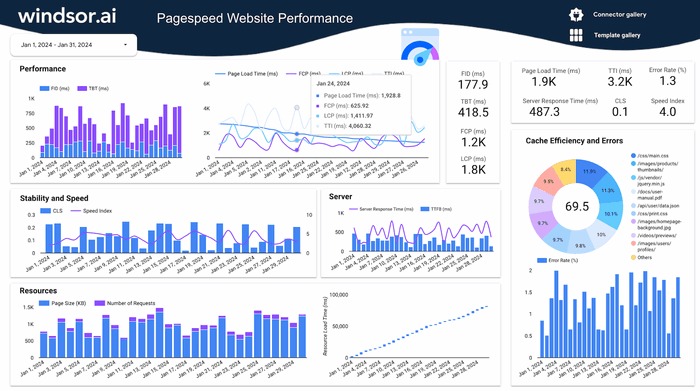
A PageSpeed Insights score condenses one lab test into a single number. The individual metrics show which part of the experience needs work.
Google's PageSpeed Insights documentation separates lab diagnostics from Chrome User Experience Report (CrUX) field data. A lab test is one controlled run. Field data summarizes eligible real Chrome visits over a rolling 28-day period.
When the tested URL lacks enough real-user samples, PageSpeed Insights shows origin-level CrUX data instead. Check whether the field data covers your exact URL or the whole origin before you compare it with the lab test.
- Largest Contentful Paint (LCP): The moment the main visible content renders. Google rates 2.5 seconds or less as good.
- Interaction to Next Paint (INP): How fast the page responds to input. Good is 200 milliseconds or less.
- Cumulative Layout Shift (CLS): Unexpected movement of page elements. Good is 0.1 or less, and it has no time unit.
These Core Web Vitals thresholds apply at the 75th percentile of page visits. TTFB is the time before the browser receives the first byte of a response, and it sits outside the three Core Web Vitals. Web.dev treats roughly 0.8 seconds at the 75th percentile as good.

On July 11, 2026, a Hostinger user discussing WP Rocket and Perfmatters on r/Wordpress wrote, “However, my website still takes time to load. and it frustrates me.” In the r/Wordpress thread on slow loading, the poster reported an LCP of 4.3 seconds and a TTFB of 2.8 seconds despite a better optimization score. One is a paint delay and the other a response delay, so each needs its own investigation.
Run PageSpeed Insights on the slow URL. Record the lab readings, any field readings, the URL and the device as your starting measurements. If there is no field data, keep the lab numbers and don't treat them as real-user results.
If the first response is slow, check the server side
A slow first byte points to how the response is prepared and delivered. Requests can pass through redirects, a CDN or proxy, and a web server before PHP, WordPress, a database or a remote HTTP service adds anything to the page. A cache hit skips some of that work.
Field TTFB includes redirect and connection delay as well as server response time. The server-response check in a lab tool can cover a narrower slice. Compare matching measurements before blaming WordPress or the host for the whole delay.
Three things can slow the response:
- Infrastructure: Limited host resources or server load slow down request handling.
- Application work: PHP, a plugin or a theme operation delays page generation.
- Data and external services: Database queries or remote HTTP requests postpone the response.
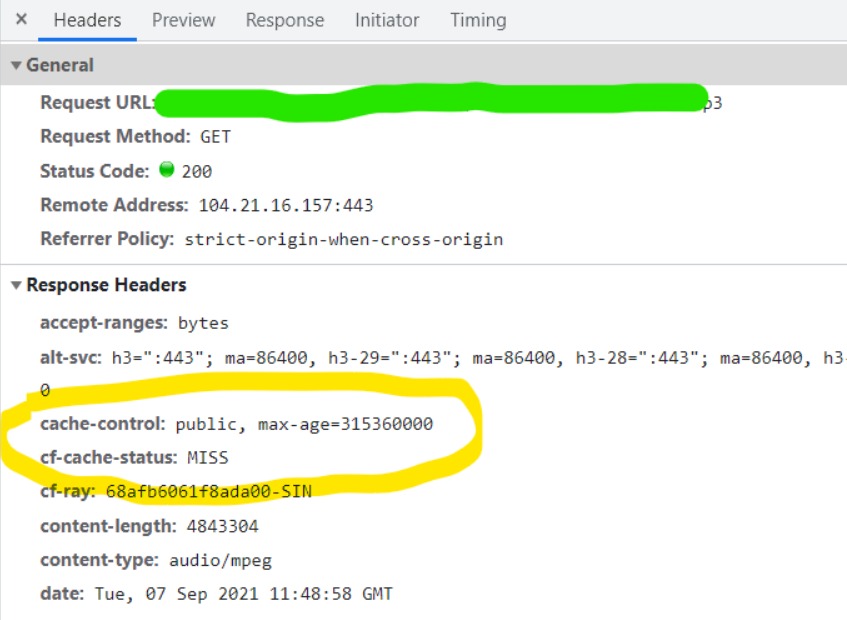
If the request goes through Cloudflare, check the CF-Cache-Status response header. Values such as HIT, MISS, DYNAMIC and BYPASS describe how Cloudflare handled the cache for that response. HIT means the edge cache served it. The status of an image or stylesheet applies to that file, so don't read it as the status of the page's HTML.
If your hosting or CDN tools expose it, compare cached and uncached responses for the same URL and request state. When the origin is still slow, application profiling or server logs give you the next evidence. On managed hosting without those controls, send the host the URL, the request state and the timing you measured. A slow TTFB alone doesn't justify migrating hosts.
When the dashboard is slow, look inside WordPress
An admin action spends its time in PHP, database queries and remote requests, even while a page cache serves public pages quickly. Treat a slow editing or dashboard operation as application work.
In WordPress, open Tools → Site Health and read the performance warnings. The autoloaded-options check warns at 800,000 bytes by default, and you can filter that threshold.
This warning points to application data worth investigating. It doesn't diagnose the cause. Site Health also checks page-cache availability, and a page cache can be present while requests are still slow.
If you can install a diagnostic plugin, Query Monitor shows database queries, PHP errors and HTTP API activity. It groups queries by plugin, theme or function, so you can narrow a costly operation to one component and test it in isolation.
On October 23, 2026, a site owner with roughly 3,000 articles asked in an r/Wordpress thread on recurring slowdowns, “Does something build up that needs to be purged?”
Use what Site Health and Query Monitor show to pick the application component to investigate. Don't purge options or clean up the database based on a warning alone.
When the page looks slow, inspect what the browser is waiting for
If the server responds quickly but important content appears late, look at how the browser discovers, downloads and renders the resources that content needs. Images, styles, fonts and scripts each delay a different stage.
Open your browser's developer tools, select the Network panel and reload the page. Look for requests with long durations or late starts. Then use PageSpeed Insights or the browser's performance tools to find the actual LCP element, and compare its loading timeline with the Network entries. Only the performance diagnosis identifies the LCP element.

A large image near the top of the page causes one avoidable delay. If that image is the LCP resource, lazy loading can delay when the browser discovers it and when it appears. Google documents this mechanism in its LCP guidance. Raise the loading priority of that one verified image, and leave lazy loading on for offscreen images.
If the complaint is slow interaction, inspect main-thread activity and third-party JavaScript. If layout jumps, find the shifting elements. A CDN can speed up delivery of eligible assets and still leave blocking scripts and WordPress processing untouched.
Choose the right cache layer for each request

Ask two questions about any cache: which work does it reuse, and does the response contain customer-specific information?
| Cache layer | What it reuses | Useful situation | Boundary |
|---|---|---|---|
| Page cache | Generated HTML or HTTP responses | Anonymous public requests | Dynamic and personalized routes need separate handling |
| WordPress object cache | Data objects or query-related results | Repeated application data work | Persistence across requests needs a configured implementation |
| PHP OPcache | Compiled PHP bytecode | Avoiding repeated PHP compilation | Doesn't store the complete rendered page |
| Browser cache | Eligible resources held by a visitor's browser | Repeat loads of cacheable assets | Doesn't remove uncached PHP or database work |
| CDN or edge cache | Eligible resources or responses at a network edge | Serving cacheable content from nearby infrastructure | The origin can still do dynamic work |
WordPress includes an object cache, but its entries last for a single request. A persistent one needs integration and a backend such as Redis, and the workload sets the benefit. The WP_CACHE flag takes part in some caching integrations. Page caching, OPcache, browser caching and CDN behavior each have their own configuration.
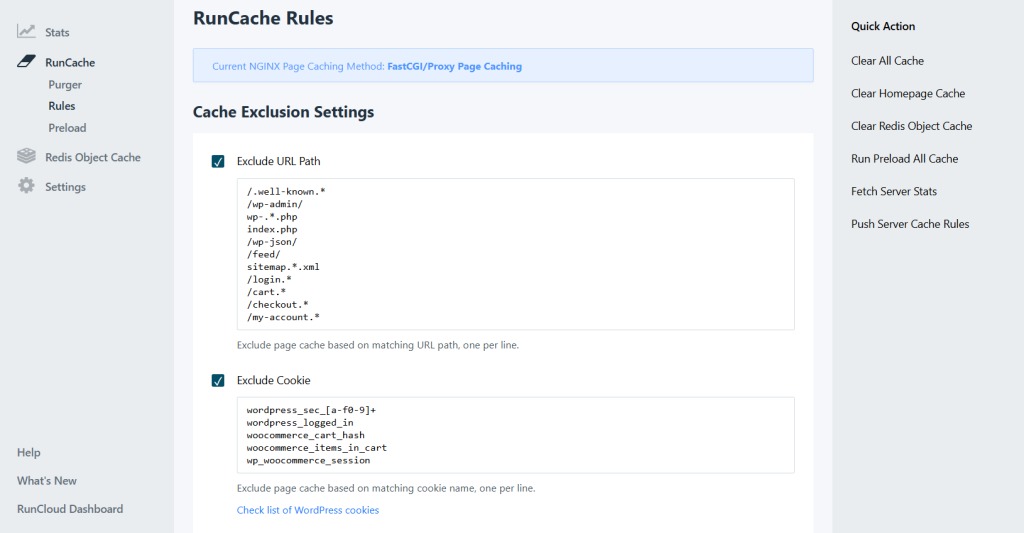
With WooCommerce, public-page caching needs exclusions or configuration for Cart, Checkout, My Account and session-sensitive responses. The WooCommerce caching configuration guide covers these. A shared HTML cache that serves customer-specific content breaks the shopping experience.
List the cache layers your host and plugins already provide. Then check whether each applies to the slow request and which personalized routes it excludes.
Test one change at a time, with a way back
Pick a fix that matches the evidence you found. If you install several optimization plugins, switch themes and move hosts in one go, you can't tell which change produced the result.
On a production site, especially one that handles purchases or logged-in accounts, use a staging environment or a reliable backup and rollback path before any disruptive plugin, theme, cache, PHP or server change.
- Late critical image: Raise the loading priority of the identified LCP resource.
- Uncached public response: Change the page-cache configuration and keep the dynamic exclusions.
- Expensive application operation: Isolate the implicated plugin, query or remote request in a testing environment.
- Origin infrastructure delay: Use hosting or server diagnostics before choosing a configuration change.
Write down exactly which setting or component you changed and how to restore its previous state.
What if the host doesn't provide staging?Keep to observation that changes nothing, and ask your host for a safe change or recovery process before altering production.
Compare the result and make sure the site still works
Use your initial PageSpeed Insights or request measurements as the baseline. Then test the same workflow again under comparable conditions.
| Check | Before | After | Decision criterion |
|---|---|---|---|
| Test conditions | URL, user state, device, method, location or network when known, cached or uncached path where known | Identical in both runs | Compare only matching runs |
| Problem metric | Original TTFB, LCP, INP or CLS | Same metric | The metric you started with improves |
| Functional behavior | Expected login, editing or checkout action | Same action still works | Nothing breaks |
| Decision | One proposed change | Keep, undo or keep investigating | Speed improved and function intact: keep. Otherwise undo. |
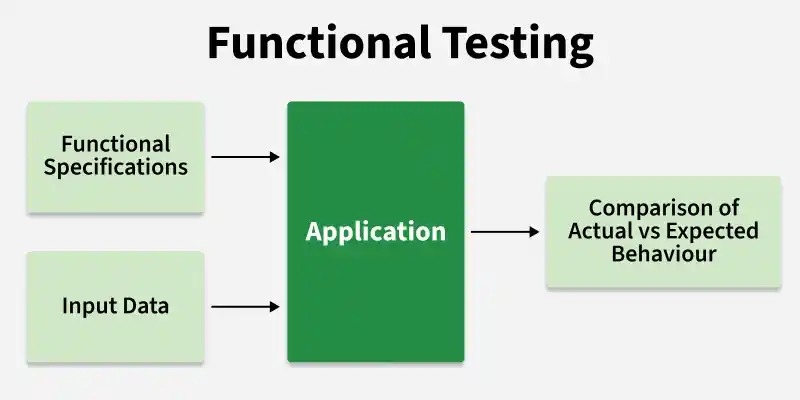
Also test the workflow itself: log in, edit an article, use a cart or complete a checkout. A faster cached page that shows another customer's information, hides the correct cart state or interferes with an admin action is a serious regression.
A fresh lab test shows the change right away. Field reporting lags, because it still includes earlier visits from its reporting period. If comparable tests show no improvement or a workflow breaks, restore the previous behavior and use the result to narrow your next investigation.
Go deeper only where the evidence points
For server or admin delays that continue, use detailed slow-site diagnostics or hosting logs. For cache questions, read a cache-layer guide before setting up Redis or picking a plugin. A late LCP image calls for image-specific work. HTTP 500, 502 or 503 responses belong in server-error troubleshooting.
