Pick a caching plugin that fits your hosting, keeps personalized pages private, and shows a measurable gain on your own site. If your host already caches full pages, you need no second page-cache plugin, and otherwise LiteSpeed Cache suits compatible LiteSpeed infrastructure while WP Rocket, FlyingPress, or a focused free tool suit other setups. Check what your host provides first, make a shortlist, then test it.
Do you need another caching plugin at all?
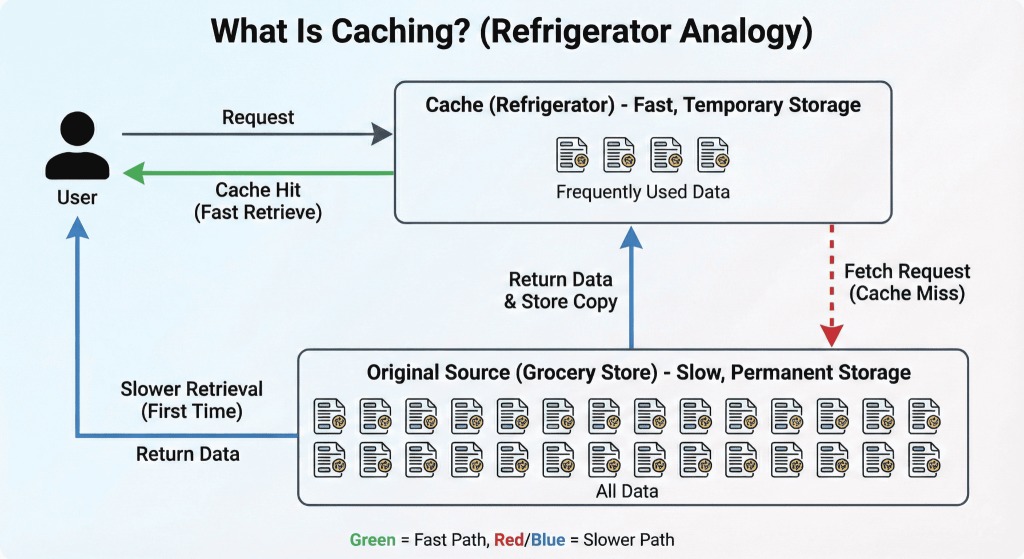
Your web host can already serve cached HTML to visitors. If that full-page cache covers your public pages, a second page-caching plugin repeats work the platform already does.
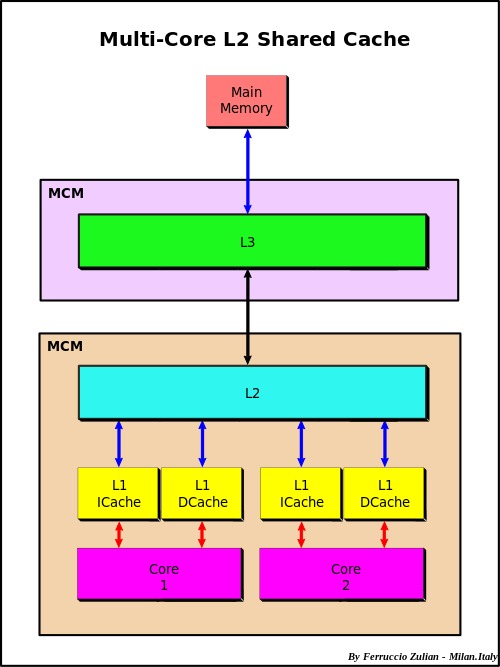
Full-page caching stores a generated HTML response so eligible requests skip the PHP and database work WordPress would otherwise redo.
WP Engine shows why you check your hosting first. Its disallowed plugins policy names W3 Total Cache and WP Super Cache among the restricted caching products.
Kinsta handles it another way. Its platform runs full-page caching, and its documented WP Rocket integration lets you use supported optimization features while the platform takes over the page cache.
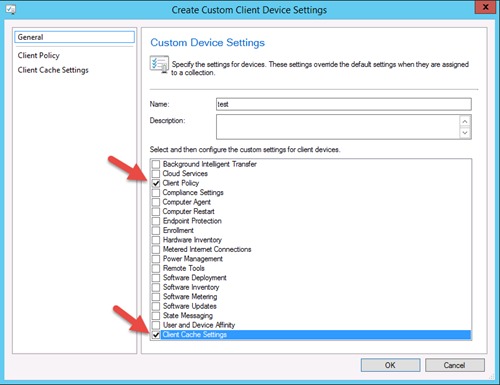
Find out who caches your pages
- Identify your provider and, if you can, your web server: LiteSpeed, Apache, Nginx, or a managed stack.
- Read the host's caching controls for a full-page cache setting, a bundled WordPress integration, or a stated plugin restriction.
- Check for a CDN or edge service. It matters when it caches HTML.
- Write down who serves your public HTML: the host, a plugin, an edge cache, or nothing yet.
A self-managed Apache site with no known page cache needs a plugin. A customer on a managed host with a working platform cache should start with the provider's own controls.
Know which kind of cache you are adding
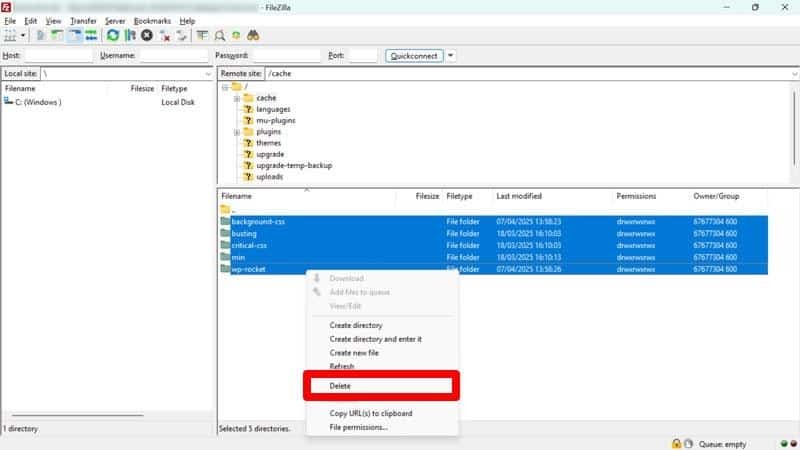
Page caching, persistent object caching, browser caching, and CDN caching each reuse something different.
| Layer | What it reuses | Effect |
|---|---|---|
| Full-page cache | Generated HTML for eligible requests | Serves public pages without rebuilding them each time |
| Persistent object cache | Application or database objects across requests | Reduces repeated data work within WordPress |
| PHP OPcache | Compiled PHP instructions | Reduces repeated PHP compilation |
| Browser cache | Eligible resources stored on a visitor's device | Avoids downloading unchanged resources again |
| CDN or edge cache | Assets and sometimes HTML at network locations | Can deliver cached responses without reaching the origin |
WordPress includes the WP_Object_Cache API. Its in-memory objects last for the current request unless you install a persistent backend.
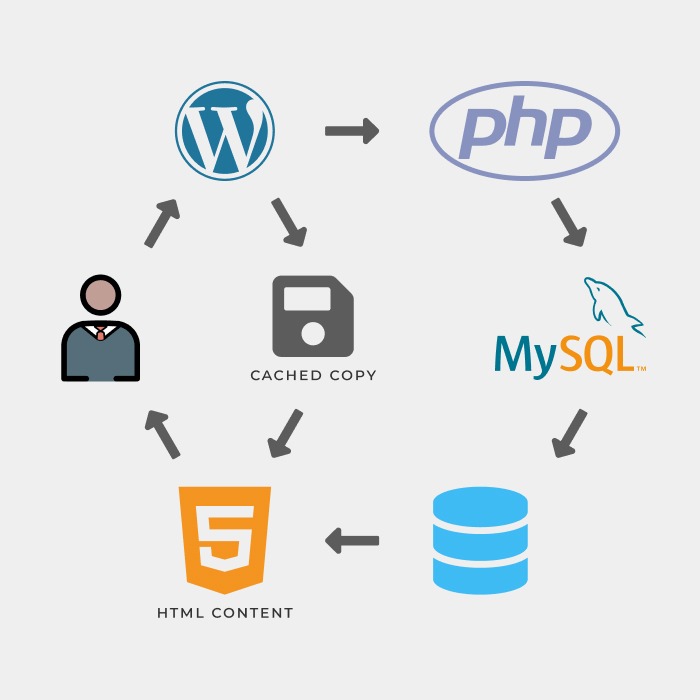
Take a public blog post. An anonymous visitor can get stored HTML from an edge or web server, and WordPress never runs for that request. A logged-in editor still gains from persistent object caching when WordPress builds a personalized screen.
Compare WordPress caching plugins by the server and site they serve

On r/Wordpress, a user weighing established and newer products asked, “Is WPRocket still the norm?” Your hosting decides the answer, because a plugin only helps if your server lets it do its job. Treat plugin names as candidates, not a universal speed ranking: test the same pages on your own hosting and verify that dynamic carts and logged-in sessions remain correct.
LiteSpeed Cache needs a closer look. Its general optimization features run on Apache and Nginx. Its LiteSpeed-exclusive full-page caching needs compatible LiteSpeed infrastructure or QUIC.cloud. The LiteSpeed Cache plugin documentation separates the two.
| Option | Good candidate when... | Main trade-off |
|---|---|---|
| Host-managed caching | your provider already caches public HTML | Controls and allowed plugins depend on the host |
| LiteSpeed Cache | you run a LiteSpeed cache stack or use QUIC.cloud | Full-page caching needs LiteSpeed server support |
| WP Rocket | you want a paid suite that handles caching and optimization | Paid license. Overlaps with host-level caching |
| FlyingPress | you want paid page caching with preload controls | Paid license. Settings to maintain |
| W3 Total Cache | you maintain the site yourself and want granular cache and CDN controls | More configuration work. Some hosts restrict it |
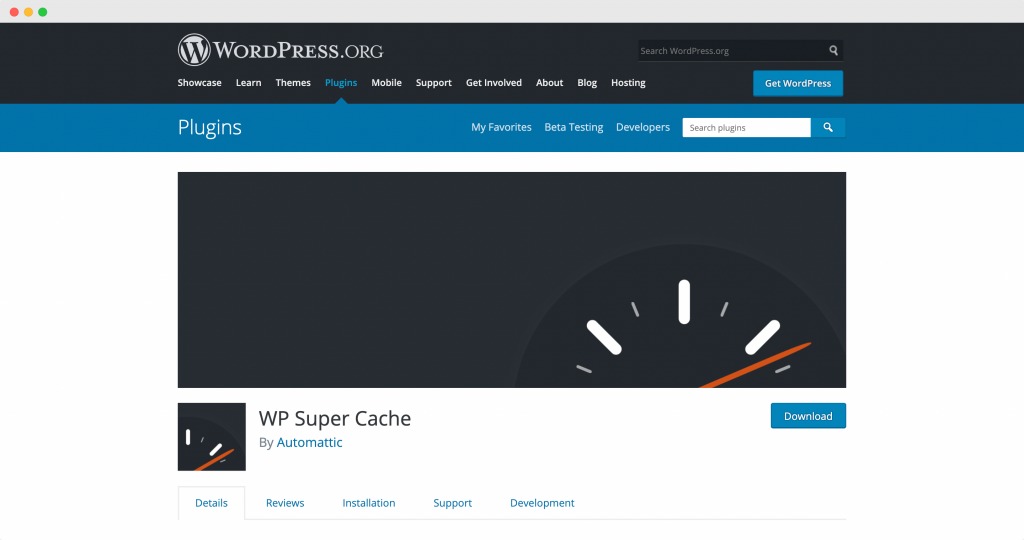
| WP Super Cache | you run a public-content site and want free static HTML caching | Advanced delivery modes can need server configuration |
| WP Fastest Cache | you want an approachable free option | Some features are Premium only |
| Cache Enabler | you want a focused, disk-based HTML cache | Fewer bundled optimization features |
Build your shortlist
- For a guided paid setup, compare WP Rocket and FlyingPress on features and on who handles support.
- Consider W3 Total Cache for extensive manual control if your host permits it and someone can maintain the settings.
- For free caching, WP Super Cache offers an Easy-tab cache switch and Simple delivery mode. WP Fastest Cache gives you configurable caching controls, so check which features require Premium.
When is a paid caching plugin worth it?
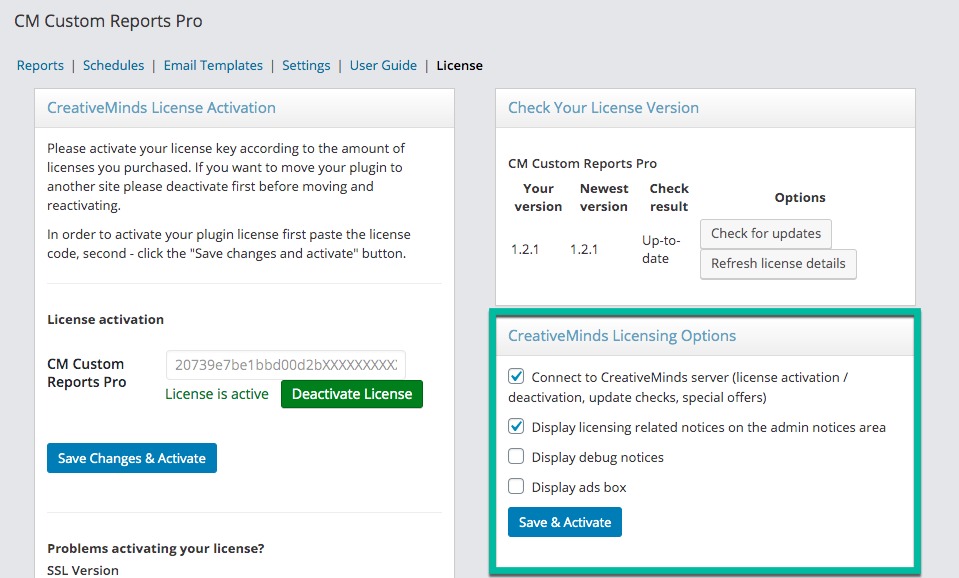
A paid plugin makes sense when its optimization features, workflow, or vendor support cover a need a simpler free cache leaves to you. Weigh the paid features you would use against the setup and maintenance work you can take on. Check the current license, site limit, and support terms before buying.
Protect WooCommerce checkout, carts, and logged-in pages

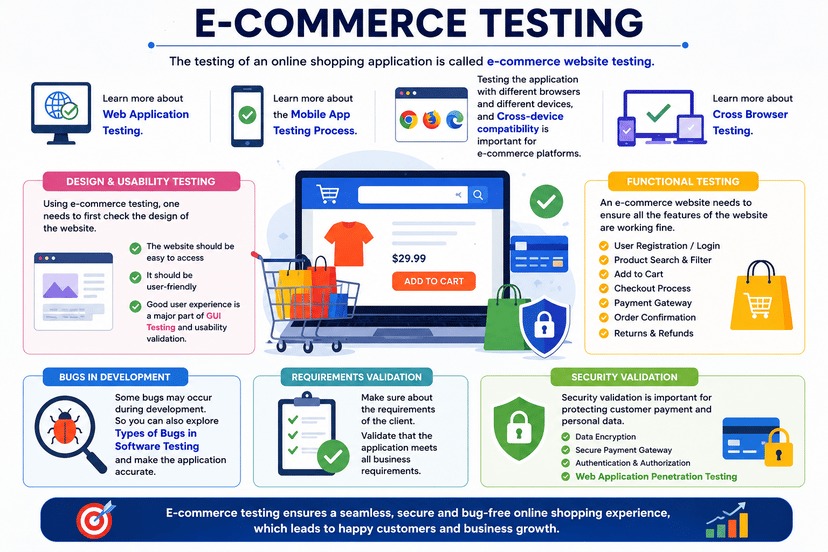
Public HTML and customer-specific responses need separate cache rules. WooCommerce stores information tied to each visitor, so a shared cached page must never show another customer's cart, checkout, or account state.
WooCommerce's caching guidance names Cart, Checkout, and My Account as pages that need dynamic handling. Your host or plugin can already exclude them. Test them anyway, because the behavior has to be right for your actual sessions and customizations.
| Visitor journey | Correct behavior | What can fail |
|---|---|---|
| Anonymous article or homepage | Public HTML can be reused | An old public version stays visible |
| Shopping cart | Each customer's items and quantities remain accurate | Stale or mismatched cart contents |
| Checkout | Customer and transaction state remain private and consistent | Wrong or outdated checkout information |
| My Account or member page | Authentication and personalized content stay isolated | Another user's account information appears |
WooCommerce's guidance also covers cookies and sessions, including _wc_session_ handling in database-cache setups where it applies. How your cache is built sets the exact exclusions.
Check the customer journey before you enable it for visitors
Test transactions on a staging site. Add an item to the cart, change its quantity, and remove it. Confirm that checkout carries the right customer's details and selections. Check My Account both logged out and logged in. If your site personalizes content, run two separate sessions and confirm each sees only its own information. Also find out whether the host or the plugin applies the exclusions, custom membership paths included.
Make sure visitors see an edit after you publish it
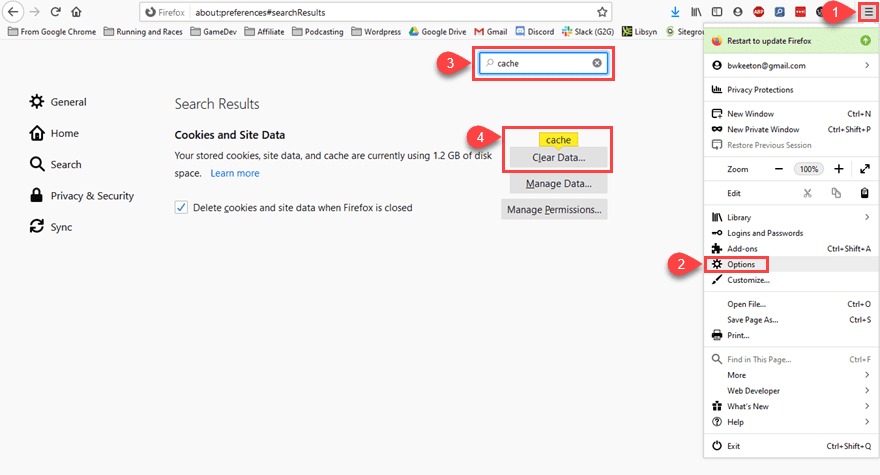
When you edit a post, something has to clear the old cached copy. Find out which layer does it.
A published update can affect more than its own URL. Editing a post can change the homepage, a category archive, or a related list. According to its docs, WP Rocket clears the cache for content updates and related pages, and FlyingPress recaches related pages and queues preloading.
Three controls handle separate tasks:
- Purge or invalidation: clears an old cached response or marks it unusable.
- Preload: generates a cached response before a visitor needs it.
- Time to live (TTL): sets an expiration or aging interval within the relevant cache.
On r/Wordpress, an operator responsible for roughly 200 client sites described the result of poorly understood cache layers: “Almost daily I have to explain, again, why the change they made or requested doesn’t appear immediately due to caching layers.”
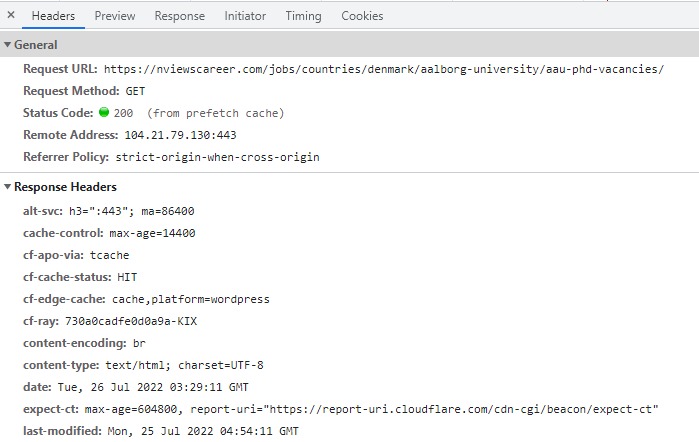
Your WordPress cache, host-level cache, edge service, and browser can each keep their own copy. Purging the plugin's HTML cache does not clear another provider's stored response.
Run a small freshness test
On a staging page, change a recognizable sentence and save it. Open the public URL in an anonymous session through the site's normal delivery route. If the old text still shows, use your platform's cache controls to find and purge the responsible layer, then reload the same URL.
Test whether the cache improves your site

Compare like with like: the same representative URL, the same device or emulation profile, and comparable settings.
After following a hosting recommendation, one r/Wordpress user wrote, “I installed Litespeed cache on my WordPress site and pagespeed mobile went from 86 to 51.” Finding the cause of a drop like that takes a controlled comparison.
What a published cache benchmark measured
LPagery reported local page-load times for seven working free caching options in an Apache-based test on WordPress 7.1.3 with the Twenty Twenty-Five theme. It ran 20 logged-out requests per configuration.
With a cache on, median load time was 1.4 to 3.8 milliseconds. Without one, it was 34.6 milliseconds.
Read lab and field measurements separately
Google's PageSpeed Insights documentation separates Lighthouse laboratory diagnostics from Chrome User Experience Report (CrUX) field data. Lab runs use set test conditions. Field data aggregates real user experience.
| Core Web Vital | What it measures | Good field threshold |
|---|---|---|
| Largest Contentful Paint (LCP) | When the largest relevant visible content appears | 2.5 seconds or less |
| Interaction to Next Paint (INP) | Responsiveness to interaction | 200 milliseconds or less |
| Cumulative Layout Shift (CLS) | Unexpected visible movement | 0.1 or less |
Google assesses these field thresholds at the 75th percentile. HTML caching can improve loading.
Confirm that a page cache is responding
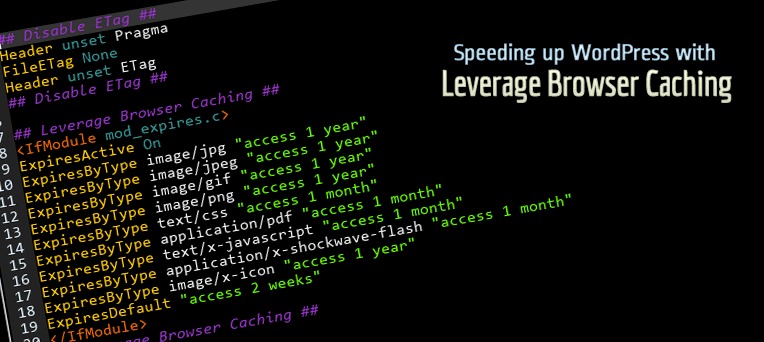
LiteSpeed gives you a concrete check. Open a public page in an anonymous browser session, select the document request in the Network panel of Developer Tools, and read the response headers. An eligible request can show X-LiteSpeed-Cache: miss first, then X-LiteSpeed-Cache: hit once the response is cached and a later request is served from it.
Other cache providers use different headers and conditions. A HIT, MISS, or BYPASS describes only the layer that reported it, so an edge hit says nothing about the origin cache.
Compare before and after
- Record a baseline for one representative public URL, noting your test conditions and existing caching.
- Enable the candidate cache and measure repeated requests, separating the first response from warmed ones.
- Record lab measurements and, when available, field metrics in separate columns.
If the plugin causes problems, diagnose before switching

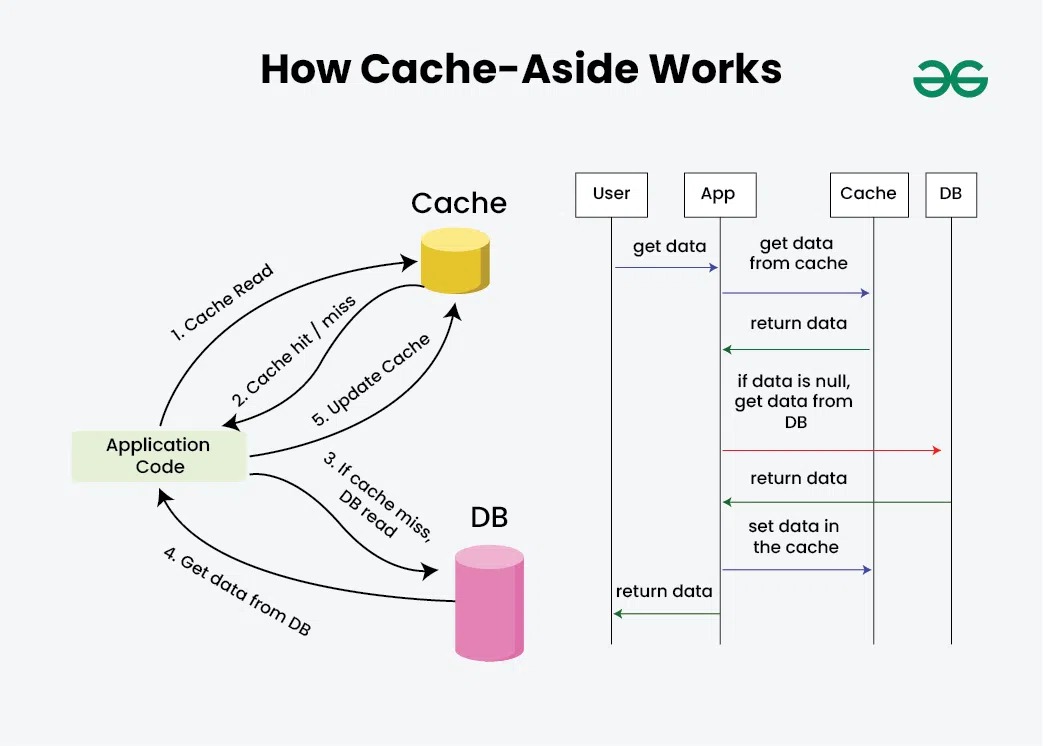
When a new caching setup breaks a page or behaves inconsistently, isolate the feature responsible. A page-caching product can combine HTML storage with CSS or JavaScript optimization, preloading, and CDN integrations. A failure in one need not implicate the others.
Suppose a layout works until you turn on an asset-optimization setting. Reversing that one change shows whether that setting is the cause and leaves the page-cache question alone.
Undo one setting at a time
- Save the working settings, and take a backup or staging snapshot, before changing anything.
- Disable the suspected optimization and watch the affected page or user journey.
- WP Rocket documents
?nowprocketfor bypassing specified WP Rocket caching and optimizations. Advanced rules, browser caching, host caches, and external CDN layers can still apply. - Compare the result with your saved working configuration to confirm recovery.
- If you replace the plugin, remove or disable the old page-cache setup so it stops managing responses under conflicting rules.
