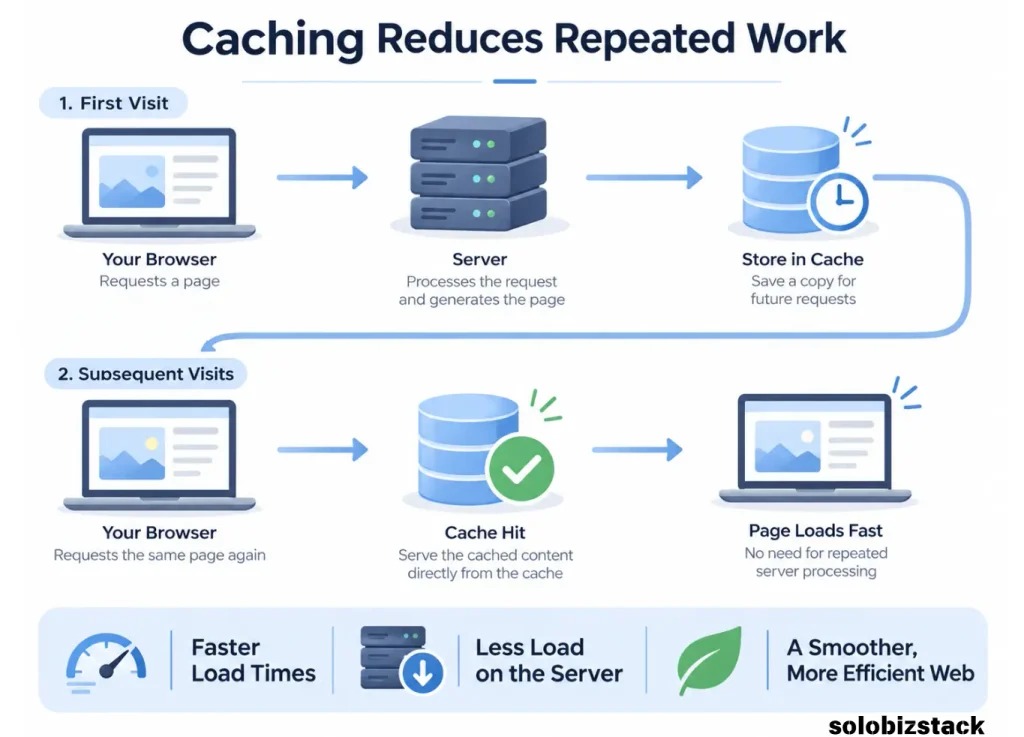
Use full-page caching for public pages that visitors can share, persistent object caching when expensive data work remains on uncached loads, and PHP OPcache for the PHP that still runs. The three layers work together. If the problem is an admin screen, a checkout, or a stale page, check the path that page takes and its exclusion rules, then test one change for both speed and correctness.
What page cache, object cache, and OPcache store
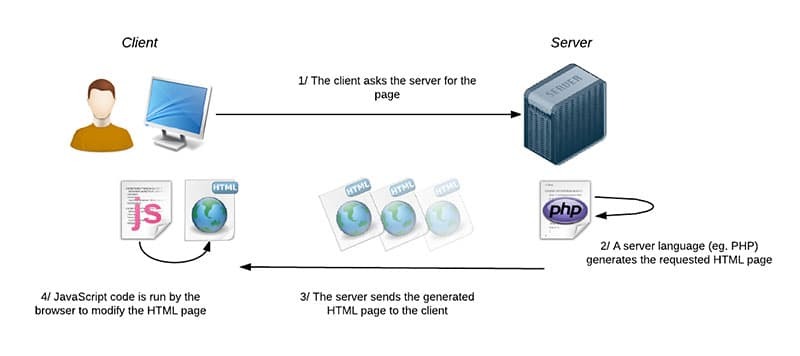
These three caches save different work. A page cache stores rendered HTML. A WordPress object cache stores reusable application data. PHP OPcache stores compiled PHP bytecode. Bypassing one does not automatically bypass the others.
| Layer | Stored result | Work avoided | Applies to |
|---|---|---|---|
| Full-page cache | Rendered HTML | Running WordPress and PHP to rebuild the page | Public pages that can safely share the same HTML |
| Object cache | WordPress data and computed objects | Repeated lookups and calculations | Requests that still run WordPress |
| PHP OPcache | Compiled PHP bytecode | Parsing and compiling PHP again | Requests that still run PHP |
Follow a public blog post through the system. On a valid full-page cache HIT, a server or edge cache returns the stored HTML without running the WordPress code that built it. On a MISS or bypass, PHP runs. OPcache reuses compiled scripts, and WordPress can pull data from its object cache.
WordPress includes WP_Object_Cache, but its entries last only for the current request. To keep data across requests you need an integration and a backend such as Redis or Memcached. The WordPress Object Cache reference describes this boundary.
The object-cache.php drop-in connects persistent object storage. Some page-cache implementations use advanced-cache.php. Setting WP_CACHE does not connect Redis on its own.
Start with the request that is slow or wrong
A site can serve a cached homepage and still have a slow admin screen. The administrator's request still runs WordPress, database lookups, and any plugin or external-service work.
Sort the slow or wrong action into one of three cases:
- Anonymous public page: A blog post or other mostly stable page whose HTML matching visitors can share.
- Authenticated or personalized action: An admin product search, an account page, or a checkout that needs data for this user or session.
- Stale or incorrect display: An older page, a broken layout, or unexpected account state, even though the site responds quickly.
The owner of a B2B WooCommerce store with around 1,600 products, where sales representatives faced slow product searches and order entry, wrote in r/Wordpress: “Caching enabled and regularly purged but my hosting doesn’t support Memcached or Redis”. Those reps fall into the second case. Product search and order entry run WordPress on every load, and the host offers no persistent backend.
A slow page needs a bottleneck search. Stale or wrong content needs a look at which response was served, and to whom. Either way, note the exact URL or action and whether you were logged in or browsing as a guest.
Which cache helps your WordPress workload?
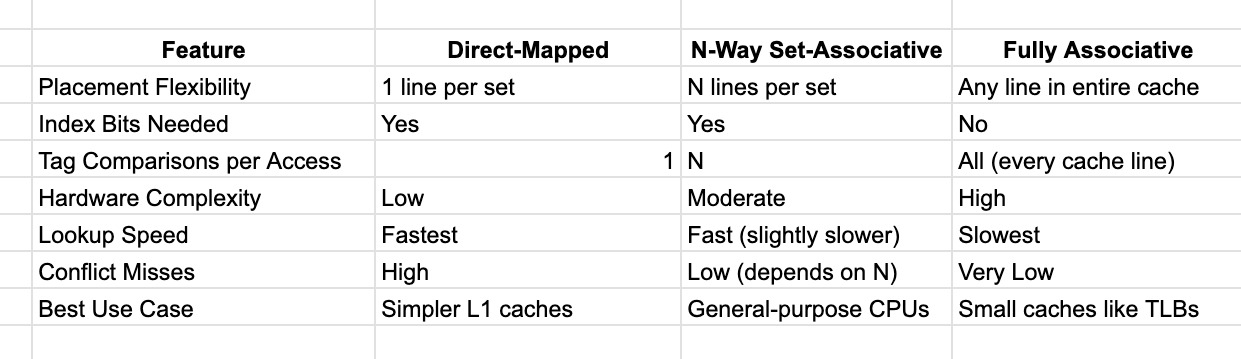
Pick the cache that removes work your slow page still does. Your host's existing caching and the rules that protect dynamic pages decide what fits.
| Workload | Layer to consider | Deciding condition |
|---|---|---|
| Public pages rebuilt for repeat anonymous visitors | Full-page cache | Your host isn't already returning cached HTML for them |
| Repeated product queries or data-heavy admin operations | Persistent object cache | Repeated data work is significant and a supported backend is available |
| Uncached PHP requests with compilation or opcode-cache pressure | PHP OPcache | Web-runtime statistics show an opcode-cache problem |
| Cart, checkout, account, and membership sessions | Object cache and OPcache, which support dynamic page generation | Shared full-page HTML must respect user and session boundaries |
| Slow third-party API call or inefficient plugin task | No extra cache yet | There is no reusable work for a new cache to remove |
For a conventional public blog, an effective page cache removes much of the work on repeat visits. If your host already supplies that service, a second plugin with overlapping page-cache duties adds configuration you don't need.
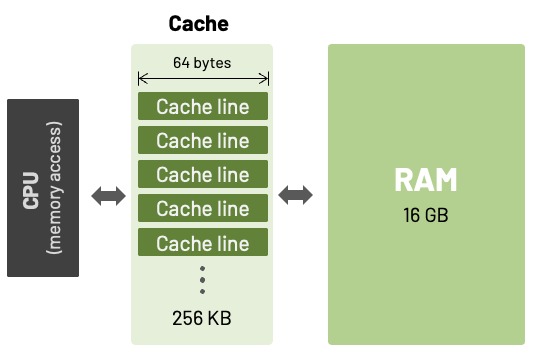
Check whether full-page caching is working

Load the same logged-out URL, let the cache warm, and load it again. Compare the cache-status header across the loads, using your browser's Network panel or your host's diagnostic tool.
| Signal | What it tells you |
|---|---|
| HIT/MISS indicator from your host or plugin | How that layer handled this URL |
| WordPress Site Health page-cache test | Plugin indicators and response characteristics |
Cache-Control response header | Caching directives for the response, not proof that stored HTML was served |
Kinsta documents the X-Kinsta-Cache header. An eligible first request can report MISS, then HIT once the stored response is served.
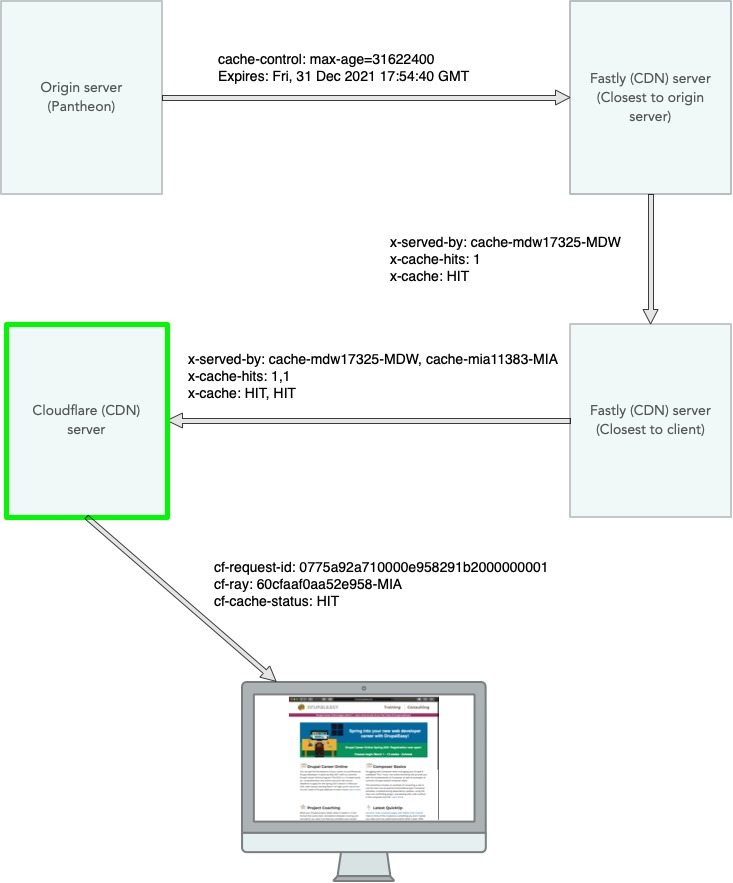
The Site Health page-cache test looks for a page-cache plugin and sends three requests to the homepage to check defined response signals. It can't confirm an origin HIT. If your host caches outside WordPress, use the host's own interface for a definitive HIT or MISS.
Check persistent object caching, and whether it's worth running
A persistent object cache is valuable when WordPress repeatedly retrieves or calculates the same data across requests. Check four things:
- WordPress uses a compatible persistent object-cache drop-in or a managed integration.
- The integration can reach its configured backend.
- Keys persist across requests and produce useful hits. Some groups intentionally stay request-local.
- The slow workload does less application or database work.
WordPress Site Health gives a first signal. Its persistent-object-cache test uses wp_using_ext_object_cache() to check whether WordPress reports an external object cache. That detection is separate from hit-rate and performance measurements.
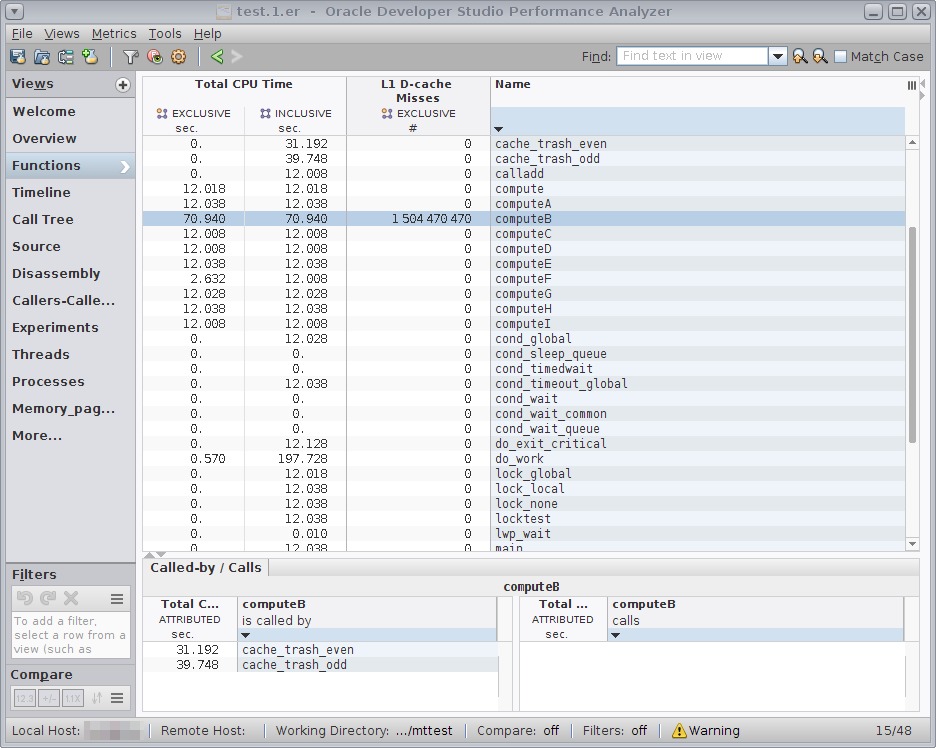
If the backend or plugin supplies statistics, look at connection state and hit/miss activity for the affected workload. Then compare them with database work and response time.
Cloudways ran its own test of Object Cache Pro on a DigitalOcean Premium deployment in London, using Loader.io with 100 clients over one minute. Average response time was 1,056 ms without Object Cache Pro and 522 ms with it. In that setup, success rates were 99% and 100%, respectively.
Check PHP OPcache in the web-serving PHP runtime
OPcache stores compiled PHP bytecode so PHP doesn't compile it again. For any request that runs PHP, ask two things. Is OPcache active in the runtime that serves the site? Do its capacity or invalidation settings slow the request?
Installations that expose the opcode-cache Site Health check, introduced in WordPress 7.0, get a quick first reading. The check calls opcache_get_status(false) from WordPress's own PHP process.
For a deeper look, inspect the PHP runtime that serves the site, PHP-FPM on a self-managed server. Check these fields:
- Status: Whether OPcache is enabled for web requests.
- Capacity: Used and available memory, cached-script counts, and signs of memory pressure.
- Configuration: Values such as
opcache.memory_consumption,opcache.interned_strings_buffer, andopcache.max_accelerated_files. - Code freshness: Timestamp validation, revalidation, and how deployments invalidate cached code.

On a plugin-heavy installation, a developer in r/ProWordPress wrote: “The main clue was seeing that WordPress core took over 3s to load on every uncached front-end request.” After OPcache tuning, the developer reported an admin response that went from roughly eleven seconds to two.
The PHP manual documents opcache_get_status(). Don't rely on php -i. It reports the CLI environment, which can load different settings from web-serving PHP, and the documented opcache.enable_cli default is off. Use a secured host diagnostic or a restricted runtime inspection. Never leave a publicly accessible PHP information endpoint in place.
If the OPcache numbers look healthy, look at the PHP, database, plugin, or external-service work that actually takes the time.
Keep WooCommerce and logged-in content correct

WooCommerce Cart, Checkout, and My Account pages hold customer-specific state. A shared page cache must serve each user and session the right response, even when a cached public product page works perfectly.
WooCommerce's caching guidance identifies these dynamic routes and the cookies that matter, including woocommerce_cart_hash, woocommerce_items_in_cart, and wp_woocommerce_session_*. Some compatible plugins and hosts apply the right exclusions automatically. Confirm what they actually do before adding overlapping custom rules.
A store owner using LiteSpeed Cache described an unresolved checkout problem in r/woocommerce: “many customers' checkout pages do not load, and for many, they load.” A two-session test catches that kind of split.
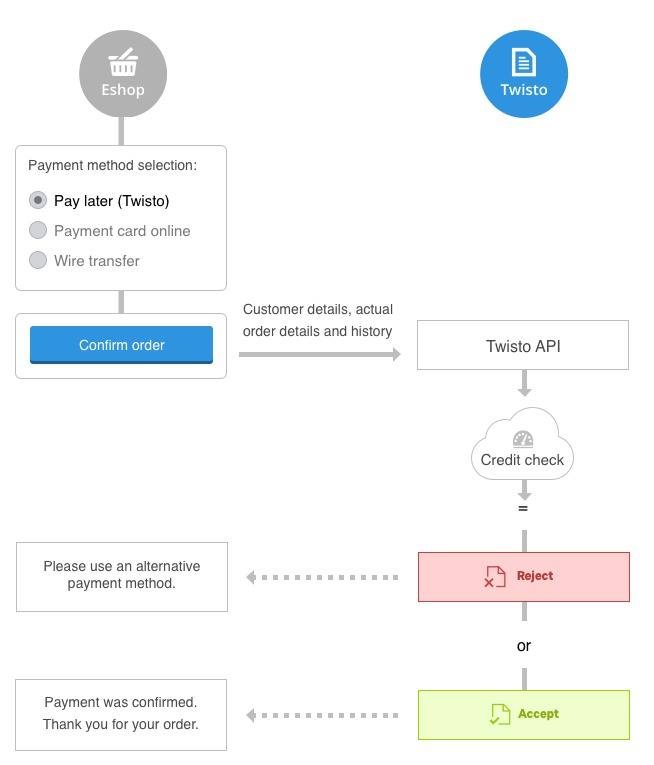
Use staging and controlled customer test accounts where available. With two separate browser sessions, check that:
- Each session shows its own products, quantities, and totals.
- Account details, payment options, and checkout state stay with the right session.
- The caching layer either bypasses personalized HTML or serves each user the right version, while it keeps caching public pages.
Why guests see stale pages when editors see updates
Editors see the latest content while guests get older HTML or an old generated asset, because the two follow different caching paths. A site owner on r/elementor described it this way: “Only after a manual second reload (F5) does the browser render the current state.” The cause can be the page cache, a CDN or browser cache, generated CSS or JavaScript, or deployment behavior. Make one edit and reproduce it in an editor session and a guest session. Then inspect the returned HTML and the CSS or JavaScript responses to find the stale piece before you choose a purge.
Purge the right layer, then measure a reversible change

Invalidate the layer the evidence points to. A broad purge can make the symptom disappear for a while and hide the mechanism behind it.
| Layer | Invalidation owner | Constraint |
|---|---|---|
| Full-page cache | Host, WordPress cache plugin, reverse proxy, or CDN serving the stored HTML | Use the control for the layer that actually serves the page, and target the affected URL |
| WordPress object cache | The cache integration or backend | Group-specific flushing depends on backend support |
| PHP OPcache | The web-serving PHP runtime or your deployment process | Follow that runtime's code validation and invalidation policy |
To clear one object-cache group from application code, WordPress documents checking wp_cache_supports( 'flush_group' ) first. Without group-flush support, the backend can clear more than you intended.
The WP-CLI command wp cache flush clears the WordPress object cache. On Multisite with a persistent backend, it can affect every site in the network. It doesn't clear page, CDN, browser, or opcode caches.

Run the test like this, comparing equivalent requests:
- Record the baseline. Note the affected request and session type, response time or TTFB, cache warmth, and whether the returned content is correct.
- Change one layer. Use that layer's documented invalidation or a reversible configuration change, and keep the previous setting.
- Repeat the workload. Match the URL or action, login state, content, and warm or cold cache as closely as you can.
- Read the evidence. Compare host HIT/MISS, object-cache reuse, or web-runtime OPcache status, whichever fits, alongside response time.
- Decide when to roll back. Put checkout and account correctness in your acceptance criteria. Roll back any change that worsens performance or exposes incorrect content.
If a purge fixes the page only briefly, the problem points to invalidation or asset generation, and it needs a permanent repair. Save the evidence from the failing request before purging.