Use Redis object caching when your site can reach a trusted Redis service, a compatible object-cache plugin is available, and the requests you care about benefit from it. Check hosting support and existing cache files first, then enable the plugin, confirm that cached objects survive separate requests, and measure the workload that matters. If Redis is unavailable, causes errors or consistently slows requests, keep your existing supported caching setup.
What Redis object caching changes and when it is worth trying
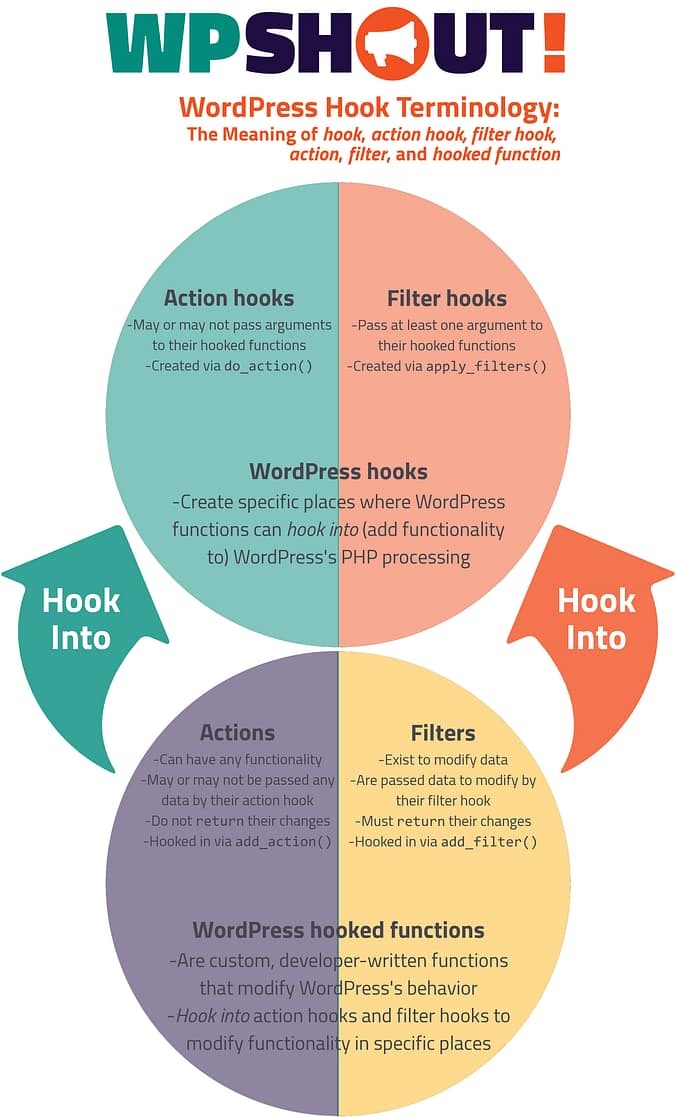
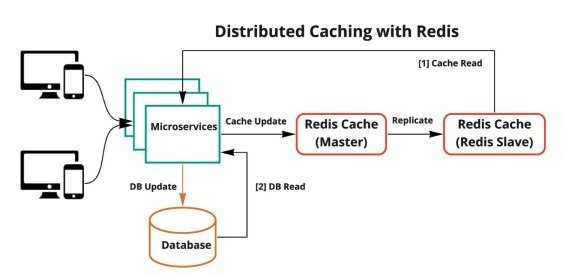
WordPress already has an object cache. The standard WP_Object_Cache holds data for the length of one request, so WordPress can reuse objects while it builds a response. Without a persistent backend, those objects vanish when the request ends.
With a Redis-backed plugin, WordPress keeps cached data between requests. It still uses its object-cache API.
Three kinds of caching do different jobs:
- Persistent object cache: Reuses WordPress objects and application data across requests.
- Page cache: Serves previously generated HTML to eligible visitors and pages.
- PHP OPcache: Reuses compiled PHP bytecode, which reduces the work of compiling PHP scripts.
Take a logged-in WooCommerce administrator who opens product screens all day. Those requests repeatedly pull information from WordPress and its database, even while the storefront serves cached HTML to anonymous visitors. Test persistent object caching against that repeated work.
A mostly static site that already serves public articles from full-page cache has less reason to run another service.
WordPress 6.1 added separate Site Health checks for persistent object caching and page caching. One user in r/Wordpress asked: “Is the site health warning about needing to add a persistent object cache really necessary?” Hosts can customize its criteria, and it does not mandate Redis for every site.
Sort your main requests into page-cached public traffic and dynamic activity (logged-in and administrative). The WordPress Object Cache reference covers the underlying behavior.
Check your hosting, Redis service and PHP client first
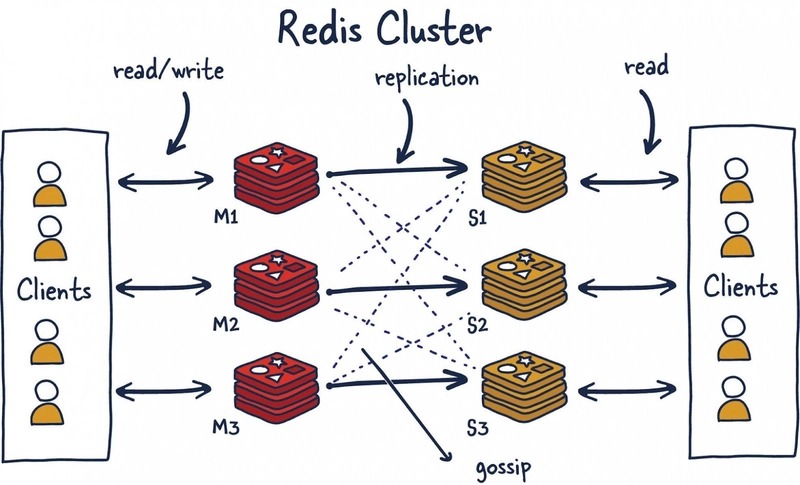
The free Redis Object Cache plugin connects WordPress to a Redis backend. That backend must already be accessible, or you must provision it separately under your hosting permissions.
The PHP client is a separate component. The plugin supports PhpRedis, Predis and Relay. An installed PhpRedis extension gives you a client, but the Redis service still has to exist and accept connections from your WordPress environment.
| Hosting arrangement | What Redis must provide | Access you need | If it is missing |
|---|---|---|---|
| Managed WordPress hosting | Redis run by the provider, or another supported persistent cache | Hosting controls and WordPress access | Use the cache your provider supports |
| Shared hosting | A reachable Redis service. A PHP extension listing is not enough | Control panel or confirmation from your provider | Hold off on setting up Redis yourself |
| Single-site VPS | A Redis service the WordPress runtime can reach | Server administration and WordPress file access | Provision Redis separately |
| Containerized WordPress | A Redis endpoint reachable from the PHP container | Application and container configuration | Set up the route to the service first |
| Remote or managed Redis | An assigned endpoint and a supported connection method | Connection details from the provider | Get an endpoint from the provider |
You need a Redis server that WordPress can reach. Some providers also run their own cache and restrict additional drop-ins. If your host restricts direct Redis access, use a provider-managed backend.
Before you install, make sure you have:
- WordPress control: Administrator access, plus a way to edit site configuration or recover files if the dashboard fails.
- PHP client: A client the plugin supports and the WordPress runtime can load.
- A rollback window: A staging environment or a maintenance slot where you can undo changes.
Choose the right Redis endpoint for managed hosting, VPS or containers
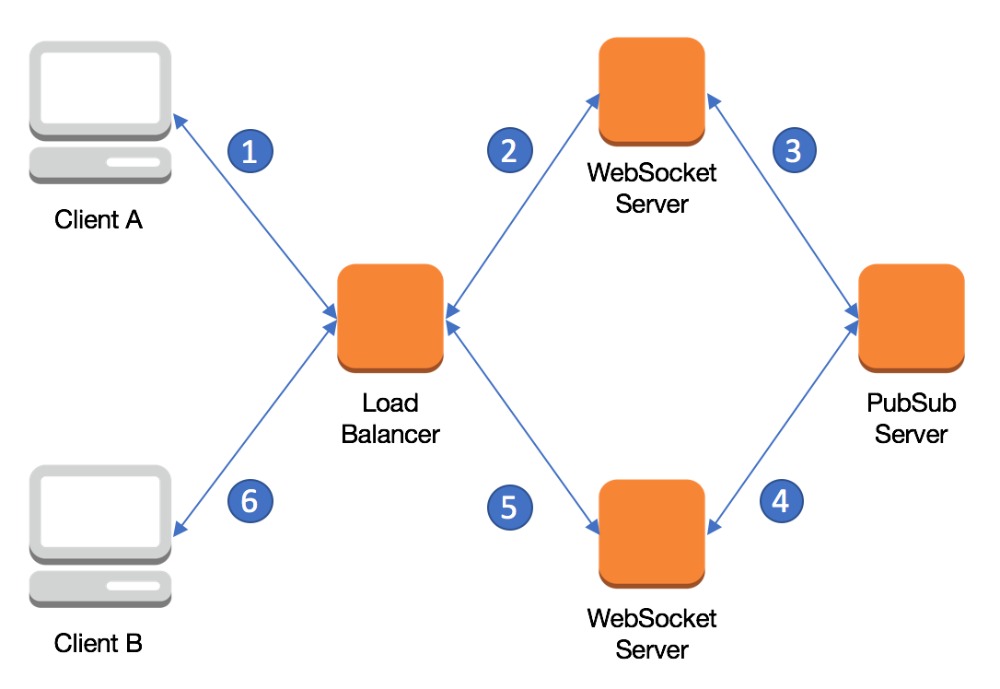
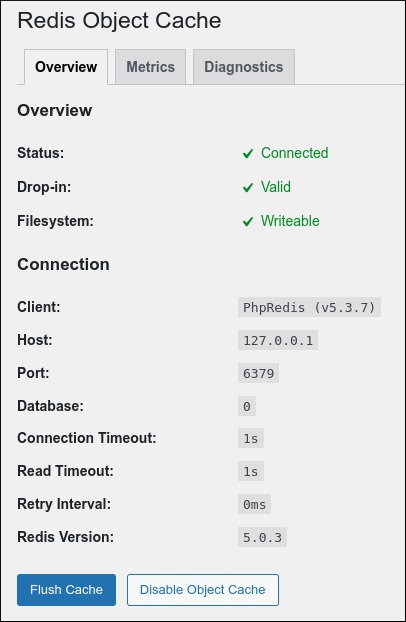
WordPress must be able to reach the Redis endpoint. The plugin's default host is 127.0.0.1 and its default TCP port is 6379. Those defaults suit a local setup where Redis answers on the loopback interface.
A WordPress container has its own loopback interface. If Redis runs in a different container, WordPress needs that container's network address. A remote or managed Redis service uses the endpoint its provider assigns. A Unix socket also works when the plugin supports it and PHP can access it.
On r/Wordpress, a site owner wrote: “I found one option from internet to enable redis object cacheing but it is showing unreachable .” “Unreachable” can mean no service exists or the address is wrong. The fixes differ: provision a service in the first case, correct the host or port in the second.
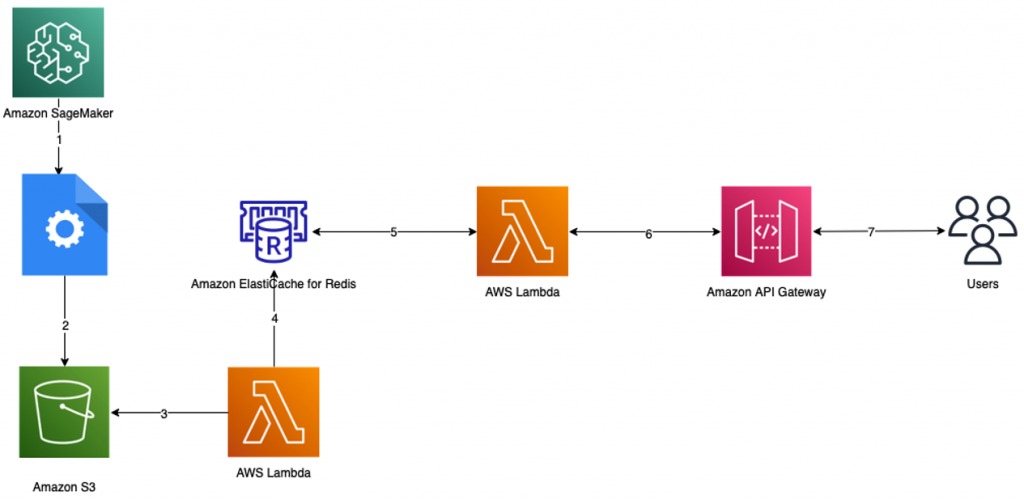
To check a Redis service running locally with the shell's default connection settings, run:
redis-cli pingA working server replies PONG.
If your Redis service uses a specific TCP host and port, point the probe at it. The plugin's troubleshooting documentation shows this form:
redis-cli -h 127.0.0.1 -p 6379 PINGReplace the example address and port with the values for your service. For protected remote connections, follow the provider's authentication and transport method. Run the probe from a shell or network that has the same access as the WordPress runtime.
Write down the host or socket, the port if there is one, and any required connection settings. Keep credentials out of shared commands, screenshots and publicly accessible files.
Find the existing object-cache.php drop-in and prepare a rollback
WordPress loads wp-content/object-cache.php early during initialization as an external object-cache implementation. A file already there can belong to your host, another caching plugin or a previous installation. One user on r/Wordpress hit the message “a foreign object cache drop-in was found” while trying to manage such a file.
Open the WordPress Drop-ins listing and check who owns the file before replacing it. If your host manages it, disable it with the provider's method. Then save your previous settings and take a backup or staging snapshot.
Keep Redis private and isolate cache data
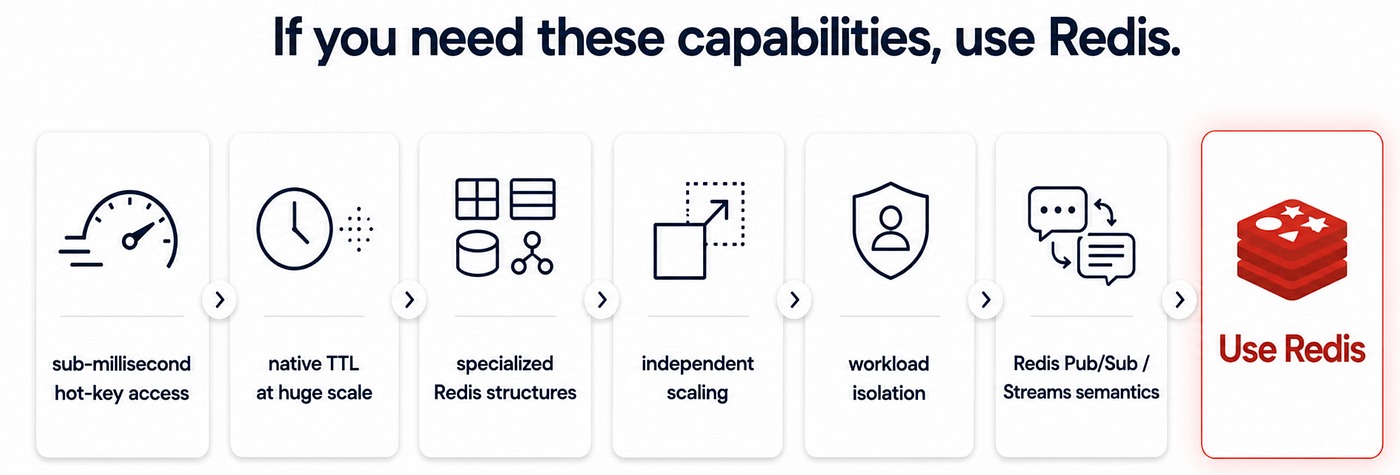
Redis is designed for trusted clients. WordPress does not need a publicly accessible Redis TCP port.
For a local deployment, limit the Redis listening interface and network access to your application environment. For a remote deployment, use the provider's authentication and protected connection method. The Redis security documentation describes the trusted-client boundary.
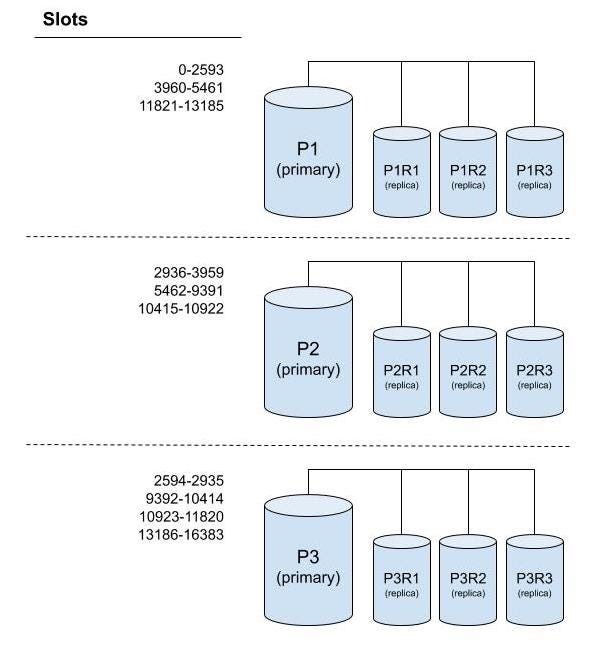
If several sites share one Redis service, isolate their cache data. The plugin offers WP_REDIS_DATABASE to select a logical database and WP_REDIS_PREFIX to distinguish cache keys. The default database is 0, and the ordinary non-cluster range is 0 to 15 where logical databases are supported.
Shared-cache safety: Different key prefixes do not protect two sites if something clears the logical Redis database they share.
A separate logical database or a dedicated Redis instance gives you a clearer boundary where supported. Redis Cluster works differently and does not offer multiple logical databases.
The free plugin has its own cache-clearing and group-flush behavior, so judge it separately from Object Cache Pro. FLUSHDB clears the selected logical database. FLUSHALL has a broader scope. Neither command belongs in a routine WordPress installation test.
Before activating anything, find out which clients can reach the endpoint, which Redis database or instance WordPress gets, what authorization applies, and how the plugin clears the cache. Those answers tell you whether an ordinary cache operation can affect another site. Use only cache-clearing operations whose scope you understand.
Configure and enable the Redis Object Cache plugin
This procedure uses the free Redis Object Cache plugin from WordPress.org (slug redis-cache). The constants and controls below apply to that plugin only.
Once you have settled the endpoint, file ownership and isolation, add any needed connection constants to wp-config.php, before WordPress finishes bootstrapping.
For a dedicated single-site installation where Redis is reachable locally at the default TCP address, the non-secret connection values are:
define('WP_REDIS_HOST', '127.0.0.1');
define('WP_REDIS_PORT', 6379);
For remote or containerized Redis, use the values your hosting provider assigns. Shared deployments also need an allocated database and a distinct prefix.
WP_REDIS_DATABASE: Selects the allocated logical Redis database where supported.WP_REDIS_PREFIX: Sets the cache-key namespace for this installation.WP_REDIS_CLIENT: Selects a supported client such asphpredis,predisorrelaywhen you need to set one explicitly.WP_REDIS_PATHandWP_REDIS_SCHEME: Support socket or transport choices.WP_REDIS_PASSWORD: Supplies the Redis password when the connection needs one. Handle it securely.
To install the free plugin through WordPress administration:
- Open Plugins → Add New and find Redis Object Cache.
- Install and activate the plugin.
- Open Settings → Redis and enable the object cache.
On WordPress Multisite, the Redis settings are under Network Admin → Settings → Redis.
If WP-CLI works on your installation, run this command from the WordPress project directory:
wp redis enableThe command enables the plugin's persistent cache. The Redis Object Cache project covers the configuration and WP-CLI controls.
Verify Redis, the plugin and the persistent cache separately
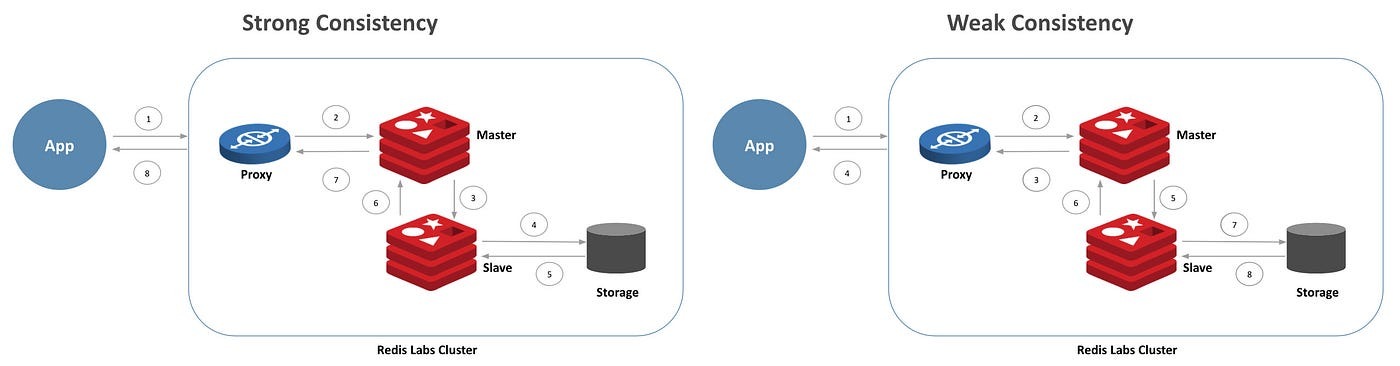
Verify three things separately: the Redis server responds, WordPress connects through the cache drop-in, and cached objects survive across separate WordPress runs.
| Layer | Check | Successful evidence |
|---|---|---|
| Redis backend | redis-cli probe of your endpoint | The server replies PONG |
| WordPress plugin | Plugin diagnostics and the active drop-in | The plugin reports an active connection |
| Persistent cache | Separate WordPress cache writes and reads | A later, separate run returns the same object |
None of these checks measures speed.
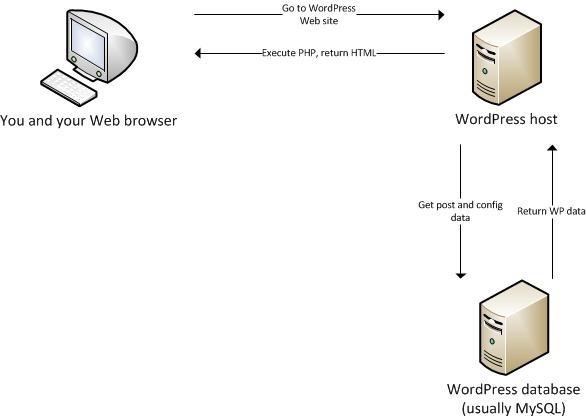
When WP-CLI is available, run the plugin's diagnostic command from your WordPress directory:
wp redis statusOr open the plugin's Redis settings screen. Confirm that the reported connection and active drop-in belong to the plugin you meant to enable.
For a simple persistence test, run each command below as a separate WP-CLI invocation against the same WordPress installation. The key, group and value are examples:
wp cache set pg116_probe ready pg116_verify 300
wp cache get pg116_probe pg116_verify
wp cache delete pg116_probe pg116_verify
The first command creates a disposable cache entry that expires after 300 seconds, the second returns ready while the entry is still in the persistent cache, and the third removes the test key.
Run them before the entry expires, and use the same WordPress configuration for all three. A successful result confirms cross-process cache access in the WP-CLI runtime. If your web-serving PHP environment uses different settings, check its plugin status separately.
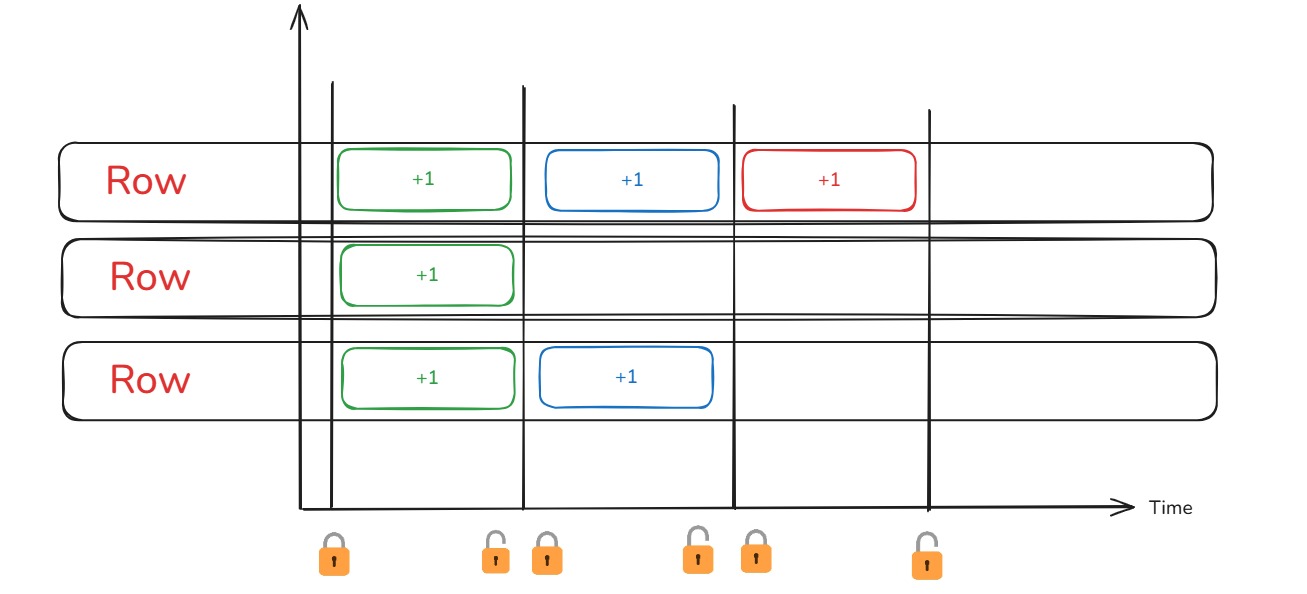
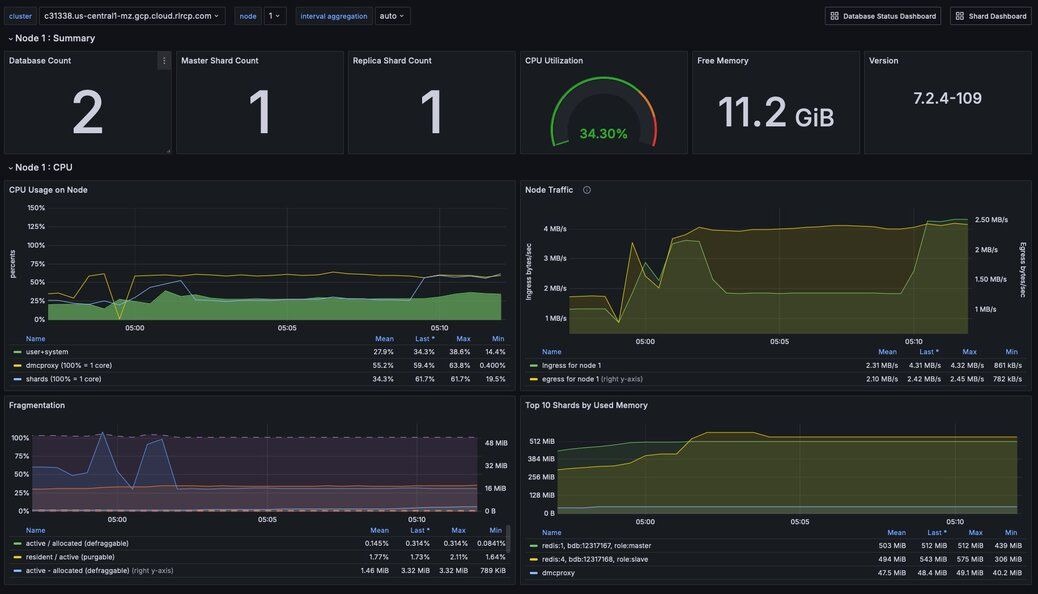
For more diagnostics on a Redis instance you can inspect, INFO stats includes keyspace_hits and keyspace_misses. Changes in those counters show cache activity only when you can attribute them to this WordPress installation. A shared Redis service also counts other clients' operations, and some WordPress cache groups are nonpersistent by design.
WordPress Site Health reports persistent-cache status separately. Treat it as advisory and read it next to the plugin's own status.
Measure whether Redis helps your requests
Measure the workload that made you try Redis. A fully page-cached public article does not exercise the database and PHP work that persistent object caching is meant to reduce. Record baseline query time and Redis memory use, then test repeated requests and cache effectiveness. If performance worsens, have a way to remove the object-cache drop-in safely.
Pick one representative dynamic operation, such as a logged-in administrative screen or a WooCommerce action. Run it repeatedly with Redis off, then with Redis on, under similar server load and client conditions.
Keep these identical in both runs:
- The operation and login state
- Page-cache state, so HTML-cache changes don't skew the result
- The warm-up treatment
Record these for both runs:
- TTFB across repeated requests: the median and the spread
- PHP and database work, using the same profiling method each time
- Redis cache statistics, separated from other clients' activity
- Whether critical site operations still work (pass or fail)
TTFB is the time that passes before the measuring client receives the first byte of the response. Repeated measurements show whether a difference is consistent or just normal variation between requests.
Use Query Monitor or your existing server profiling to find database-query work and PHP processing costs. Fewer repeated database queries can come with extra client, serialization or network overhead. Your measurements show whether that trade is worth it.
On r/Wordpress, a WooCommerce administrator described a hard case: “Activating Redis Object Cache makes the TTFB worse (up to 3.0s+).” Their catalog held approximately 53,000 products and more than 2,000 global attributes.
TTFB ran about 1.5 to 2.8 seconds before Redis and reached at least 3.0 seconds with Redis enabled. The poster also reported around 0.04 seconds of database-query time and suspected other PHP or cache-operation costs.
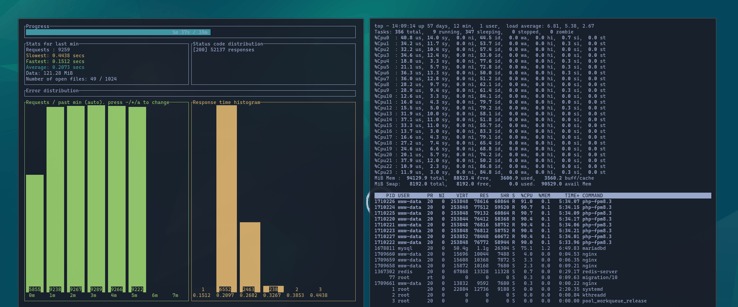
If your request stays slow while database-query time is small, profile the dominant PHP operation next. A higher Redis hit count is not a result in itself.
Troubleshoot Not Connected, stale data or slower responses
Start with the symptom, then look at the component that can cause it. Connection failures, stale objects, memory pressure and slow responses each need different evidence.
| Symptom | Where to look | First non-destructive check |
|---|---|---|
| “Not Connected” or unreachable | Redis server, endpoint, PHP client or network | Run the plugin's diagnostics and compare its connection settings with your endpoint |
| Authentication denied | Credentials or Redis authorization | Check the configured account and the connection method your provider requires |
| Existing drop-in conflict | File ownership | Find out whether the host or a plugin owns the file |
| Stale WordPress objects | Invalidation and cache groups | Identify the affected object and the plugin that owns it |
| Slower TTFB | PHP workload, client overhead or network | Compare matched measurements and profiling data |
| Evictions or memory pressure | Redis memory cap and eviction policy | Read the memory statistics and the active policy |
MISCONF or failed writes |
Redis persistence or storage | Read the backend logs and check the storage condition |
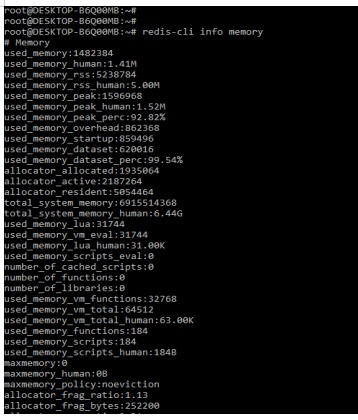
The maxmemory setting and the eviction policy control how Redis behaves under memory pressure. With noeviction, writes that would exceed the limit fail. Memory needs follow your data and workload, and no single allocation fits every WordPress site.
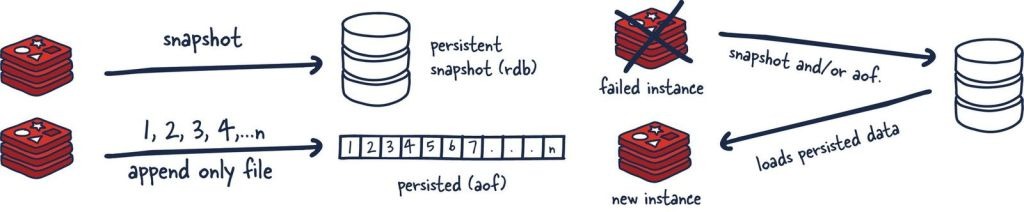
In one WordPress.org support case, a site showing “Not Connected” also hit Redis MISCONF, tied to an RDB snapshot problem.
For stale objects, find the affected data and its cache group, then check how your plugin handles invalidation. The free Redis Object Cache plugin has controls for particular groups. Other backends can handle invalidation differently.
When latency rises despite an active connection, inspect the request's PHP work and the connection overhead using the measurements you already collected.
Don't make broad permission changes or turn off Redis write protections as a diagnostic shortcut. For a persistent application failure, use the supported recovery method.
Turn Redis off safely and check that WordPress recovers
To reverse the Redis setup, use the controls of whoever owns the drop-in. If the free Redis Object Cache plugin owns it and the WordPress dashboard works, open Settings → Redis and select Disable Object Cache (on Multisite, Network Admin → Settings → Redis). WP-CLI offers the same switch:
wp redis disableIf the dashboard is down but you can still edit site configuration files, add this emergency bypass to wp-config.php:
define('WP_REDIS_DISABLED', true);The Redis Object Cache recovery FAQ also describes removing its own wp-content/object-cache.php drop-in when needed.
Leave the WordPress database and site files intact. Routine rollback does not call for deleting Redis volumes.
After you disable it, load a public page and the WordPress dashboard. Test logged-in sessions, account pages, the cart and checkout where your site has them. Confirm that your previous supported cache setup works, and note whether the failure is gone.
