Pick the simplest workflow that improves the image your visitors actually receive: prepare files before upload if your publishing volume is manageable, automate bulk processing for a large existing library, or use an image CDN when different devices need different versions. If images already arrive at the right dimensions and file sizes but Largest Contentful Paint remains slow, look at loading priority or another bottleneck. Test the choice on a small, reversible sample before rolling it out.
Start with the image visitors download
Open one typical page and pick an image on it: the hero, a product photo, a screenshot or a gallery shot. Write down its original format and dimensions. Then note what loads on desktop and on mobile. WordPress stores the source and several generated sizes, and the theme or a CDN decides which version reaches the visitor. Sort the problem into one of four types: oversized transfer, wrong dimensions, damaged detail or delayed loading. A well-compressed image can still slow Largest Contentful Paint (LCP) if the browser finds it late.
What WordPress already optimizes, including the 7.1 changes
WordPress can process supported uploads and generate registered attachment sizes without a separate optimizer. A plugin or external service makes sense when you need more: controlled compression, bulk processing of existing files, specific output formats or transformed delivery.
The feature history is short:
- WordPress 5.8: Added WebP upload support, when processing support is available.
- WordPress 6.5: Added AVIF upload support. Your image library has to meet its prerequisites.
- WordPress 7.1: Introduced conditional browser-side image processing in supported block-editor upload contexts, including resizing, compression and generation of sub-sizes.
A separate large-image safeguard uses the big_image_size_threshold filter. The default threshold is 2,560 pixels for images the downscaling rule covers.
What happens in a supported browser?
In the WordPress 7.1 block-editor integration, eligible browsers use wasm-vips, the WebAssembly form of libvips, to process compatible images before uploading the results. A browser is eligible when it meets all of these conditions:
- Chrome or Edge 137+
SharedArrayBufferand other isolation capabilities- An environment that permits the worker
- Device memory greater than 2 GB
- At least two CPU cores
- Supported network conditions
Firefox and Safari use the documented server-side path by default. An otherwise eligible browser falls back to server processing too when a required check fails. Don't assume third-party builders and other upload interfaces use the block-editor pipeline.
Automatic output conversion is configured separately through image_editor_output_format. The 7.1 feature does not turn every JPEG into WebP or AVIF, and it does not optimize older Media Library attachments. The WordPress Core developer note describes the integration and eligibility checks.
Check your WordPress version and the media-processing details in Site Health.
Choose JPEG, PNG, WebP, or AVIF without ruining the image

Choose the format and encoding settings based on what the image shows and how much detail it must keep at its displayed size. Lossy compression saves bytes by discarding image information. Aggressive settings soften small text, texture, edges and color transitions.
| Image scenario | Detail that matters | Useful candidates |
|---|---|---|
| Photographic hero | Texture, natural detail, right dimensions | Resized JPEG, WebP or AVIF |
| WooCommerce product photo | Color, fine labels, surface detail | Several quality settings across photographic formats |
| Screenshot with small text | Sharp lettering and clean edges | PNG or lossless encoding |
| Transparent logo or icon | Clean outlines and transparency | PNG or a supported lossless alternative |
| Animated graphic | Animation and efficient transfer | Animation-capable encoding and delivery |
AVIF and WebP deserve comparison, but neither wins every quality-to-size test across encoders, settings and images.
On r/Wordpress, a WordPress user who had tried plugins on product images wrote: “However, a few plugins I tried made the product images very blurry and caused them to lose clarity. Is there a free solution for this?” Product photos have to keep the details shoppers rely on.

Test a real export
Export a typical source image two or three ways, at the dimensions the page needs. Compare the variants at display size and look at lettering, color, fine edges and texture. Note each file's size in bytes. Keep the smallest one that still looks right to you.
The delivery mechanism you choose also sets format support and fallback.
Pick a workflow: before upload, WordPress, cloud, or image CDN
Your workload, your access to hosting controls, your existing images and your delivery needs decide where you optimize. A small editorial team can control each export. Centralized processing suits a publication that receives photographs from many contributors.
| Method | Best fit | Existing media | What you take on | What it does |
|---|---|---|---|---|
| Manual pre-upload preparation | Manageable volume and careful visual control | Separate rework needed | Contributor time and consistent exports | Set source size, format and compression |
| WordPress Core processing | Supported new uploads | No automatic full-library pass | Browser, server, version and configuration conditions | Generate registered attachment sizes |
| Local optimization plugin | Automated uploads or supported bulk jobs | Check the plugin's bulk coverage | Your server's compute, schedules and compatibility | Encode and manage local variants |
| Cloud/API optimization | Remote processing or batch workloads | Check the service's bulk coverage | Account, credits, transfer and recovery | Encode remotely and return assets |
| Image CDN/edge transformation | Screen-specific variants and distributed delivery | Can transform requests without replacing originals | External delivery, caching and charges | Transform and serve images to visitors |
A cloud optimizer returns compressed files that you store on your WordPress server. An image CDN transforms assets on request and serves them through a delivery network.
By their own descriptions, EWWW Image Optimizer offers local processing with optional services, Imagify provides remote optimization and original restoration, and Optimole emphasizes responsive CDN delivery.

Decide who owns processing and delivery by working through these questions:
- Workload: Can editors prepare every upload consistently, or should processing be centralized?
- Backlog: Does the system you chose cover existing attachments and their derivatives?
- Compute: Will image encoding run on your host or through an external API?
- Delivery: Must variants be transformed for different devices or locations?
- Recovery: Who stores the originals, and what restores them?
- Cost: Does the actual plan count source images, thumbnails, transformations, visits, credits or bandwidth?
- Responsibility: Which component owns conversion, responsive selection and CDN caching?
Optimize an existing media library without losing the originals
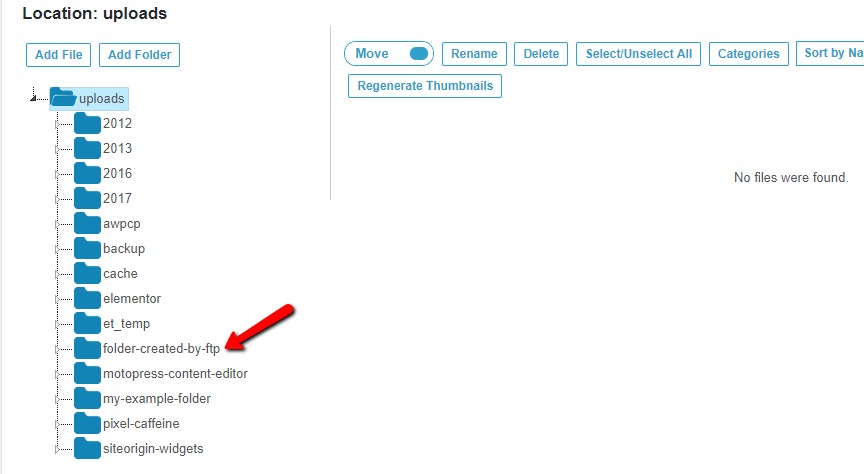
Existing images need their own job. An established Media Library can hold full-size sources, thumbnails, generated derivatives, images embedded in older posts and files outside ordinary attachment handling. A tool's bulk coverage follows which of those it recognizes.
On r/Wordpress, a site operator handling concert-photographer uploads wrote: “I use Smush for now and it's fine but I feel like I need a way to batch-edit a large volume of .jpg images into something that'll take up a lot less space before the site caves in on itself. Again.”
Pilot the bulk job on protected media
- Protect source assets: Keep the original files and a current site backup, and hold on to the pilot originals until verification is done. Find out whether the optimizer replaces sources, keeps backup copies or writes separate formats.
- Choose typical attachments: Pick a gallery photograph, an image with small text and a prominent page image.
- Run a limited batch: Use attachments the tool supports. Pause other image-transforming tools so you know which one caused each result.
- Record what happened: Note completed, skipped and failed attachments and any generated sizes the tool reports.
ShortPixel's WordPress plugin listing says its credit model can count generated thumbnail sizes as well as the main attachment, so one attachment can use several credits, and its advertised original-backup option follows the configuration you enable.
Make sure WordPress serves the right image to each screen
An optimized image only helps when it reaches the visitor. WordPress can output srcset candidates and a sizes hint through functions such as wp_get_attachment_image(). The browser picks from those candidates based on the layout, viewport and device pixel ratio. A CDN or custom markup can change the path.
In markup, src identifies an image source, srcset supplies alternatives and sizes describes intended rendered widths. A high-density screen can request a file wider than the image's CSS display width. A <picture> element or a CDN can add further format and size choices.
Neither the URL extension nor the existence of a converted file tells you the delivered format. The browser's request identifies the fetched resource, and the HTTP Content-Type response header declares its media type. A media URL ending in .jpg can still be served as a different type if the delivery layer is set up that way.
Find the delivered response in DevTools
- Open the page in Chrome, open DevTools and select the Network panel.
- Reload the page with Network open, then select the image request.
- Read the request URL and the response's Content-Type in Headers. Use the panel's size information to record transferred bytes.
- Compare the selected resource with the page's image element, its
srcset/sizeschoices and the rendered dimensions. Repeat for the other viewport.
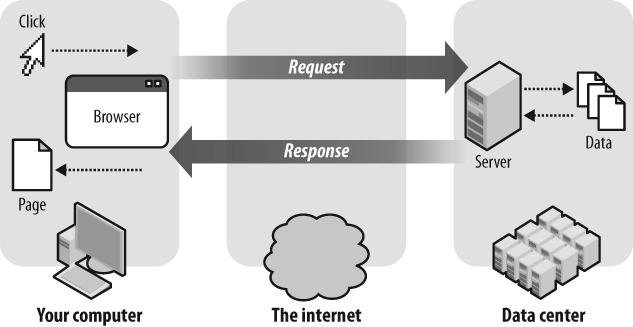
Fill in one row per image and viewport.
| Image role | Viewport | Rendered width | Selected URL | Content-Type | Image dimensions | Transfer | Cache/result |
|---|---|---|---|---|---|---|---|
| Hero | Desktop | ||||||
| Product gallery | Mobile | ||||||
| Detail screenshot | Selected viewport |
If a CDN sits in the path, its response and cache information can show whether the expected transformation occurred.
When the selected file is much wider than the layout needs, account for the device pixel ratio before calling it oversized. An inaccurate sizes hint can make the browser choose an unnecessarily large srcset candidate. Fix the hint in the theme, block or builder that sets it, or provide a better-matched image size.
On r/Wordpress, a site owner weighing conversion asked: “If I want to use a third-party plugin to convert the images from my site to WebP format, do these utilities also rewrite the paths/links to these images in WordPress?” The answer follows from whether the tool changes markup, server delivery rules or CDN URLs.
Treat your LCP image differently from below-the-fold images
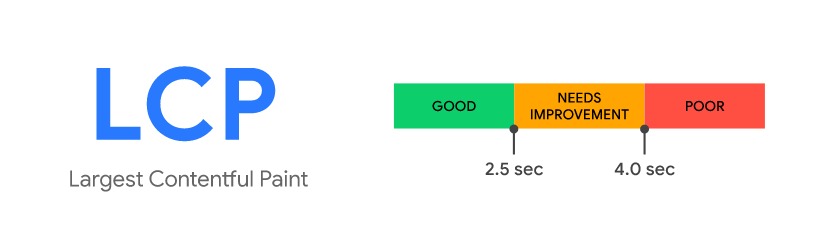
Largest Contentful Paint measures when the largest qualifying visible element renders. That element can be an image or a text block. Which element it is and when its resource request starts decide your fix.
Google advises against lazy-loading the LCP image. Lazy loading can defer offscreen gallery images, while an image visible at first load needs to be found quickly. A fetchpriority="high" hint on the right image can help it load sooner. Setting high priority on many resources weakens the hint.
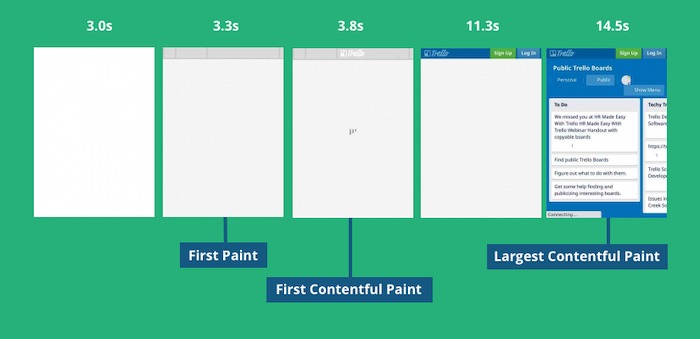
A hero set as a CSS background-image is found later than an HTML image the preload scanner can see, because the browser only reaches it after processing the stylesheet. If that background turns out to be the LCP resource, a matching preload can help.
Use PageSpeed Insights or Lighthouse to find the LCP element and see when its request starts. If it is a hero image, check lazy loading, discovery and priority. If the LCP element is text, or the image is already requested promptly, look at server response, scripts, styles or fonts.
When image optimization stalls, breaks links, or makes images look wrong
Find the failing stage before you repeat a bulk job. Generation, scheduled processing, rewriting and delivery fail independently, so an unchanged browser result does not always mean compression failed.
- Stalled background jobs: Check the optimizer's queue, its errors and its scheduled-task requirements. In one WordPress support case, the stalled jobs involved cron-related processing.
- Unavailable conversion capability: Read the tool's exact error and its hosting prerequisites. In one WordPress support case, WebP conversion was blocked because PHP shell functions were unavailable.
- Missing converted responses: Check whether the file was generated and whether the markup, rewrite rules or CDN cache selected it.
- Blurred or distorted output: Restore the affected source and change the format and quality settings you used on the sample.
- Multiple transformation layers: Decide which layer owns format and URL rewriting before restarting the job.
Don't enable restricted PHP shell functions on a production server just to clear an image optimization error. Weigh the hosting security implications first.
Verify the result before optimizing the whole site
A good pilot changes what the browser receives, keeps the image looking right and leaves the original recoverable. Test the same typical pages under comparable device and cache conditions.
| Asset | Before: type, px, bytes | After: type, px, bytes | Visual check (pass/fail) | LCP effect, if relevant | Restore check (pass/fail) | Go/revise/stop |
|---|---|---|---|---|---|---|
| Hero photograph | ||||||
| Mobile product image | ||||||
| Screenshot with small text |
Mark a pass when the intended variant reaches the browser, its dimensions and bytes fit its display, visible details hold up and you can restore the original. Revise the method or settings if the file is unchanged, too large or visibly worse. Stop the rollout if delivery breaks or restoration fails.

Restore one changed attachment through the mechanism you configured. Check that the generated variants and mappings the system must continue to serve still work.
PageSpeed Insights separates laboratory diagnostics from field observations of real users. Short Lighthouse comparisons isolate a change under controlled conditions.
